Product Guides
Upload employee commuting from your own survey
If you run your own commuting survey — in your HR system, an internal form or an intranet — you can export the results and upload them straight to Dcycle instead of using the built-in mobility survey. Anonymous surveys work too: the employee email is optional.
Before you start
You need the Editor role in your Dcycle organization.
When to use this
Dcycle can send the mobility survey to your employees for you, but you don’t have to use it. Upload a file instead when:
- You already run your own survey. Many companies collect commuting data in their own systems — an HR platform, an internal form, an intranet questionnaire — and simply want the results in Dcycle. Export your responses, map them to the template columns and upload.
- Your survey is anonymous. If you don’t collect employee emails, you can still upload the data. The email column is optional.
- You are loading past years. For a base year or a historical inventory, sending a survey is not an option — the file is the only way.
The calculation is exactly the same either way. A commuting record uploaded from a file and one collected through the Dcycle survey are treated identically.
Don't confuse the two entry points
"Send survey by email" is a different flow, and there the email is mandatory — it is the address the survey gets sent to. For uploading data you already have, use "Upload commuting".
Steps
Step 1
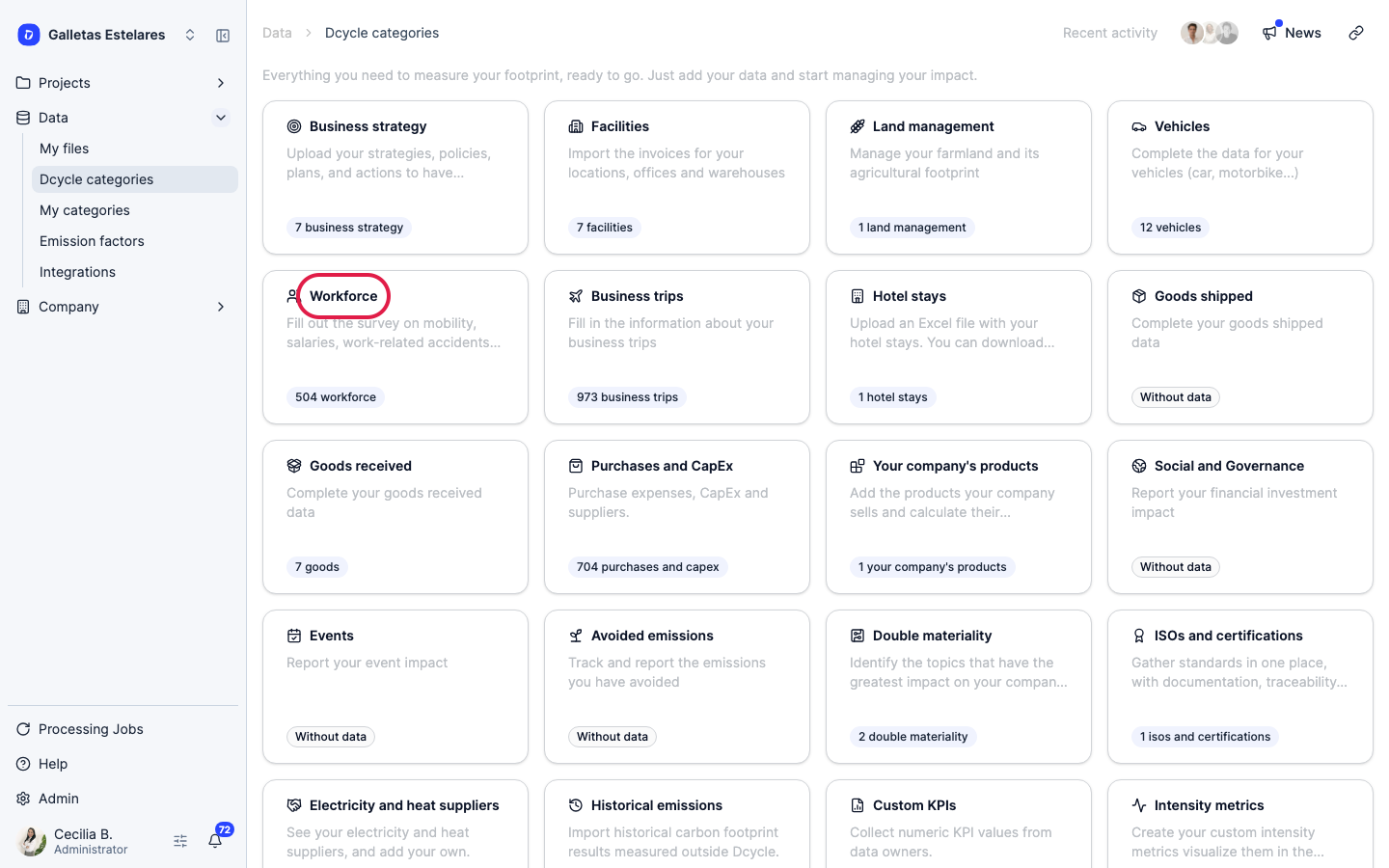
Click “Data” in the left navigation, then “Categories”, and open the “Workforce” category.
Step 2
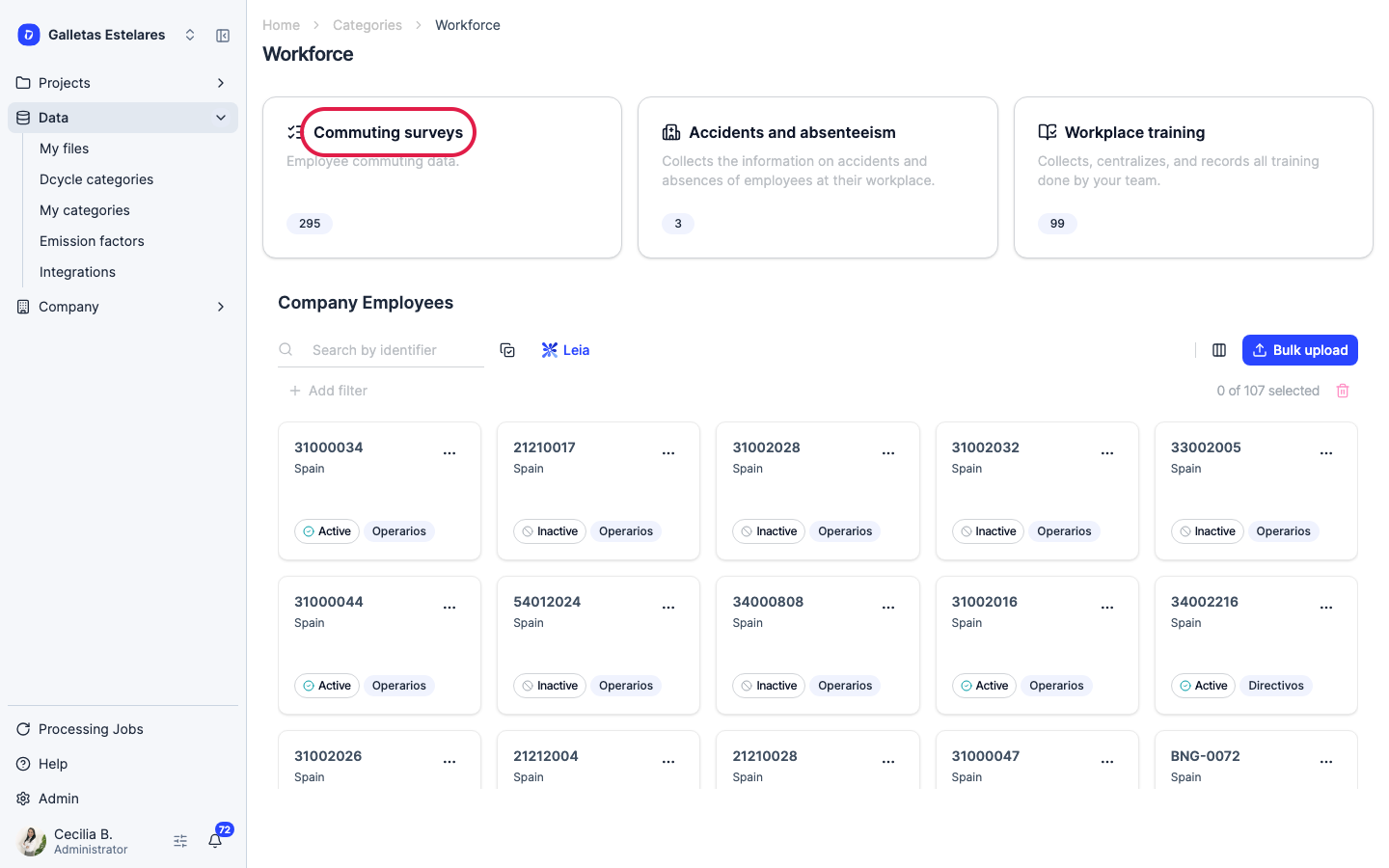
“Workforce” groups three sub-topics. Open “Commuting surveys” — that is where commuting data lives, both the survey Dcycle sends and the data you upload yourself.
The “Company employees” list further down that same page is a different thing: it registers your staff, not their commutes. Its “Bulk upload” button uploads employees, not trips.
Step 3
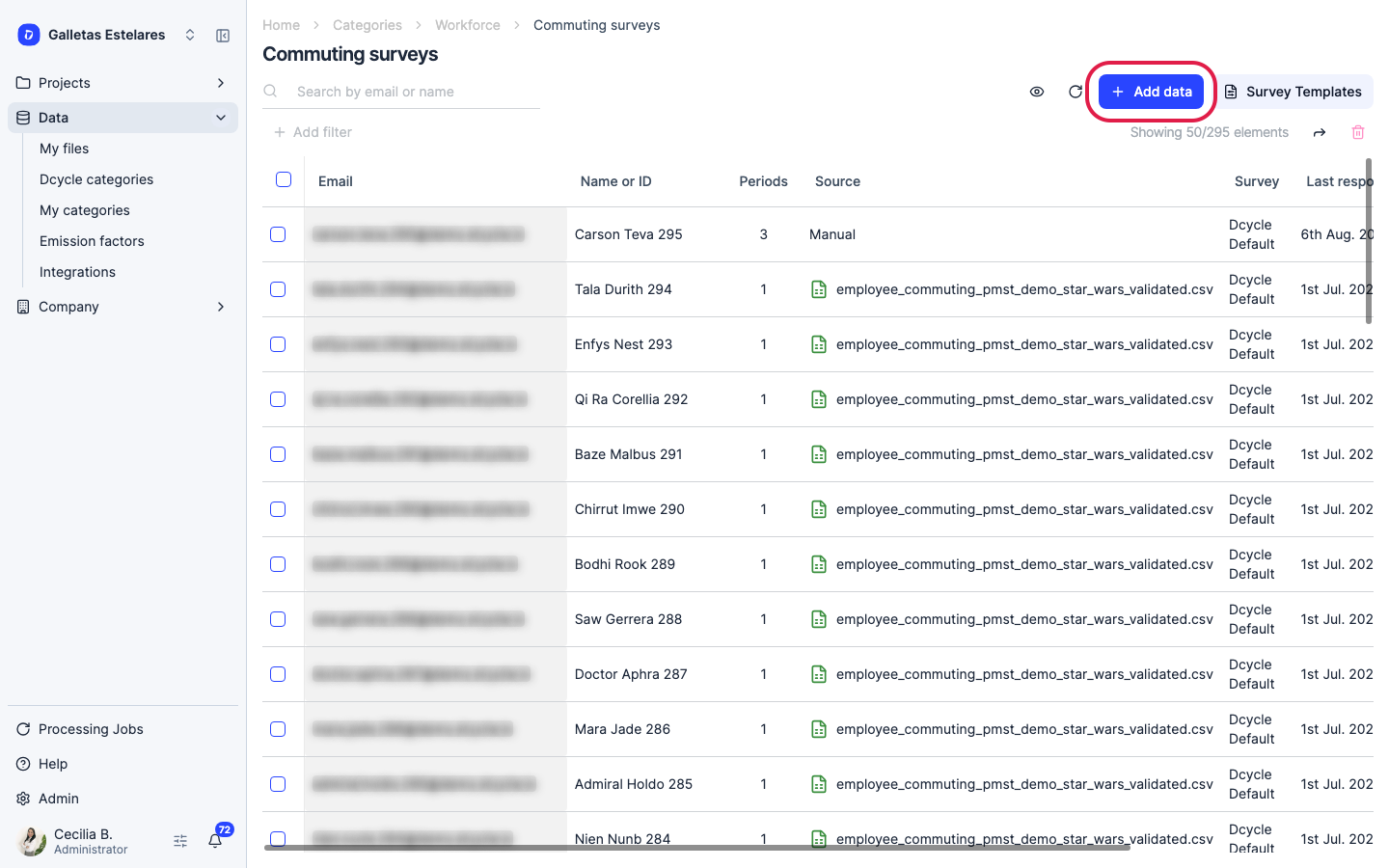
Click “Add data”.
Step 4
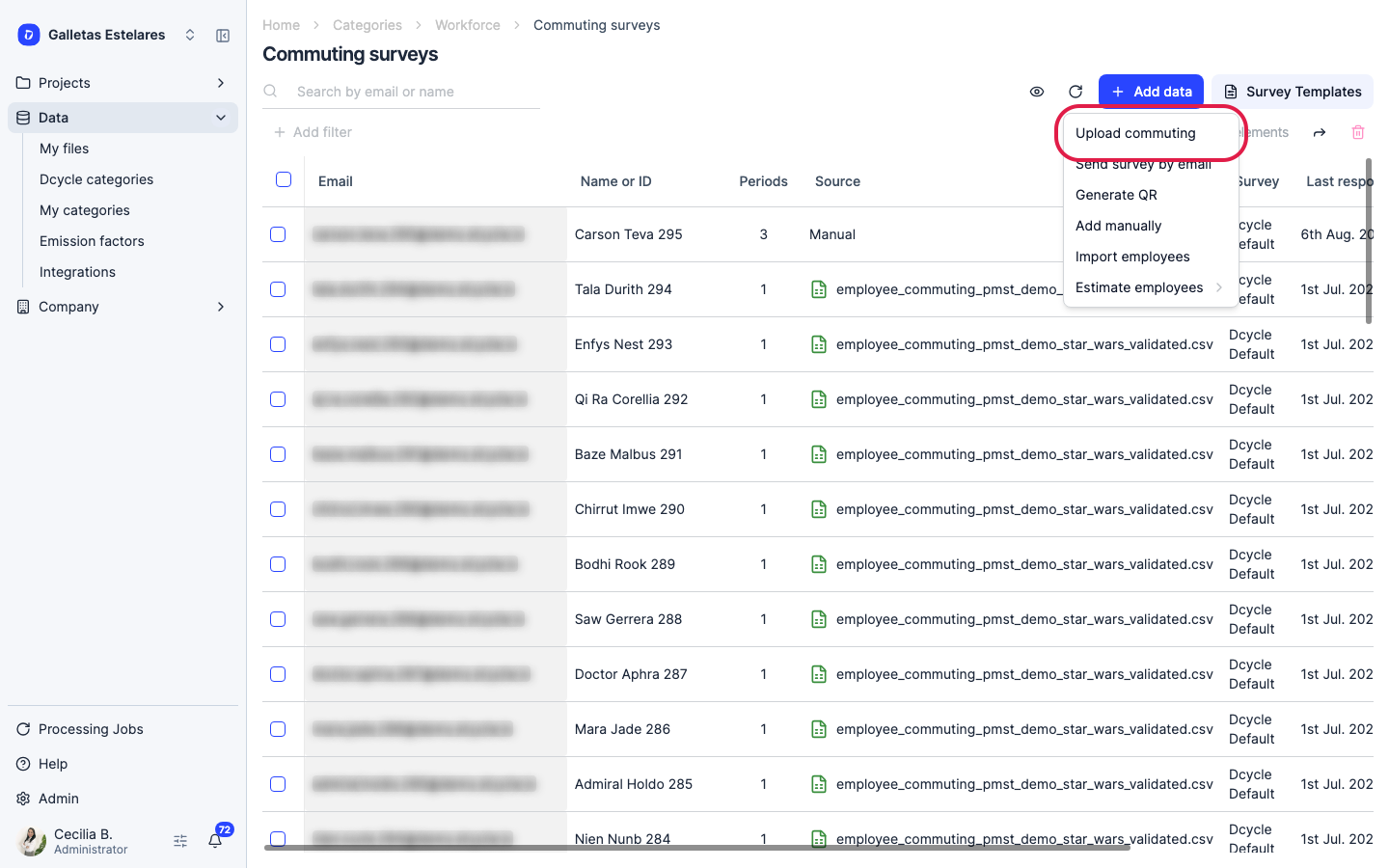
Choose “Upload commuting”.
Mind the option just below it: “Send survey by email” sends the Dcycle survey to your employees, and that one does require their email addresses. To upload data you collected yourself, you want “Upload commuting”.
Step 5
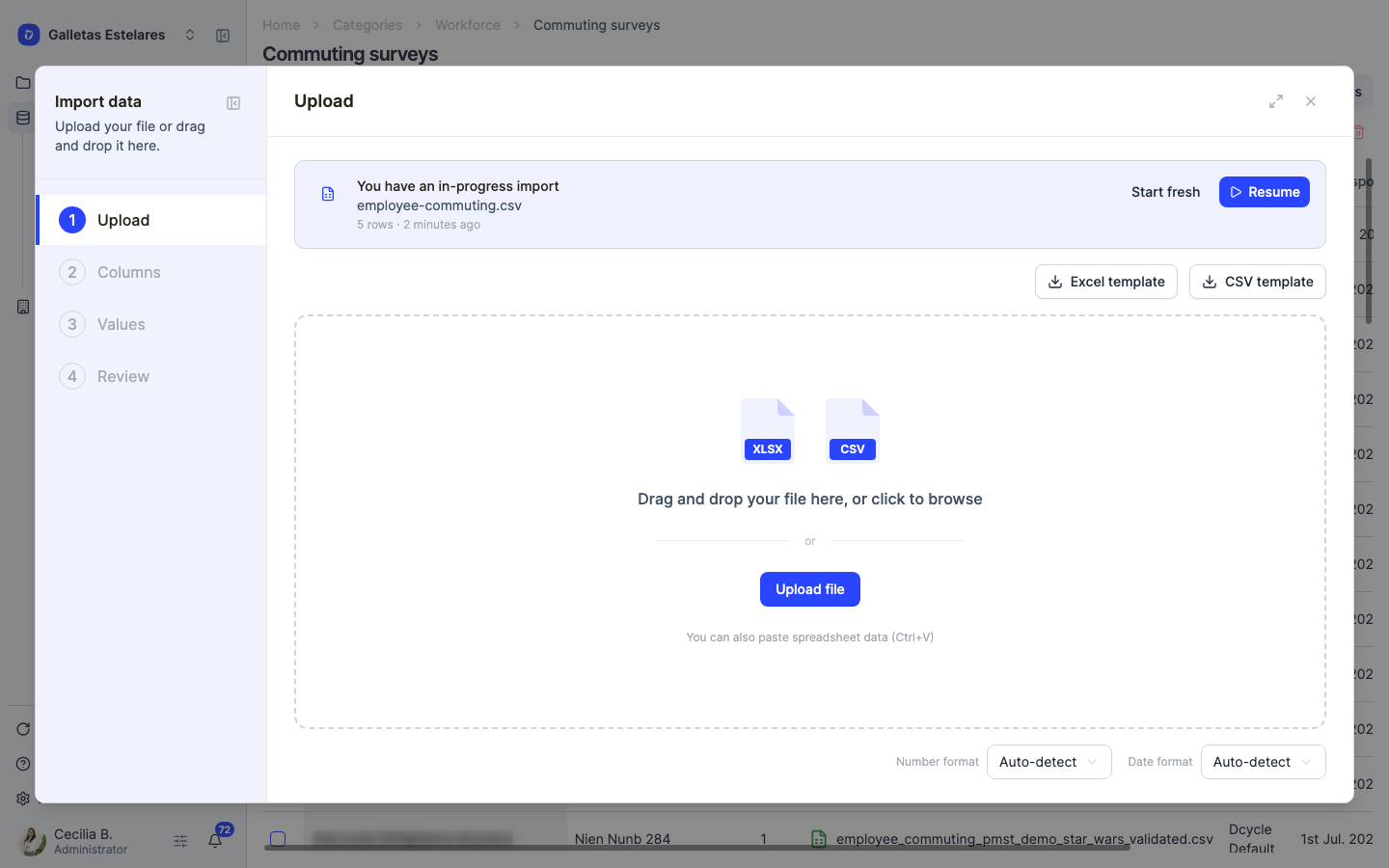
The import wizard opens. If you don’t have a file yet, download a template with the “Excel template” or “CSV template” button and fill it in — one row per employee and commuting period. Supported formats are CSV, XLSX and XLS.
Template column headers tell you what is expected: columns marked (optional) can be left empty, columns marked (if applicable) are only required in certain cases, and columns with no suffix are always required.
Step 6
Drag your file onto the panel or click to browse. You can also paste the data straight from a spreadsheet with Ctrl+V.
Step 7
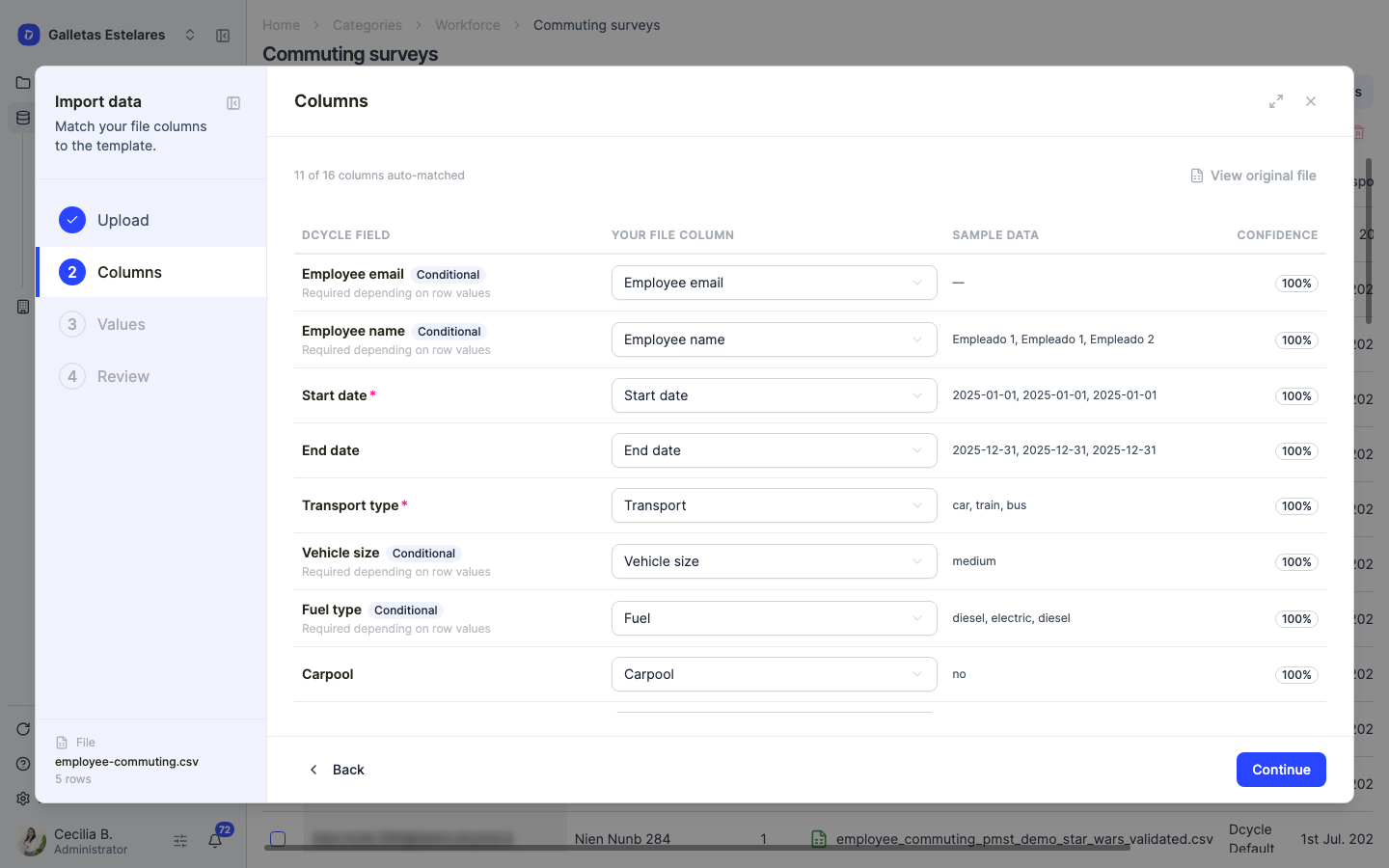
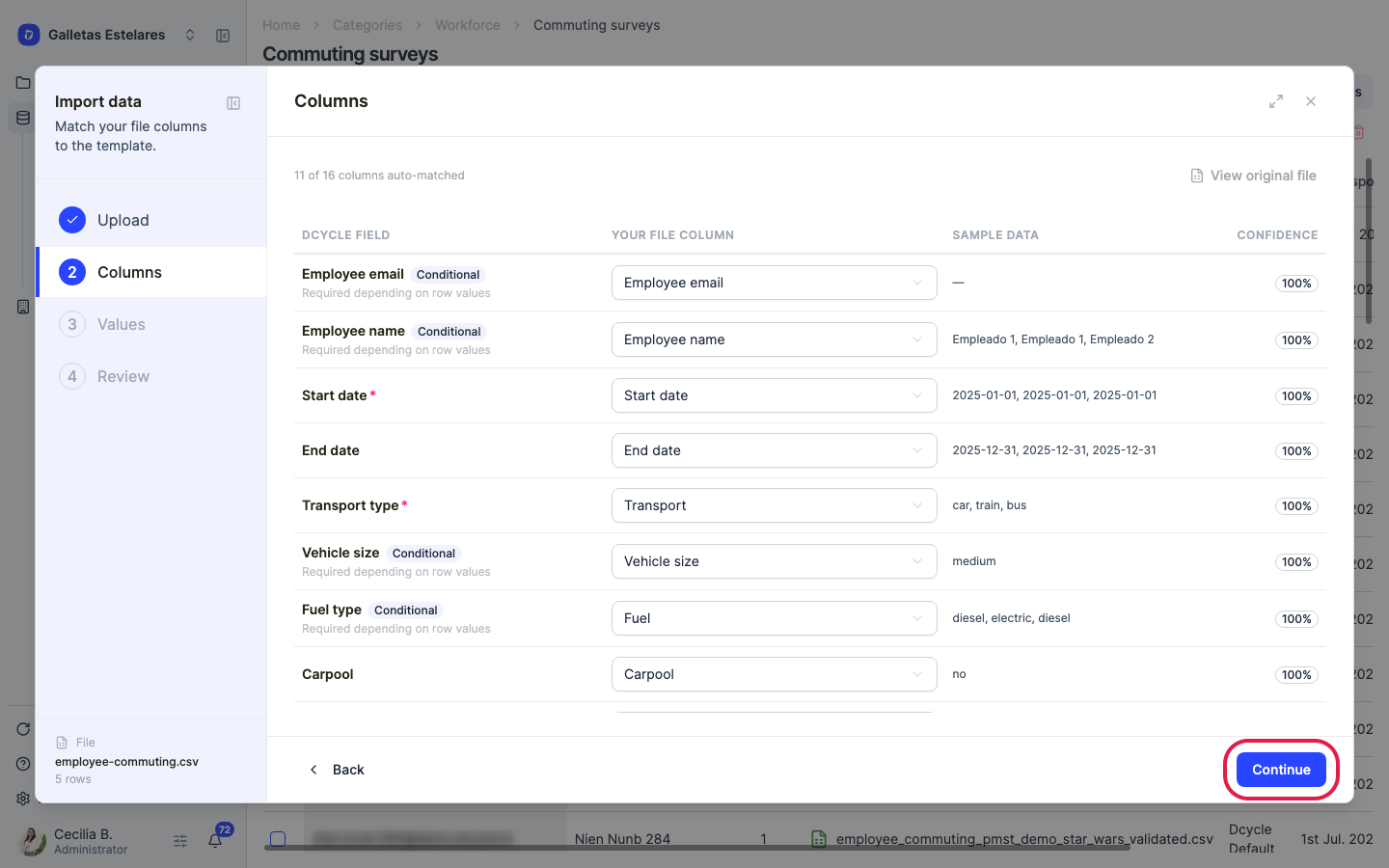
The “Columns” step matches each column of your file to a Dcycle field, with a confidence score and a sample of your data. If your export uses different header names, fix the match here with the dropdowns.
Look at the labels on the left: “Start date” and “Transport type” carry a red asterisk — they are the only always-required fields. “Employee email” and “Employee name” show as Conditional, “Required depending on row values”: you need one of the two, not both.
Step 8
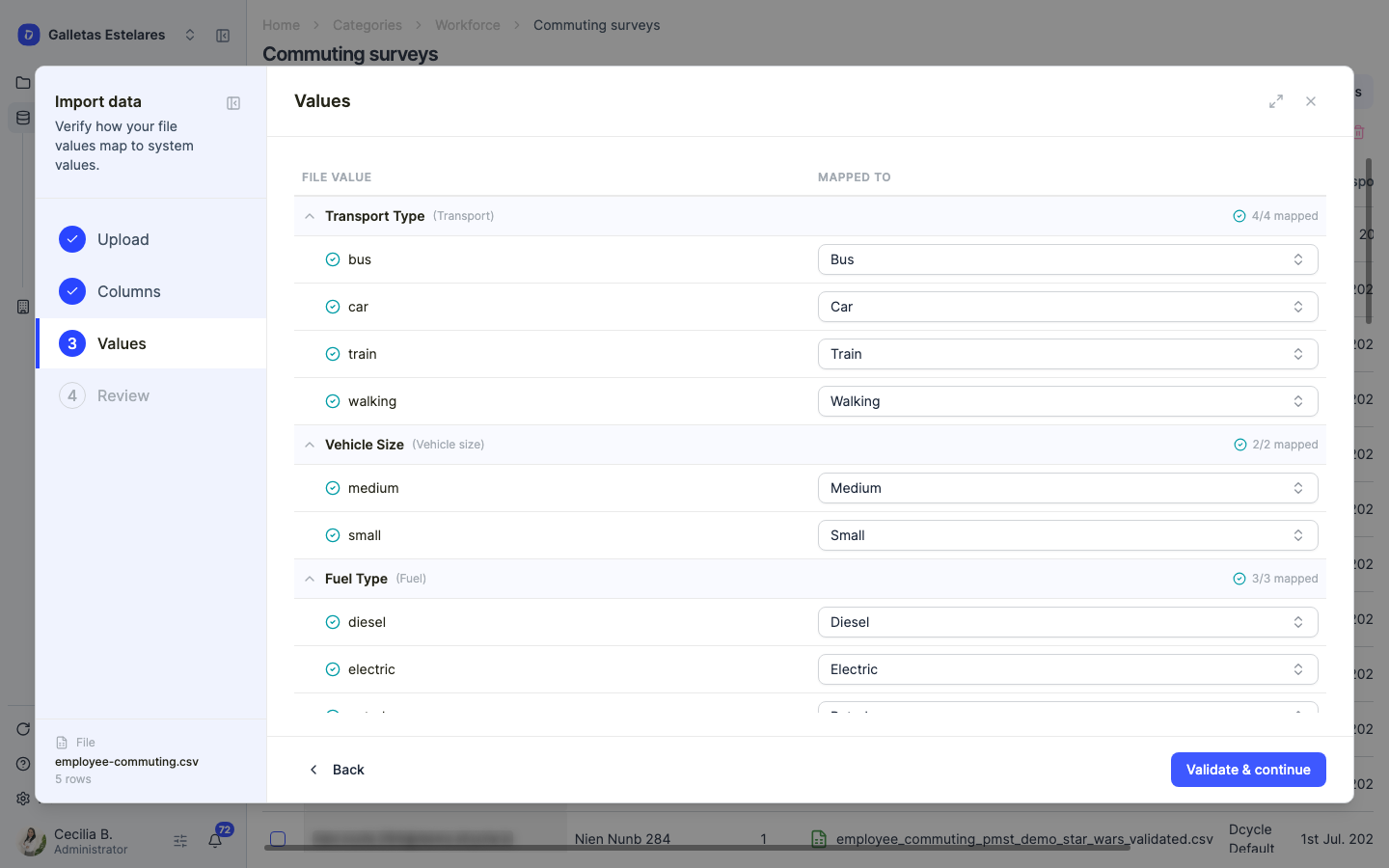
If a “Values” step appears, it shows how the values in your file map to the values Dcycle accepts — transport modes, fuel types, vehicle sizes. Review the suggestions and fix anything that wasn’t recognised.
Step 9
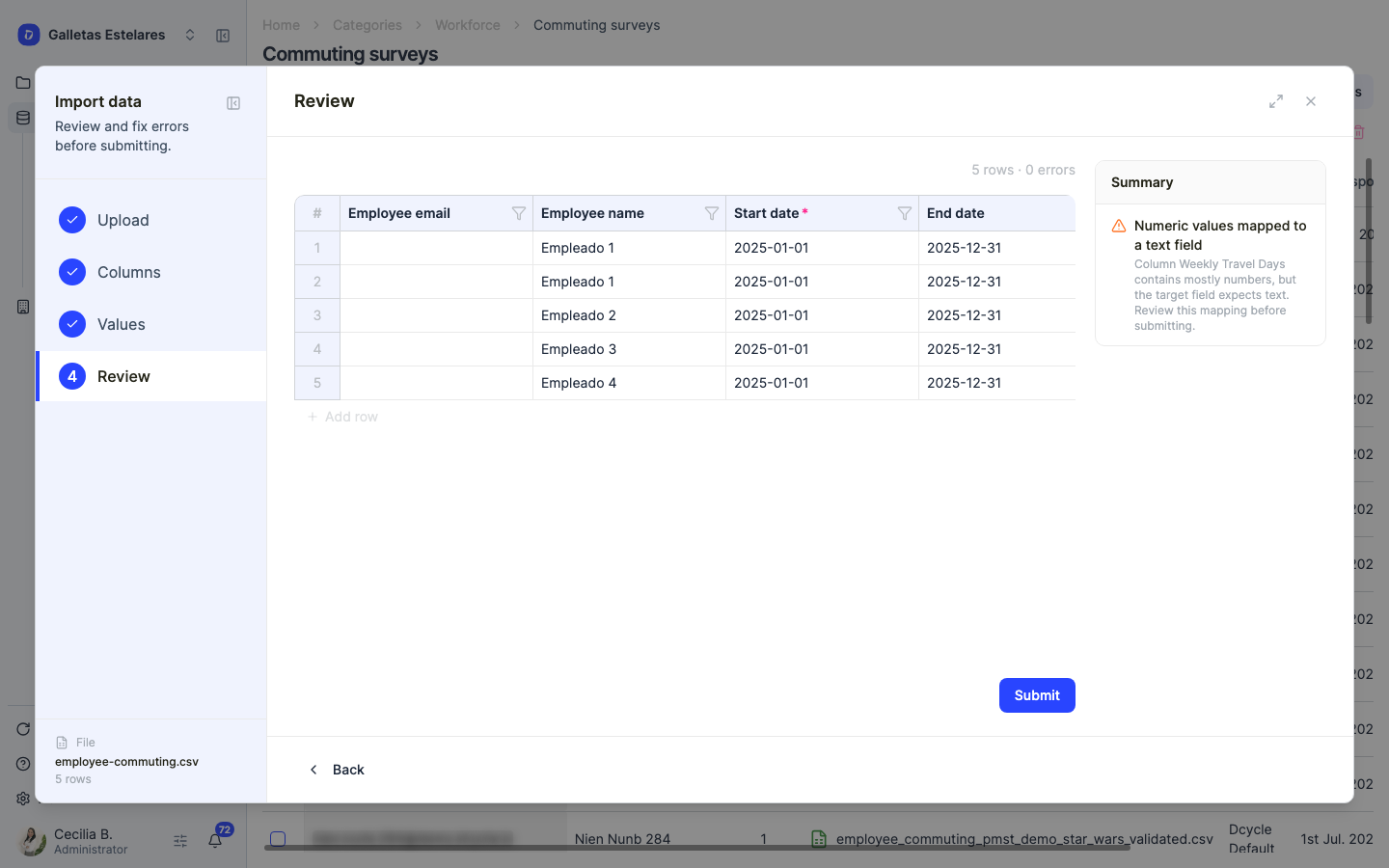
The “Review” step summarises valid rows and errors, and lets you fix any cell right there. In the example above, all five rows are valid with the email column completely empty.
A warning you can ignore
If the summary flags "Numeric values assigned to a text field" for the weekly travel days column, it isn't an error: that column accepts both a number (5) and a list of weekdays. The rows submit either way.
Step 10
Submit. Each row becomes a commuting period for that employee, and emissions are calculated automatically.
Filling in the template
| Column | Required | What to enter |
|---|---|---|
| Employee email | Either this or the name | The employee’s email. Leave empty for anonymous surveys |
| Employee name | Either this or the email | Name or employee ID — any identifier works |
| Start date | Yes | Start of the period this row covers |
| End date | No | End of the period. Leave empty for an open period |
| Transport type | Yes | Car, Bus, Train, Metro, Tram, Trolleybus, Motorbike, Bicycle, Electric kick scooter, Walking or Telecommuting |
| Vehicle size | Only for Car | Small, Medium or Large |
| Fuel type | For motorised modes | Must match the mode — a bus takes diesel, petrol, LPG, natural gas or unknown; a car also takes hybrid and electric |
| Carpool | Only for Car | Yes divides the result by three |
| Total km | Yes, except Telecommuting | One-way distance. Dcycle multiplies by two for the return trip |
| Daily trips | No | Between 1 and 3. Defaults to 1 |
| Weekly travel days | No | Commuting days per week. Defaults to 5 |
| Weekly telecommuting days | No | Days worked from home. Defaults to 0 |
| Hours worked per day | No | Defaults to 8 |
| Origin / Destination | No | Free text, descriptive only |
| Company | No | Only for holdings — routes the row to a subsidiary |
Two things worth knowing about how the calculation works:
- Total km is one way. Dcycle doubles it and multiplies by the commuting days within the period, subtracting the country’s public holidays automatically. If you enter the full round trip, your emissions will be double what they should be.
- Walking, non-electric bicycle and telecommuting have an emission factor of zero. Include those rows anyway — they document your modal split and improve the representativeness of your data.
Anonymous surveys
If your survey doesn’t collect emails, leave the email column empty and use the name column as an identifier:
- Leave “Employee email” empty in every row.
- In “Employee name”, enter an identifier:
Employee 1,Employee 2, or your internal HR code. The column accepts a name or an employee ID. - Use a different identifier for each person. Dcycle identifies employees by that value: if two rows repeat the same identifier, they are treated as the same person and the periods stack up on that single employee record.
A person can legitimately have several rows — that is how you split one employee across transport modes, or across different periods of the year. Just make sure each row that should belong to the same person carries the same identifier, and rows for different people carry different ones.
Don't invent email addresses
A made-up email adds nothing over an identifier in the name column, and it gets stored as personal data. If your survey is anonymous, keep it anonymous: leave the column empty. The same applies to the Origin column — filling it in means uploading employees' home addresses, and it is optional.
What if you only have aggregate data?
The importer works employee by employee — there is no headcount column. If your survey gives you an average distance and a modal split for the whole workforce rather than individual answers, split it into rows: one row per employee and transport mode, with the kilometres apportioned by the share of that mode.
If instead your problem is response rate — you have individual answers, but only from part of your workforce — don’t build synthetic rows. Upload the real responses and use the estimation feature to cover the rest.
Was this helpful?
What was missing or unclear? (optional)
Sent. Thank you for helping us improve.
Up next
Upload employeesAdding your employees to Dcycle is the prerequisite for collecting commuting data (Scope 3, Category 7) via mobility surveys, along with accident, absence and training records. Use a CSV or Excel template to load them all at once.
Read more → Customize your mobility surveysCreate mobility surveys tailored to your company: choose the work model, edit questions, add conditional logic, and send them in the language your employees prefer — translations are generated automatically.
Read more → Estimate emissions for employees who didn't answer the surveyNot every employee completes the mobility survey, which leaves a gap in your Scope 3 commuting data. With the estimation feature, Dcycle fills that gap using the average emissions per responding employee — either as one total for the whole group or with individual headcounts per subsidiary.
Read more →