Product Guides
Customize your mobility surveys
Create mobility surveys tailored to your company: choose the work model, edit questions, add conditional logic, and send them in the language your employees prefer — translations are generated automatically.
Before you start
You need an Editor role in your Dcycle organization.
Steps
Step 1
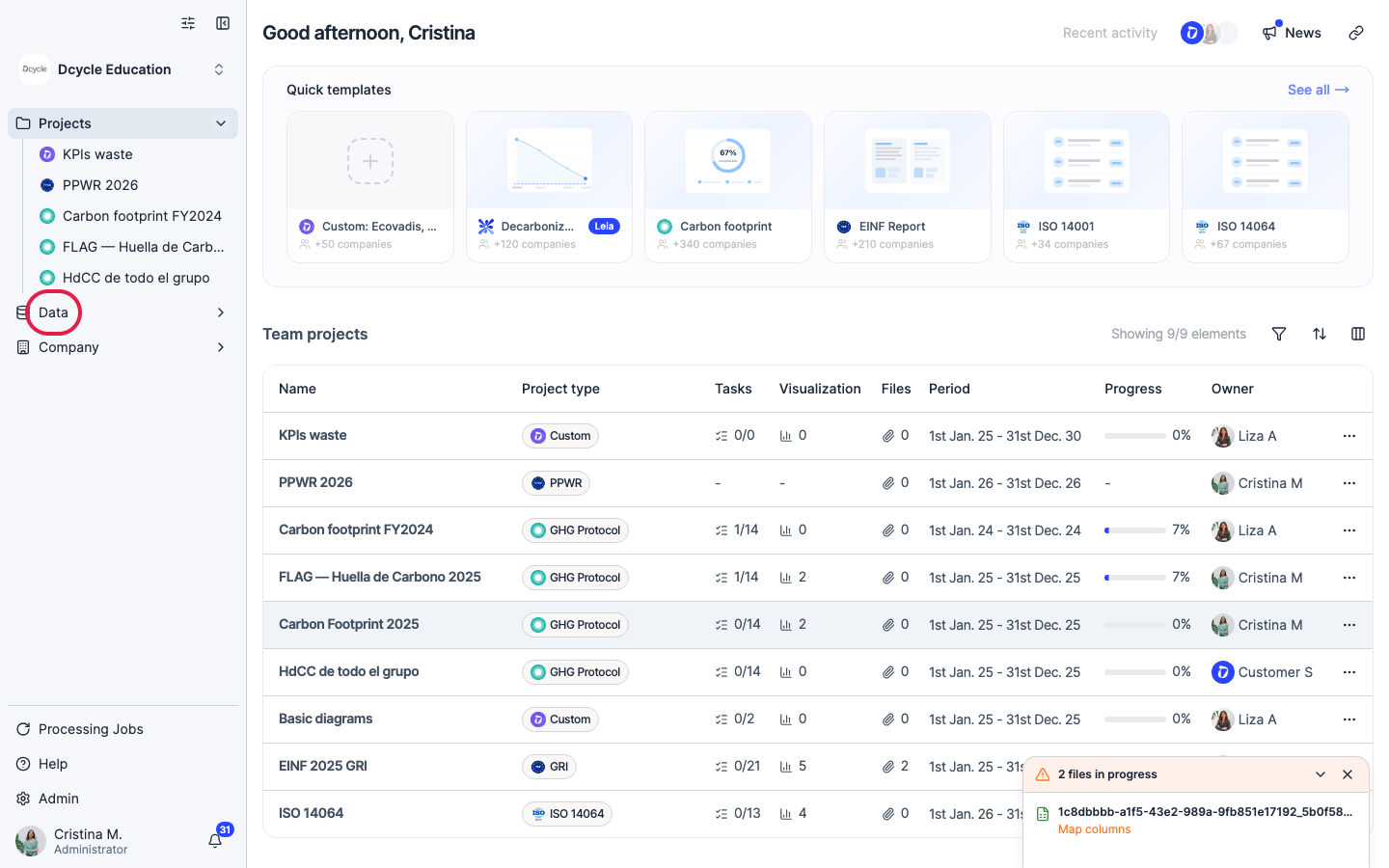
Click “Data” in the left navigation.
Step 2
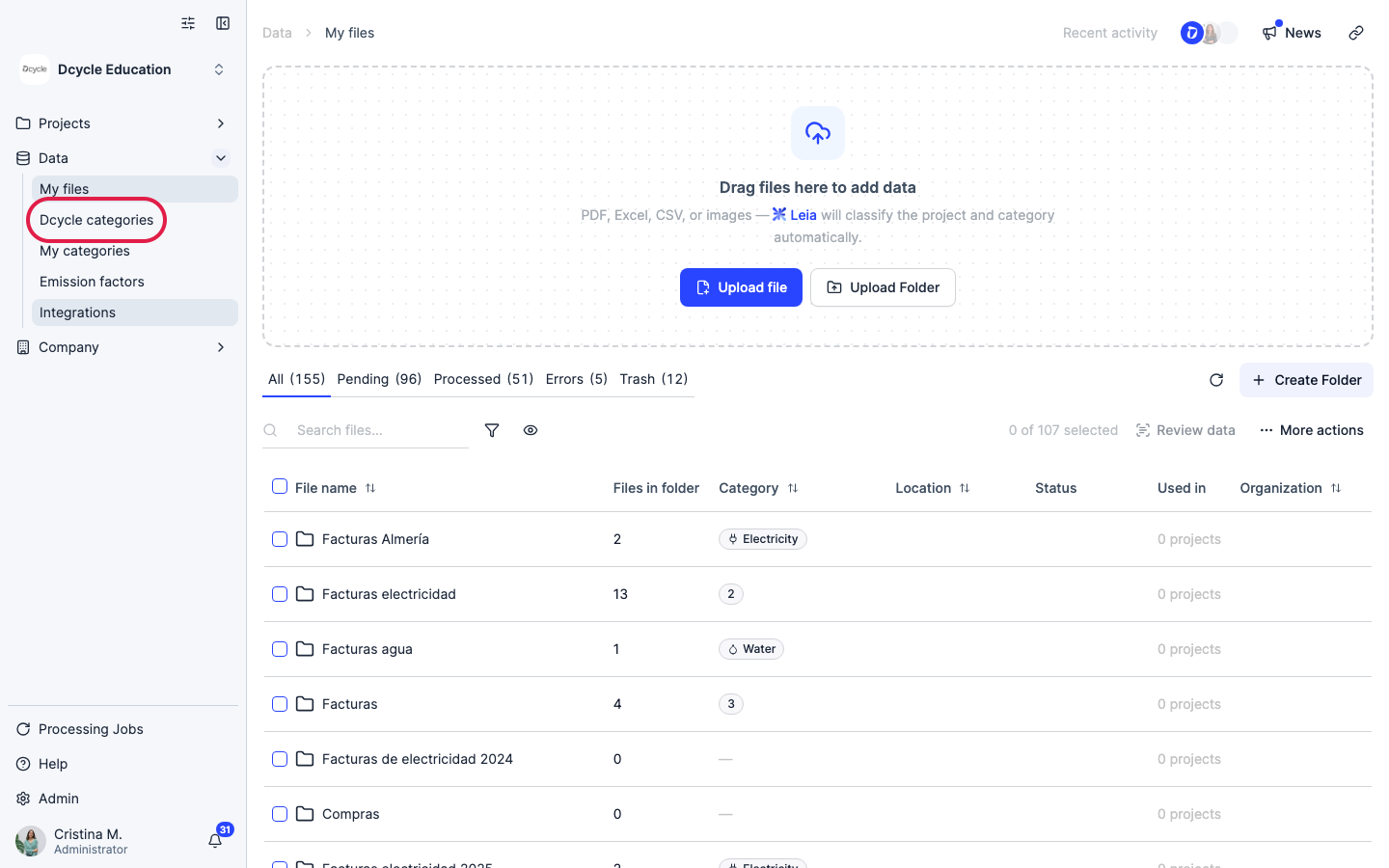
Click “Dcycle categories” to see all data categories.
Step 3
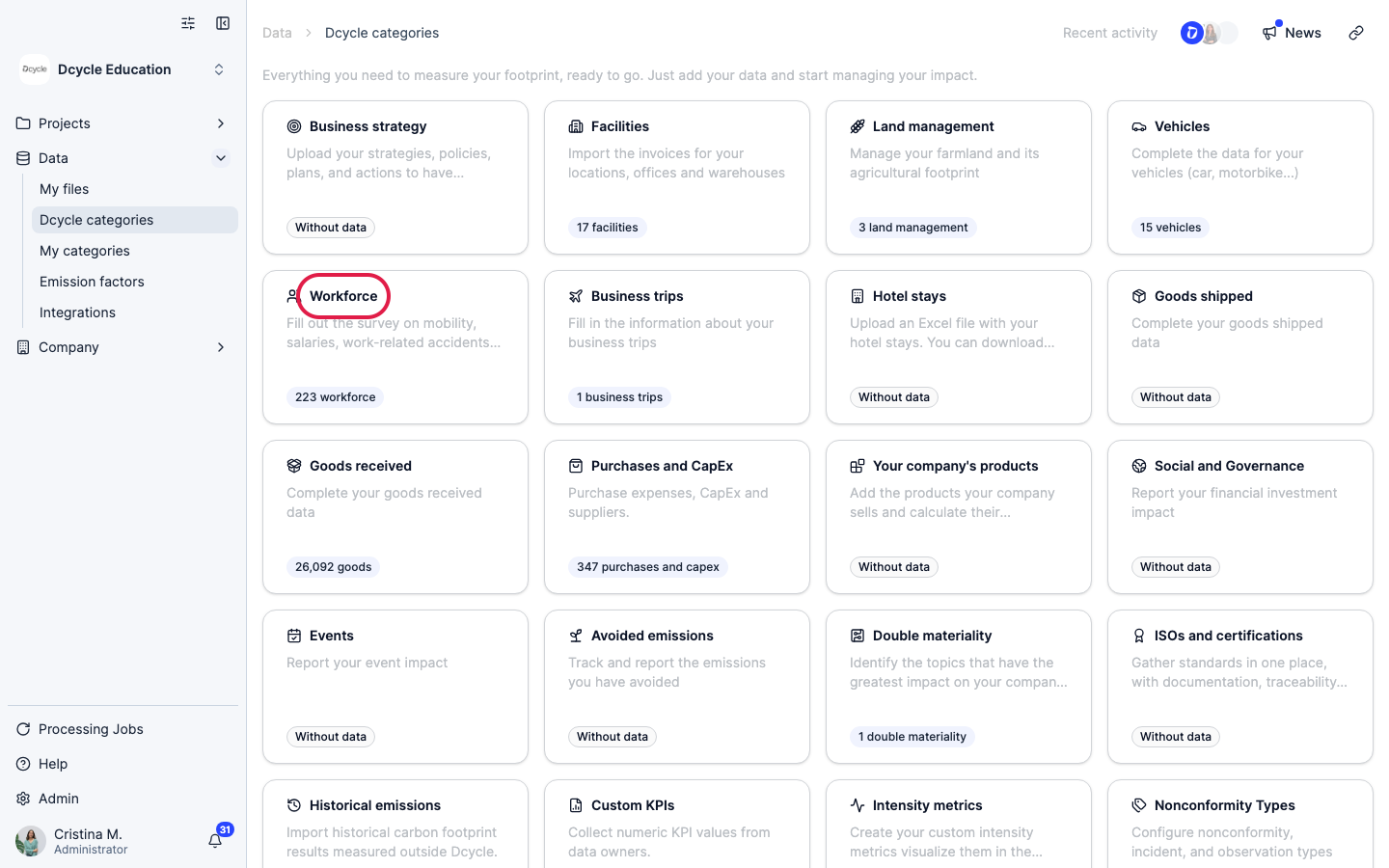
Click the “Workforce” card.
Step 4
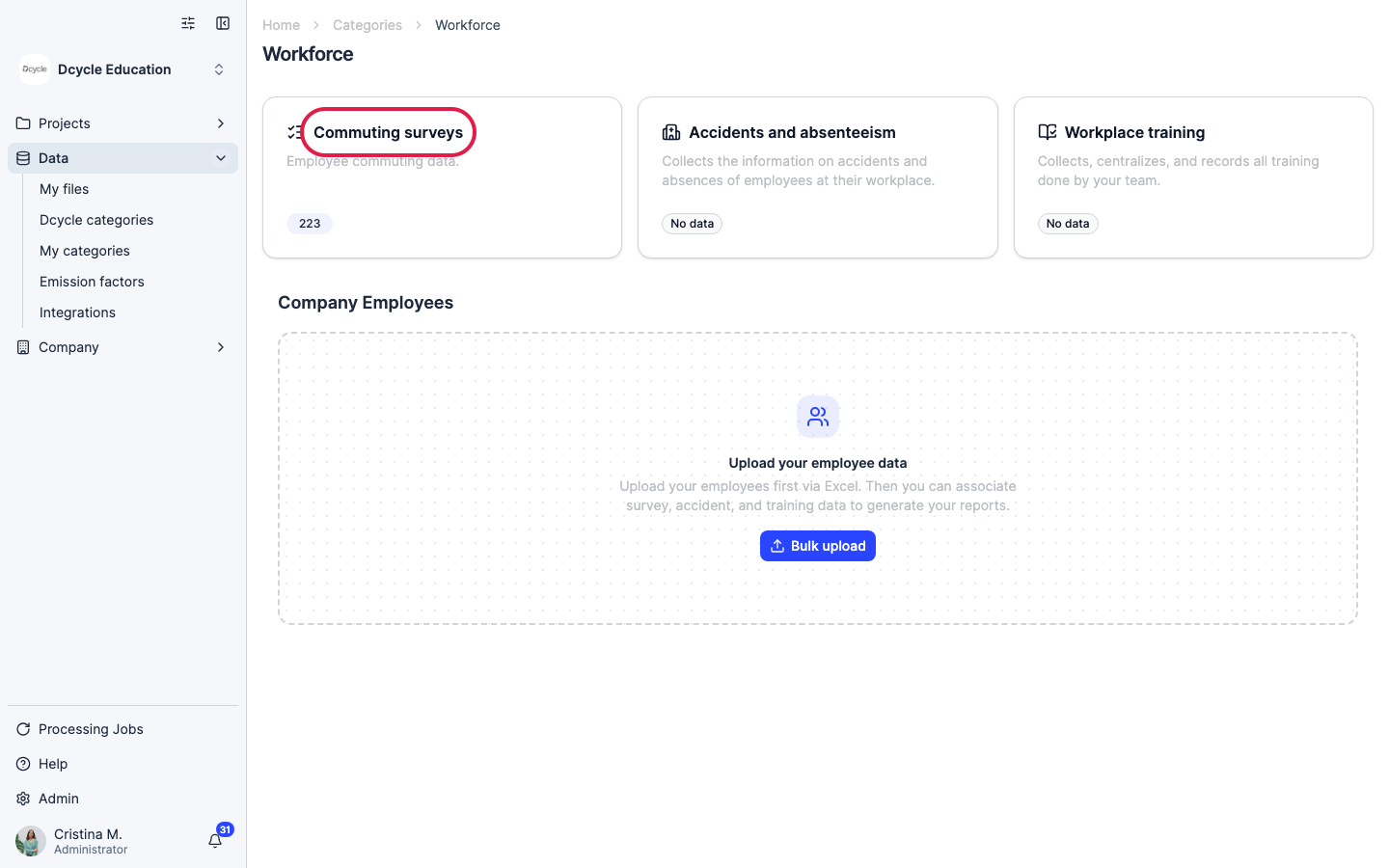
Click the “Commuting surveys” card.
Step 5
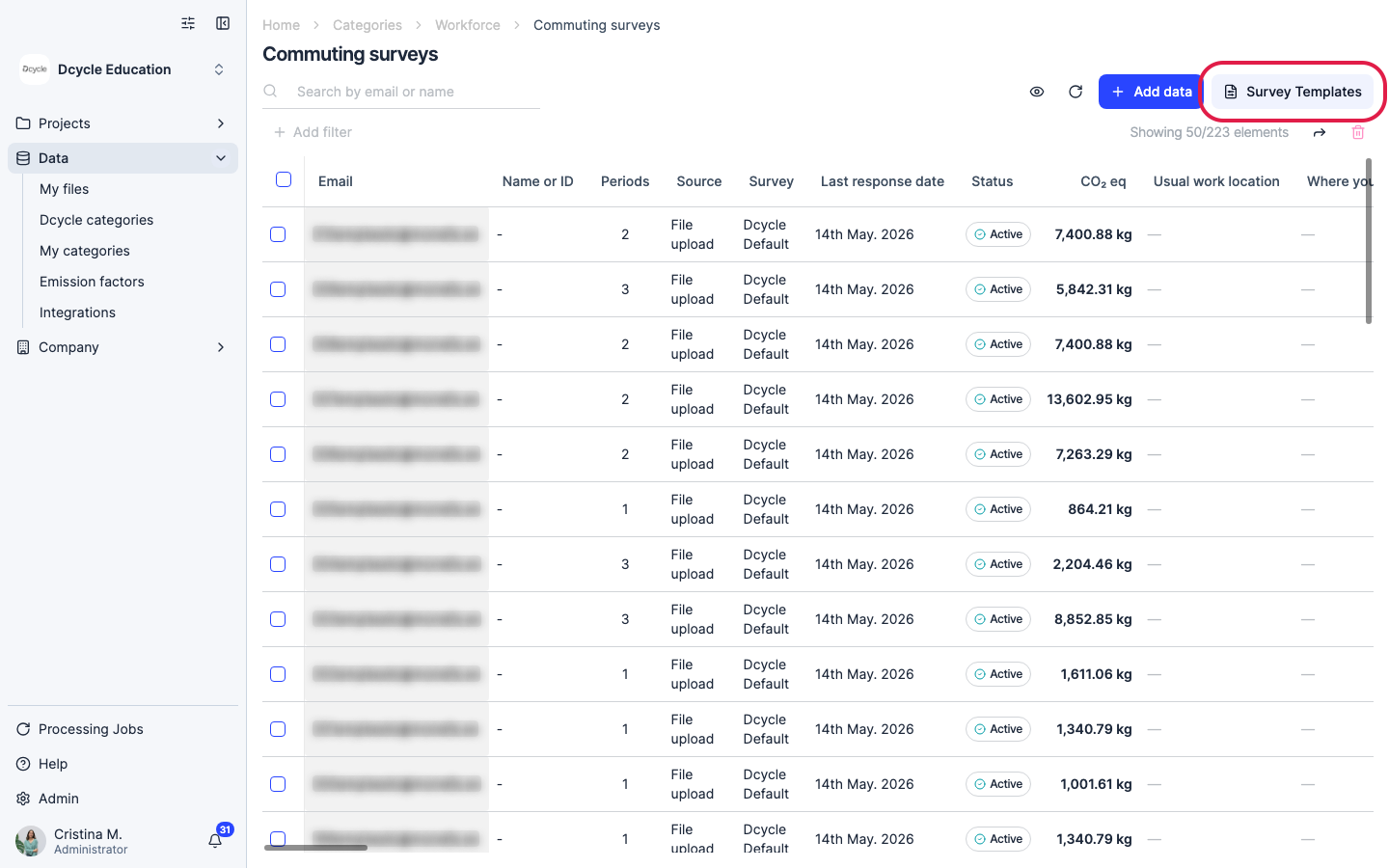
Click “Survey templates” to manage and create survey templates.
Step 6
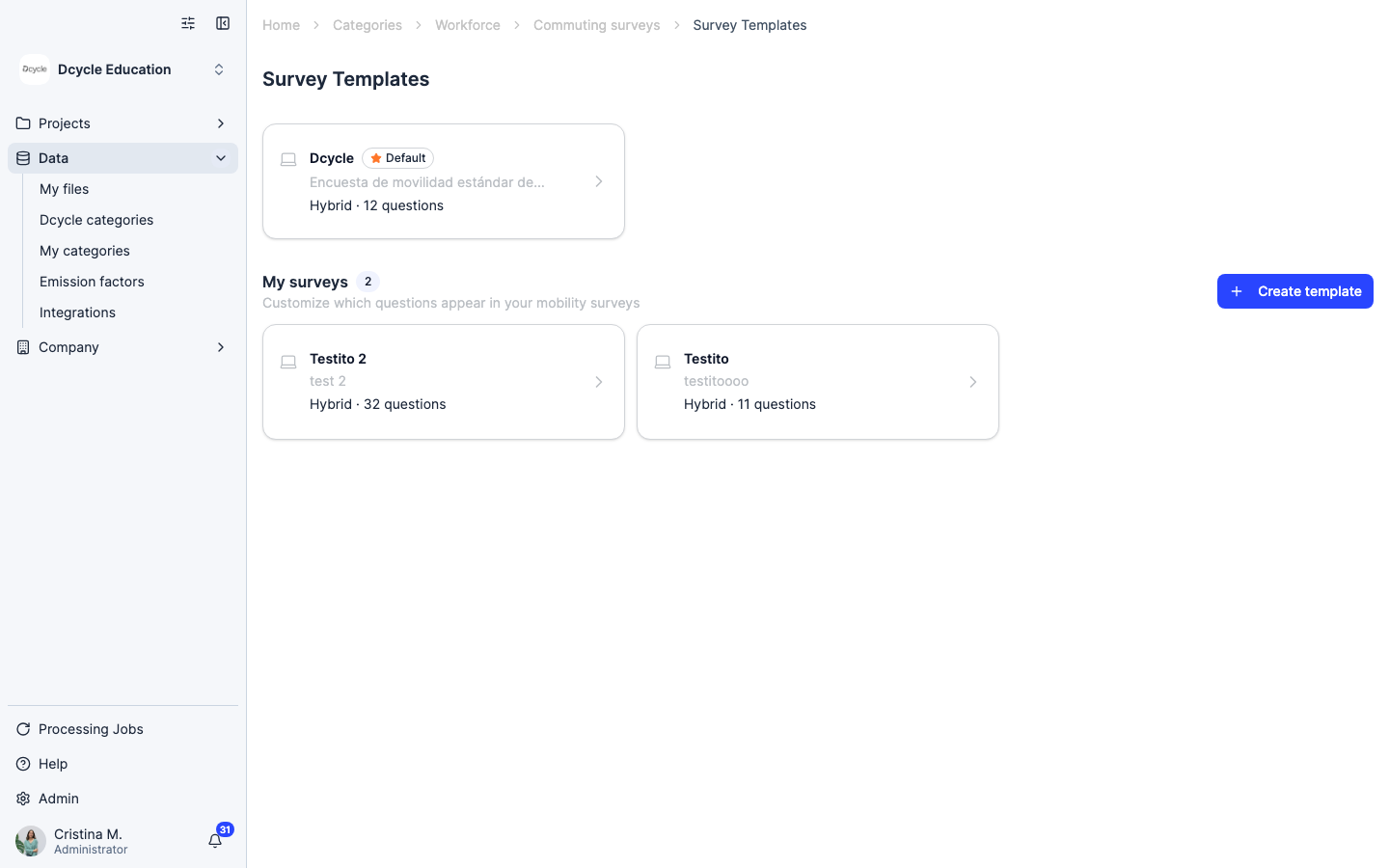
The Survey templates page lists all your templates. From here you can edit an existing template or create a new one.
Step 7
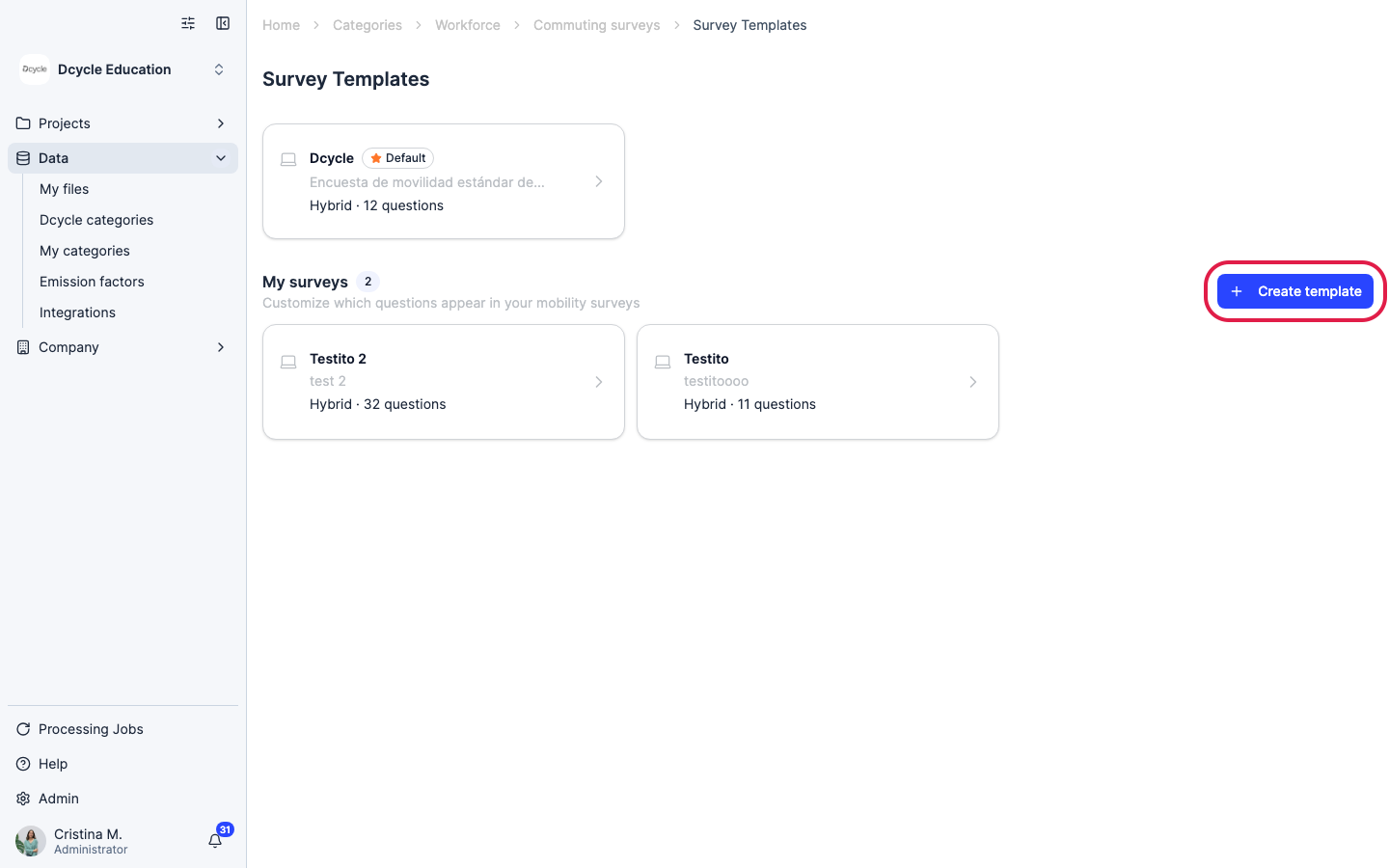
Click “Create template” to start from scratch. You’ll first choose the work model for your employees — in-person only, remote only, or hybrid. Dcycle generates a base template automatically adapted to that model.
Step 8
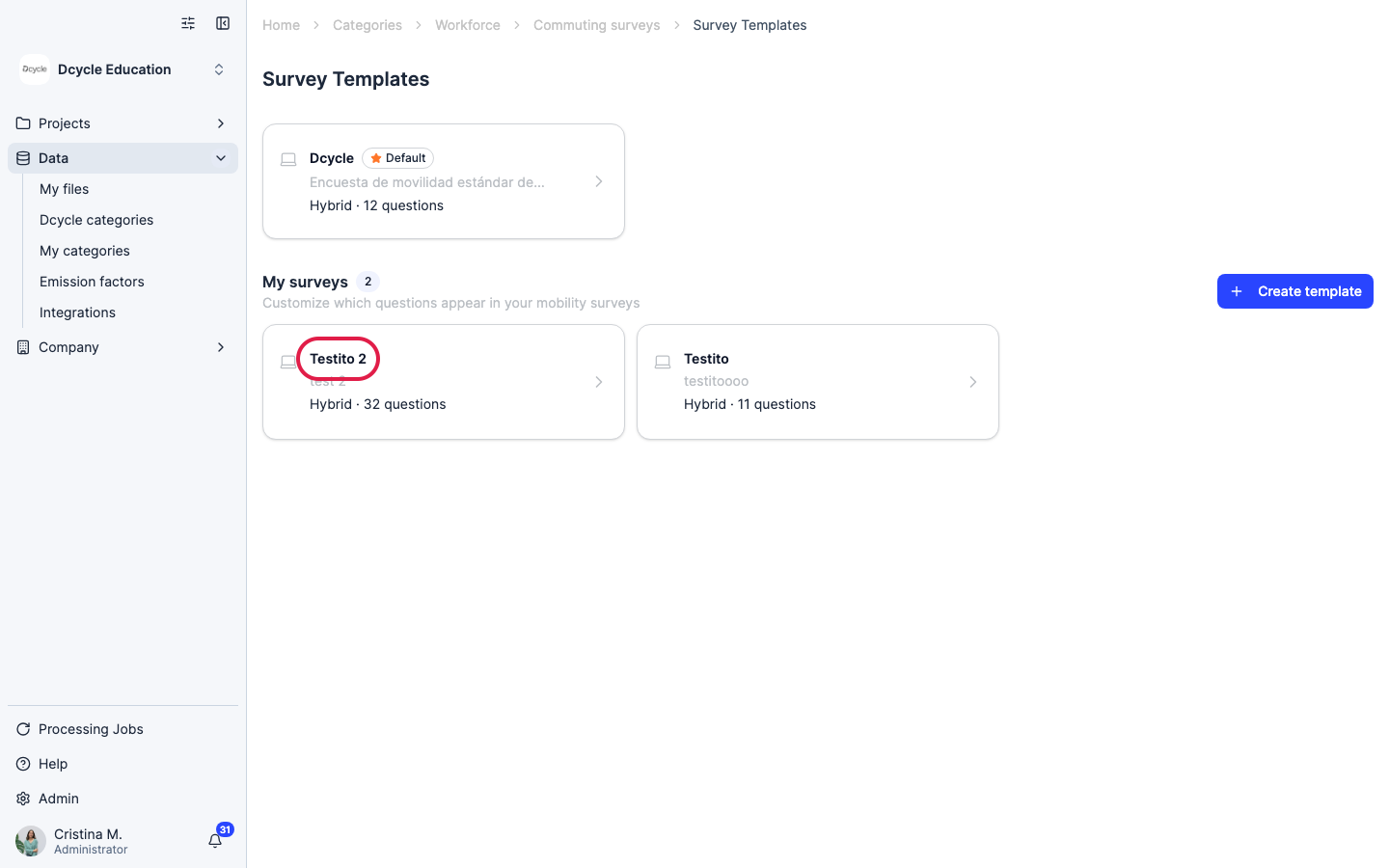
Click any template card to open the editor and customize its questions.
Step 9
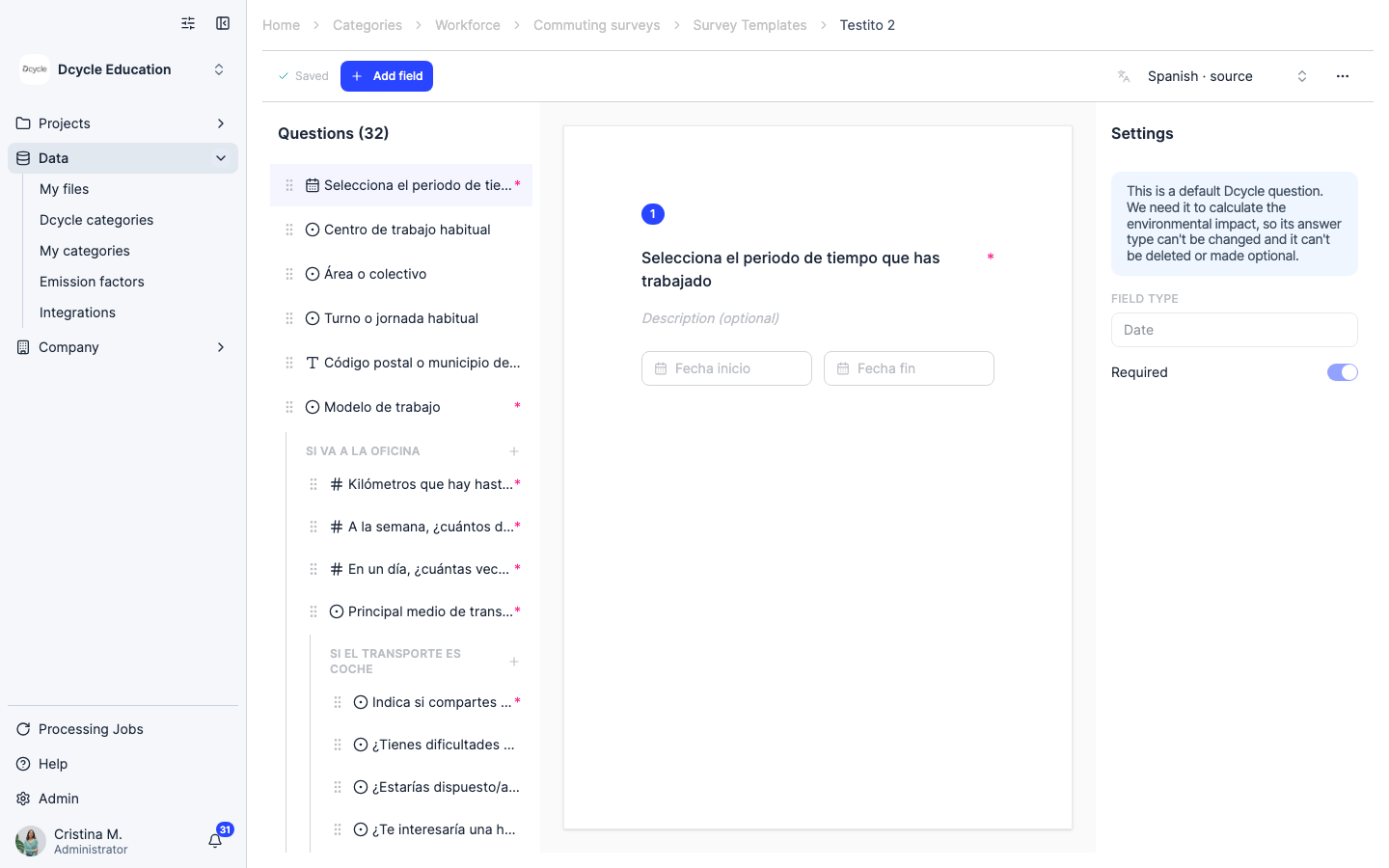
The question editor shows the full survey structure. You can rename questions, reorder them by dragging, or add new ones. Questions required for emission calculations are locked — all others are fully editable and can be reordered or removed.
Step 10
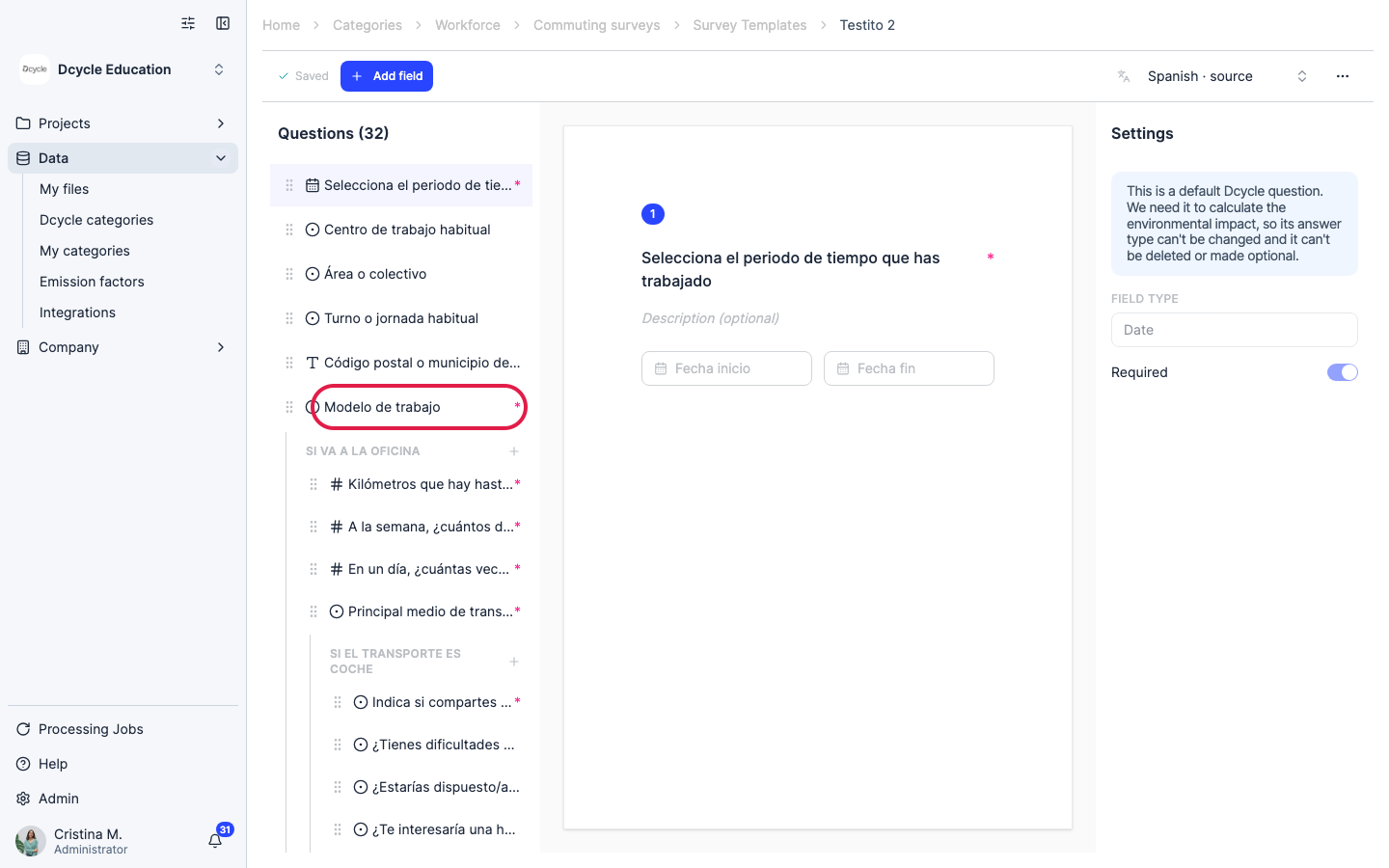
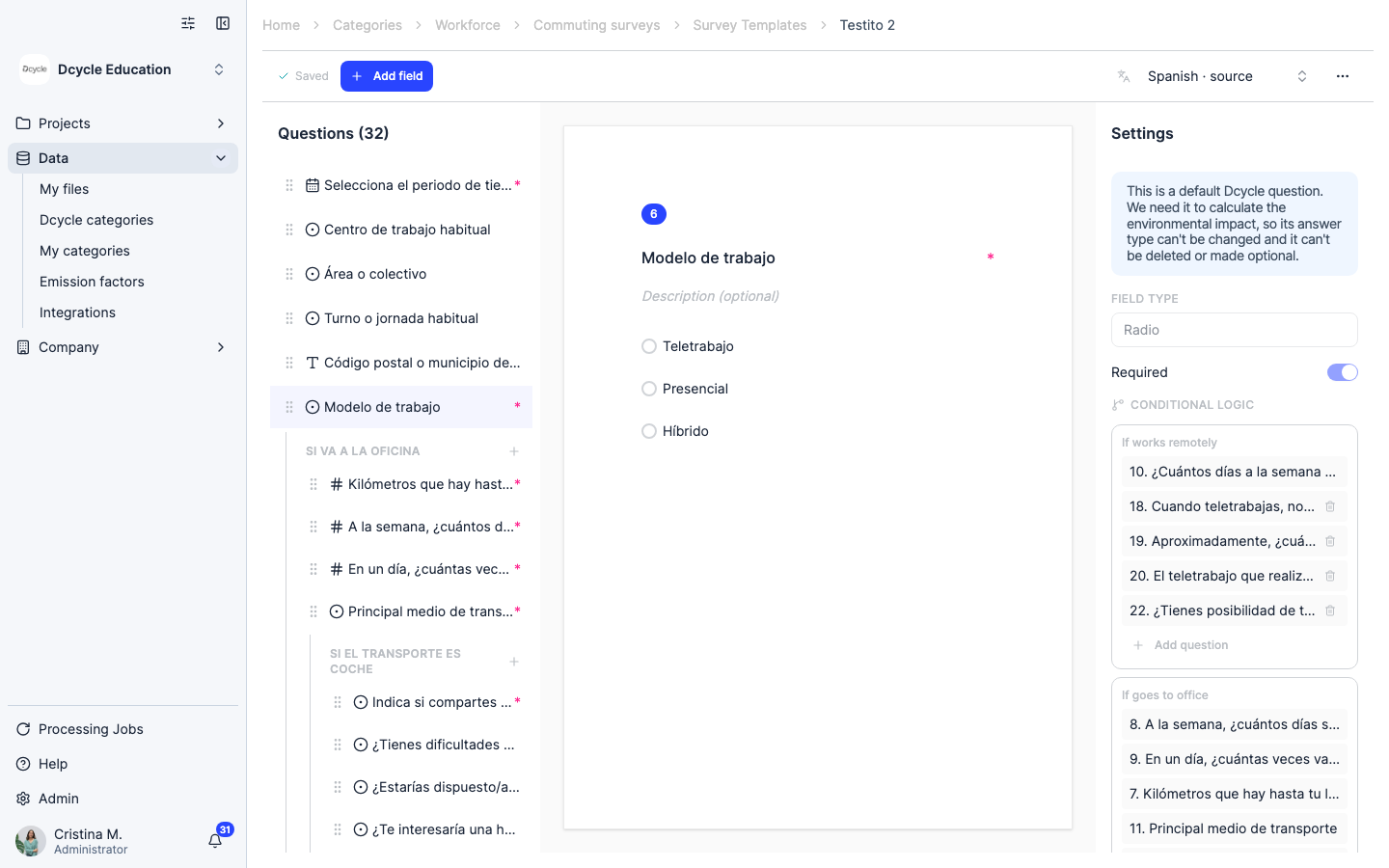
Click a question to see its settings. Questions marked with a conditional section only appear when the employee meets the defined criteria.
Step 11
Conditional sections (shown as grey group headers in the question list) control which questions each employee sees based on their previous answers. For example, commuting distance questions only appear for employees who go to the office.
Step 12
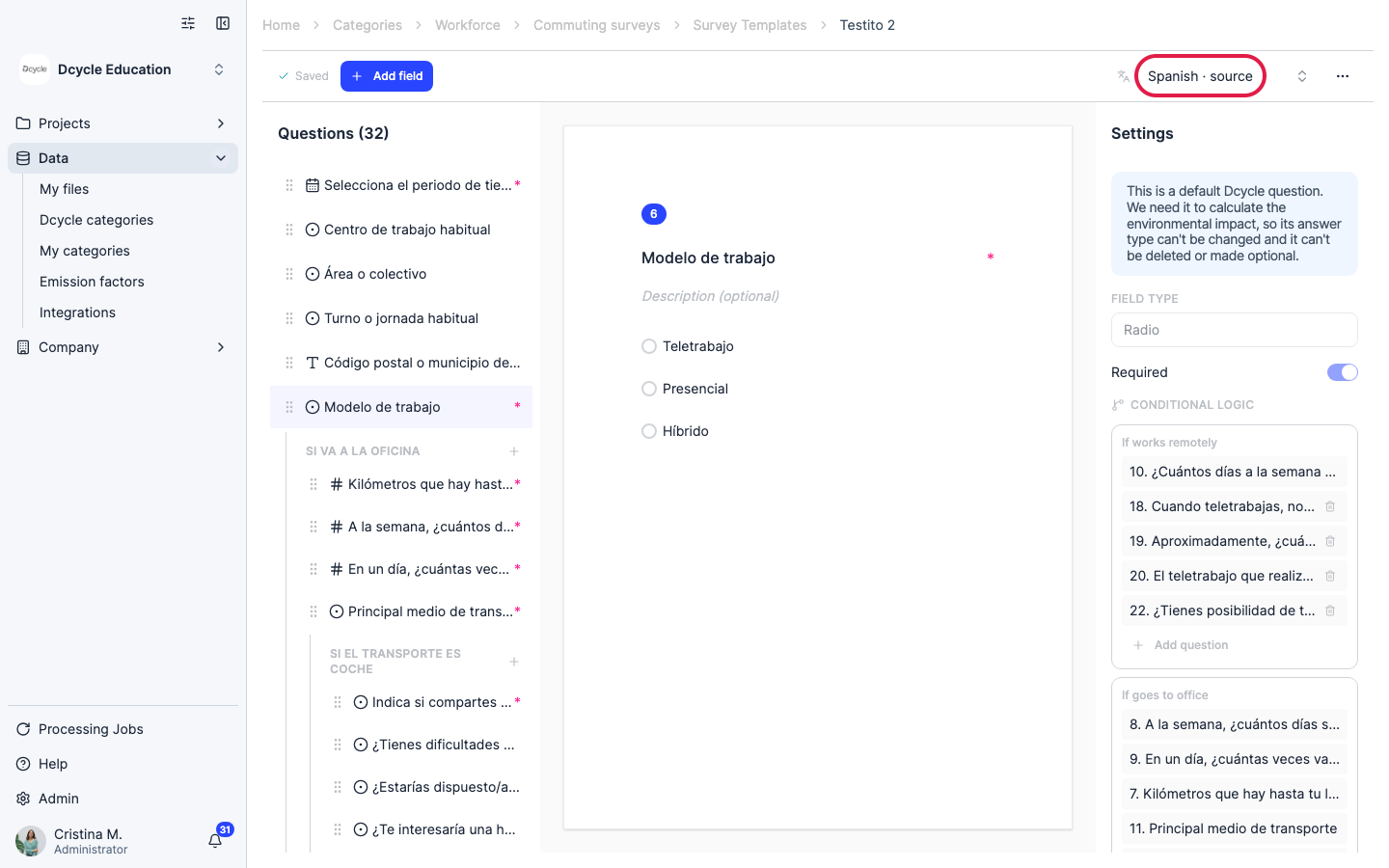
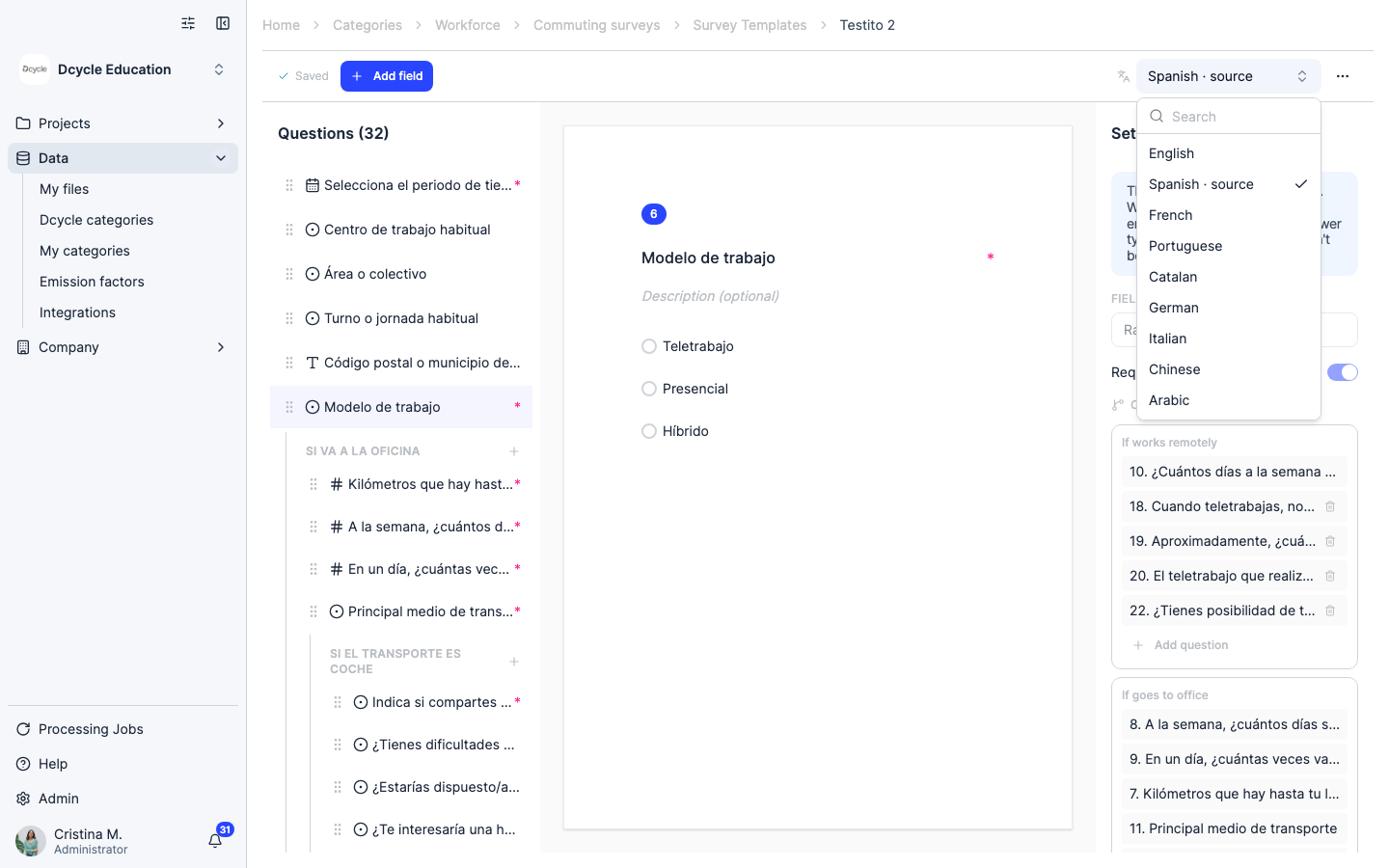
Click the language selector to preview or translate the survey into another language.
Step 13
Choose any language from the selector — Dcycle translates the survey in real time and automatically. No extra configuration or waiting required. Each employee receives the survey in the language you choose when sending.
Step 14
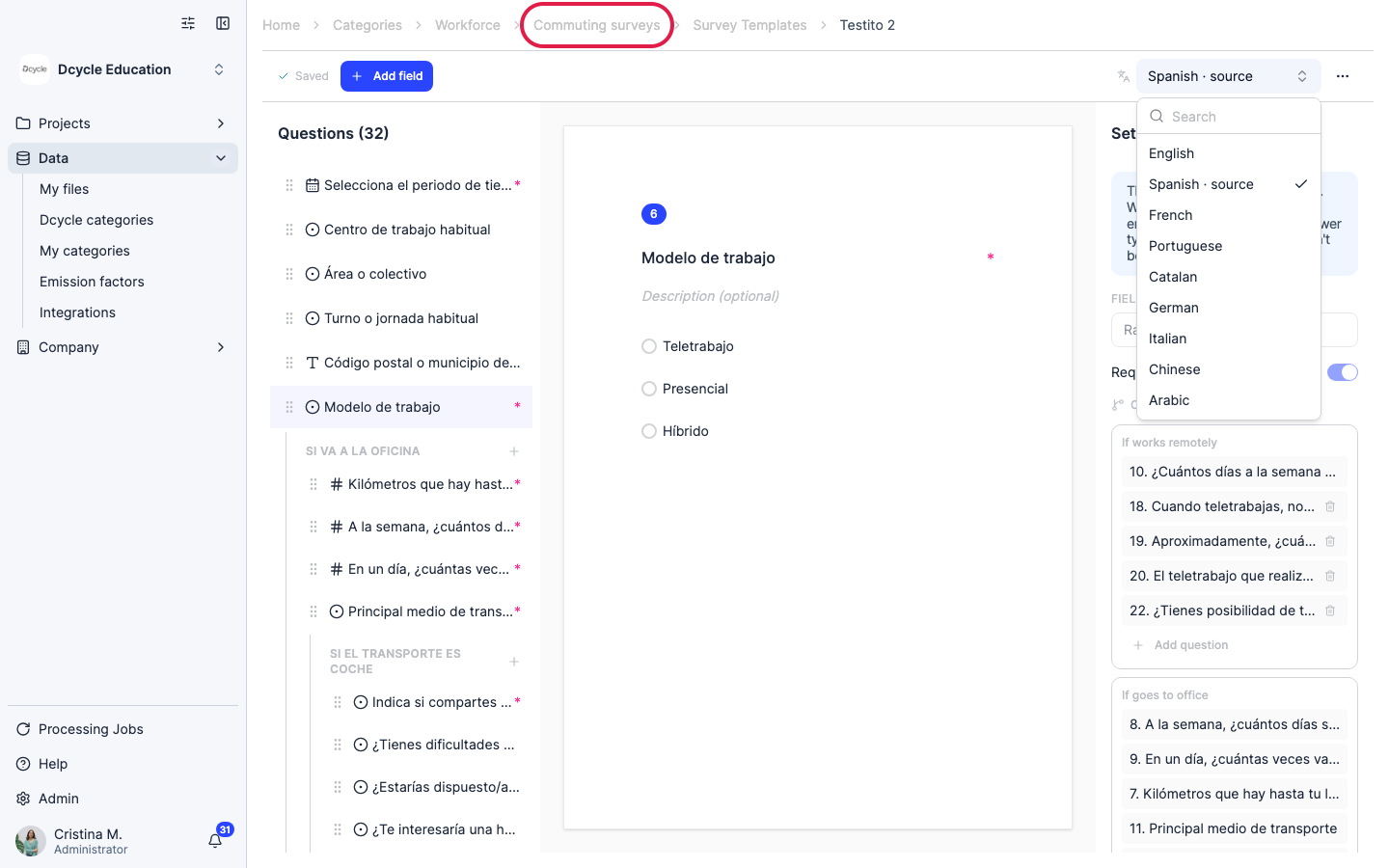
Click “Commuting surveys” in the breadcrumb to go back to the survey list.
Step 15
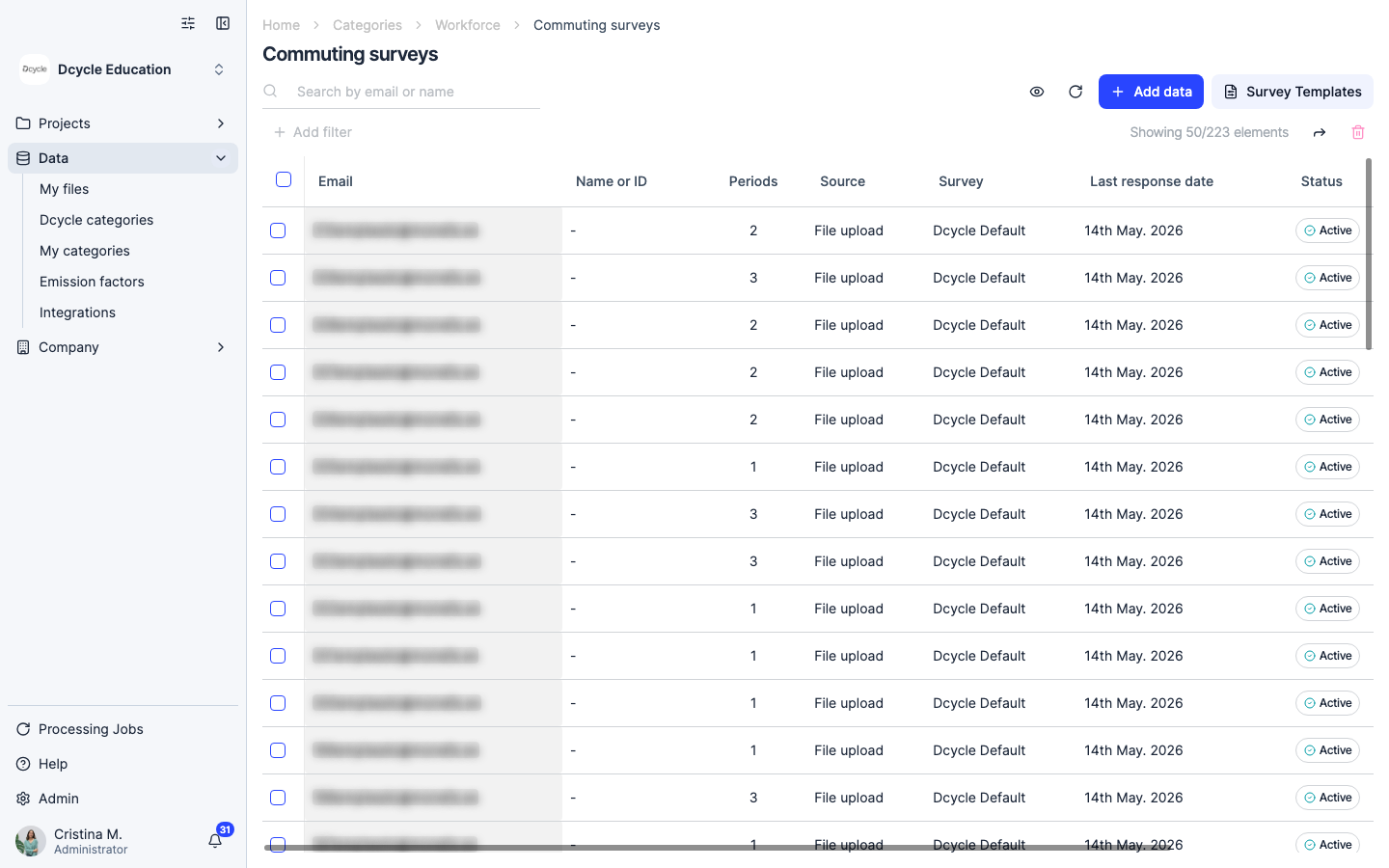
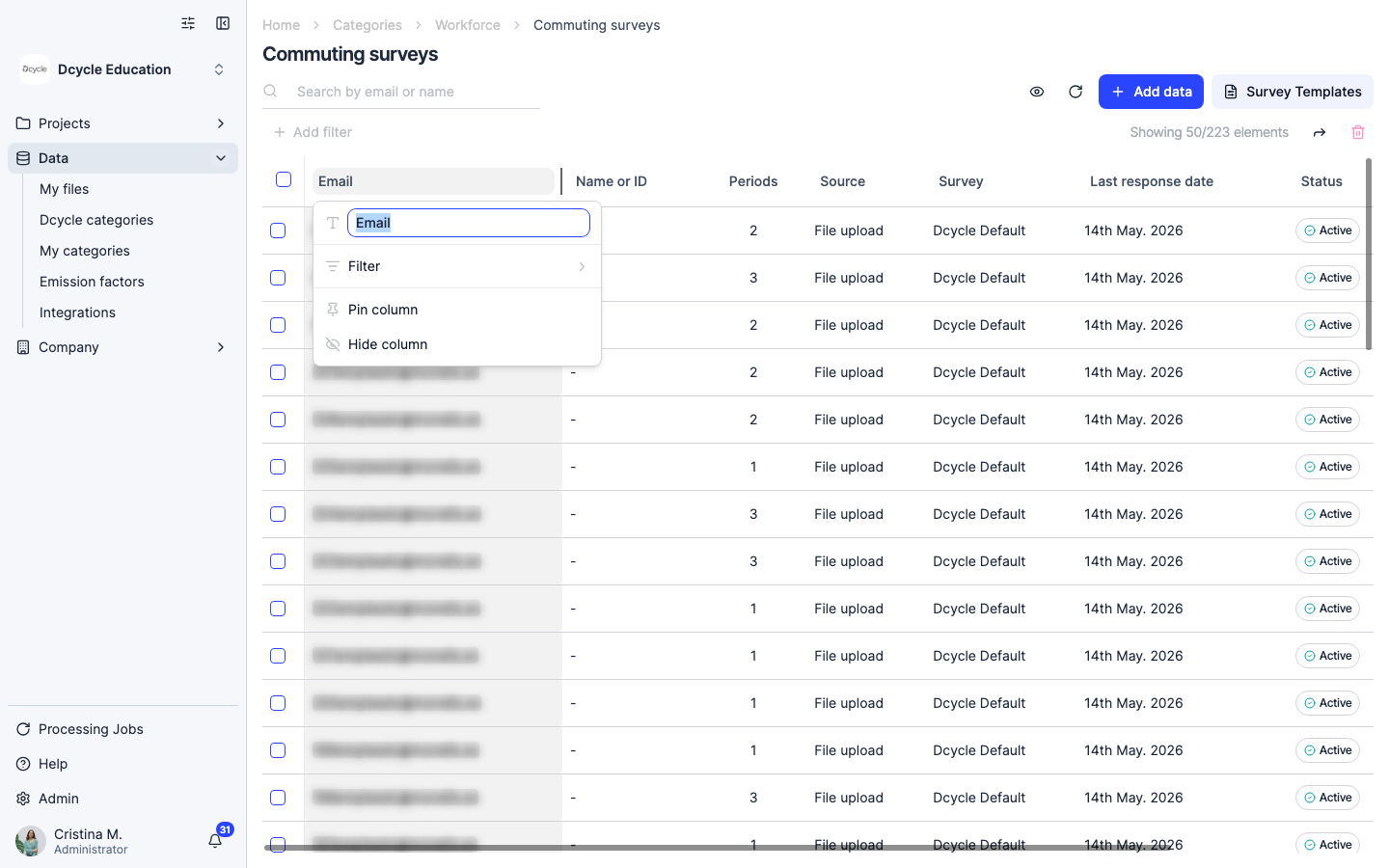
Responses appear as soon as they arrive. The table shows each employee’s status, last response date, and CO₂ equivalent. Survey answer columns appear automatically for each question in the template.
Step 16
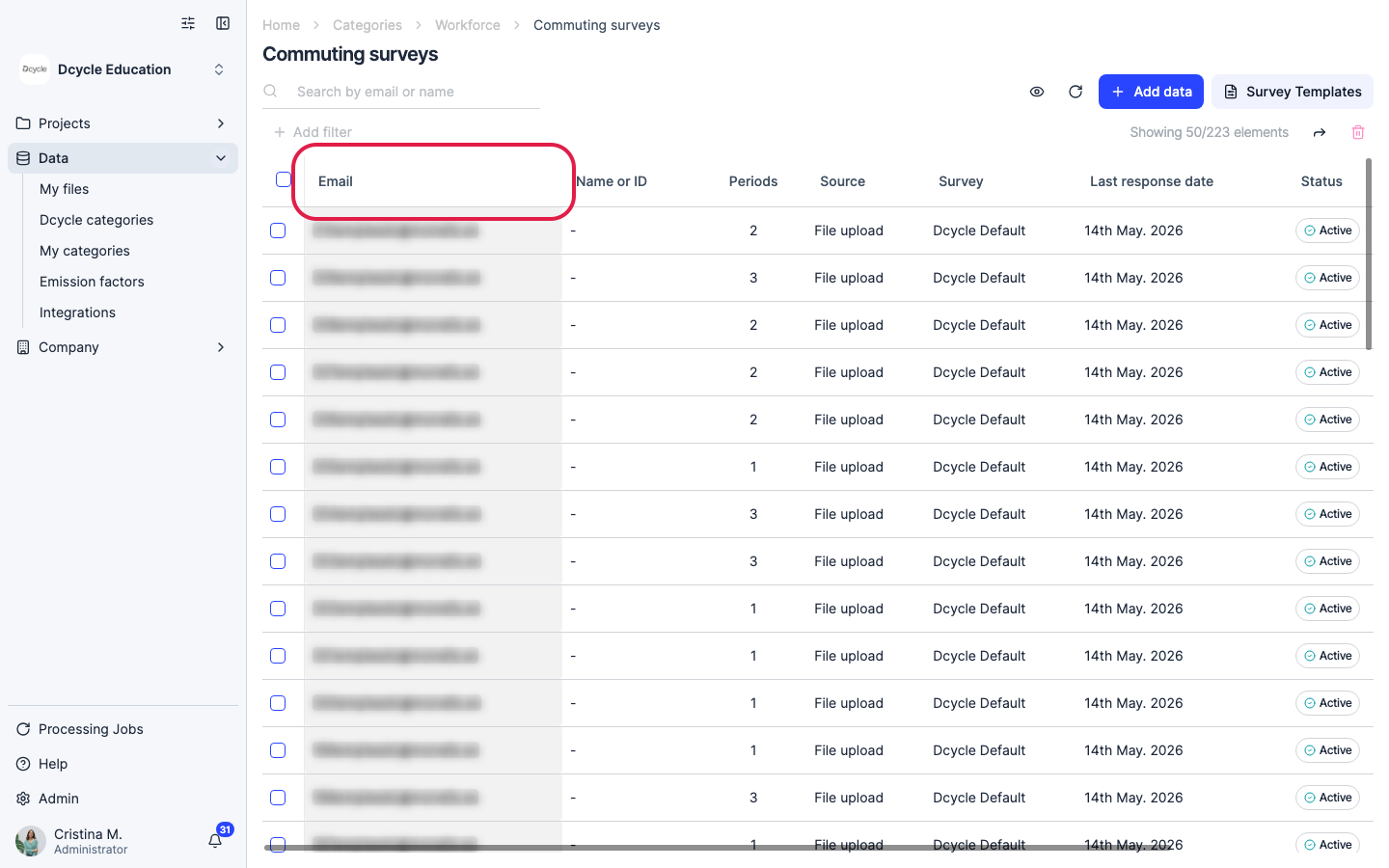
Click any column header to rename it, sort by it, pin it, or hide it.
Step 17
Click the column name field to rename it — give it a label that makes sense for your team. The change applies only to your view and does not affect the survey questions themselves.
Was this helpful?
What was missing or unclear? (optional)
Sent. Thank you for helping us improve.