Product Guides
Upload employees
Adding your employees to Dcycle is the prerequisite for collecting commuting data (Scope 3, Category 7) via mobility surveys, along with accident, absence and training records. Use a CSV or Excel template to load them all at once.
Before you start
You need an Editor role in your Dcycle organization.
Steps
Step 1
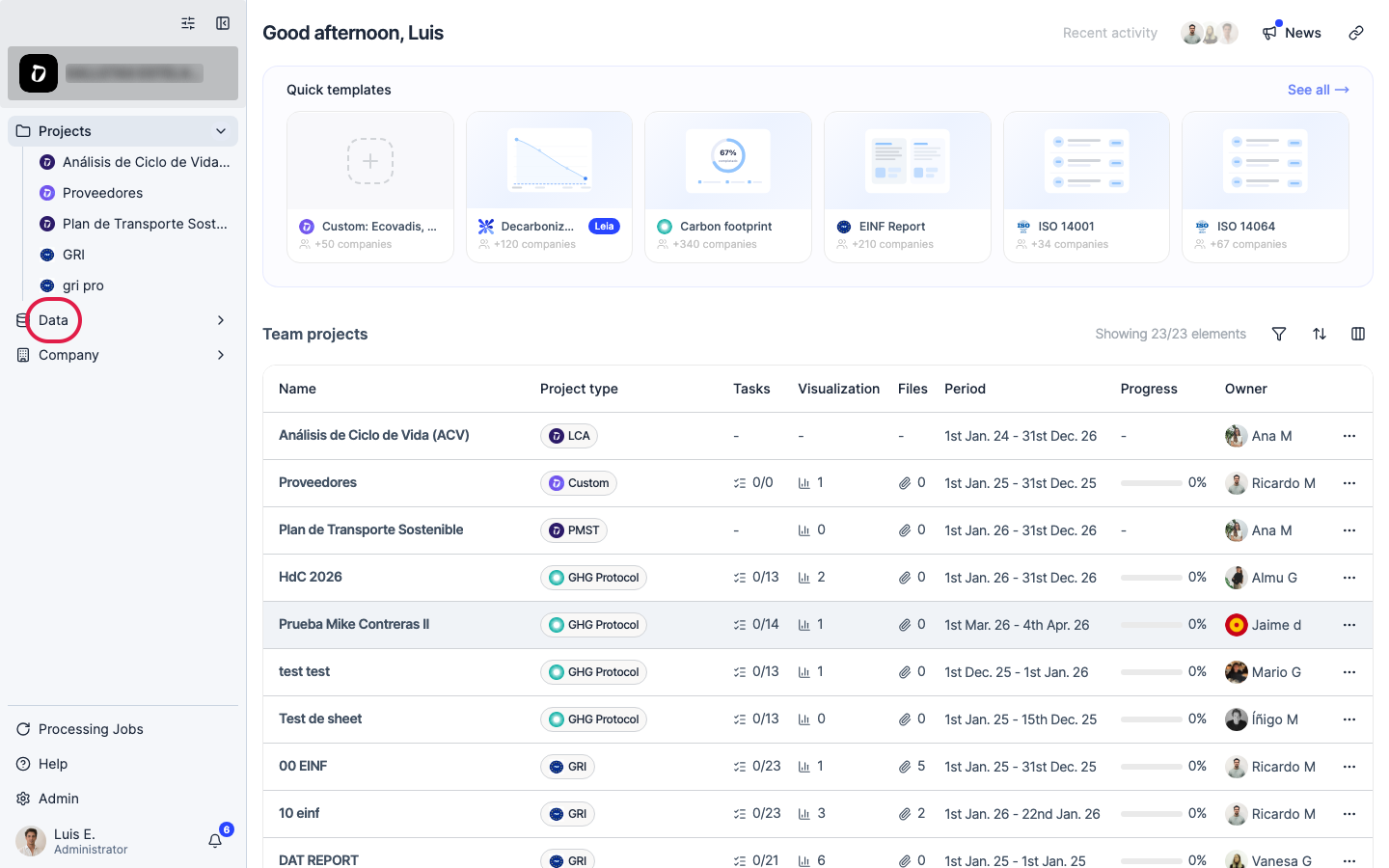
Click “Data” in the left navigation.
Step 2
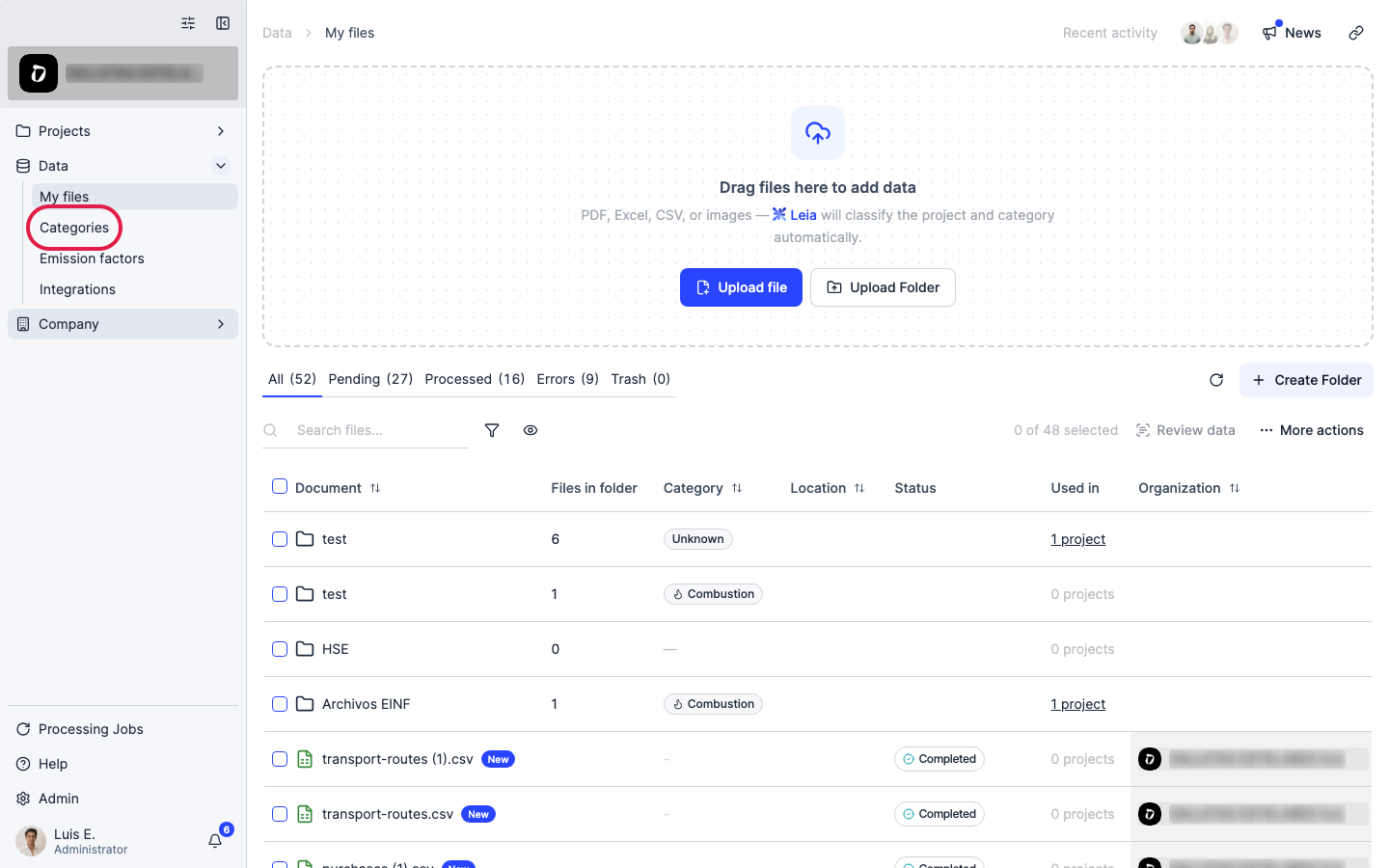
Click “Categories”.
Step 3
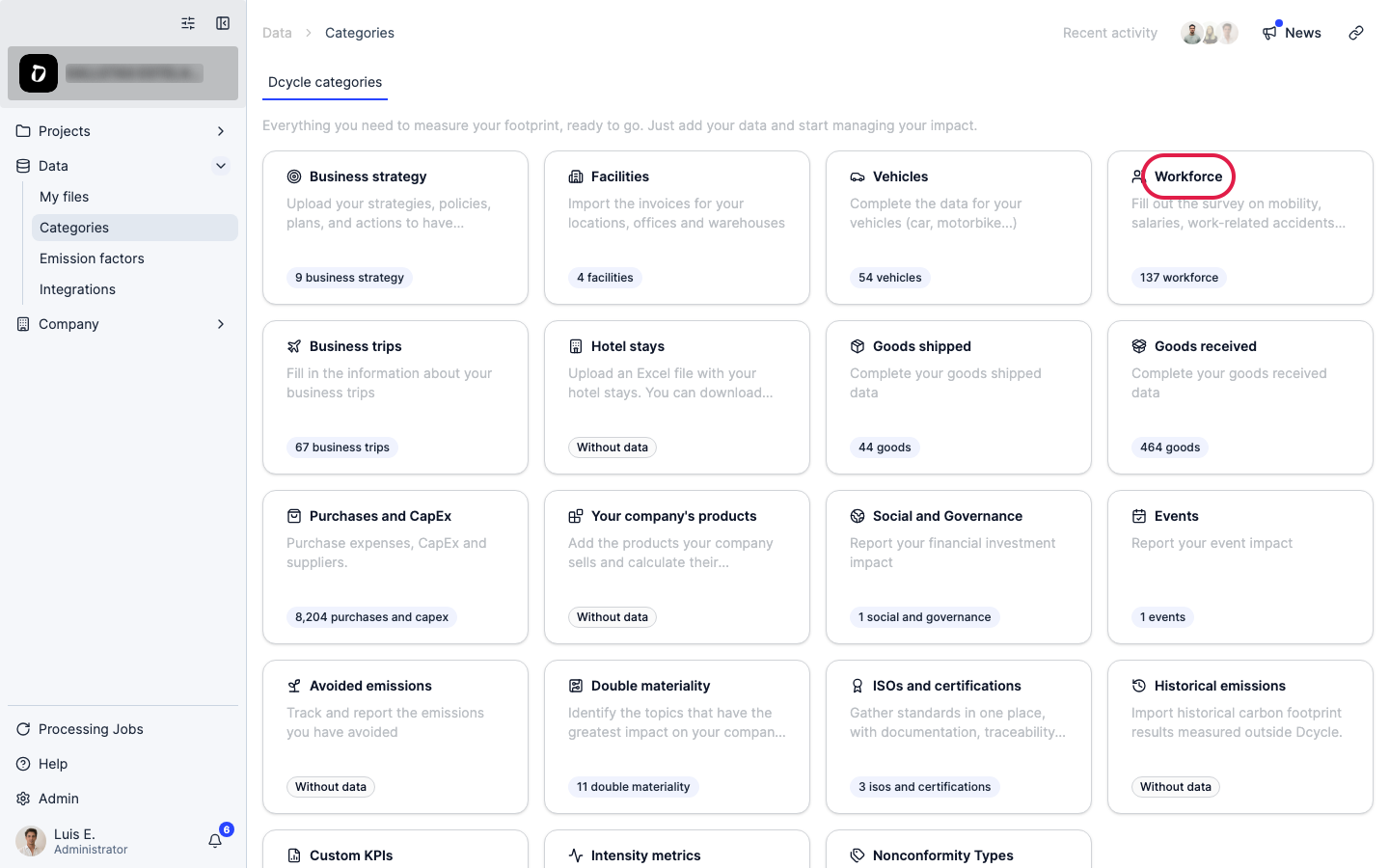
Open the “Workforce” category.
Step 4
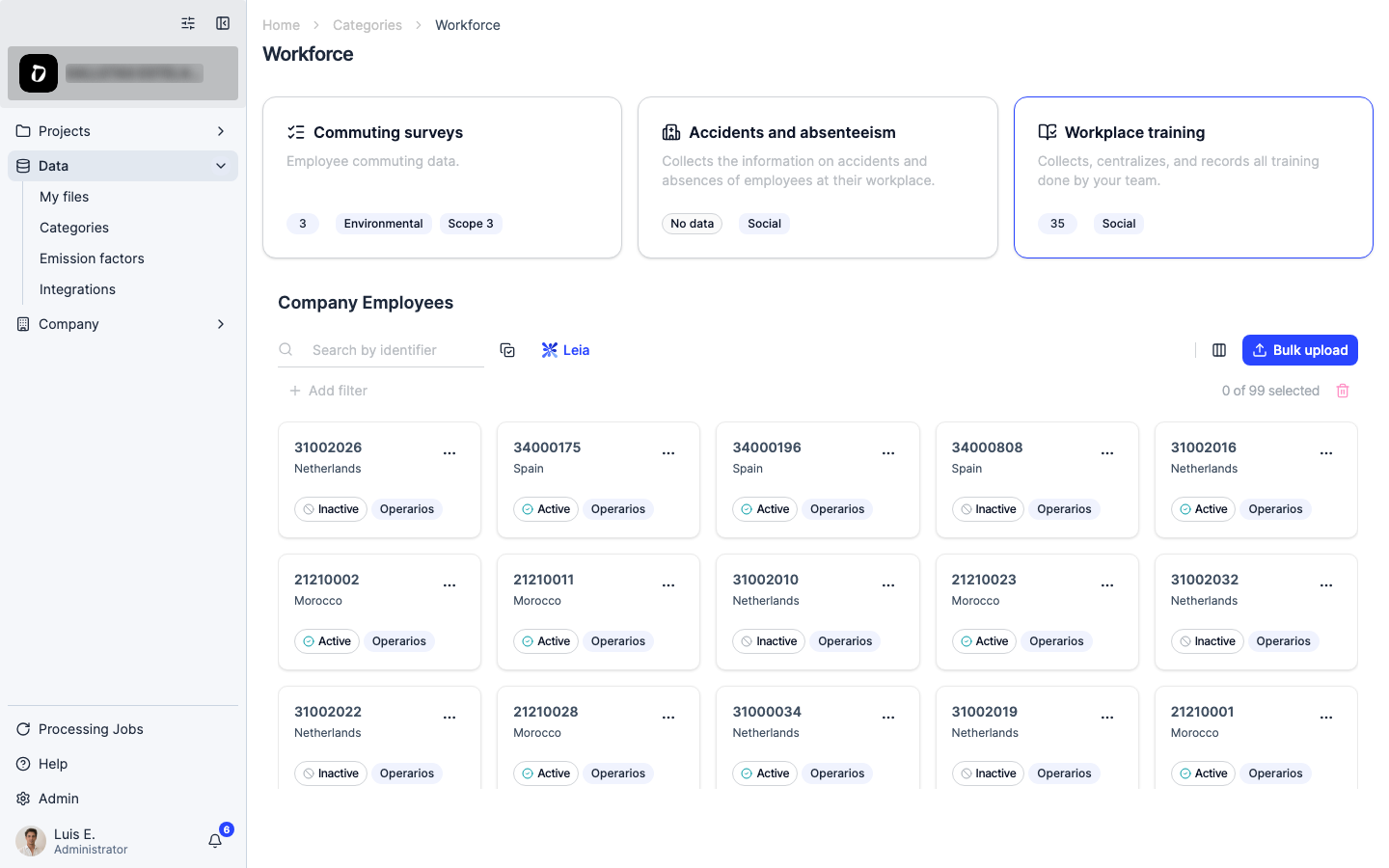
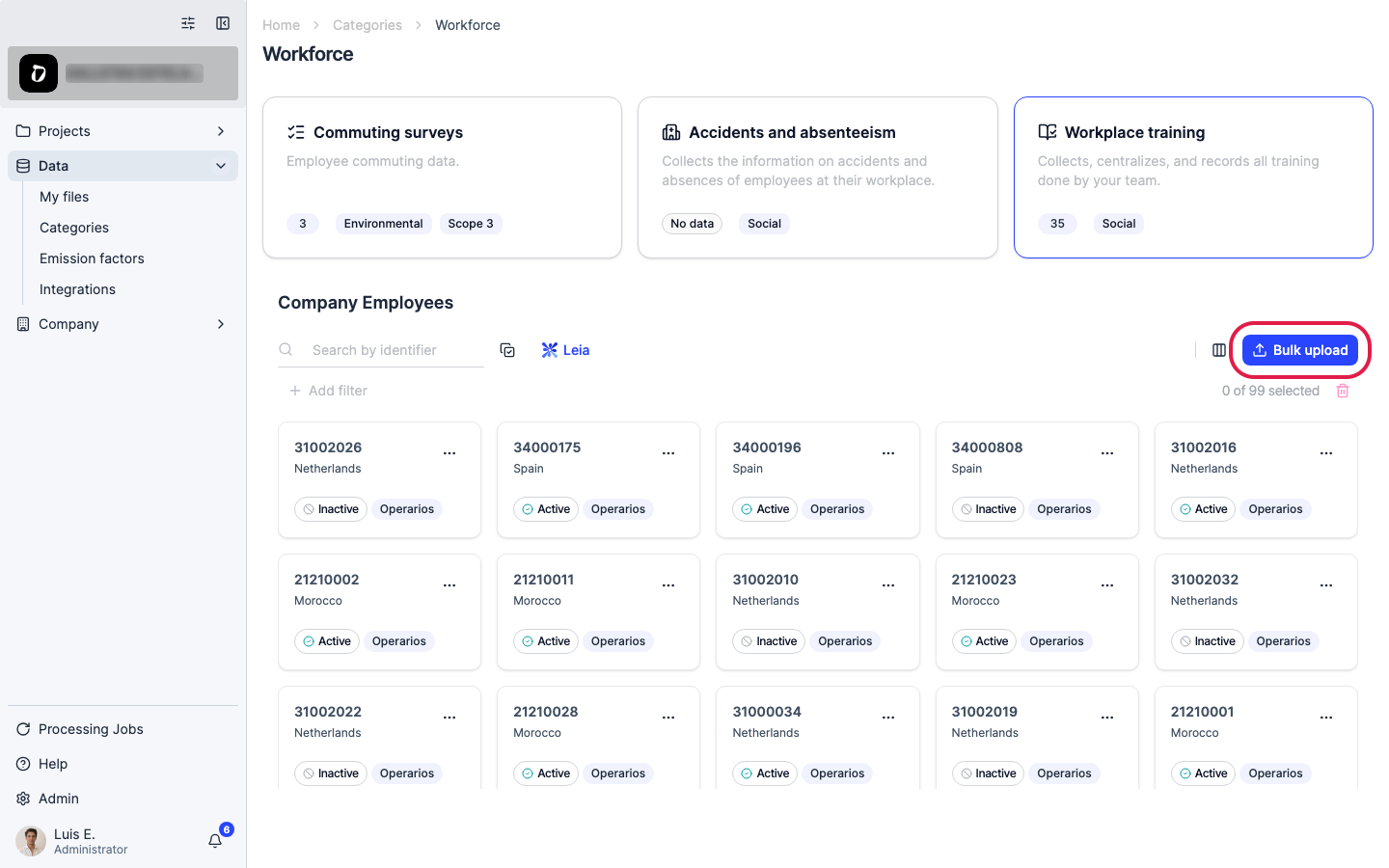
“Workforce” groups three sub-topics — commuting surveys, accidents & absenteeism, and training — plus the “Company Employees” list below them. Scroll down to “Company Employees” to register your staff first.
Step 5
Click “Bulk upload” above the Company Employees list.
Step 6
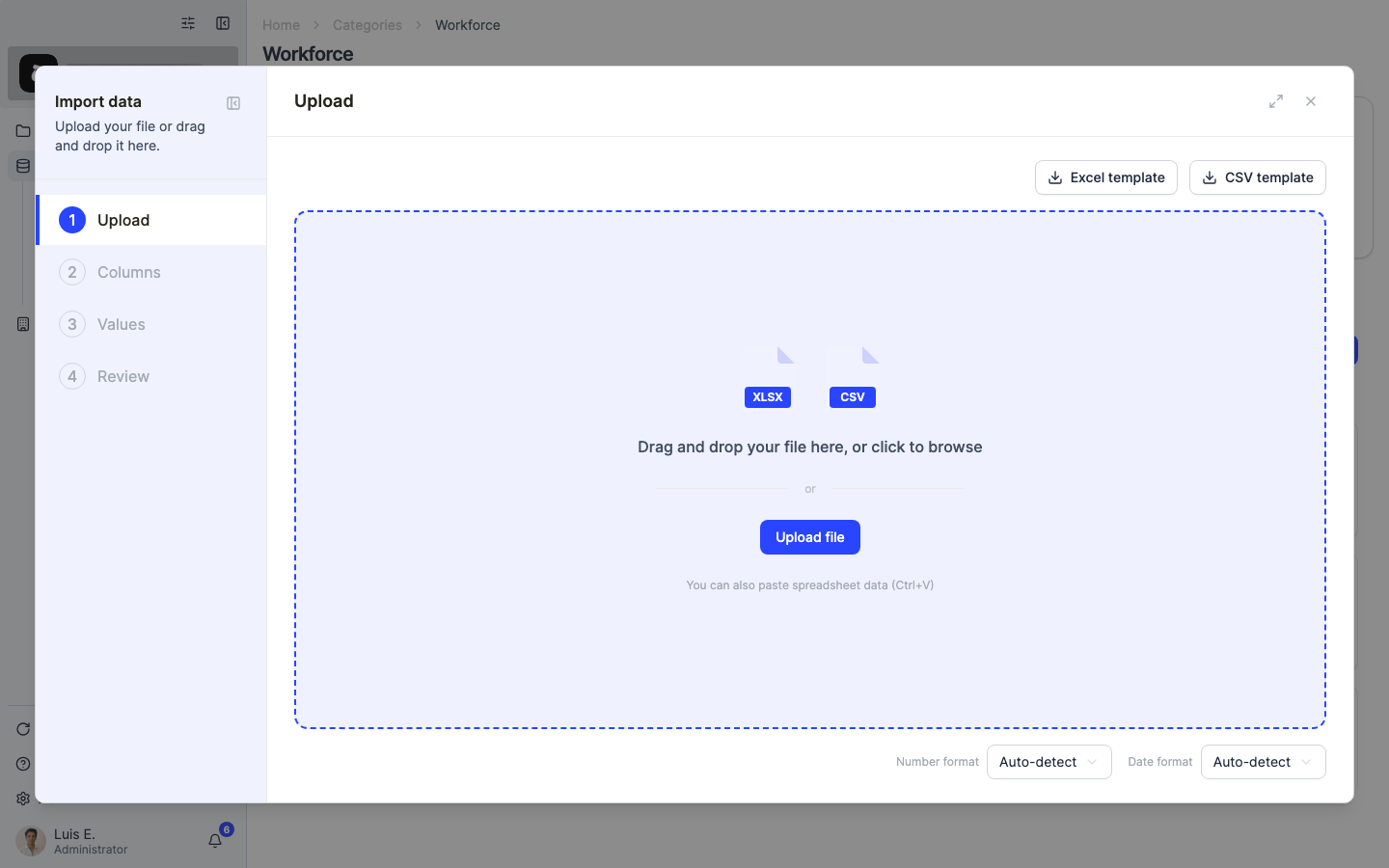
If you don’t have a file yet, download a template and fill it in: name, email, work center, and start date. Adding the email enables sending mobility surveys to that employee.
Step 7
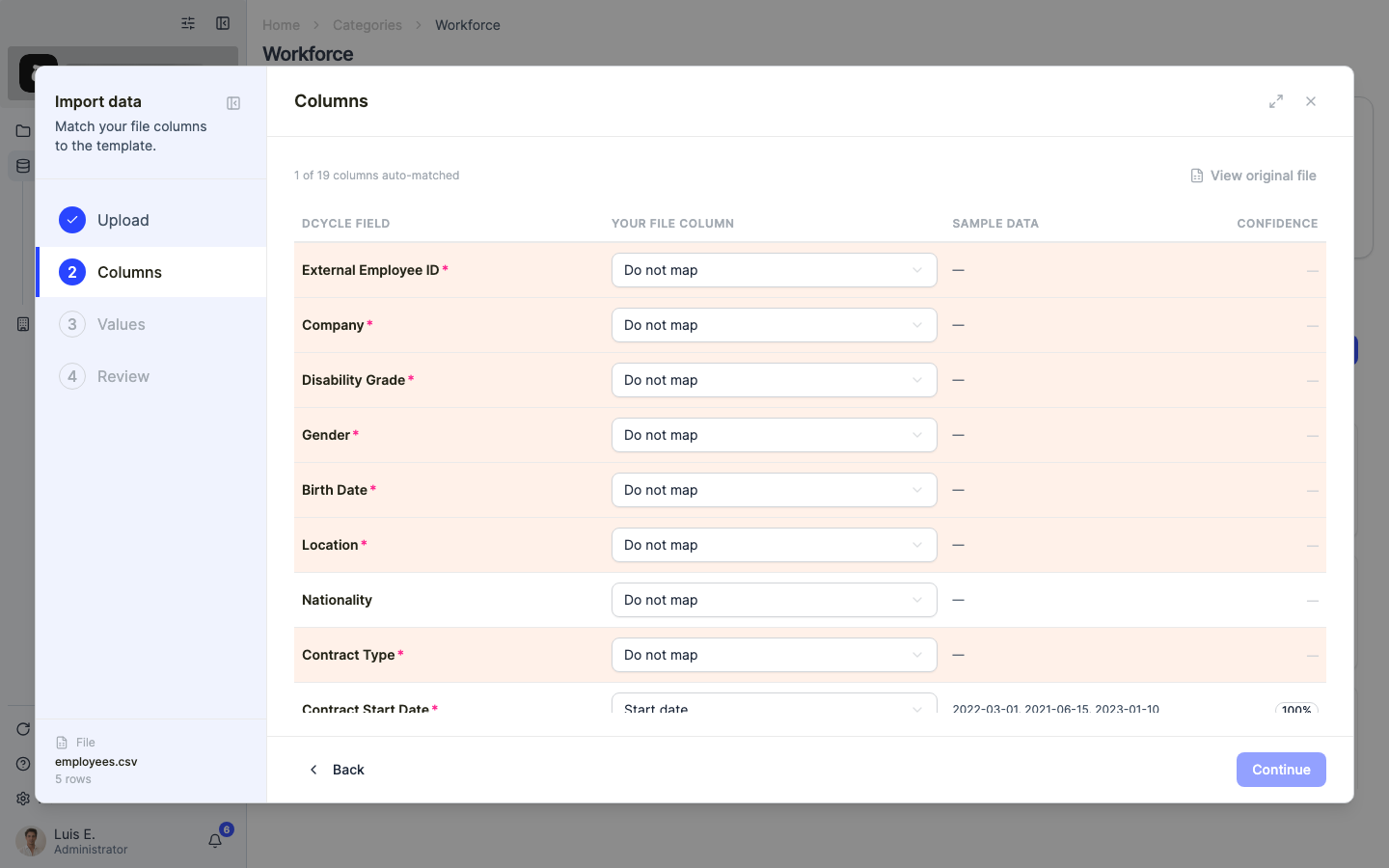
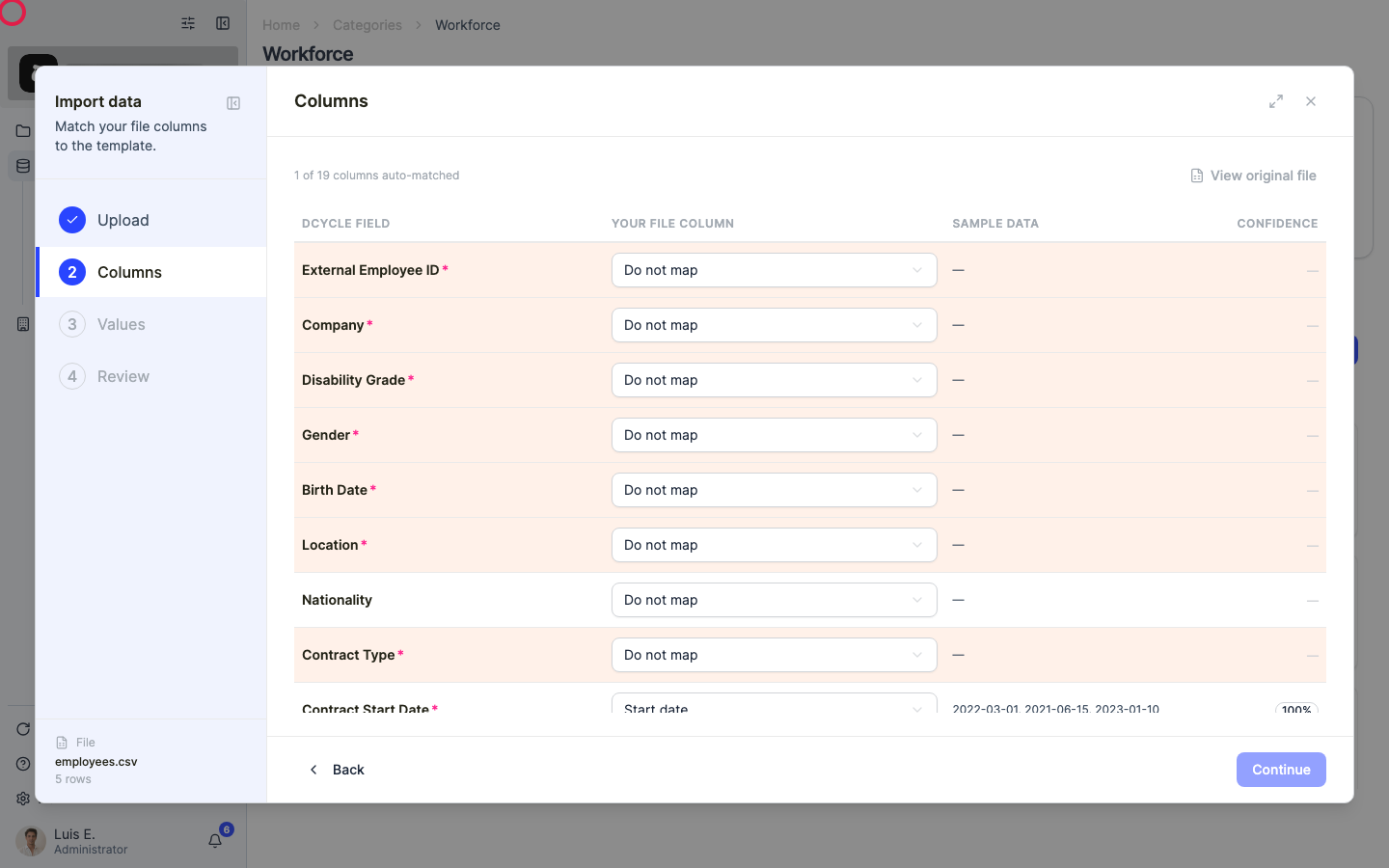
Drag your file onto the panel or click to browse. Dcycle parses it and moves to the “Columns” step, where each column of your file is matched to a Dcycle field.
Step 8
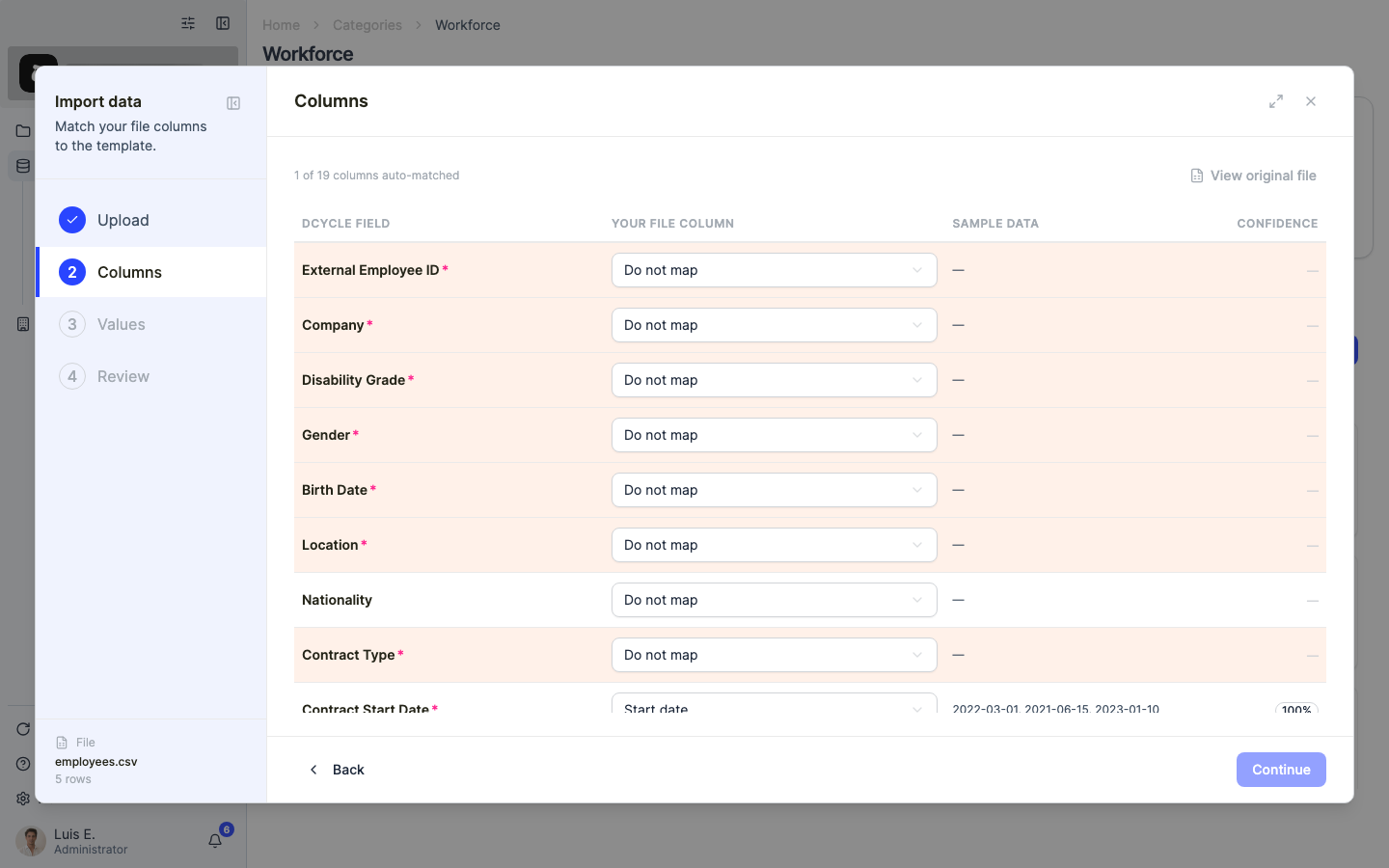
If a “Values” step appears, it shows how the values in your file map to Dcycle’s accepted values. Review the suggestions and adjust anything that wasn’t recognised.
Step 9
The “Review” step summarises valid rows and errors. Fix any flagged cell right here, or filter with “Show errors only” to work through them.
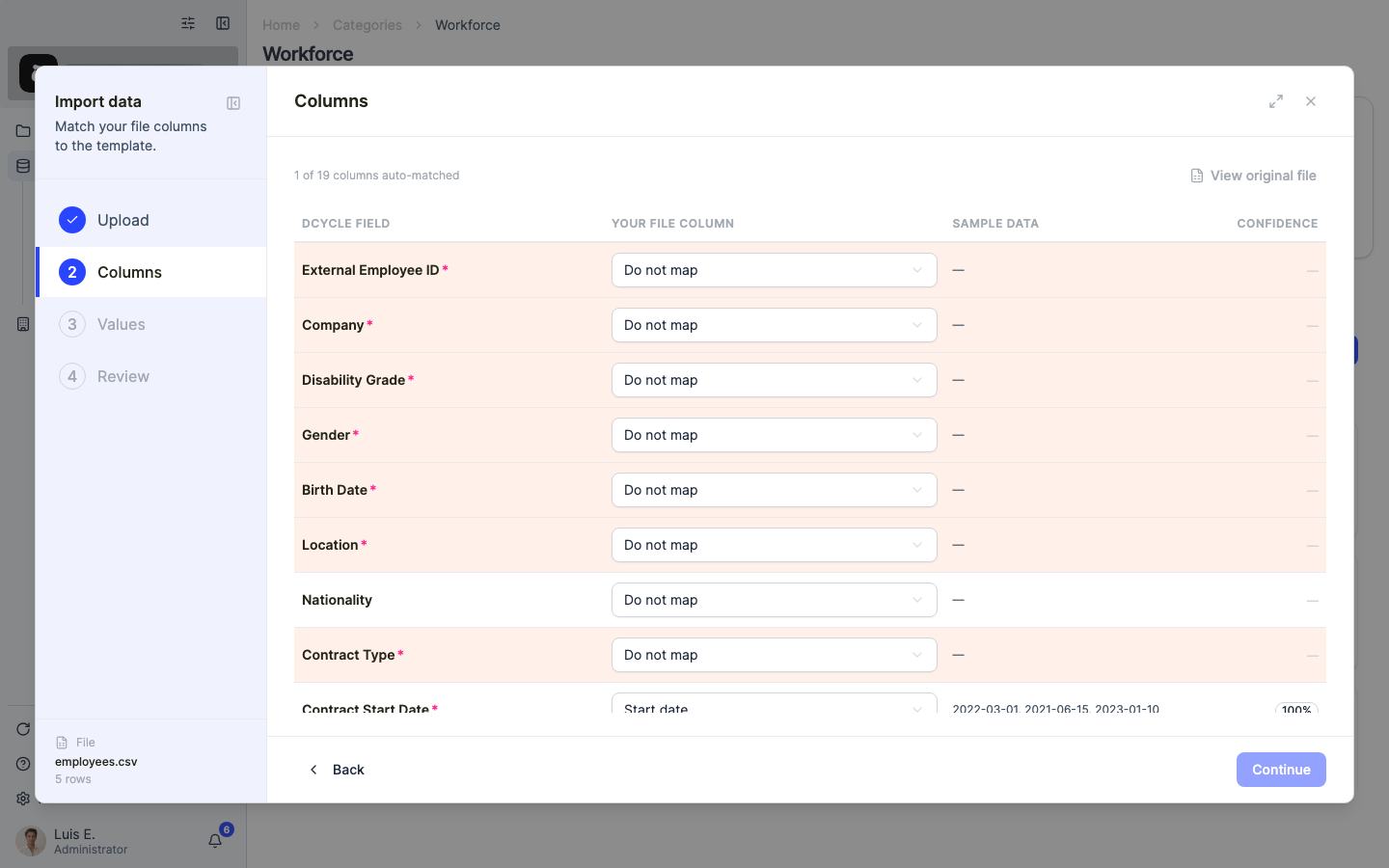
Step 10
When everything looks right, submit. Each employee is added to your Workforce records.
Step 11
Once employees are loaded, send them Dcycle’s built-in commuting survey — mode, one-way distance, work days per week — to populate Scope 3, Category 7. Aim for at least a 30% response rate and extrapolate; document the methodology in your inventory.
Was this helpful?
What was missing or unclear? (optional)
Sent. Thank you for helping us improve.