Product Guides
Send the commuting survey by email or QR
Dcycle's commuting survey collects the data behind Scope 3, Category 7. Send it by email to employees who have a corporate address — so you can track who replied — and share a QR code with everyone else. Both routes write into the same measurement period, so the answers are comparable.
Before you start
You need an Editor role in your Dcycle organization.
Steps
Step 1
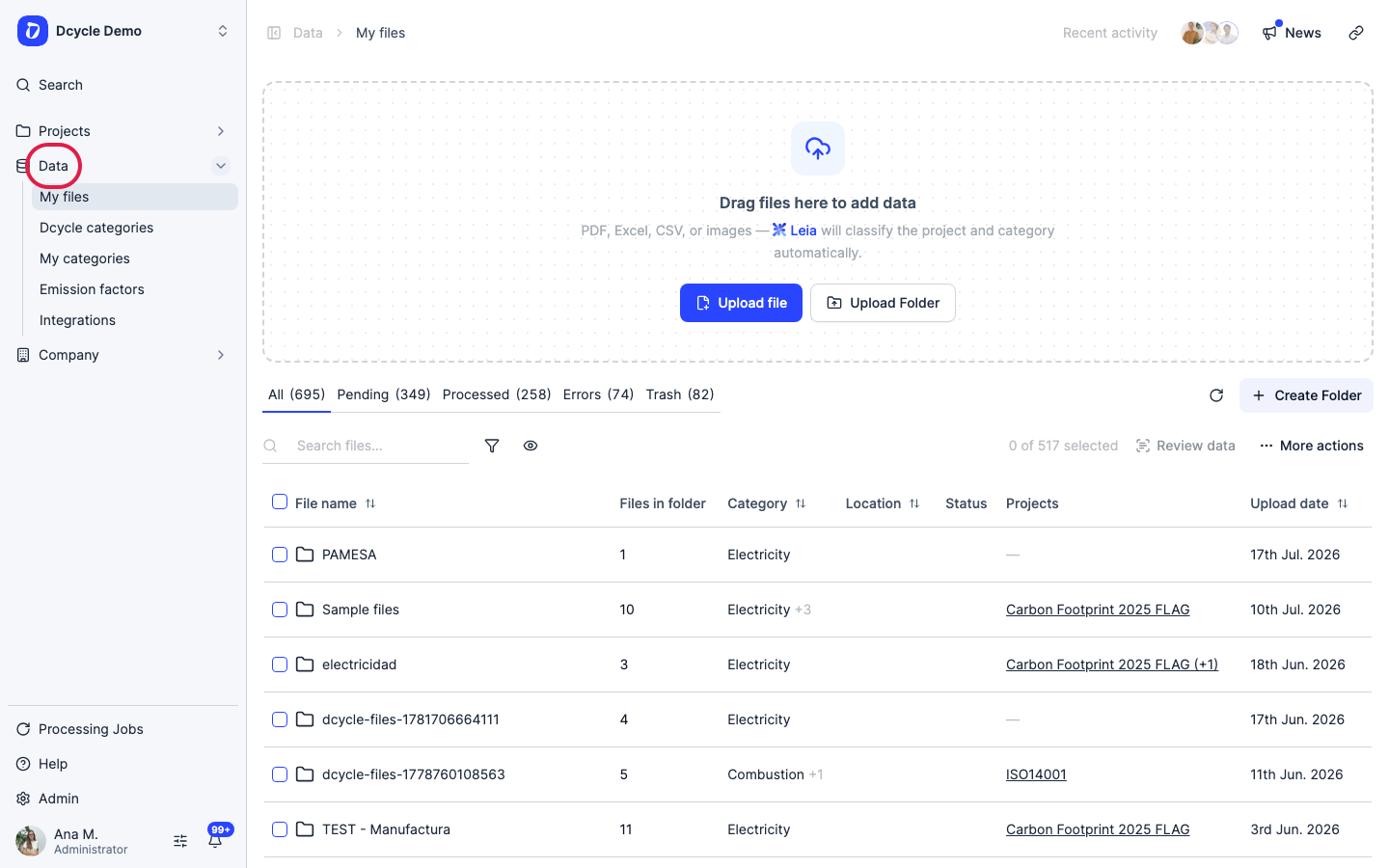
Click “Data” in the left navigation.
Step 2
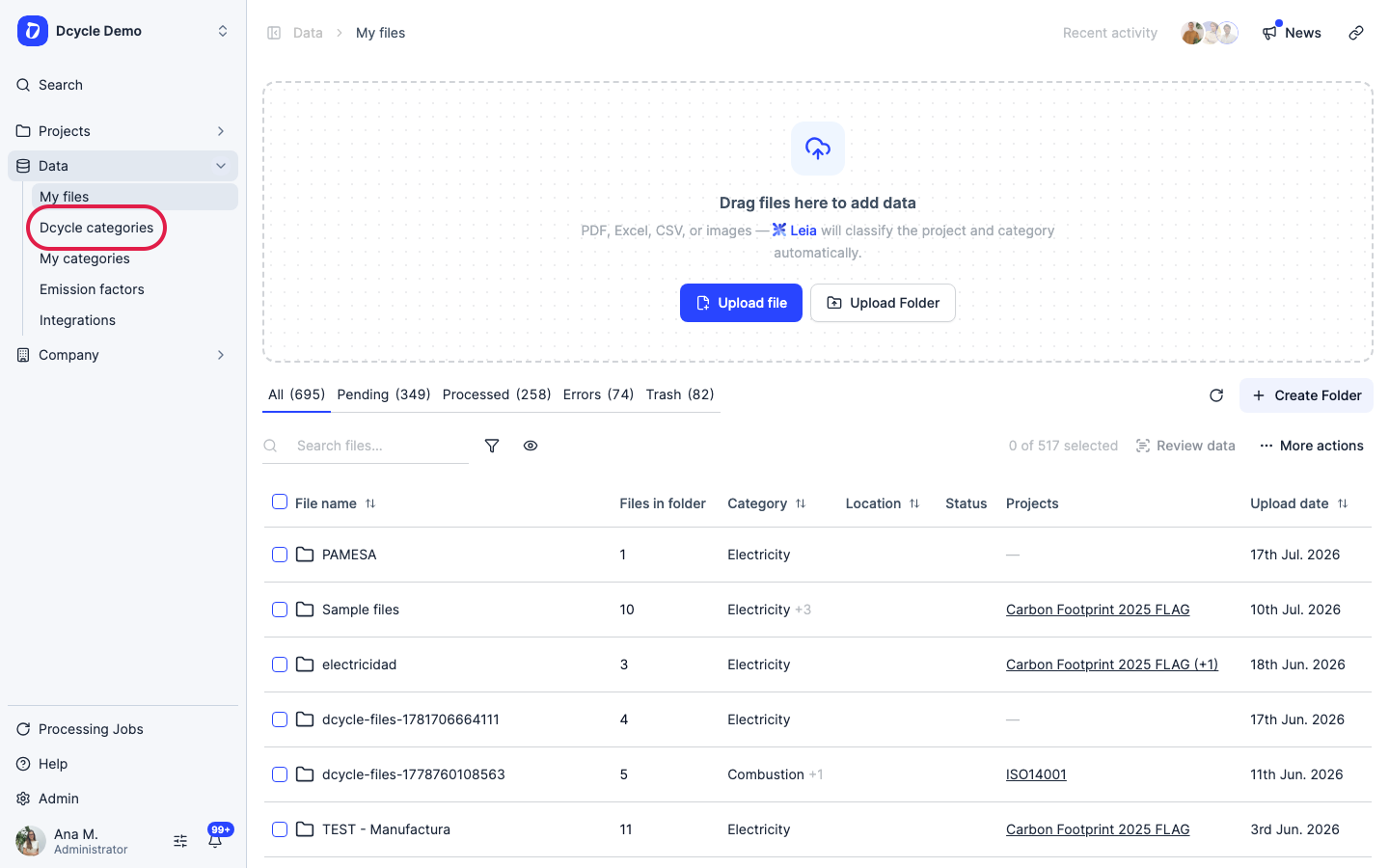
In the Data sub-menu, click “Dcycle categories”.
Step 3
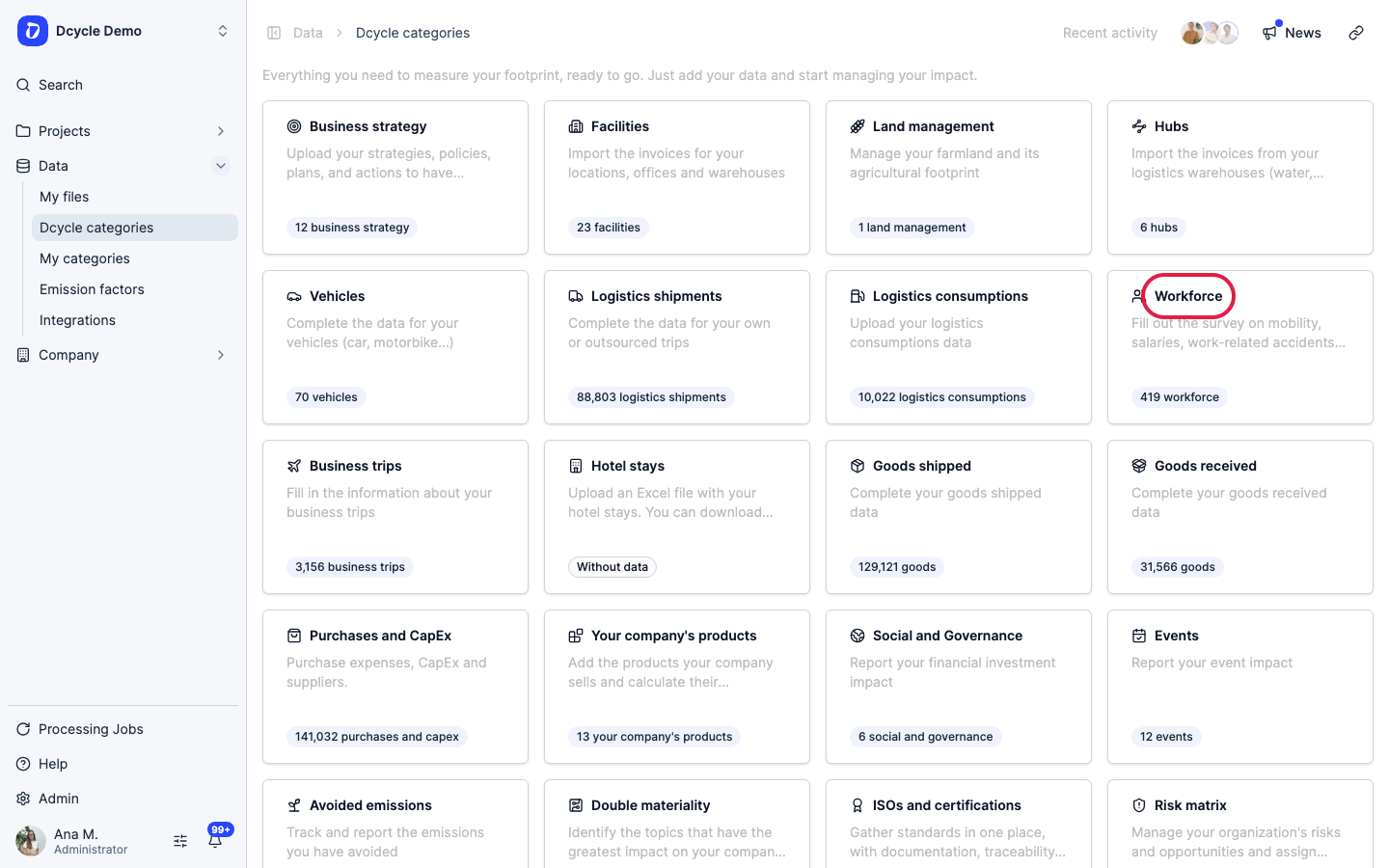
Open the “Workforce” category.
Step 4
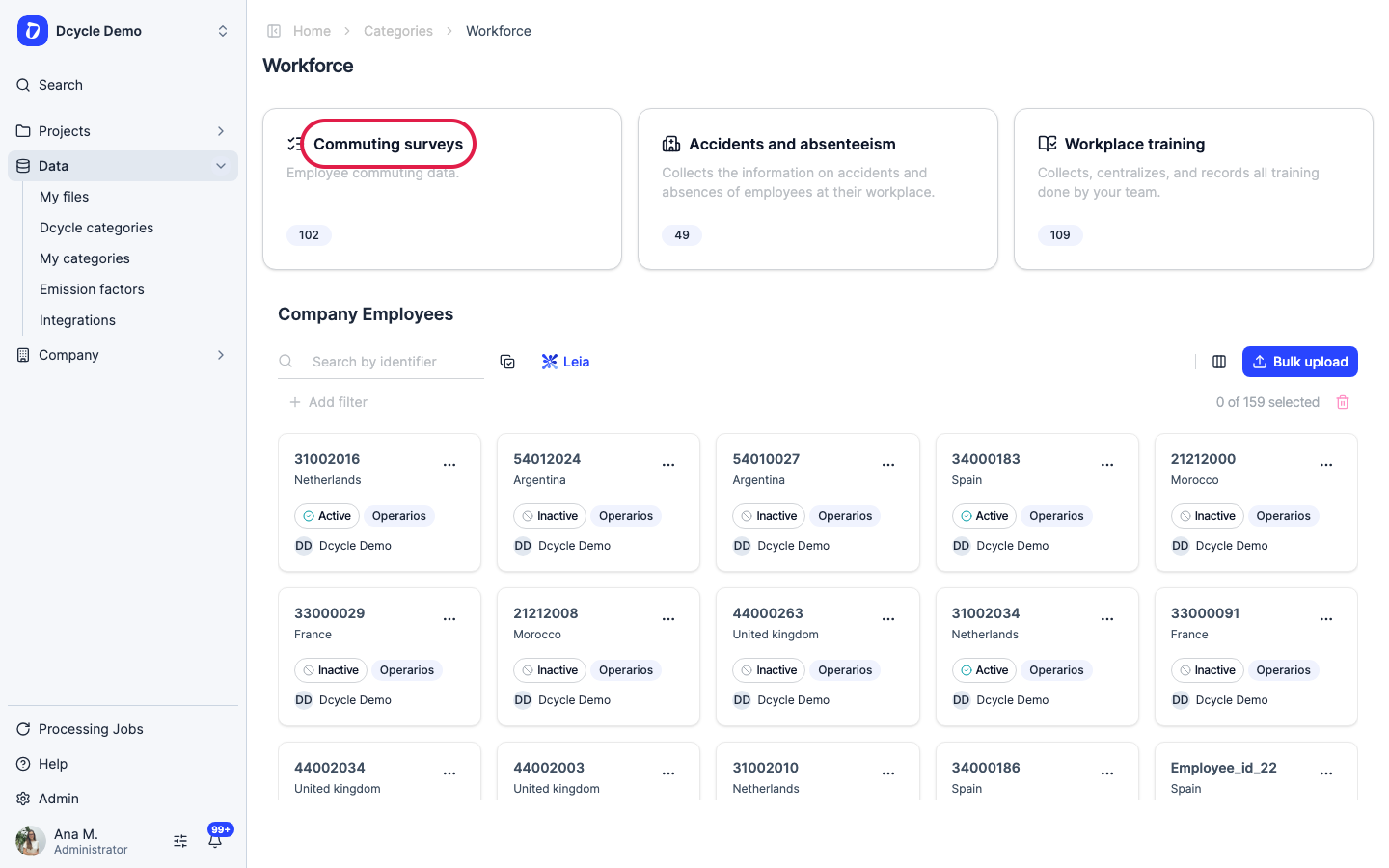
Open “Commuting surveys”.
Step 5
There are two ways to collect commuting data from your staff, and they are meant to be combined: send the survey by email to everyone who has a corporate address, and share a QR code with the rest (shop floor, stores, field staff). Both feed the same category.
Step 6
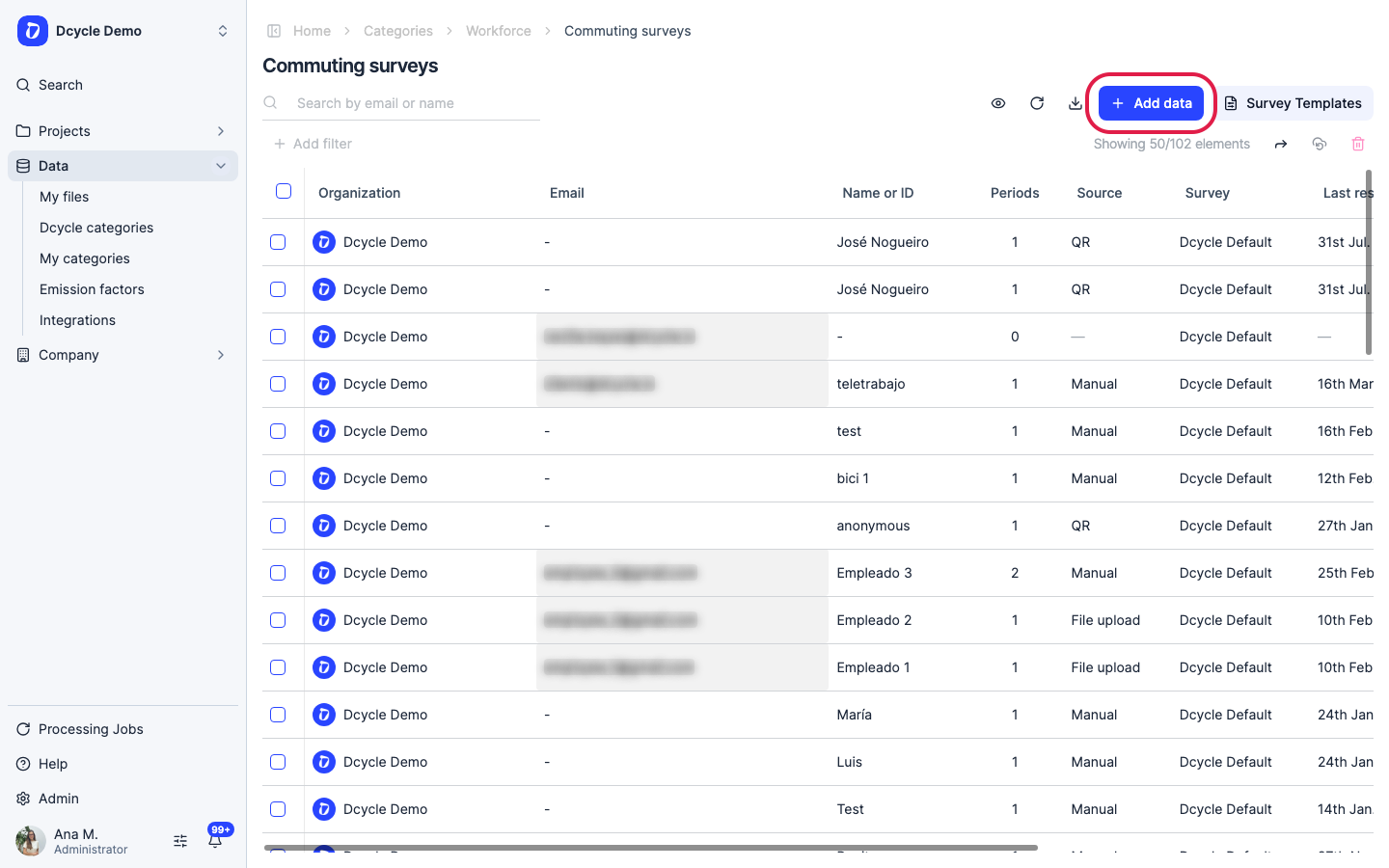
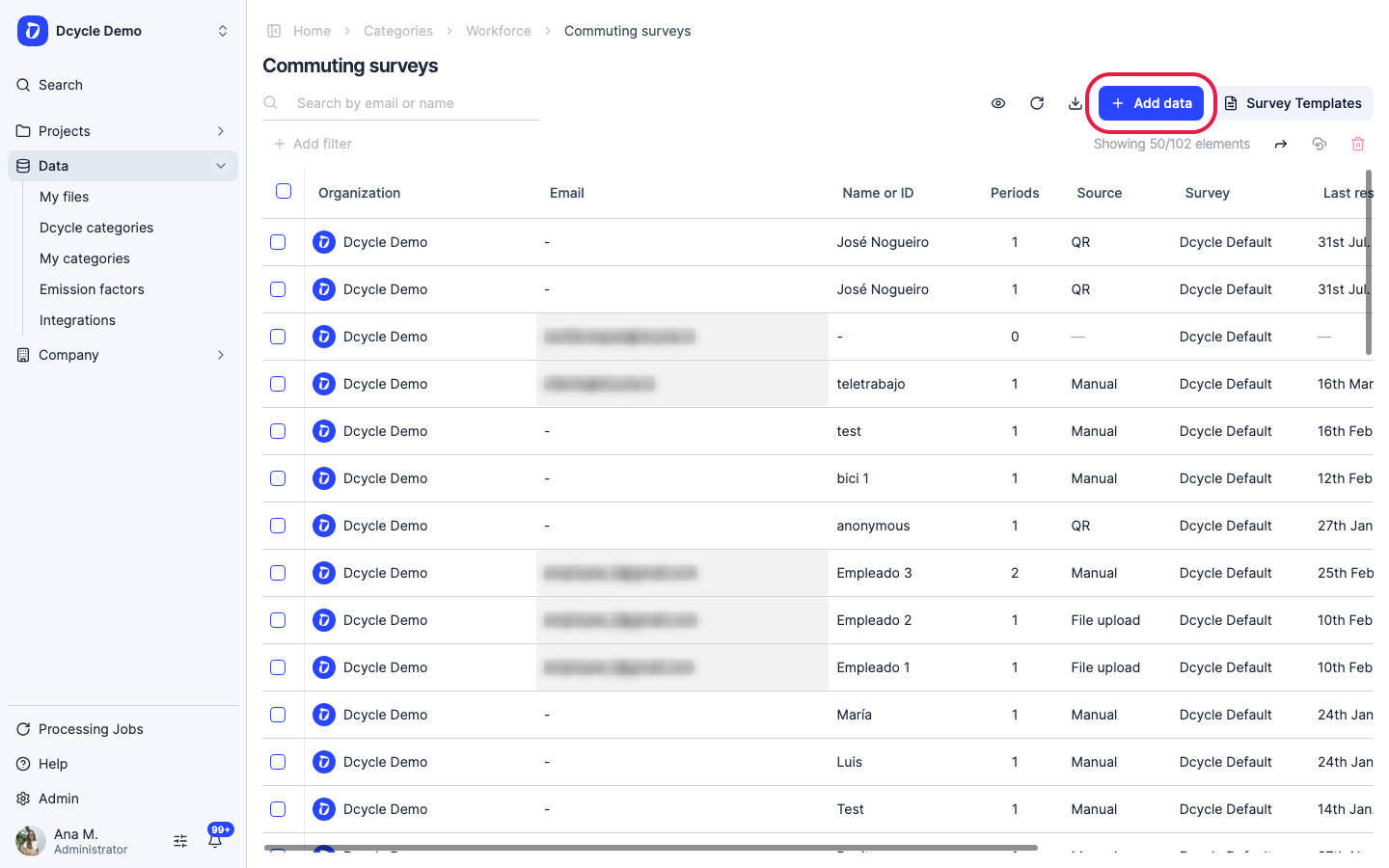
Click “Add data” in the top right.
Step 7
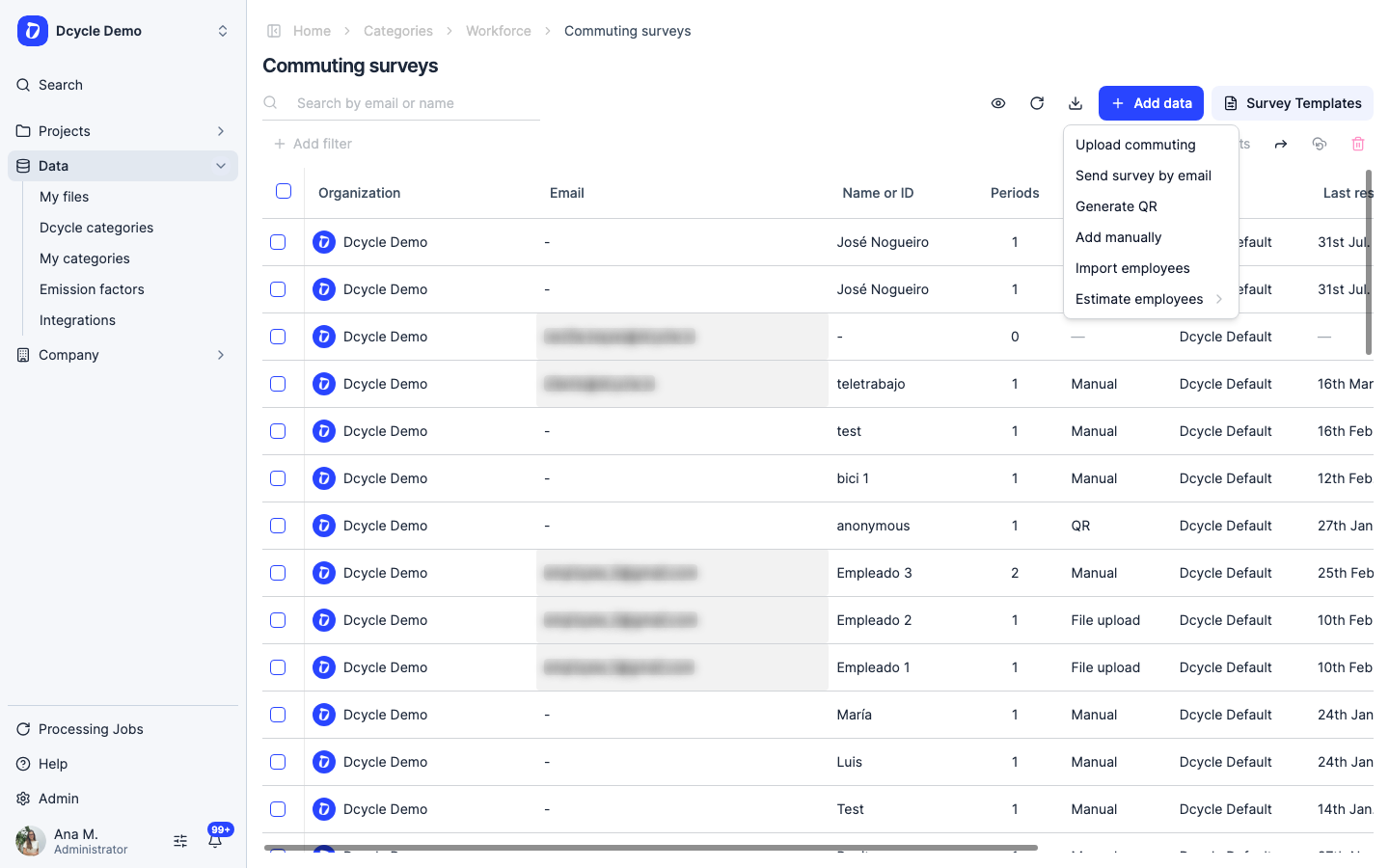
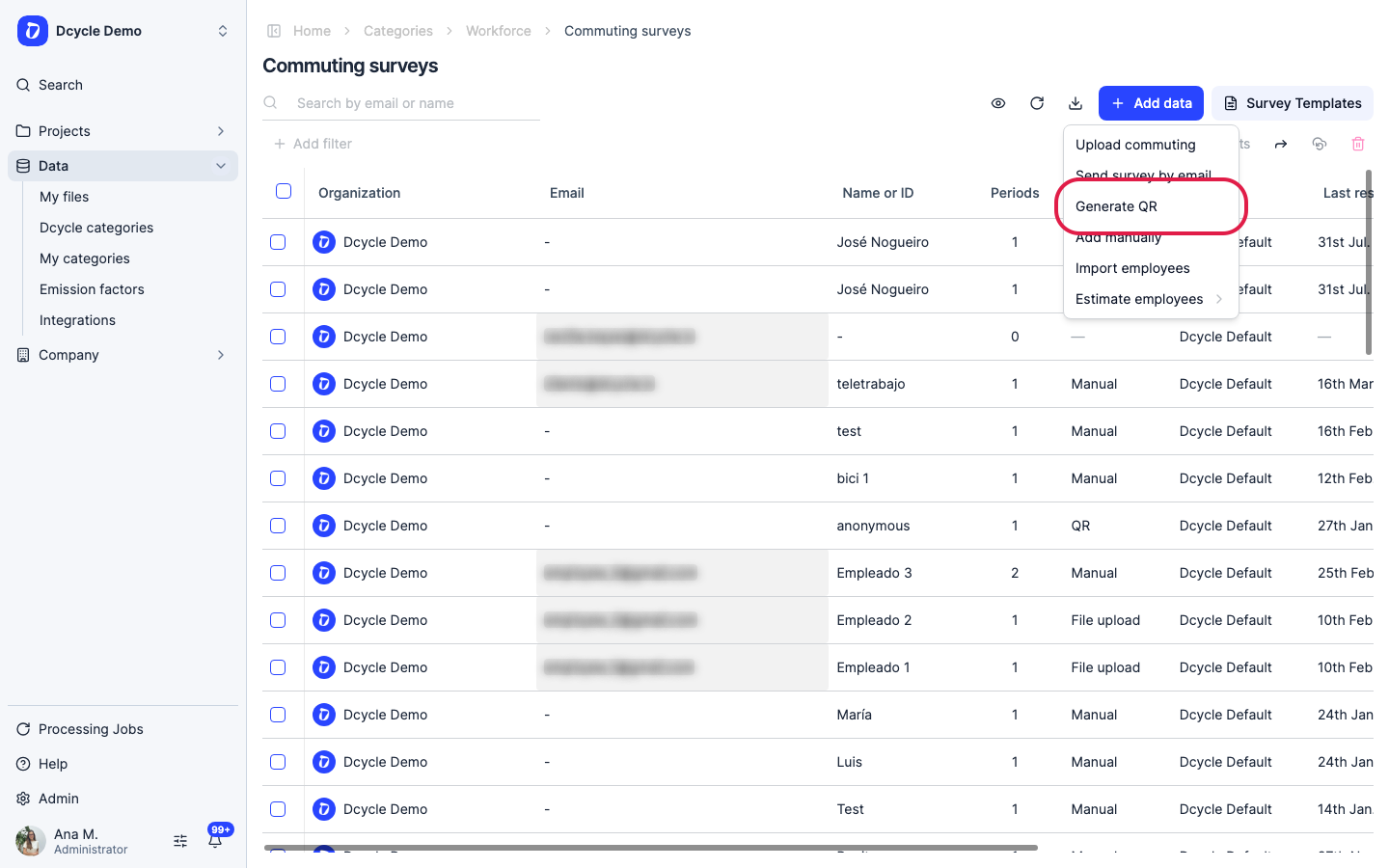
The menu lists every way to get commuting data in: “Send survey by email”, “Generate QR”, “Add manually” for one-off entries, “Upload commuting” if you already collected the answers yourself, and “Import employees” to load the staff list first.
Step 8
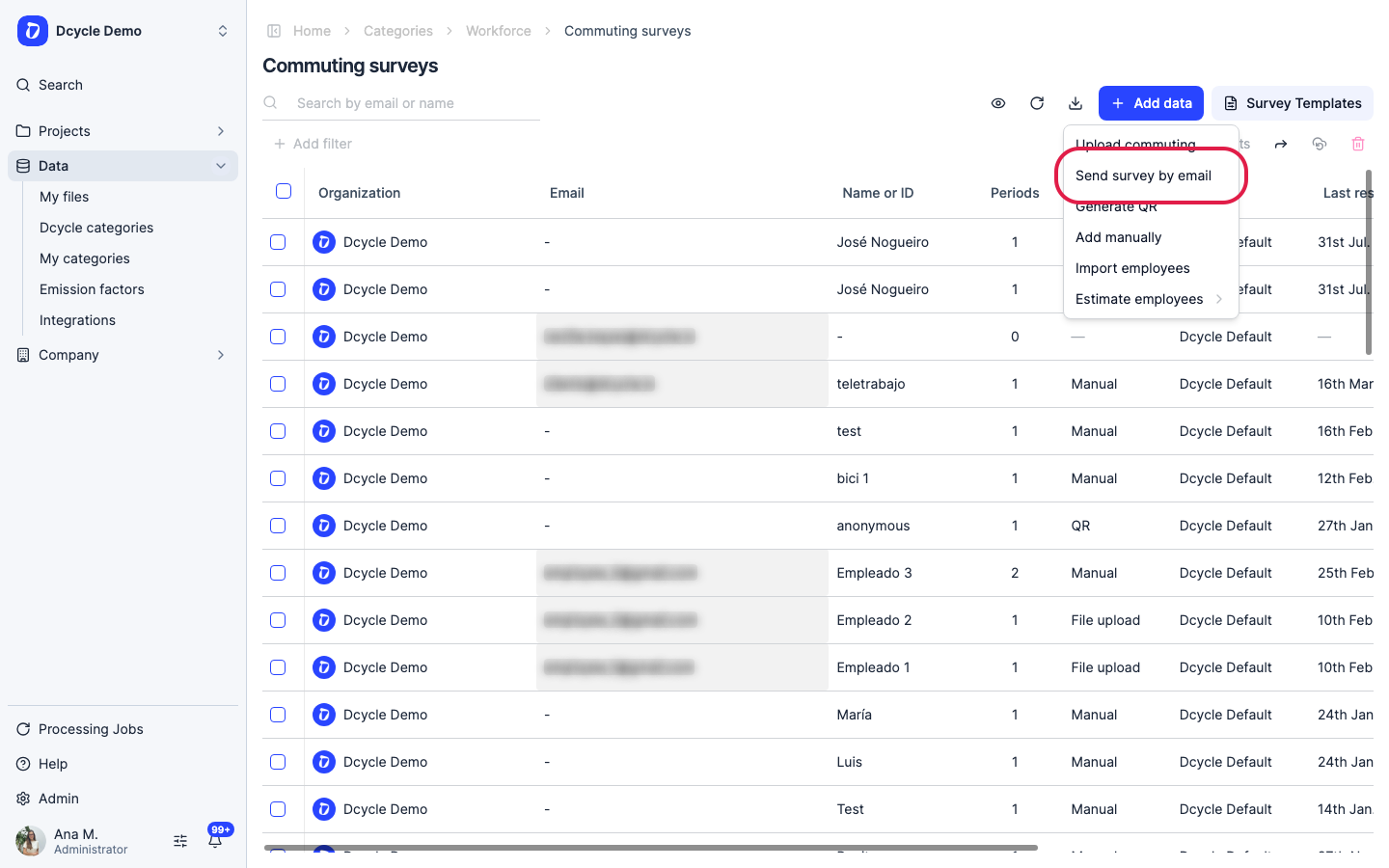
Click “Send survey by email” to set up the email route.
Step 9
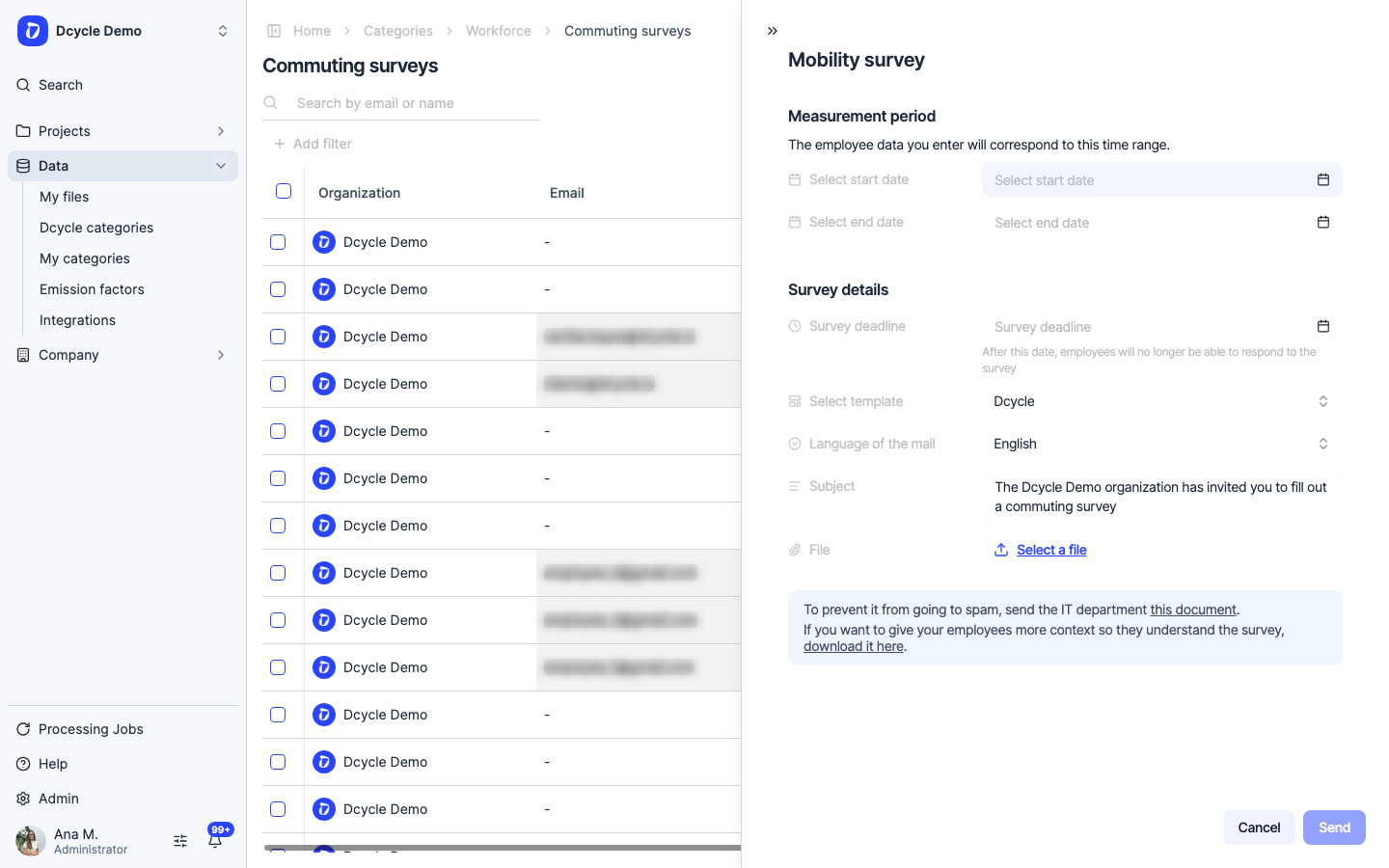
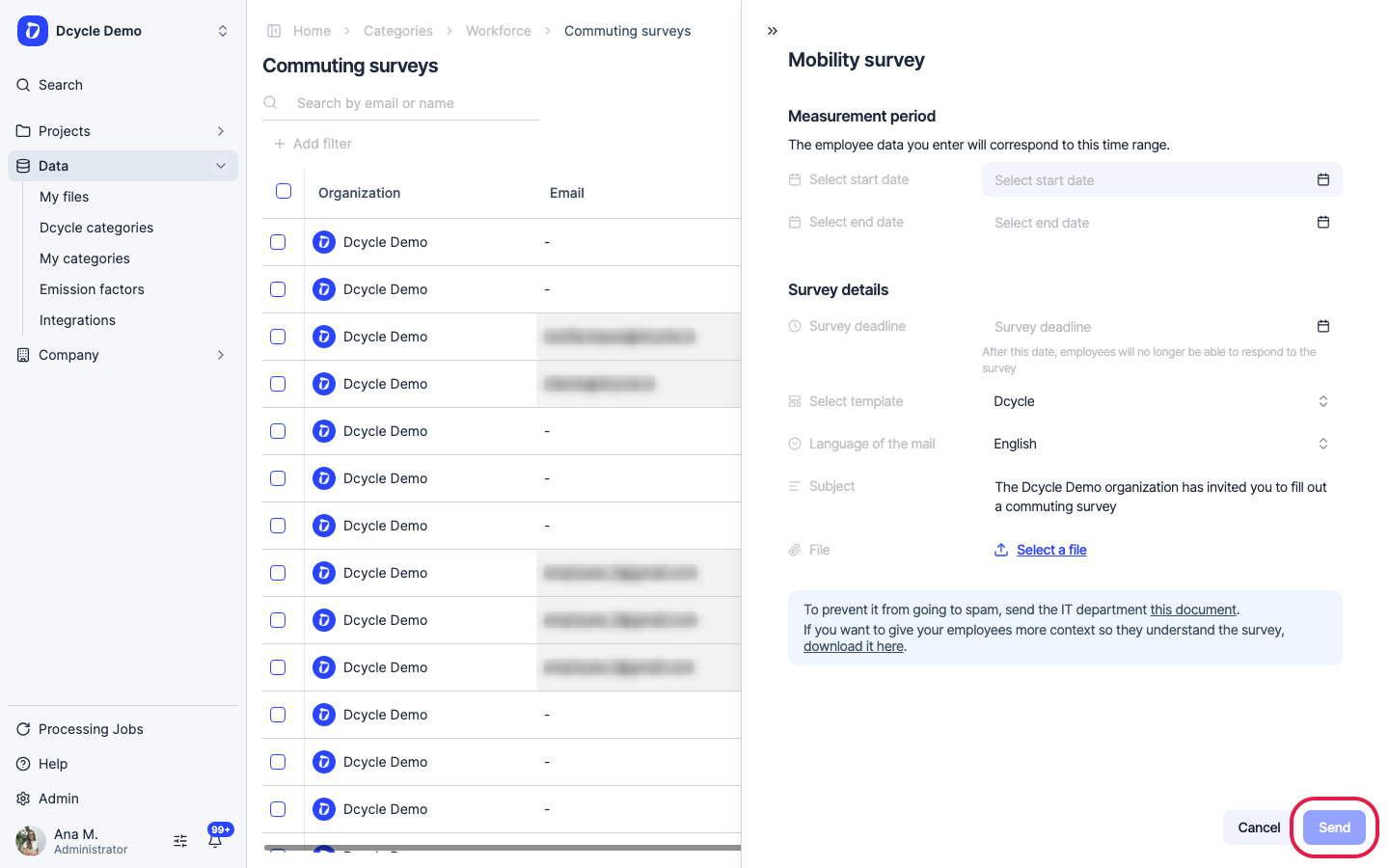
First set the “Measurement period” — the start and end dates the answers will refer to. Then, under “Survey details”, set the “Survey deadline”: after that date employees can no longer respond.
Step 10
Below that, choose the “Language of the survey” (Spanish, English, Catalan, French, German, Italian, Portuguese, Arabic and Chinese are available), pick a template if you want to add your own questions to the standard ones, and edit the “Subject” of the email. Finally, attach the file with the recipient emails — download the template from the modal and add your own address too if you want to take part.
Step 11
Click “Send” and Dcycle emails the survey to each address. Because each invitation is tied to a person, you can see in the list who replied and who hasn’t, and resend only to the pending ones later.
Step 12
Close the modal to go back to the list.
Step 13
Now the second route. Open “Add data” again — this is where the QR for employees without a corporate email lives.
Step 14
Click “Generate QR”.
Step 15
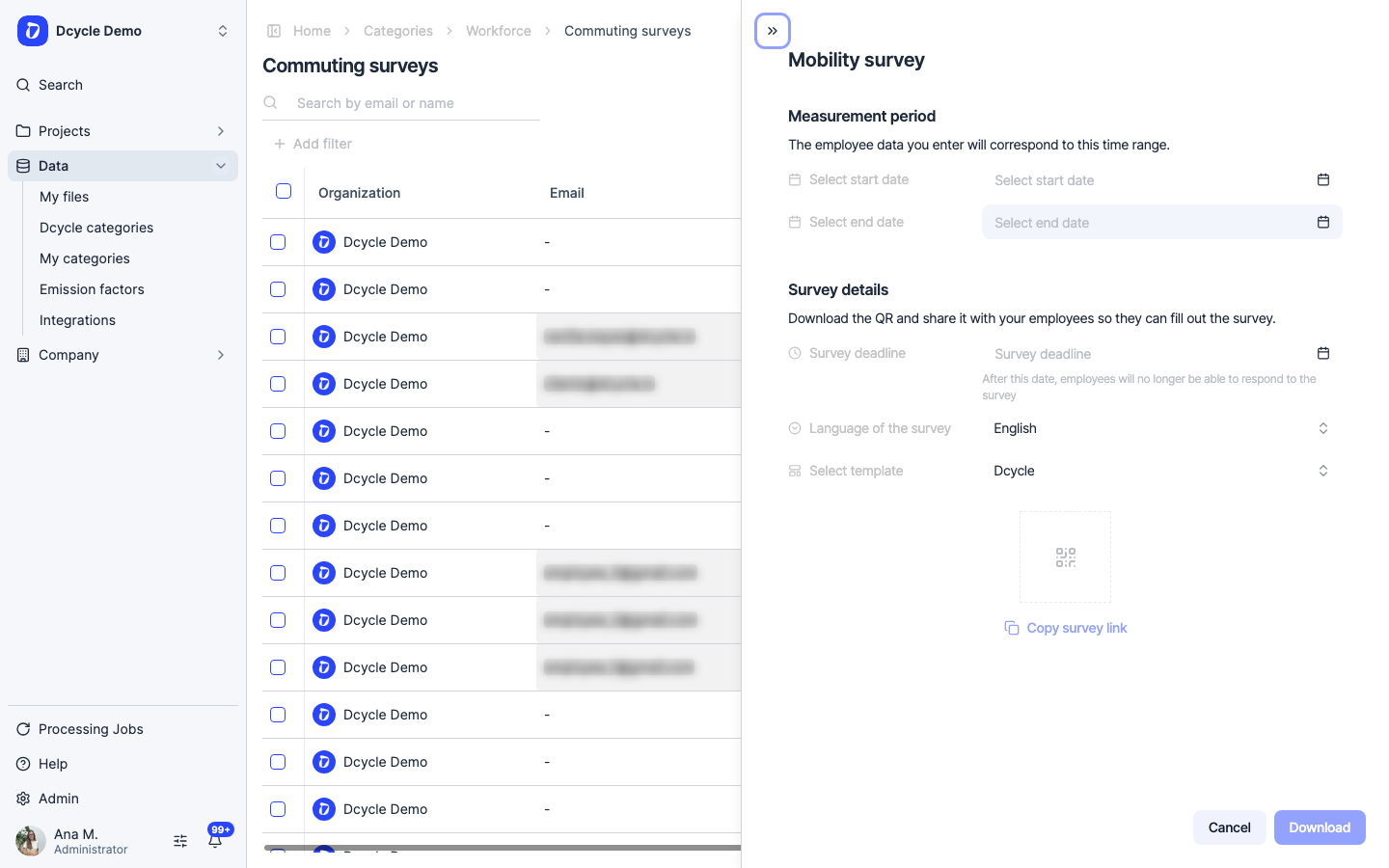
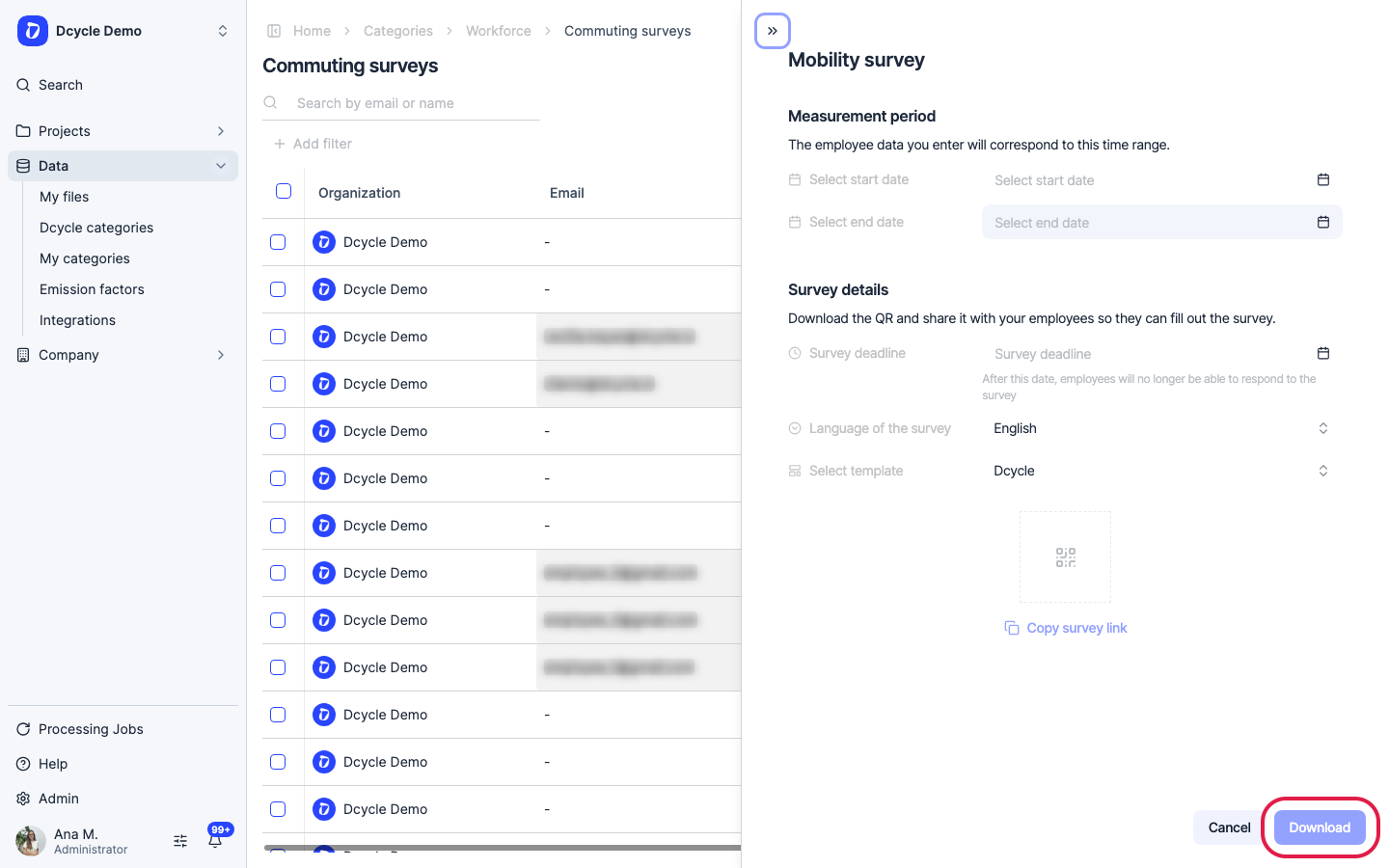
The QR form asks for the same things as the email one — measurement period, deadline, survey language and template — so both routes collect exactly the same data for the same period. Fill them in and the QR appears at the bottom.
Step 16
Two things to keep in mind. The QR is anonymous: answers are recorded as “QR” and are not tied to a named employee, so there is no individual follow-up (you do see the total received). And the link expires on the deadline you set — to extend it, generate a new QR.
Step 17
Click “Download” to get the QR image plus a printable instructions sheet for your employees. Use “Copy survey link” instead if you prefer to share it over WhatsApp or the intranet. Print it and put it up wherever your staff will see it — clock-in point, break room, plant entrance.
Step 18
As answers come in, track them in the “Status” column of the employee list and use “Resend pending” to chase only those who haven’t replied. Aim for at least a 30% response rate; for the rest, Dcycle can estimate the non-respondents’ emissions from the profile of those who did answer.
Was this helpful?
What was missing or unclear? (optional)
Sent. Thank you for helping us improve.