Product Guides
Launch a data pre-audit
The pre-audit runs an automatic quality check on your organization's data and tells you whether it is ready for an external audit. This guide shows where to find it, how to launch it and how to read the report you receive.
Before you start
- You need a role with the Launch data pre-audits permission. If you don’t see the “Launch pre-audit” button, ask your organization’s admin to enable it for your role.
- Open the project from the organization that owns it. The pre-audit card only appears there, not when you view the project from another organization in the group.
- The pre-audit checks the whole organization (including its child companies) for the project’s period, not only the data linked to that project. Launching it from any project gives you the same report.
A pre-audit is not a verification
The pre-audit is an automatic quality control that catches errors before you share your data. The verification itself is done by an accredited third party.
Steps
Step 1
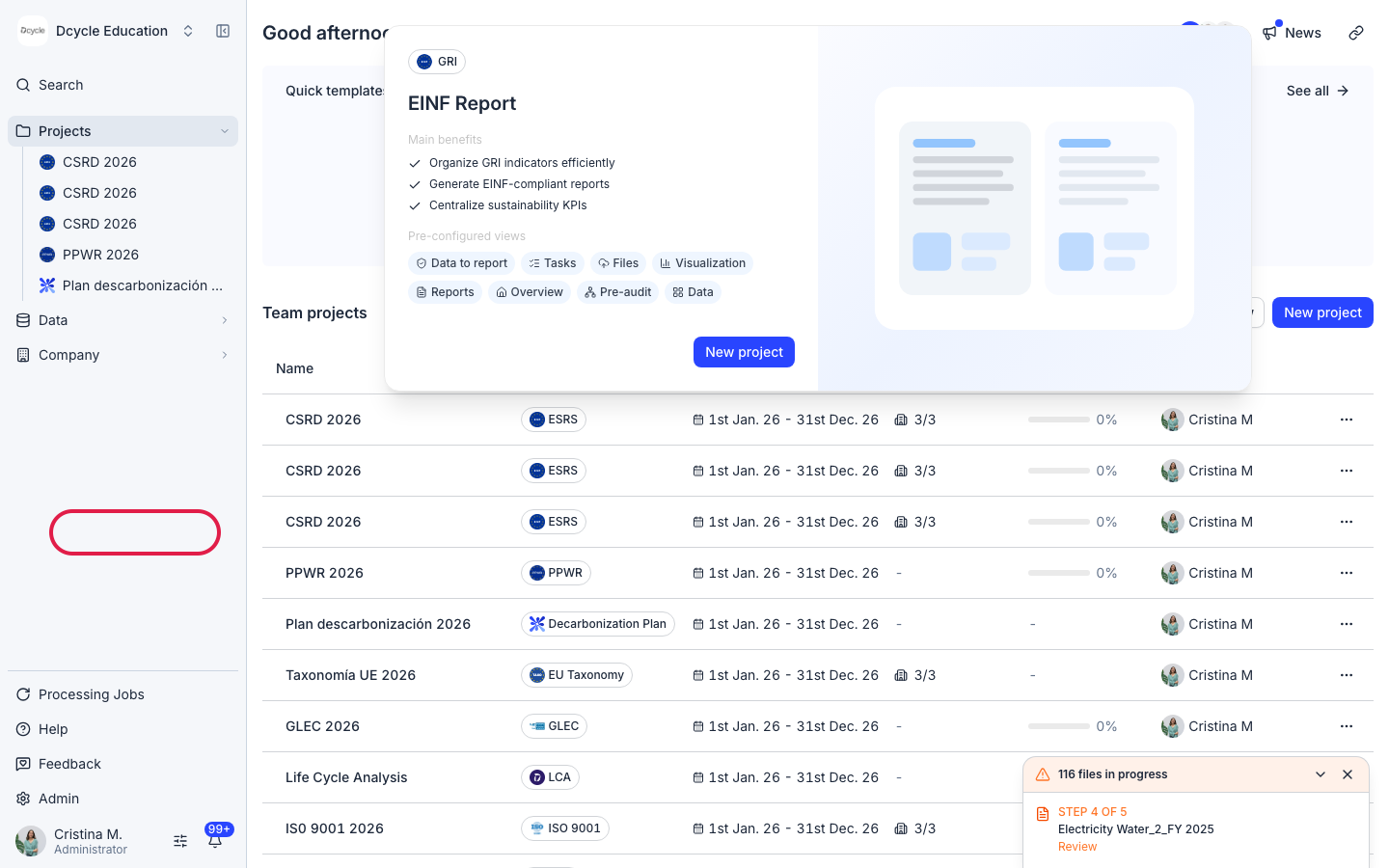
From the home page, open the project whose data you want to check — for example your carbon footprint project for the year you are going to verify.
Step 2
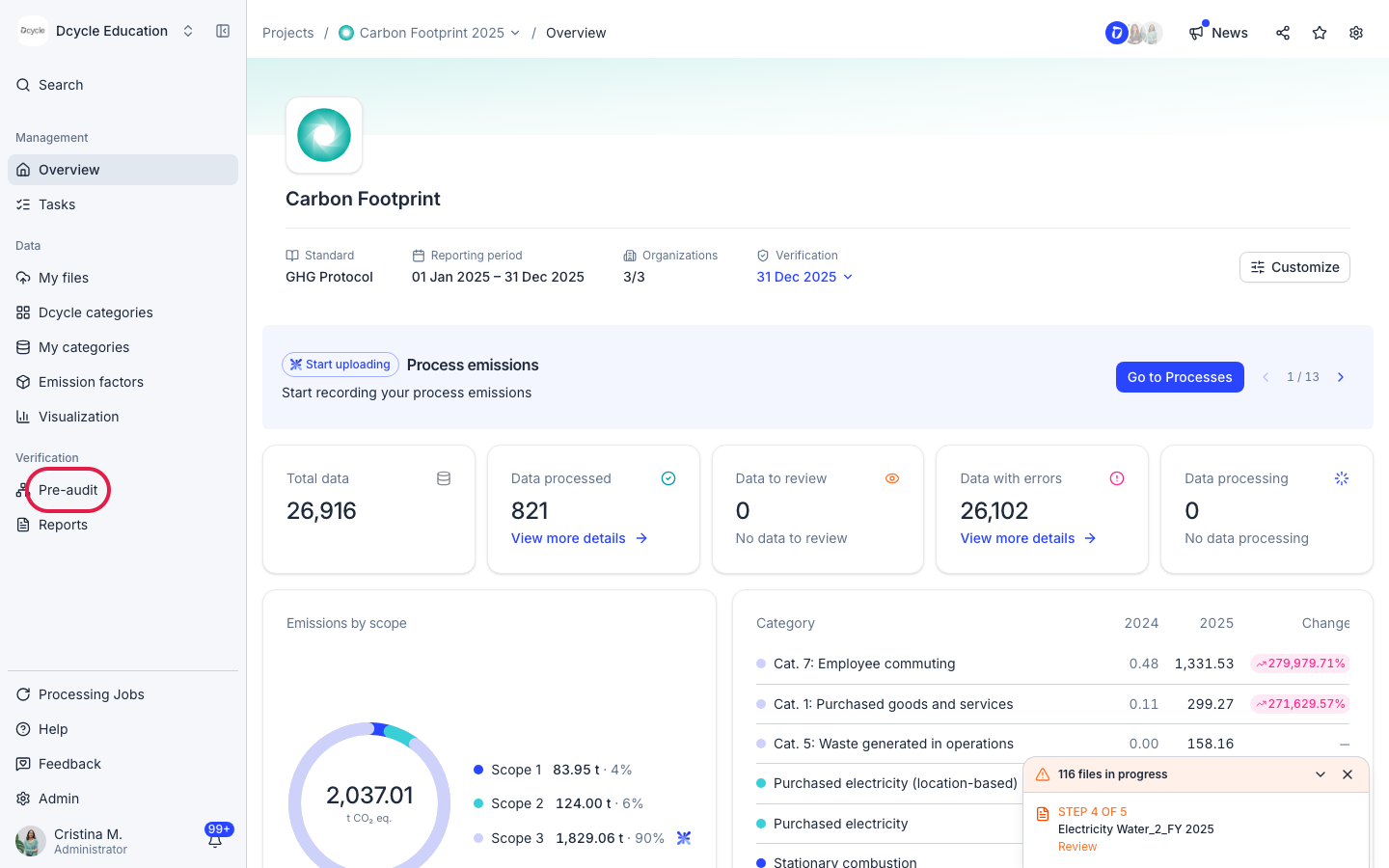
In the left menu, under “Verification”, click “Pre-audit”.
Step 3
The top of the page summarizes the project’s data: total data, processed, to review, with errors and still processing. Use “View more details” on any counter to open the affected records. Fix what you can here before you launch the pre-audit — records with errors or still processing will show up as findings in the report.
Step 4
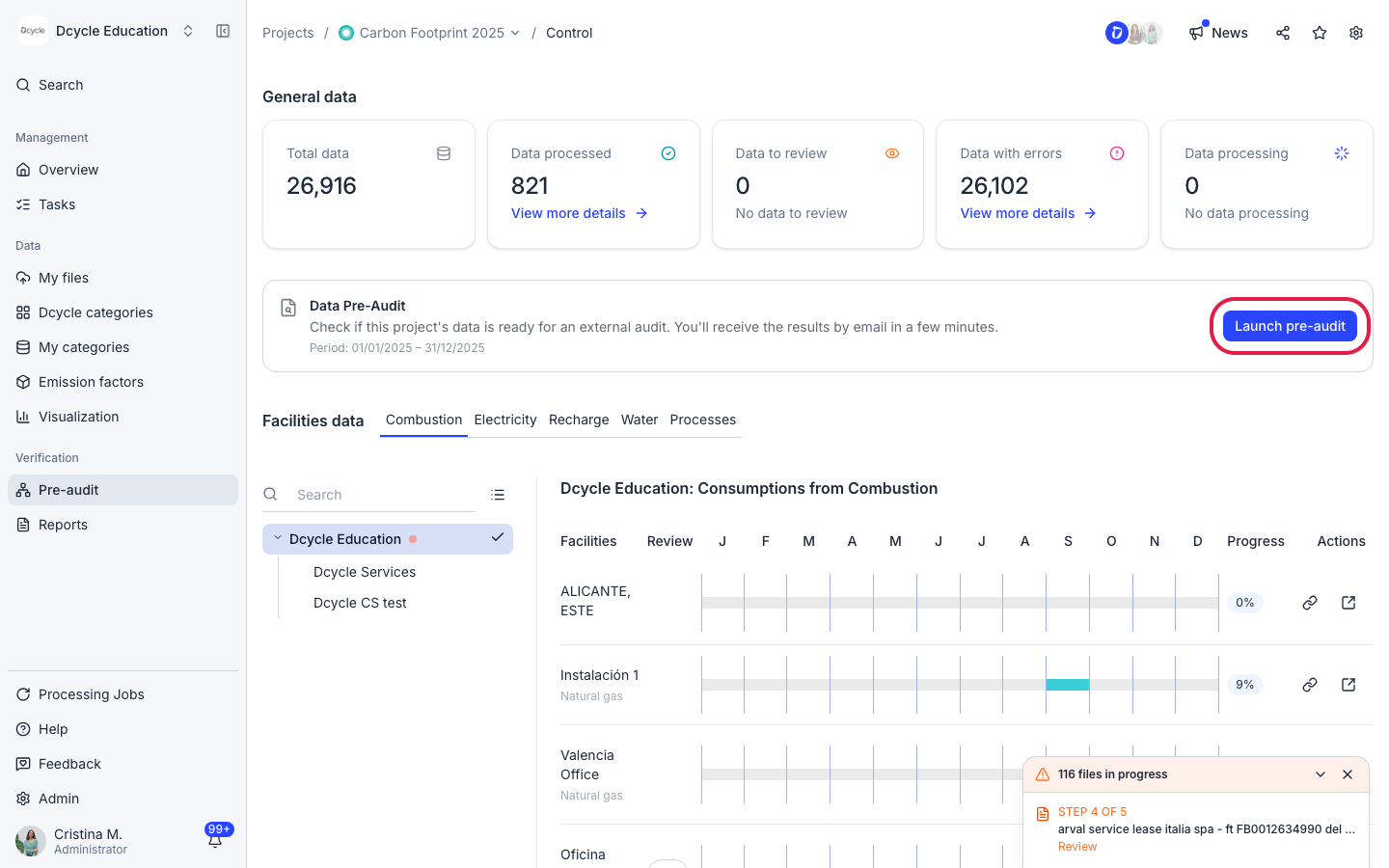
In the “Data Pre-Audit” card, check the period shown under the description — it is the project’s reporting period, and the pre-audit checks exactly that range. Then click “Launch pre-audit”.
Step 5
The card changes to “Auditing this project’s data…”. It takes a few minutes; you can leave the page. When it finishes you receive the report by email, and the card shows “Audit completed” with “View report” (opens it in the app) and “Download report” (saves it as an HTML file).
Nothing changed since the last run?
If your data hasn't changed since the previous pre-audit, Dcycle shows that report again ("Your data has not changed") instead of re-running the checks. Click "Run it again" if you want a fresh run anyway.
Every run is listed under Previous audits, with the period, who launched it and when, and its status. Click any completed run to open its report. Report links stay available for 7 days; after that, launch the pre-audit again.
What the report contains
The report opens as a web page and covers the project’s period. It has five parts.
Data health score
A score out of 100 at the top. Each critical finding takes away 5 points and each warning 1. Next to it you see the number of critical findings, warnings, technical errors and checks passed.
Platform status
Technical checks on processing and synchronisation: files or processing jobs that got stuck, records that have no emissions calculated, calculations left without a valid record, and records calculated the wrong number of times. Dcycle handles most of these — each one is labelled either “dcycle is handling this” or “needs your action”.
This part also includes:
- Record status by category — how many records are processed, processing, in review or in error, per category and company.
- Records per company and category — a matrix that helps you spot child companies with no data for a category you expect.
- MITECO version — which MITECO emission factor version was used per year and category. It flags two problems: different versions used for the same category and year across the group, and versions older than the one in effect for that year.
- Wastes in review — waste records whose emission factor couldn’t be matched with confidence. They count as zero emissions until you pick the right factor.
Data quality
A chart of records to review by problem type. Click a bar to jump to the detail.
- Activity of zero or less — records with a zero, negative or empty quantity. They generate no emissions and are usually data entry errors.
- Duplicates — records repeated with the same values, typically from uploading the same file twice. Checked for invoices, vehicle consumptions, purchases, wastes, business travel, employees, transport and wastewater treatment.
- Implausible values — distances that don’t make sense for the transport mode (for example, a flight under 150 km or a car trip over 1,500 km) and employees with more than 2 commutes a day.
- Values out of the usual range — records more than 10 times above or below the median of similar records (same facility and energy type, same vehicle, same route…).
Months with no data
Months in the period where a facility, vehicle or wastewater plant has no record although it has data in other months. Checked for invoices, vehicle consumptions, wastewater treatment and wastes. Invoices are shown as a heatmap of months with no invoice, by facility.
Comparison with the previous period
Emissions for the period against the same period a year earlier, in tCO₂e, by category, with the detail by company and facility. Each category uses its own scale, so compare each pair, not bars across categories.
A drop is not always a reduction
A big drop, or a category at zero, may mean data still waiting to be uploaded. Check the months with no data before reading it as good news.
Each finding comes with a “What to do” note and a table of the affected records. Long tables show the first rows; use “Download full CSV” to get them all. Fix the records in Dcycle and launch the pre-audit again to confirm.
Plan ahead
Run the pre-audit as soon as your data is uploaded, and again after fixing it — at least 2 weeks before your verification date.
Was this helpful?
What was missing or unclear? (optional)
Sent. Thank you for helping us improve.
Related articles
Prepare and pass your carbon footprint verificationEverything you need to have ready so your carbon footprint verification passes on the first attempt: the 3-stage method, the checklist, Guarantees of Origin, Scope 3, the internal pre-audit and the final report.
Read more →Check that your data is healthyBefore you report or process emissions, run a quick health check on your data. This guide shows you what 'healthy data' looks like for each data type in Dcycle and links to a checklist for facilities, vehicles, employees, and purchase data.
Read more →Data health: vehiclesHow to check that your vehicle data in Dcycle is complete, correctly classified, and ready to report.
Read more →