Product Guides
Data health: purchase data
How to check that your purchase data in Dcycle is complete, correctly categorized, and ready to report.
Healthy purchase data is the difference between a Scope 3 footprint you can defend in an audit and one with undetected gaps. Your OPEX purchases feed purchased goods and services (category 1) and your CapEx feeds capital goods (category 2). Unless you have activity data for each product, Dcycle estimates the emissions from spend: from each line’s amount and from the supplier’s activity code (CNAE or SIC). A supplier with no category or in the wrong activity, or an amount in the wrong currency, change the number. Spend a few minutes on this check before you process or report.
Before you start
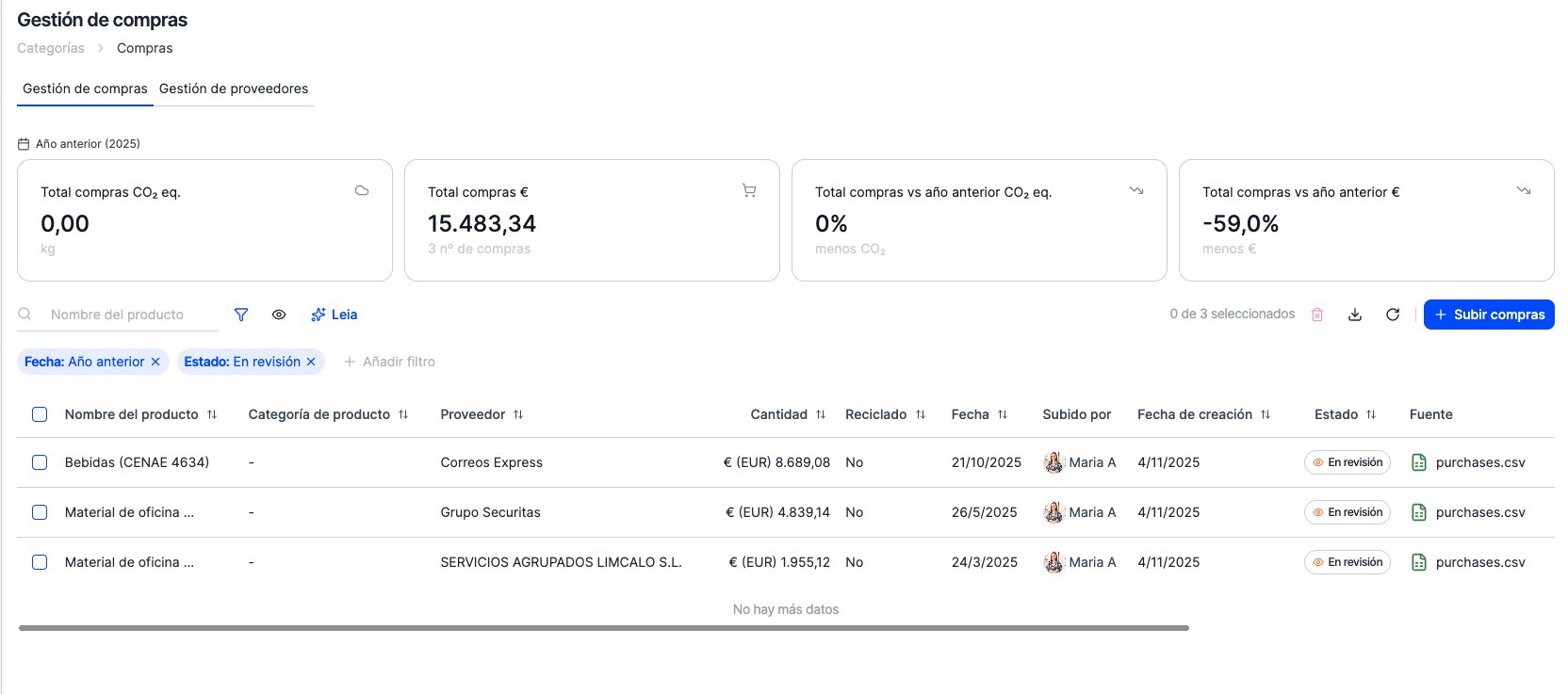
- Your purchases should already be in the account: open Data → Categories → Purchases & CapEx to see the records and the spend totals for the period.
- Have your source files handy: your accounting or ERP export (supplier ledger, received-invoices register) with supplier, amount, currency and date per line. You’ll need them to confirm what’s correct. You can tell which file each purchase came from by filtering by Source in Purchase management, and you’ll always find the original file under Data → My files.
What to check
Open your project’s pre-audit panel. It runs an automatic check across every data type and flags anything that isn’t ready to report. For purchases, go through the list and confirm every record shows a success status.
A status that isn’t success points to data that won’t report correctly. For example:
- A supplier in “Under review” status: Dcycle couldn’t confidently map it to an activity code, so no emission factor is applied to it.
- A purchase with no product category or the wrong one (an energy retailer detected as “Food and beverages”).
- An amount with no currency, or a currency that doesn’t match the rest of the period.
- An incomplete period: months or quarters missing for a supplier that was active.
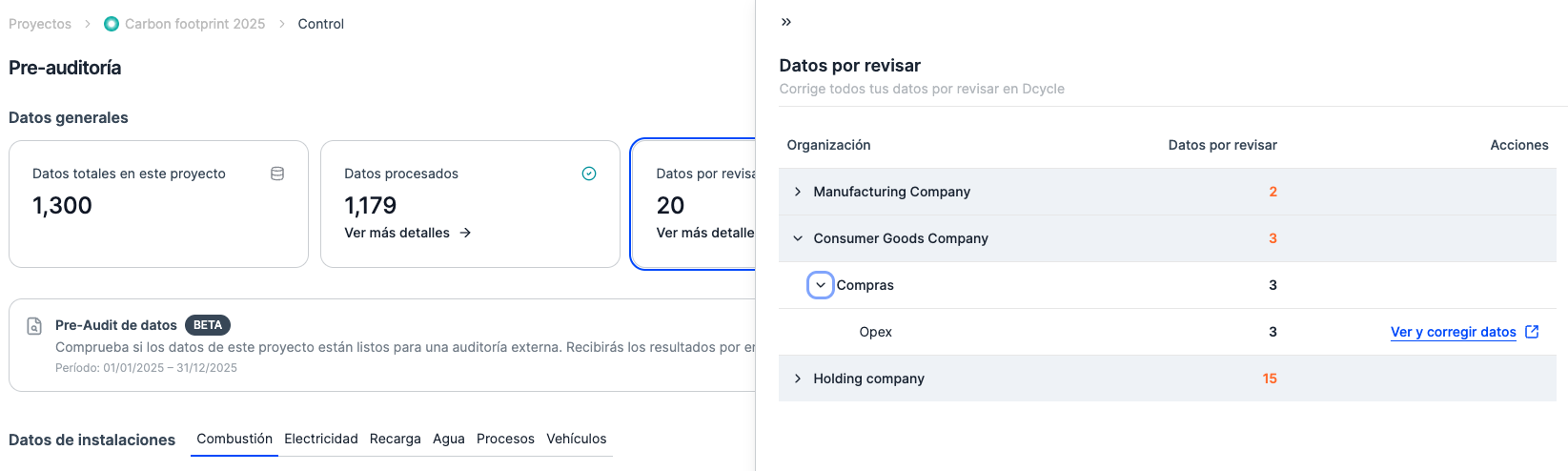
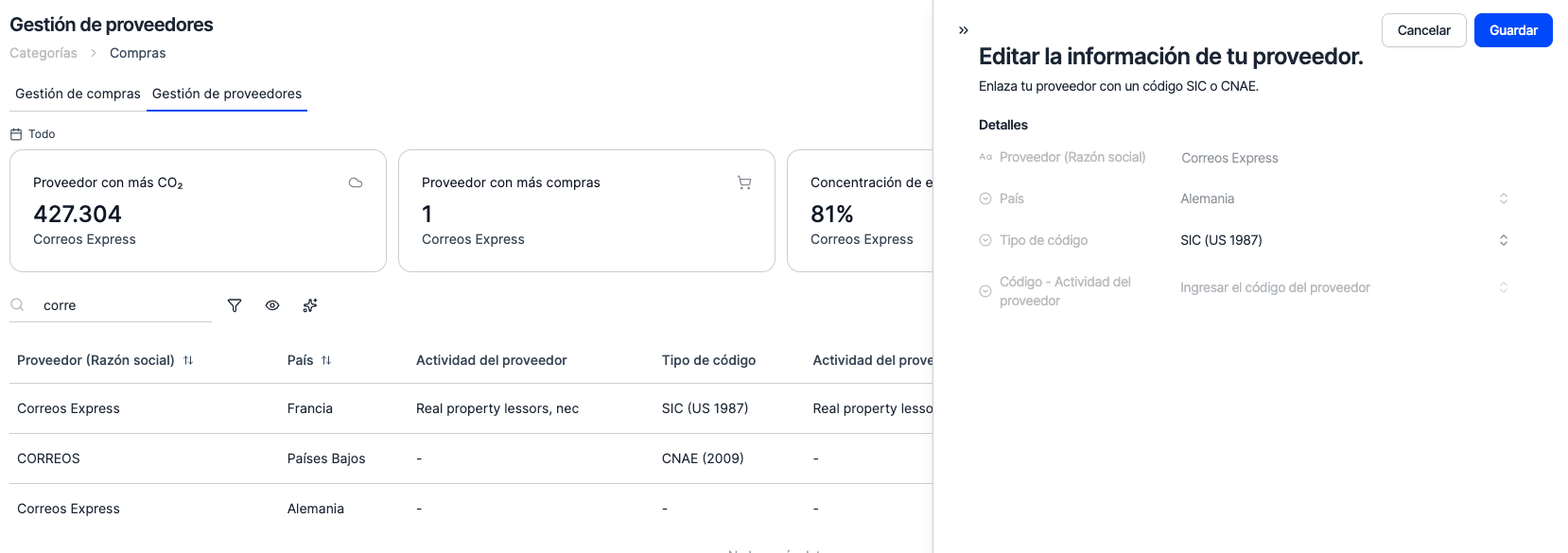
In Data to review, clicking View and fix data takes you straight to the Purchases & CapEx category, where you can fix the different problems in your data across the Supplier management and Purchase management tabs: each supplier shows its detected Supplier activity and status, and each purchase shows its Product category and the calculated emissions. You can edit it right there and Dcycle recalculates automatically.
Problems in your data
A few symptoms tell you something’s off without checking every row by hand:
- Suppliers under review. Any supplier in “Under review” status contributes no emissions: its spend stays out of the calculation until you assign it an activity.
- Emissions that look very high or very low. Spend that should show several tonnes but reads near zero usually points to uncategorized suppliers; a spike often means a mixed-up currency (an amount in another currency entered as euros).
- A jump versus last year. A large, unexplained swing up or down is a clear signal that spend is missing, duplicated, or mis-categorized. You can see it in the “Total purchases vs previous year” cards inside the Purchases & CapEx category, or by creating a purchases visualization.
How to fix
- Missing purchases? Upload them (Data → Categories → Purchases & CapEx → Add). See Upload purchase data for multiple subsidiaries if you manage a holding.
- Supplier under review or mis-categorized? Assign it the correct CNAE or SIC code in the Supplier management tab and Dcycle recalculates the spend-based factor on save. See Fix a supplier’s category.
Next steps
- Back to the hub: Check that your data is healthy.
- Full primary-data reference: Scope 3 primary-data checklist.
Start with what you have and improve it each cycle: a complete estimate beats a precise blank.
Was this helpful?
What was missing or unclear? (optional)
Sent. Thank you for helping us improve.
Up next
Check that your data is healthyBefore you report or process emissions, run a quick health check on your data. This guide shows you what 'healthy data' looks like for each data type in Dcycle and links to a checklist for facilities, vehicles, employees, and purchase data.
Read more → Upload purchases and capital goods (CapEx)Purchased goods & services (Scope 3, Category 1) and capital goods (Category 2) share one category in Dcycle — calculated spend-based (amount × industry factor) when supplier-specific data isn't available. If your organization manages subsidiaries, the same file can route each row to the correct one.
Read more → Fix a supplier's category (CNAE/SIC) for spend-based purchasesFor spend-based purchases, Dcycle estimates emissions from each supplier's activity code (CNAE or SIC). If a supplier was auto-detected into the wrong activity — or none at all — you can correct it, and the spend-based emission factor recalculates.
Read more → Scope 3 data collection checklistA practical checklist of the Scope 3 categories available in Dcycle — what data to gather, in what format, for each value-chain category.
Read more →