Getting Started
Navigate the dashboard
A quick tour of the Dcycle dashboard — where to find data, reports, and settings.
 Cris Marin 3 min
 Overview
After signing in you land on the projects overview. From here you can open an existing project or start a new one from a template.
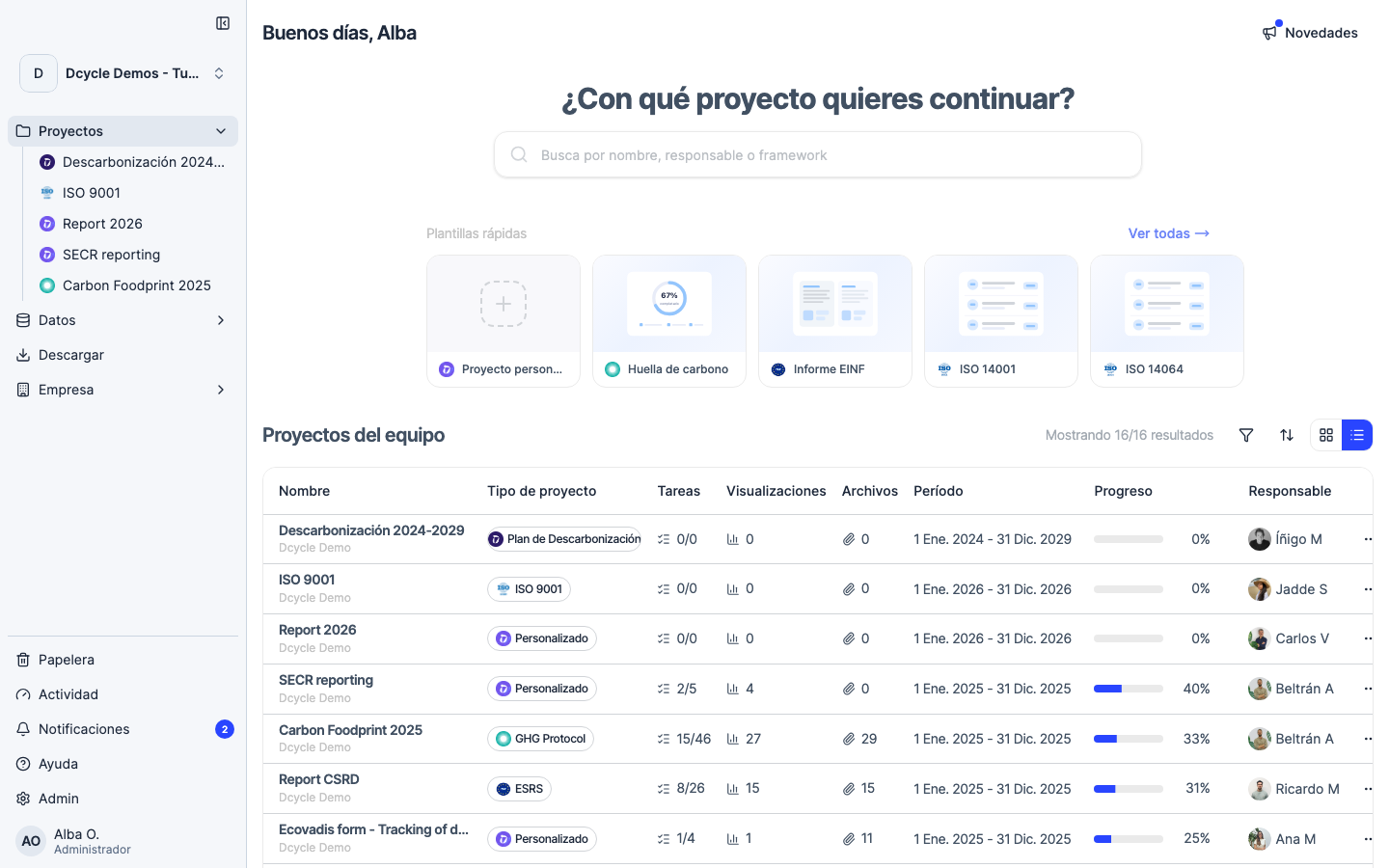
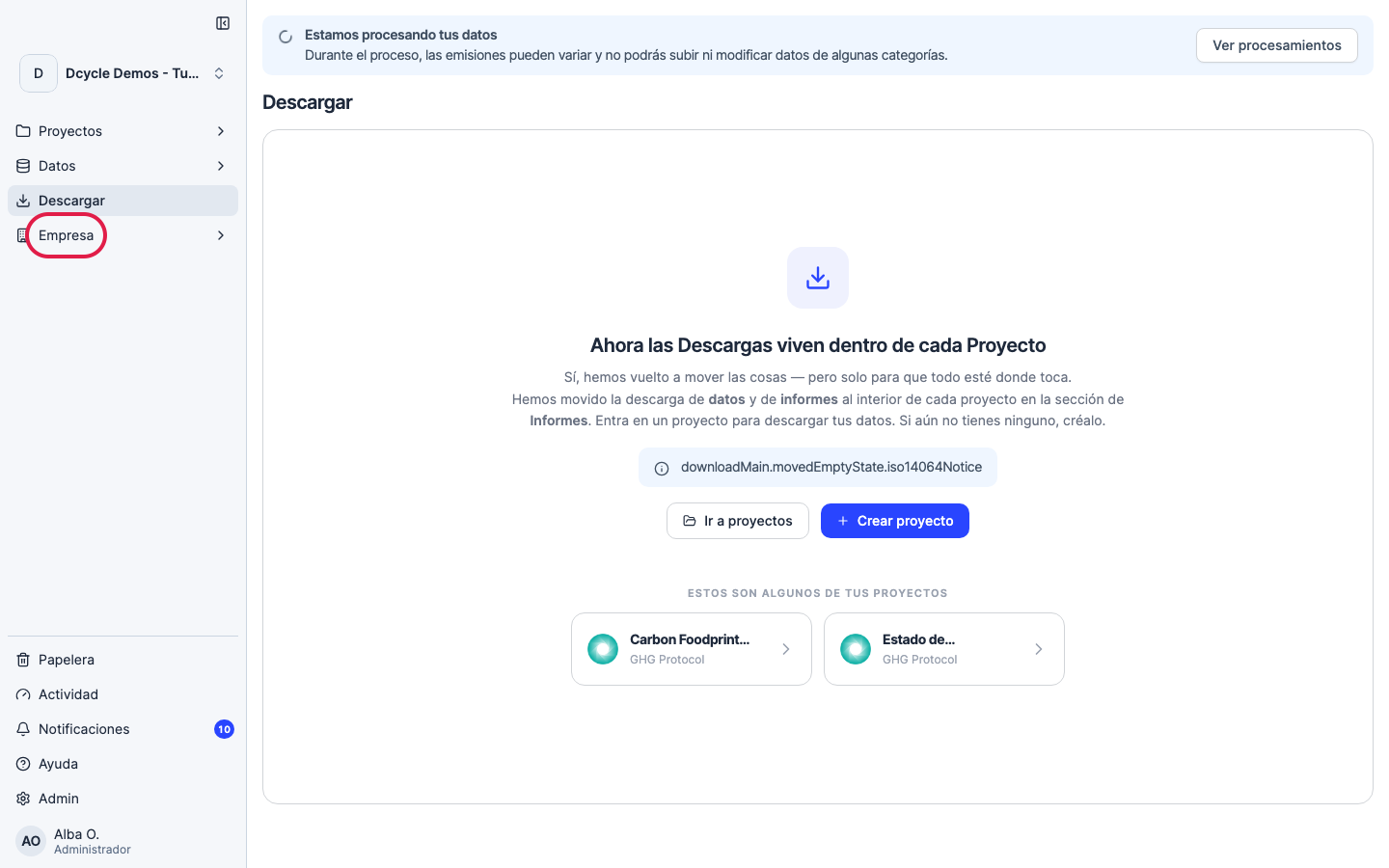
Main navigation
The left sidebar groups every area of the app:
-
Projects — your decarbonisation plans, reports, and frameworks (ISO, CSRD, EcoVadis…). Each one is a Project.
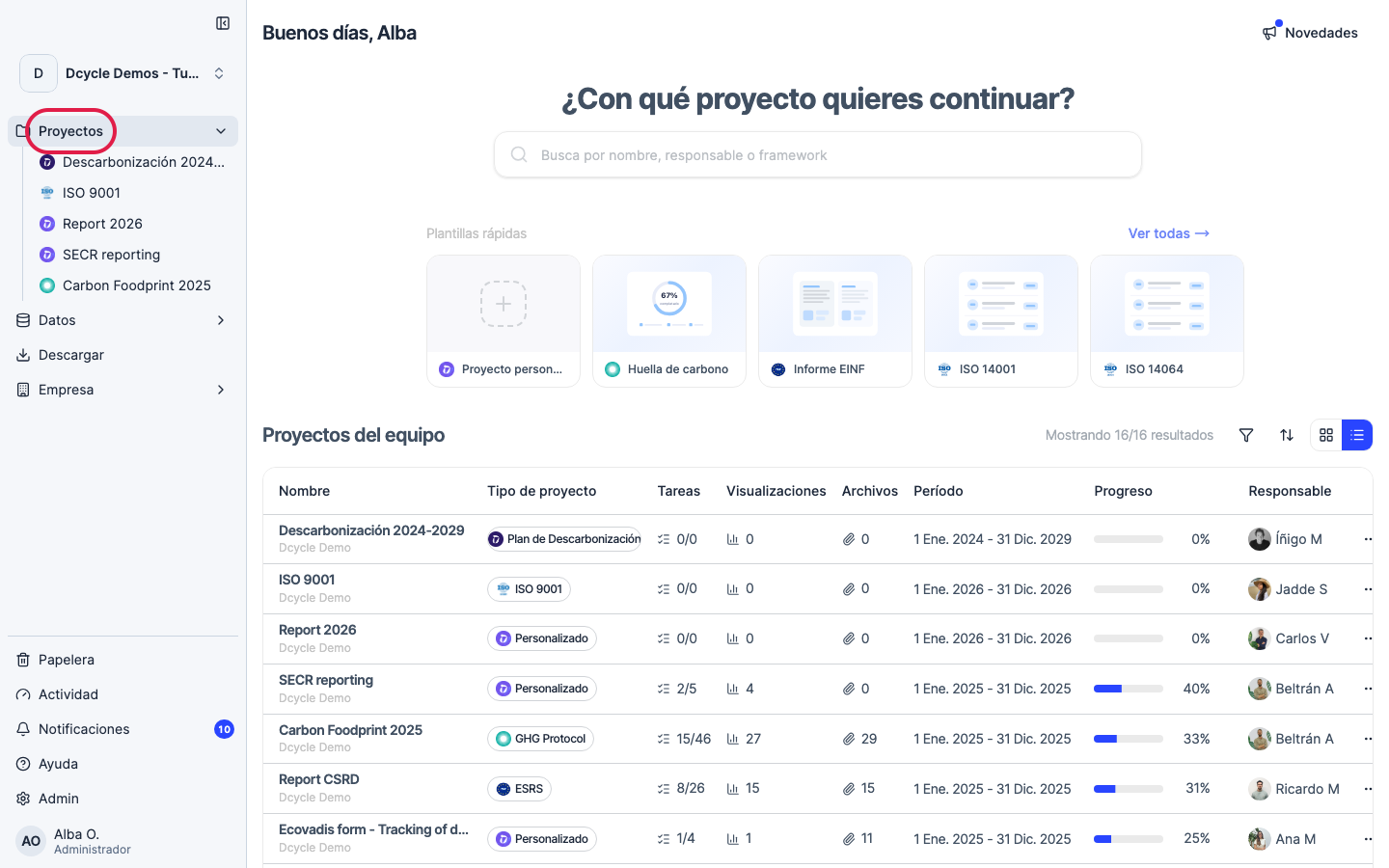
-
Data — enter and manage all your environmental data: facilities, vehicles, employees, purchases, and more.
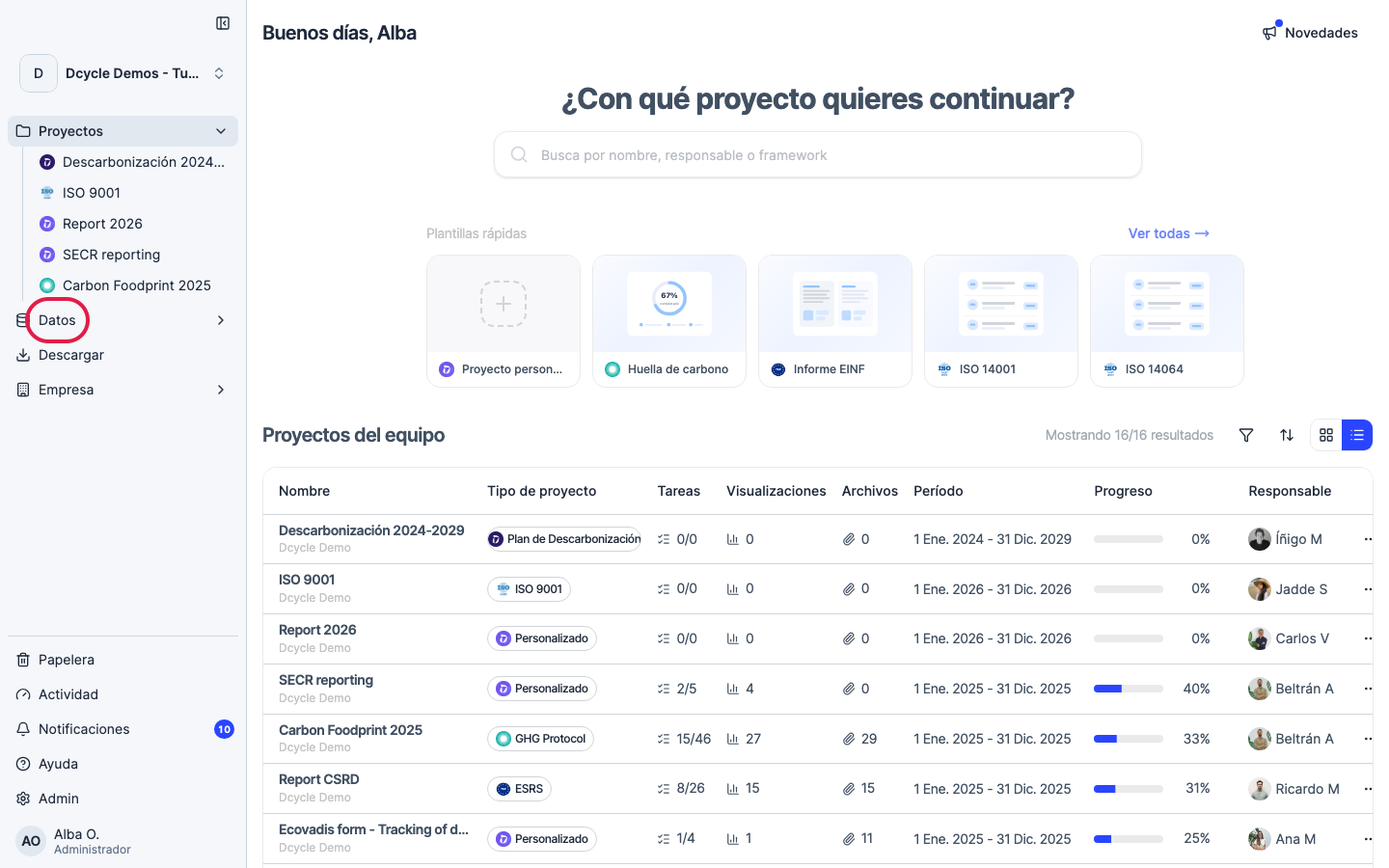
-
Download — export your data and reports — GHG reports, EINF/CSRD documents, and custom exports in PDF or Excel.
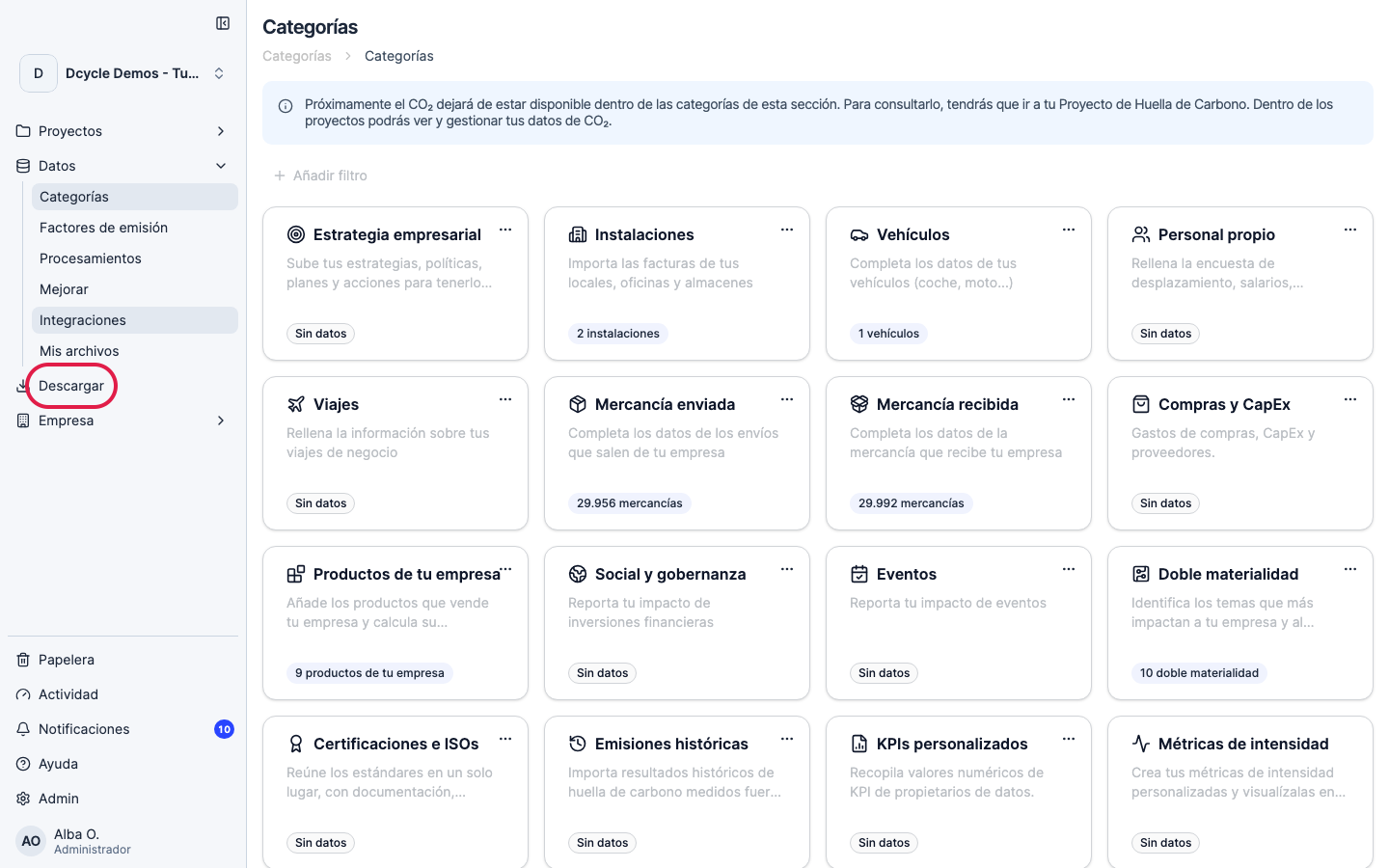
-
Company — manage your team, billing, integrations, and account preferences.
Bottom of the sidebar
Below the main sections you’ll find quick access to:
- Trash — restore deleted records
- Activity — recent changes made by your team
- Notifications
- Help — open this help center or contact support
- Admin — only visible to administrators
Project view
Opening a project takes you to its dashboard, where you can see total emissions broken down by scope, year-over-year trends, data completeness, and recent activity from your team.
Was this helpful?
What was missing or unclear? (optional)
Sent. Thank you for helping us improve.