Getting Started
Invite team members
Learn how to invite colleagues, assign roles, and manage team permissions in Dcycle.
 Cristina Alcala Zamora 4 min
 Invite members
-
Click Company in the left sidebar.
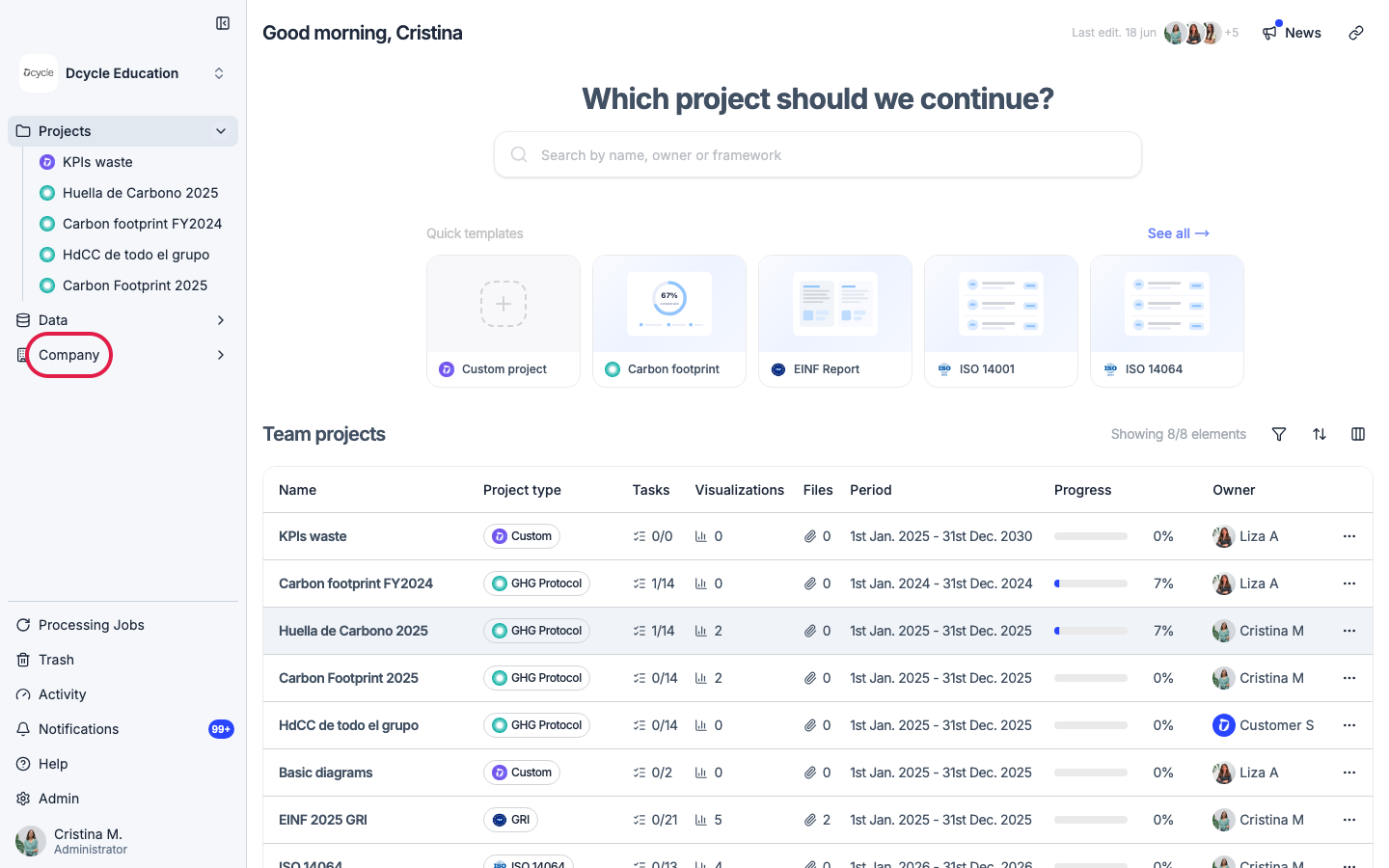
-
Open the Team tab.
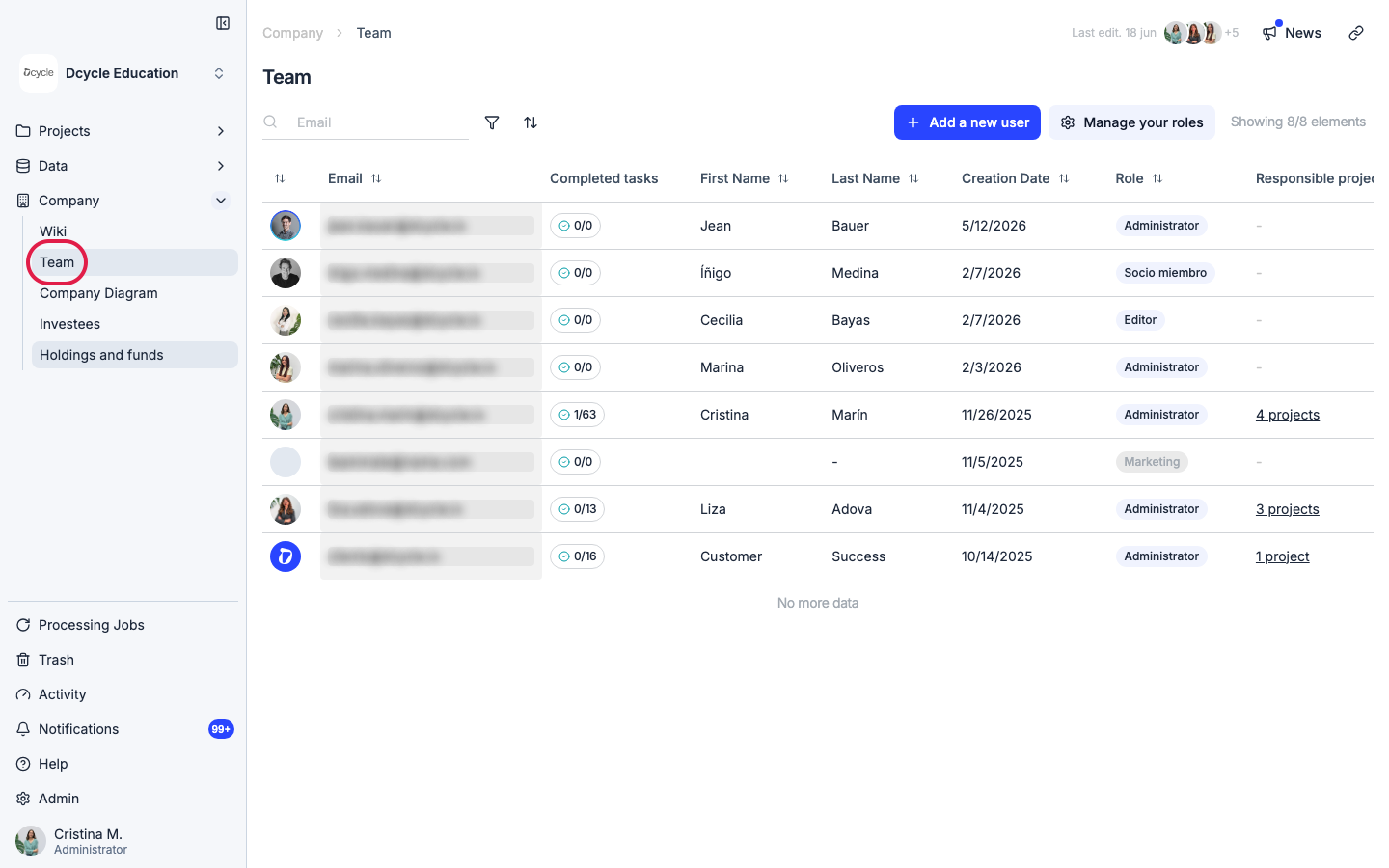
-
Click + Add a new user in the top right.
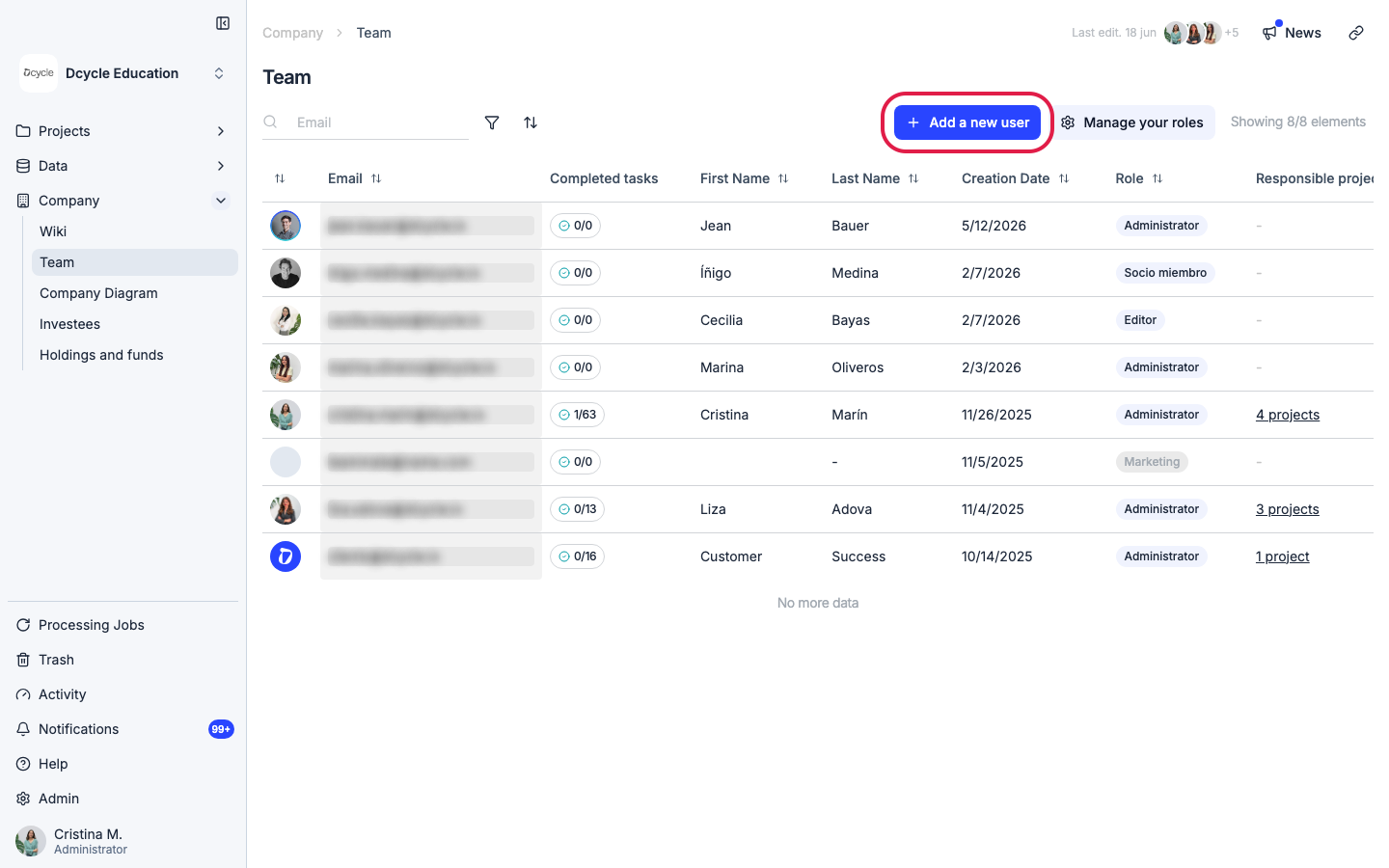
-
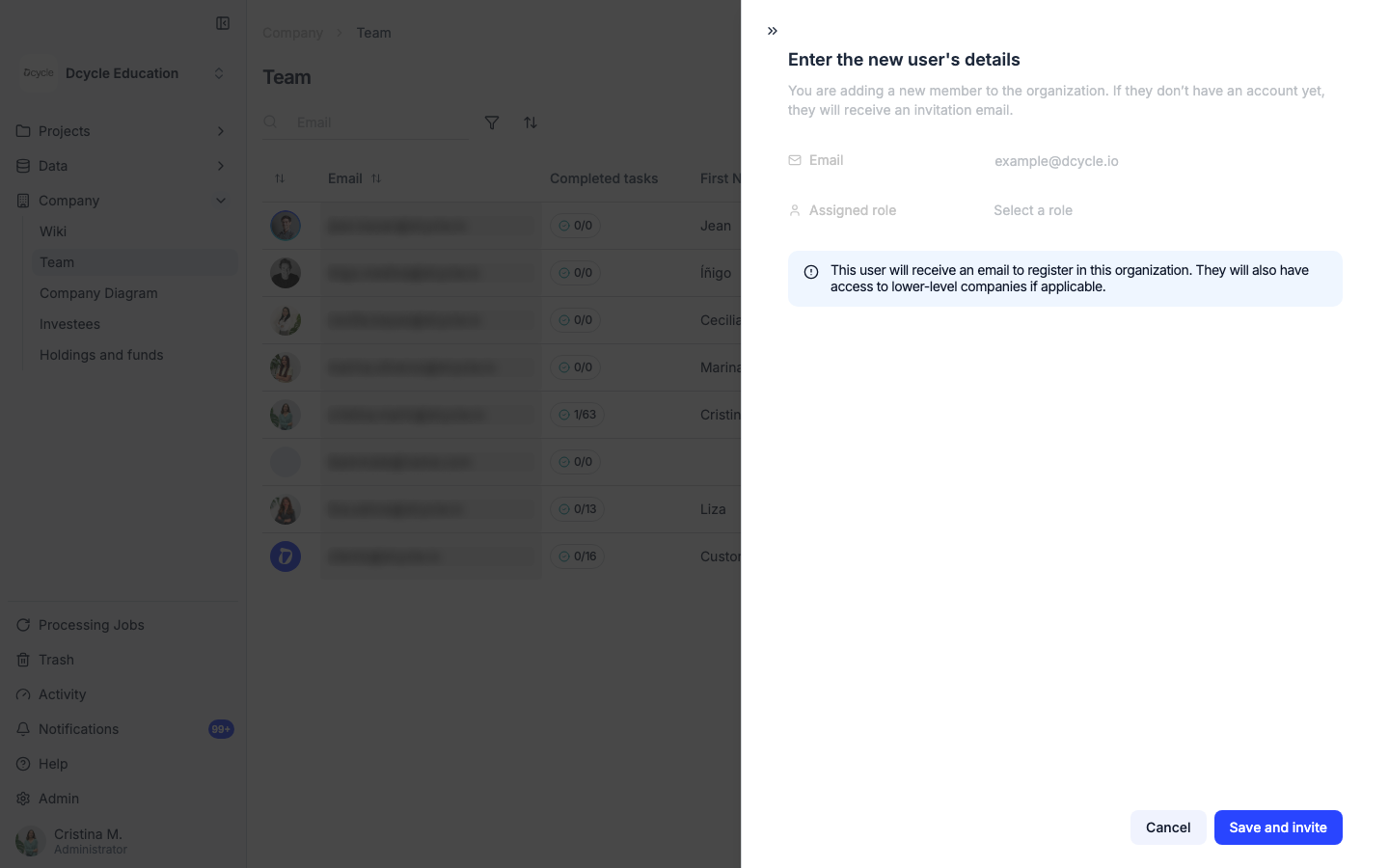
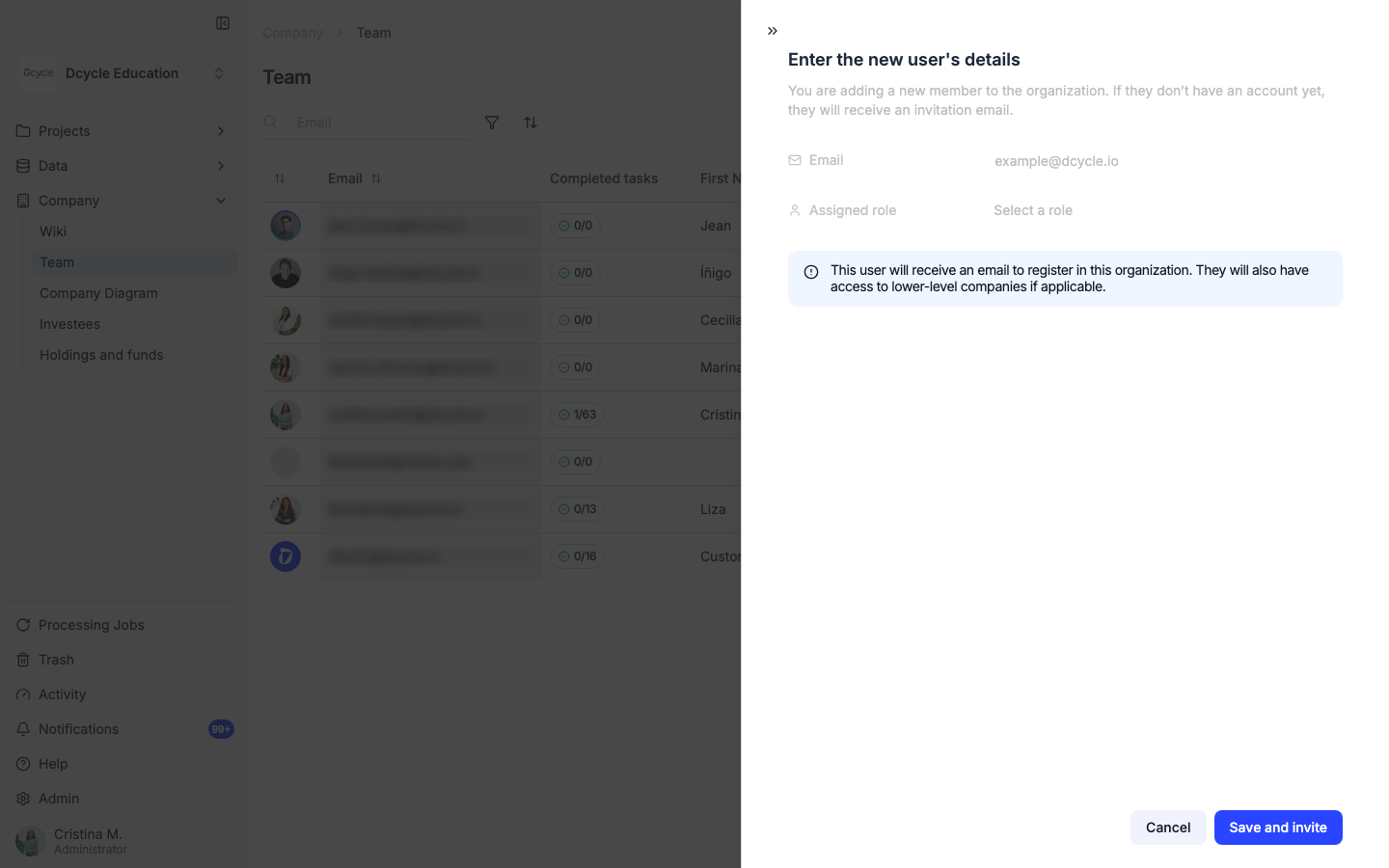
Fill in the new user’s email, name, and surname, pick a role, and optionally assign them to a project. Click Send invitation — they’ll receive an email with a link to join your organization.
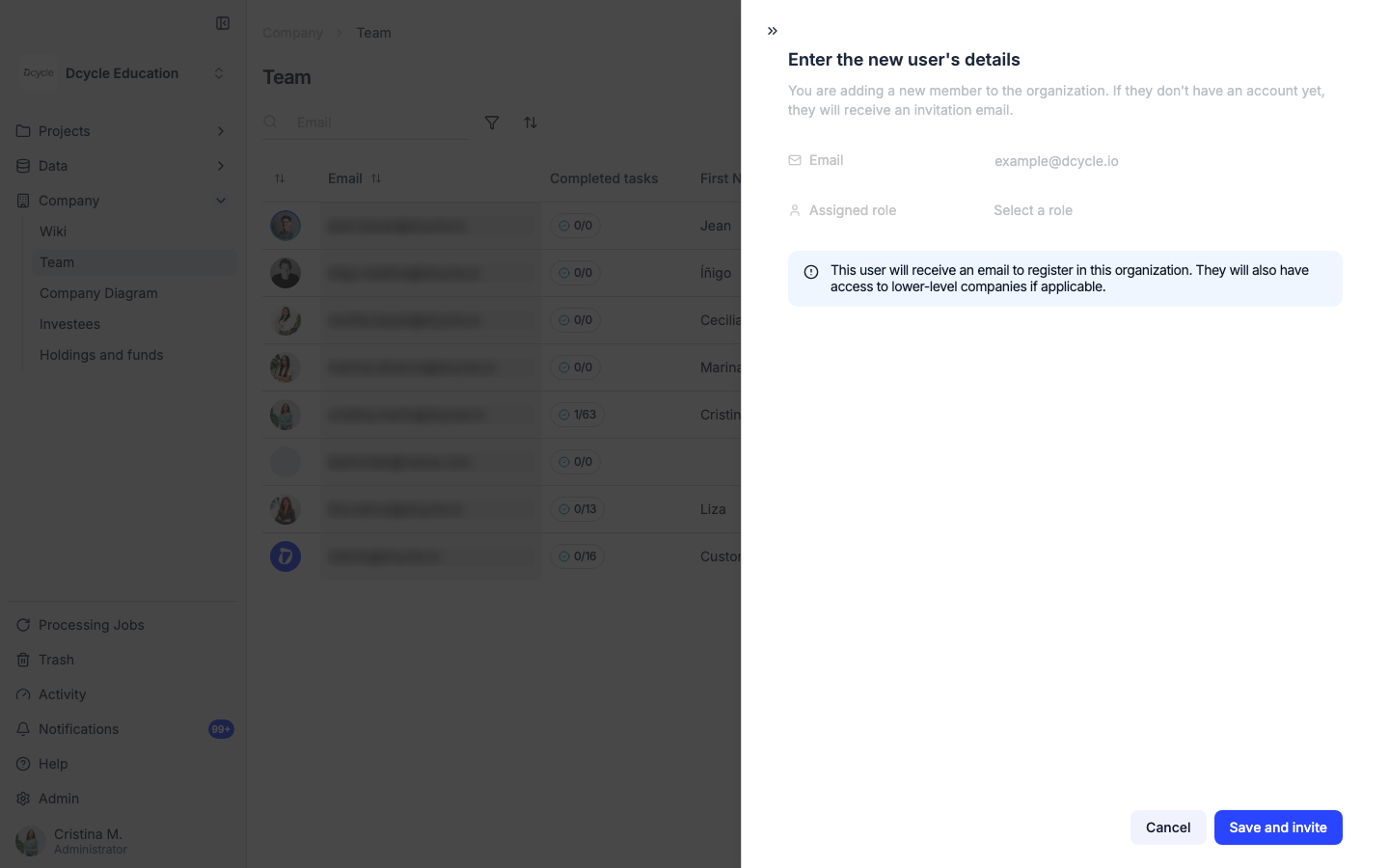
Roles and permissions
Dcycle has four roles:
| Role | Permissions |
|---|---|
| Administrator | Full access: manage team, billing, all data, and settings |
| Editor | Create and edit data, generate reports, view all modules |
| Viewer | Read-only access to dashboards and reports |
| Human Resources | Access to employee data only |
Manage existing members
Use Manage roles from the team list to change permissions for an existing member or remove someone from the organization.
Best practices
- Assign Admin only to people who need to manage billing or team settings
- Use Editor for sustainability managers and data owners who enter information
- Use Viewer for executives or auditors who only need to see reports
Was this helpful?
What was missing or unclear? (optional)
Sent. Thank you for helping us improve.