Product Guides
Upload goods shipped (downstream transport & distribution)
Goods transported out of your facilities to your customers, when your customer pays the carrier, is Scope 3, Category 9. It shares the same fields and upload flow as "Goods received" (Category 4) — only the direction changes.
Before you start
You need an Editor role in your Dcycle organization.
Steps
Step 1
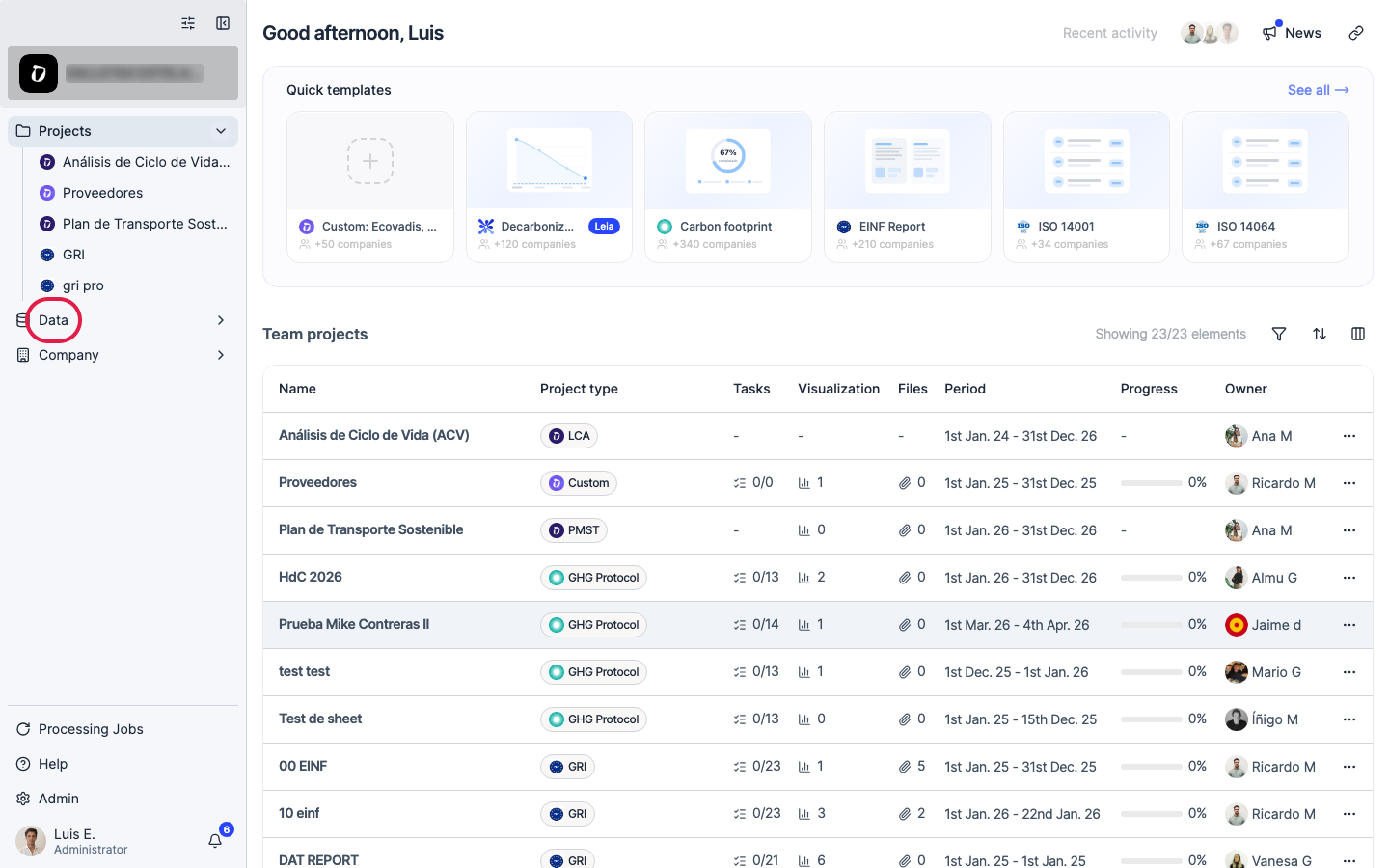
Click “Data” in the left navigation.
Step 2
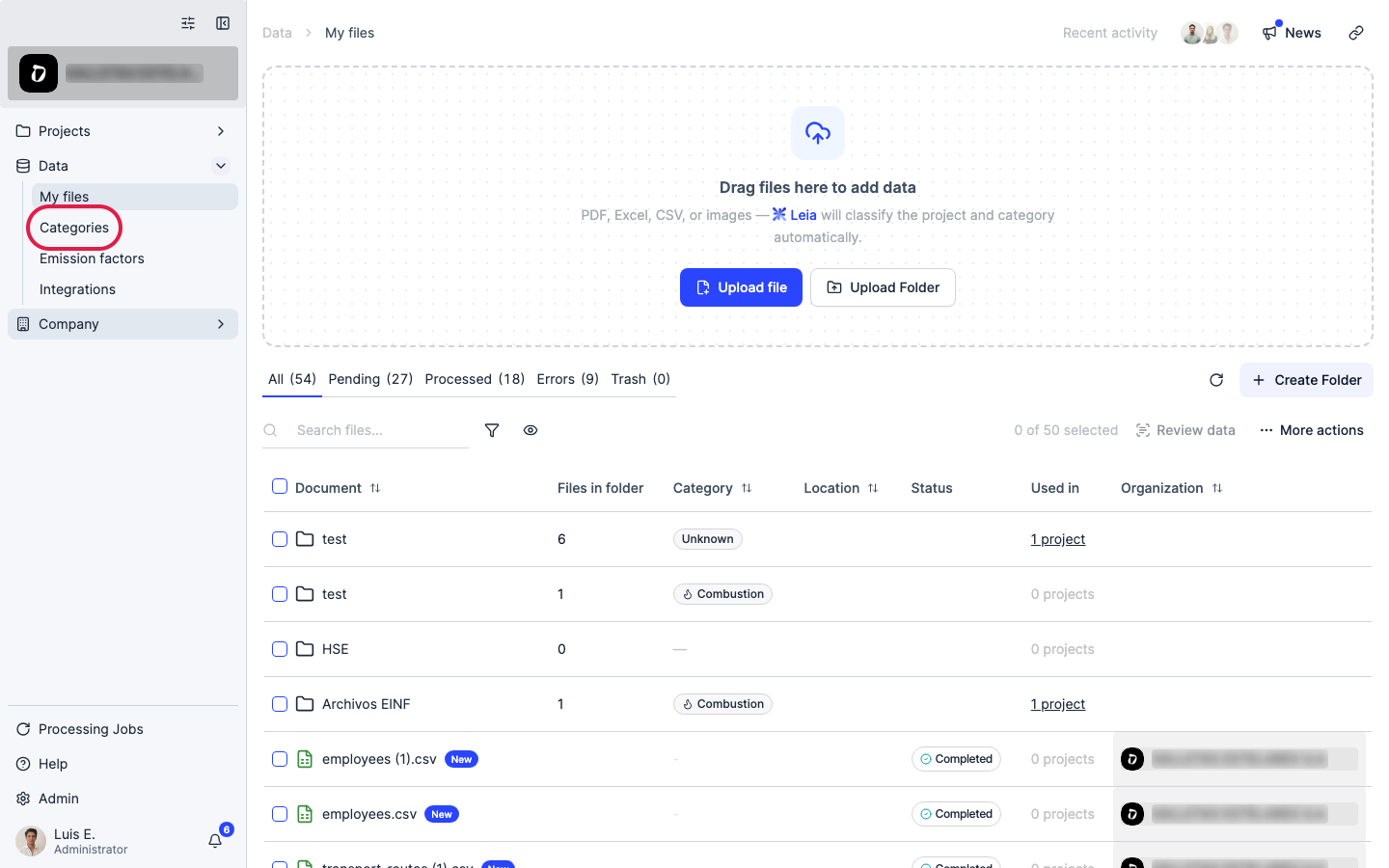
Click “Categories”.
Step 3
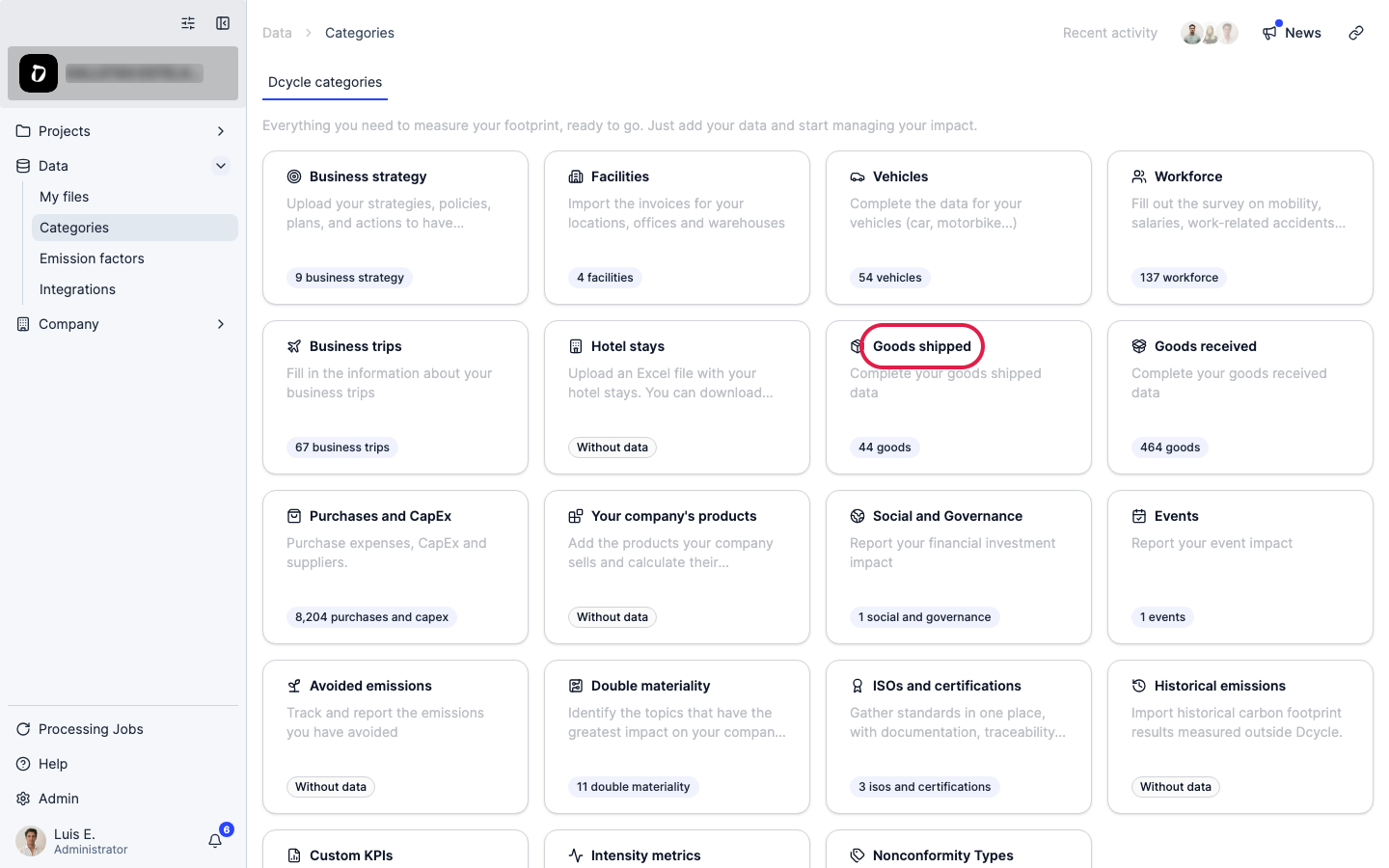
Open the “Goods shipped” category.
Step 4
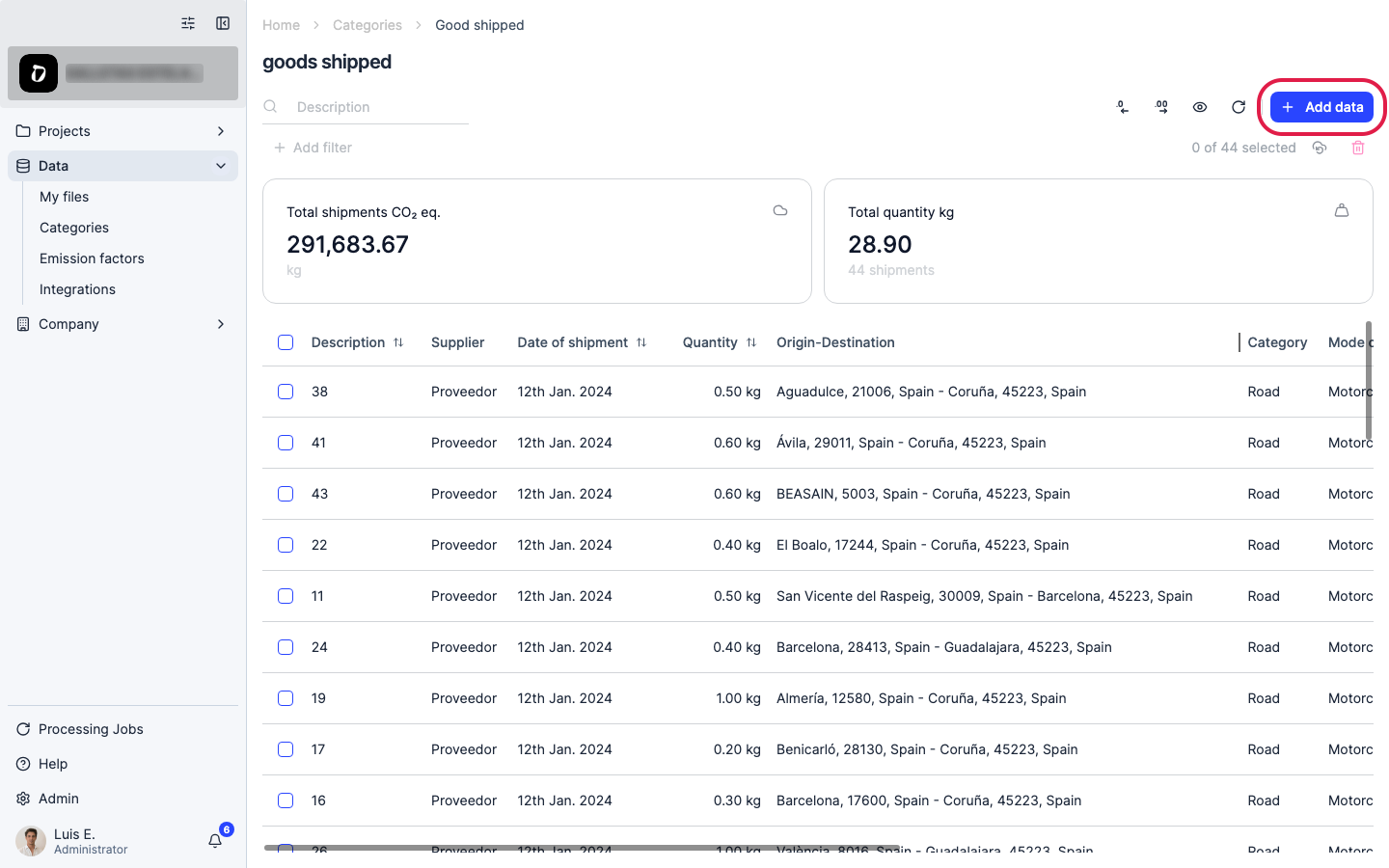
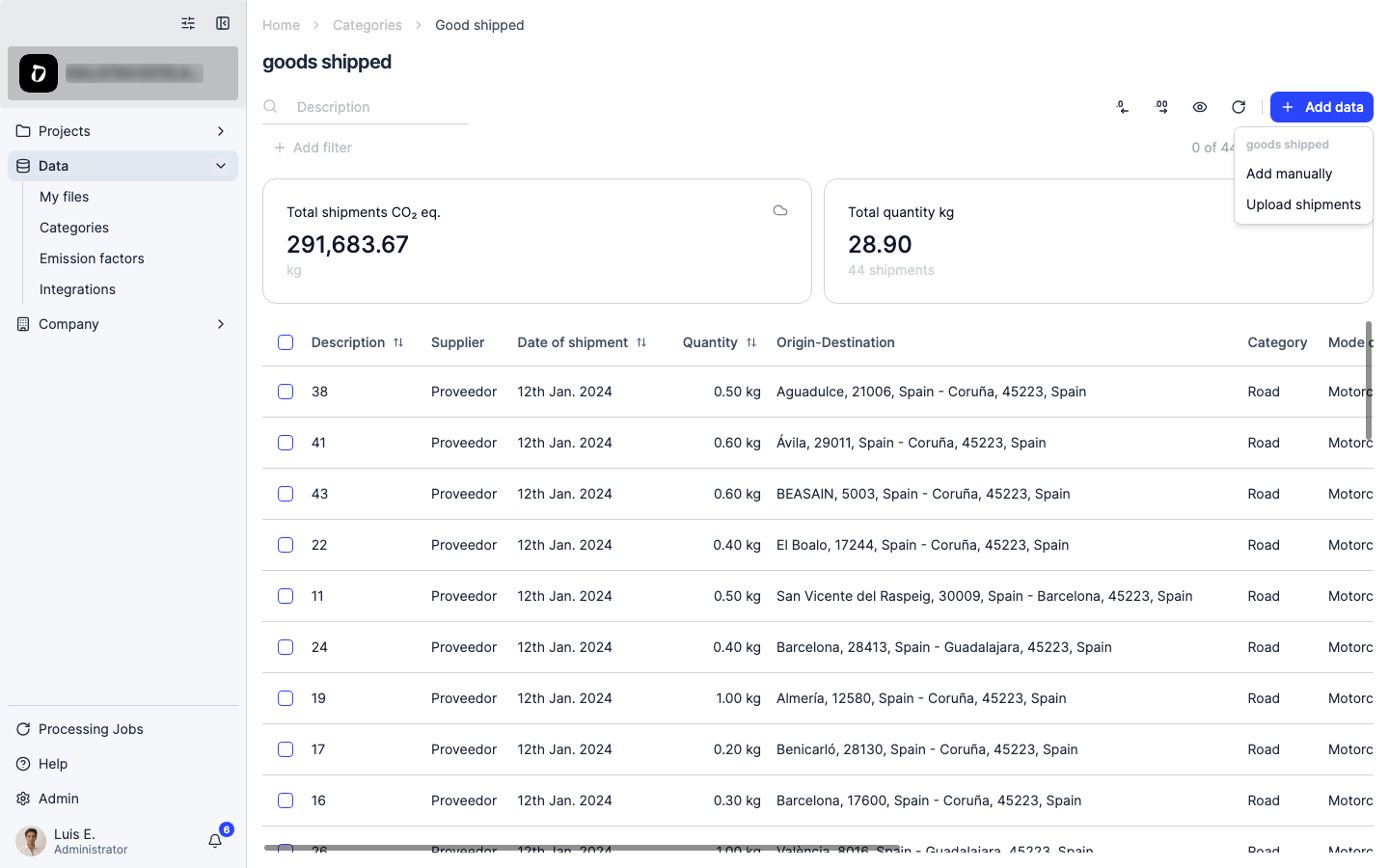
Click “Add data” to open the upload options.
Step 5
You can add a shipment manually, or bulk-upload a CSV/Excel template for many at once.
Step 6
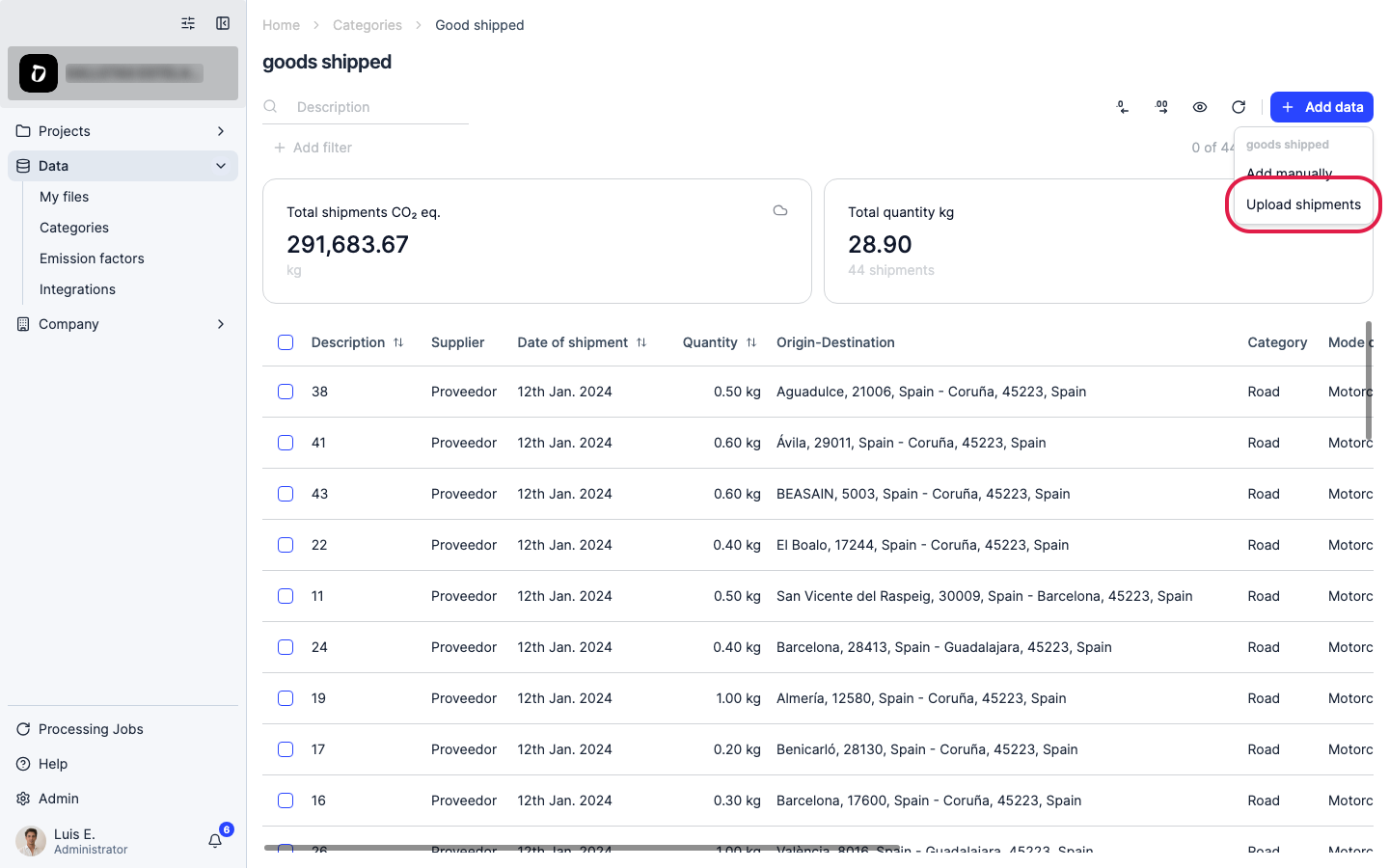
Choose “Upload shipments”.
Step 7
Same template as “Goods received”: origin and destination, weight, mode (road, sea, air, rail), shipment date, and optionally vehicle/vessel type and distance.
Step 8
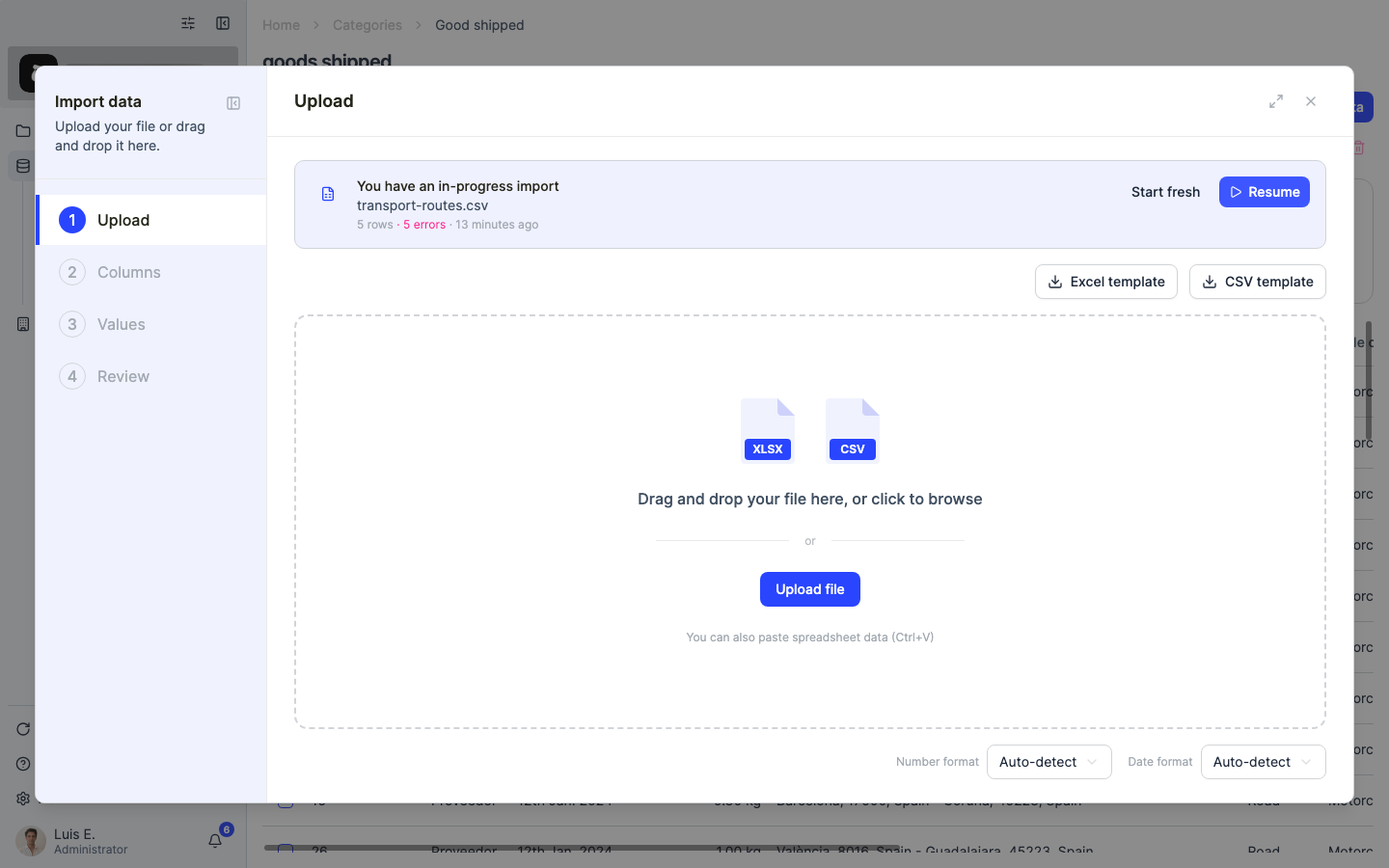
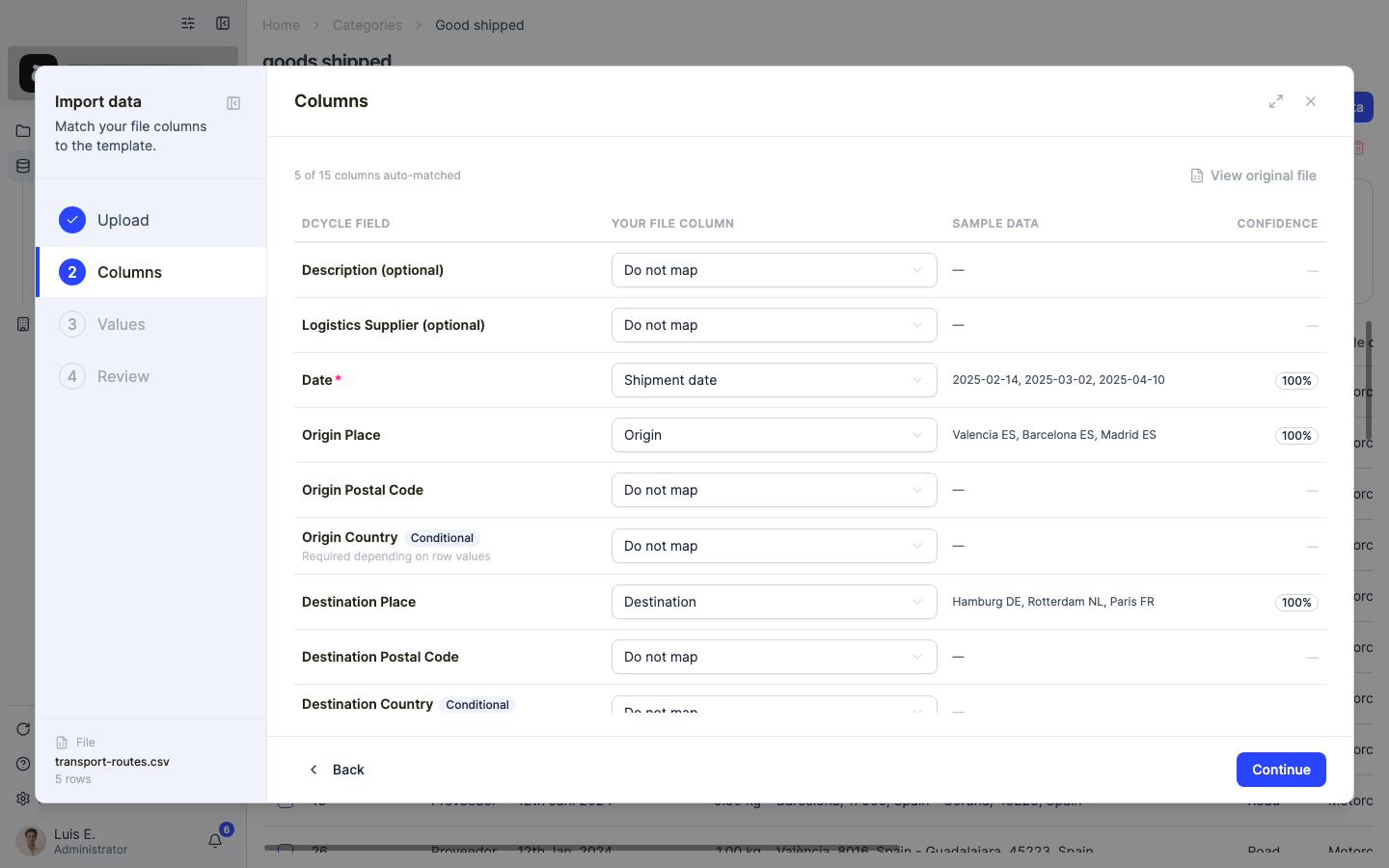
Drag your file onto the panel or click to browse. Dcycle parses it and moves to the “Columns” step, where each column of your file is matched to a Dcycle field.
Step 9
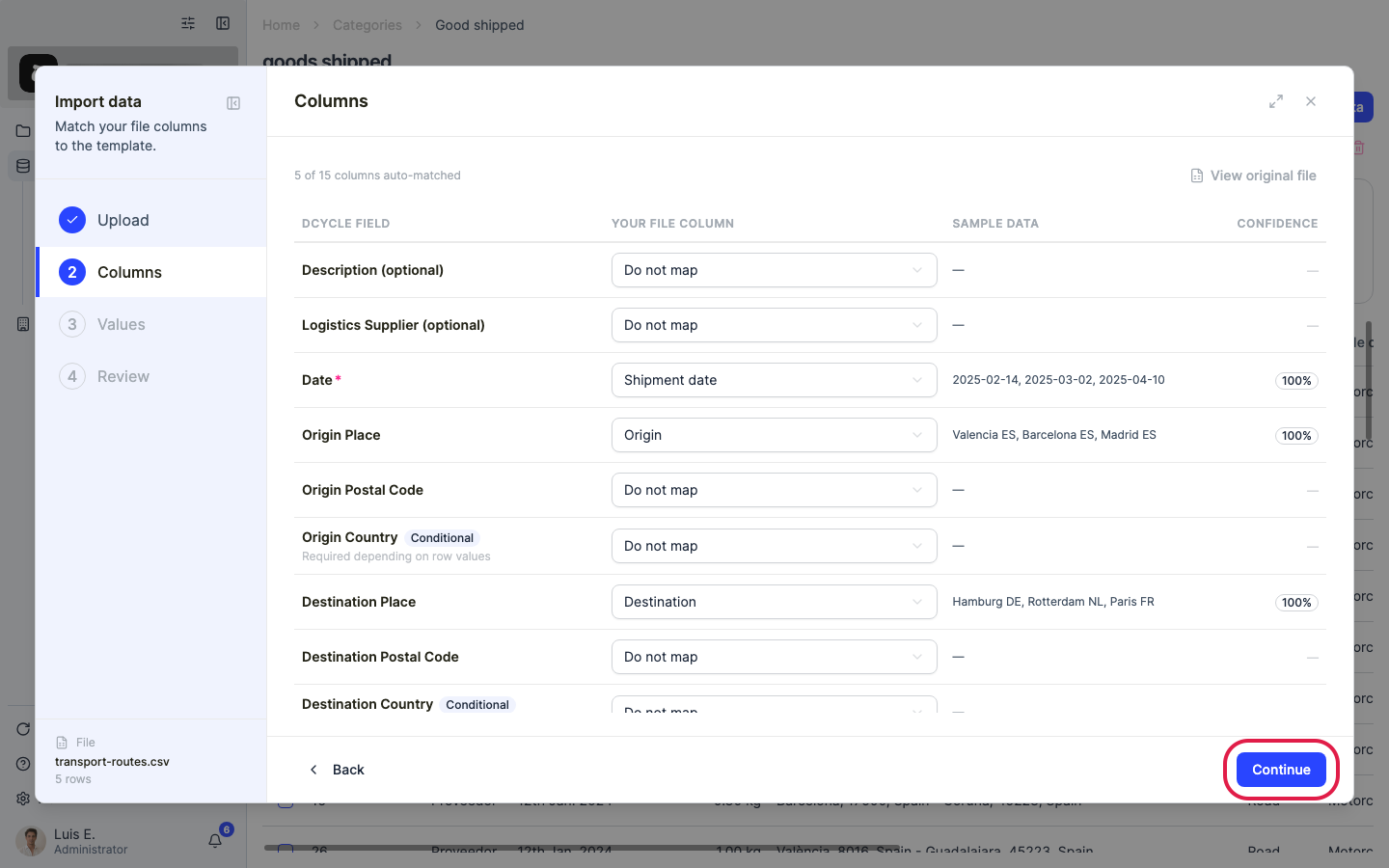
Check that every template column was matched to the right field — fix any mismatch with the dropdowns — and continue.
Step 10
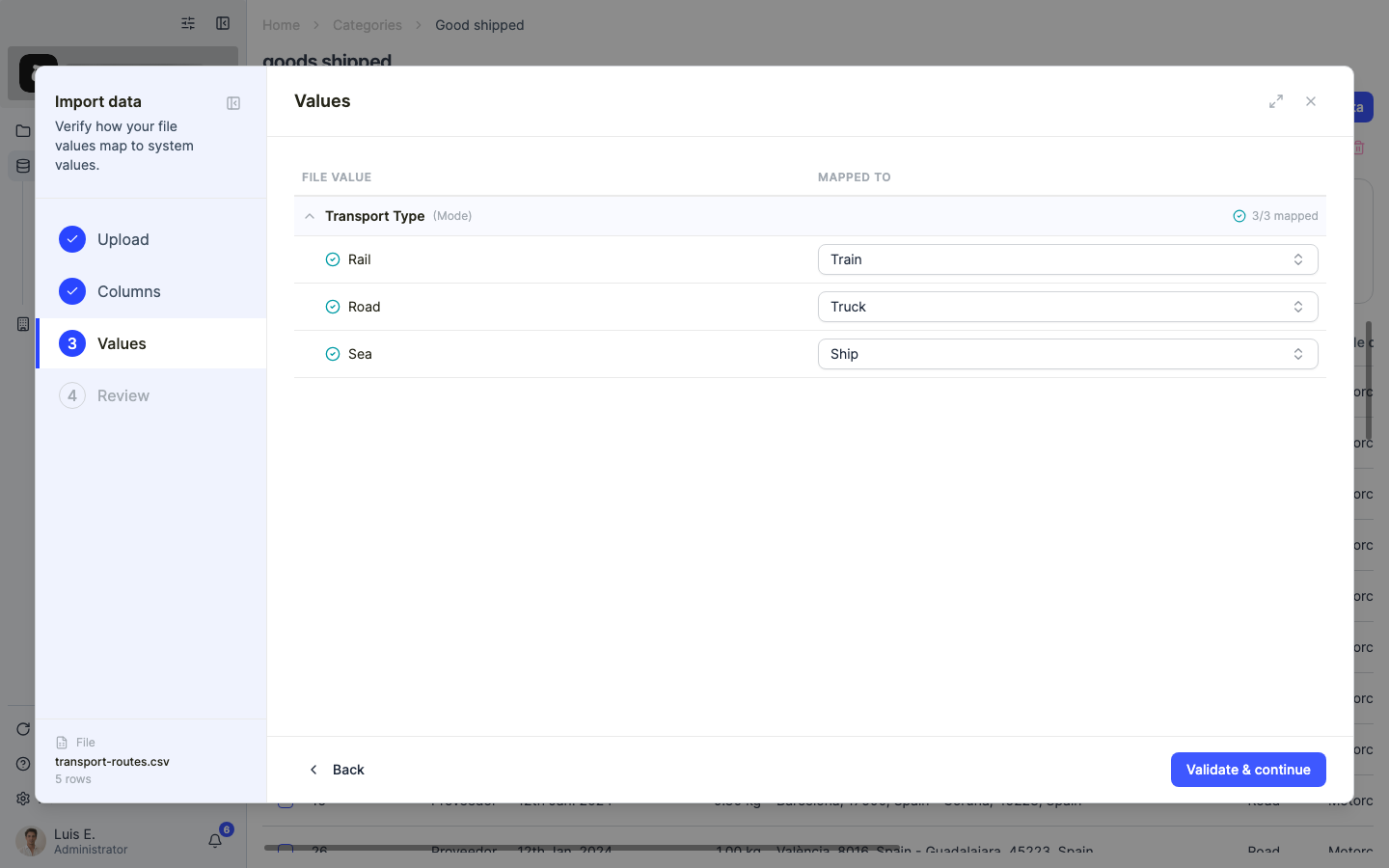
If a “Values” step appears, it shows how the values in your file map to Dcycle’s accepted values. Review the suggestions and adjust anything that wasn’t recognised.
Step 11
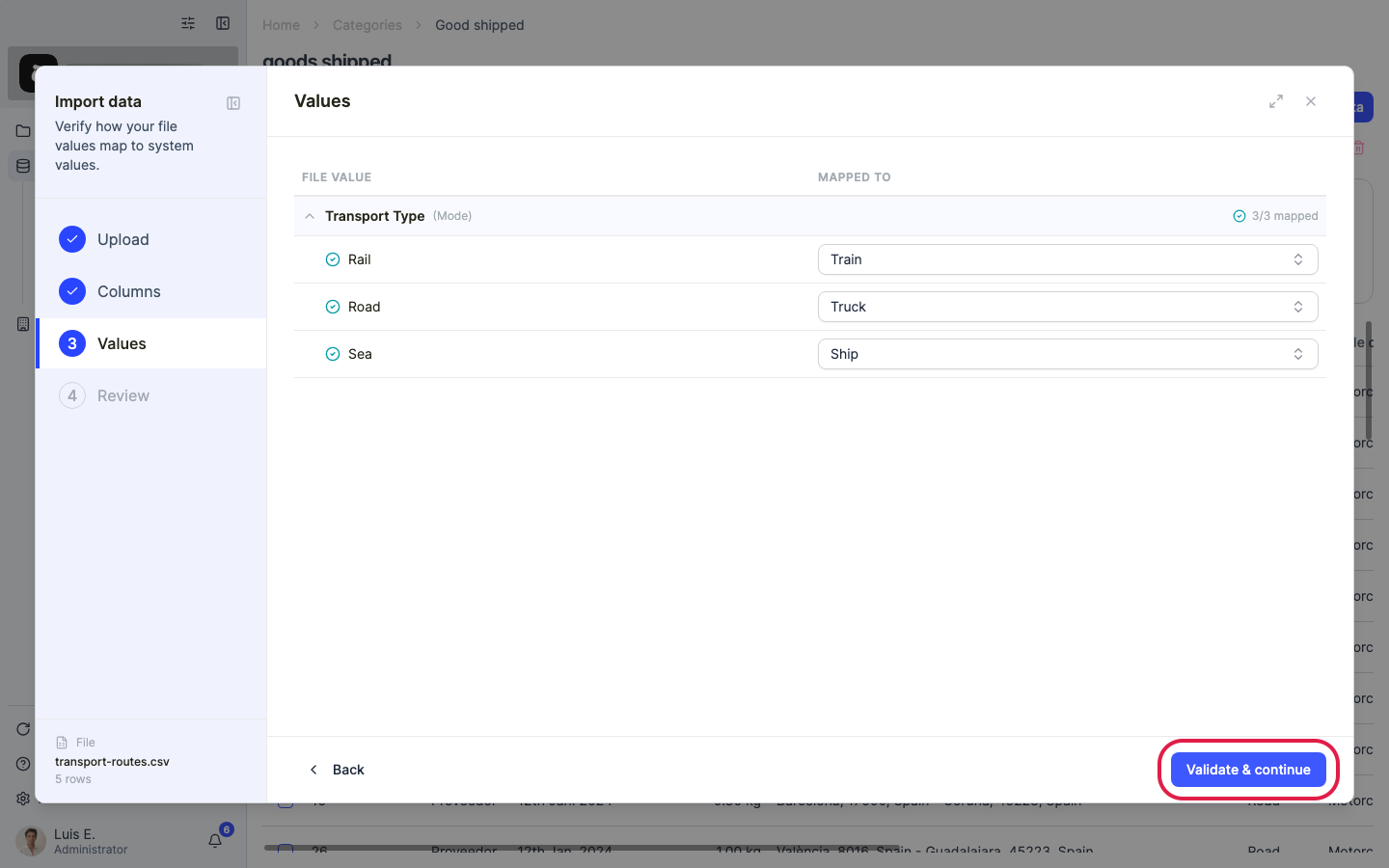
Click “Validate & continue” to validate the rows.
Step 12
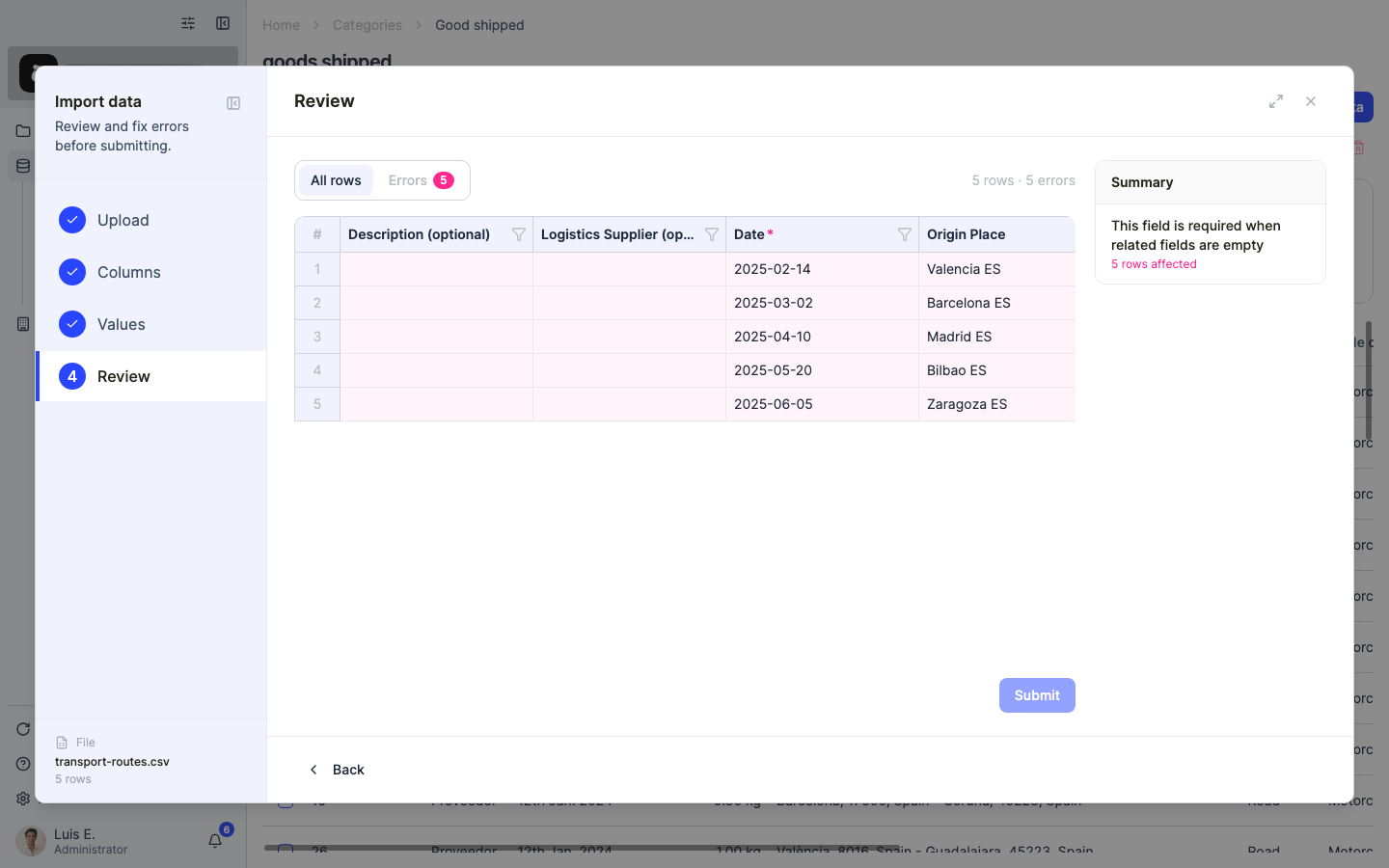
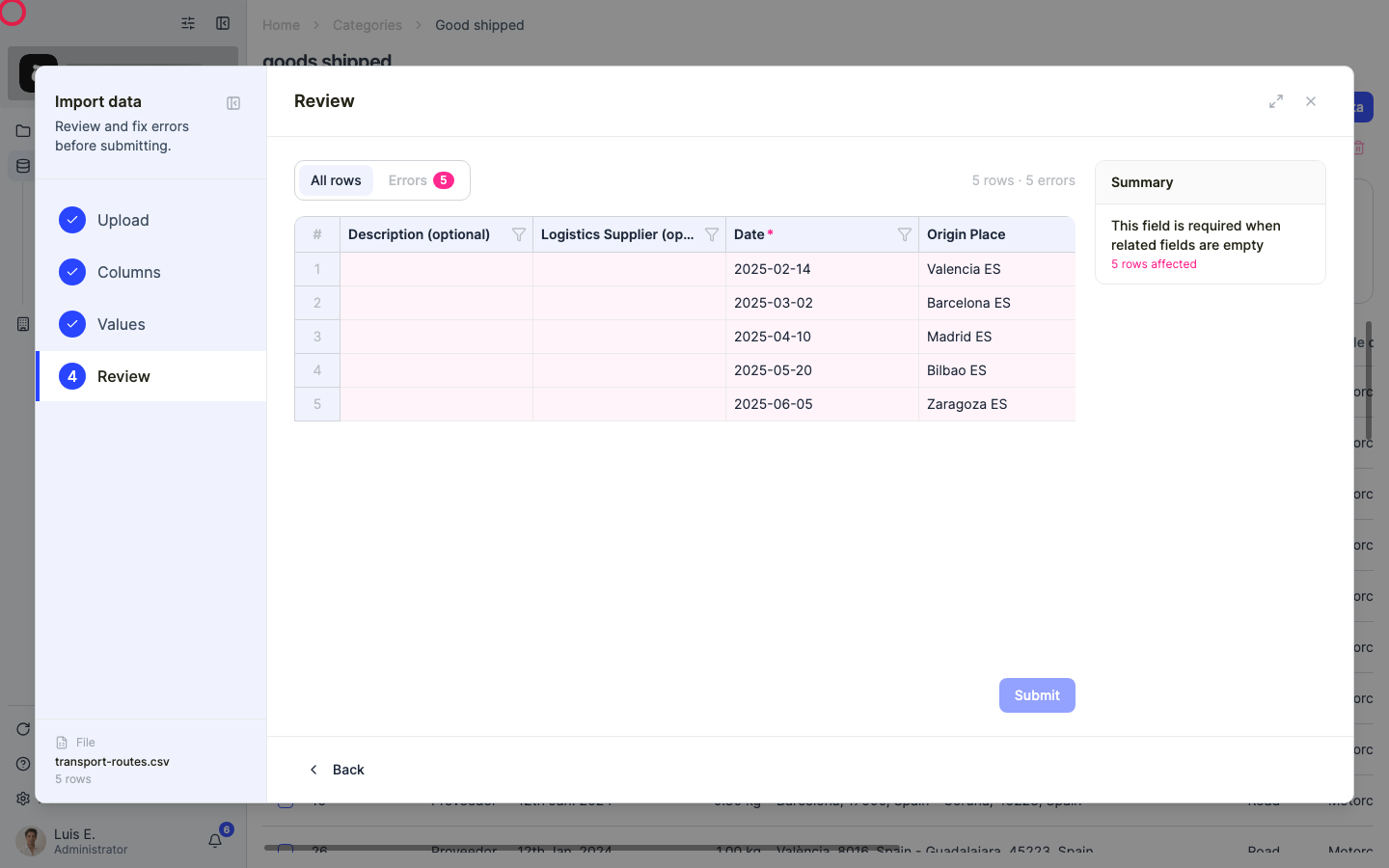
The “Review” step summarises valid rows and errors. Fix any flagged cell right here, or filter with “Show errors only” to work through them.
Step 13
When everything looks right, submit. If your own transport (not a third party) delivers the goods, that belongs in Scope 1 vehicle fuel instead — not here.
Was this helpful?
What was missing or unclear? (optional)
Sent. Thank you for helping us improve.