Product Guides
Uploading purchases: choose a calculation method
When you upload purchases you choose how their emissions are calculated — Standard (an automatic emission factor, amounts in euros or physical units) or Custom (your own emission factor) — each with its own bulk template.
Before you start
You need the Editor role in your Dcycle organization.
Steps
Step 1
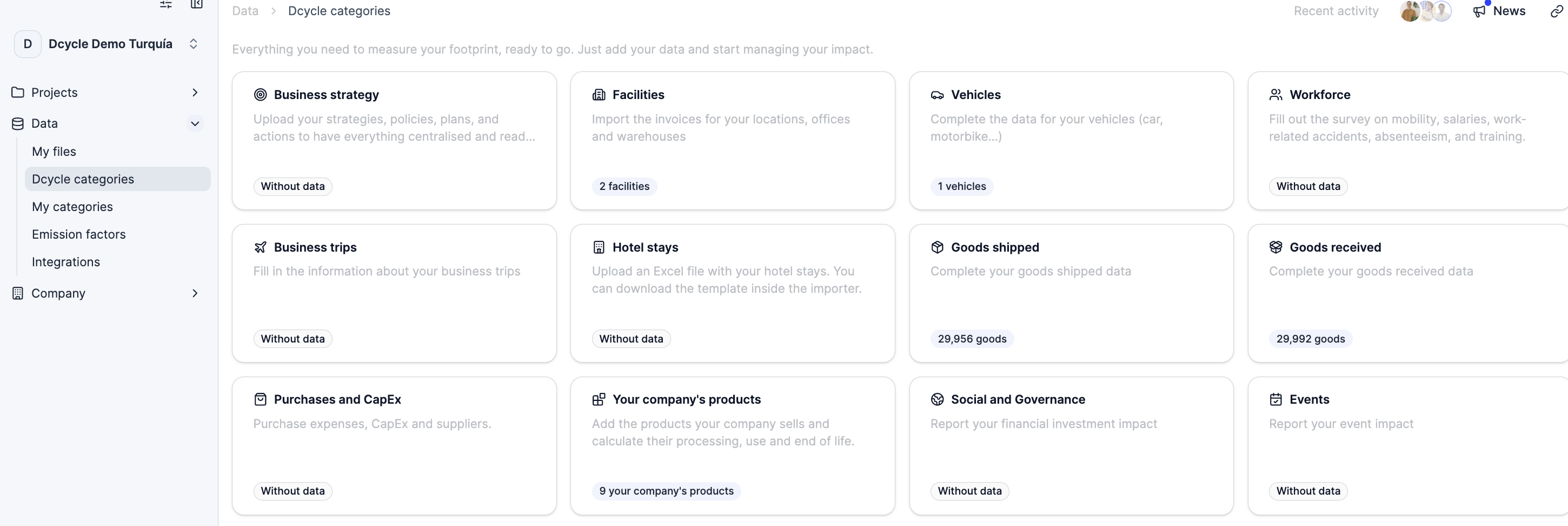
Click “Data” in the left navigation, then “Categories”, and open the “Purchases and CapEx” category.
Step 2
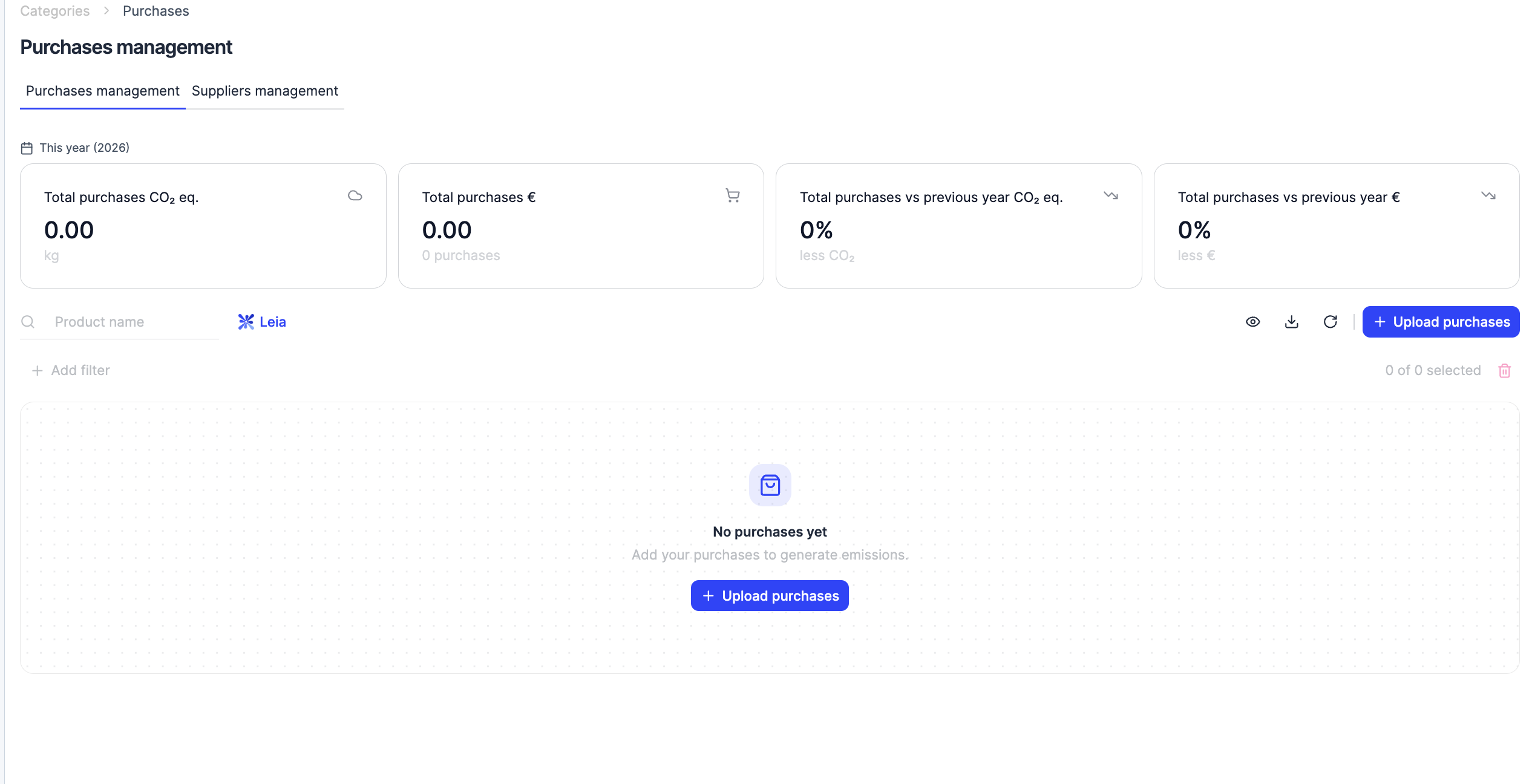
You land on the “Purchase management” tab, which lists your purchase records with the CO2e and spend totals at the top. Click “Upload purchases” in the top right.
Step 3
Choose “Bulk upload” to import a CSV/Excel file (or “Add manually” to enter purchases one by one). Both start with the calculation method.
Step 4
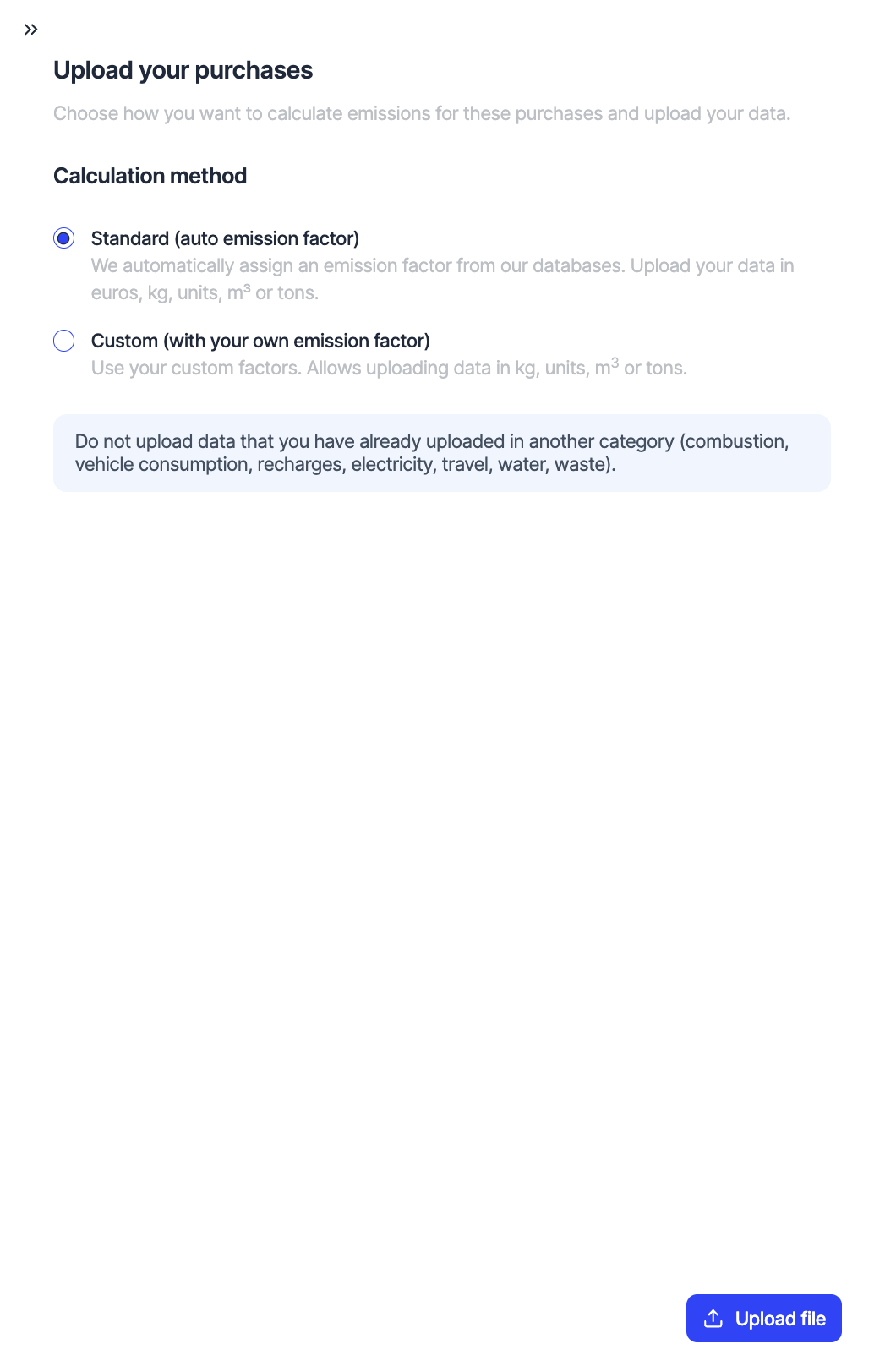
The “Upload your purchases” panel opens on the “Calculation method” step. Choose one:
- Standard (automatic emission factor) — Dcycle assigns a factor from its databases based on the supplier’s activity. You can upload amounts in euros, kg, units, m³ or tonnes. Use it when you don’t have your own factor.
- Custom (with your own emission factor) — you set your own emission factor directly in the template, no need to create it beforehand. With this method you upload amounts in physical units (kg, units, m³ or tonnes), not euros.
Supplier activity codes
Browse the full list of CNAE 2009 and US SIC v87 codes to find the right activity for a supplier. Download the reference list (CSV, 1,653 rows)
Step 5
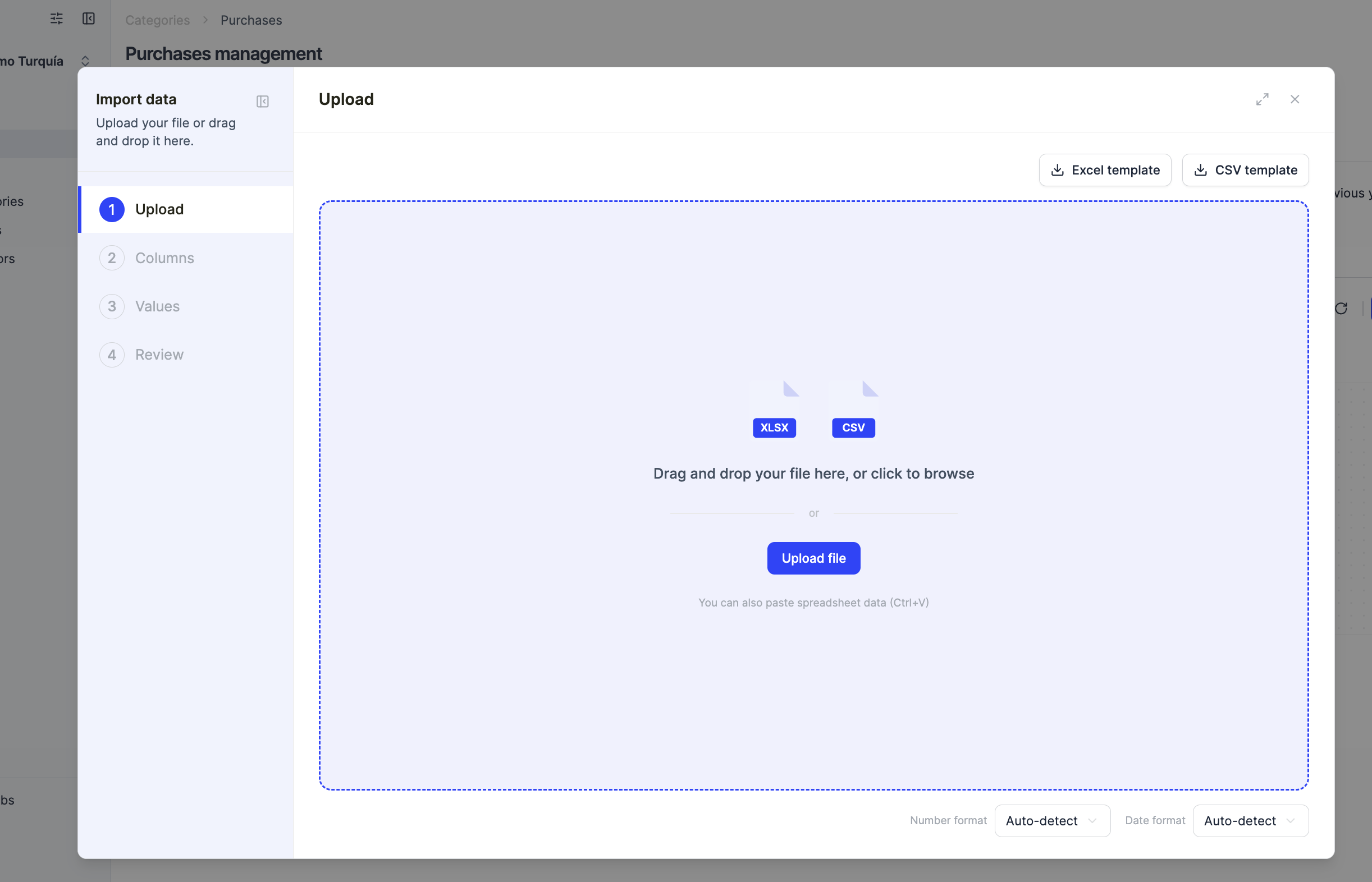
Download the template — its columns depend on the method you chose. Either file has two sheets: Template, where you enter one row per purchase, and Valores válidos (valid values), a reference list of the exact values each dropdown-style column accepts. When in doubt about an accepted value, copy it from that sheet.
Values don't need to match exactly
You don't have to copy the accepted values character by character — the importer is flexible (for example, "ES" is read the same as "Spain"). And after you upload the file, it walks you through mapping your columns to Dcycle's fields and reviewing the values (the Columns and Values steps), so you can adjust anything there.
Step 6 — Standard template
Always fill in the product name, purchase date, “Calculation Method” and “Expense Type” (OPEX/CAPEX). Then add the supplier and its country, the purchase country, and the amount — either “Amount” + “Currency” (in money) or “Physical Amount” + “Physical Unit” (kg, units, m³…).
The “Recycled % [0-1]” column is optional and purely informational — it does not change the automatic calculation. To actually apply a recycled-specific factor to a supplier, use the custom method and set your own factor in its template instead.
Which database was used?
With the Standard method, Dcycle assigns the emission factor automatically. You can always check which database it used for each purchase — and change the available databases — in Data → "Emission factors".
Step 7 — Custom template
The custom template is simpler: “Purchased Product”, “Purchase Date”, “Supplier”, “Supplier Country”, “Origin Country”, “Custom Emission Group” and “Custom EF Unit” (the emission factor you want to apply and its unit — you set these here, no need to create anything beforehand), a single “Amount” in that unit, “Expense Type” and “Organization”. There’s no currency and no recycled column, because the amount is always physical and the factor is your own.
Step 8
The “Organization” column only applies to holdings uploading for several subsidiaries — leave it blank to assign the row to the organization doing the upload. Then drag the completed file back into the importer and confirm. To avoid double-counting, don’t upload here anything you’ve already added in another category (combustion, vehicle consumption, charging, electricity, travel, water or waste).
OPEX vs CAPEX
The "Expense Type" field is what splits your purchases into two separate categories, matching the GHG Protocol's Scope 3 split. OPEX (operating spend — goods and services you consume) goes to Category 1, Purchased goods and services. CAPEX (capital spend — durable assets like machinery, buildings or equipment) goes to Category 2, Capital goods. Dcycle keeps the two apart across pivot tables, reports and exports, so tag each row correctly.
Was this helpful?
What was missing or unclear? (optional)
Sent. Thank you for helping us improve.