Product Guides
Manage employee periods in the mobility survey
Each employee in your commuting survey can have one or more activity periods. Learn how to view those periods, archive an employee who has left the organisation, and restore a period that was archived by mistake.
Before you start
You need an Editor role in your Dcycle organization.
Steps
Step 1
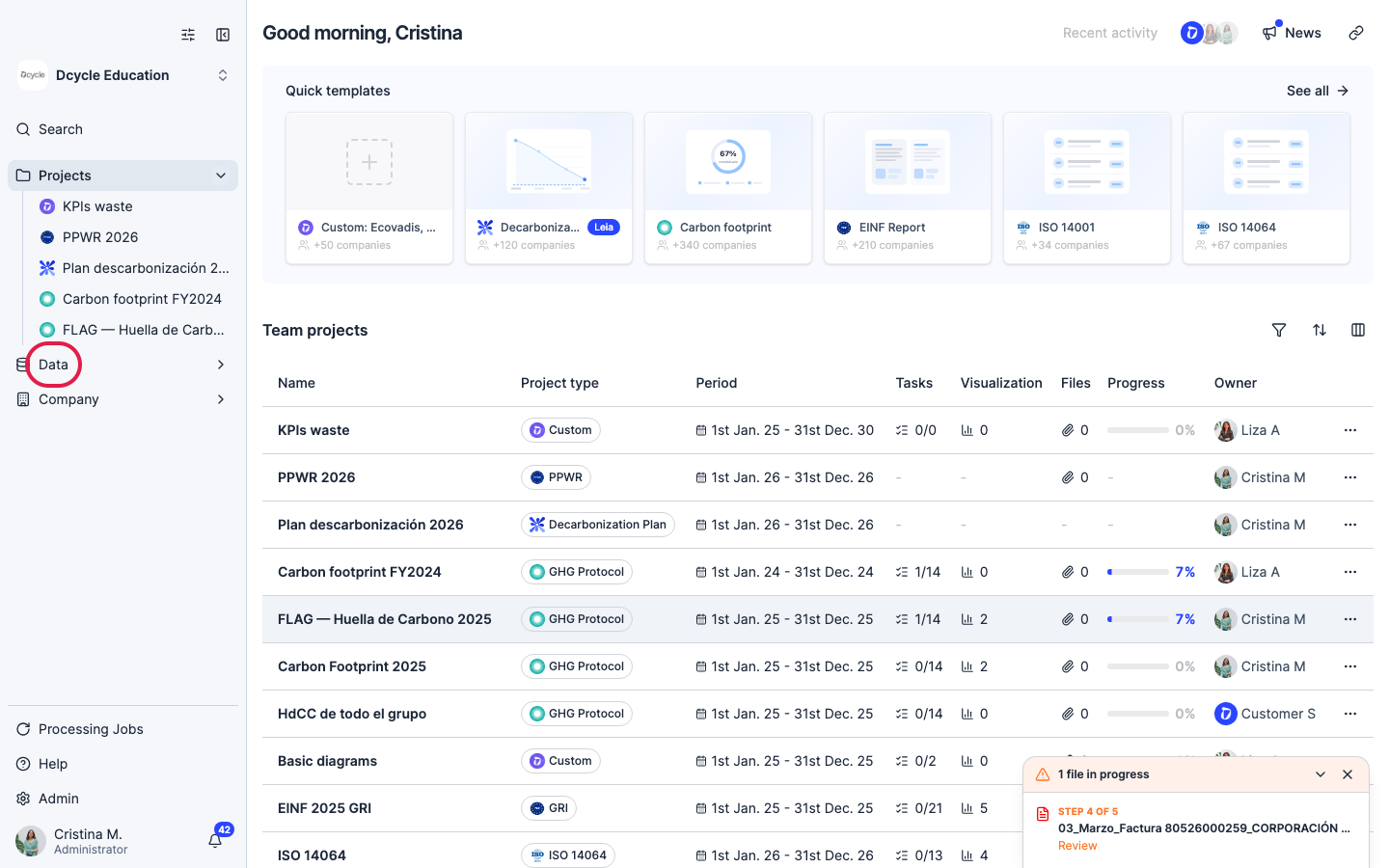
Click “Data” in the left navigation.
Step 2
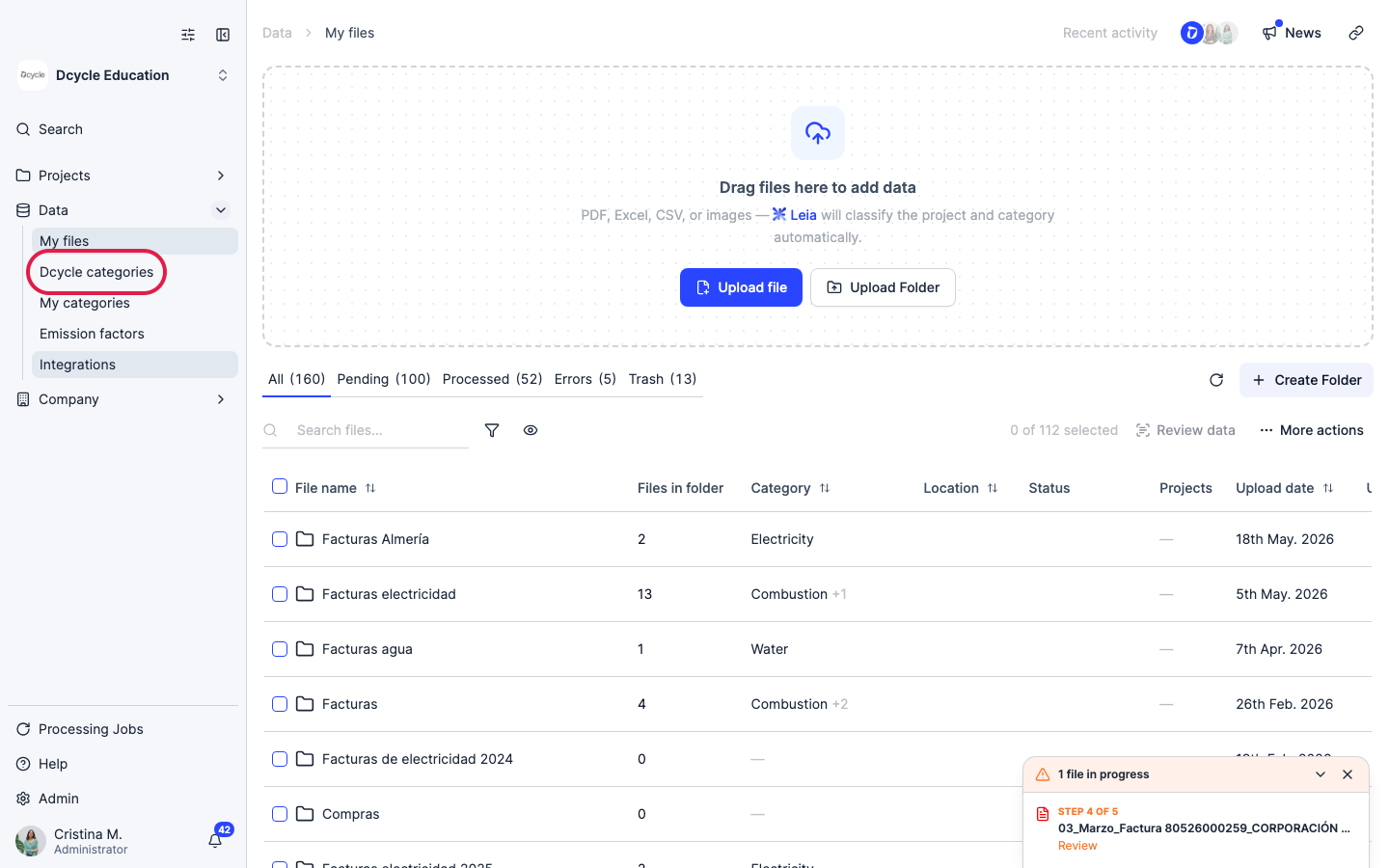
Click “Dcycle categories” to see all data categories.
Step 3
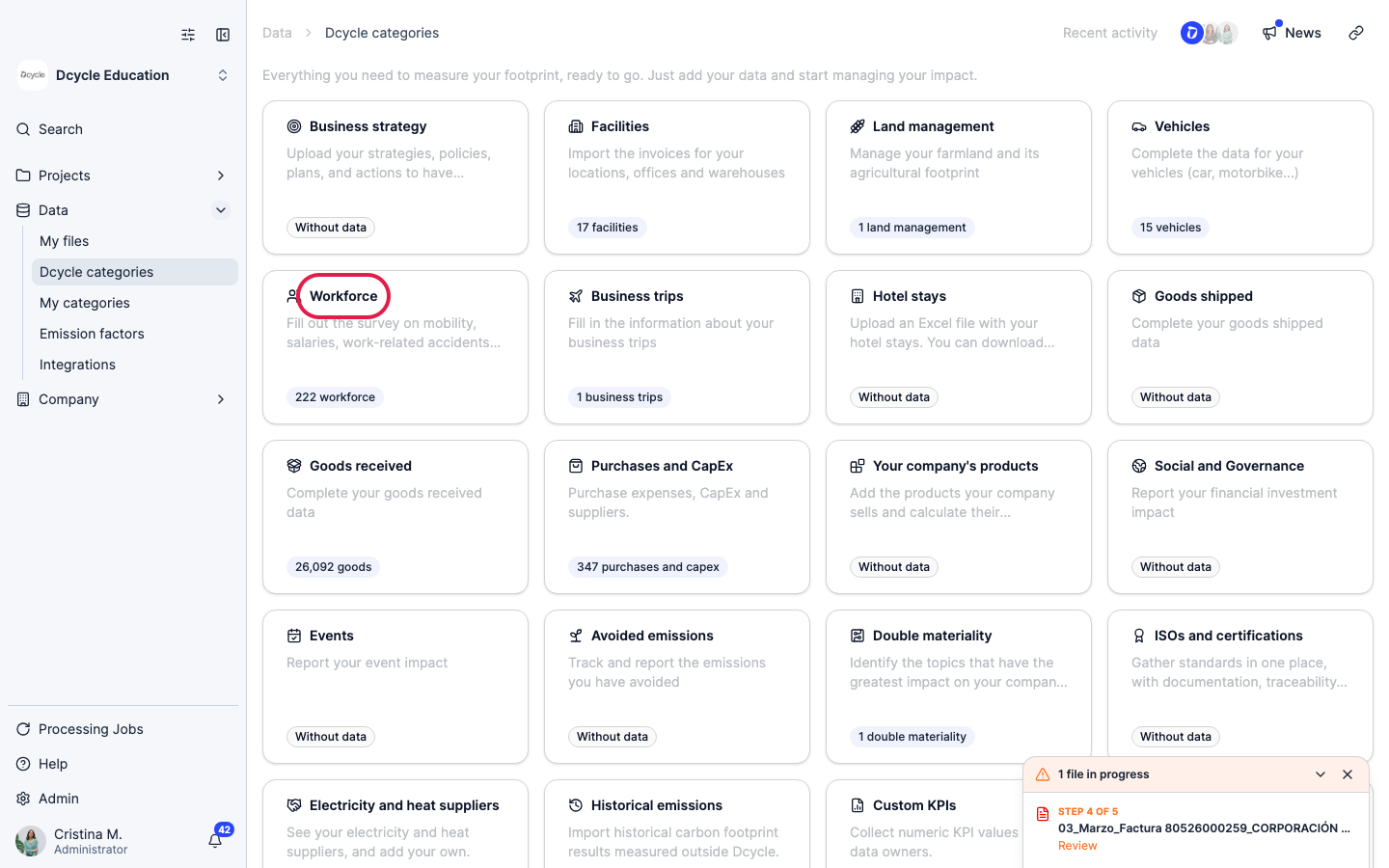
Open the “Workforce” category.
Step 4
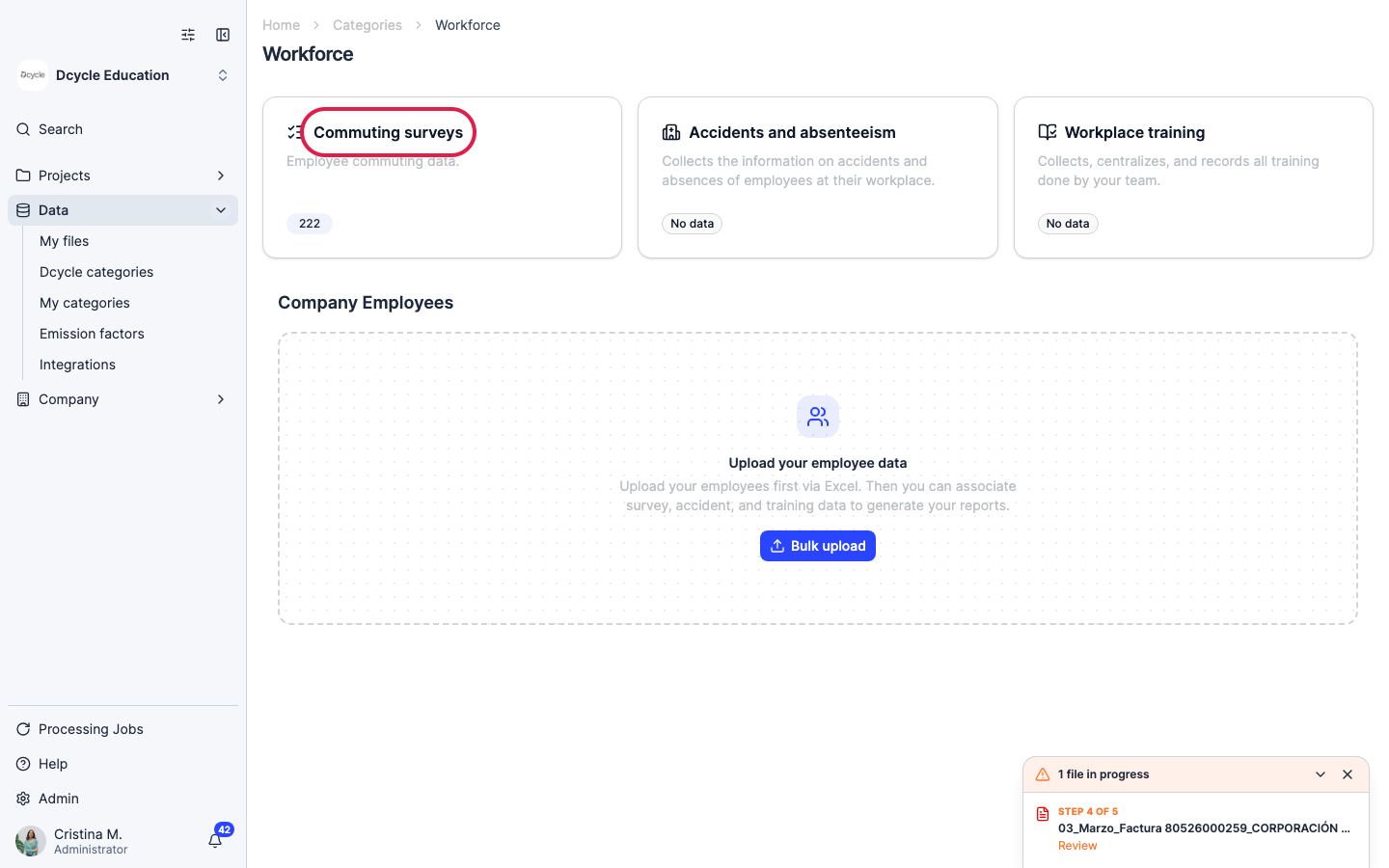
Click “Commuting surveys” to see all employees and their survey periods.
Step 5
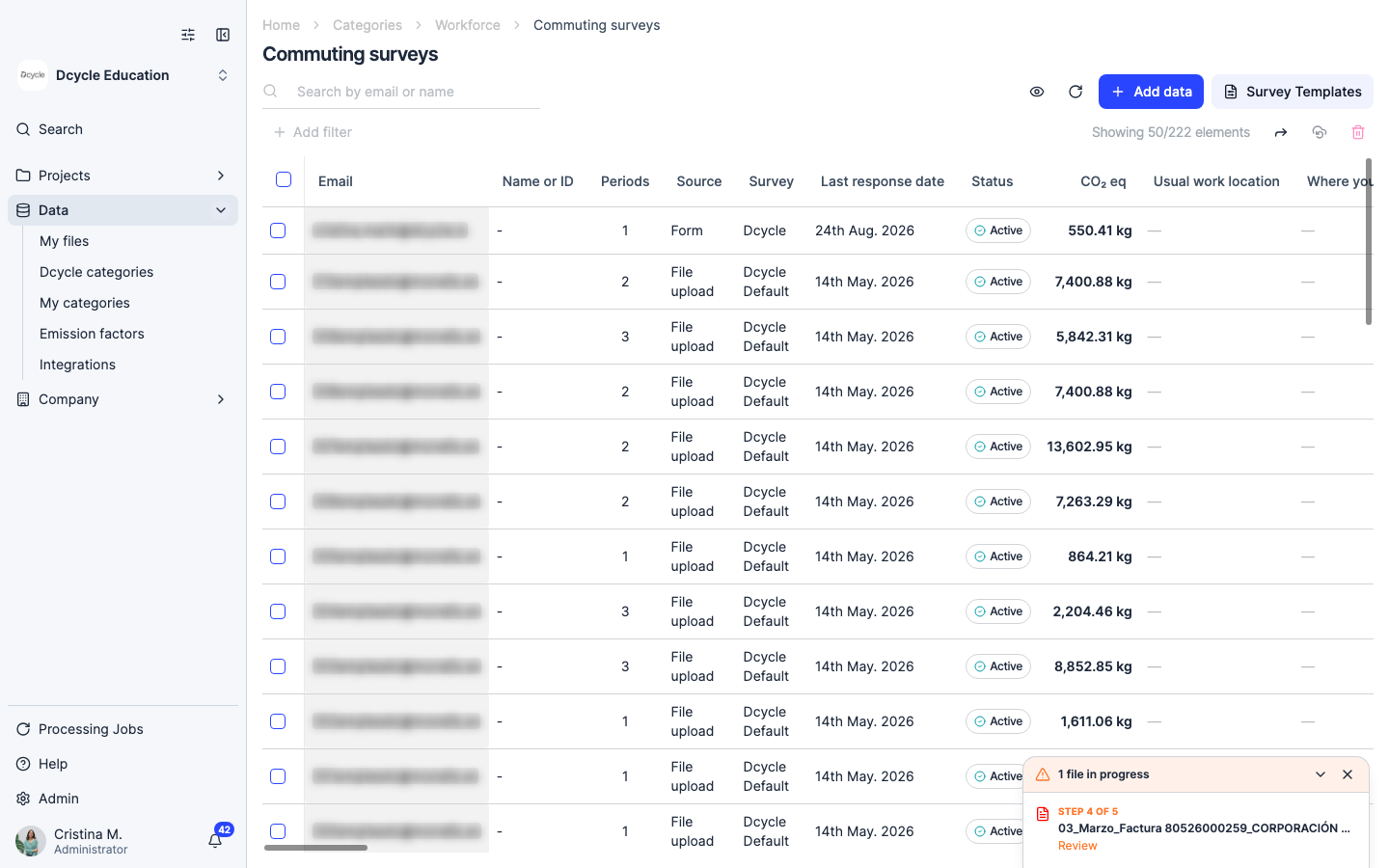
The listing shows every employee, the number of commuting periods they have, and their current status. Each row represents one employee — click it to see or manage their individual periods.
Step 6
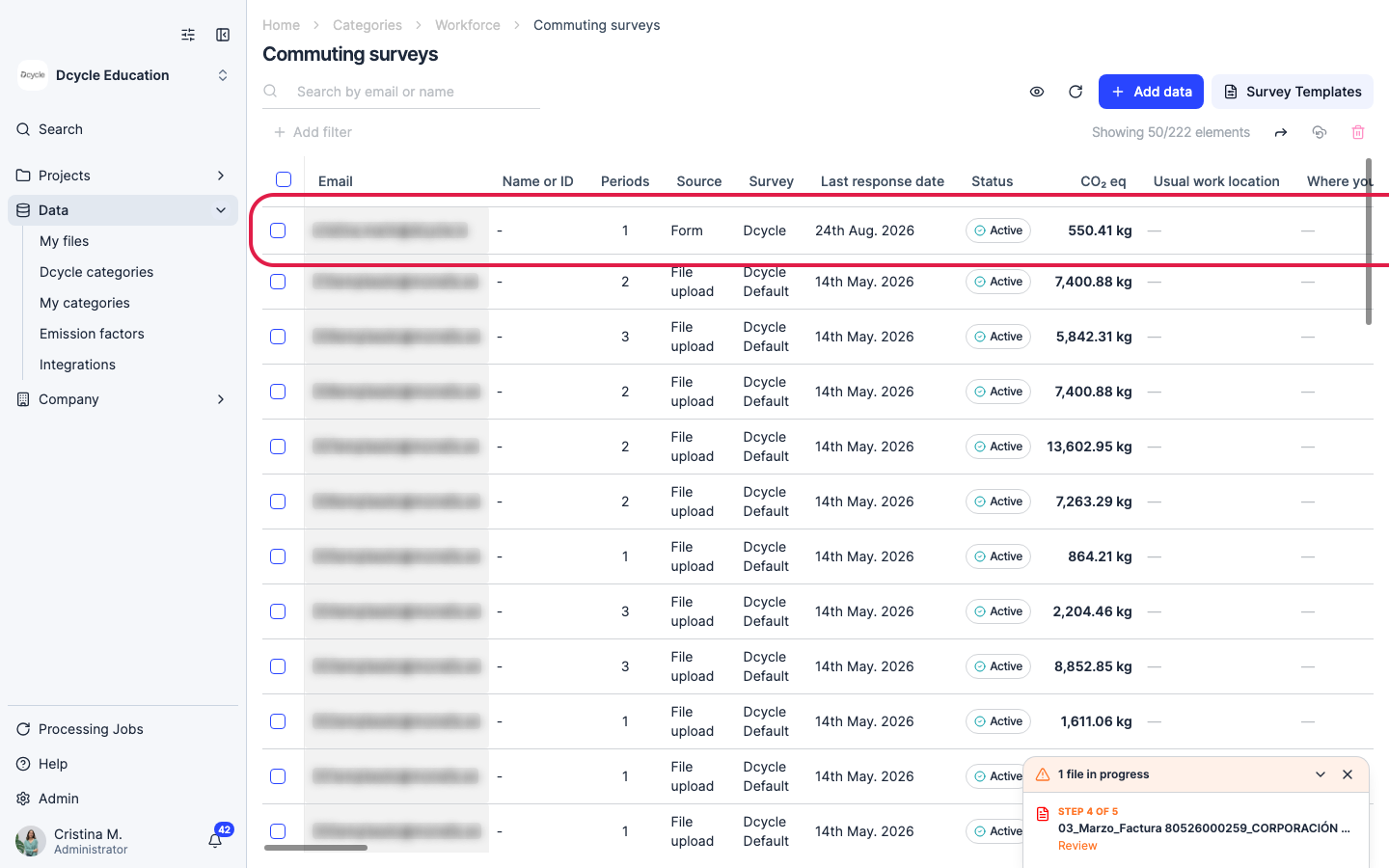
Click any employee row to open their detail and see their commuting periods.
Step 7
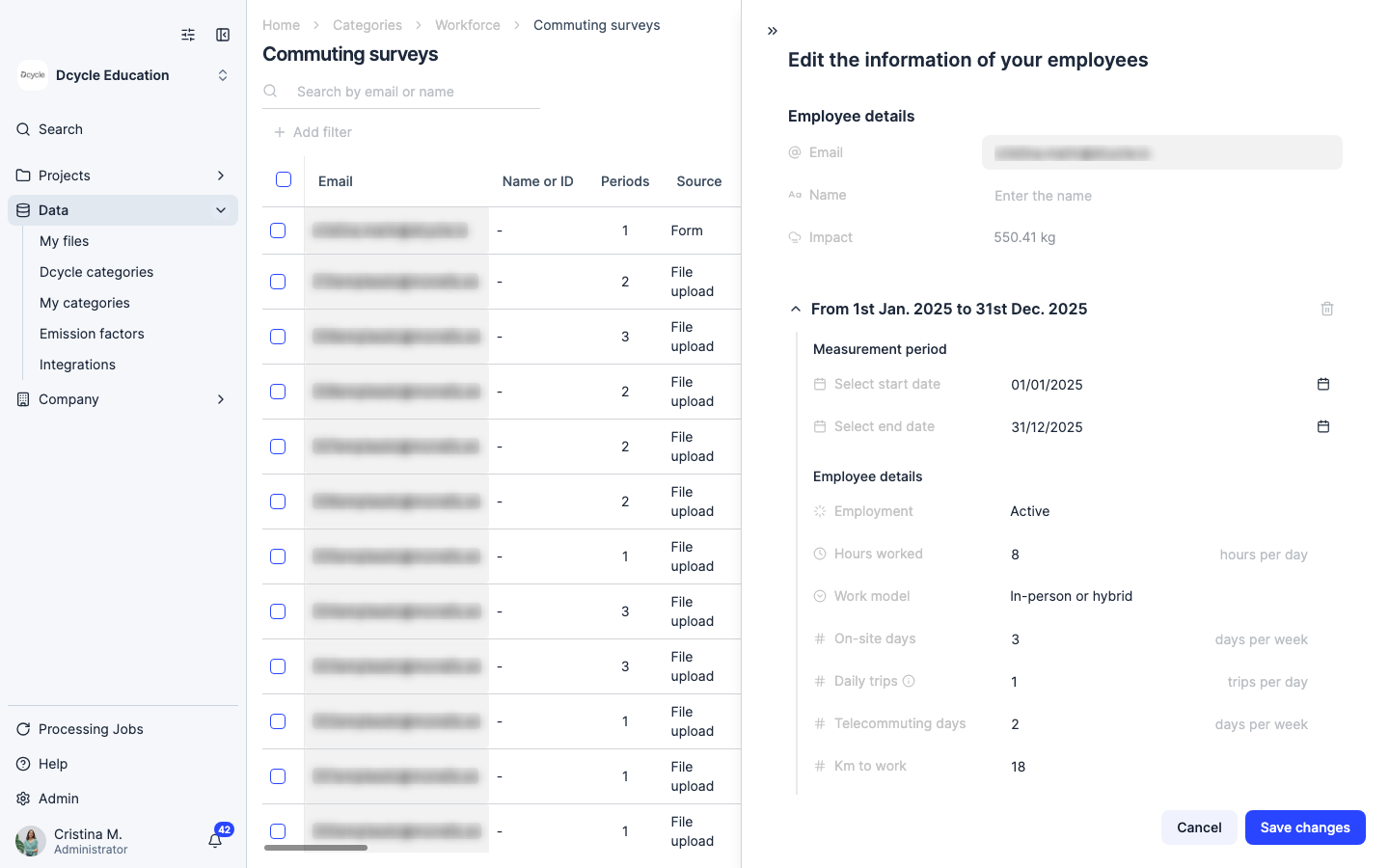
The employee detail panel opens on the right. At the top it shows the employee’s email, name and total CO₂ impact. Below that you see their commuting period — the date range, measurement data (start and end date), and employee details such as employment status, work model, and distance. To delete this period and deactivate the employee, click the trash icon (🗑) at the top-right corner of the period section.
Step 8
The “Employment” field inside the period shows whether the employee is currently Active. This field reflects the status of that specific period — not the employee as a whole. An employee can have multiple periods at different times (e.g. if they rejoined the company), each with its own date range and employment status.
Step 9
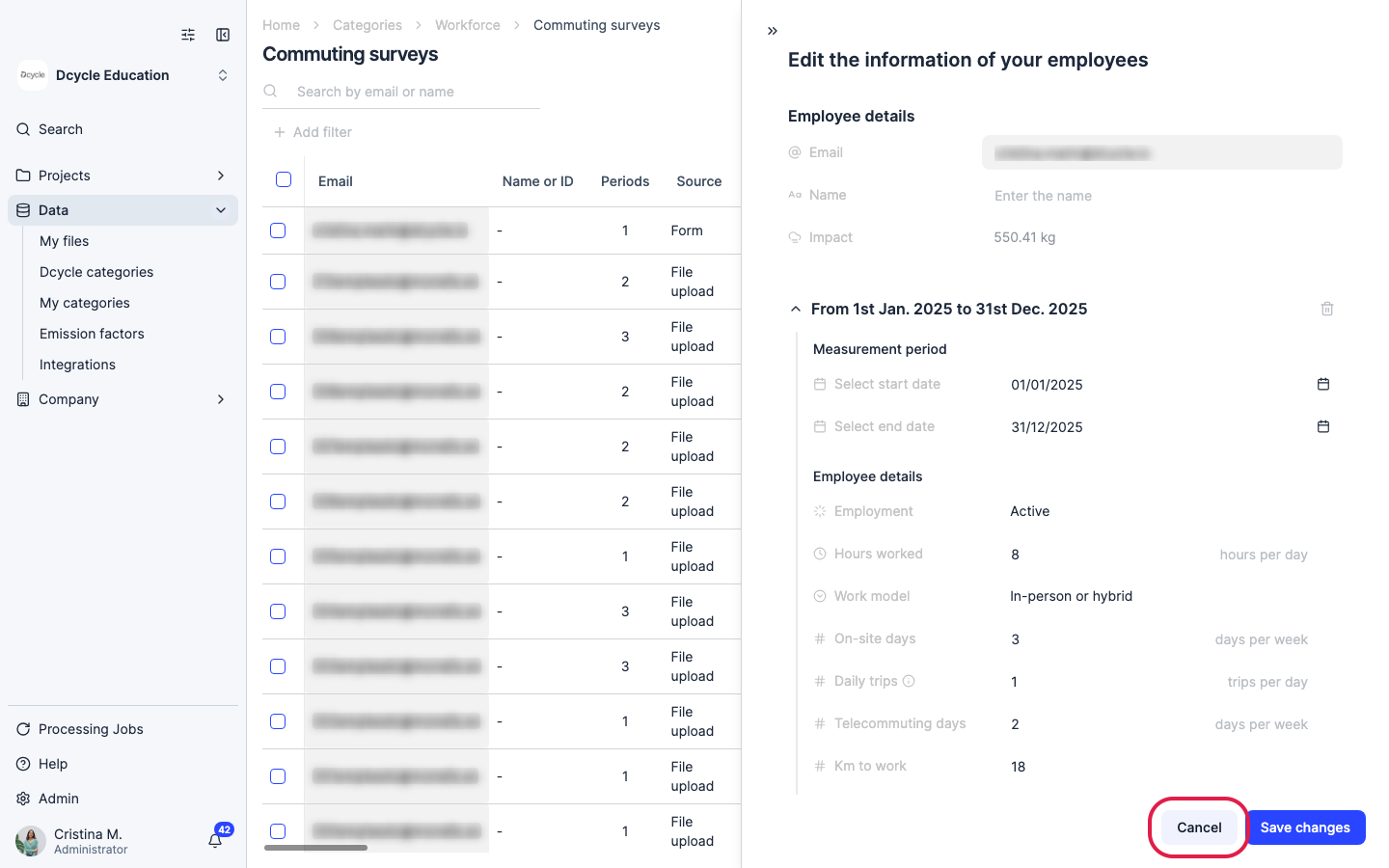
Click “Cancel” to close the detail panel and return to the full listing.
Step 10
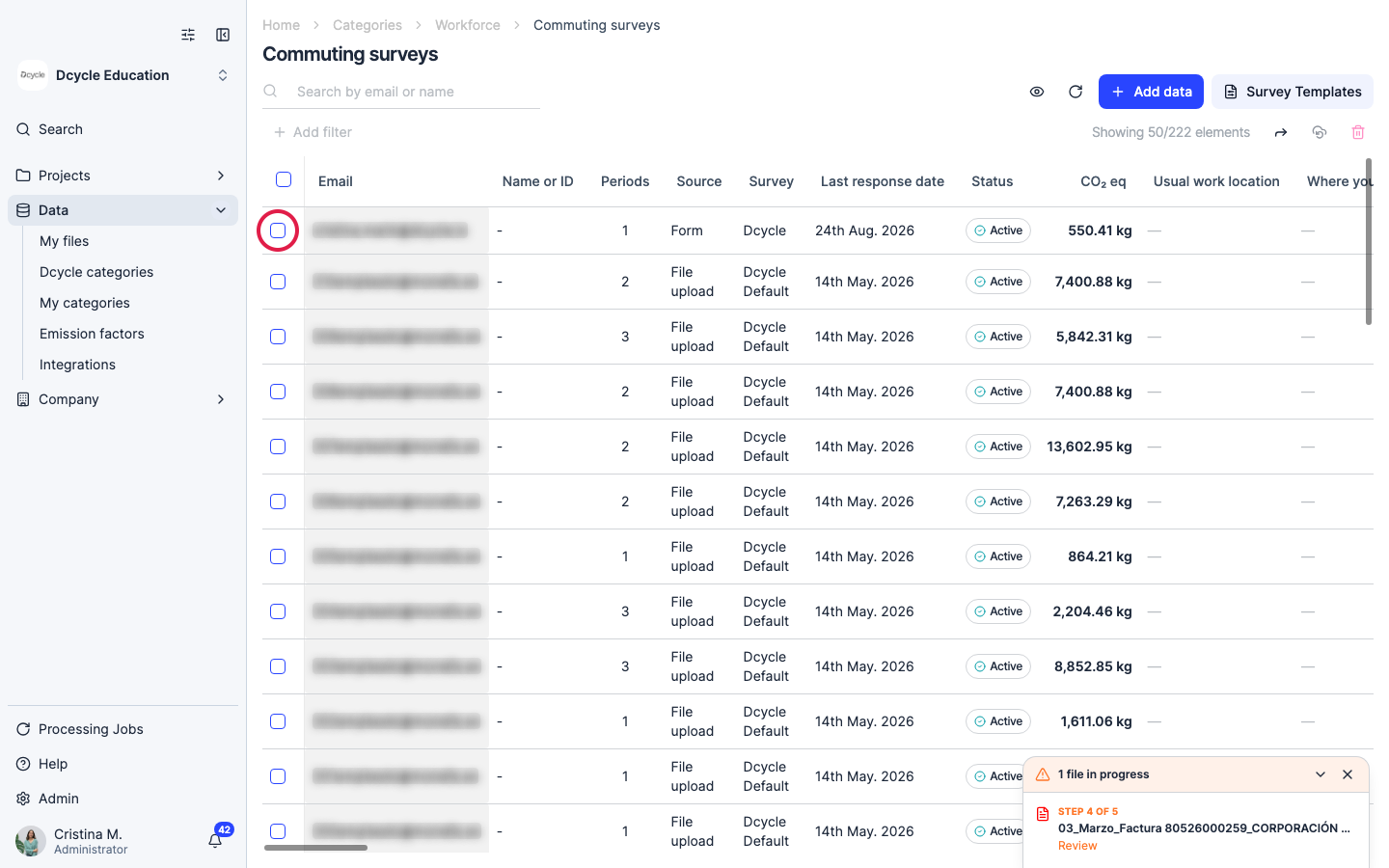
To manage several employees at once, tick the checkbox on the left of each row. You can also use the header checkbox to select all visible rows at once.
Step 11
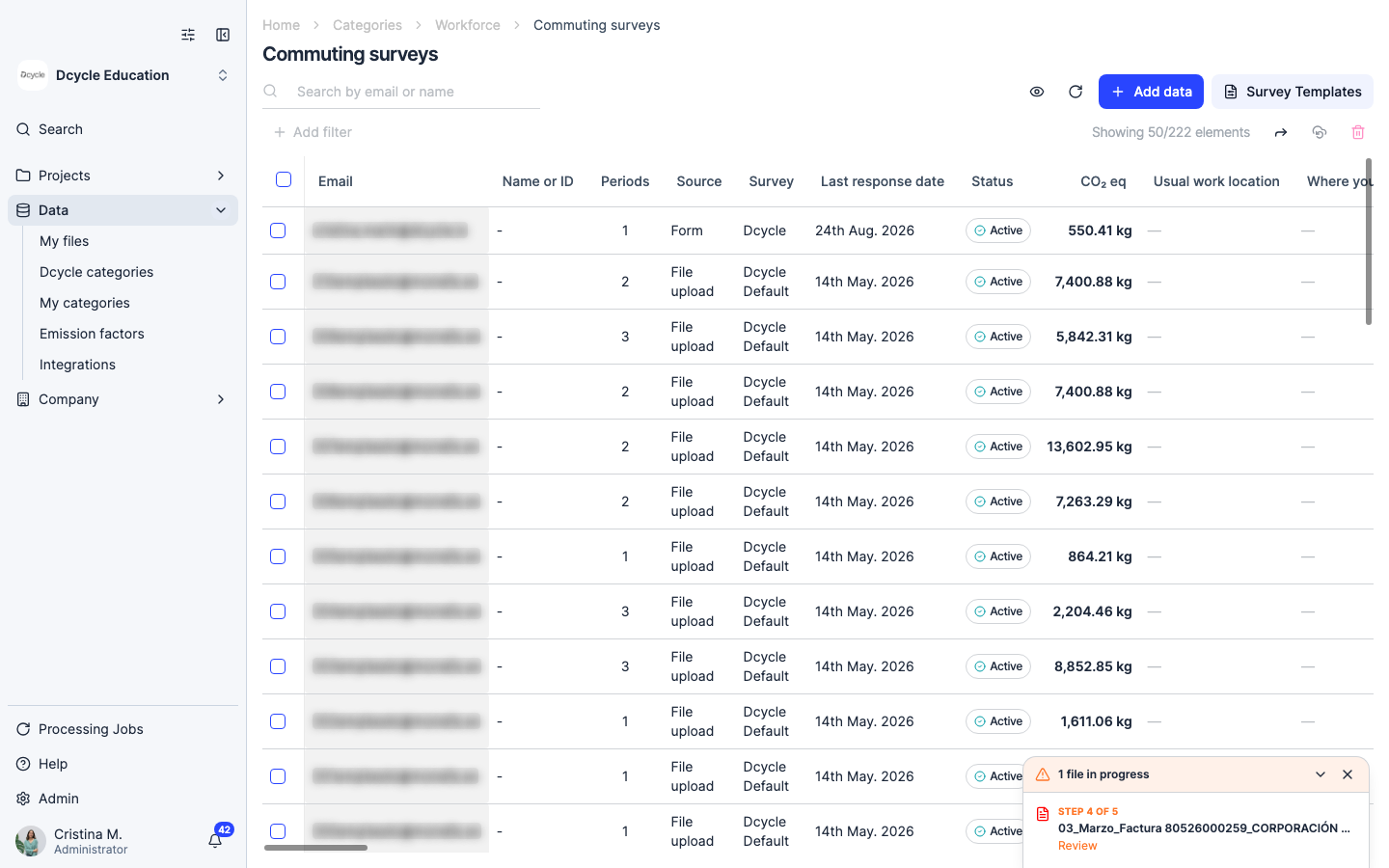
With one or more rows selected, two icons appear in the top-right area of the listing: a restore icon (circular arrow) and a trash icon. Use the trash icon to delete all selected employee periods at once — useful when a whole team or work centre is deactivated. Use the restore icon to recover previously deleted records in bulk.
Step 12
Best practices: delete an employee’s period as of the last day of their employment — that way their commuting emissions are counted up to that date and excluded afterwards. If the employee returns, upload a new commuting record or resend the survey to start a fresh period. Use the restore flow rather than re-uploading if the data is still valid — it avoids duplicates and keeps the audit trail clean.
Was this helpful?
What was missing or unclear? (optional)
Sent. Thank you for helping us improve.