Product Guides
How My Files works: stages, duplicates, and deleting files
My Files is Dcycle's own document processing system. Understand what happens to a file after you upload it, why the review step is mandatory, how duplicate detection works, and what each deletion action — Delete file vs. Delete associated data — does and doesn't remove.
My Files is where every document enters Dcycle. It is now a system built and operated entirely by Dcycle — replacing the third-party processing tools used previously — which means more reliable data extraction and much clearer error handling.
This article explains how the system works underneath, so you always know where your data is and what each action does. For the step-by-step upload walkthrough, see Upload data from My files.
Files and data are two different things
The most important concept in My Files: the file and its data are separate.
- The file is the document itself — the PDF invoice, Excel sheet, or image you uploaded. It lives in My Files.
- The data is what Leia extracts from it — the records created in a data category (for example, an electricity invoice under Data → Electricity) and the impacts calculated from them.
Once a file completes processing, its data records exist independently of the file. This separation is what makes error handling clearer: if something goes wrong, you can always tell whether the problem is with the document or with the extracted data.
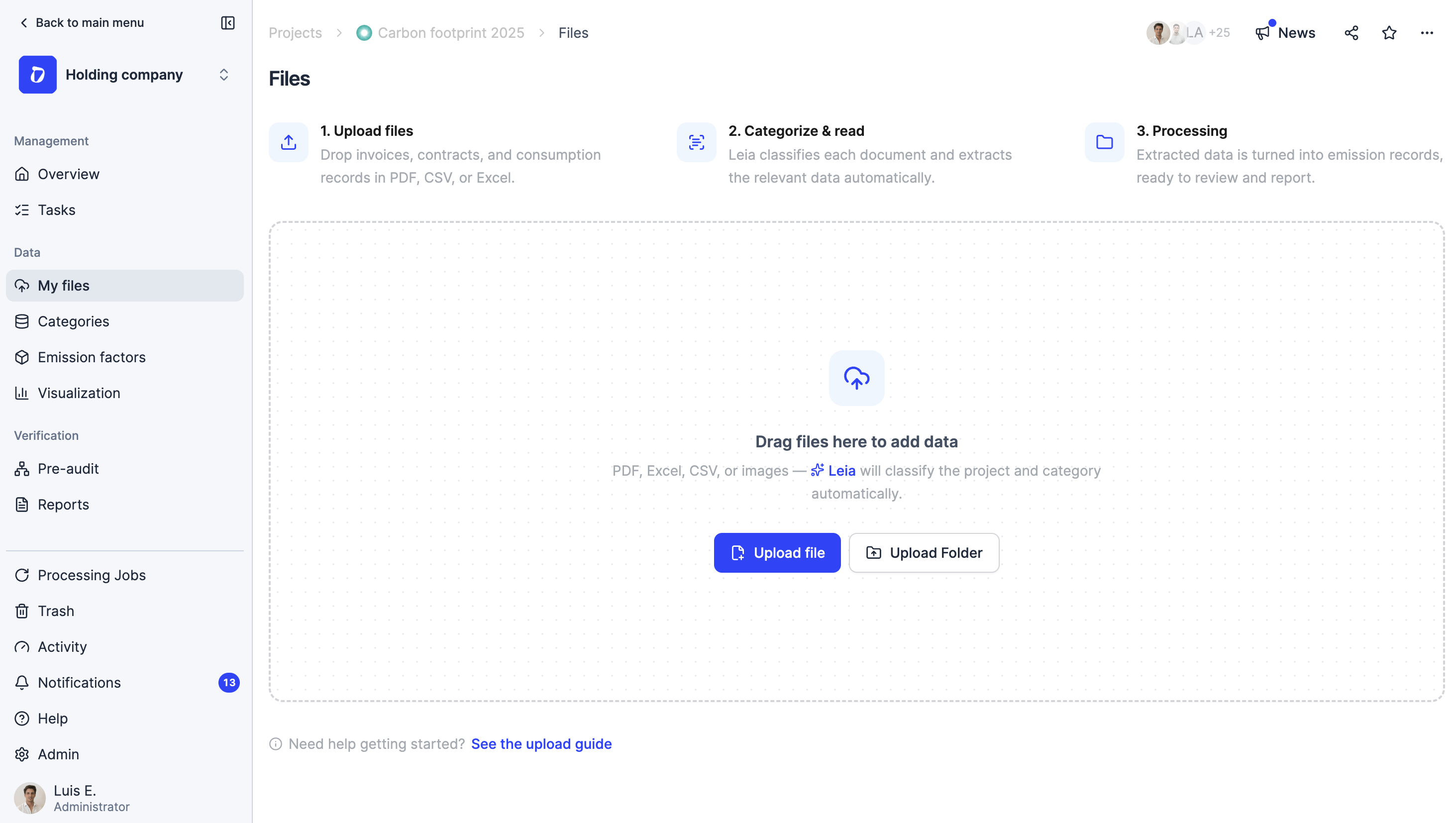
Where you can upload from
There are three entry points, and they all run through the same processing flow:
- Data → My Files — the general view. Files uploaded here aren’t tied to any project.
- My Files inside a project — same functionality, but the file is also associated with that project, so you’ll see it in the project’s file list. Files belong to your organization, so they always appear in the general view too.
- Directly from a data category — for example, uploading invoices from Combustion in a specific facility. The file arrives pre-assigned to that category and facility, and a “files to review” notice appears so you can confirm them.
No entry point is “better” — use whichever fits how you work. Uploading a big batch of mixed documents? The general My Files. Uploading one waste invoice while you’re already looking at the Waste category? Upload it right there.
Uploads are cross-checked either way
Even when you upload from a category, Leia verifies the classification. If you upload a file to Combustion but it looks like an electricity invoice, or the invoice's CUPS matches a different facility than the one you chose, Dcycle asks you to confirm before continuing — it never silently overrides your choice, and it never silently accepts a mismatch.
The five processing stages
Every file you upload moves through the same five stages, and the processing panel shows exactly where each one is:
- Upload — the file is stored in My Files. Nothing has been read or calculated yet.
- Classification — Leia identifies the document type (electricity, fuel, waste, water…). Each category is processed differently — an electricity invoice needs kWh and dates, a waste invoice needs LER codes and treatment — so classification decides which reading logic applies. If Leia isn’t confident, it asks you to confirm the category.
- File reading — Leia extracts the values (supplier, invoice number, period, consumption, totals) and converts them to the fields Dcycle needs. It also detects the organization and facility the document belongs to, using the company name, the supply address, and identifiers like the CUPS on electricity invoices.
- Review data — your mandatory checkpoint. You confirm what Leia read before any records are created.
- Completed — only now are the data records and their impacts created. Everything you see in the category cards (consumption, emissions) comes exclusively from files that reached Completed.
A warning icon on a file means it’s waiting for an action from you — usually at Classification (confirm the category) or Review data (confirm the values). Files waiting for you are collected in the Pending tab.
Why the review step is mandatory
No data reaches your footprint until you confirm it in Review data — for every upload, every time, from any entry point. This is deliberate: in the previous system, misread values could become records silently, producing invoices with wrong dates, zero-emission entries, or hidden errors that only surfaced much later. Now nothing is created until someone has looked at it and confirmed, which also makes your data auditable.
Bulk actions
Each stage has its own bulk actions — select several files and act on all of them at once:
- Review data: assign a facility to many invoices, split an invoice across facilities or organizations (the same split applies to all selected files), and confirm in bulk. Bulk confirm shows a summary of everything about to be created — supplier, period, quantity, facility — so you can catch mistakes (a negative quantity, a wrong period) before confirming. Every file needs a facility assigned before it can be confirmed.
- Custom emission factors can also be assigned during Review data. You can apply them later from the category too — the result is the same — but doing it during review saves you a second pass. See custom emission factors.
Tip
The processing panel can be minimized or closed — processing continues in the background, and you can log out and come back days later. To reopen it, go to My Files → Pending and click the file: the panel opens again at exactly the step where it was waiting.
Duplicate detection
When you upload a file, Dcycle immediately checks whether a file with exactly the same content already exists — the comparison is on content, not filename, so renaming a file and re-uploading it is still detected.
When a duplicate is flagged, you choose:
- Delete the file — removes only the copy you just uploaded. The original file and all its data stay untouched. Since the flagged copy never got past classification, it created no records, so there’s nothing else to clean up.
- Process it anyway — continues the normal flow, as if it were a new file.
Detection is exact-match only
If the content changed at all — an extra page added to a PDF, a single cell edited in a spreadsheet — the file is treated as new and won't be flagged. Duplicate detection protects you from re-uploading the same folder twice, not from near-identical versions.
Remove from view, Delete file, and Delete associated data
My Files gives you three different ways to clear a file or its data, and they do very different things:
| Action | What happens to the file | What happens to its data |
|---|---|---|
| Remove from view | Hidden from the main list, but kept in Pending so you can come back and finish it later | Nothing — no records are affected |
| Delete file | Moved to the Trash, with a 30-day retention window | Nothing — the data records and impacts remain |
| Delete associated data | Stays in My Files | All records and impacts created from this file are removed, across every organization where it was imported |
Use Remove from view to tidy up while keeping files you still need to review. Use Delete file when the document itself shouldn’t be in Dcycle — a duplicate, or something uploaded by mistake. Use Delete associated data when you want to undo everything a file imported — for example, you uploaded an outdated spreadsheet and need to remove all the records it created, across all organizations, in one step. Before anything is deleted, Dcycle shows a summary of what will be removed so you can review and confirm. You can start this action from the file’s three-dot menu in My Files or from the Processing page.
Deleting a file does not delete its data
If a file already completed processing, its records and impacts exist in the corresponding data category — and they stay there when you delete the file. To remove the data too, use Delete associated data from the file's three-dot menu — it removes all records that file created, across every organization, in one step. See the FAQ below.
Excel and CSV uploads
Spreadsheets go through the same five stages. The difference is in Review data, which separates PDFs from spreadsheets because they need different actions: reviewing a spreadsheet opens the standard import flow — select the sheet to process, map your columns to Dcycle’s fields, map values — one file at a time.
Spreadsheet won't map correctly?
Some Excel files — especially ones generated by other tools, with formulas or unusual formatting — can produce confusing mapping errors even though the data looks fine. Export the sheet as CSV and upload that instead: the values import cleanly.
Finding your files
- All shows every file, organized in the folder structure you uploaded.
- Pending, Processed, and Errors are flat lists — no folder navigation, just every file in that state (each row shows which folder it belongs to). Pending is where anything waiting for your action lives, including files you removed from view.
FAQ
Why do I have to confirm every upload manually?
Because it’s the only way to guarantee that what enters your footprint is correct. Leia’s extraction is accurate, but documents vary enormously between suppliers — the review step catches the cases where a value, period, or facility needs your judgment. Nothing is created until you confirm, which also makes your data auditable: every record was explicitly approved by someone.
I deleted a file but its data is still showing. Is that a bug?
No — it’s how the system is designed. Deleting a file removes the document, not the records extracted from it. To remove the data, use Delete associated data from the file’s three-dot menu — it removes all records that file created, across every organization, in one step.
How do I delete both a file and its data?
Use Delete associated data from the file’s three-dot menu in My Files or from the Processing page. Dcycle shows you a summary of everything that will be removed — records and impacts across every organization where the file was imported — before you confirm. Once the data is gone, delete the file itself with Delete file if you don’t want it in My Files either. This replaces what used to be a multi-step process of finding and deleting records category by category across multiple organizations.
Should I upload from My Files or from the data category?
Both paths have the same capabilities and end in the same review step — it’s purely about convenience. Uploading from a category pre-assigns the category and facility, which is handy for one-off uploads. My Files is better for batches, or for building a complete, traceable archive of a year’s documents in one session.
What changes if I upload inside a project?
The file is associated with that project, so it shows up in the project’s My Files as well as the general one. If you upload outside a project, the file isn’t listed in any project — but its data, once confirmed, still counts wherever it belongs: a 2025 waste invoice processed from the general My Files still contributes its records and emissions to any project covering 2025.
I uploaded the same invoice twice. What happens?
Dcycle flags it as a duplicate before processing. Choose “Delete file” and only the new copy is removed — the original and its data are untouched, and no duplicate records were ever created. Note that detection requires identical content: a modified version of the file won’t be flagged.
Can I recover a deleted file?
Yes, within 30 days. Deleted files go to the Trash and are retained for 30 days before being permanently removed. See Restore a deleted record from the Trash for how the Trash works.
How does Leia know which facility an invoice belongs to?
It cross-references what’s on the document — company name, supply address, CUPS — with your facilities and with previously processed invoices (for example, other invoices with the same CUPS). The first time you upload, there’s no history yet, so facility addresses matter most: if the supply addresses on your invoices match your facilities’ addresses, add them (Company → Facilities → Edit). If Leia can’t determine the facility, it simply asks you during review — and it learns from what you confirm.
A file is stuck in Pending. What should I do?
Pending means the file is waiting for you — usually to confirm a classification Leia wasn’t sure about, or to review its data. Click the file and the processing panel reopens at the step where it stopped. Files you chose to “Remove from view” also wait in Pending.
Was this helpful?
What was missing or unclear? (optional)
Sent. Thank you for helping us improve.