Product Guides
Export data to Excel
Build custom reports from any project and download your data as Excel for offline analysis, auditor delivery, or to feed your BI tools. Reports live inside each project, and you choose which year of data to download.
Before you start
You need a Viewer role in your Dcycle organization.
Steps
Step 1
From the home page, open the project whose data you want to export — for example, your annual carbon footprint, your CSRD project, or an ISO 14064 verification project.
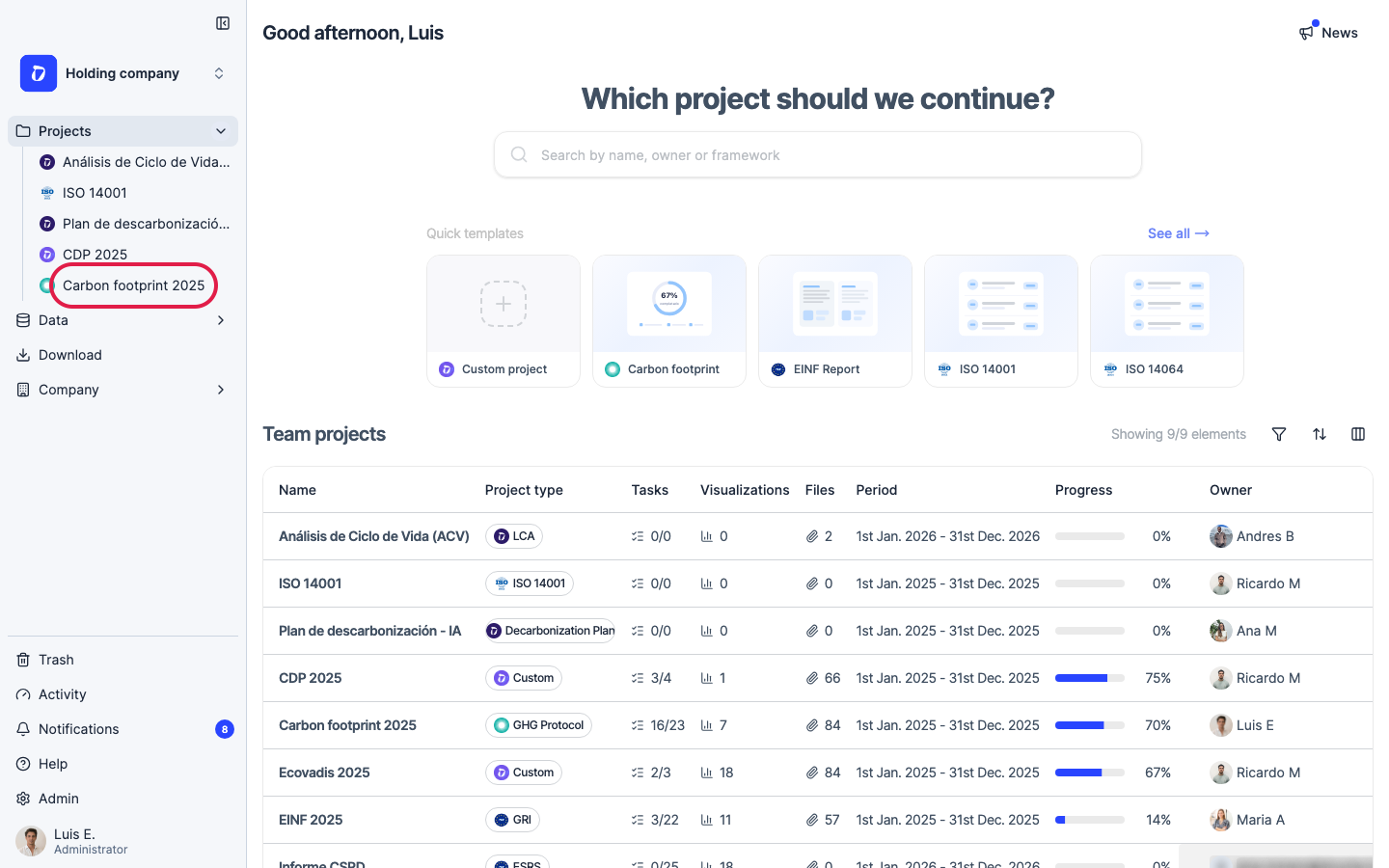
Step 2
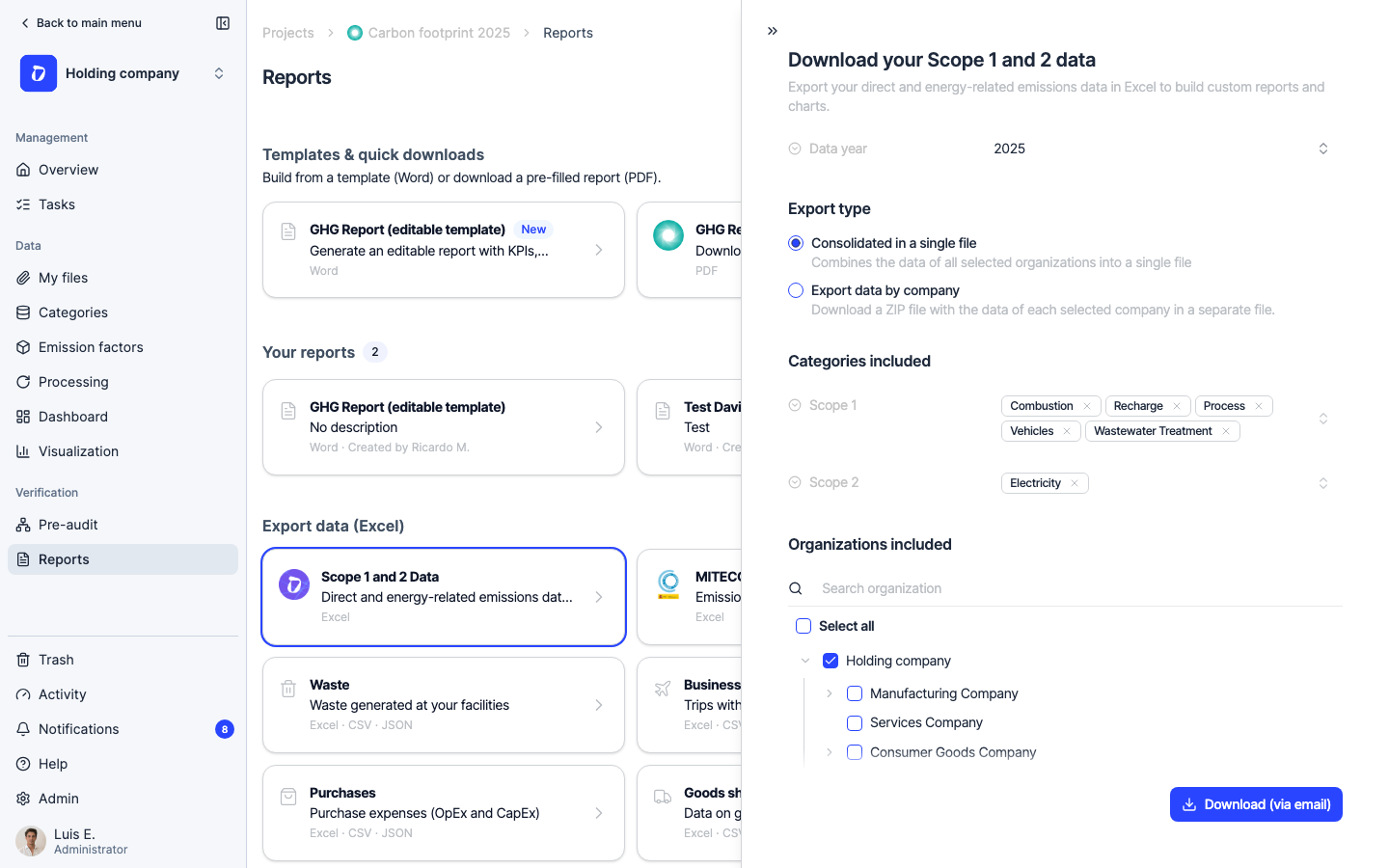
Inside the project, open “Reports” in the left sidebar, under the “Verification” group.
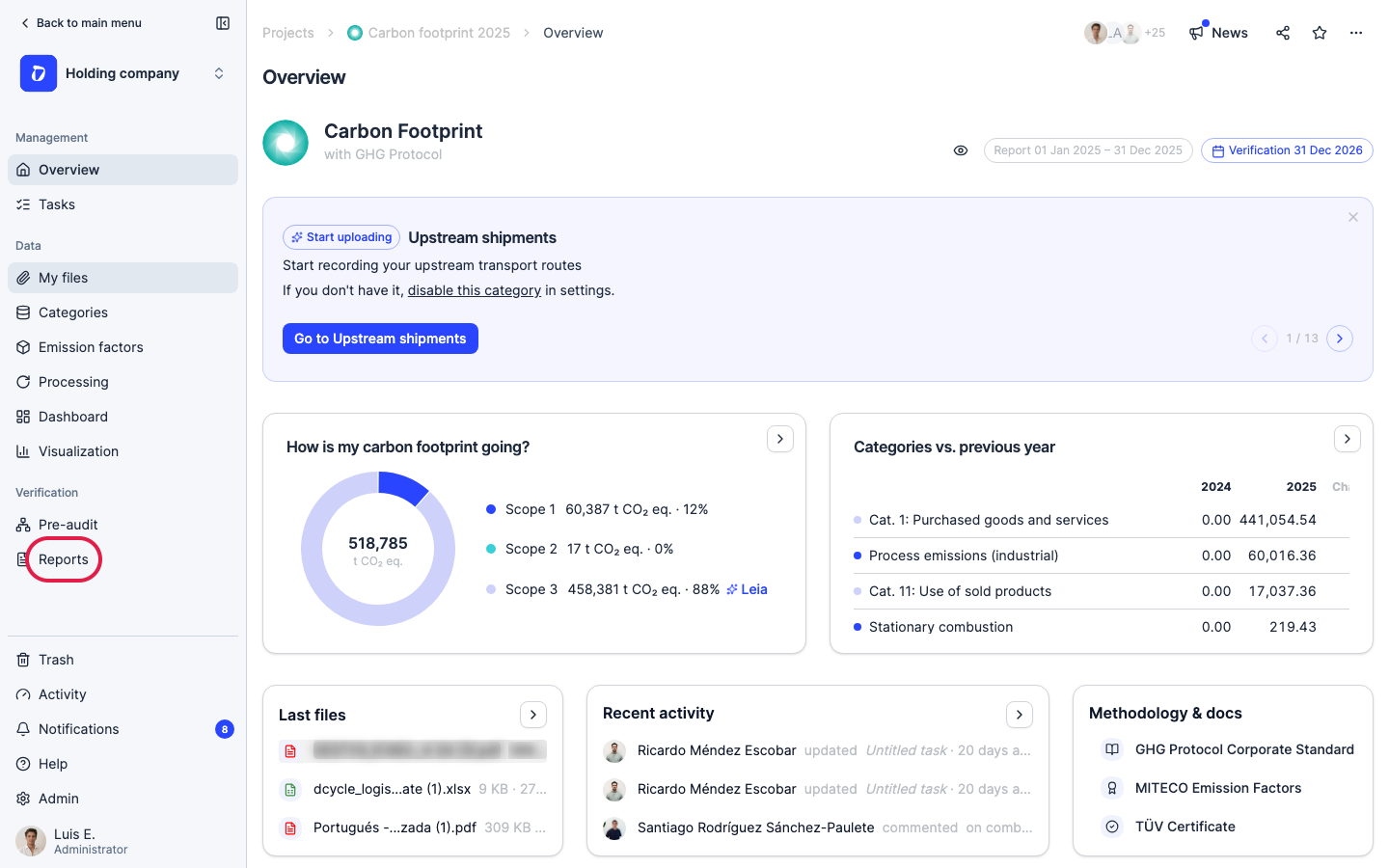
Step 3
The Reports page has three areas. “Templates & quick downloads” gives you pre-filled GHG and Dcycle reports as Word or PDF. “Your reports” holds the custom reports your team has saved. For raw data, use the “Export data (Excel)” section — it has a card for each category (Scope 1 and 2 data, MITECO, Water, Waste, Business travel, Employees, Purchases, and more).
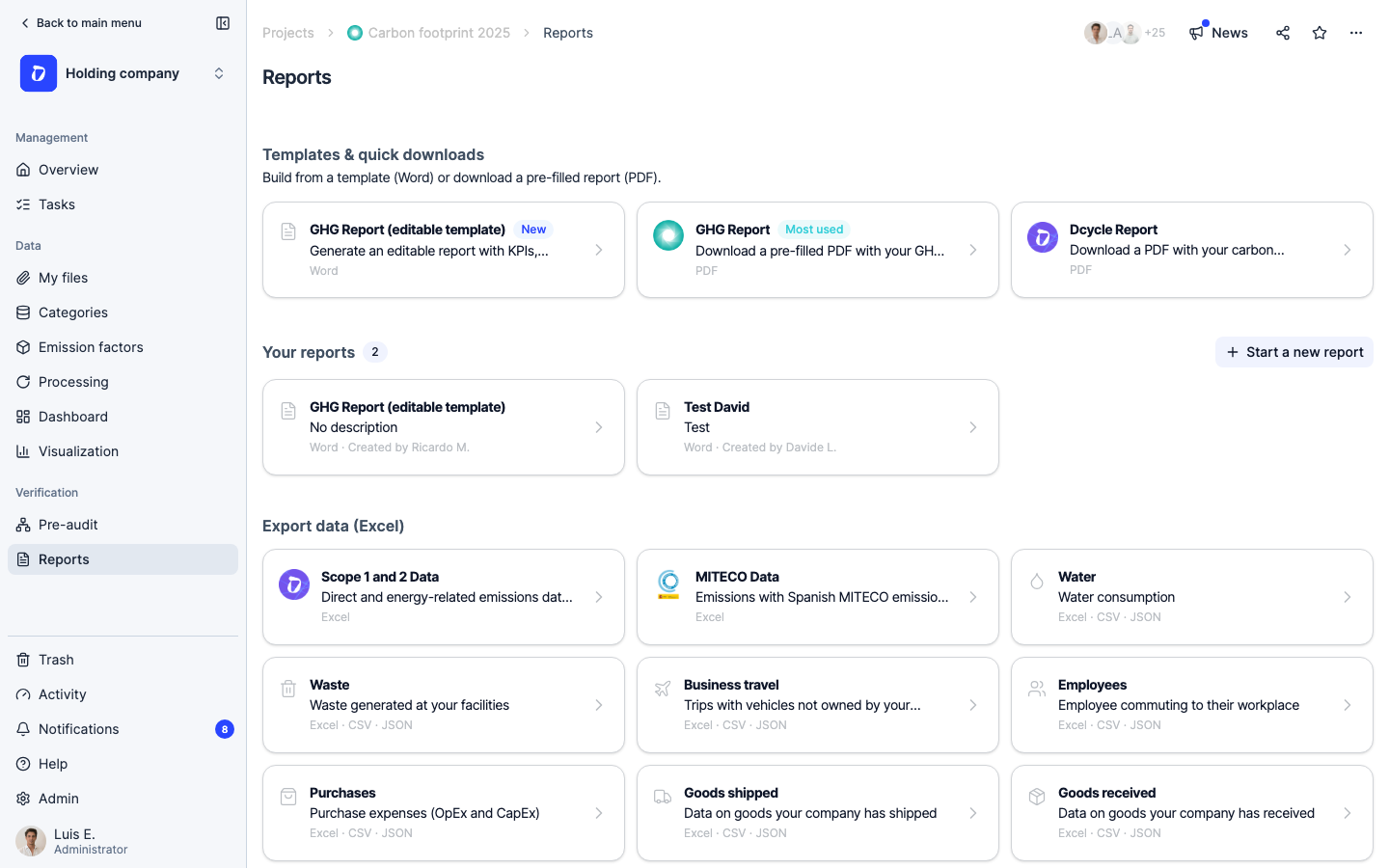
Step 4
Click the category you want — here, “Scope 1 and 2 Data”.
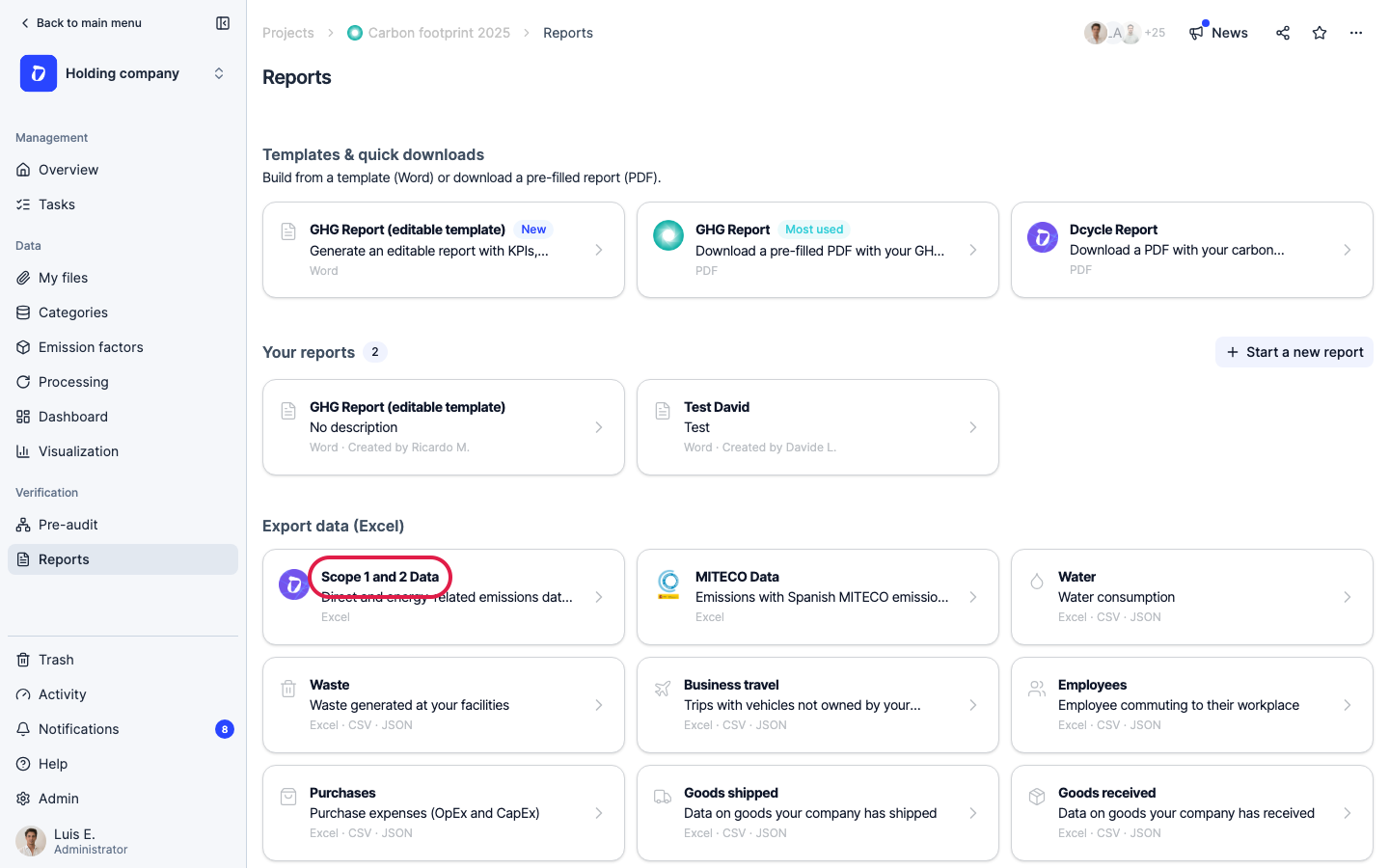
Step 5
A panel opens to set up the export. Pick the year of data you want, choose whether to get a single consolidated file or split the data by container, and select which categories and organizations to include. Then click “Download” to generate the file.
Step 6
Reports and exports are generated on the spot. For large datasets they may take a minute — you’ll receive an email with the download link when the Excel file is ready.
Was this helpful?
What was missing or unclear? (optional)
Sent. Thank you for helping us improve.