Product Guides
Generate your EINF report
Once the data to report is answered, Dcycle assembles it into an EINF document aligned with Ley 11/2018. This guide shows where the template lives, how to create a report from it, and how it stays in sync.
Before you start
You need an Editor role in your Dcycle organization.
Steps
Step 1
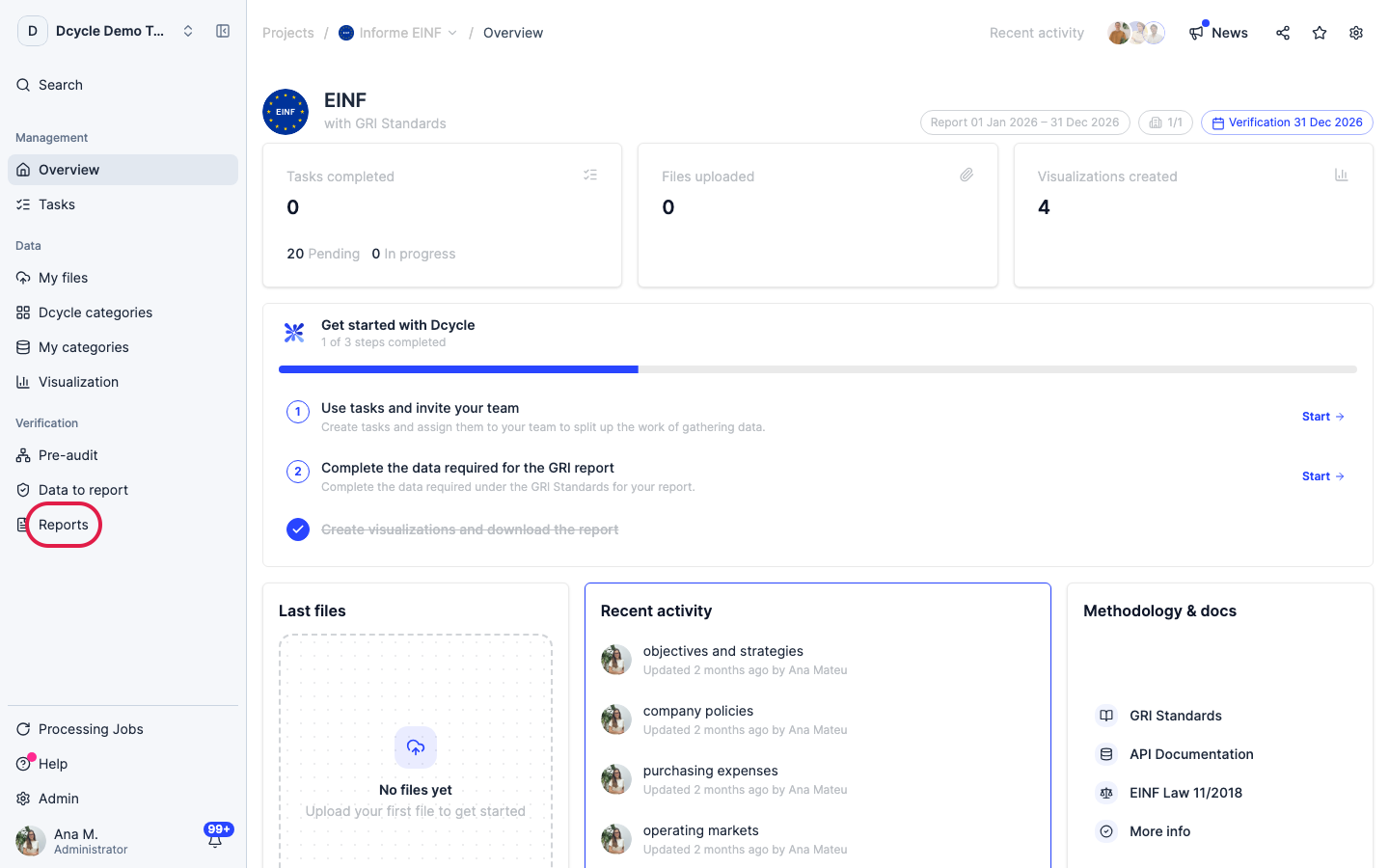
Click “Reports” in the project menu. Reports belong to the project, so the framework and the period come from it — you don’t pick them again.
Step 2
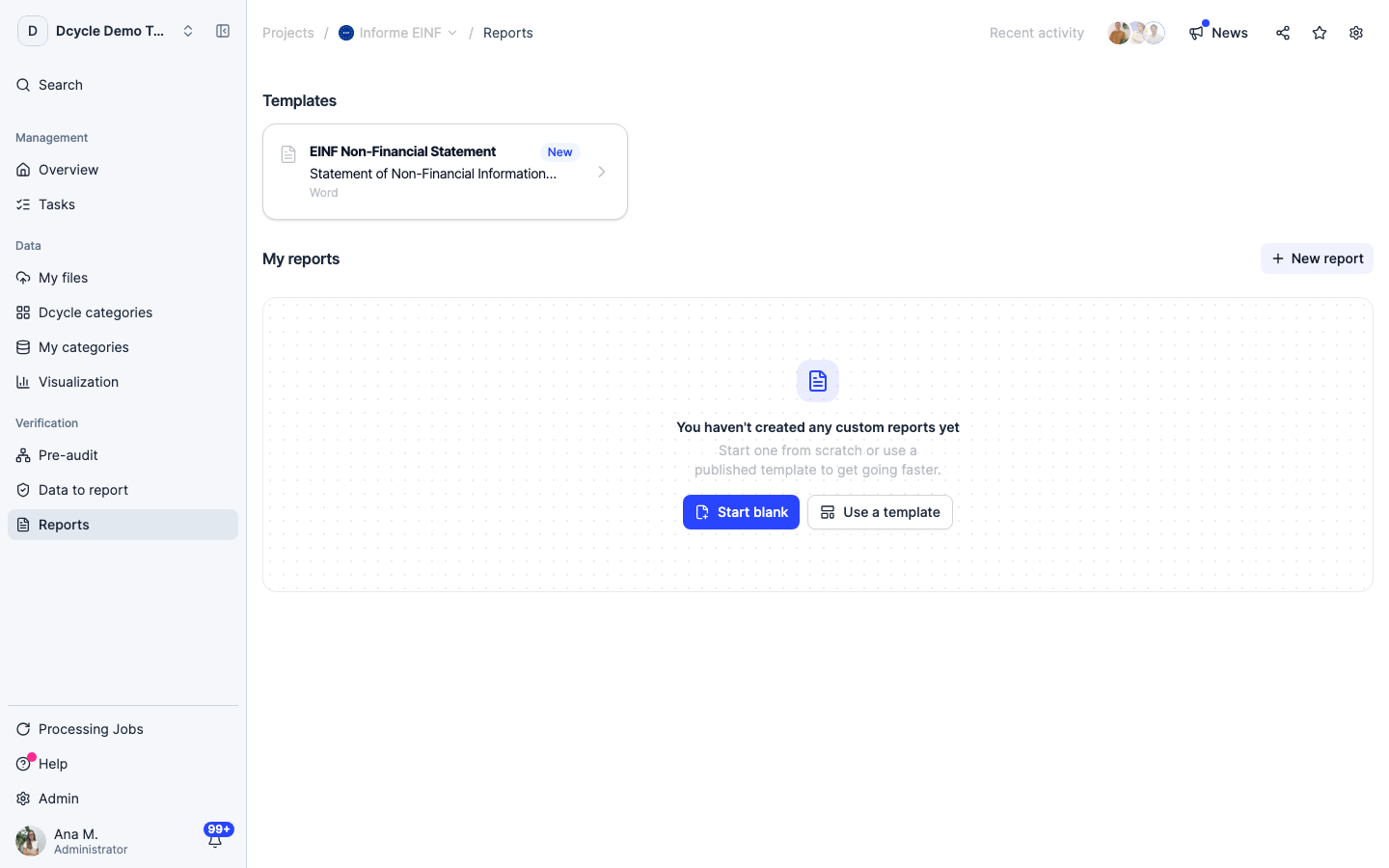
Under Templates you find “EINF Non-Financial Statement”, aligned with Ley 11/2018 and delivered as a Word file. Below, “My reports” lists the reports already created in this project with their dates.
Step 3
The template’s own description says it: the indicator selection comes from “Data to report”, and the report stays in sync as you toggle indicators. That is why “Include in the report” on each item matters — it decides what reaches the document.
Step 4
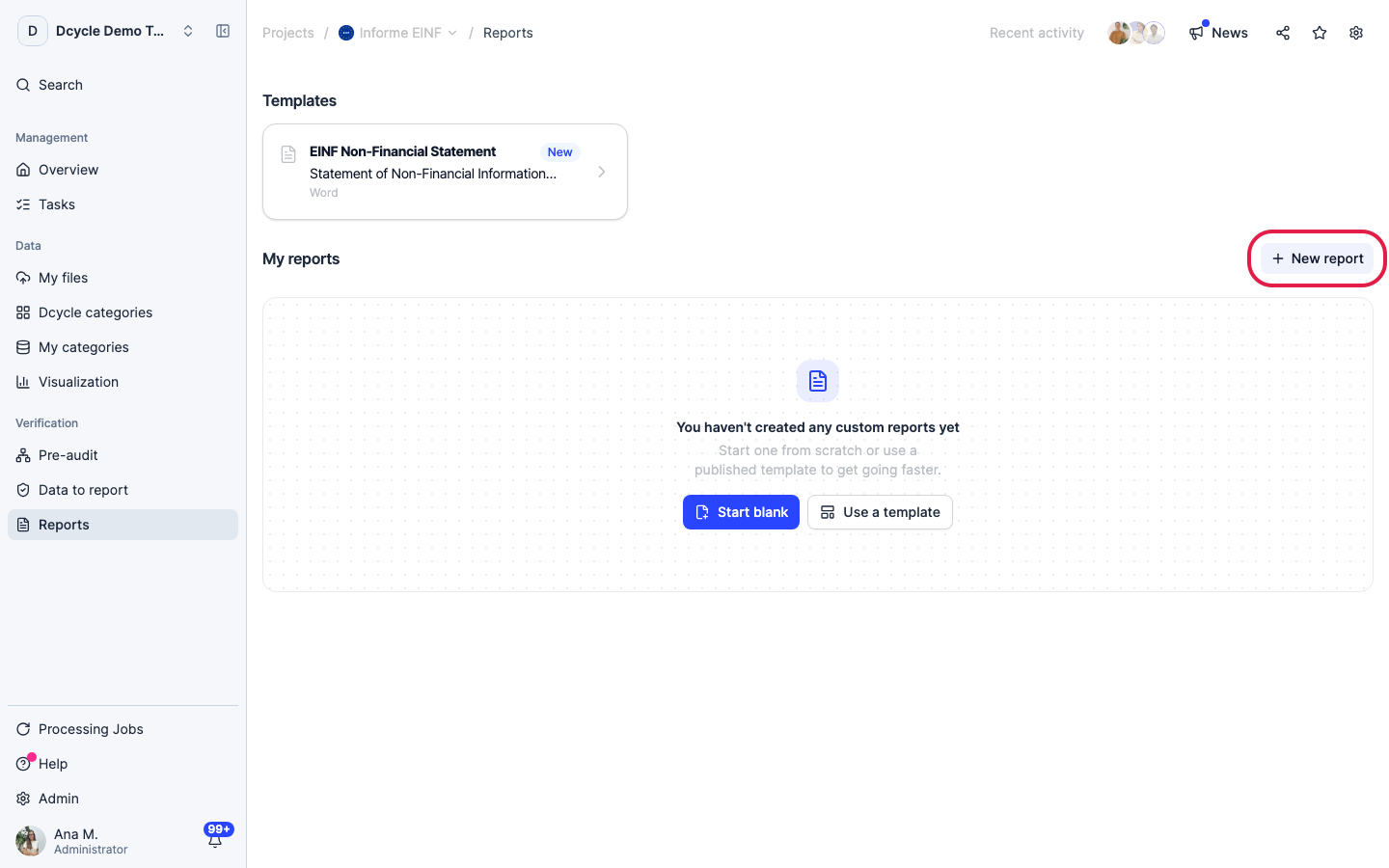
Click “New report” to create one from the template. (We’re only pointing at the button here — nothing is generated in this example.)
Step 5
If a banner in “Data to report” warns that reports in this project have pending template changes, click “Review” before generating: the document template has moved on and your report would otherwise be built from the old one.
Step 6
The Word file is a starting document, not the final filing: it carries your answers and figures in the EINF structure, ready for your team to style and for your verifier to work through. Correct something afterwards and you create the report again — an already generated file does not update itself.
Was this helpful?
What was missing or unclear? (optional)
Sent. Thank you for helping us improve.