Product Guides
Assign owners to your EINF data
Nobody answers 78 items alone. Assigning an owner to each one turns a wall of pending work into a handful of personal lists. This guide shows how to assign owners in bulk and one by one.
Before you start
You need an Editor role in your Dcycle organization.
Steps
Step 1
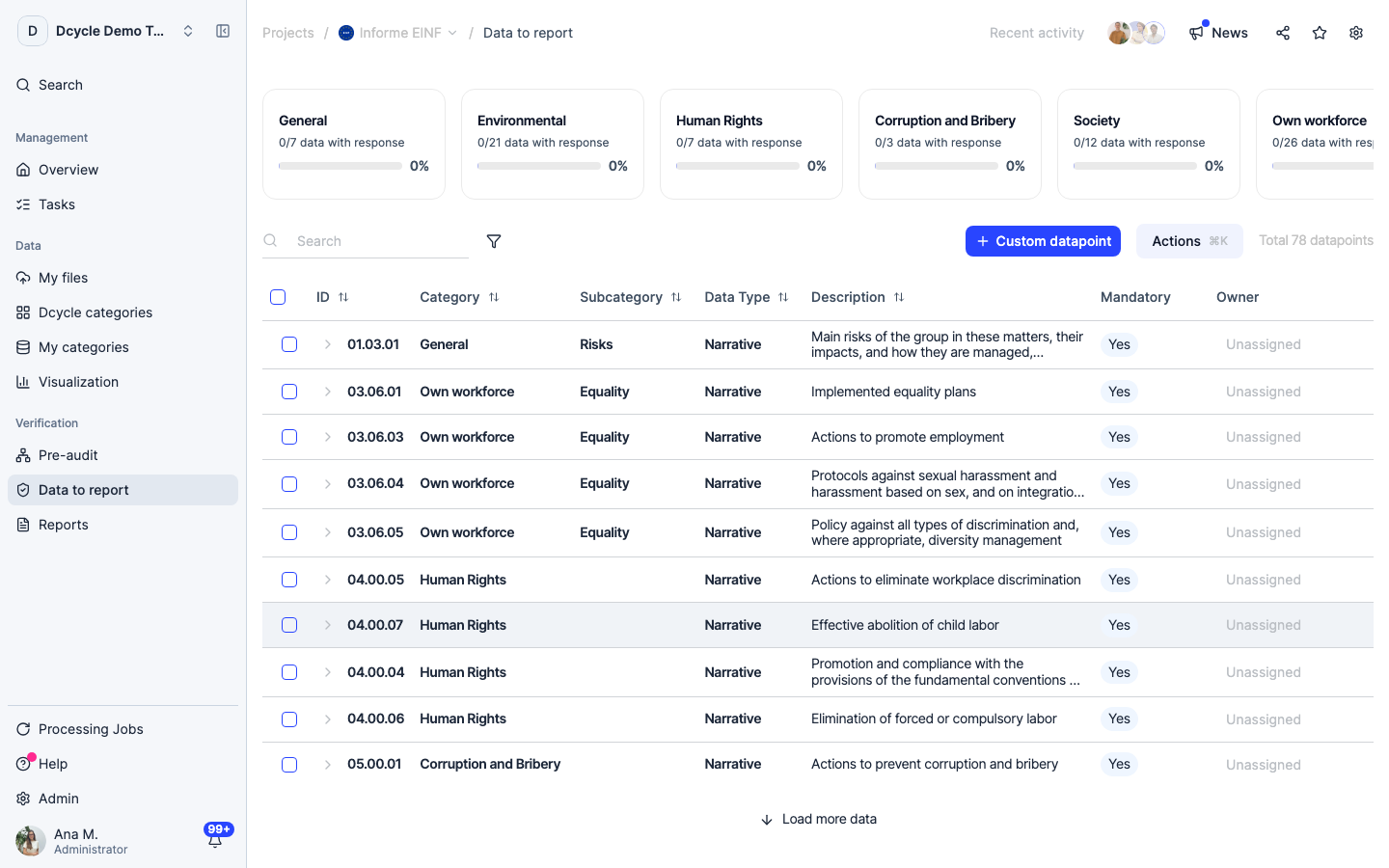
The “Owner” column on the right shows who owns each item. Every row reading “Unassigned” is work nobody has picked up — not late, just unstarted. Assign by category: the person who has the source information usually has it for a whole category, not for a single item.
Step 2
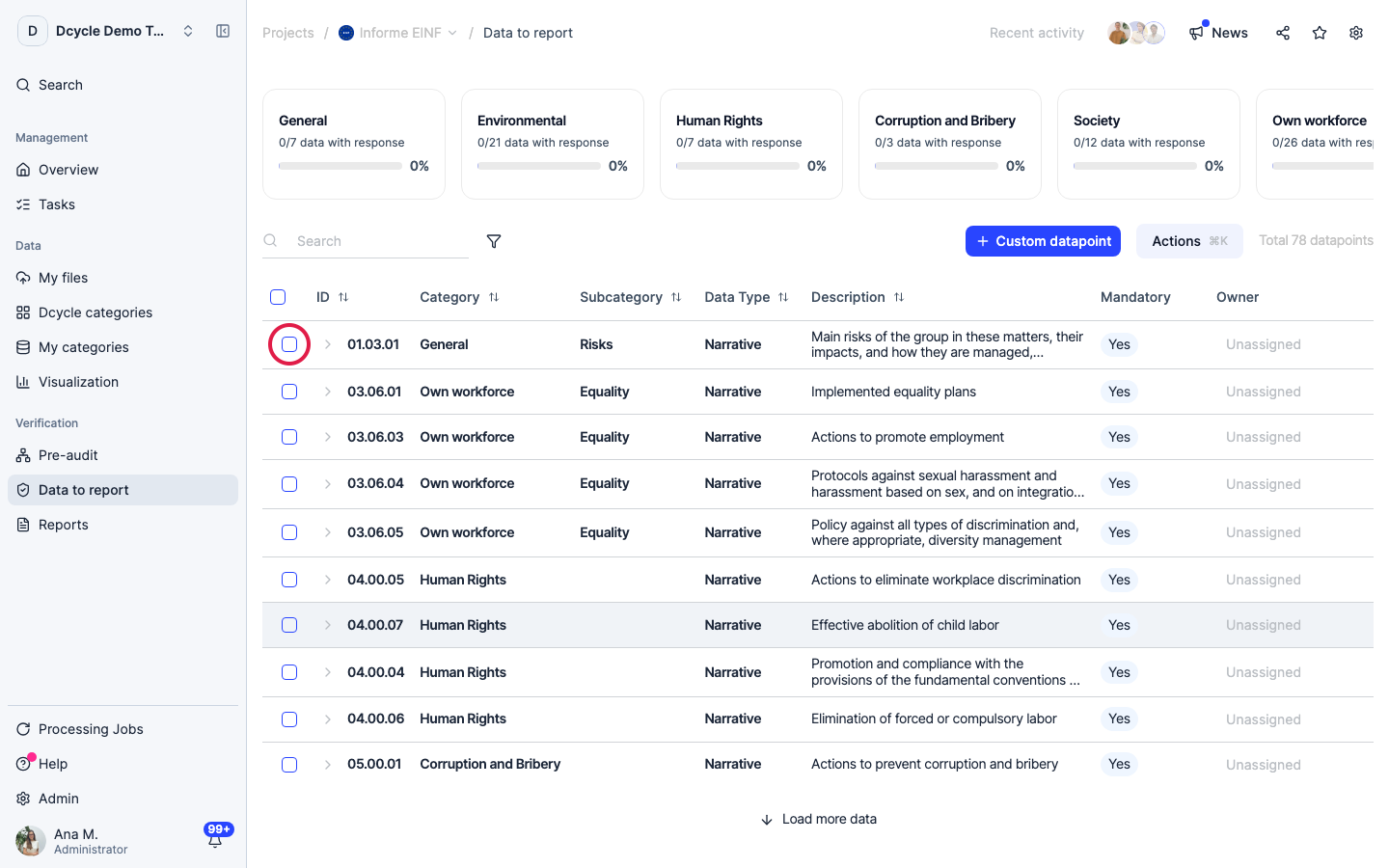
Tick the checkbox of each item you want to hand to the same person. Use the header checkbox to take the whole visible page at once, or filter by category first and then select.
Step 3
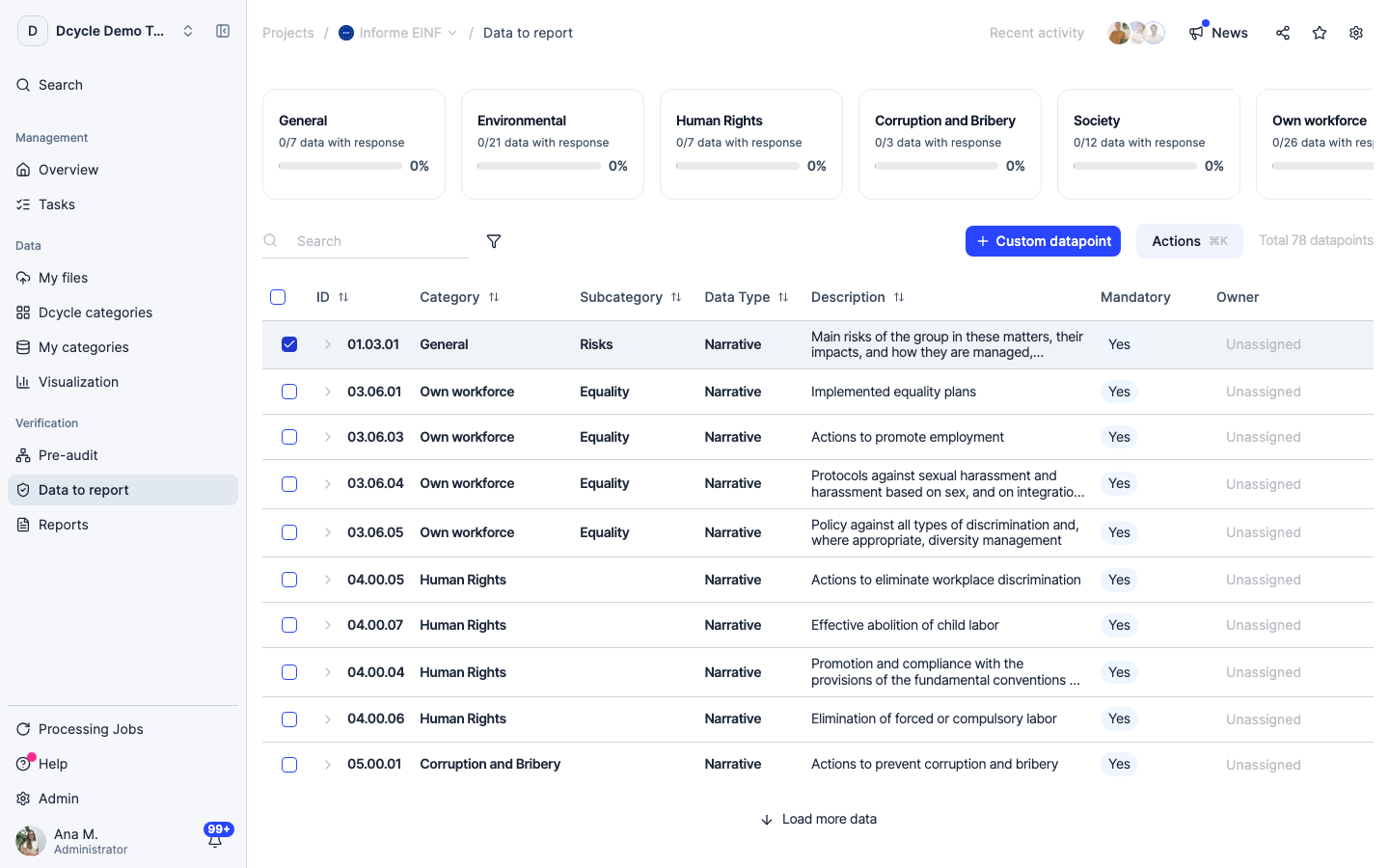
Selection works across several items — here we take two.
Step 4
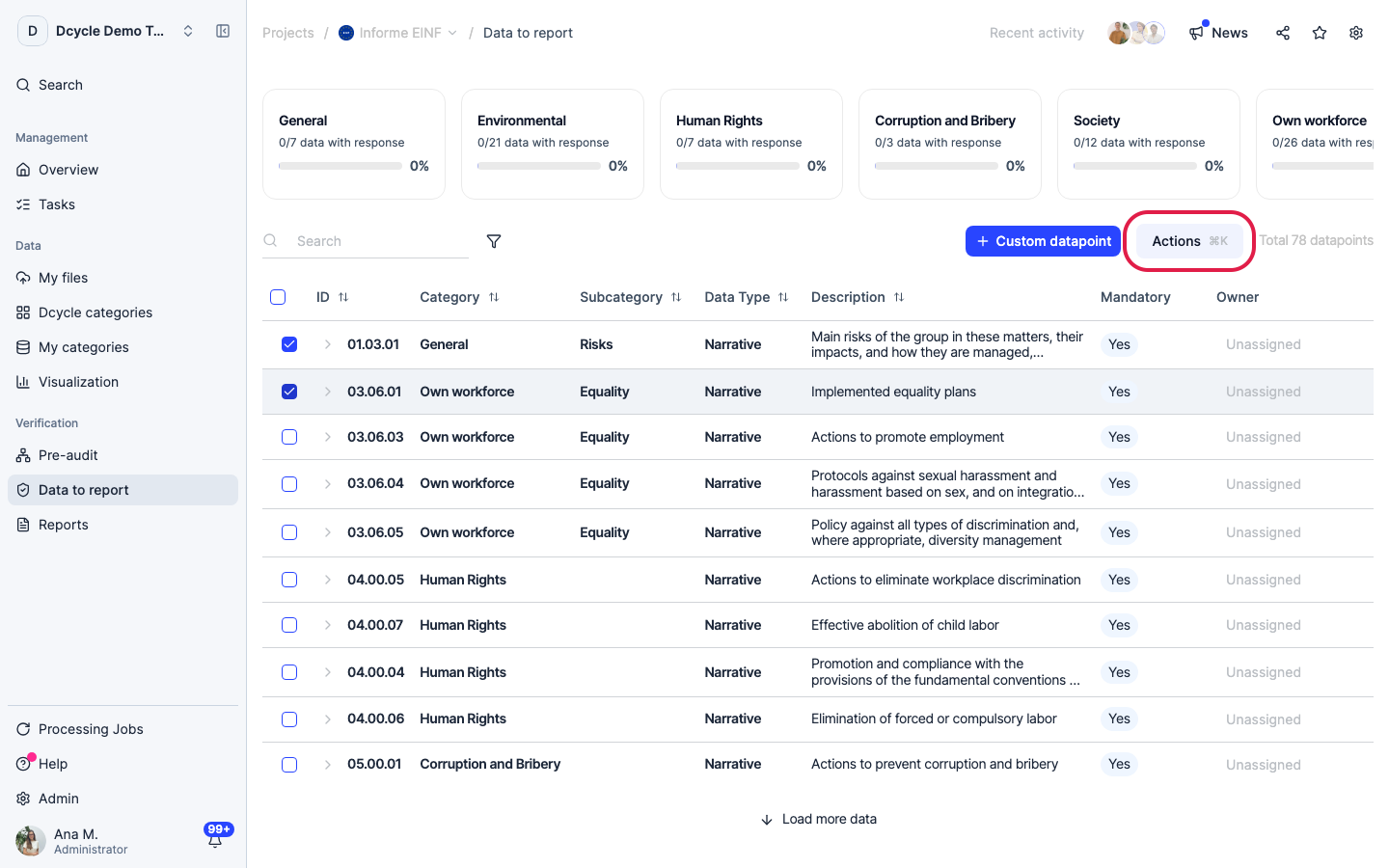
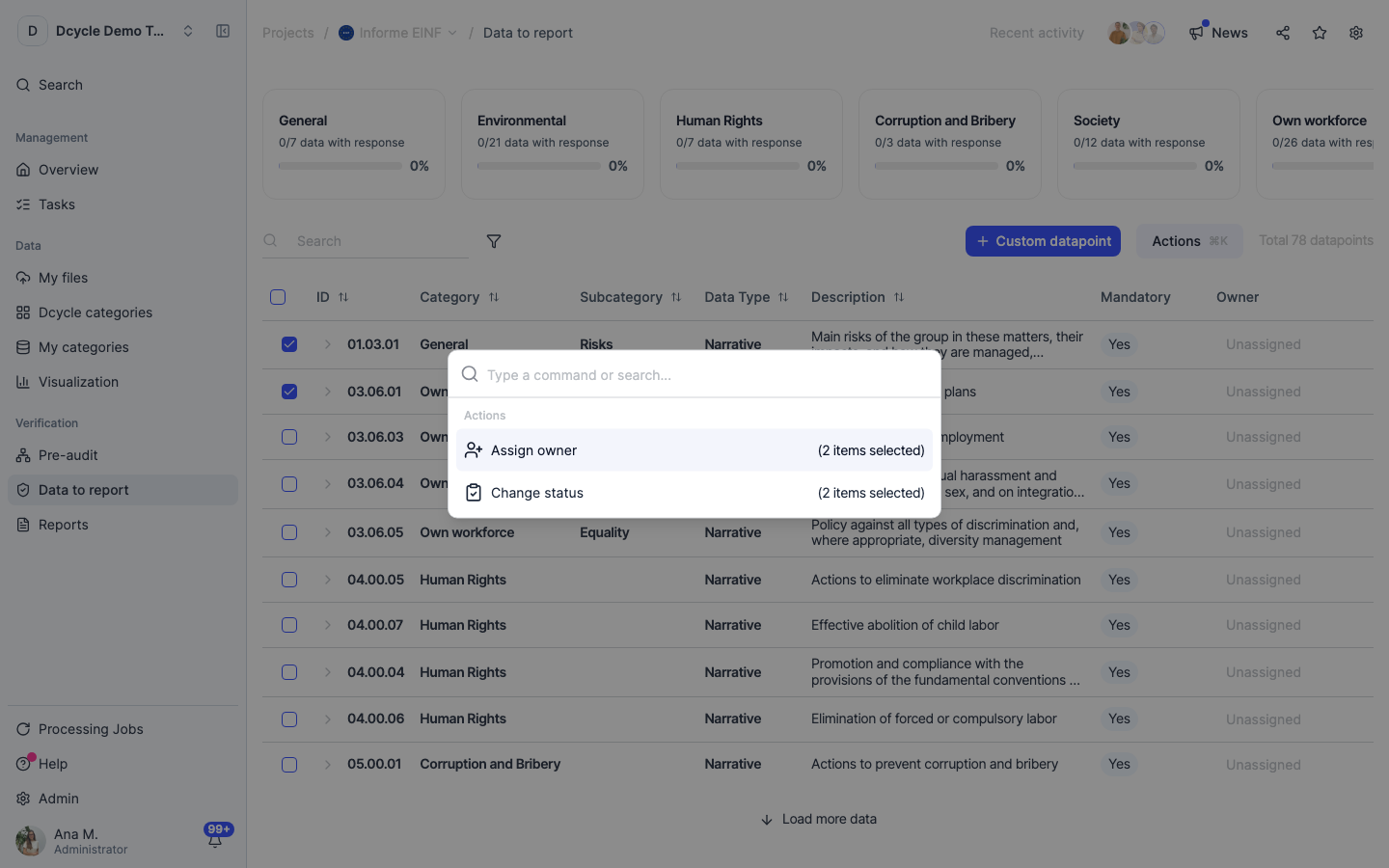
Click “Actions” (or press ⌘K) to open the command palette for the selected items.
Step 5
The palette offers two bulk actions and shows how many items each will affect: “Assign owner” and “Change status”. If the counter says 0 selected, close it, tick the rows and reopen.
Step 6
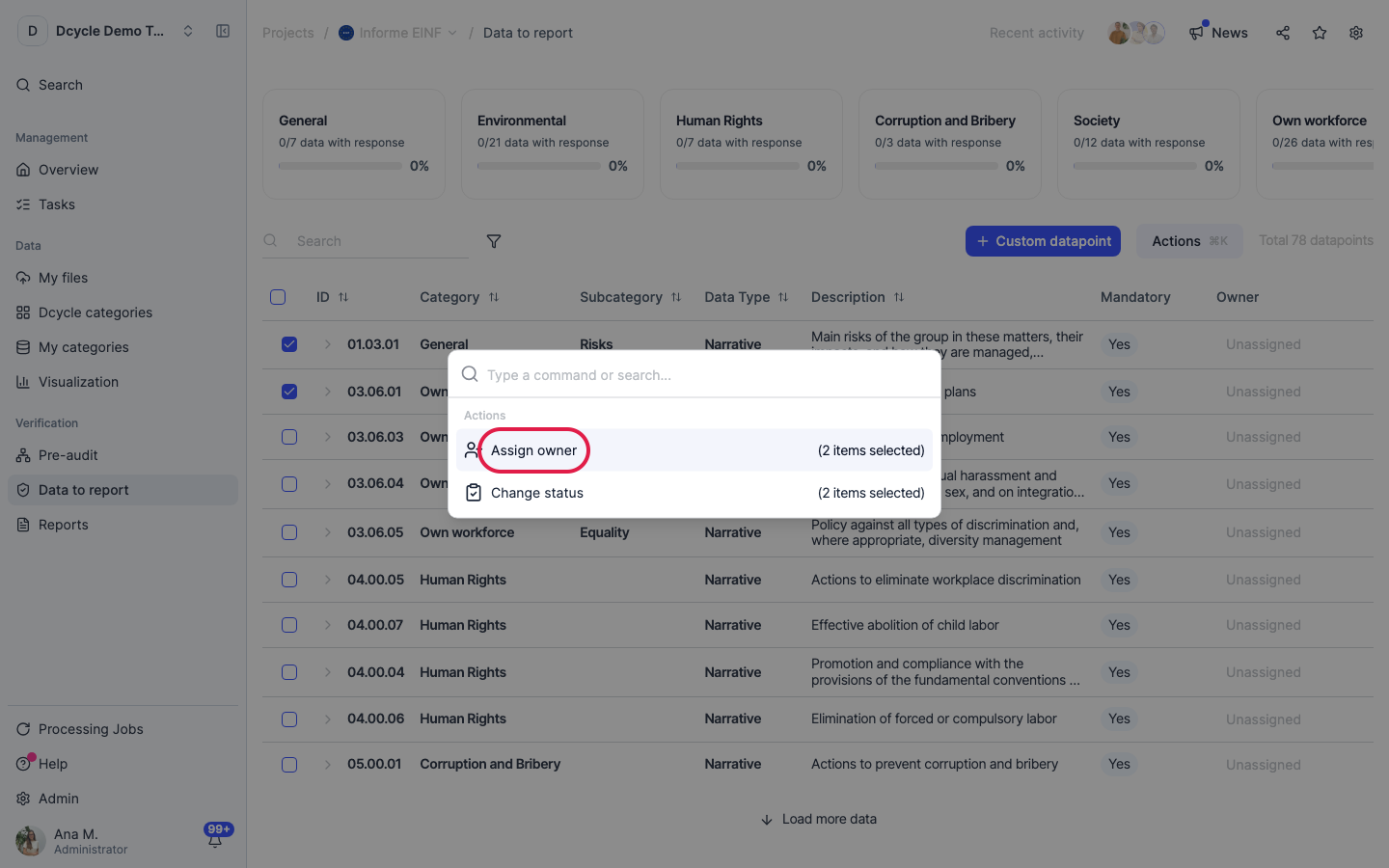
Click “Assign owner”.
Step 7
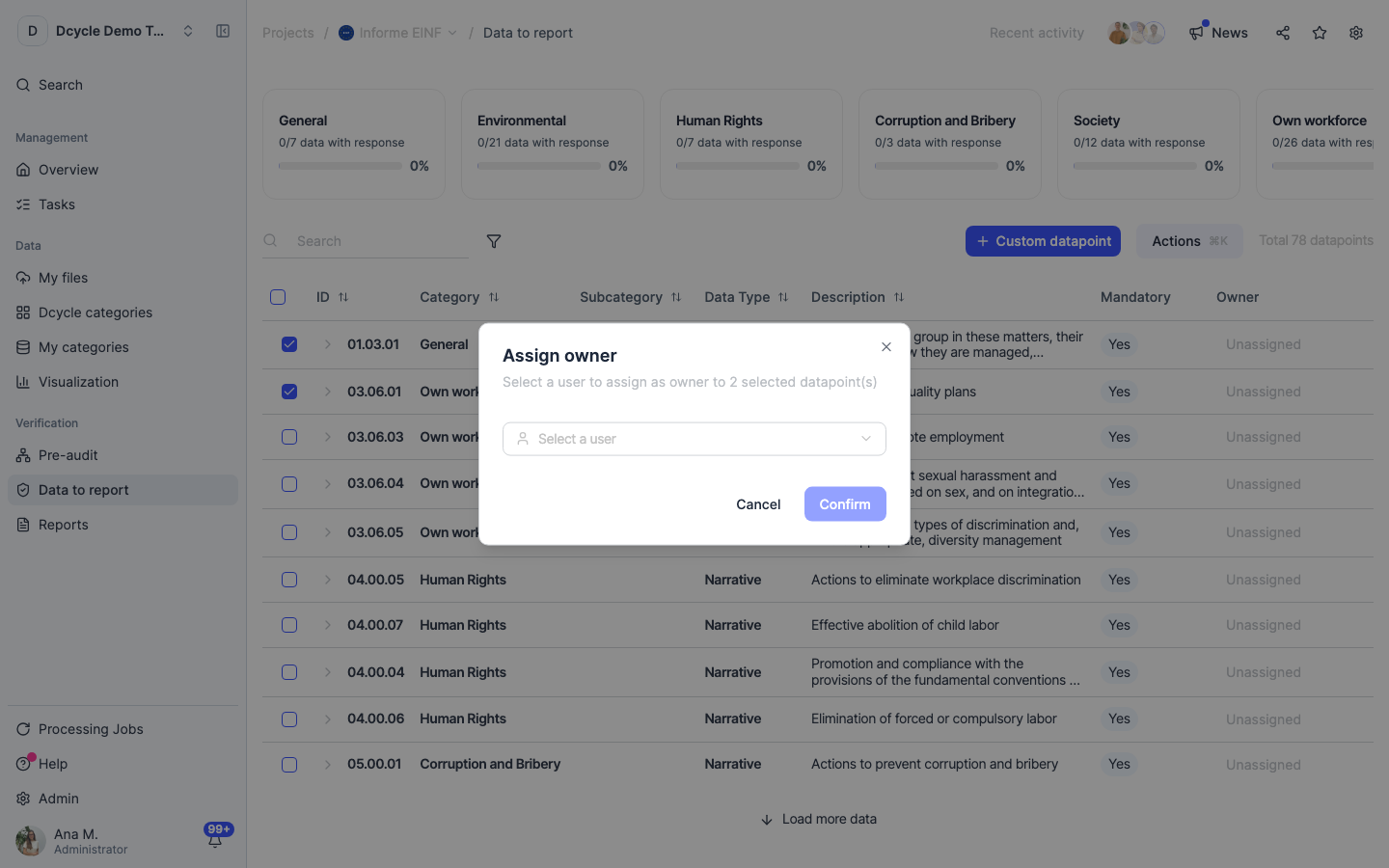
The dialog confirms how many datapoints you are assigning and asks for the person. The list only contains users of your Dcycle organization — if the person you need isn’t there, invite them first and come back.
Step 8
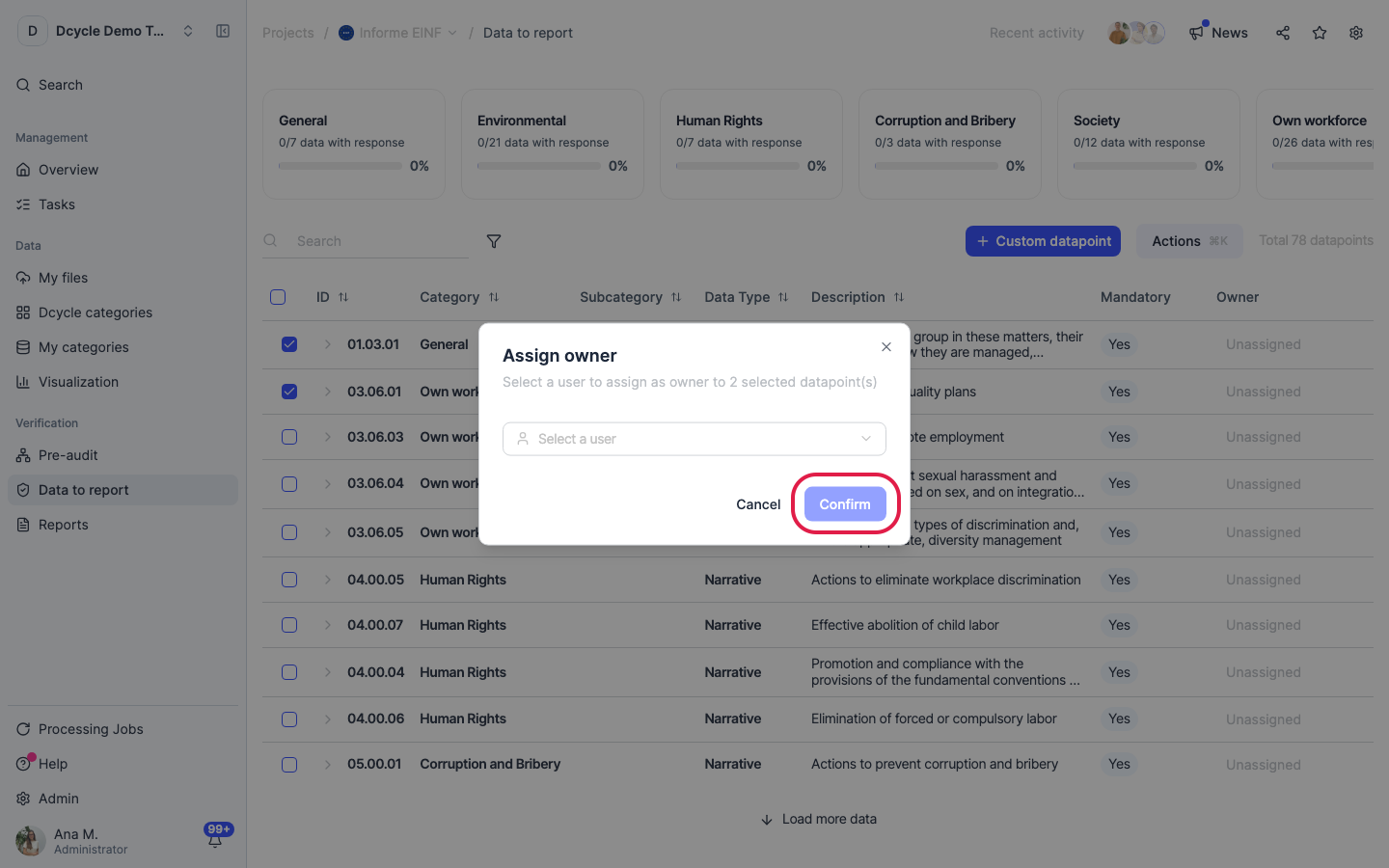
Pick the user and click “Confirm”. (We’re only pointing at the button here — nothing is assigned in this example.) The “Responsible” column updates for every item you had selected.
Step 9
For a single item you don’t need the palette: open the item and use “Assign owner” in its details, next to “Include in the report” and “I’m measuring it”. Same field, same result.
Step 10
“Change status” in the same palette is its companion: it moves the selected items’ “I’m measuring it” state in bulk — useful for marking a whole category as not available when it doesn’t apply to your company.
Step 11
Owners answer inside the item itself. To give someone a deadline and a piece of work rather than just a label, use “Tasks” in the project menu — the project home counts pending and in-progress tasks for you.
Was this helpful?
What was missing or unclear? (optional)
Sent. Thank you for helping us improve.