Product Guides
Check the status of an uploaded file
When you upload a CSV or Excel template, Dcycle processes it in the background — parsing rows, validating values, calculating emissions. The Processing page shows the status of every recent upload, with its time and any errors, so you know exactly what happened with your file.
Uploaded PDFs from My files?
Documents you drop into Data → My files are handled by Leia through a dedicated progress panel with its own stages — Upload, Classification, File reading, Review, Completed — and a retry button for any that fail. See Upload data from My files. The Processing page described below tracks CSV/Excel template imports.
Before you start
You need the Editor role in your Dcycle organization.
Steps
Step 1
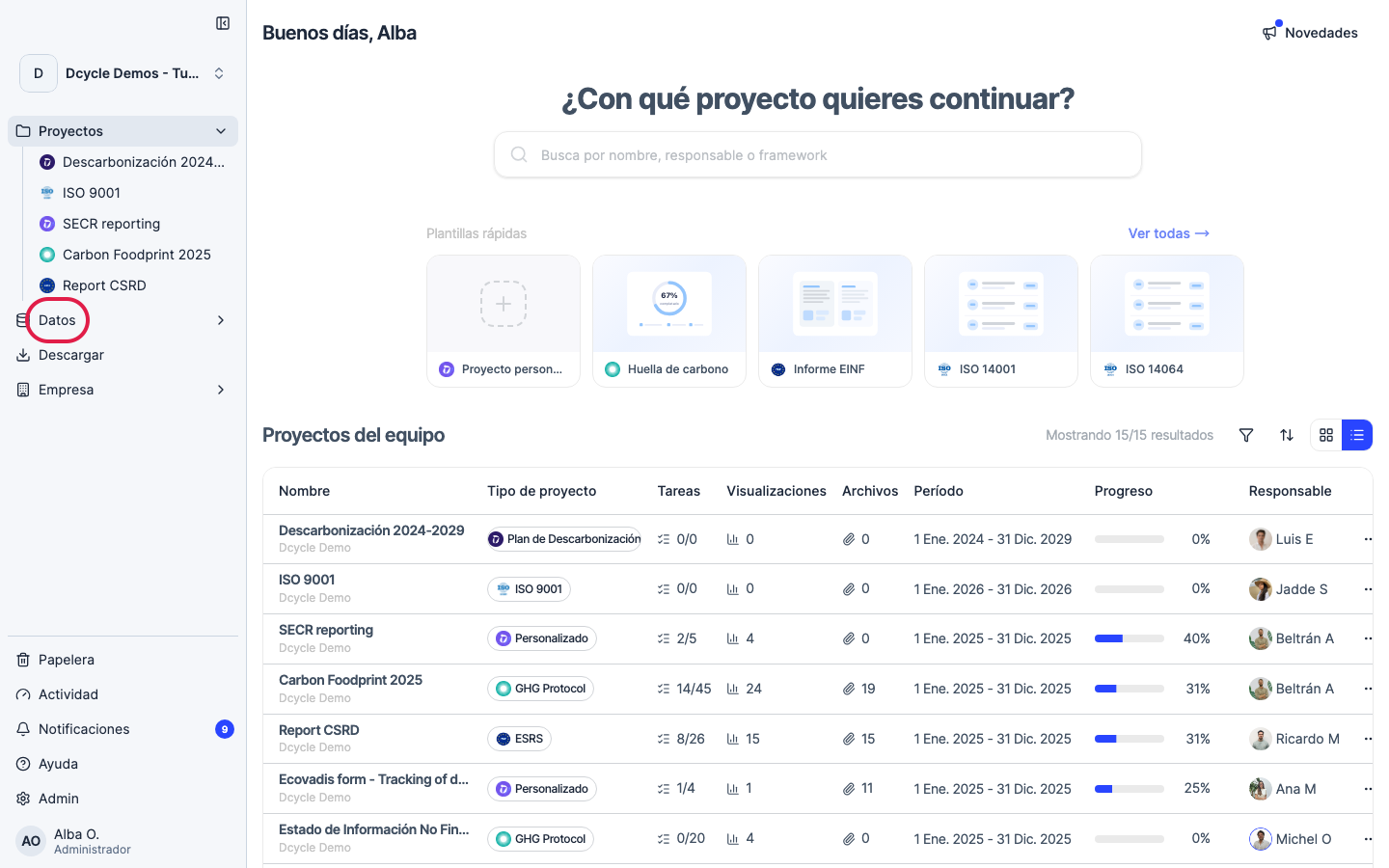
Click “Data” in the sidebar navigation.
Step 2
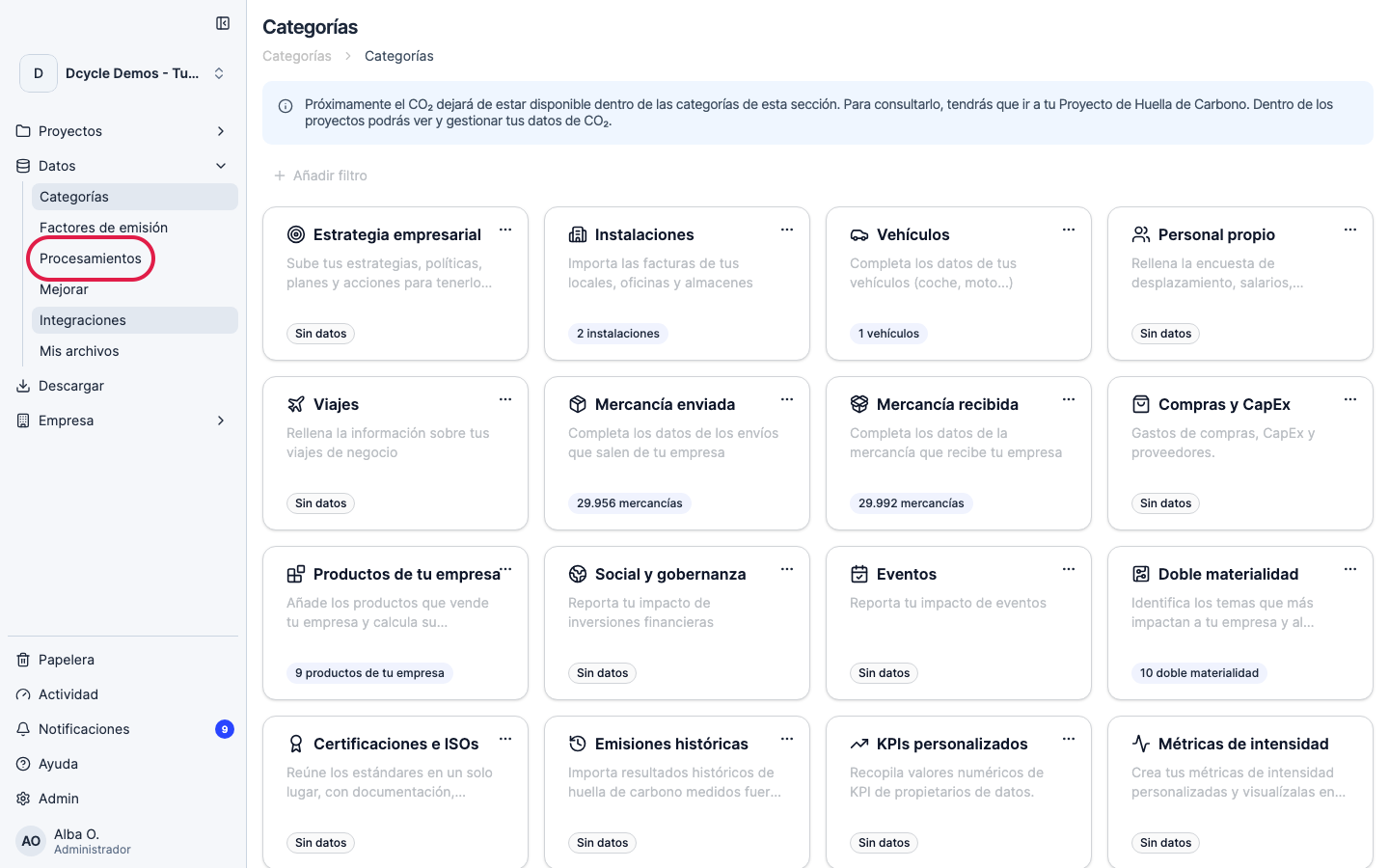
Click “Processing” in the Data sub-menu.
Step 3
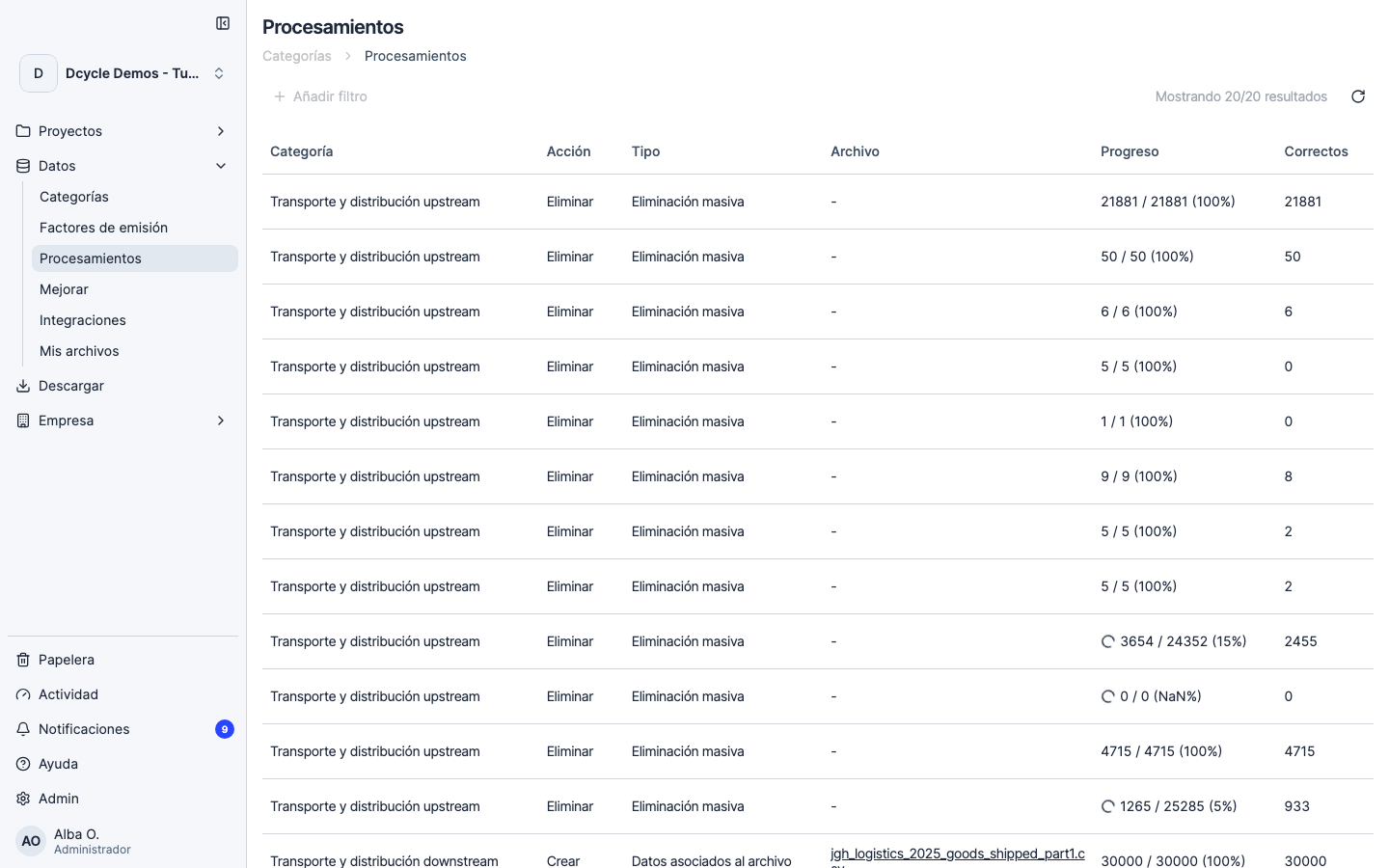
Each row is an upload — file name, data type, when it started, and a status: Completed (everything imported), Processing (in progress), or Failed (something went wrong).
Step 4
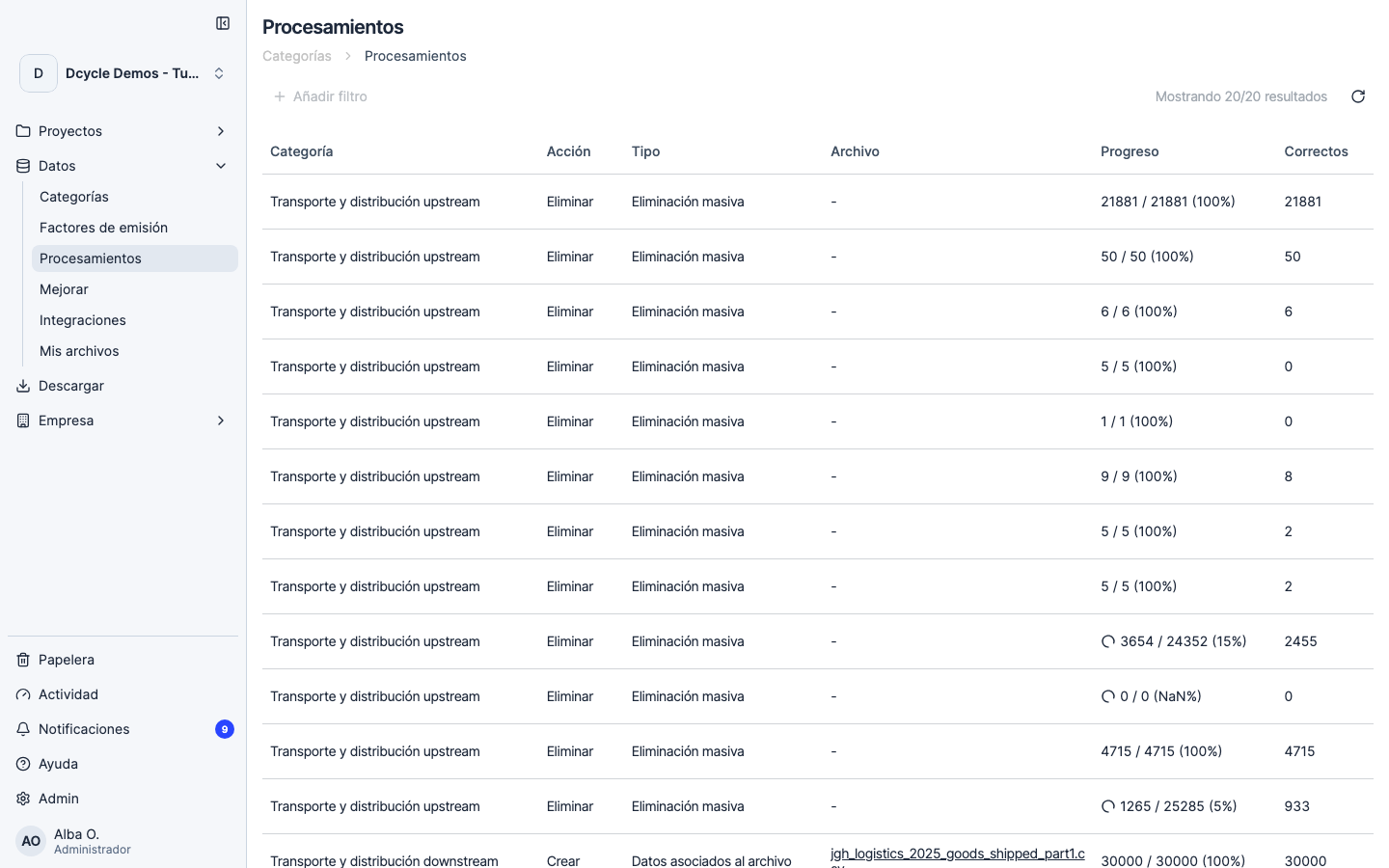
Click a failed row to expand it and see exactly which rows of your file couldn’t be imported and why — most commonly empty required fields, an unknown supplier, or a date in the wrong format. Fix the source file and upload it again — Dcycle doesn’t import duplicates.
Was this helpful?
What was missing or unclear? (optional)
Sent. Thank you for helping us improve.