Product Guides
View and edit the detail of a record
Open any record in Dcycle to review or correct the data behind it — the quantity, dates, route, transport mode, supplier, etc. This is the starting point for any audit-related review or data cleanup.
Before you start
You need an Editor role in your Dcycle organization.
Steps
Step 1
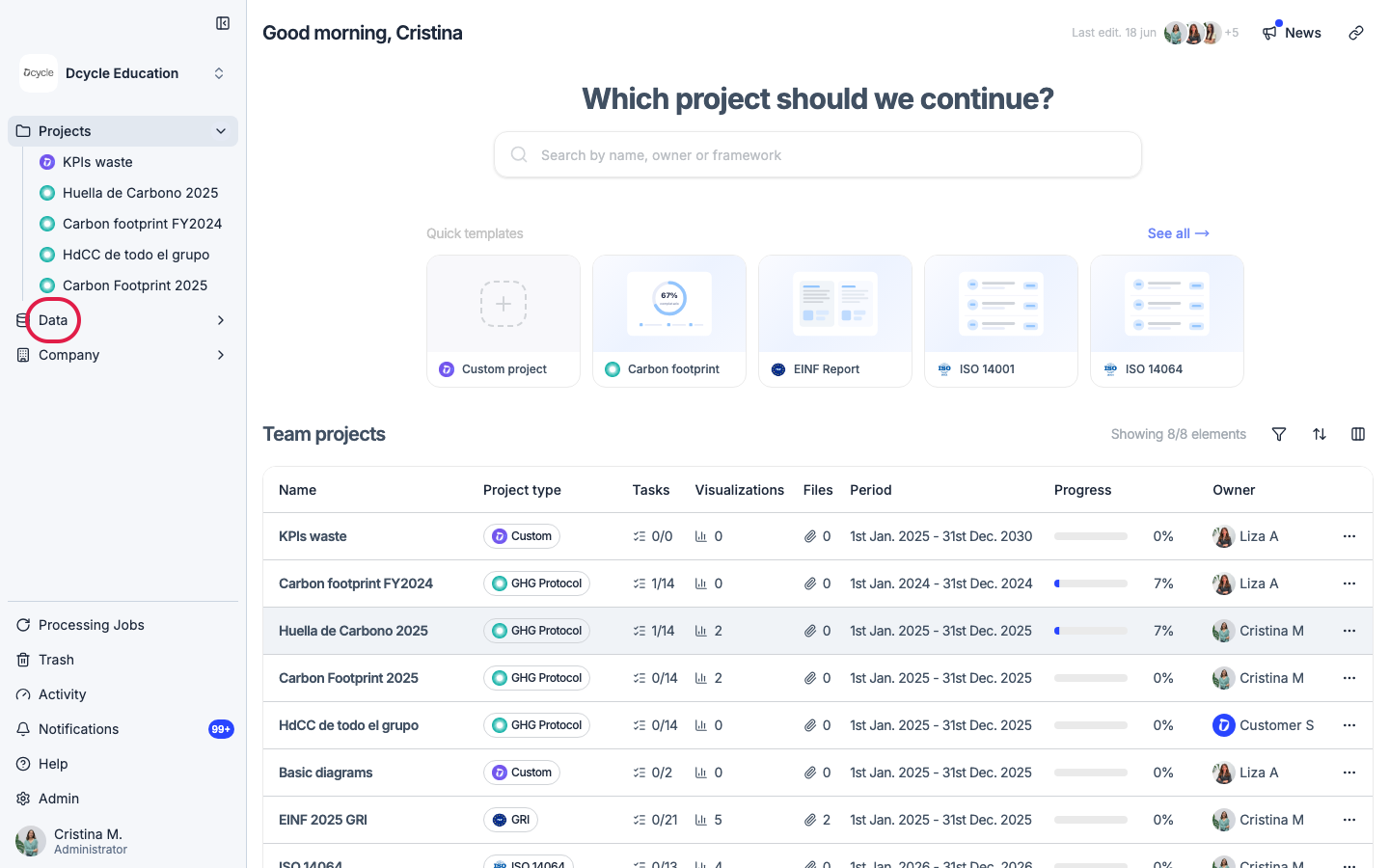
Click “Data” in the left navigation.
Step 2
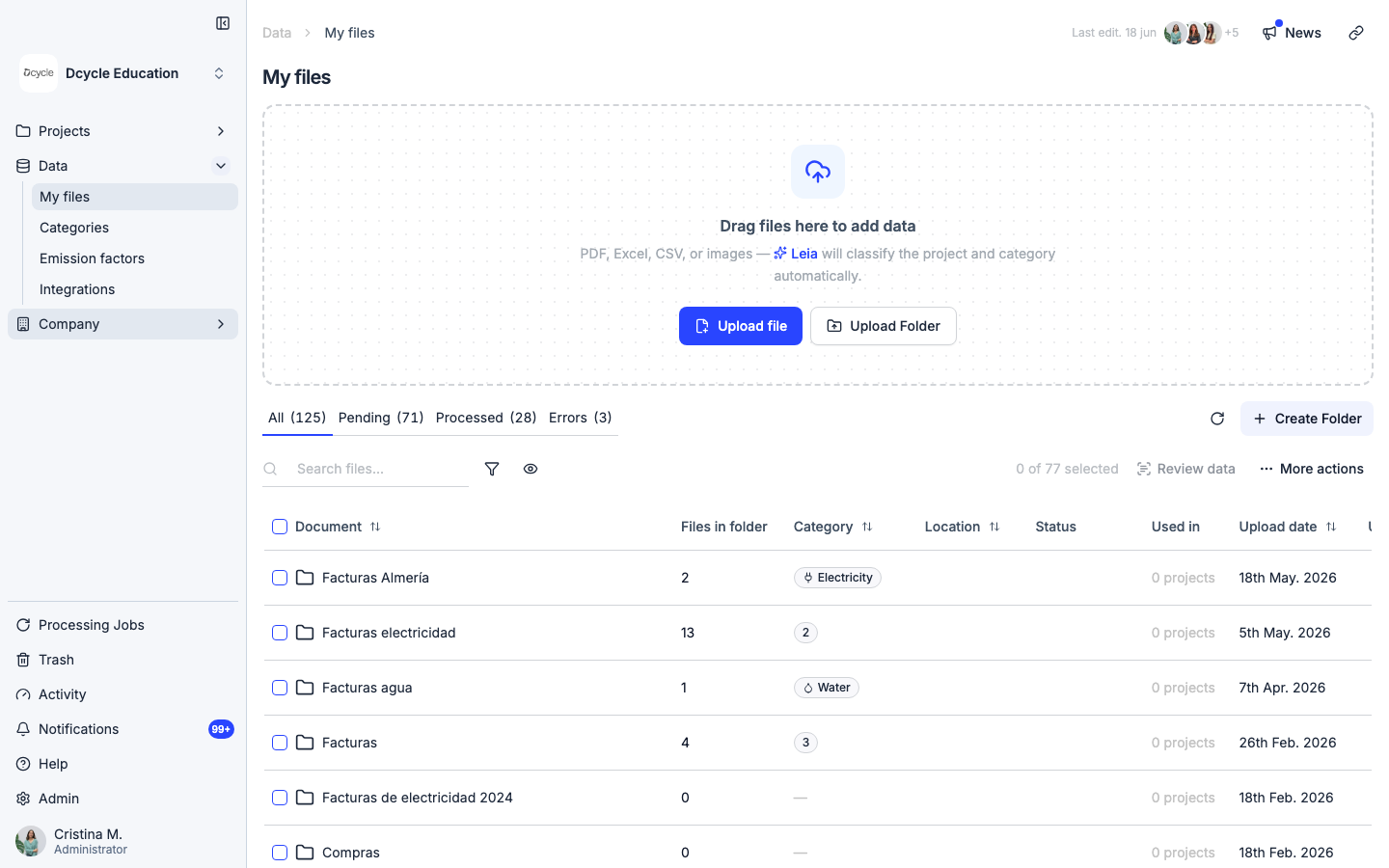
Click “Categories” to see all data categories.
Step 3
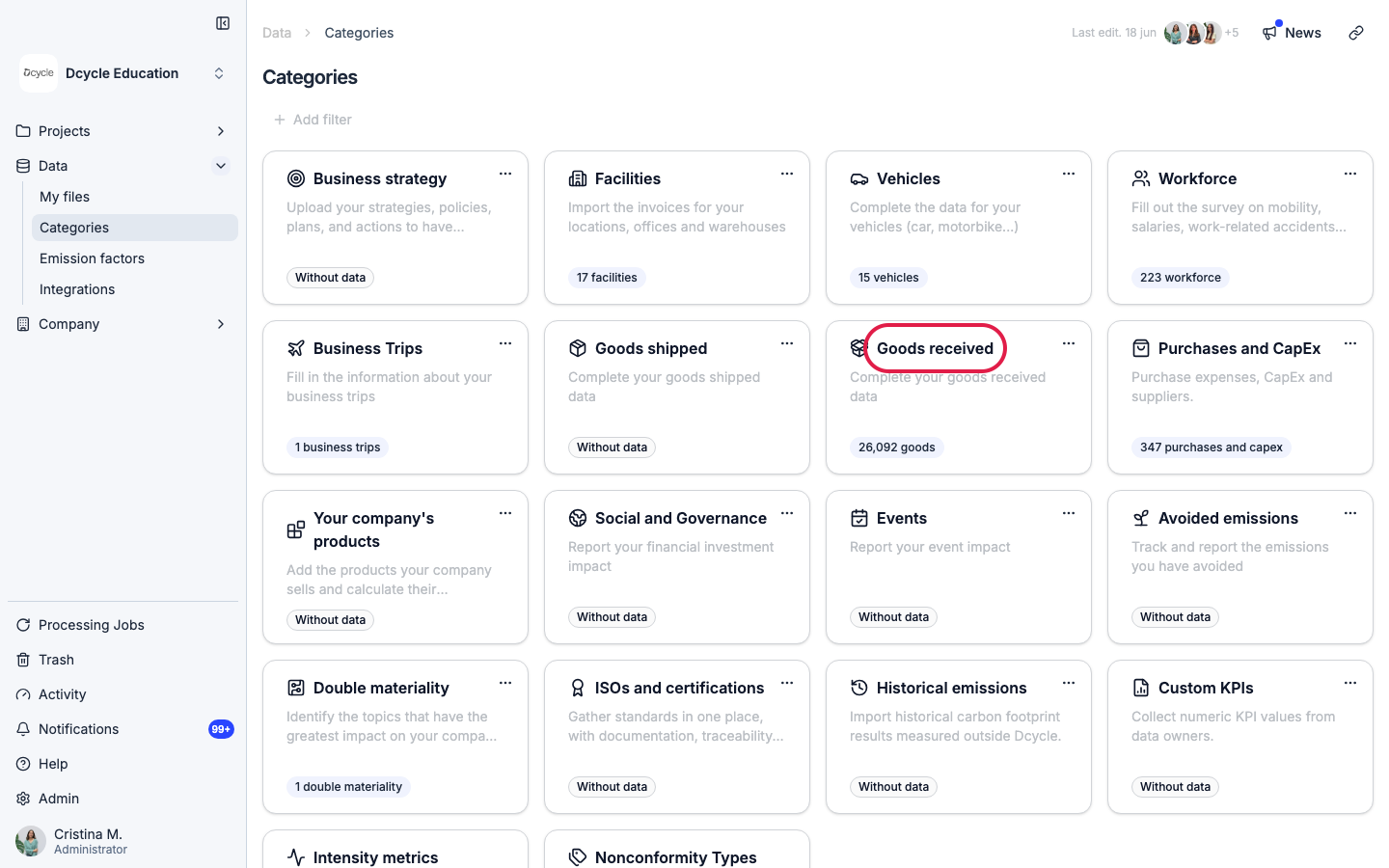
Open the category that contains the record (we use “Received goods” as an example, but the breakdown works the same for any category).
Step 4
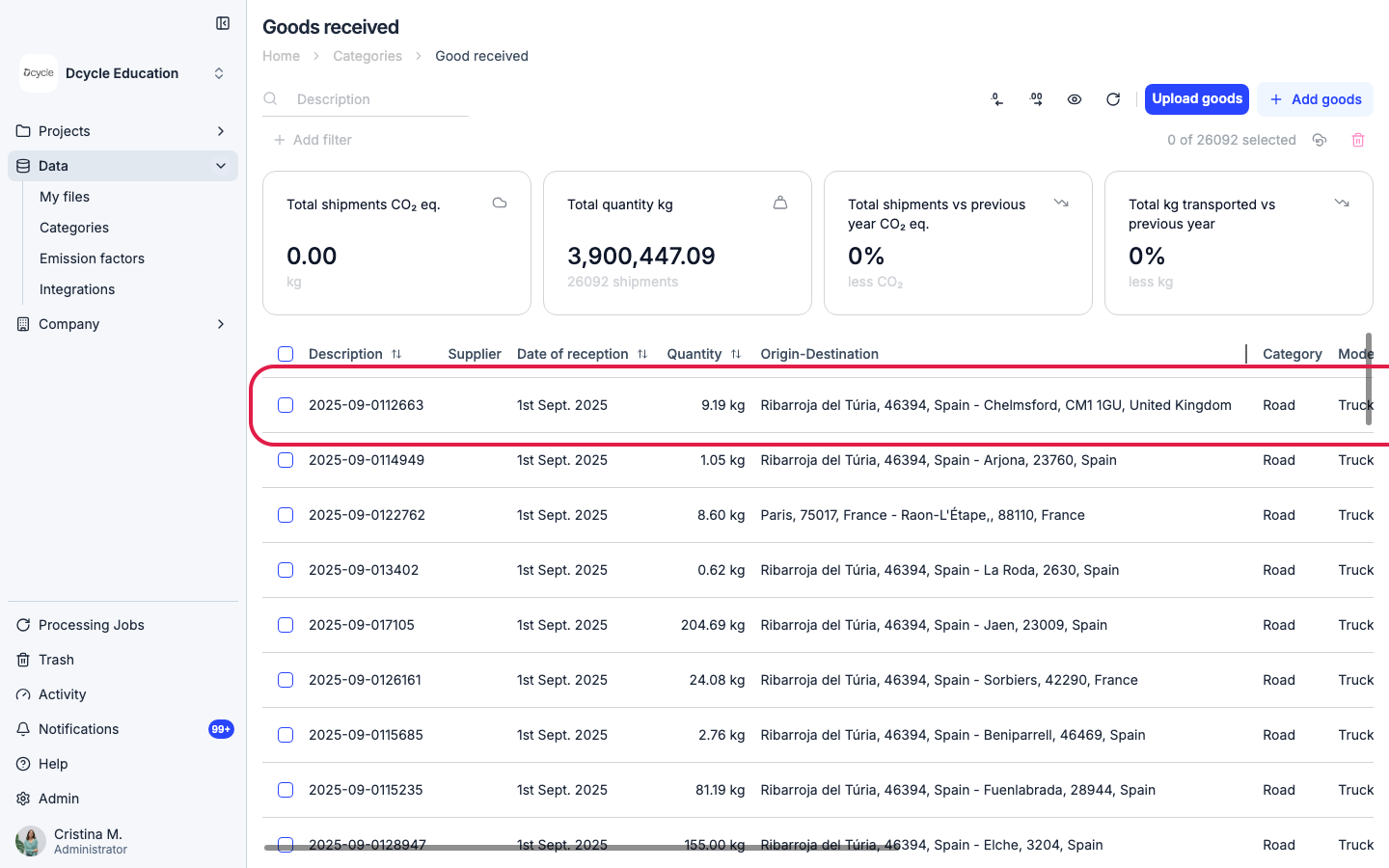
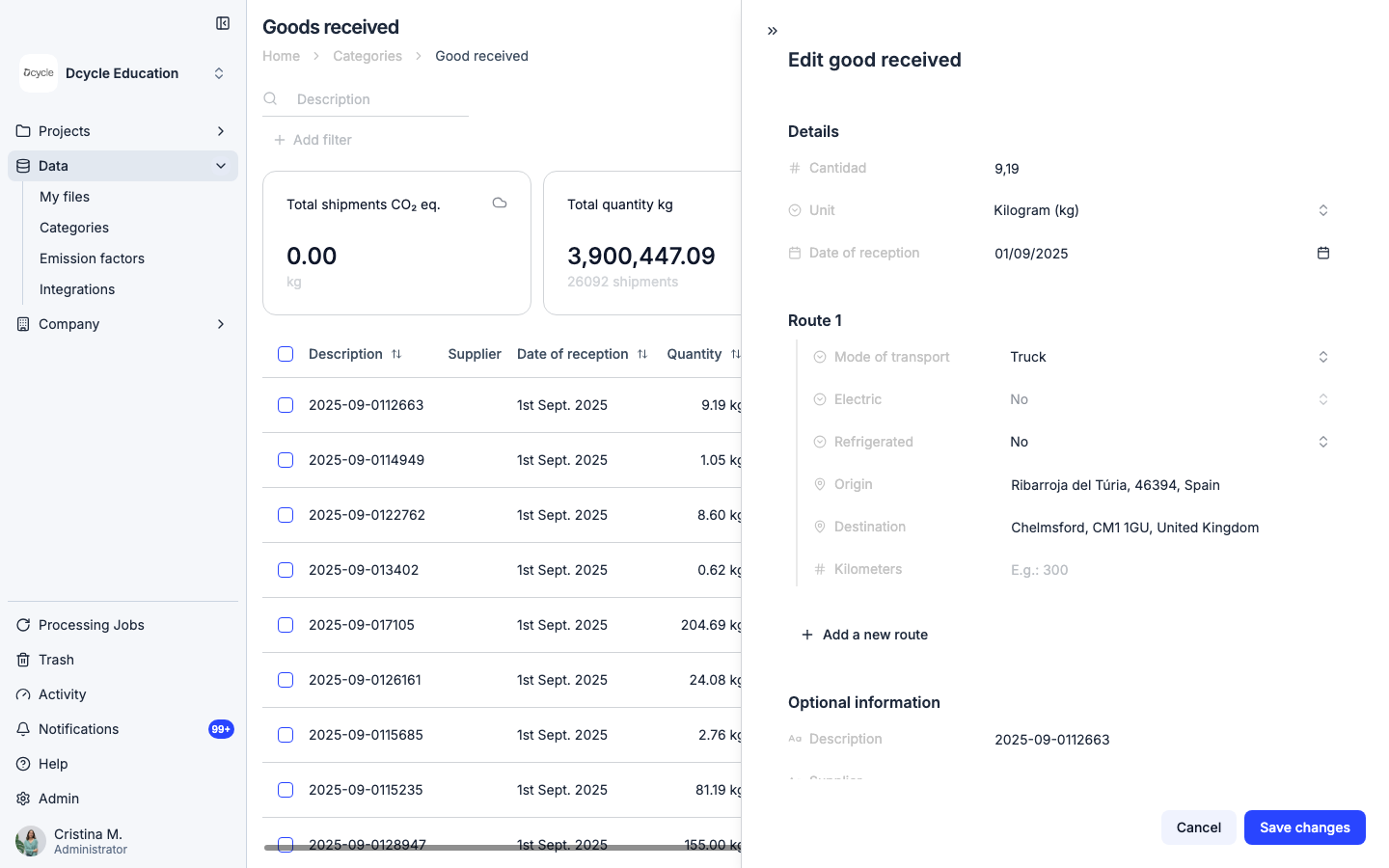
Click on any record in the list to open its detail panel.
Step 5
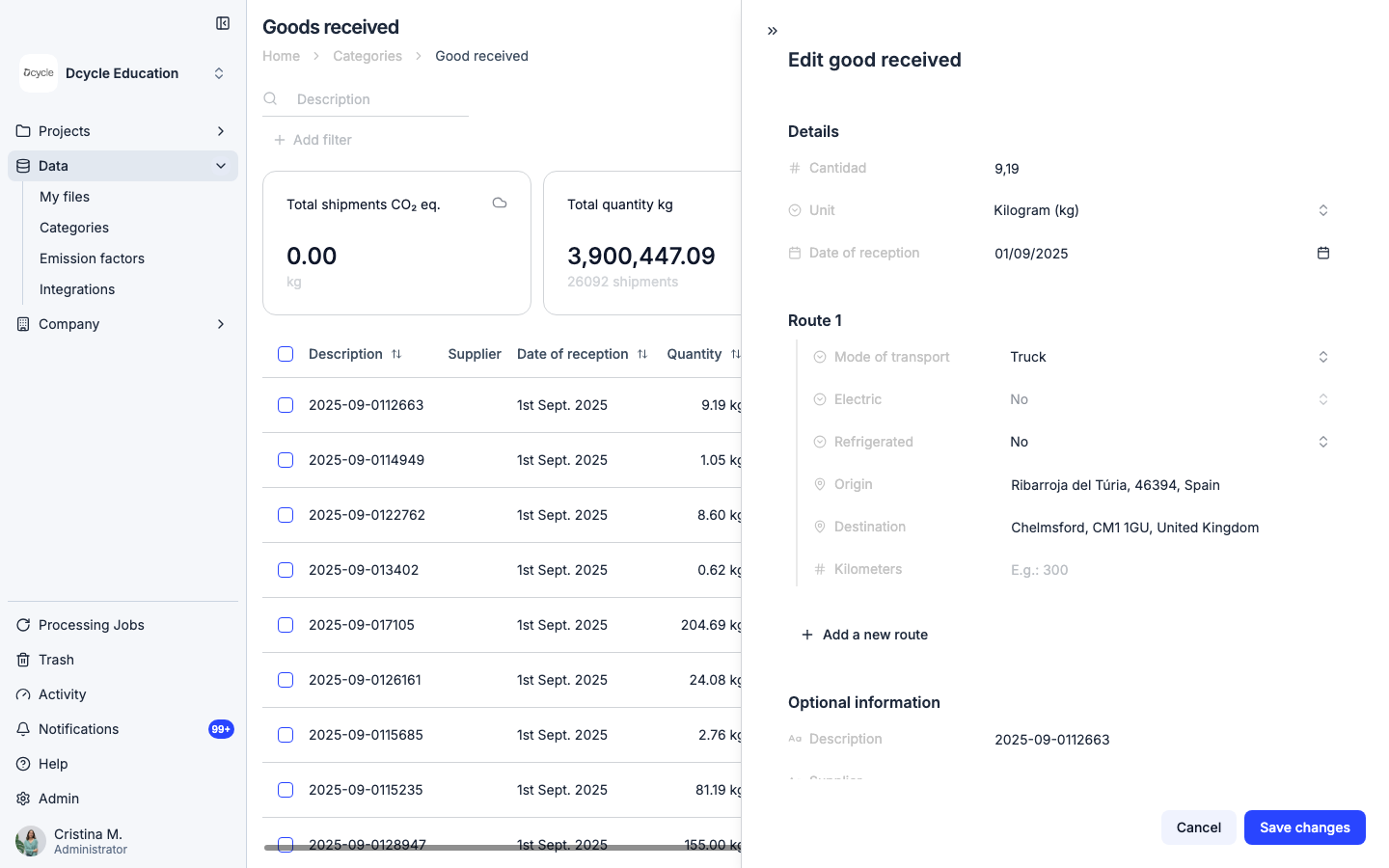
The right-side panel opens with everything stored for that record: the quantity and unit, the date, the transport details (mode, electric/refrigerated flags, origin and destination), and optional fields like description and supplier. All fields are editable — change a value and click “Save changes” to update the record and trigger a recalculation of its emissions.
Step 6
Use this panel to fix typos, correct dates that landed in the wrong period, reassign a record to a different supplier, or add a missing route. If you need to remove the record entirely instead of editing it, close this panel and use the three-dot menu on the row (see “Delete records uploaded by mistake”).
Was this helpful?
What was missing or unclear? (optional)
Sent. Thank you for helping us improve.