Product Guides
View emission factor details
The Emission Factors section now shows the database, version, and match used for every record directly in the table. Click any row to open a detail panel with the full context behind that calculation.
Before you start
You need an Editor role in your Dcycle organization.
Steps
Step 1
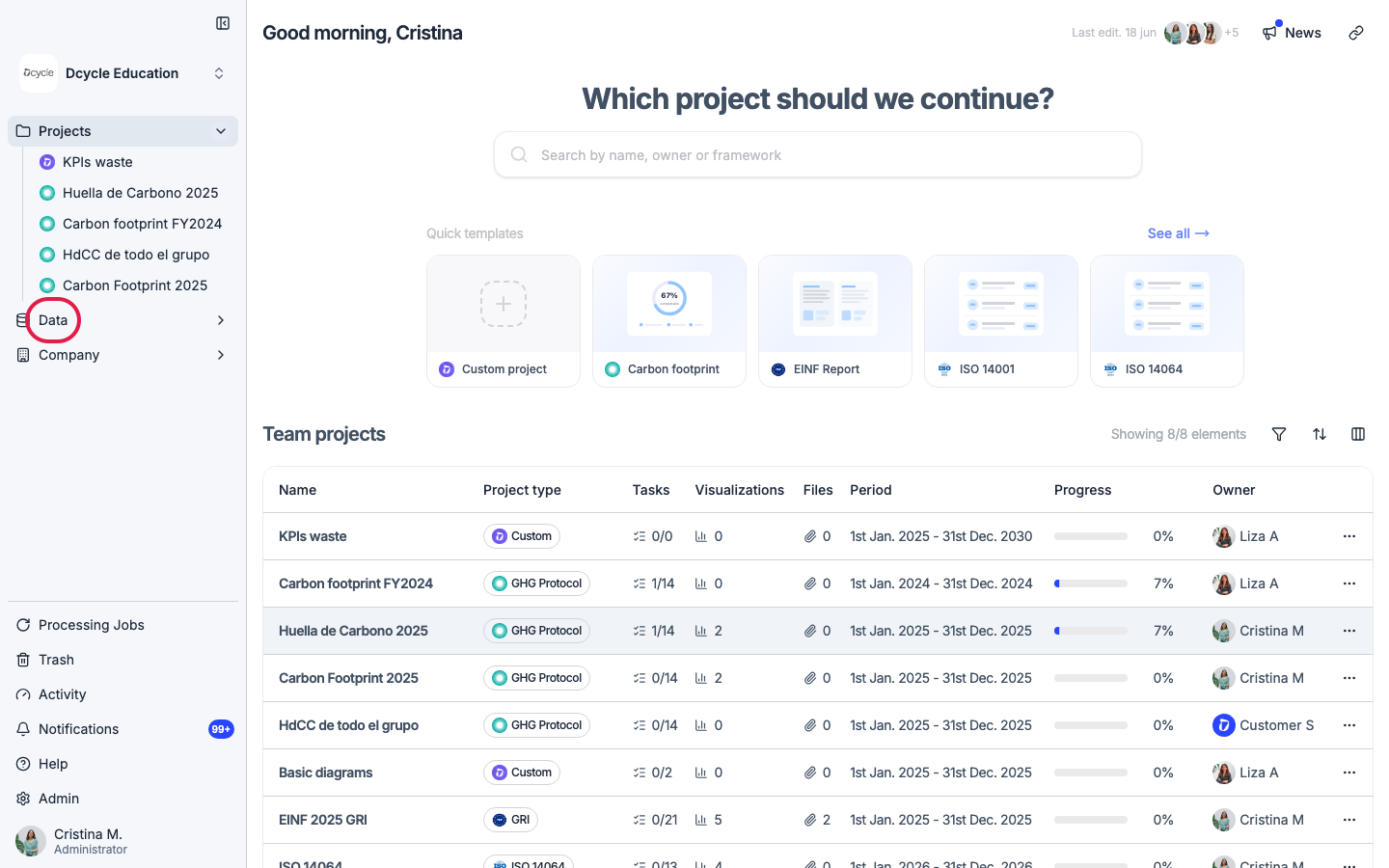
Click “Data” in the left navigation.
Step 2
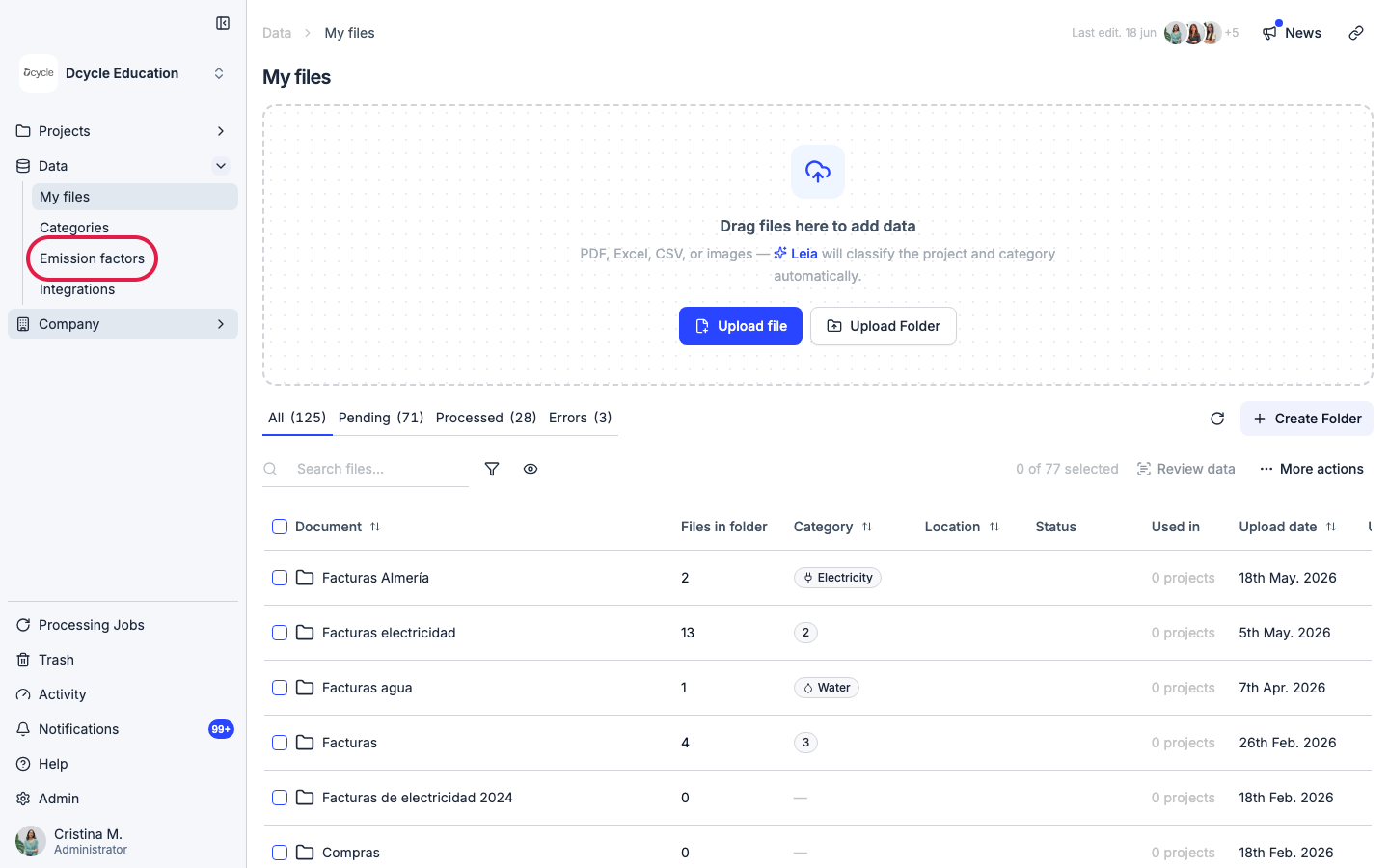
Click “Emission factors” in the Data sub-navigation.
Step 3
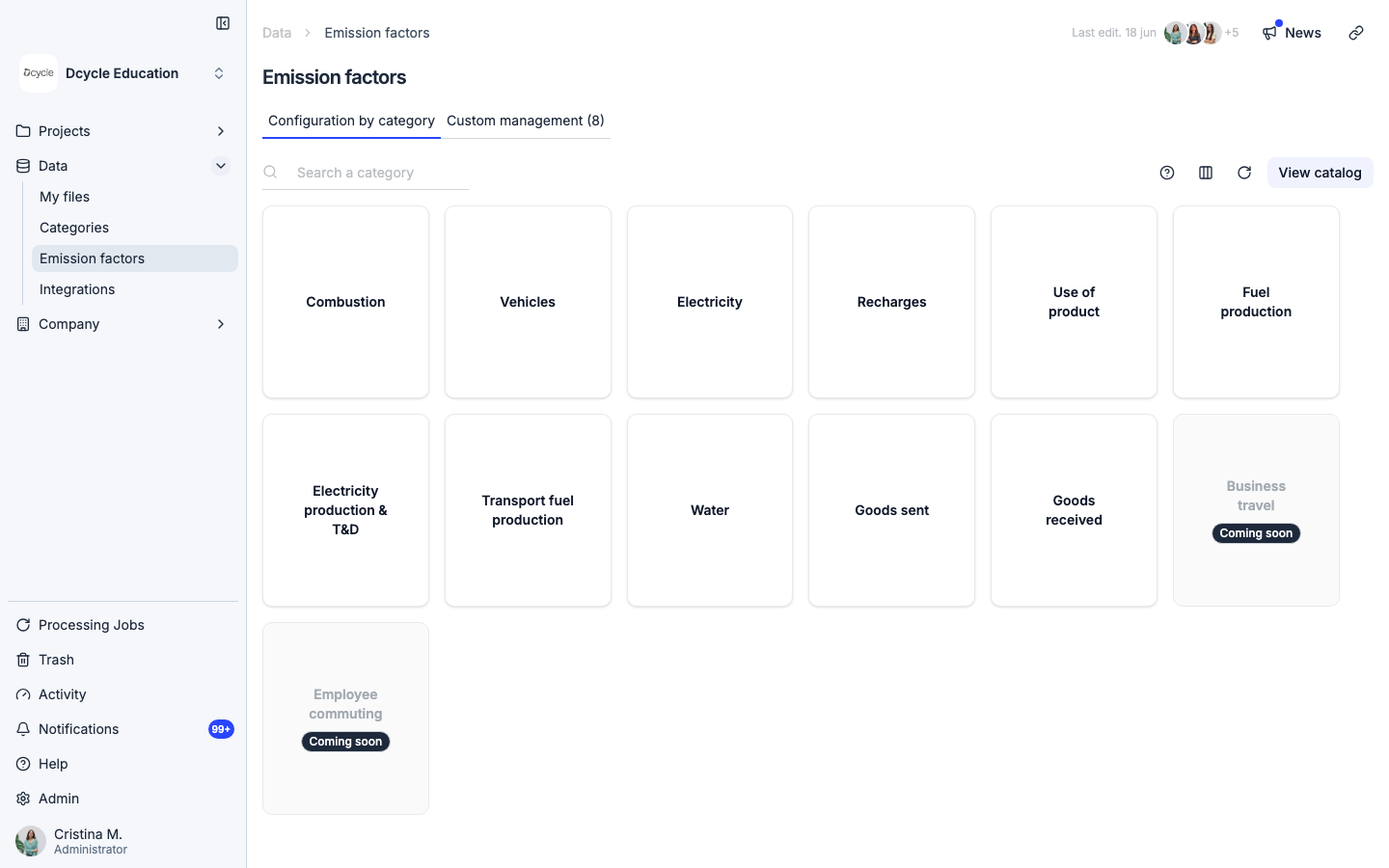
The Emission factors page lists the categories configured for your account. Click on any category to open the records it contains.
Step 4
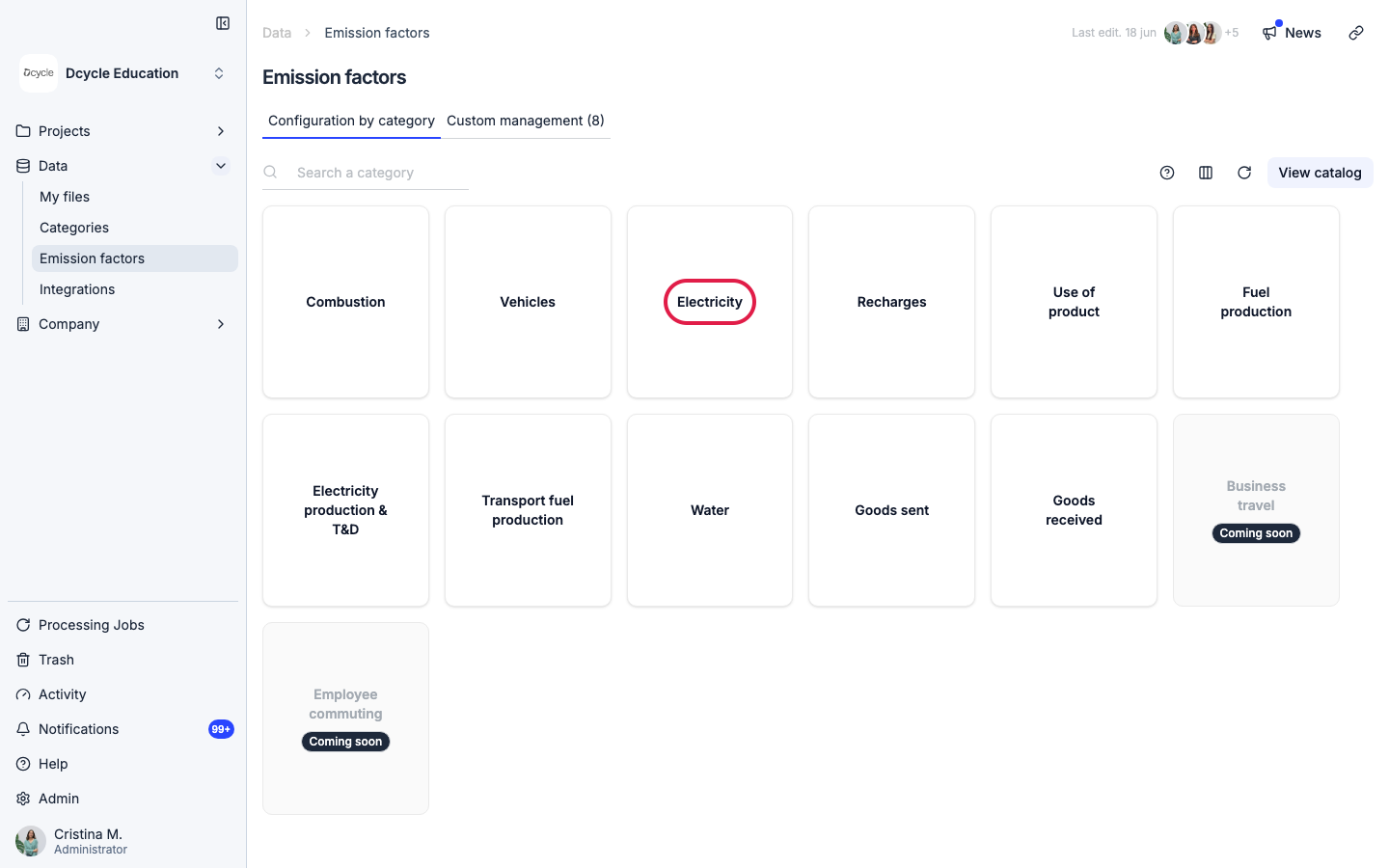
Click on a category — for example, “Electricity”.
Step 5
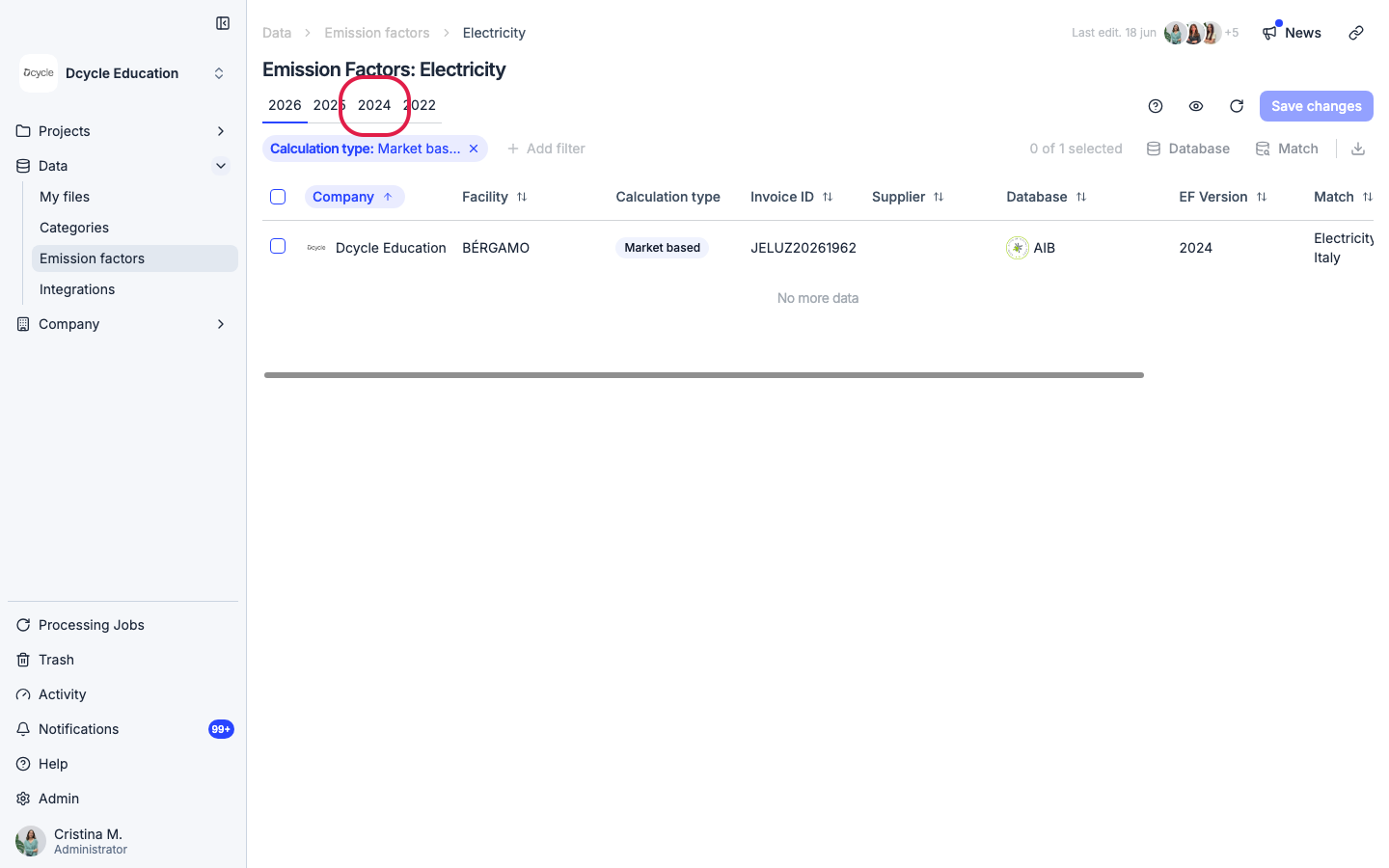
Select a year with data — for example, “2024”.
Step 6
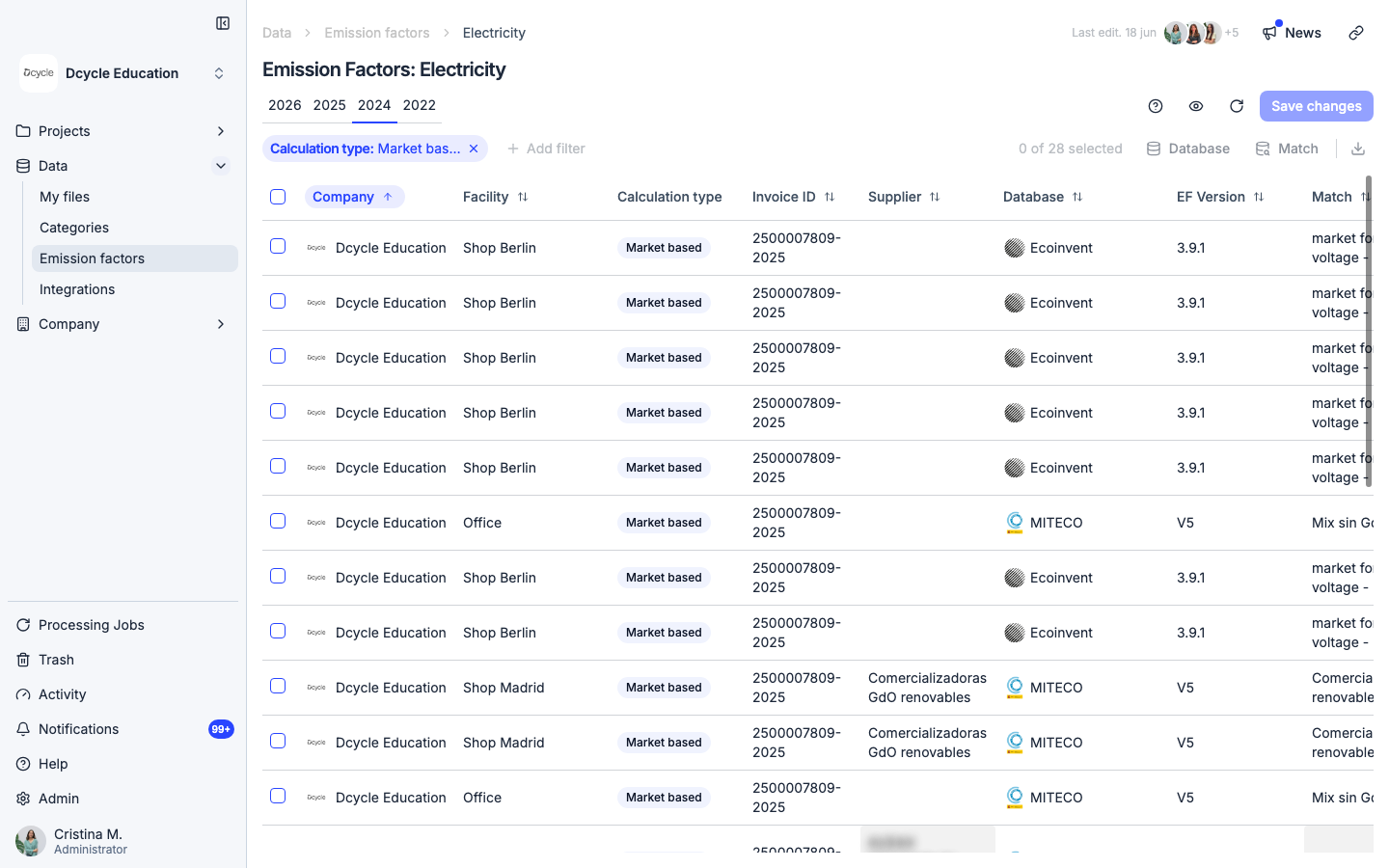
The table shows key emission factor columns for every record: the database used (AIB, DEFRA, MITECO, etc.), the version, and the match applied. This gives you a quick overview of how each record was calculated without having to open it.
Step 7
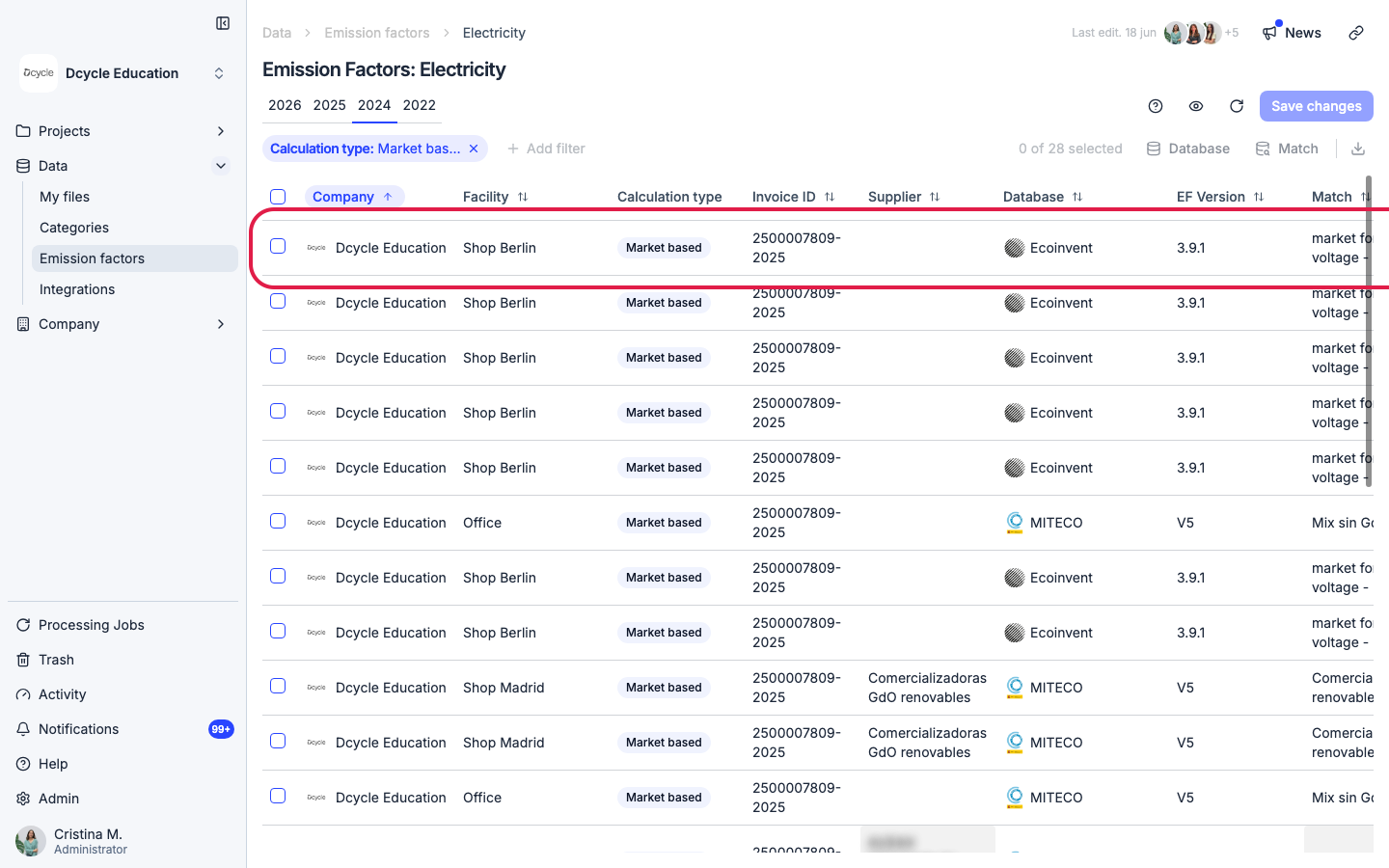
Click on any row to open its detail panel on the right.
Step 8
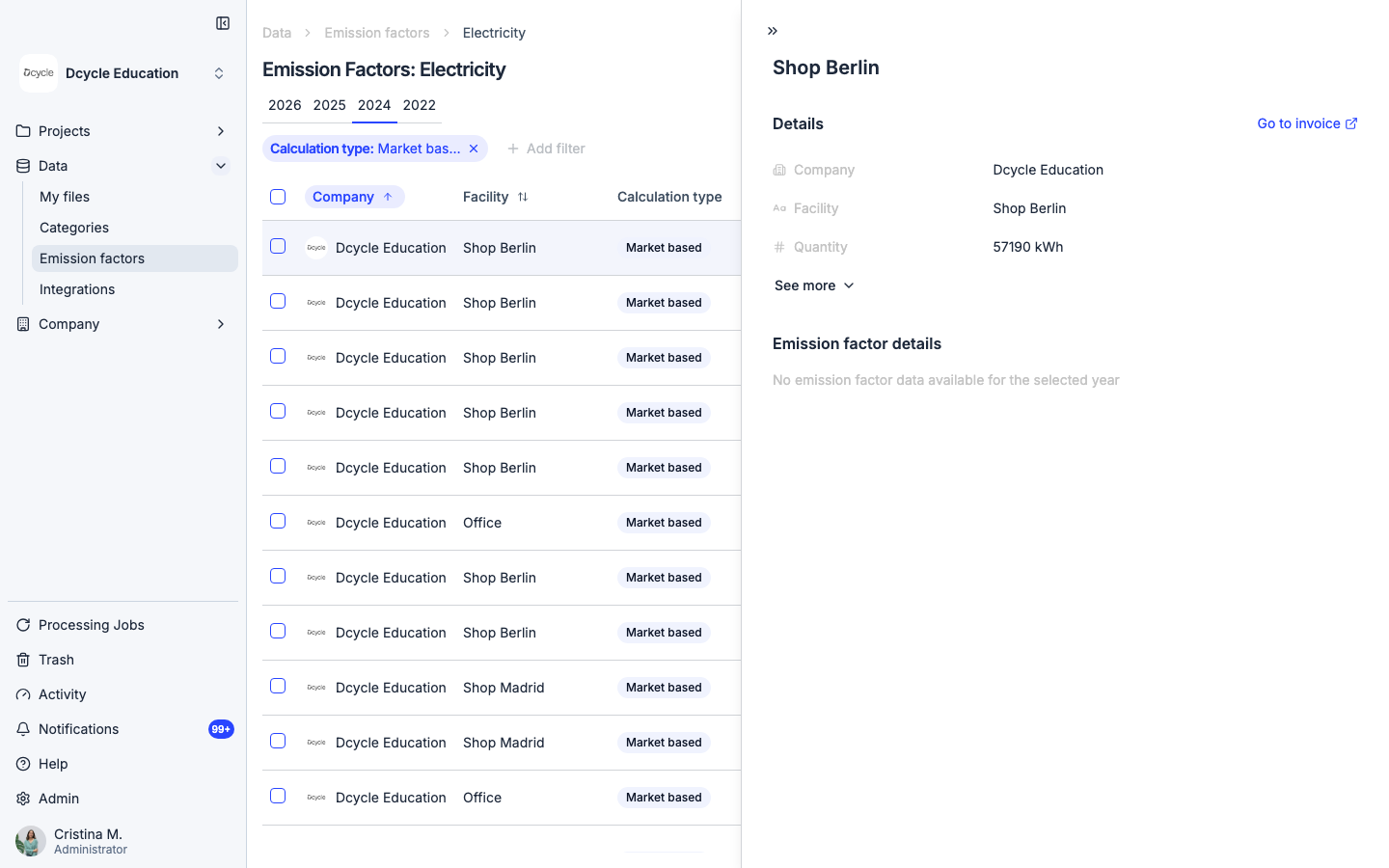
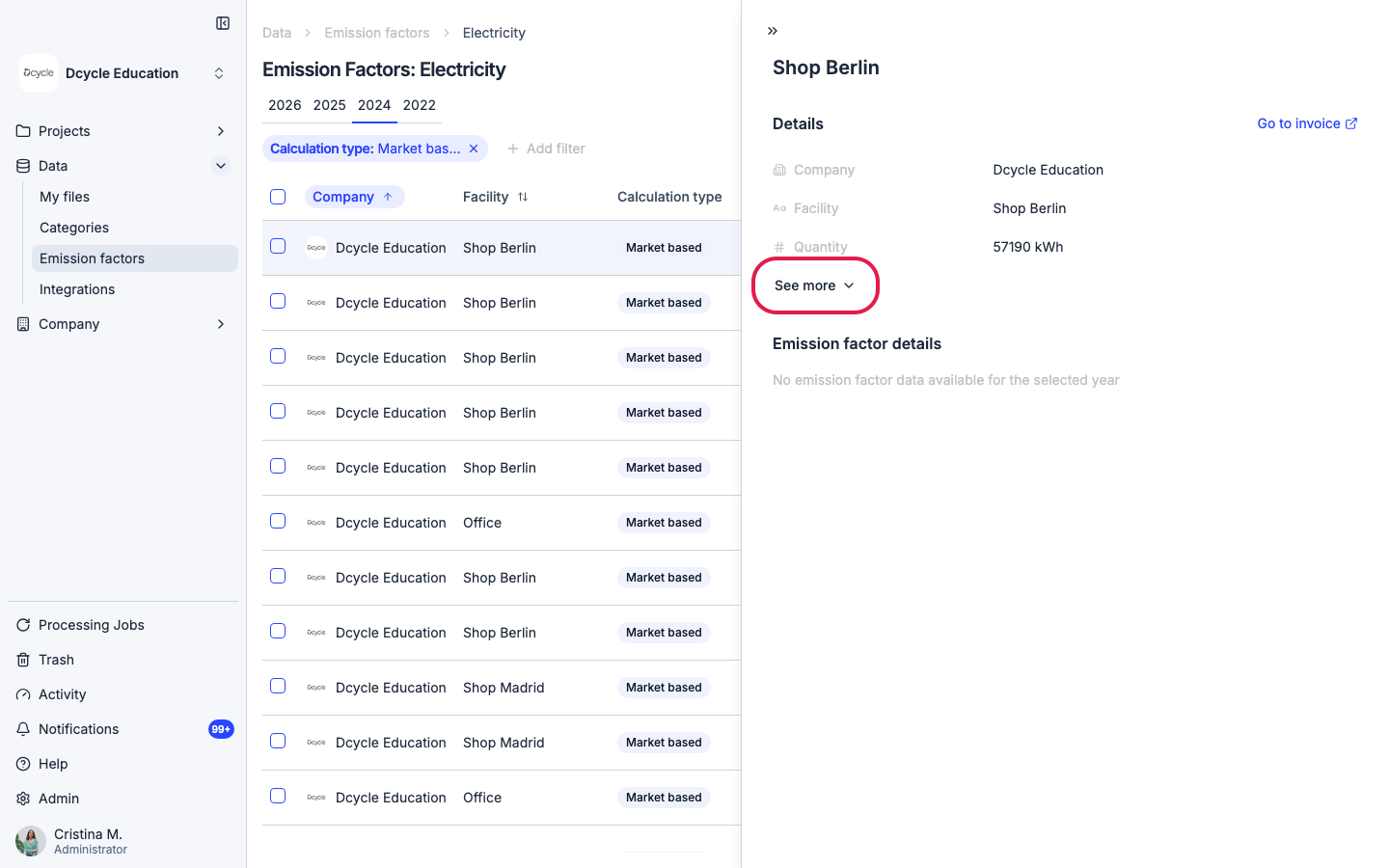
The detail panel opens with the key fields for that record: company, facility, and quantity. Click “See more” to expand the full context.
Step 9
Click “See more” to expand all fields.
Step 10
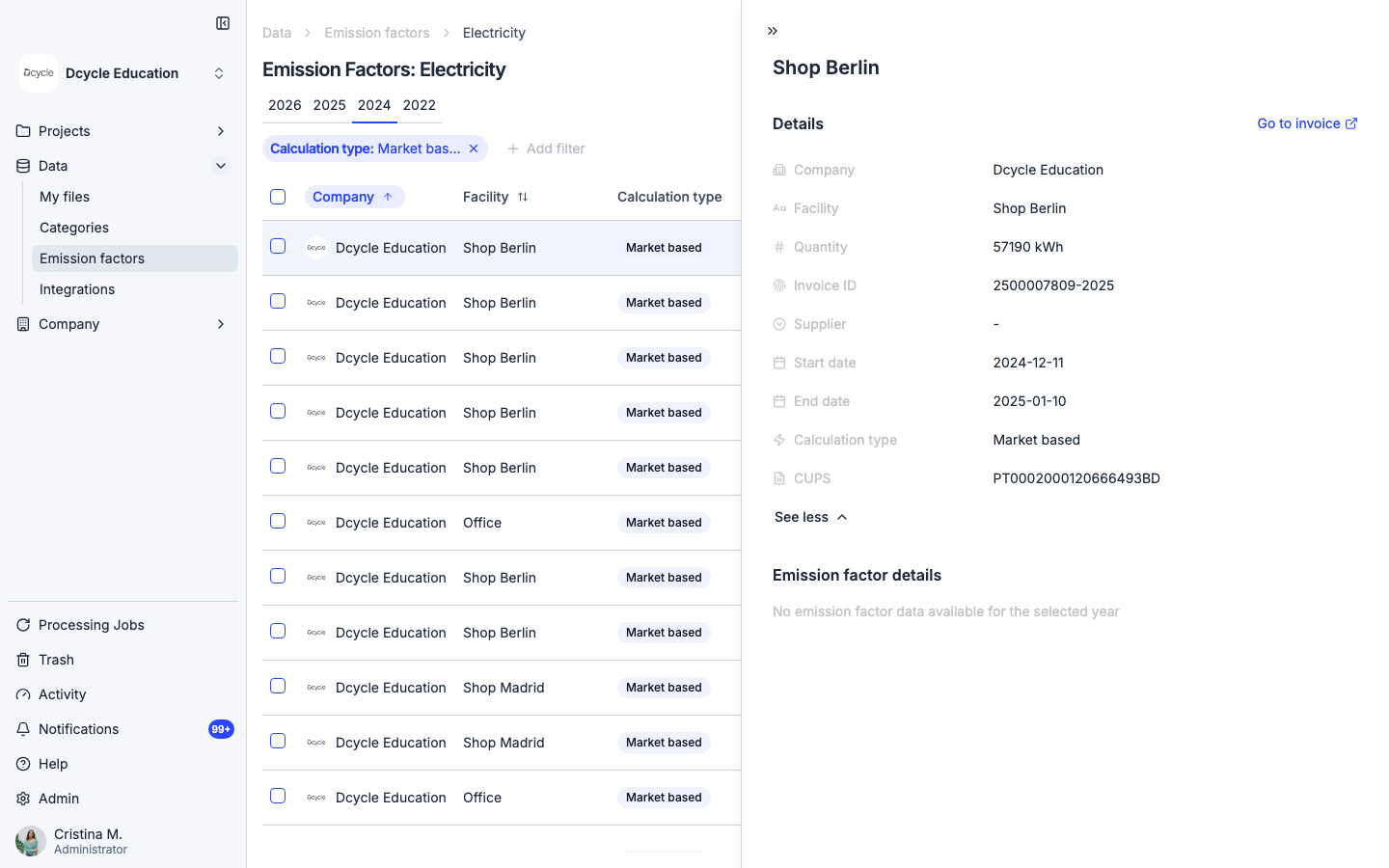
The expanded panel shows all the context behind that record: invoice ID, supplier, start and end dates, calculation type, and CUPS. The “Emission factor details” section below shows the database, version, match, and per-gas breakdown (CO₂, kg CO₂e) when emission factor calculations have been applied to that record.
Was this helpful?
What was missing or unclear? (optional)
Sent. Thank you for helping us improve.