Product Guides
Upload a water invoice
Water drawn from the municipal supply counts under Scope 3, Category 1 (purchased goods & services). Each record is linked to a facility, so make sure the facility exists first (see "Setting up your facilities in Dcycle").
Before you start
You need an Editor role in your Dcycle organization.
Steps
Step 1
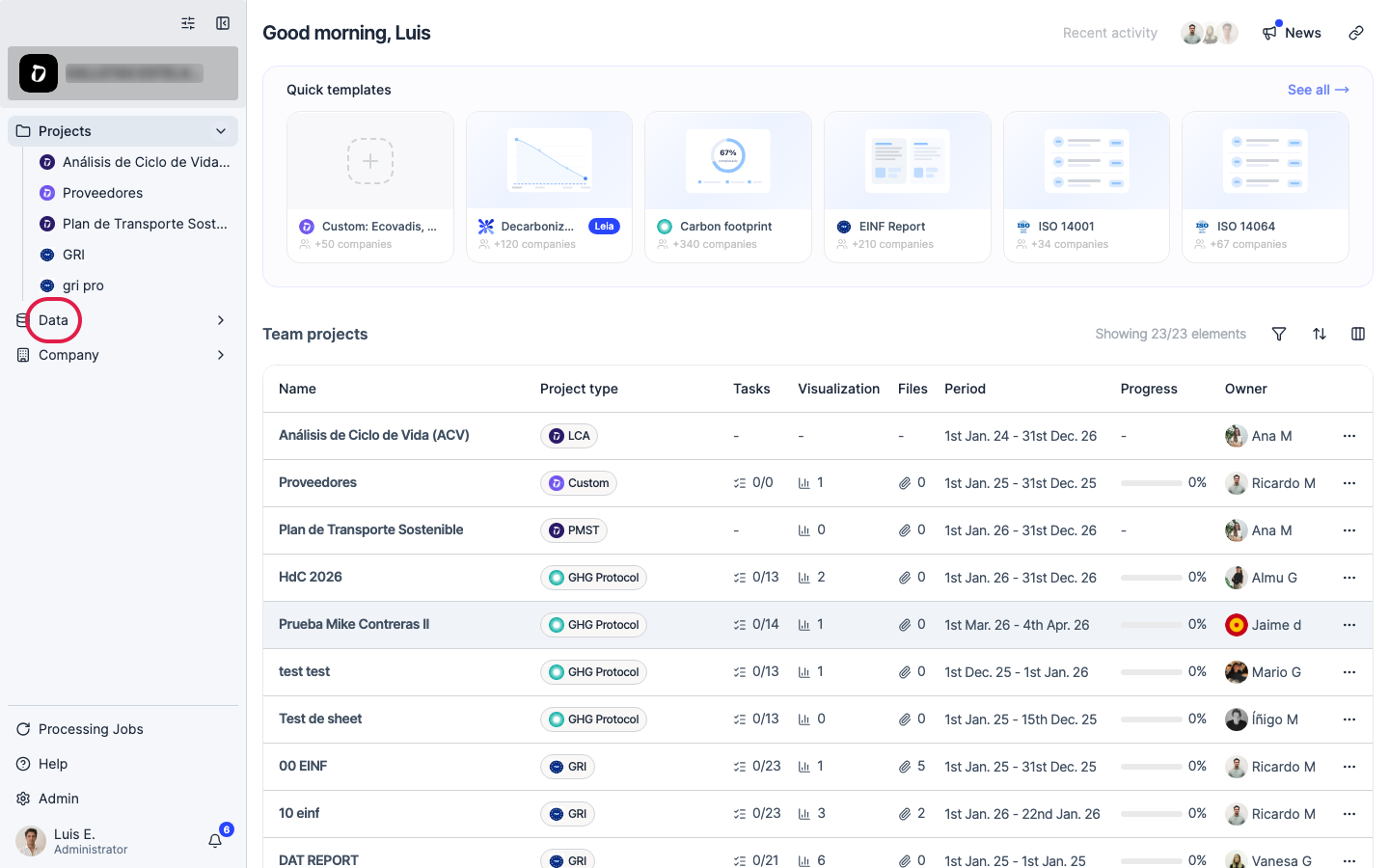
Click “Data” in the left navigation.
Step 2
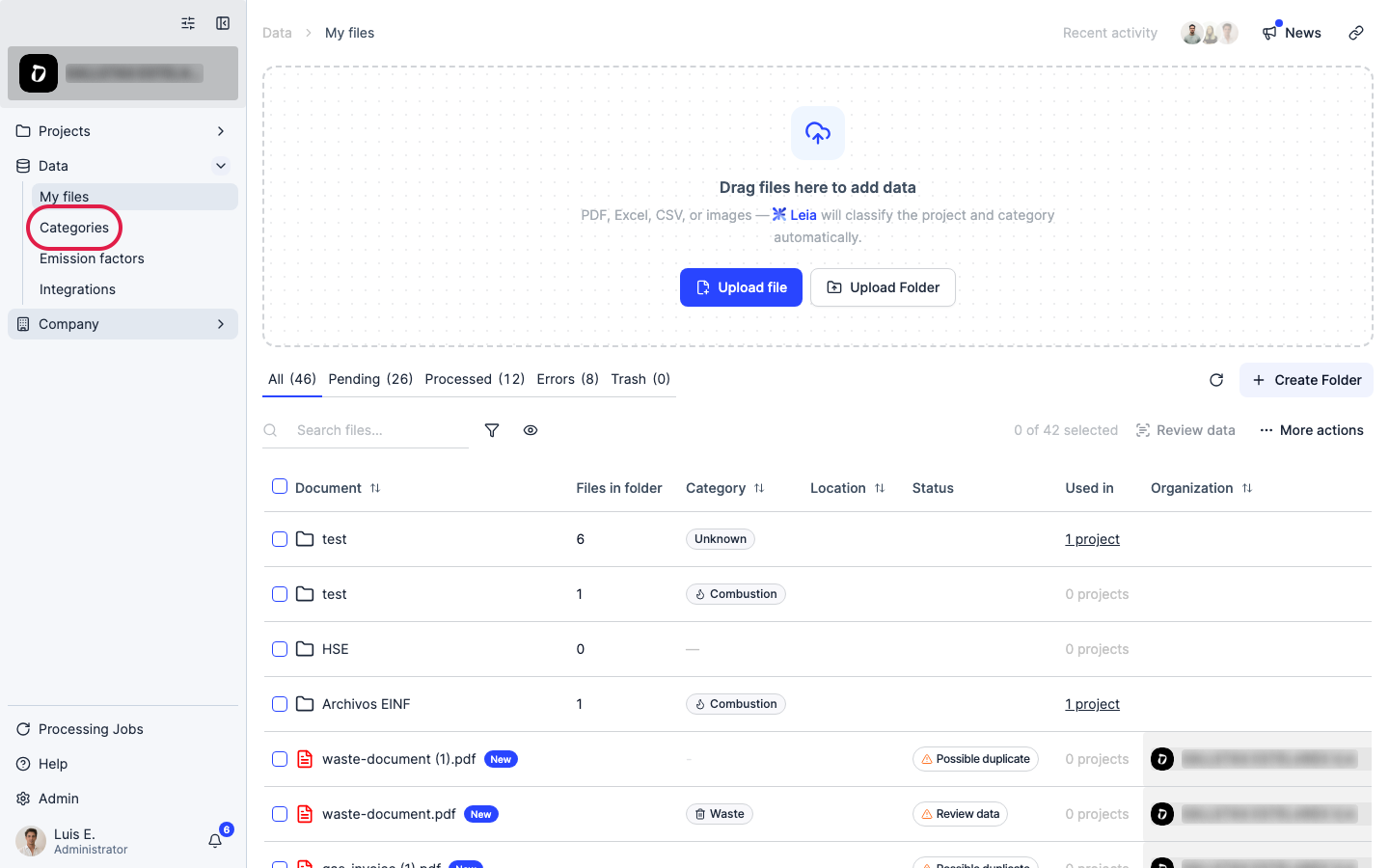
Click “Categories”.
Step 3
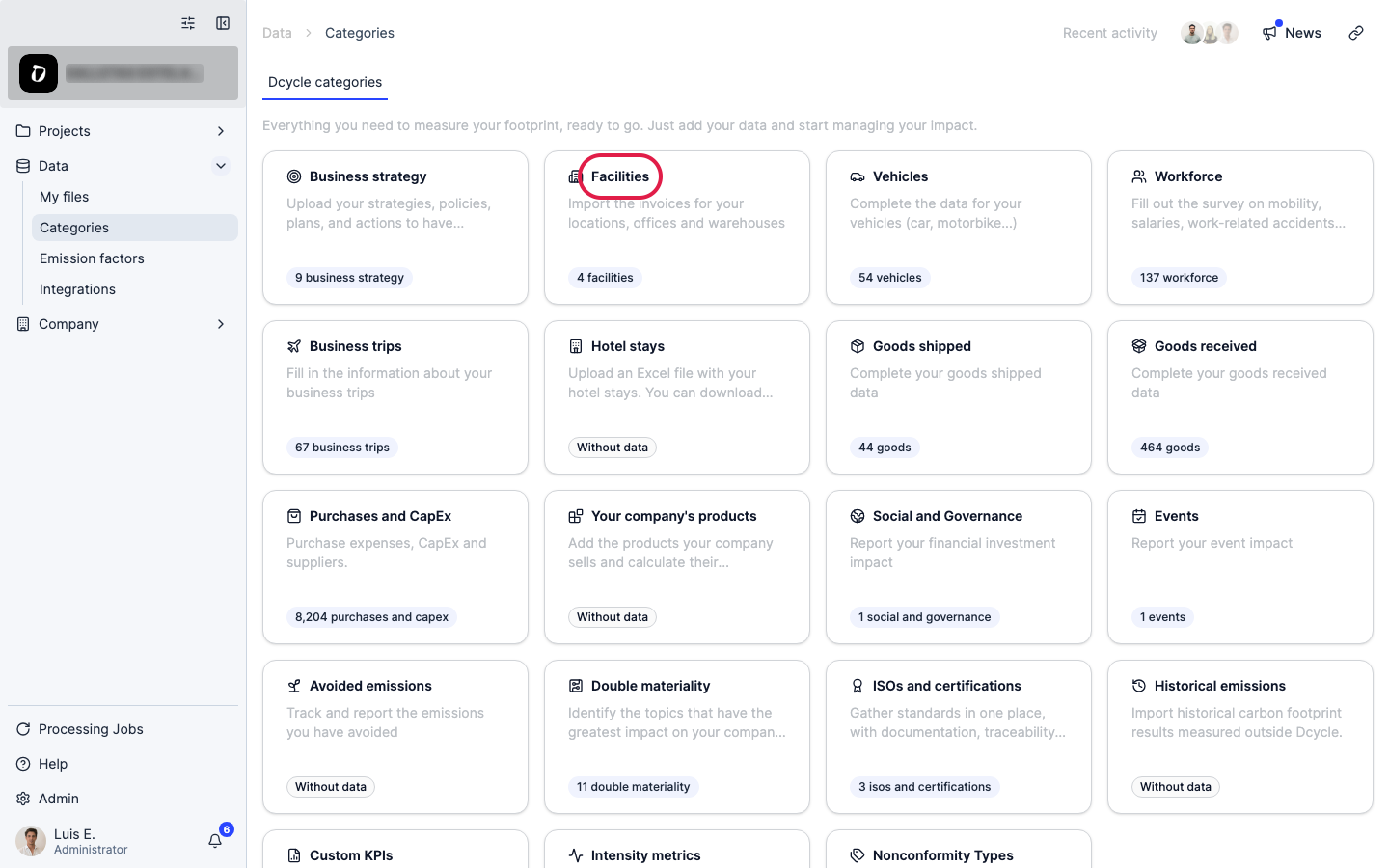
Open the “Facilities” category.
Step 4
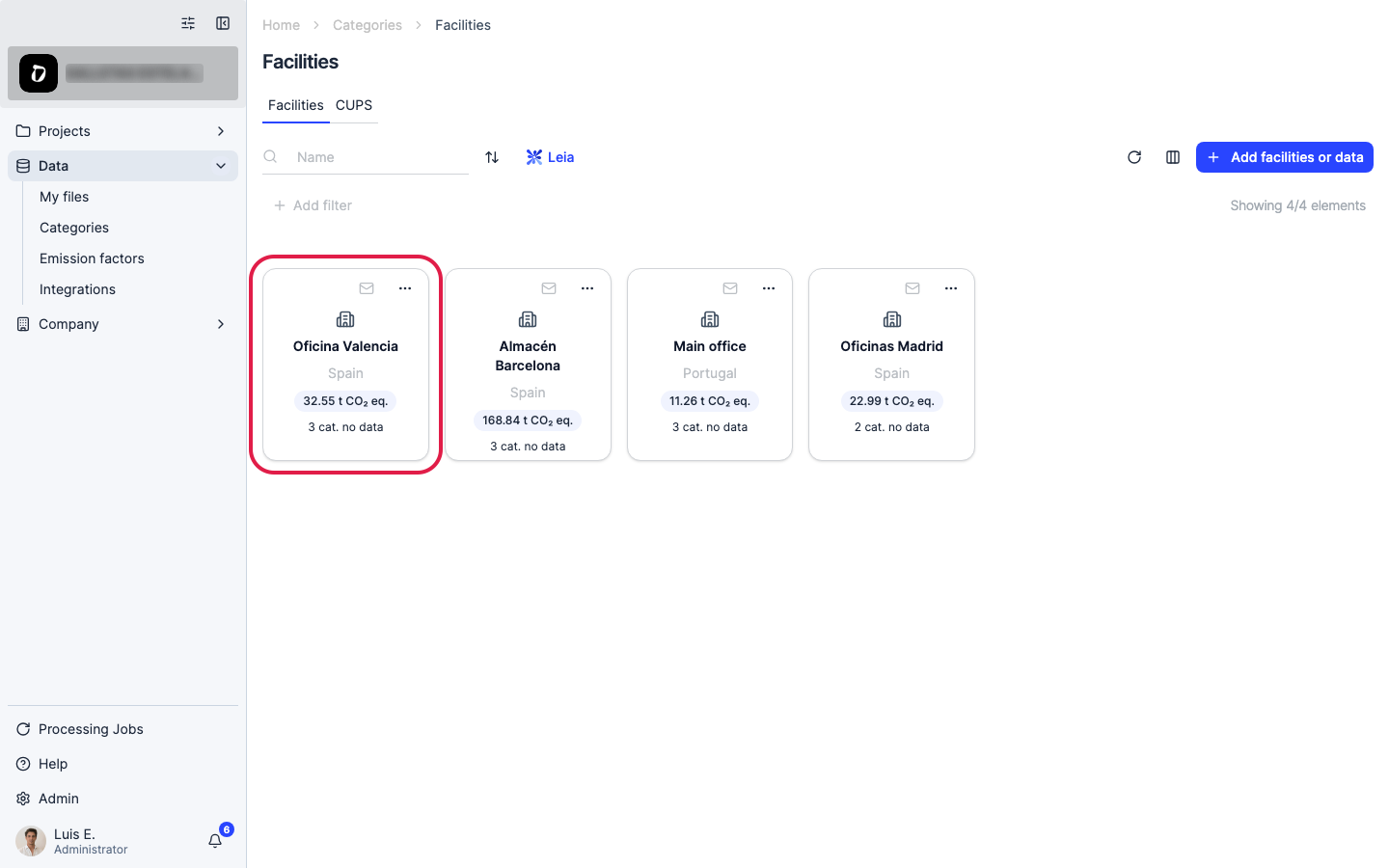
Open the facility this invoice belongs to.
Step 5
Click the “Water” tab.
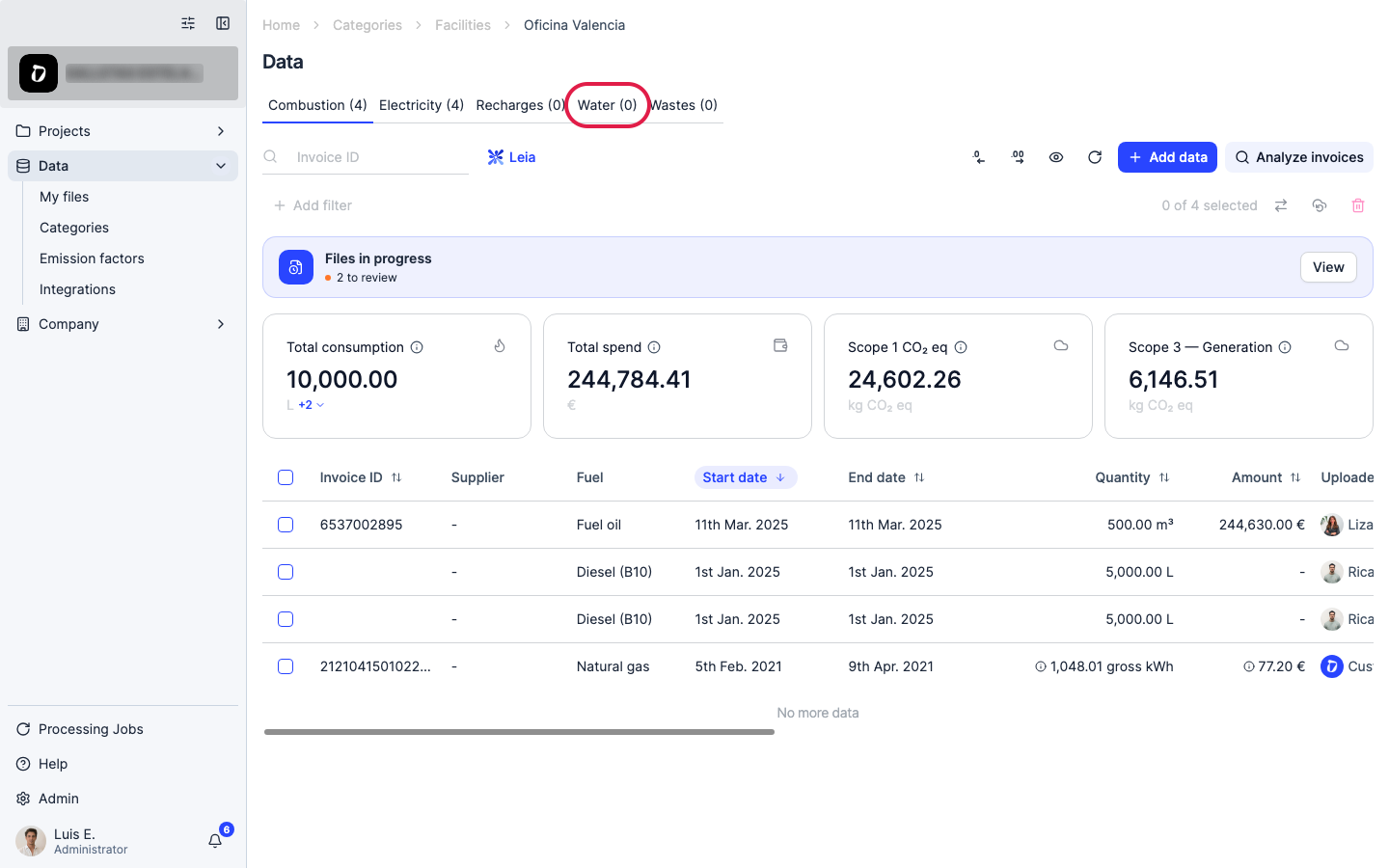
Step 6
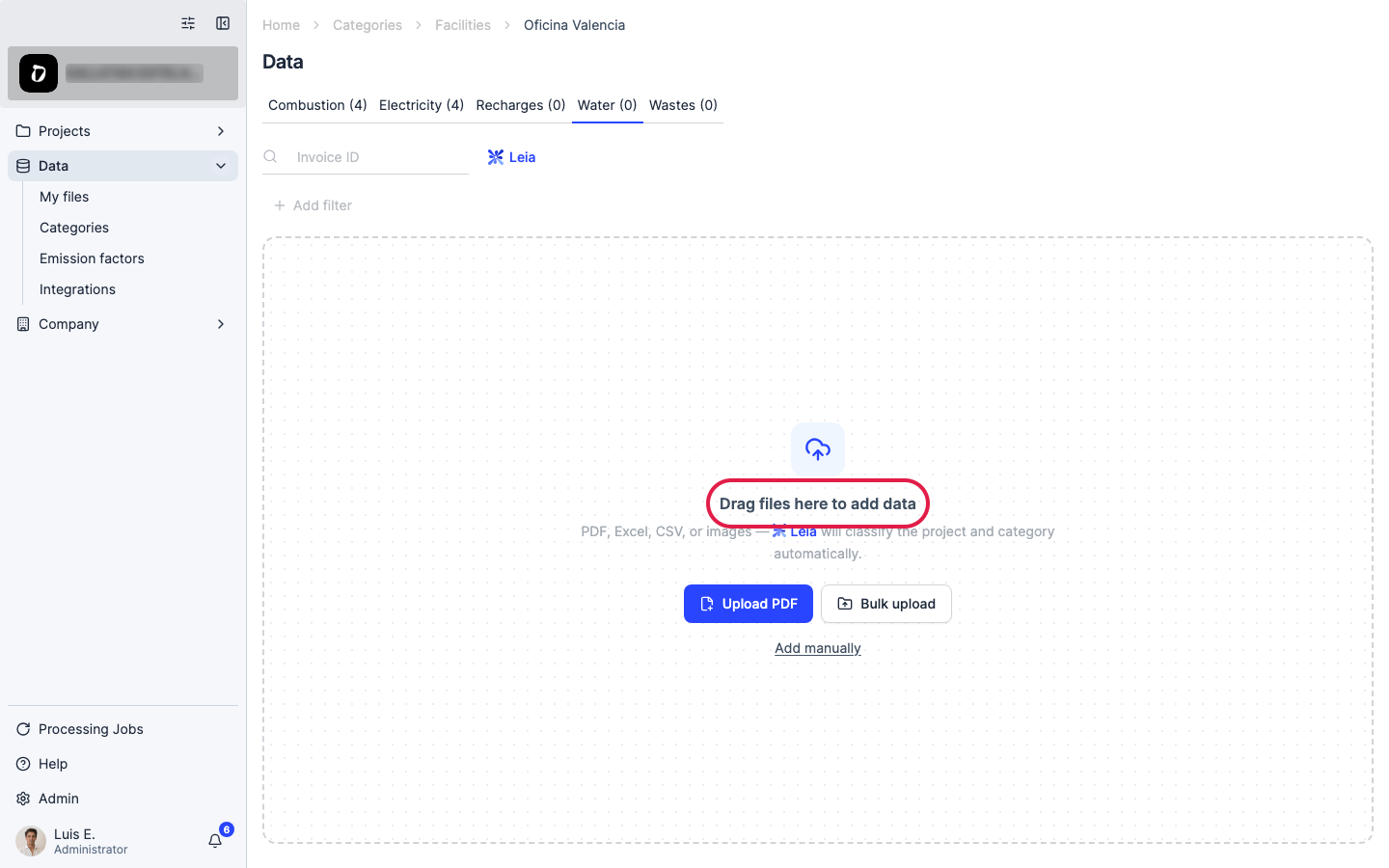
Click “Add data” to open the upload options.
Step 7
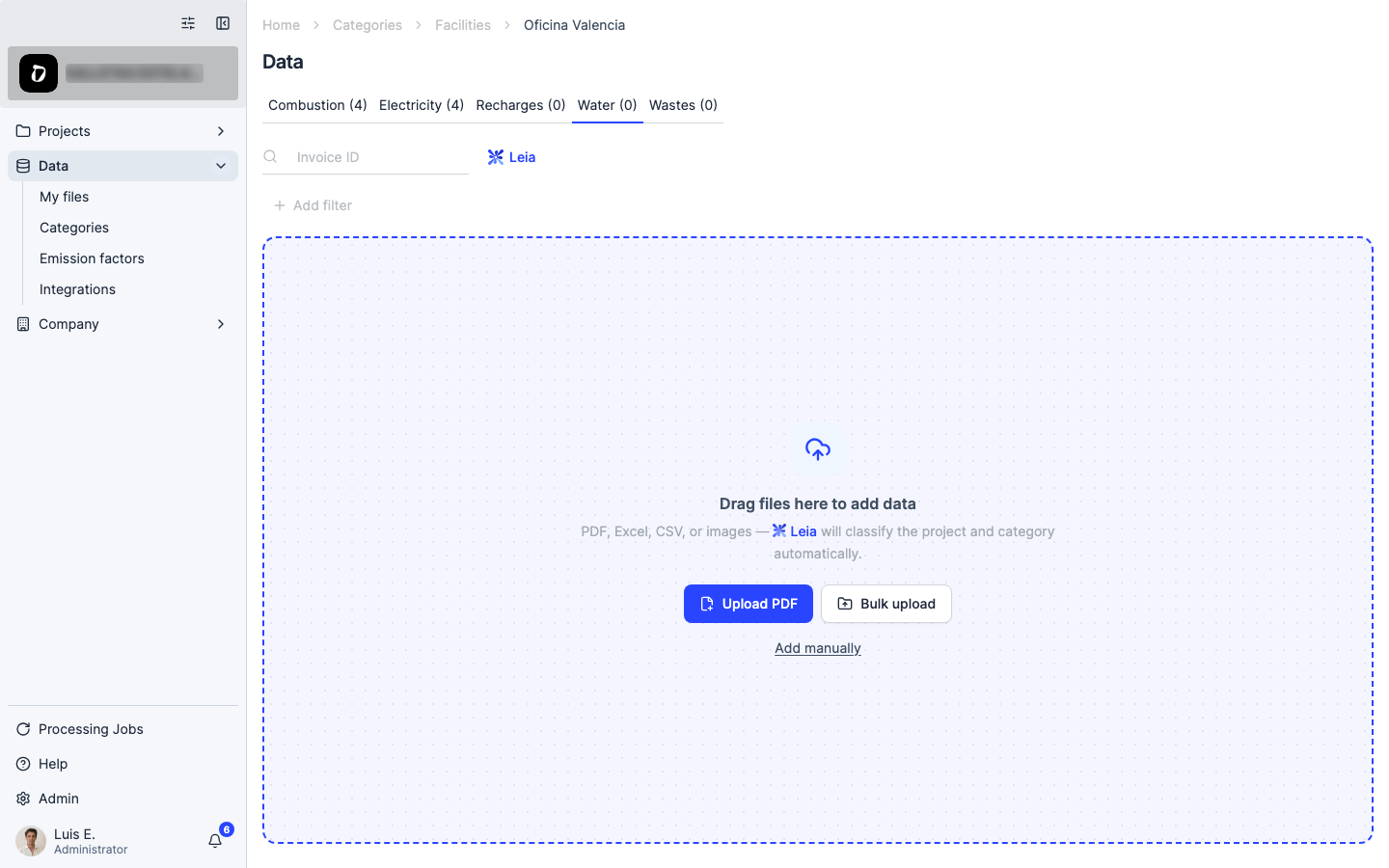
You can add a consumption manually, upload the invoice PDF (Dcycle’s AI reads the supplier, billing period and m³ consumed), or bulk-upload a CSV/Excel template for many invoices at once.
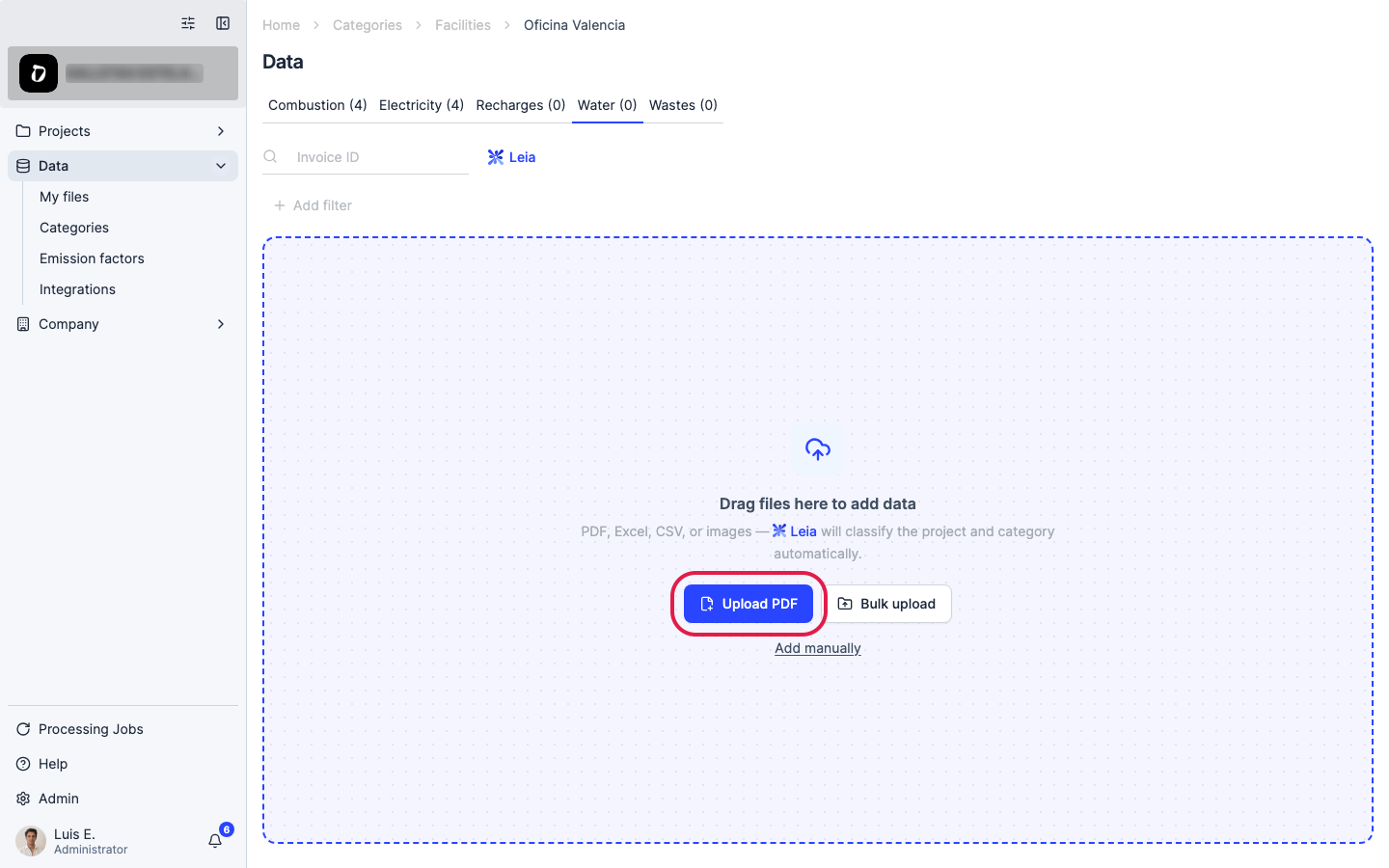
Step 8
Choose “Upload PDF”.
Step 9
Drag your PDF invoice onto the panel or click to browse. Dcycle reads invoices in any language your suppliers use — this one is in Catalan.
Step 10
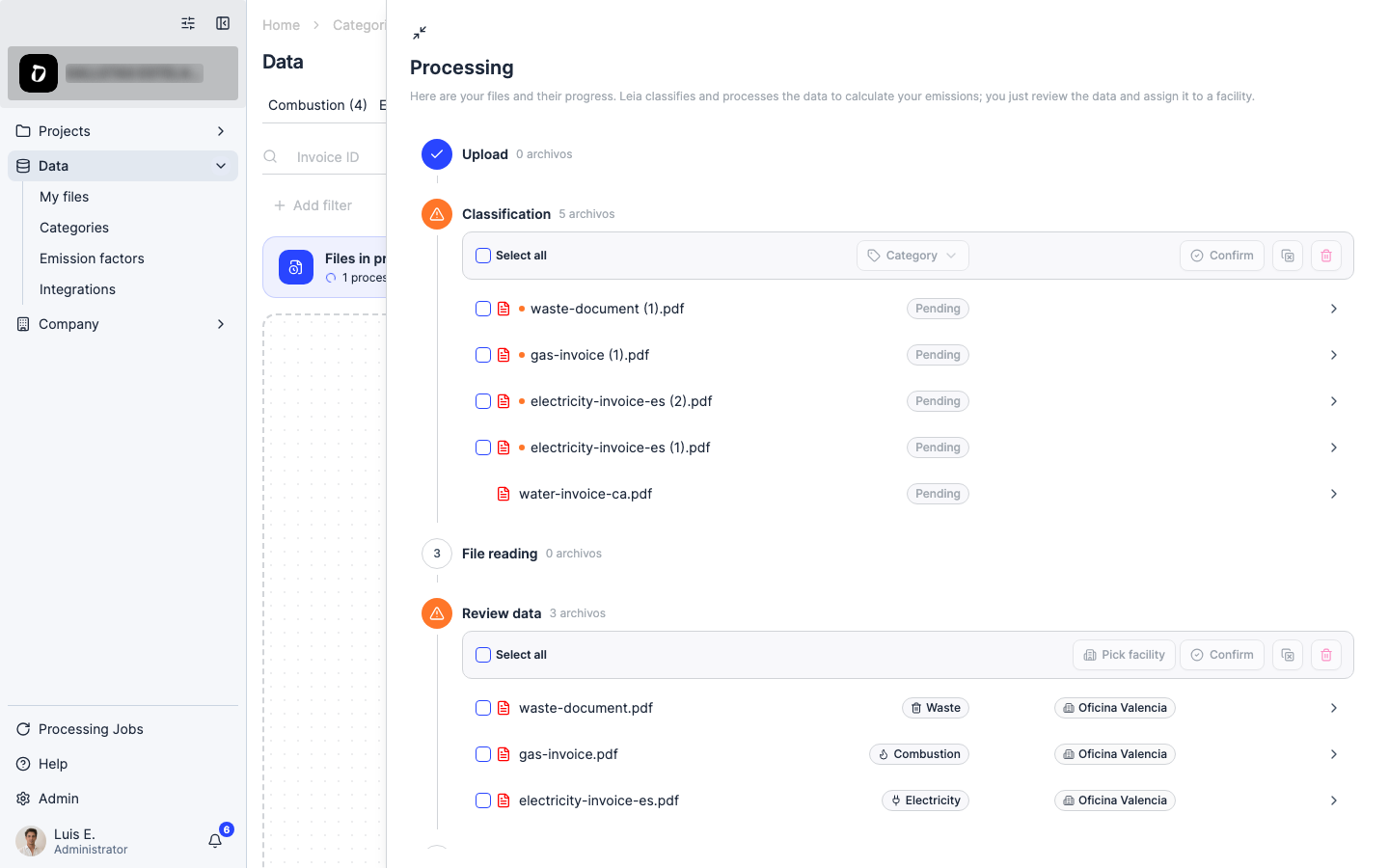
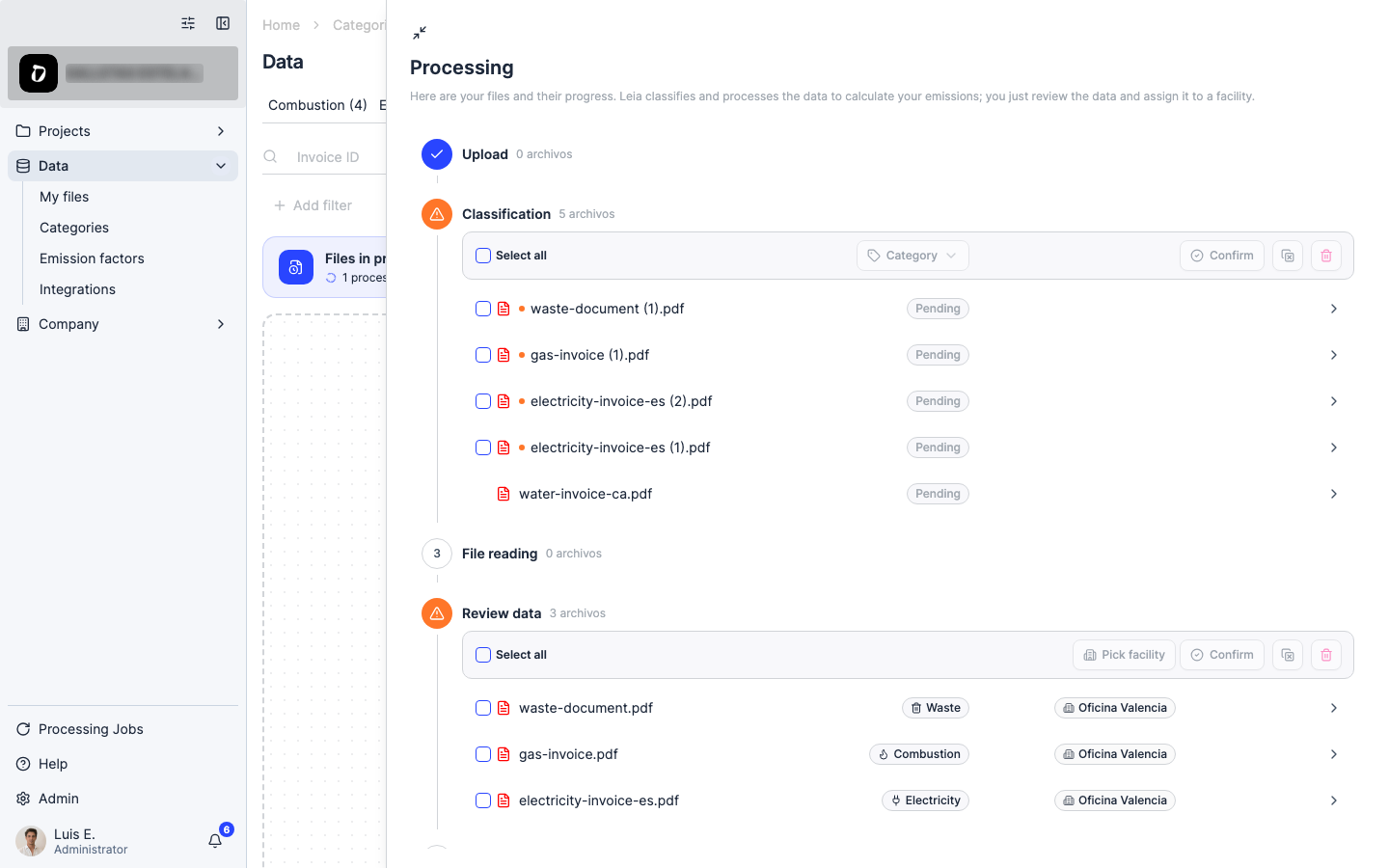
The file goes to a processing queue while Dcycle’s AI reads the supplier, billing period and consumption in m³. Once it’s done, assign it to the right facility category and it’s added to your Water records.
Step 11
Drawing from a private well or borehole instead of the municipal network? Use the meter readings on the pump — record the volume extracted per period in m³ and upload it the same way. Self-supplied water still counts, at a lower emission factor since it skips municipal treatment and distribution.
Step 12
For many invoices at once, use the bulk upload option instead — download the CSV/Excel template, fill one row per invoice (facility, start/end date, m³, supplier), and drag it back.
Was this helpful?
What was missing or unclear? (optional)
Sent. Thank you for helping us improve.