Product Guides
Register vehicles and fleet fuel in Dcycle
Vehicle fuel is Scope 1 mobile combustion. Register each vehicle first, then add its fuel consumption — this guide covers registering vehicles in bulk with a file upload.
Before you start
You need an Editor role in your Dcycle organization.
Steps
Step 1
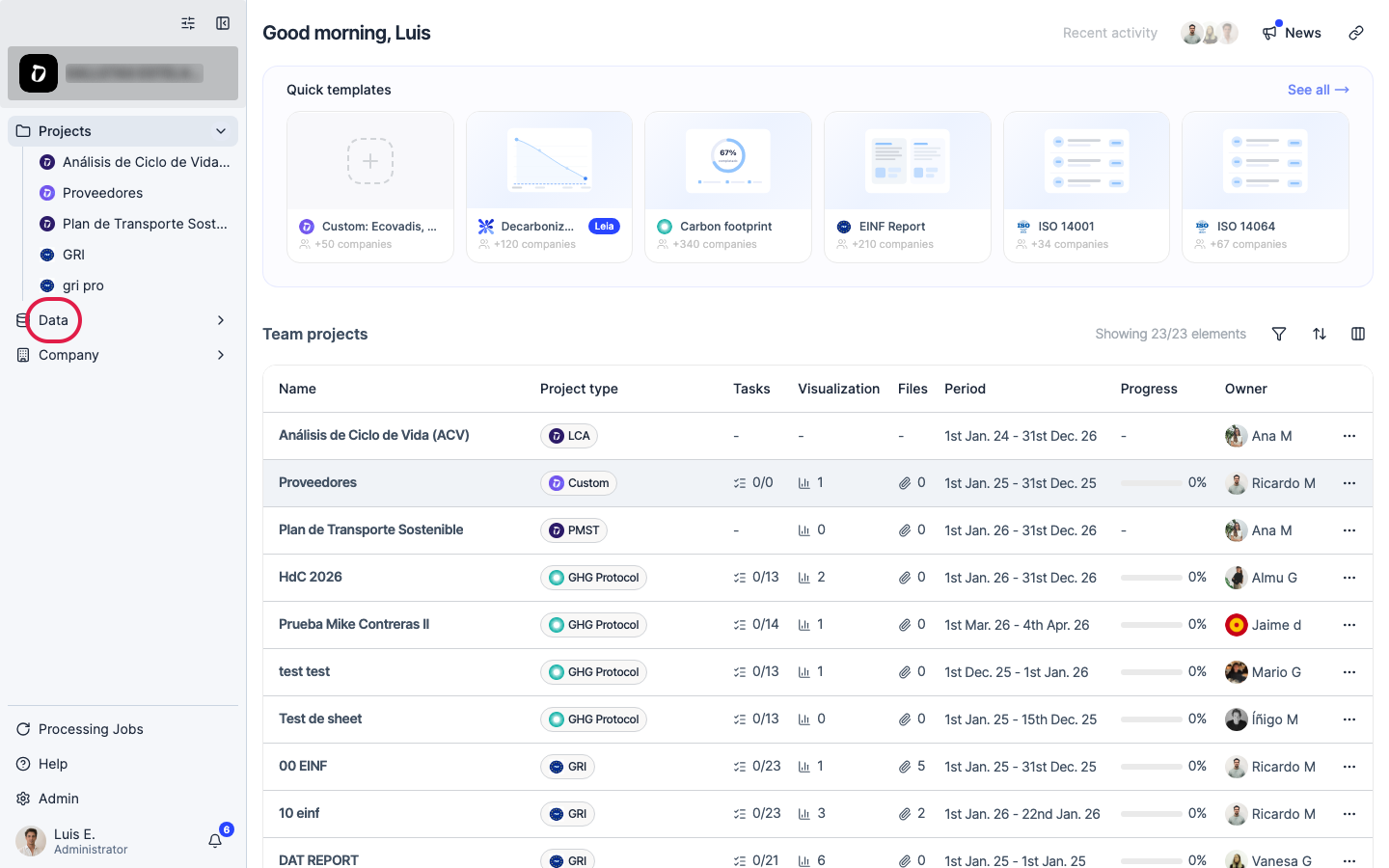
Click “Data” in the left navigation.
Step 2
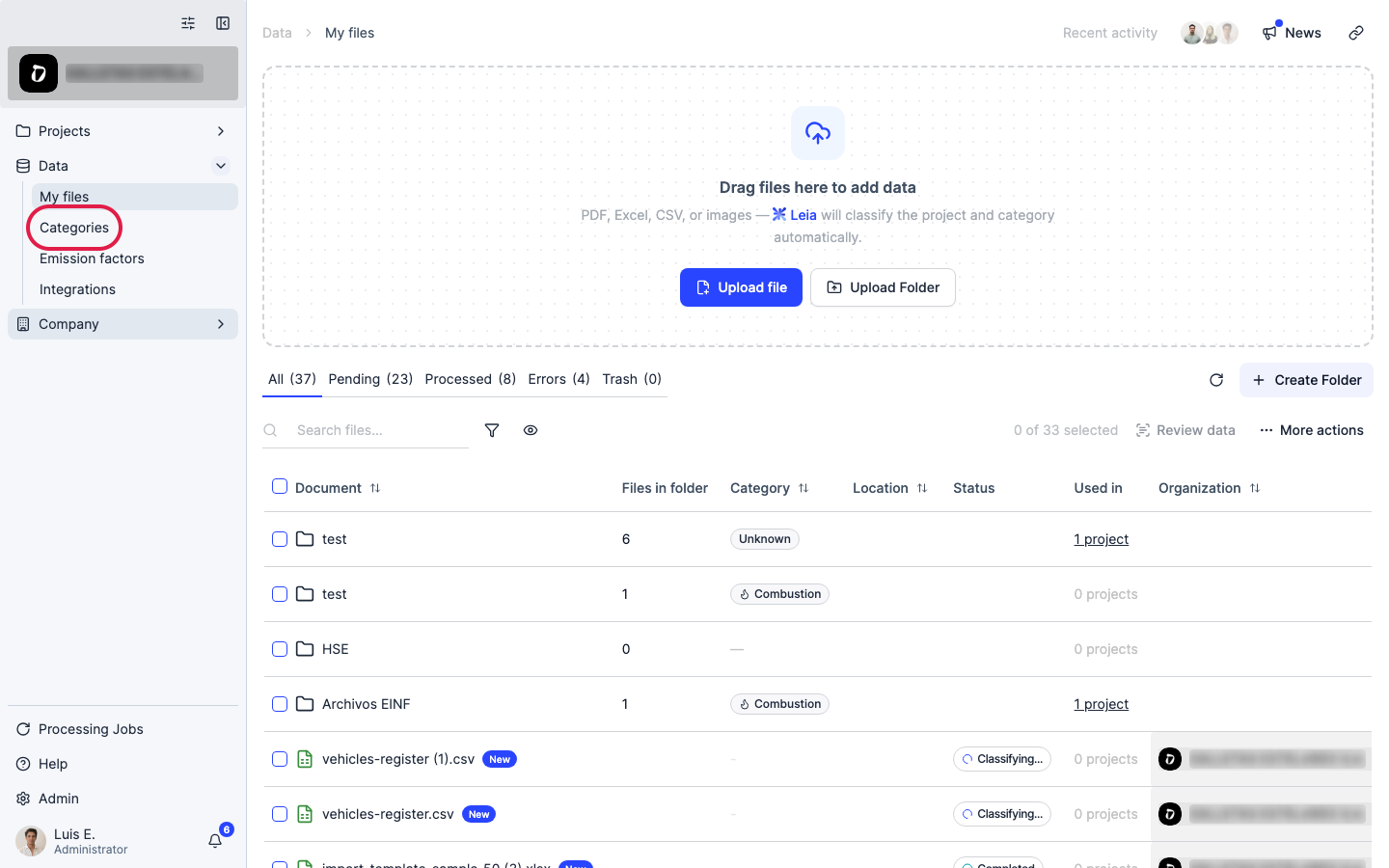
Click “Categories”.
Step 3
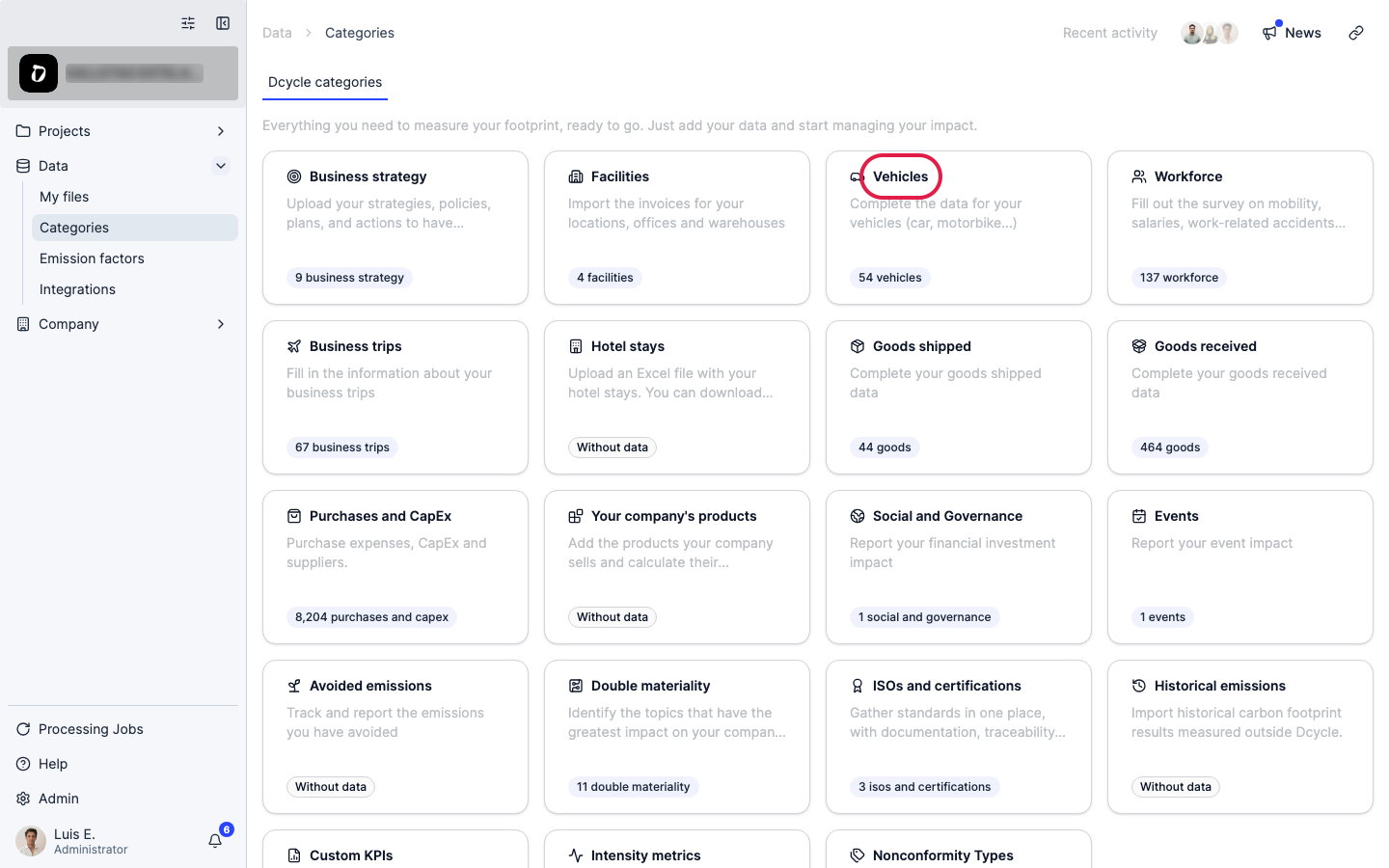
Open the “Vehicles” category.
Step 4
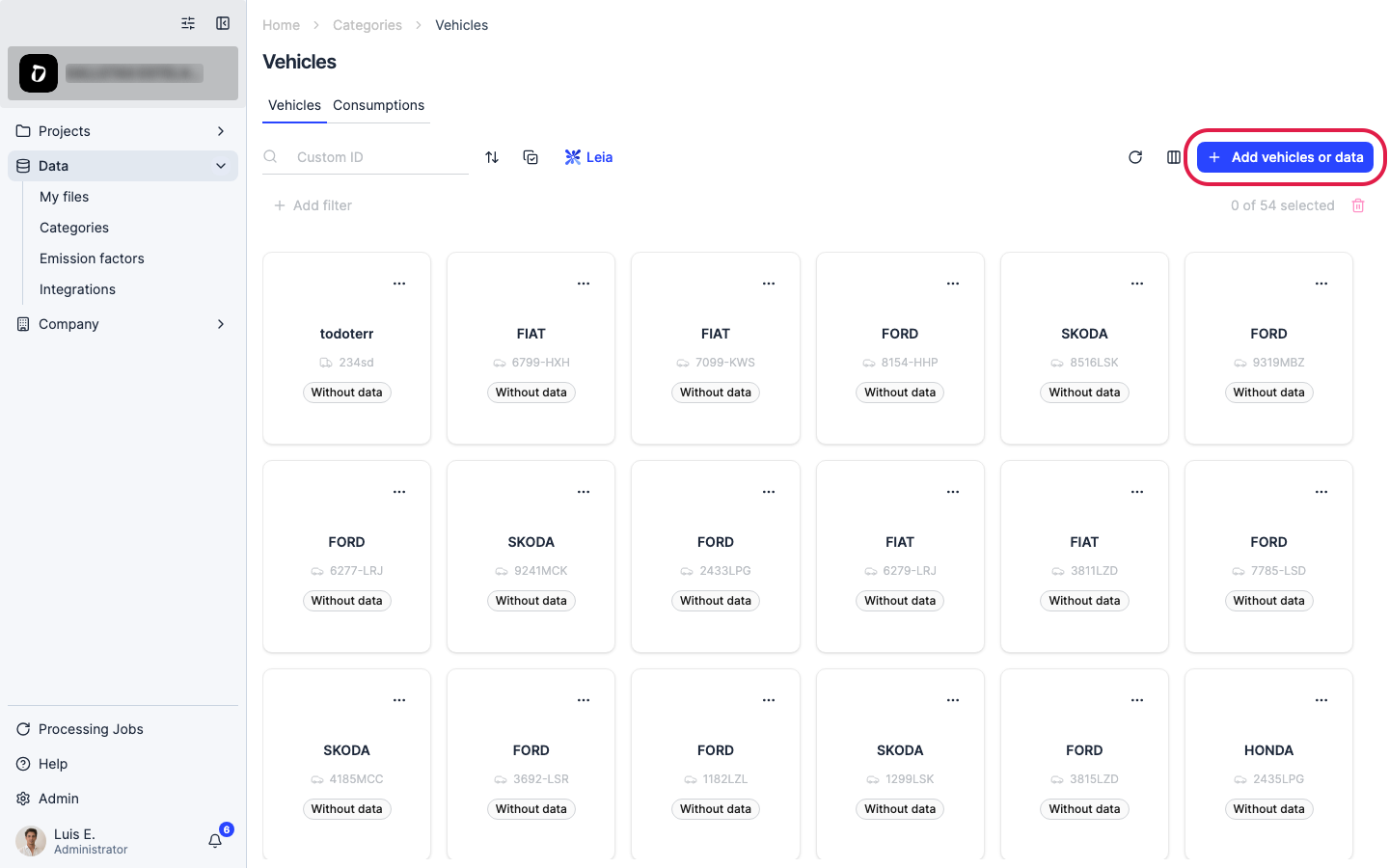
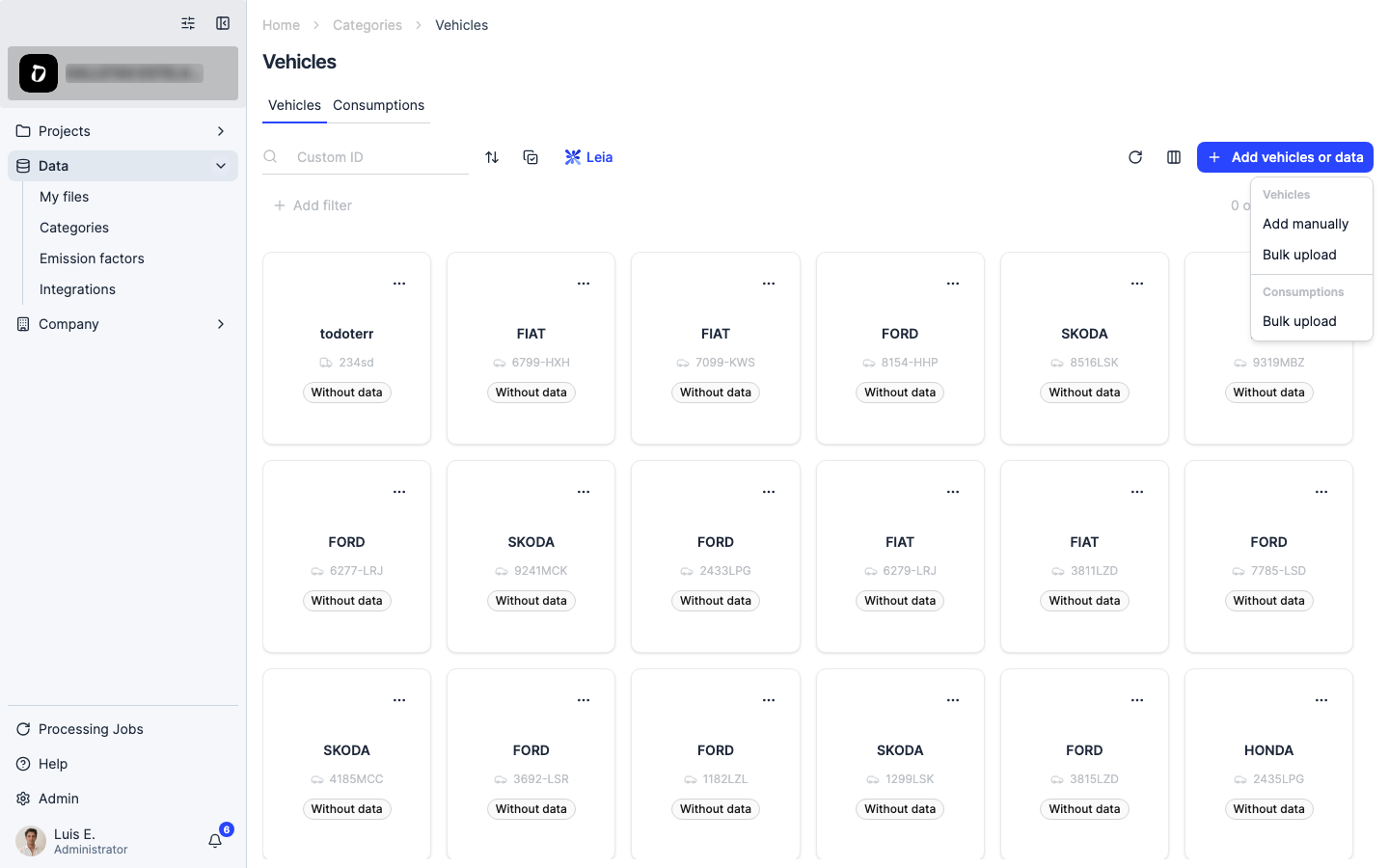
Click “Add vehicles or data”.
Step 5
The menu has two groups: “Vehicles” (add one manually, or bulk upload a file to register many at once) and “Consumptions” (bulk upload fuel consumption for vehicles already registered). Pick “Bulk upload” under “Vehicles” to register vehicles from a file.
Step 6
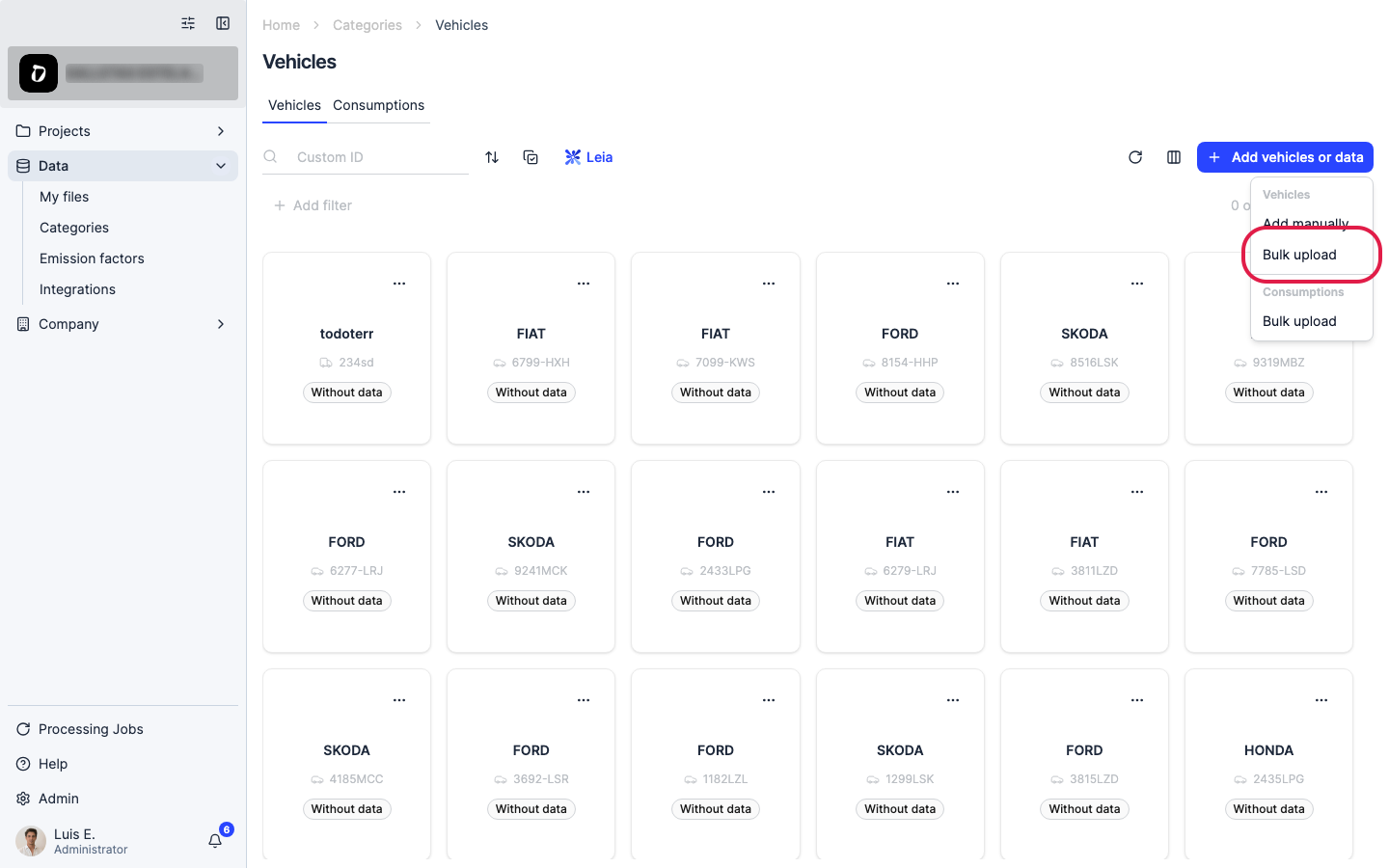
Choose “Bulk upload” under the “Vehicles” group.
Step 7
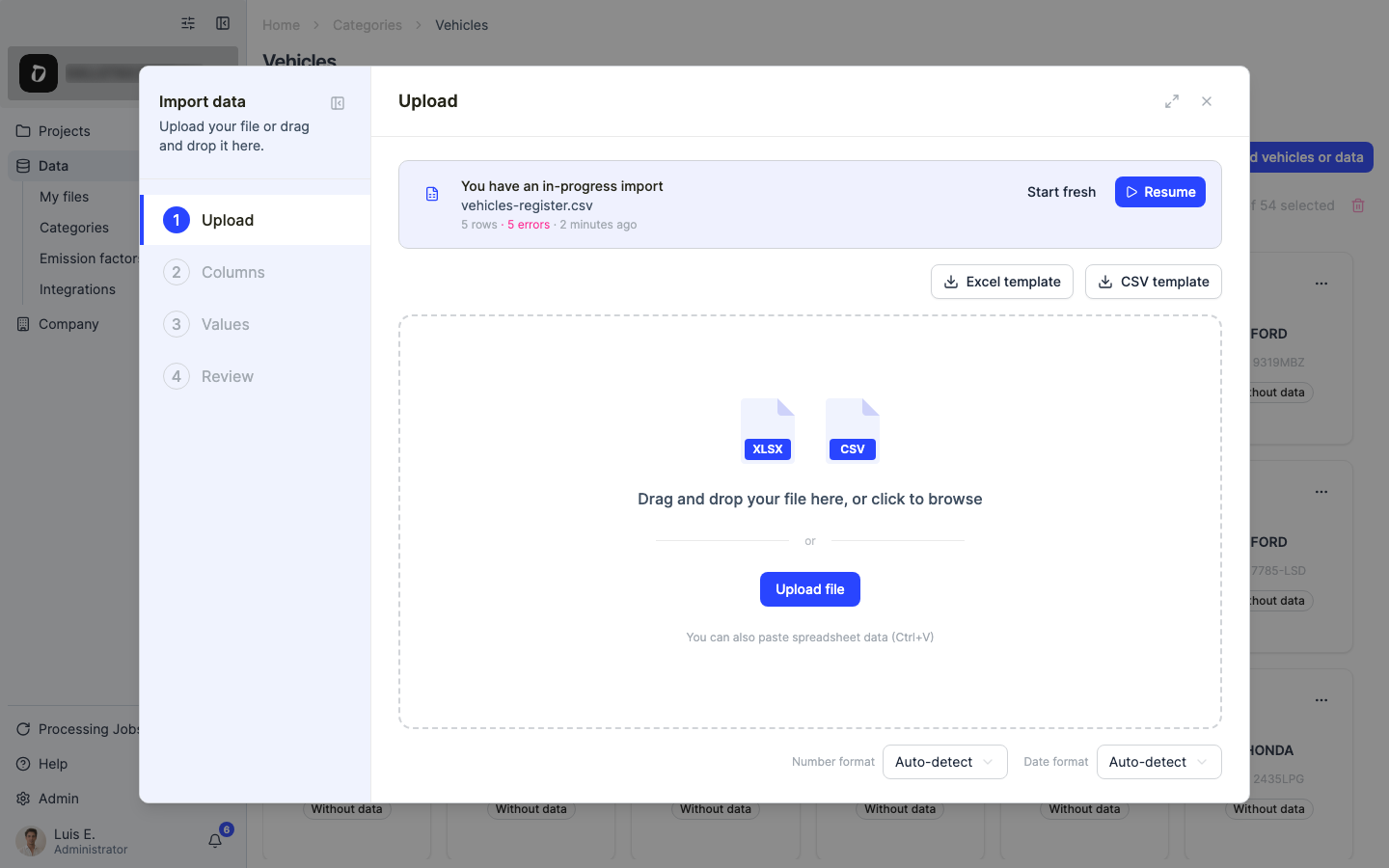
The import wizard opens. If you don’t have a file yet, download a template and fill it in: license plate, type (passenger or freight), ownership (owned or rented), country, fuel type, and optionally name, registration year and segment. Supported formats are CSV, XLSX and XLS.
Step 8
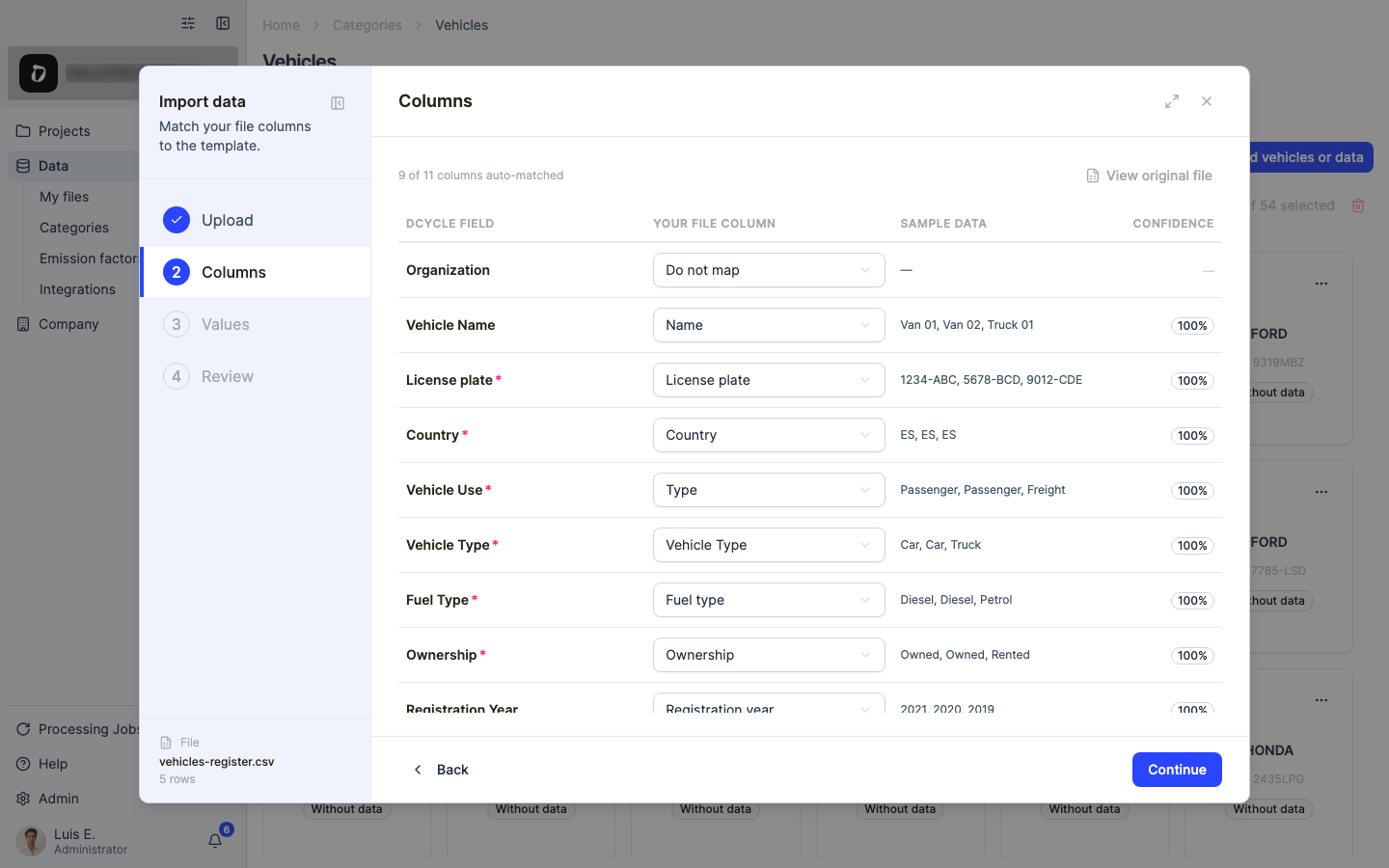
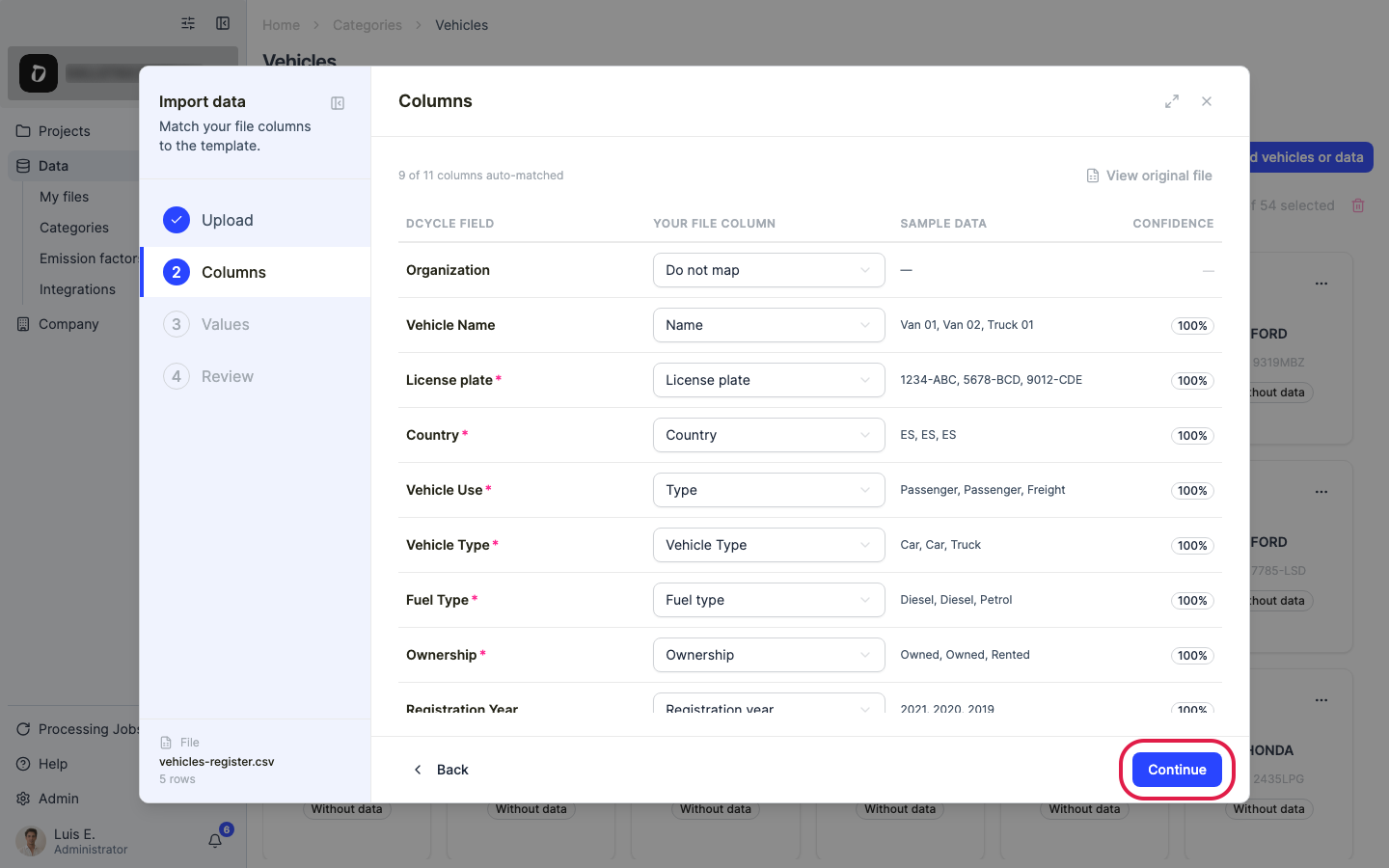
Drag your file onto the panel or click to browse. Dcycle parses it and moves to the “Columns” step, where each column of your file is matched to a Dcycle field.
Step 9
Check that every template column was matched to the right field — fix any mismatch with the dropdowns — and click “Continue”.
Step 10
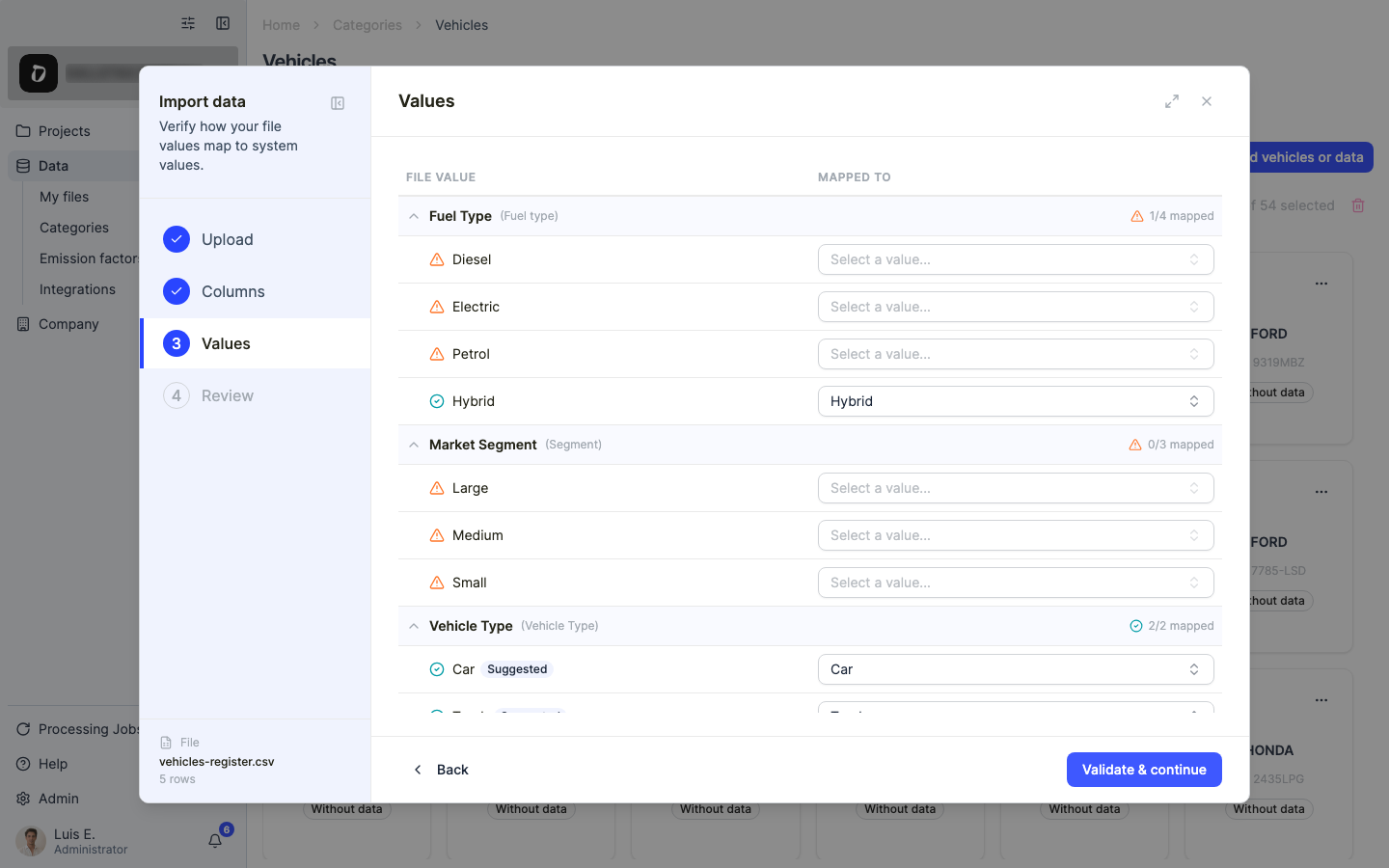
If a “Values” step appears, it shows how the values in your file (type, ownership, fuel type…) map to Dcycle’s accepted values. Review the suggestions and adjust any value that wasn’t recognised.
Step 11
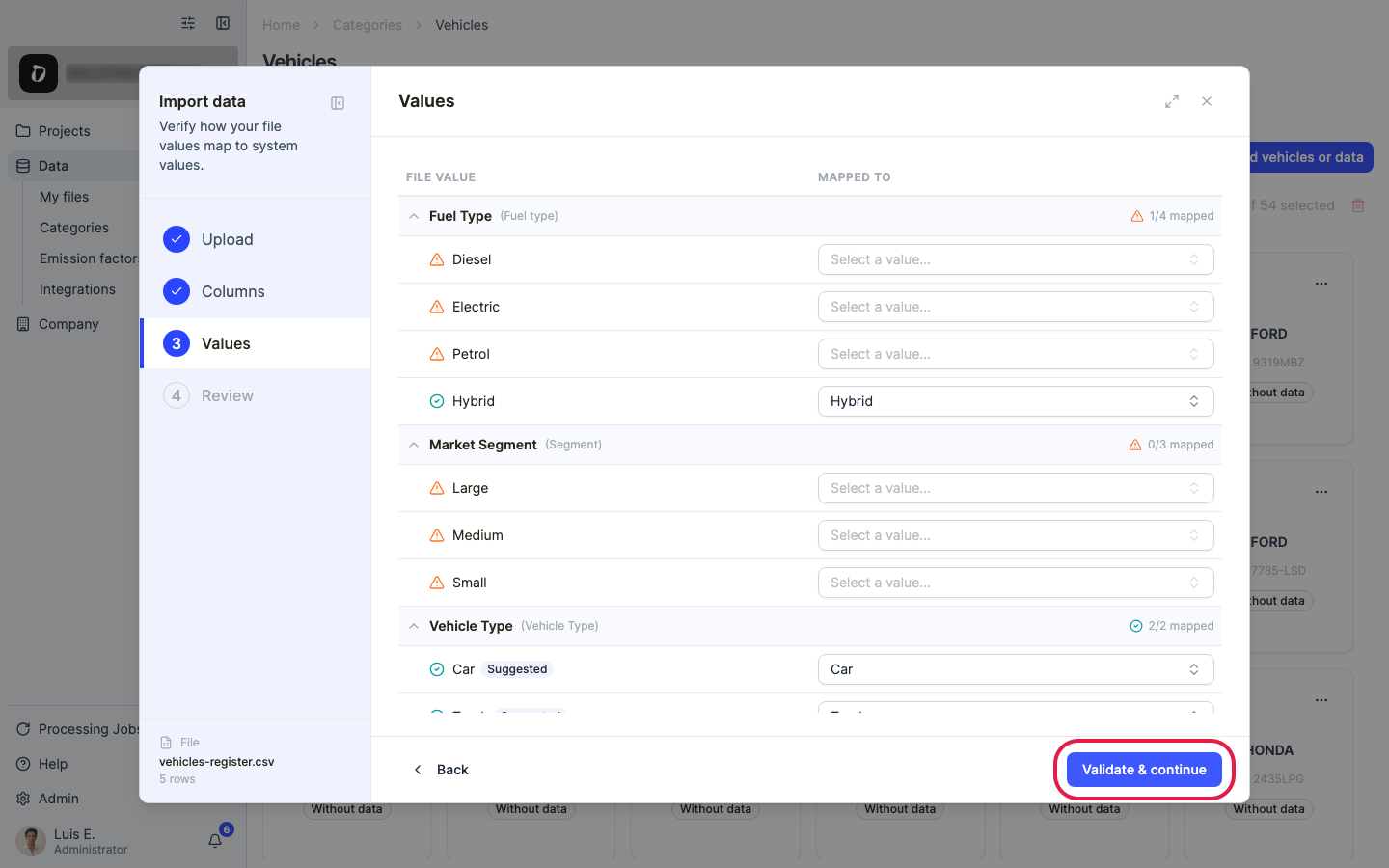
Click “Validate & continue” to validate the rows.
Step 12
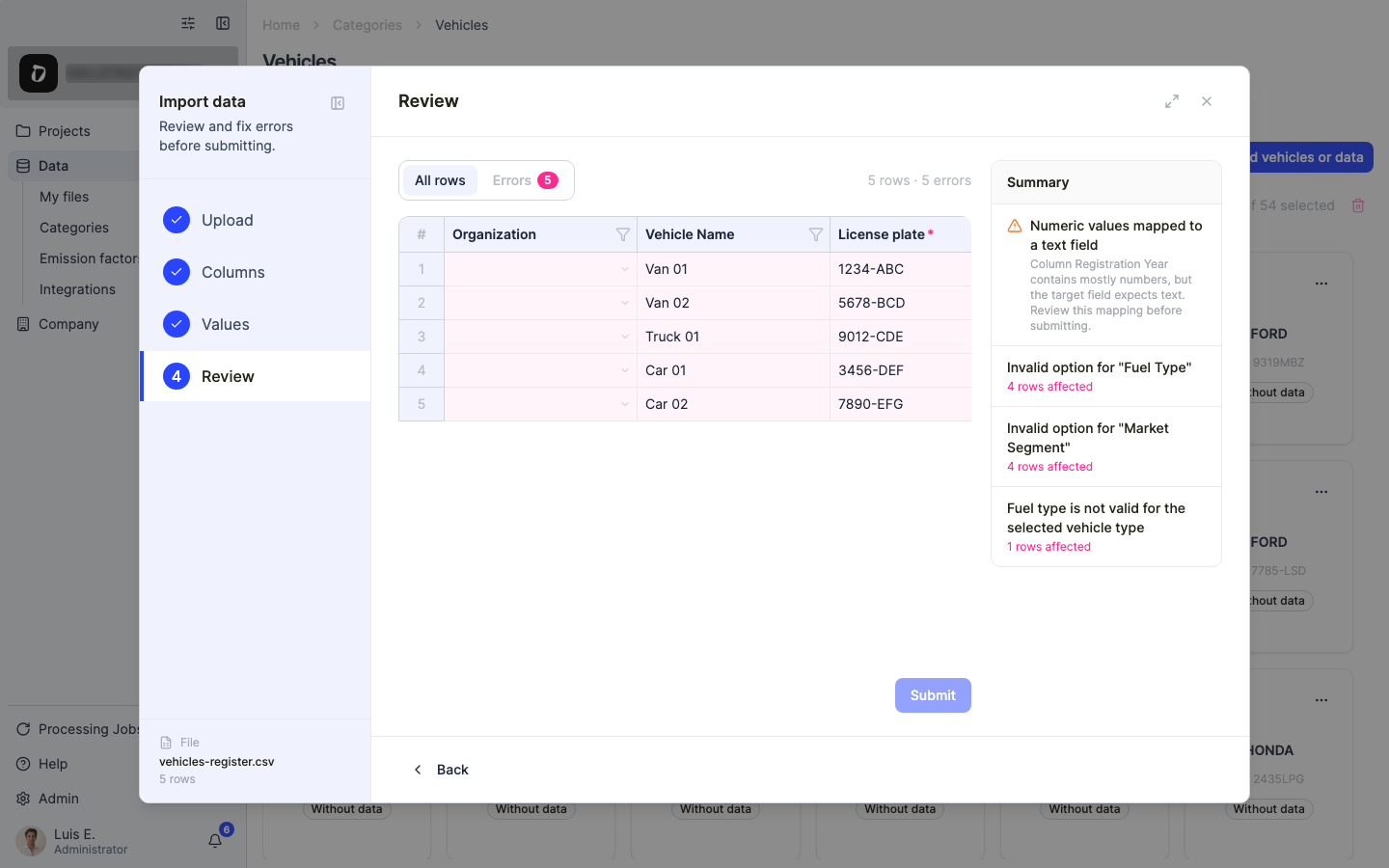
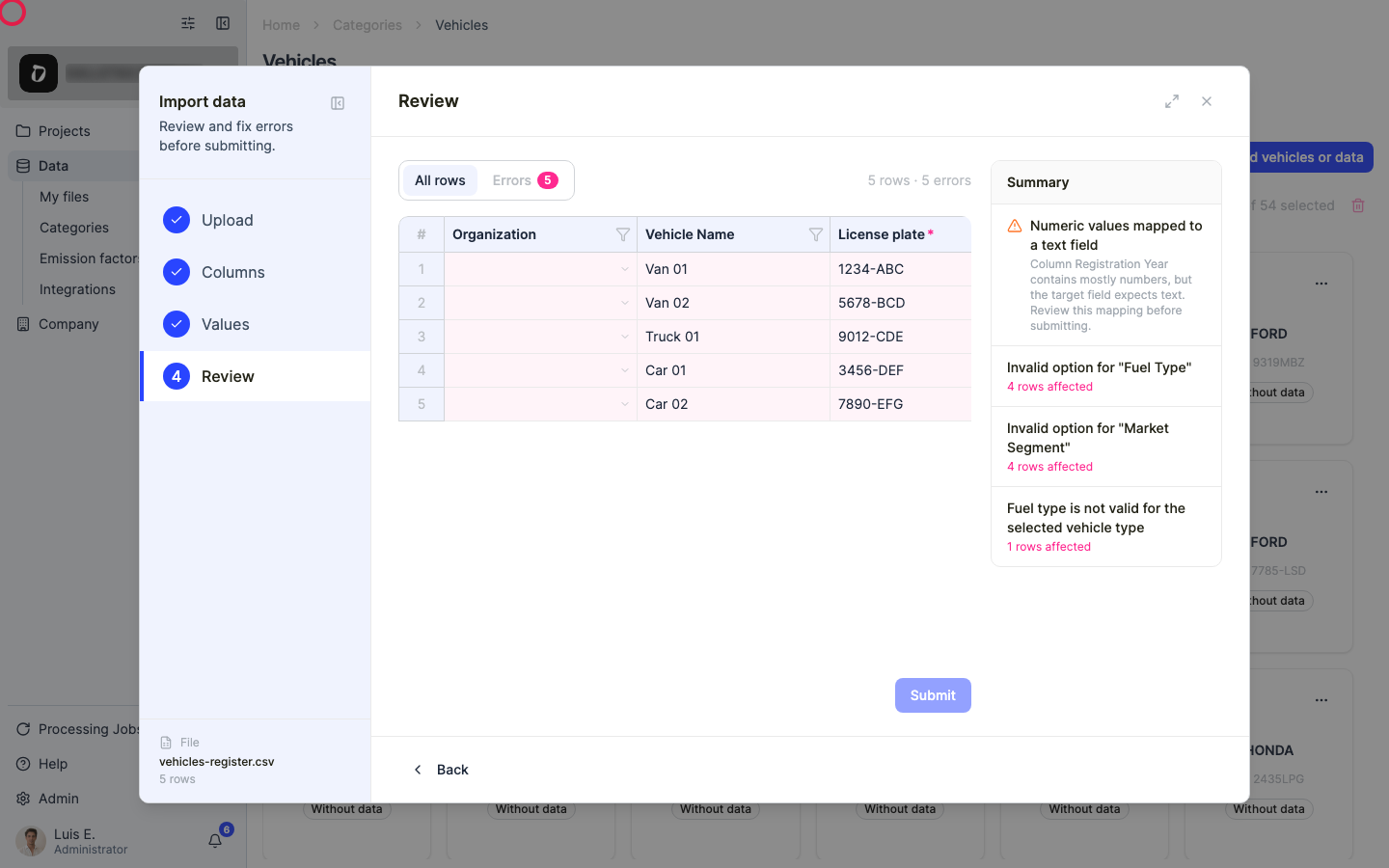
The “Review” step summarises valid rows and errors. Fix any flagged cell right here, or filter with “Show errors only” to work through them.
Step 13
When everything looks right, click “Submit” to register the vehicles.
Step 14
Once vehicles are registered, open “Add vehicles or data” again and pick “Bulk upload” under “Consumptions” instead — same import wizard, with license plate, start and end date, and quantity in litres or km.
Was this helpful?
What was missing or unclear? (optional)
Sent. Thank you for helping us improve.