Product Guides
Upload product use and end-of-life data
What happens to your products after they leave the warehouse is Scope 3: use of sold products (Category 11) and end-of-life treatment (Category 12) — the largest Scope 3 category for many OEMs, electronics and appliance makers.
Before you start
You need an Editor role in your Dcycle organization.
Steps
Step 1
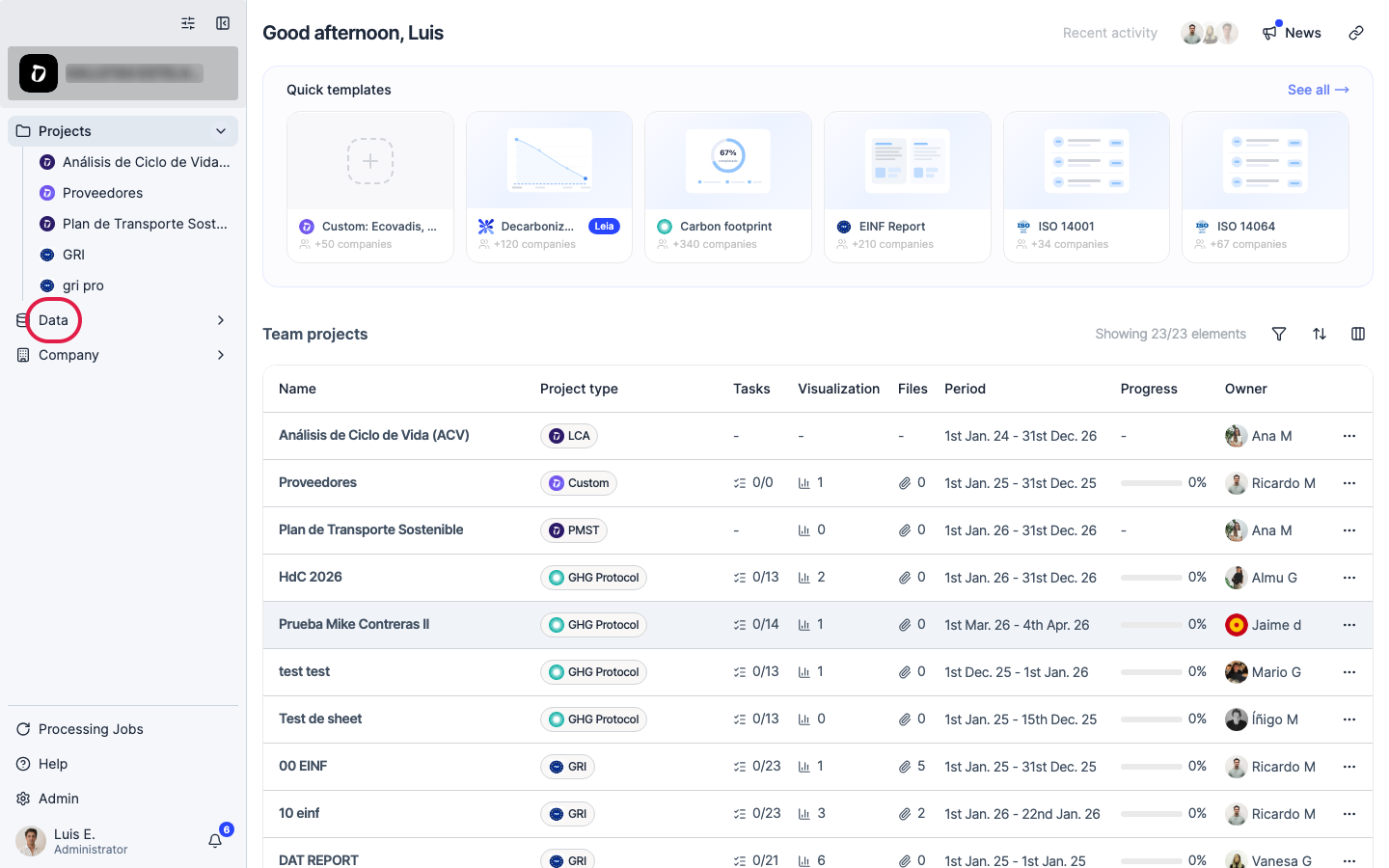
Click “Data” in the left navigation.
Step 2
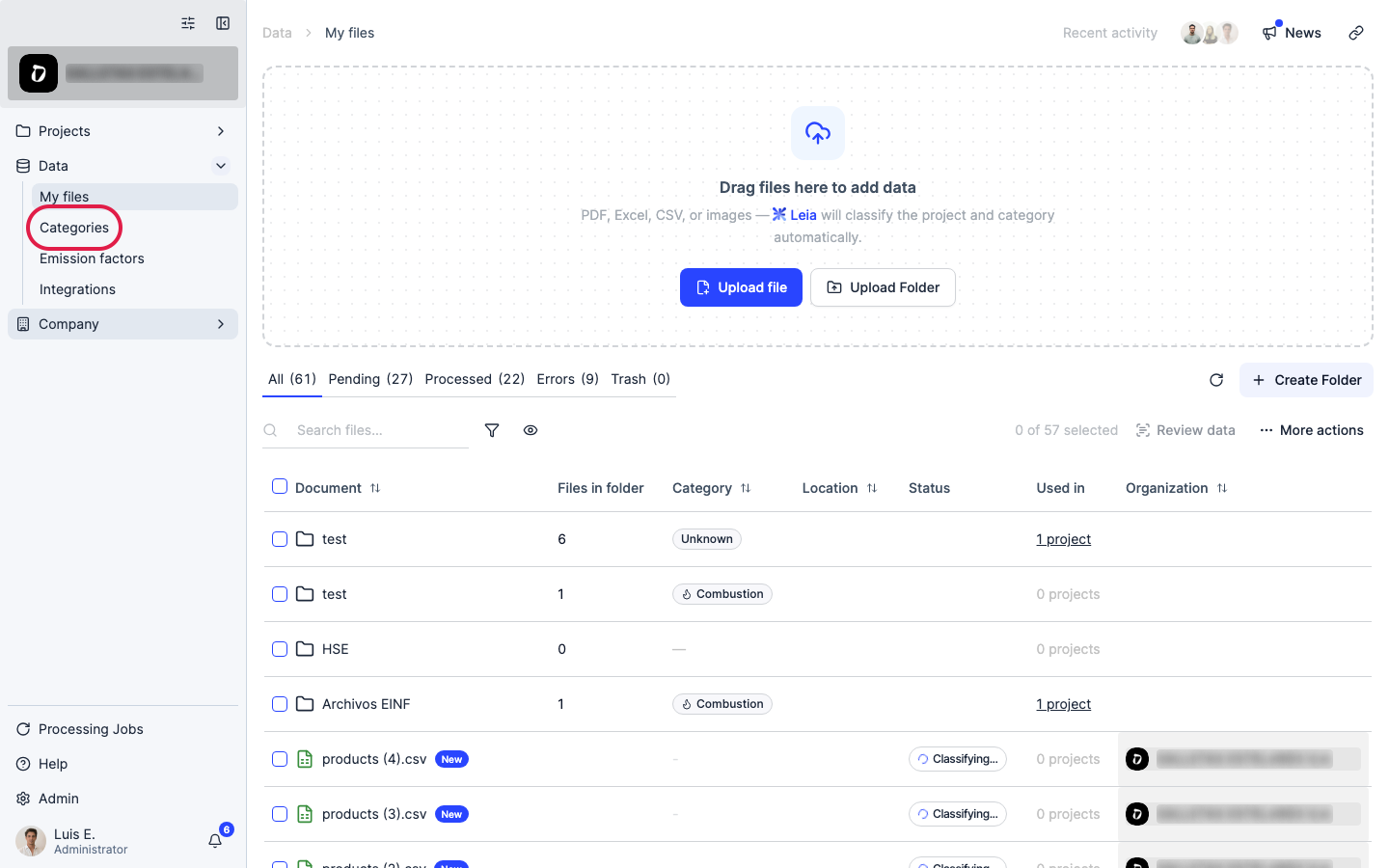
Click “Categories”.
Step 3
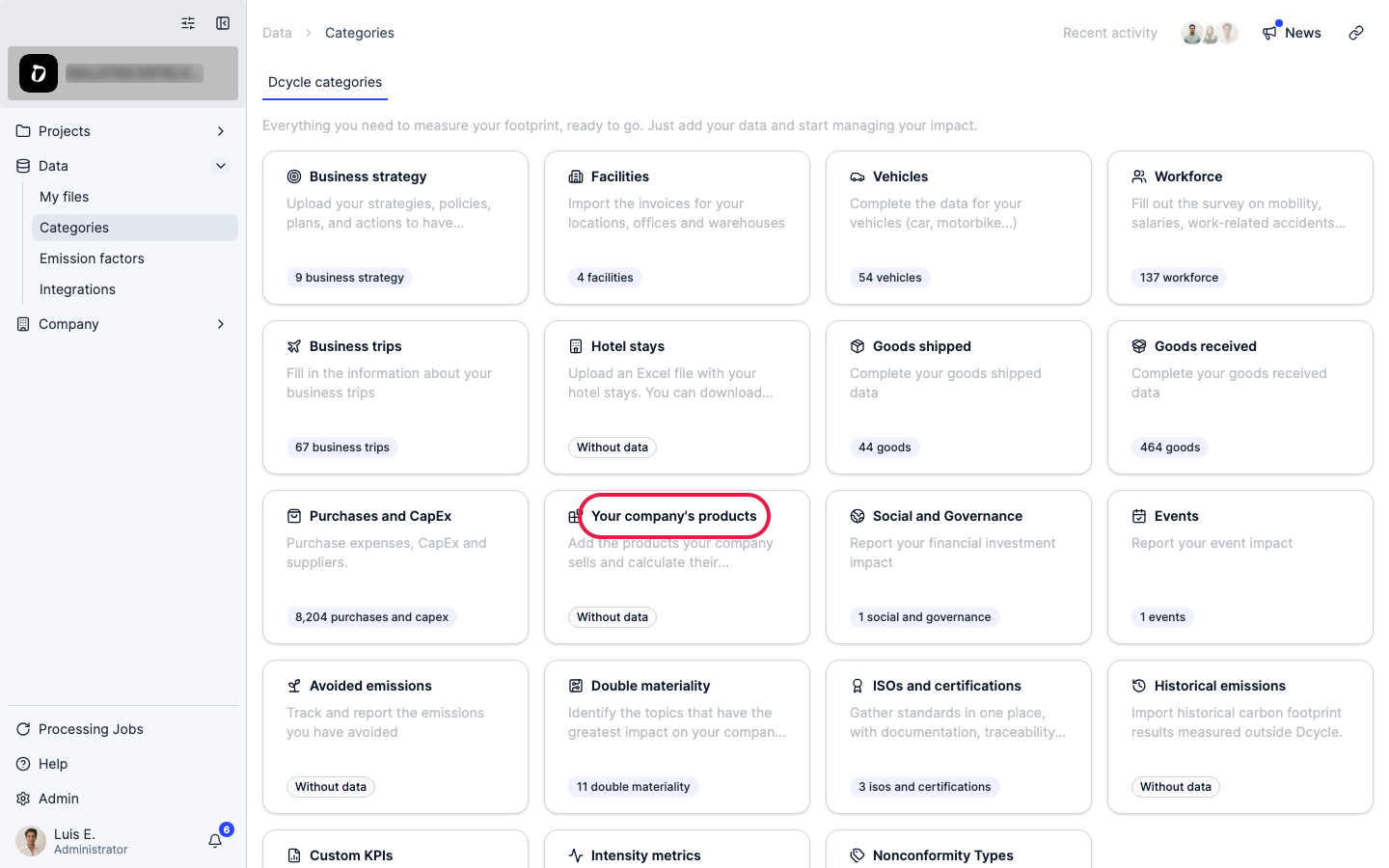
Open the “Your company’s products” category.
Step 4
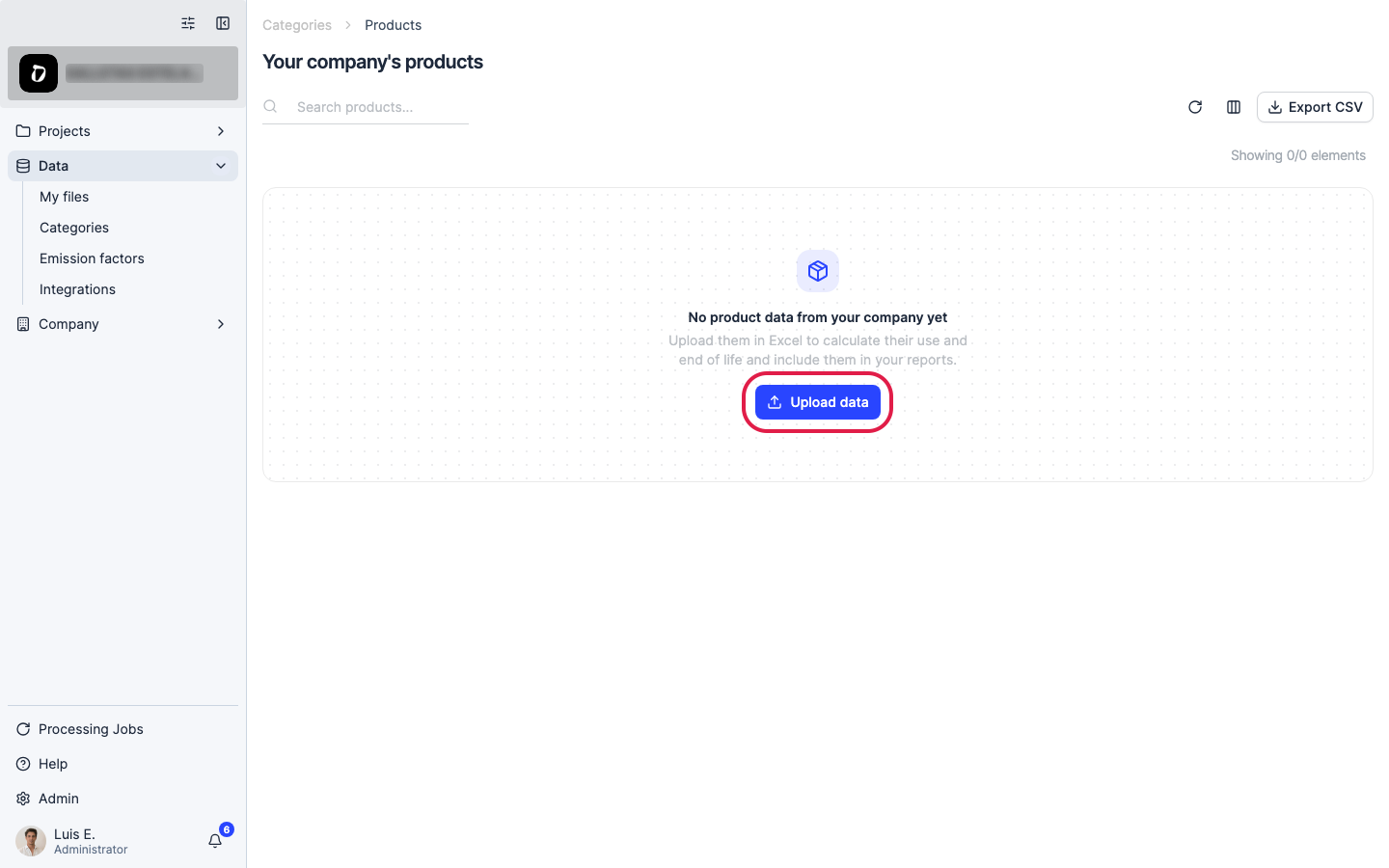
Click “Upload data” to calculate use and end-of-life emissions for your products.
Step 5
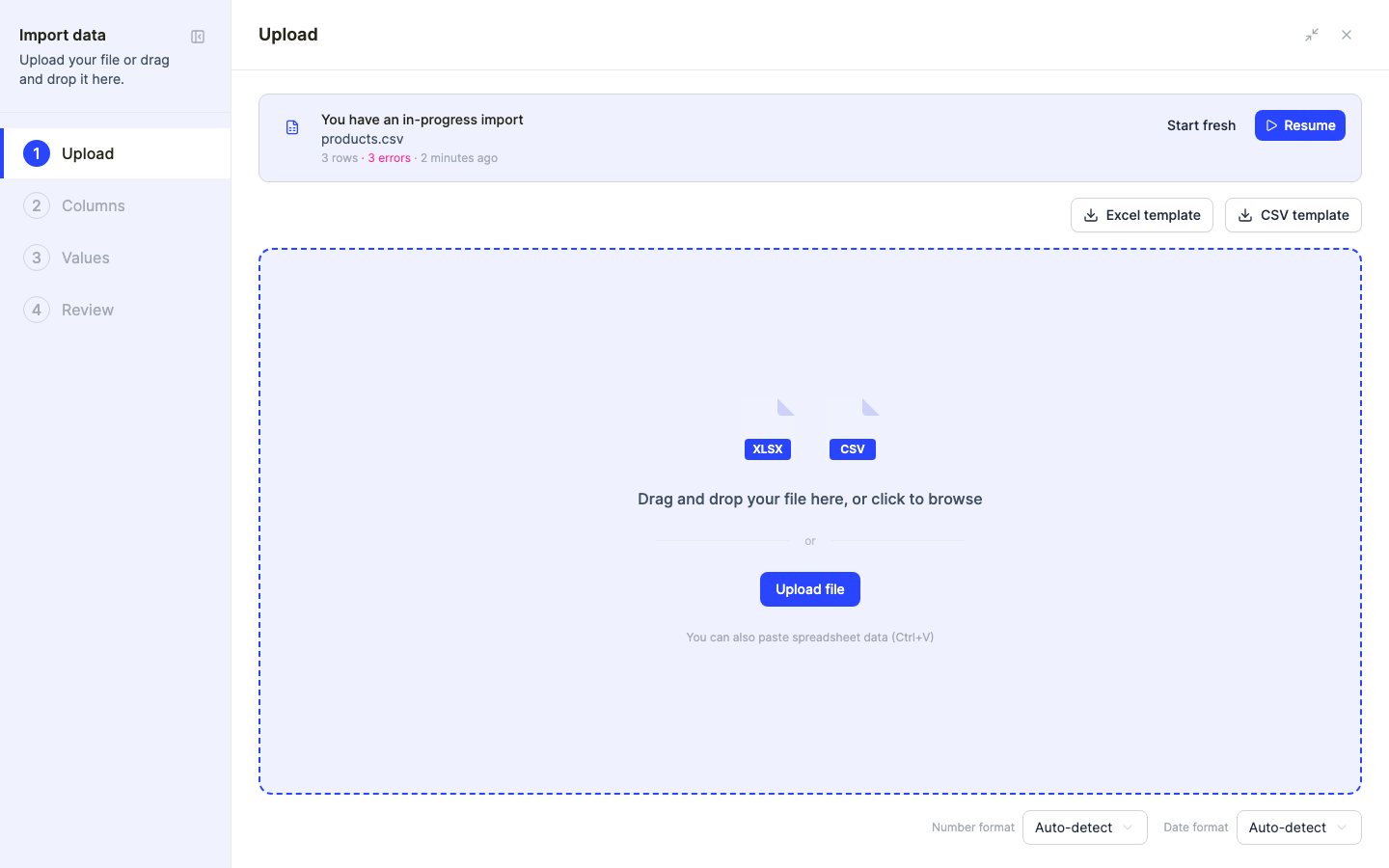
If you don’t have a file yet, download a template and fill it in: company, product ID (optional), product name, country, start and end date of the reporting period, and units sold with their unit.
Step 6
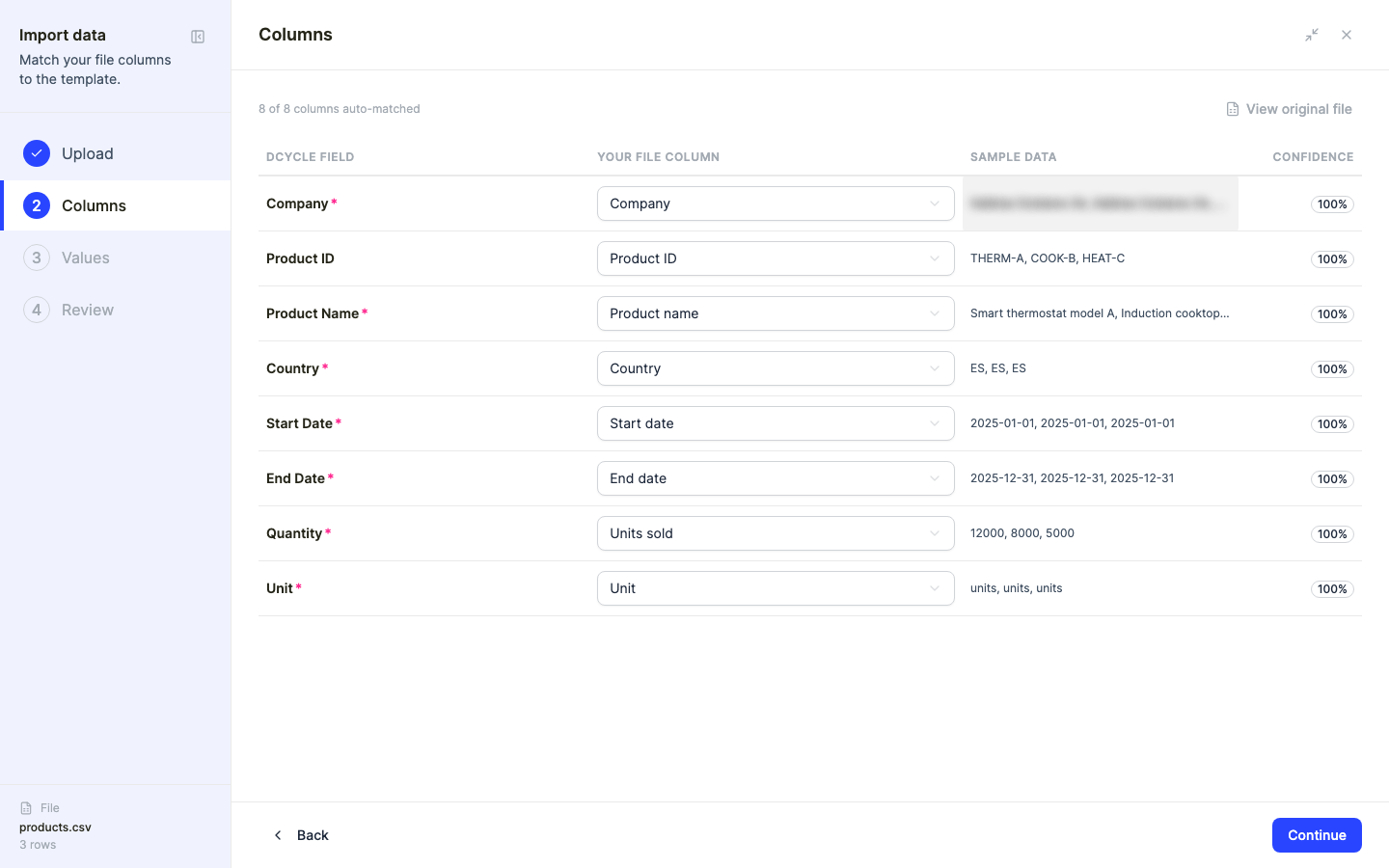
Drag your file onto the panel or click to browse. Dcycle parses it and moves to the “Columns” step, where each column of your file is matched to a Dcycle field.
Step 7
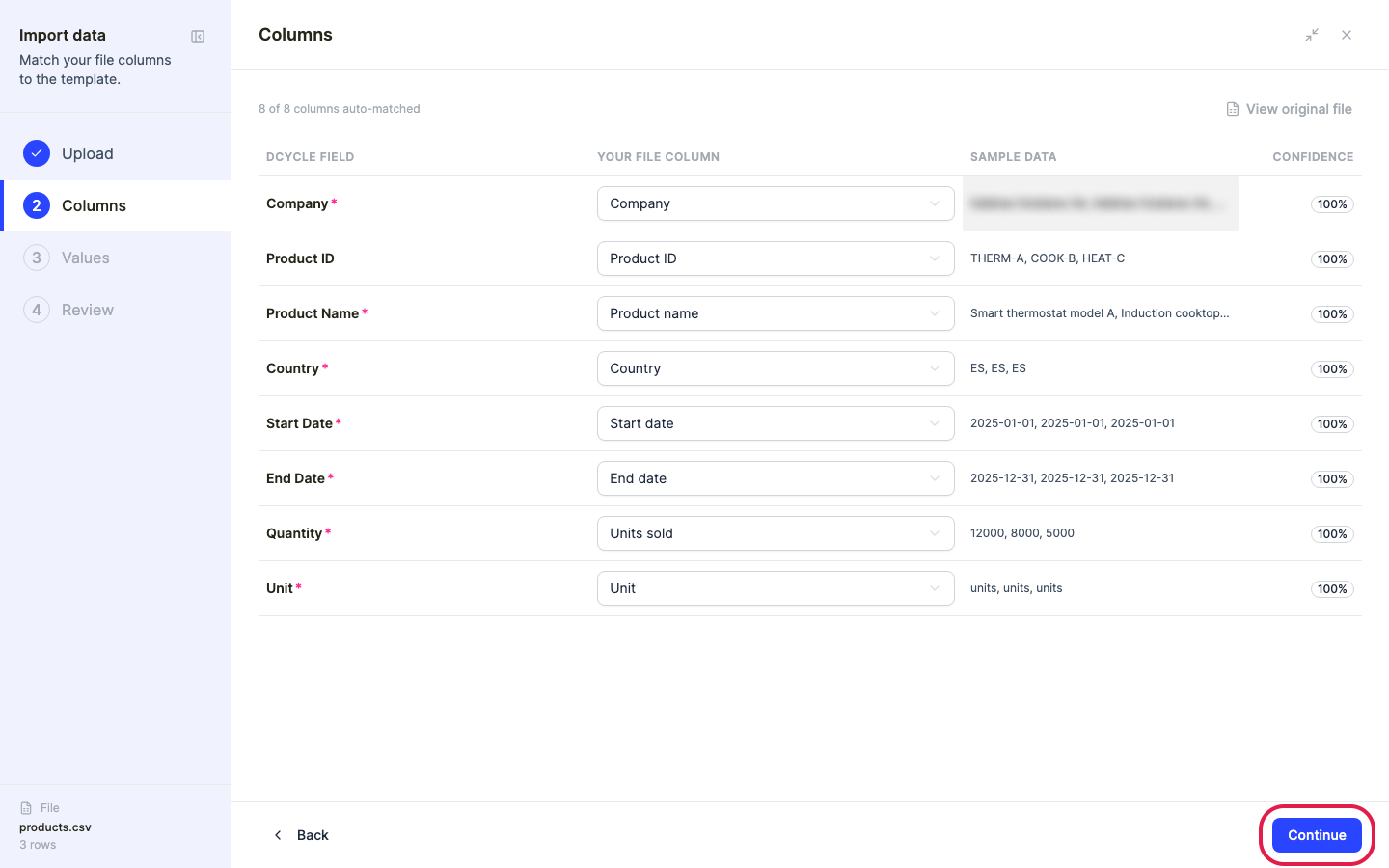
Check that every template column was matched to the right field — fix any mismatch with the dropdowns — and continue.
Step 8
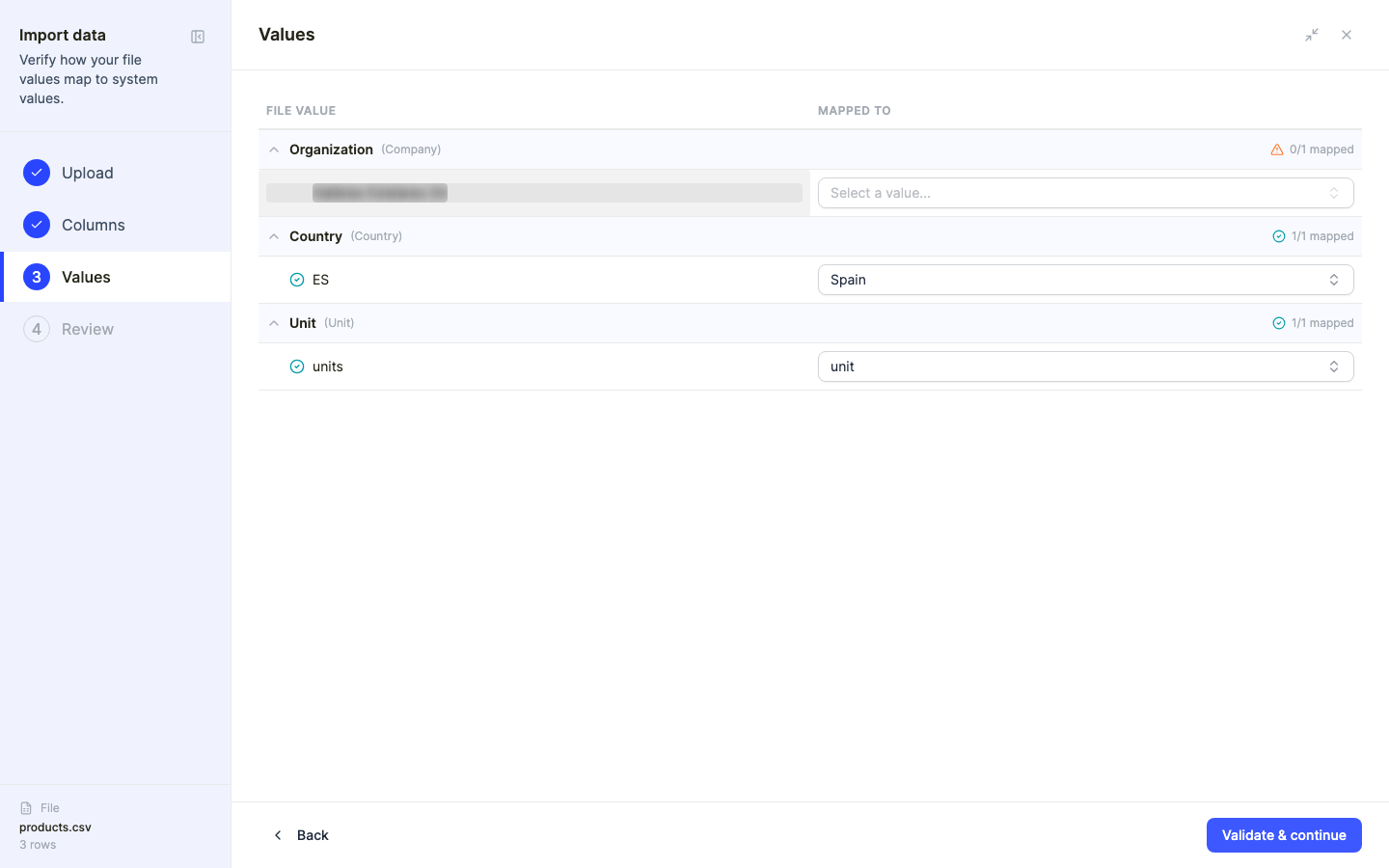
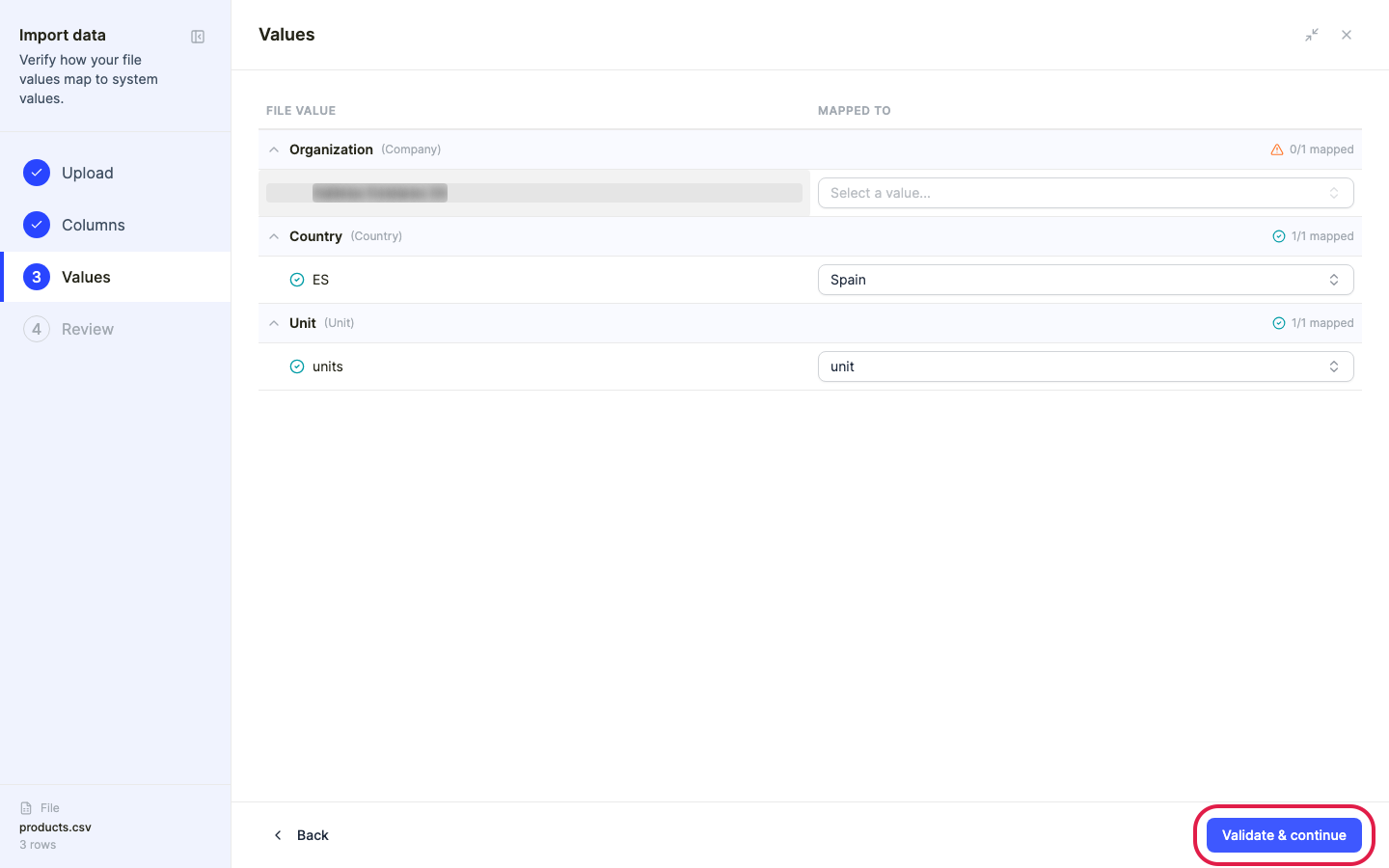
If a “Values” step appears, it shows how the values in your file map to Dcycle’s accepted values. Review the suggestions and adjust anything that wasn’t recognised.
Step 9
Click “Validate & continue” to validate the rows.
Step 10
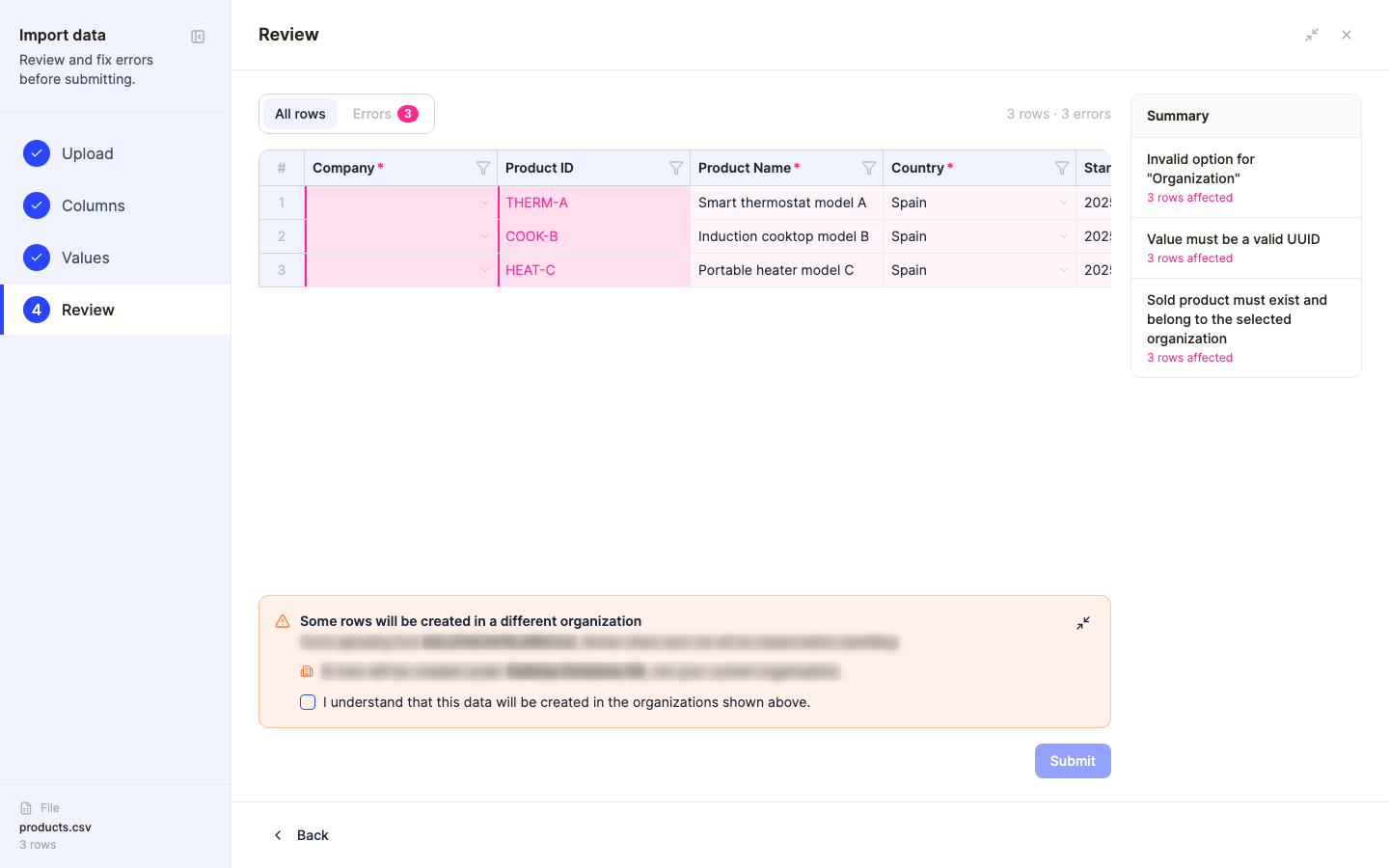
Review the summarised rows and fix any flagged errors before submitting. Two fields are strict: “Company” must be your organization’s own ID (not its name), and “Product ID” must match a product already registered under “Your company’s products” — this template reports sales volumes for existing products, it doesn’t create new ones.
Step 11
When everything looks right, submit. If your products don’t fit this shape — e.g. you need a full material-flow model rather than summary figures — use Dcycle’s LCA module instead (see “Starting an LCA in Dcycle”).
Was this helpful?
What was missing or unclear? (optional)
Sent. Thank you for helping us improve.