Product Guides
Upload a stationary combustion invoice (gas, diesel, heat)
Stationary combustion — fuel burned in boilers, furnaces or on-site generators — is Scope 1. Each consumption record is linked to a facility, so make sure the facility exists first (see "Setting up your facilities in Dcycle").
Before you start
You need an Editor role in your Dcycle organization.
Steps
Step 1
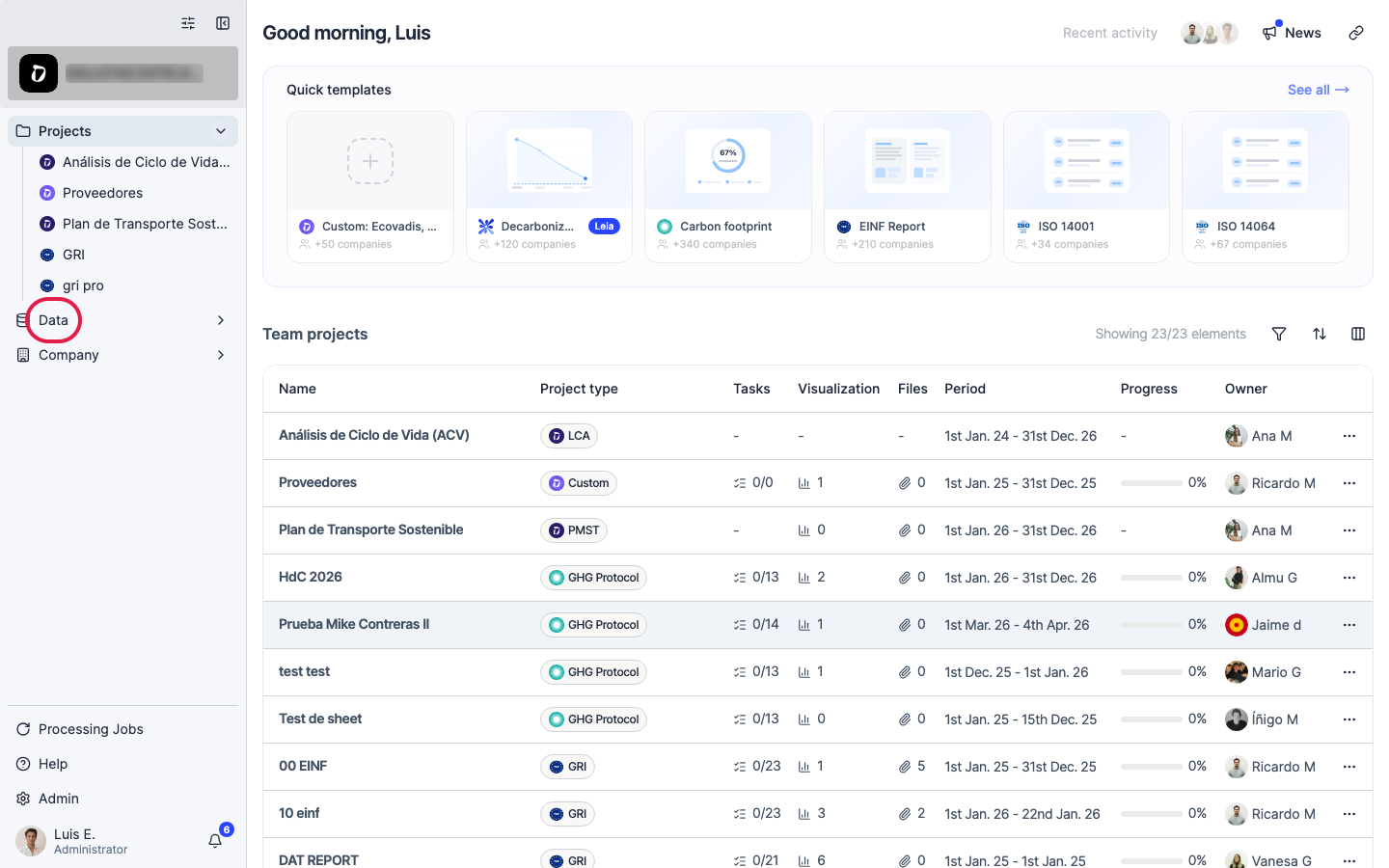
Click “Data” in the left navigation.
Step 2
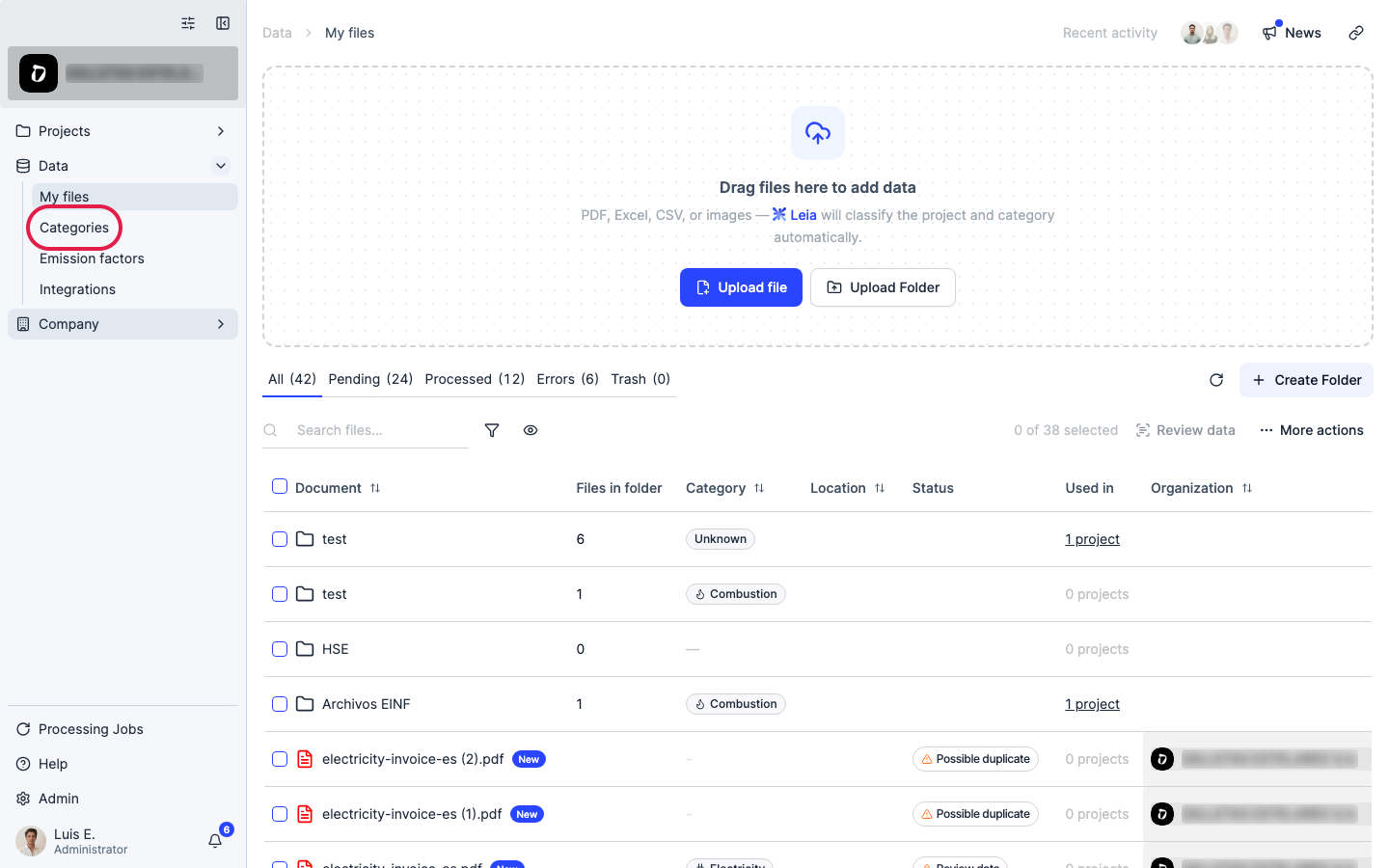
Click “Categories”.
Step 3
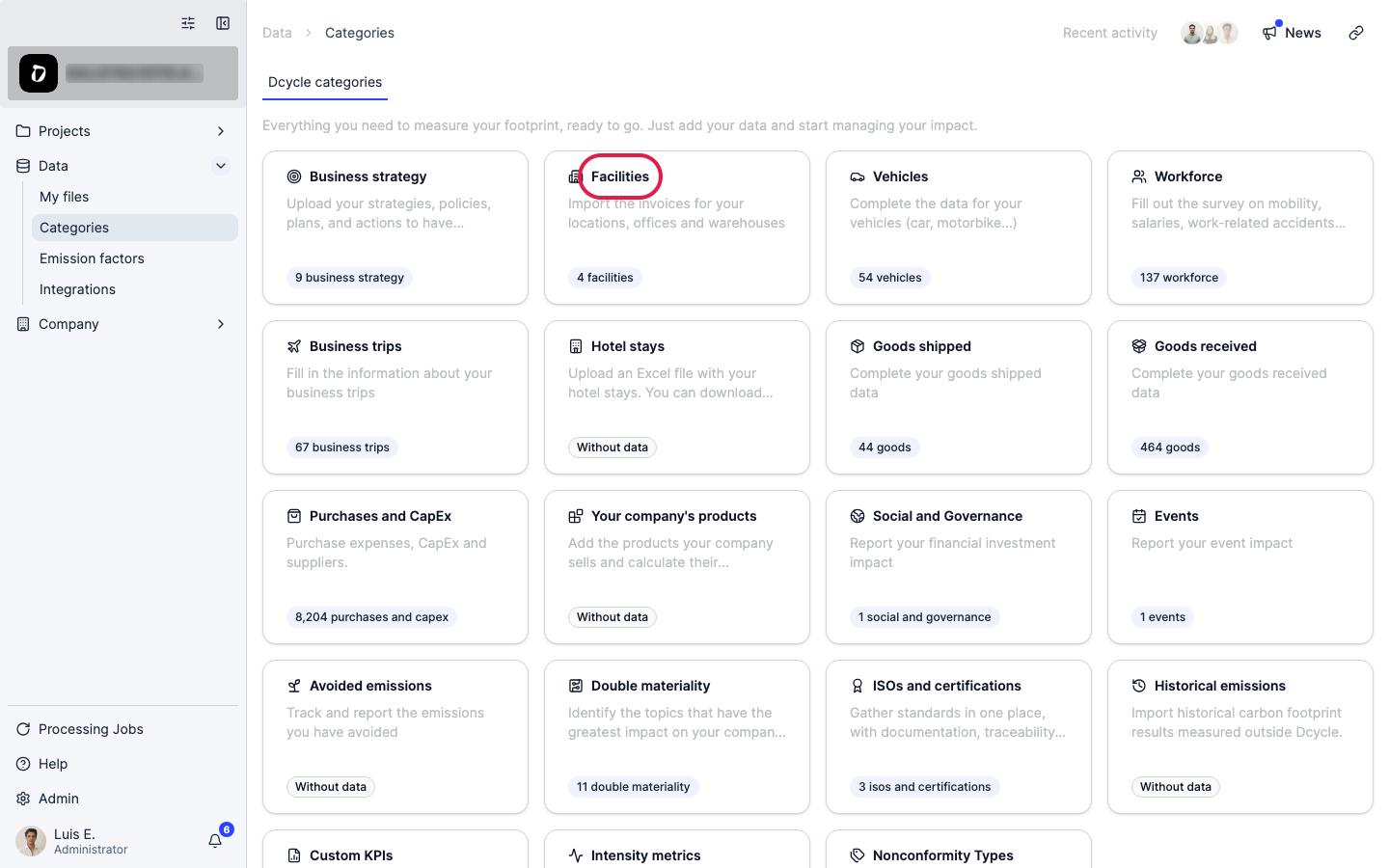
Open the “Facilities” category.
Step 4
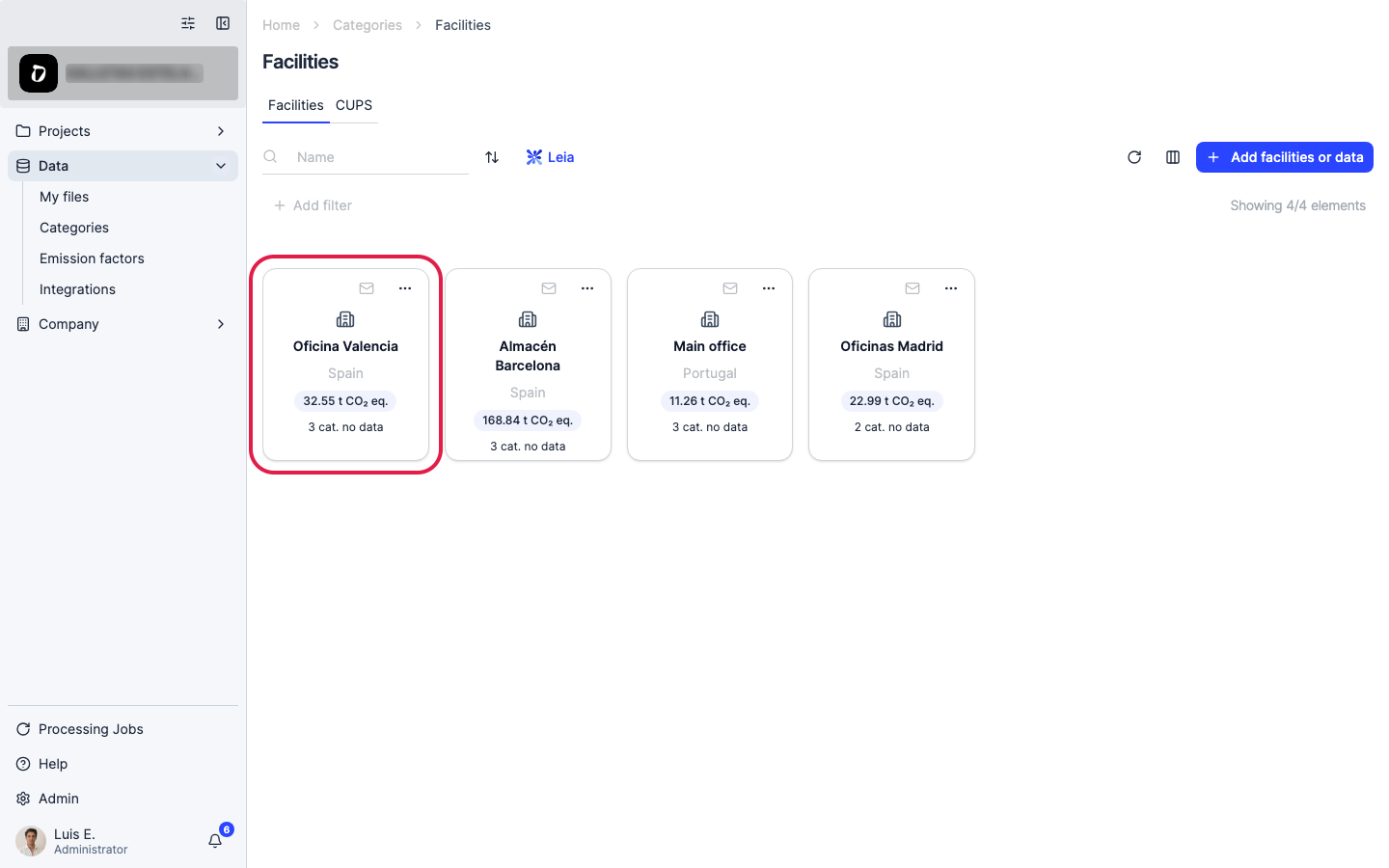
Open the facility this invoice belongs to.
Step 5
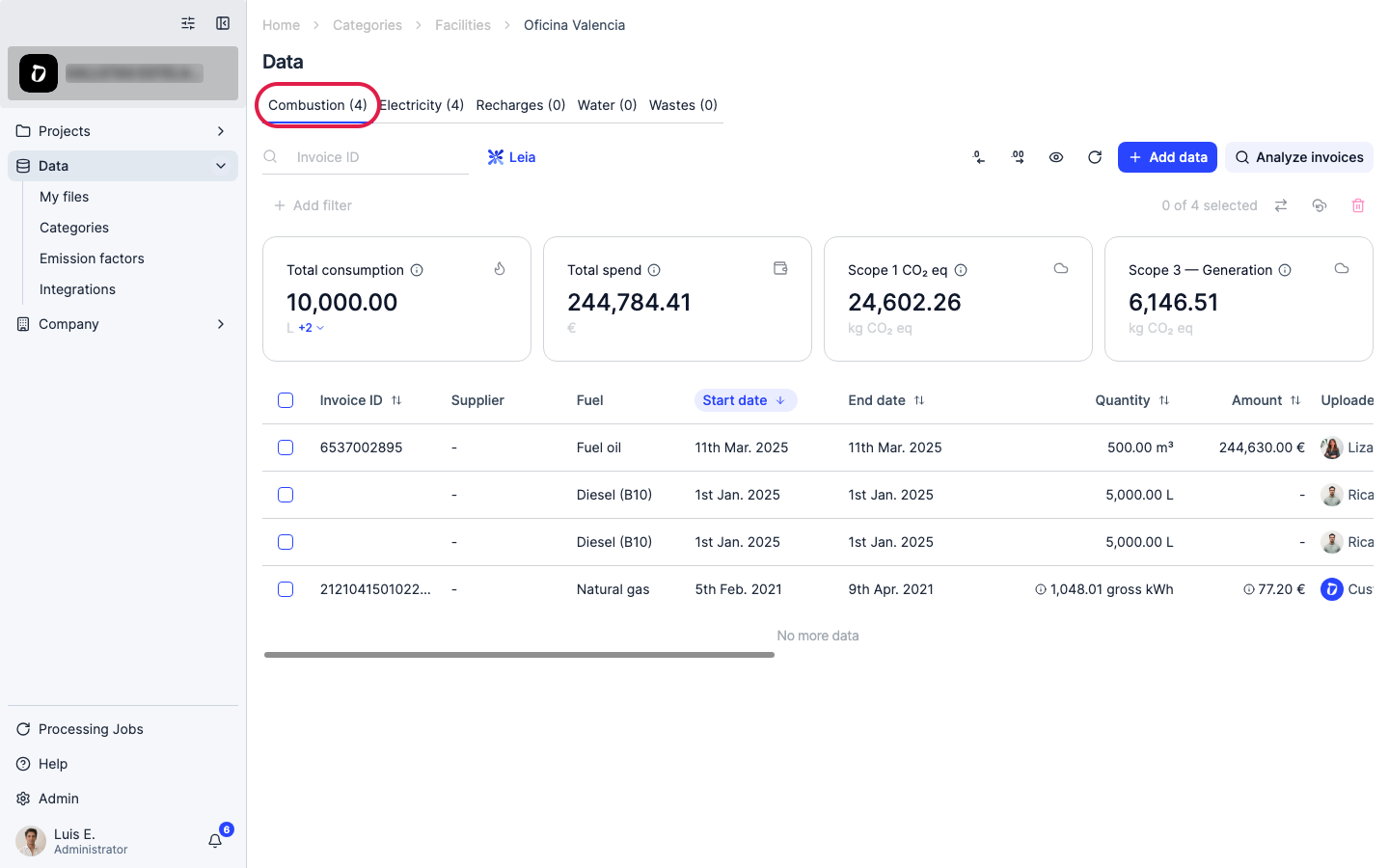
Click the “Combustion” tab — it covers natural gas, diesel, LPG, fuel oil, biomass and other on-site fuels, plus heating delivered from a district network.
Step 6
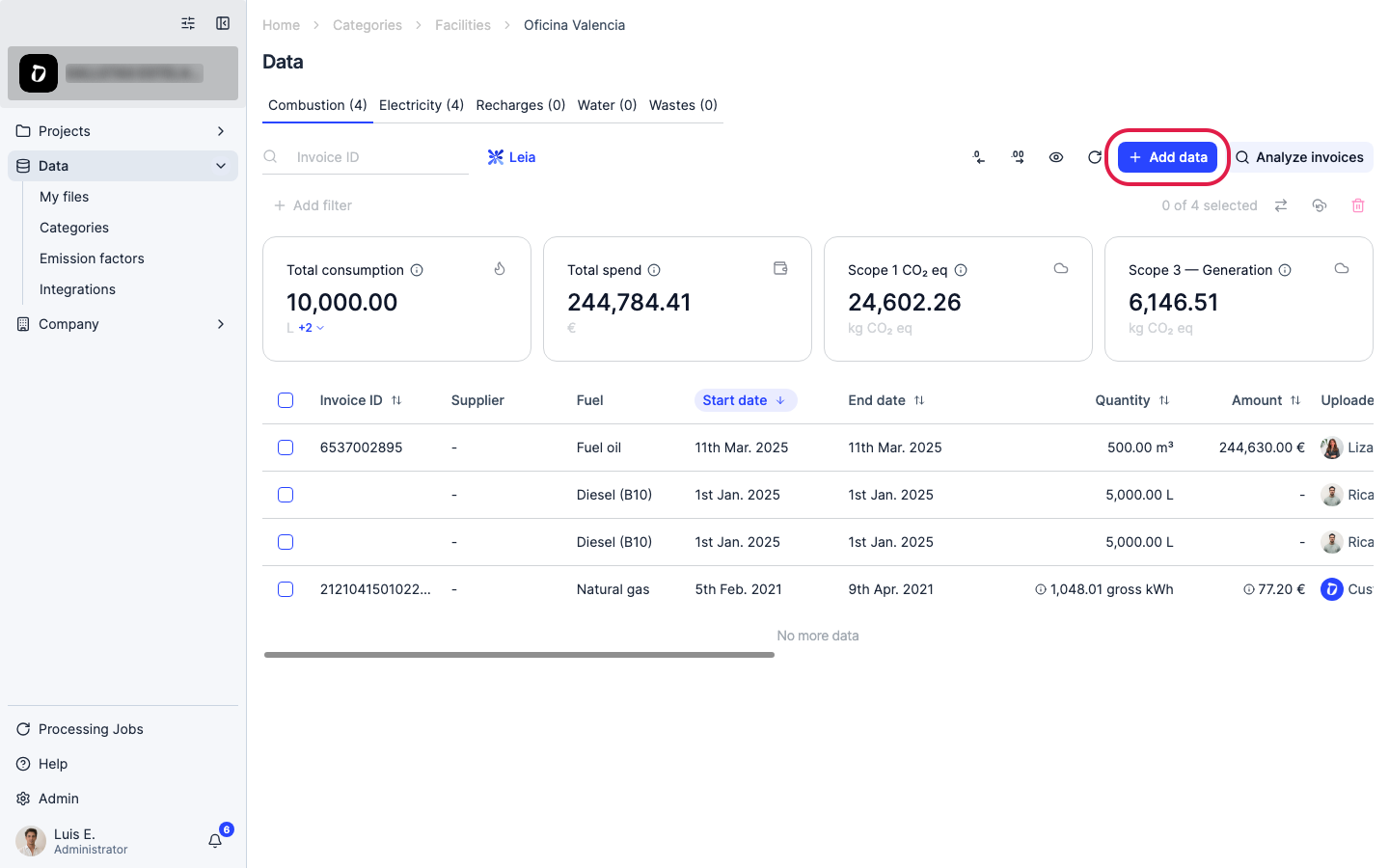
Click “Add data” to open the upload options.
Step 7
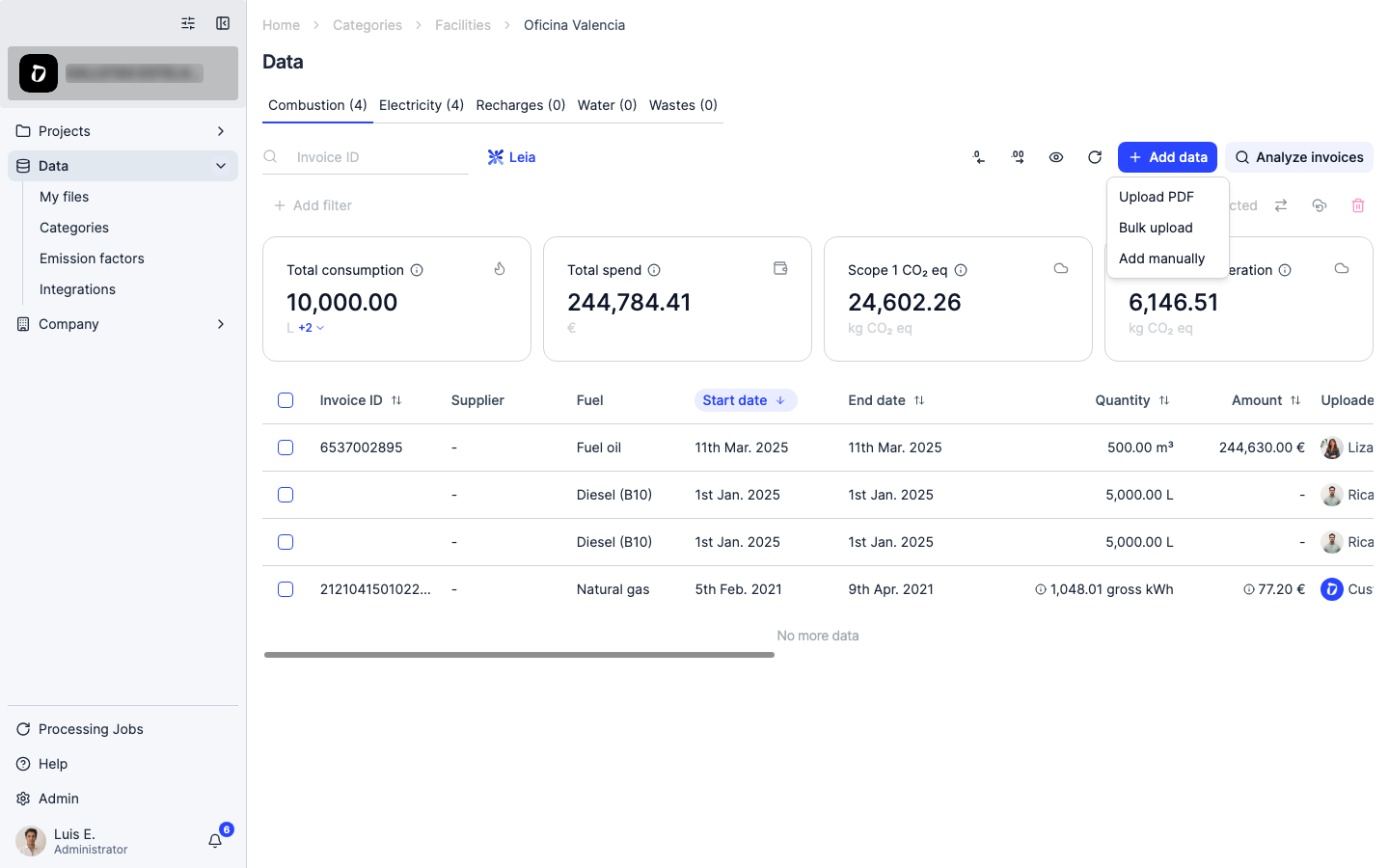
You can add a consumption manually, upload the invoice PDF (Dcycle’s AI reads the fuel type, billing period and quantity), or bulk-upload a CSV/Excel template for many invoices at once.
Step 8
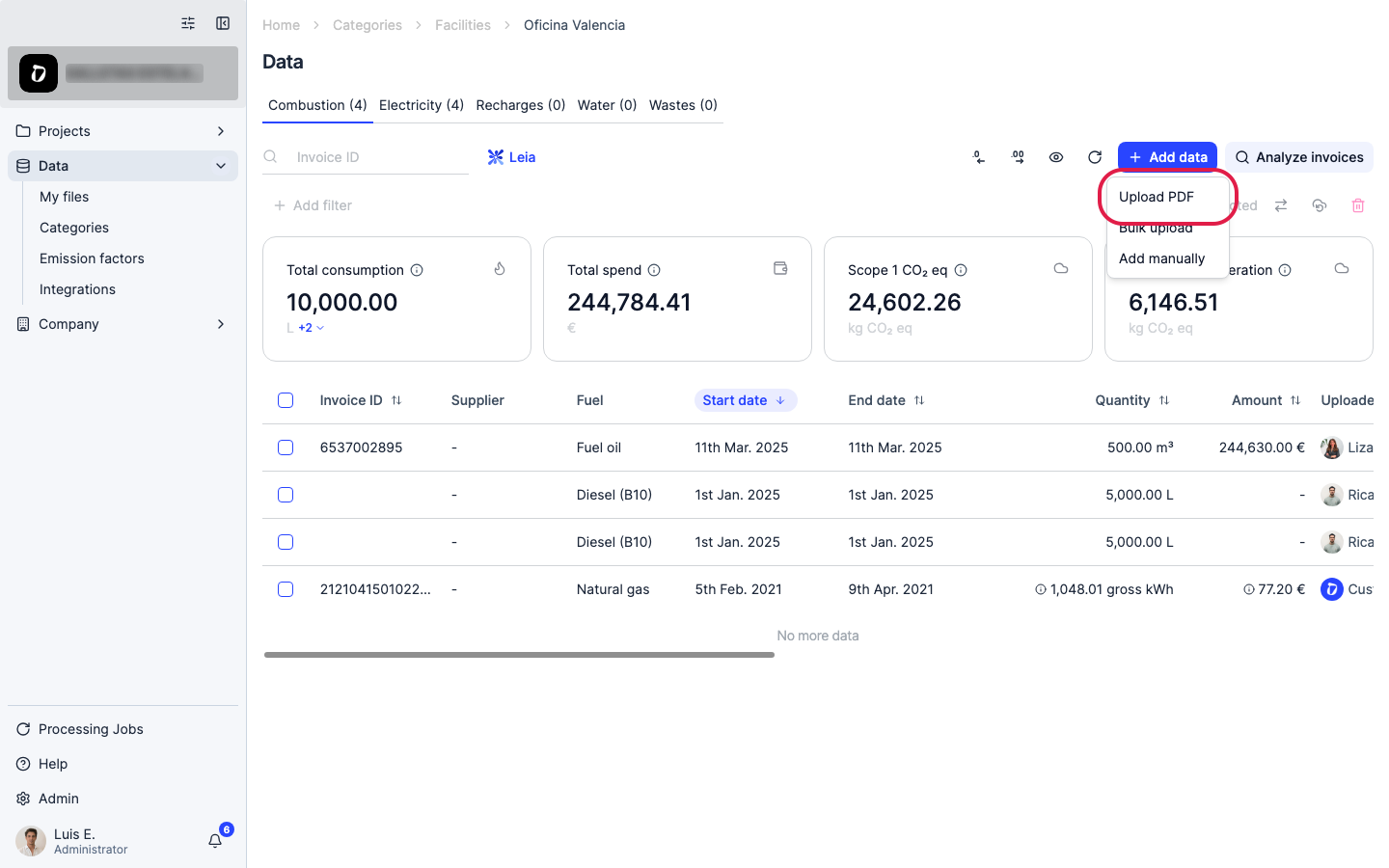
Choose “Upload PDF”.
Step 9
Drag your PDF invoice onto the panel or click to browse.
Step 10
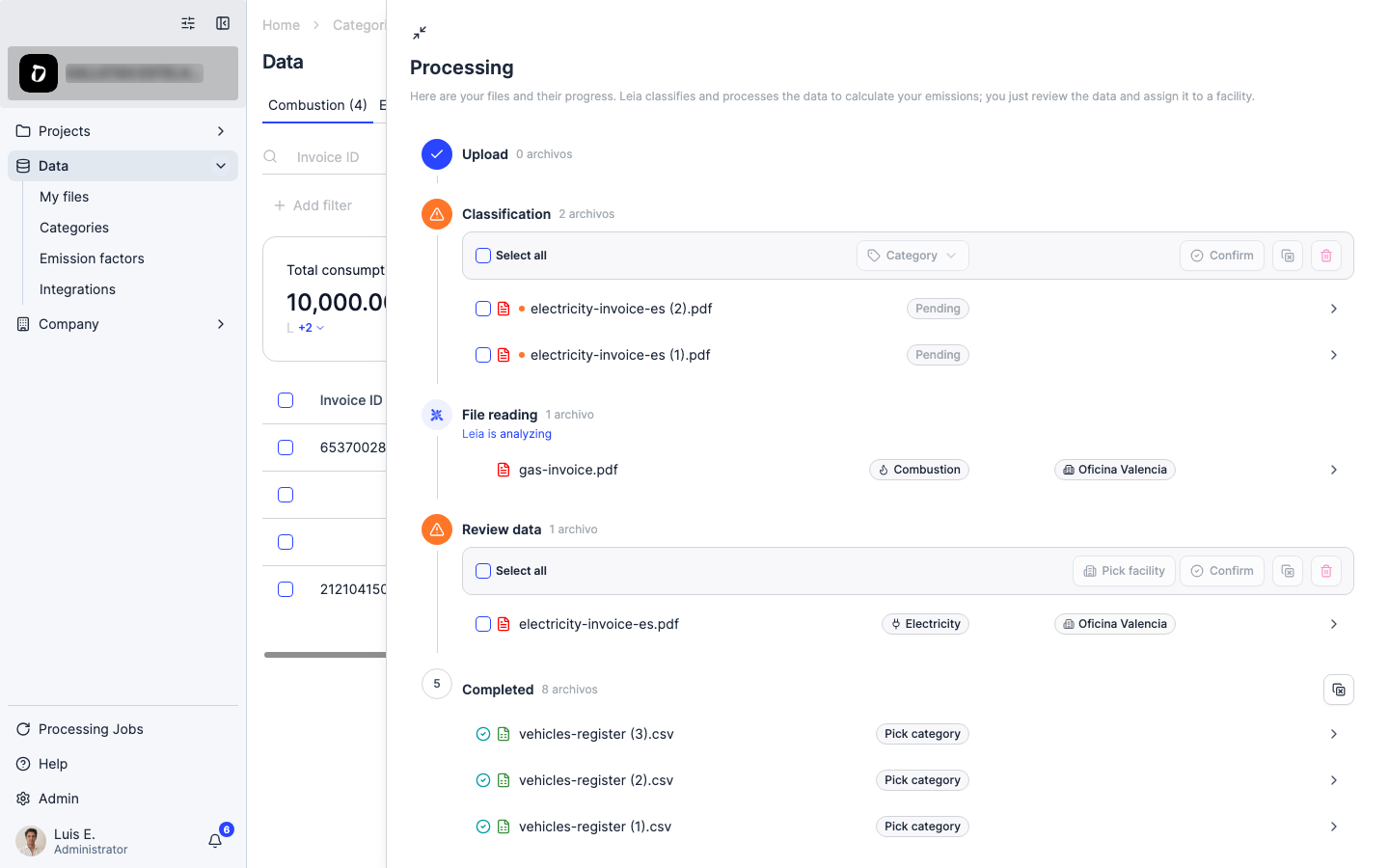
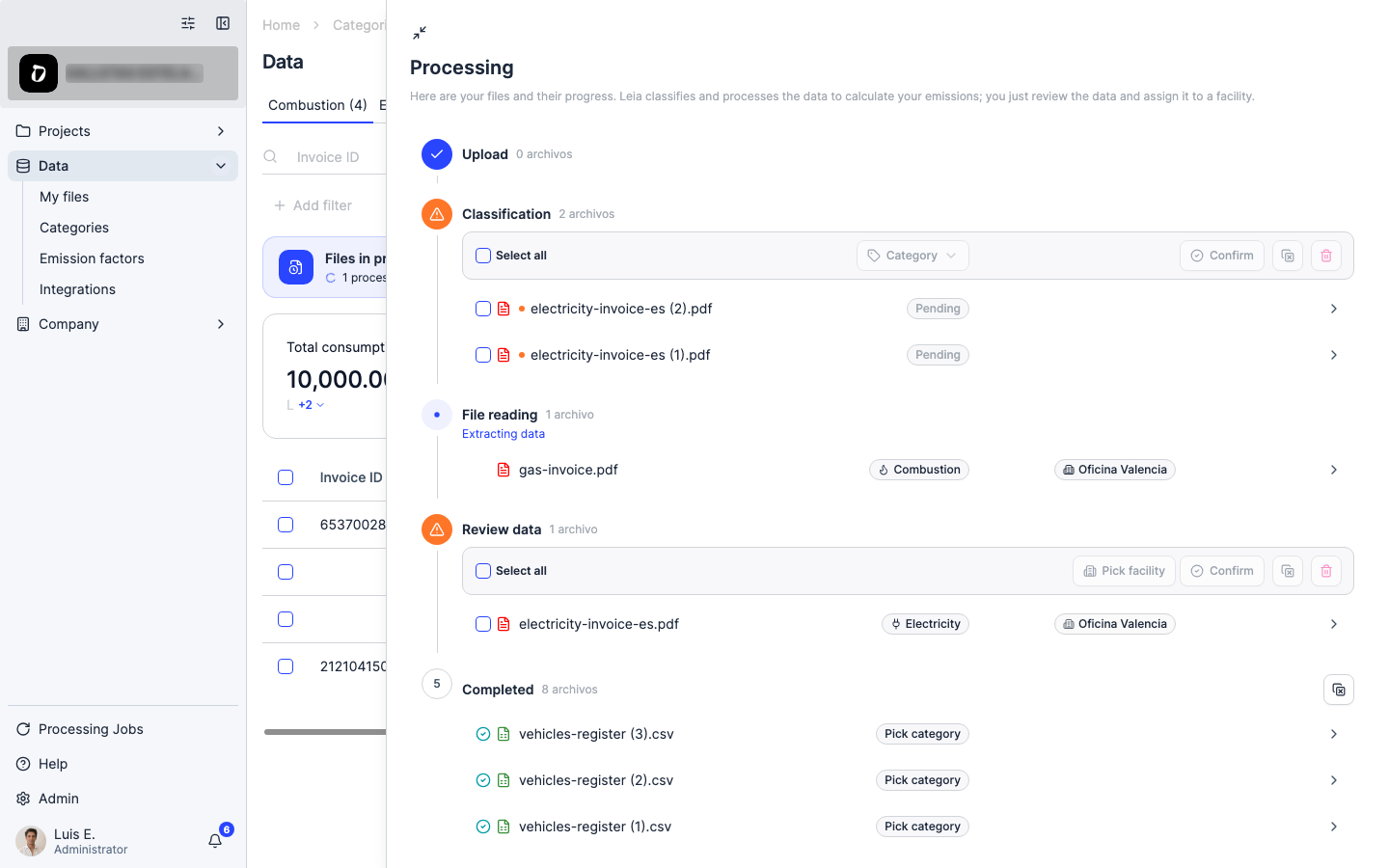
The file goes to a processing queue while Dcycle’s AI reads the fuel type, billing period and quantity consumed. Once it’s done, assign it to the right facility category and it’s added to your Combustion records.
Step 11
Enter each invoice in whatever unit your supplier bills — kWh, m³, litres or kg. Dcycle converts and applies the right calorific value and emission factor for the fuel and country automatically; don’t convert units by hand.
Step 12
For many invoices at once, use the bulk upload option instead — download the CSV/Excel template, fill one row per invoice (facility, fuel type, start/end date, quantity, unit), and drag it back.
Was this helpful?
What was missing or unclear? (optional)
Sent. Thank you for helping us improve.