Product Guides
Upload data from My files
My files is where you add documents to Dcycle. Open it from inside a project and Leia classifies each file, reads the data, and detects the project, organization and facility it belongs to — you just review and confirm.
Meet Leia
Leia is Dcycle's AI agent — it works for you. Throughout this flow, Leia classifies each document, reads the data, and figures out which project, organization and facility it belongs to, so you only review and confirm.
Before you start
You need an Editor role in your Dcycle organization.
Steps
Step 1
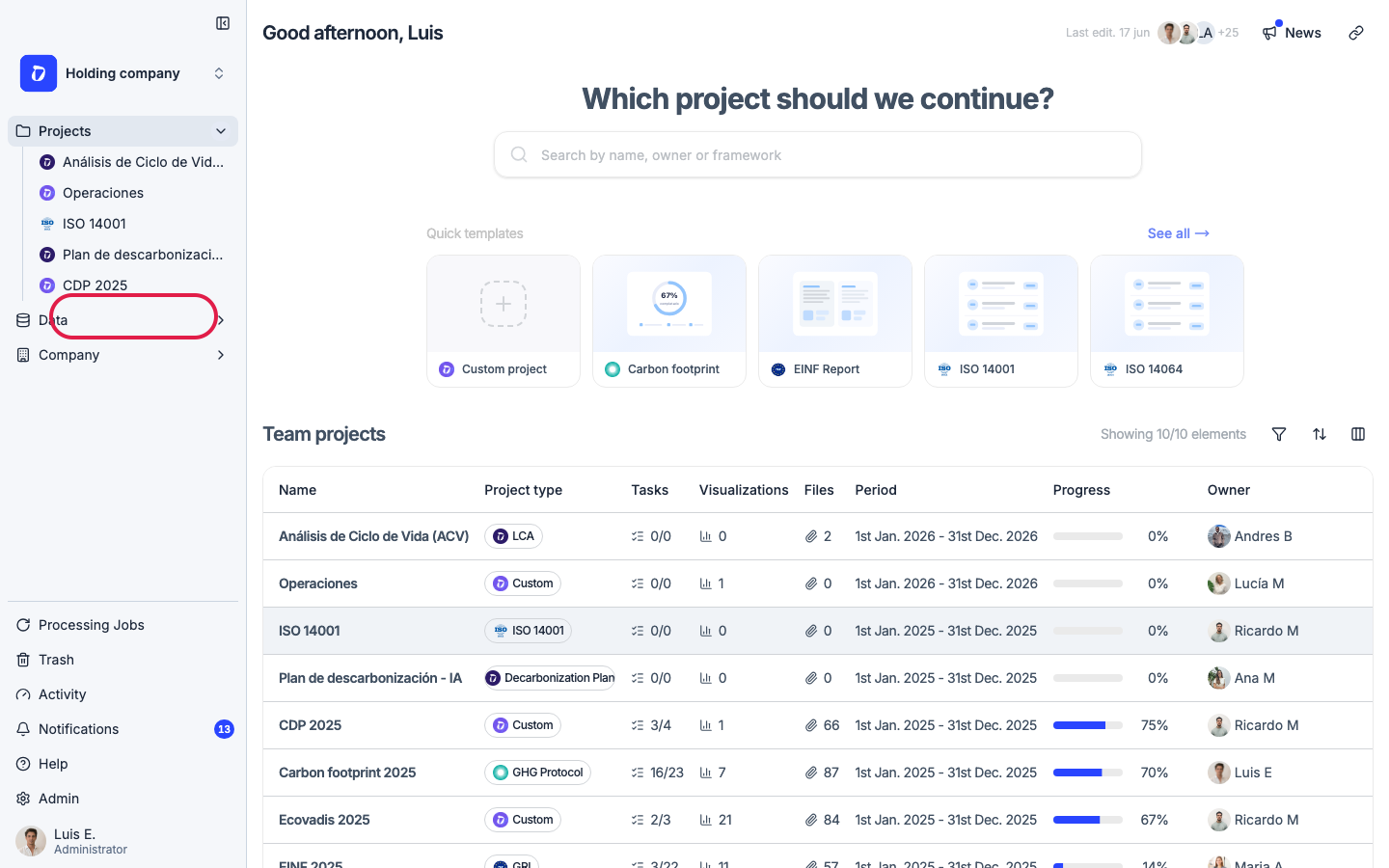
Open the project you want to add data to — here, “Carbon footprint 2025”.
Step 2
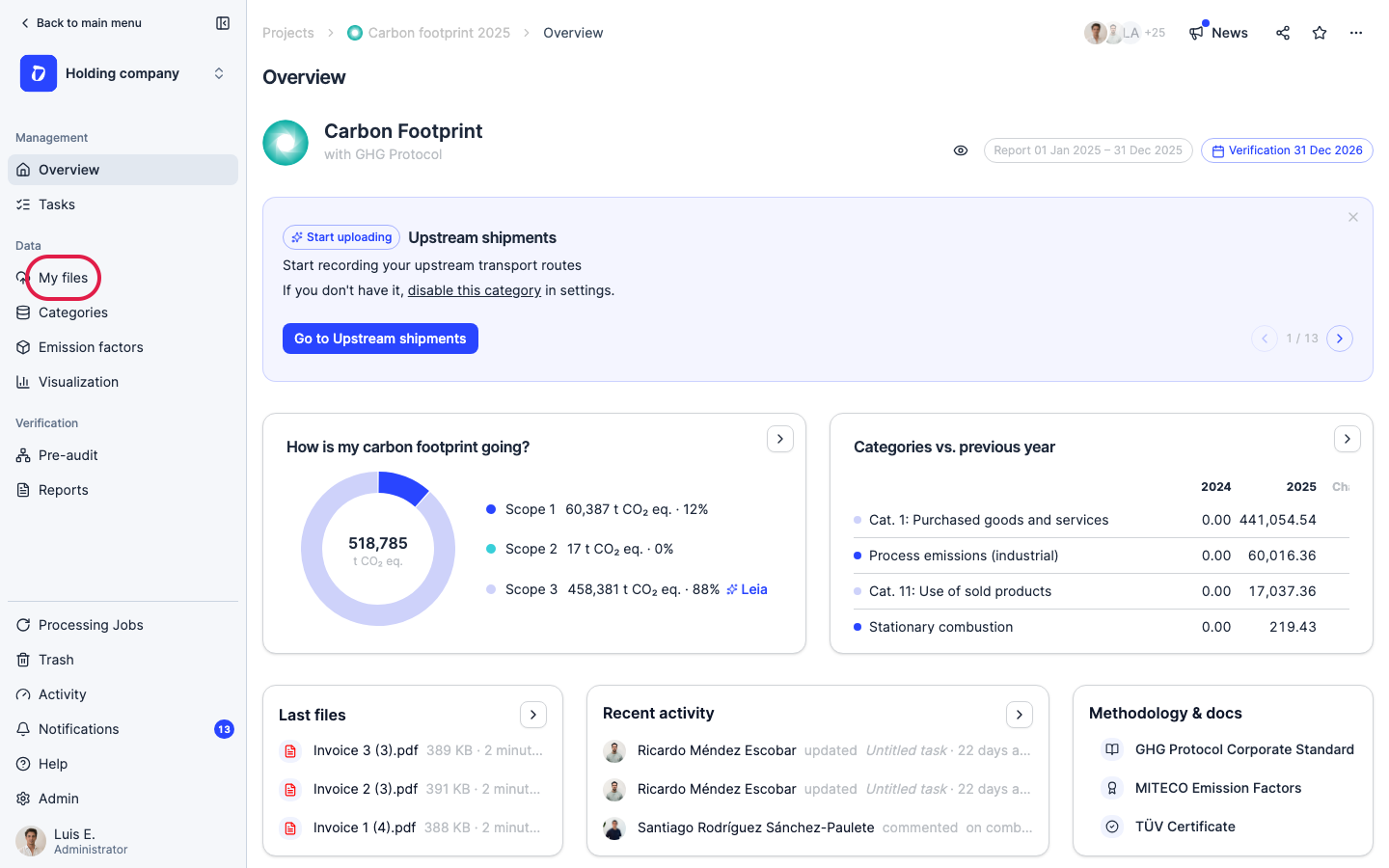
Inside the project, open “My files” under Data — this is where you add documents for the project.
Step 3
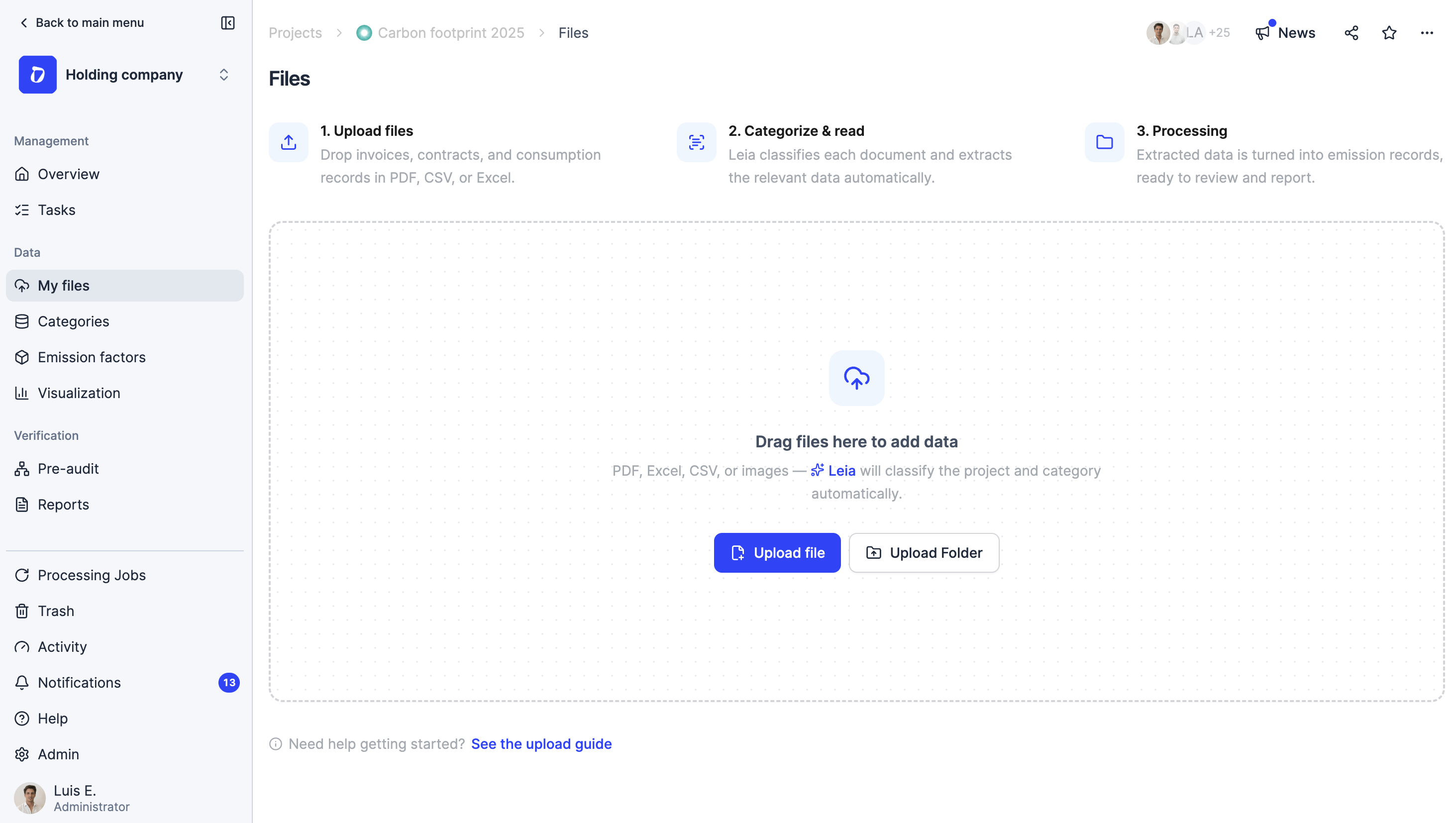
This is My files inside the project — the banner at the top lays out the whole flow: upload files → categorize & read → processing. Drop documents into the dashed area (PDF, Excel, CSV, or images) or click “Upload file”, and Leia detects which project, organization and facility each one belongs to. Once files are in, you can select several to act in bulk — assign invoices to facilities, split one invoice across several facilities, or assign across organizations at once — and retry any that failed.
Step 4
We added three example invoices. A processing panel opens and walks every file through five stages, top to bottom — Leia has already classified these as Electricity.
Every file moves through the full flow — Upload → Classification → File reading → Review data → Completed — and the panel shows exactly where each one is. Here is what each stage does and why it matters:
- Upload — the file is stored in My files. Nothing is calculated yet; this only confirms Dcycle received it.
- Classification — Leia identifies the document type (electricity, fuel, waste, water…). This decides which fields and emission factors apply, so the right data is read from the right kind of document.
- File reading — Leia extracts the actual values (supplier, period, consumption, totals) and detects the organization and facility the document belongs to. This is the step that turns a PDF into structured data.
- Review data — your checkpoint inside the panel. Leia shows what it read and the facility it chose; you confirm it, correct any value, or pick a facility if Leia couldn’t. Nothing reaches your carbon footprint until you confirm here — it keeps Leia’s automation accurate and auditable.
- Completed — the data is saved and your KPIs are recalculated. The document’s data is now part of the project.
You can minimize the panel and keep working — or log out and come back later. Processing continues in the background.
Step 5
Pro tip — add each facility’s address (Company → Facilities → Edit). Leia uses it to match documents to the right location far more accurately.
Was this helpful?
What was missing or unclear? (optional)
Sent. Thank you for helping us improve.