Product Guides
Open your EINF project and read its status
Your EINF lives inside a project: one reporting period, one set of data to report, one report at the end. This guide shows how to open it and how to read the project home before you start answering.
Before you start
You need an Editor role in your Dcycle organization.
Steps
Step 1
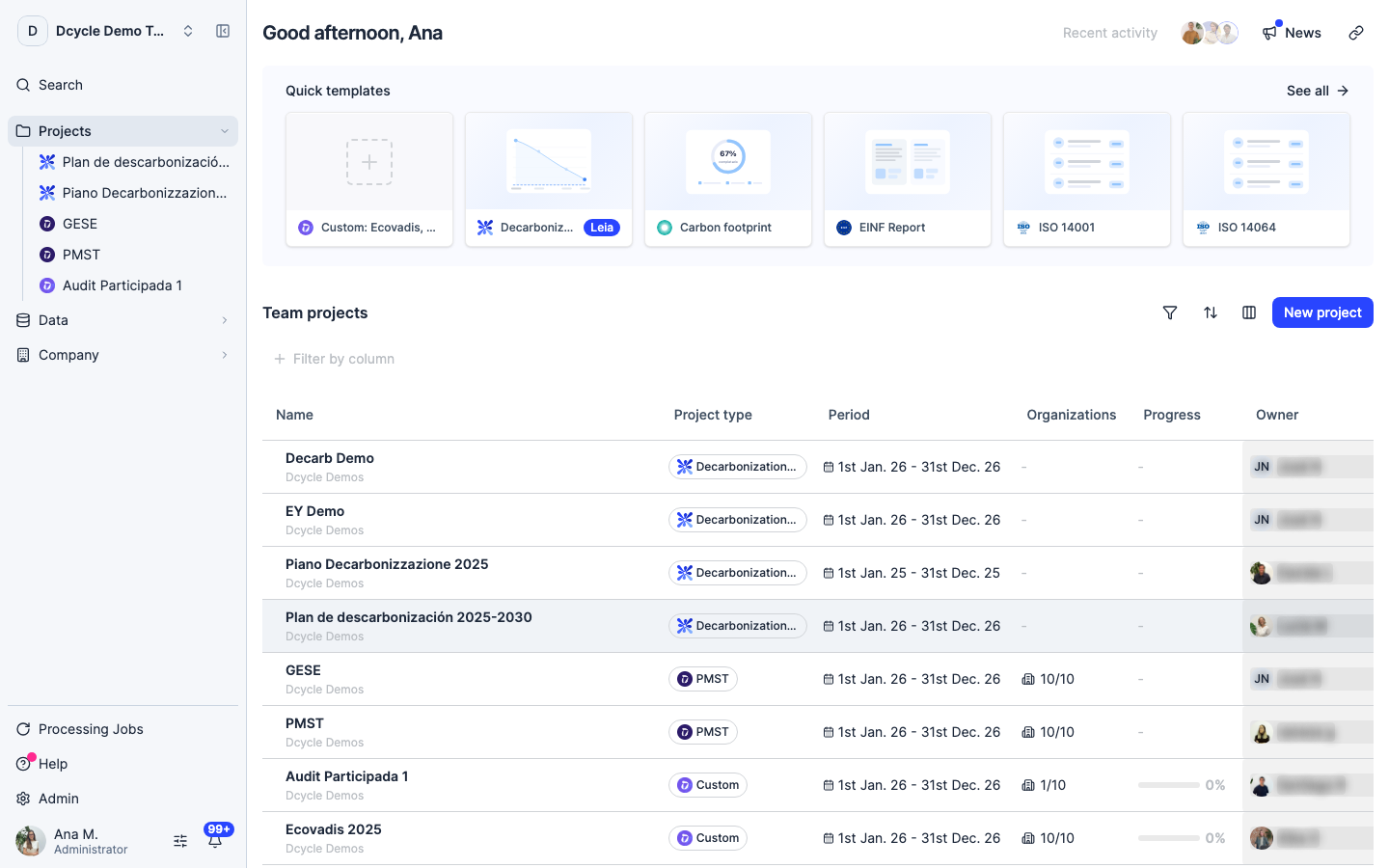
You land on the projects overview. “Team projects” lists every project with its type, period, organisations, progress and owner. Your EINF is the row whose project type is EINF.
Step 2
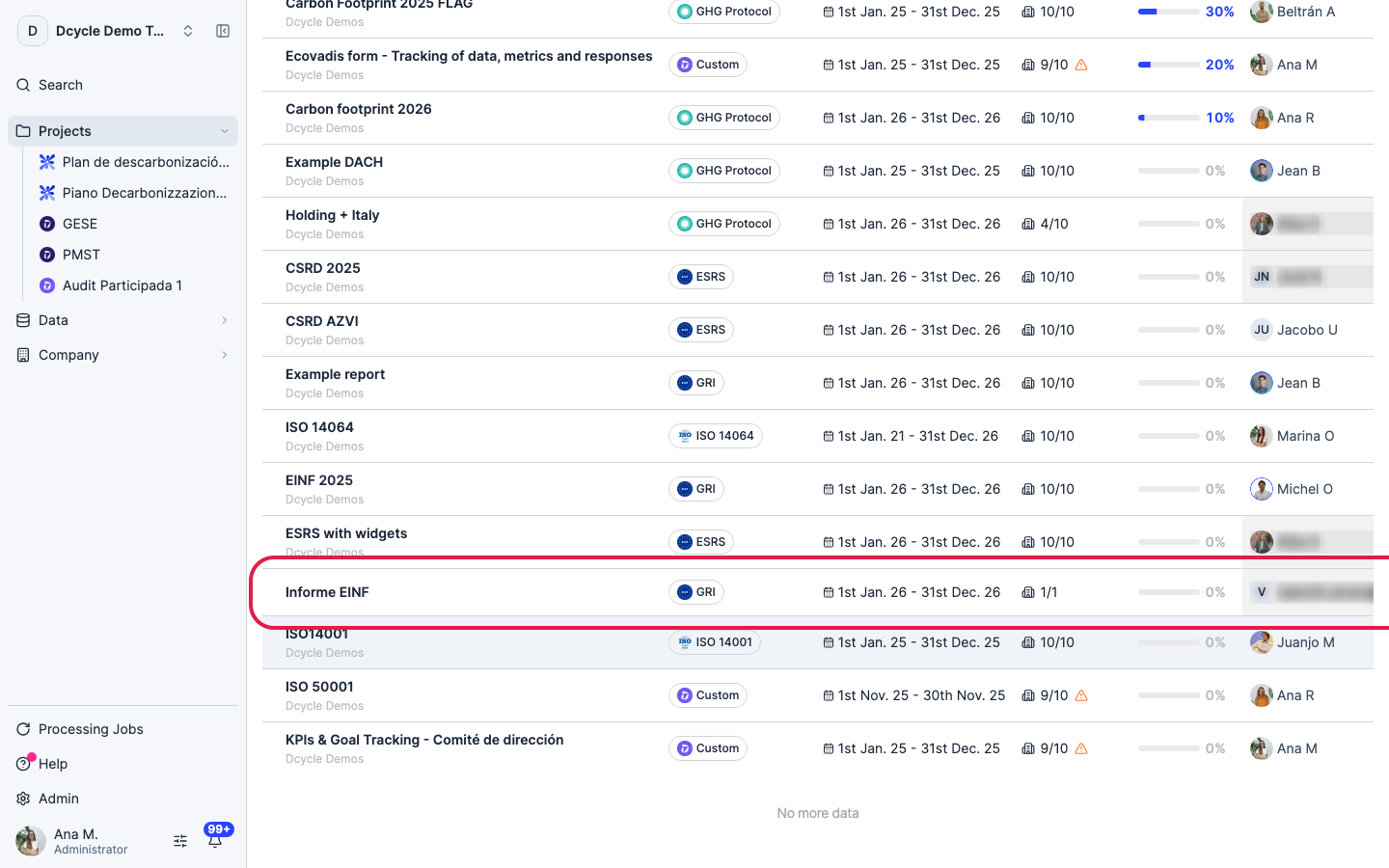
Click the project row to open it. Don’t use the “Quick templates” card at the top with the same name — that one starts a brand new project.
Step 3
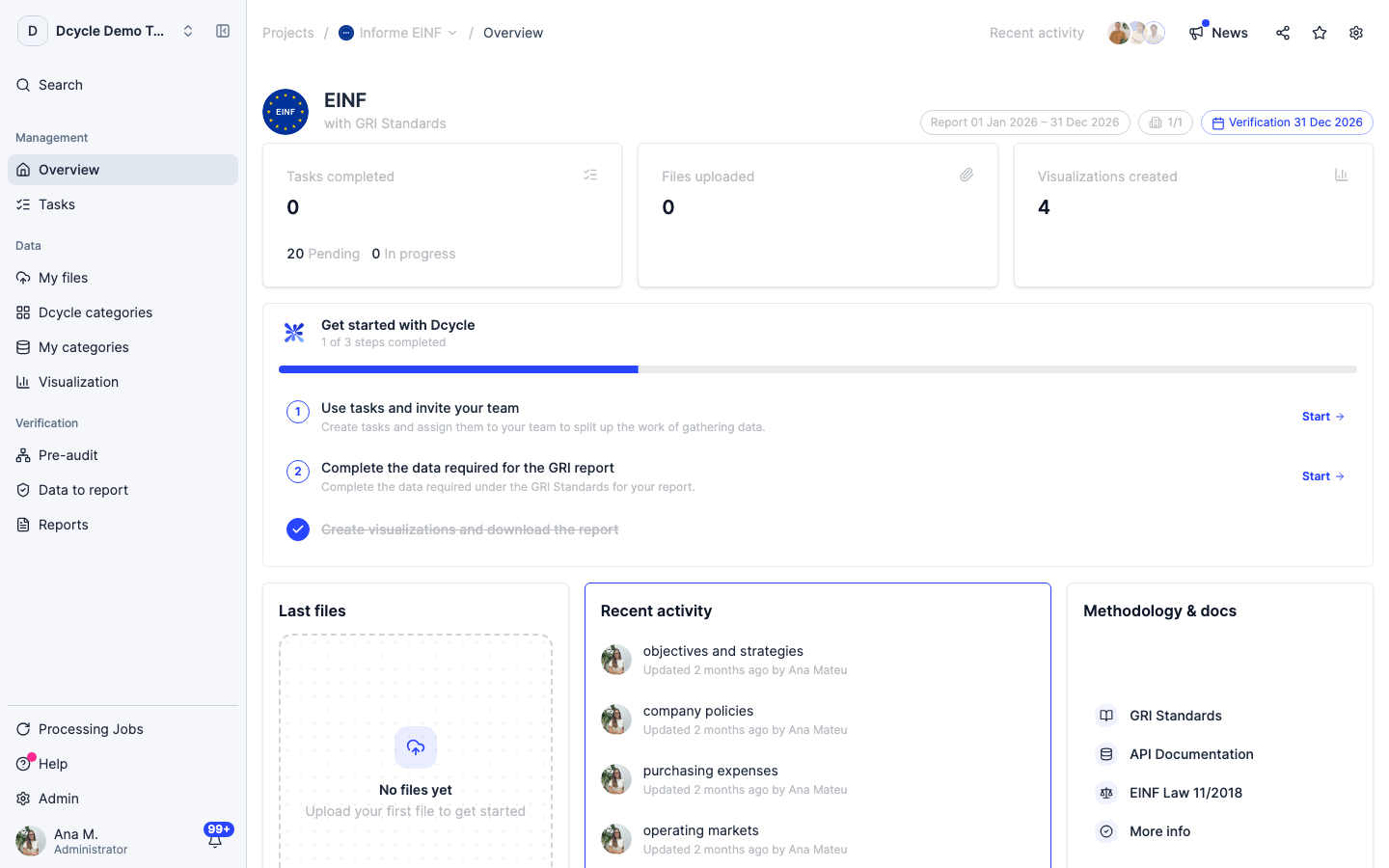
The project home shows the framework (EINF, with GRI Standards), the reporting period, the verification date, and counters for tasks, files uploaded and visualizations created. Check the period first: every figure in the report is calculated for exactly that range.
Step 4
The left menu is the whole EINF workflow. Under Management: “Overview” and “Tasks”. Under Data: “My files”, “Dcycle categories”, “My categories” and “Visualization”. Under Verification: “Pre-audit”, “Data to report” and “Reports”. You will spend almost all your time in “Data to report”.
Step 5
The order that works: upload and check your data first, build the visualizations you will need, and only then answer the data to report. Answering first means reopening the quantitative items later to attach a visualization that didn’t exist yet. If the organization already has a carbon footprint project, the first step is largely done — that data is shared across projects, not re-entered in each one.
Was this helpful?
What was missing or unclear? (optional)
Sent. Thank you for helping us improve.