Product Guides
Download emission factors to Excel
Export any emission factor category to Excel directly from the platform. Select the records you need and choose which columns to include before downloading.
Before you start
You need an Editor role in your Dcycle organization.
Steps
Step 1
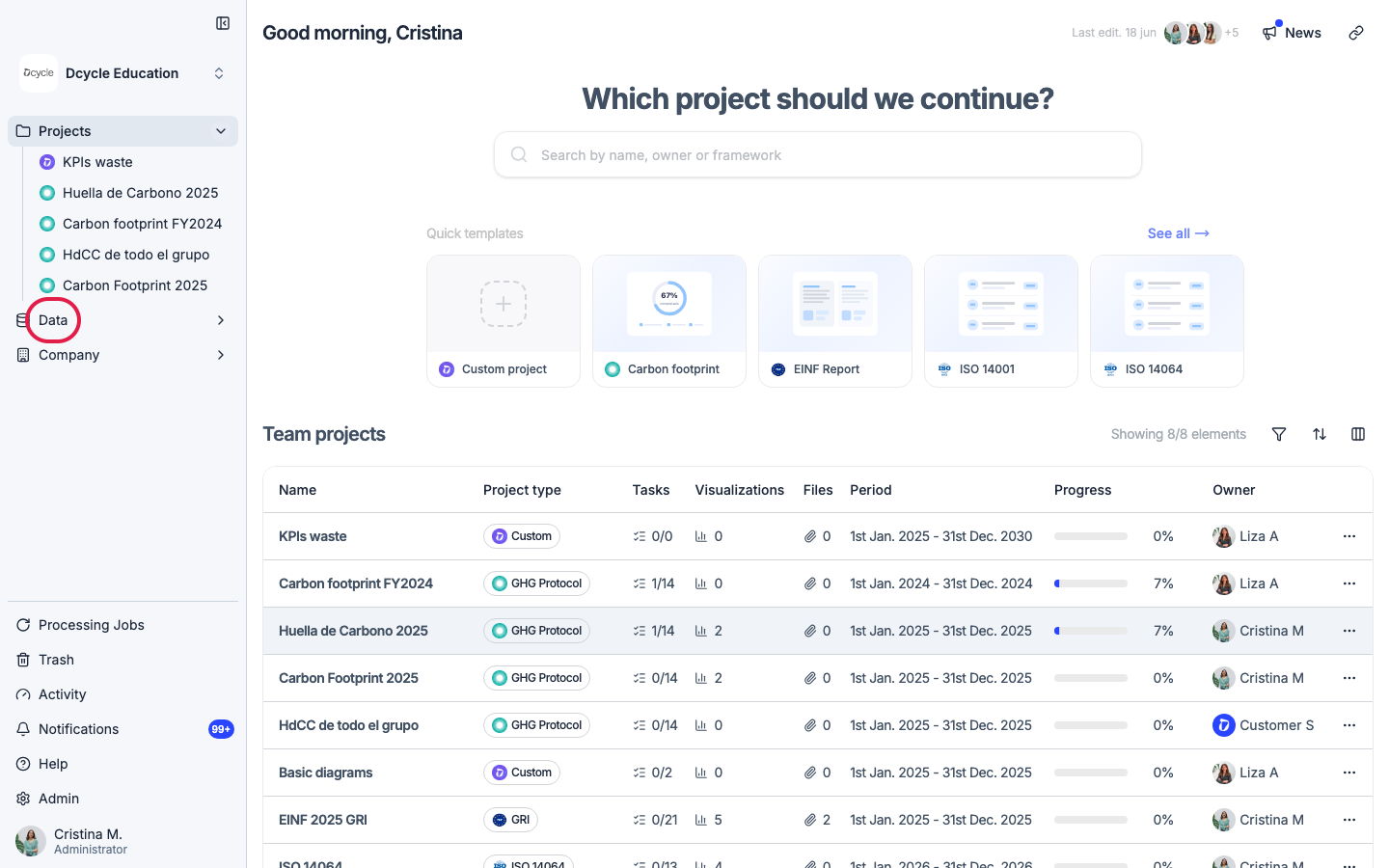
Click “Data” in the left navigation.
Step 2
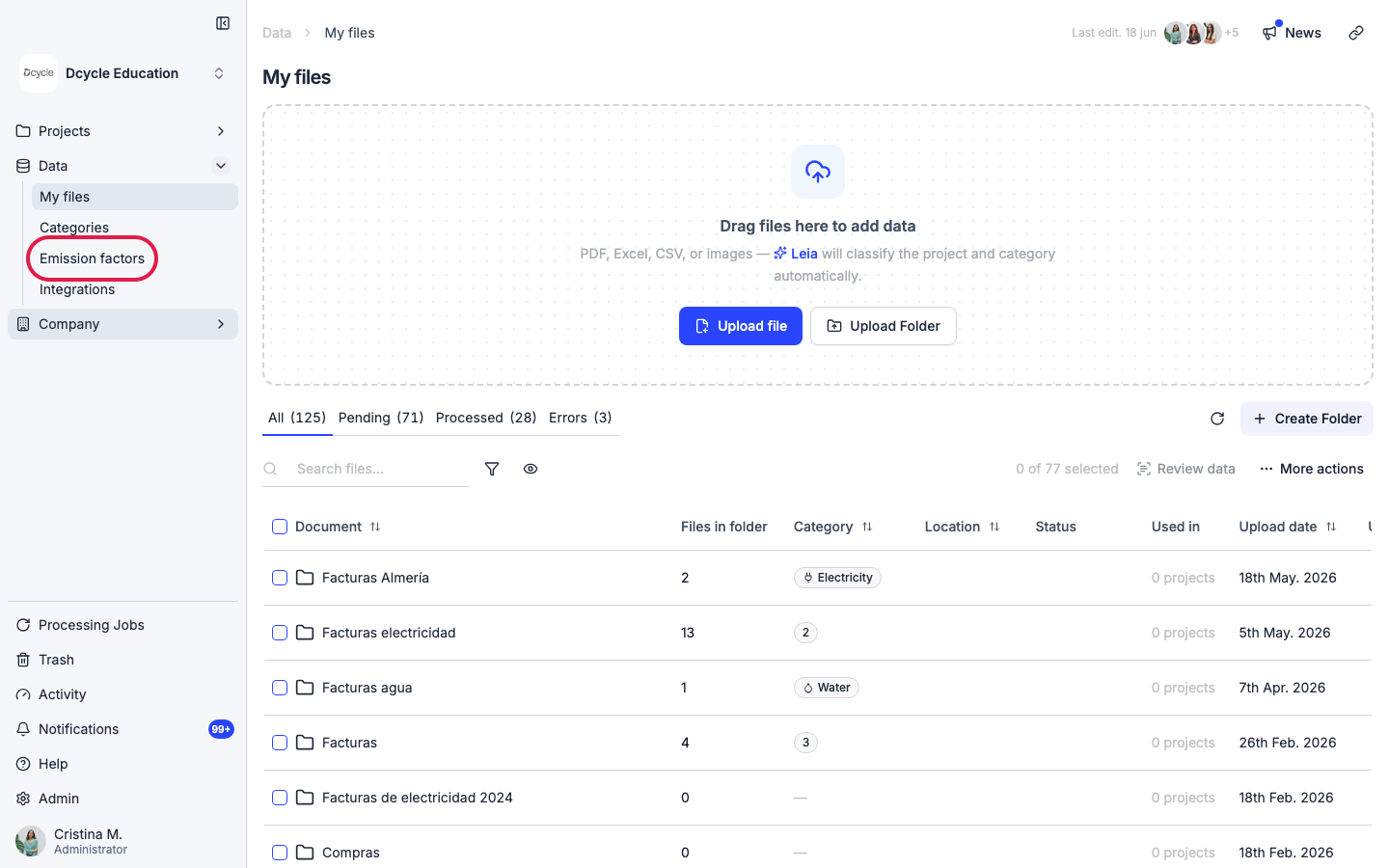
Click “Emission factors” in the Data sub-navigation.
Step 3
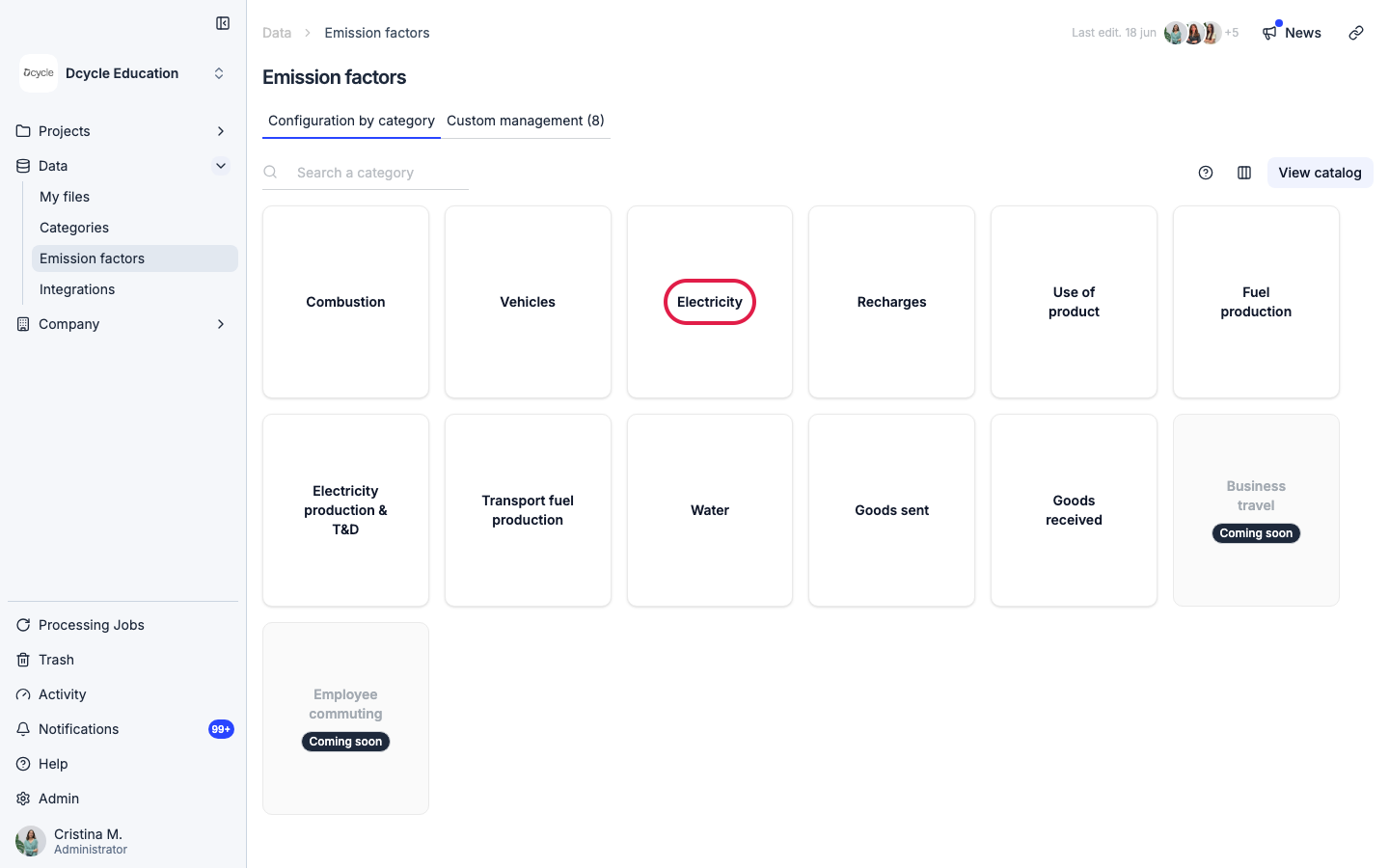
Open the category you want to export — for example, “Electricity”.
Step 4
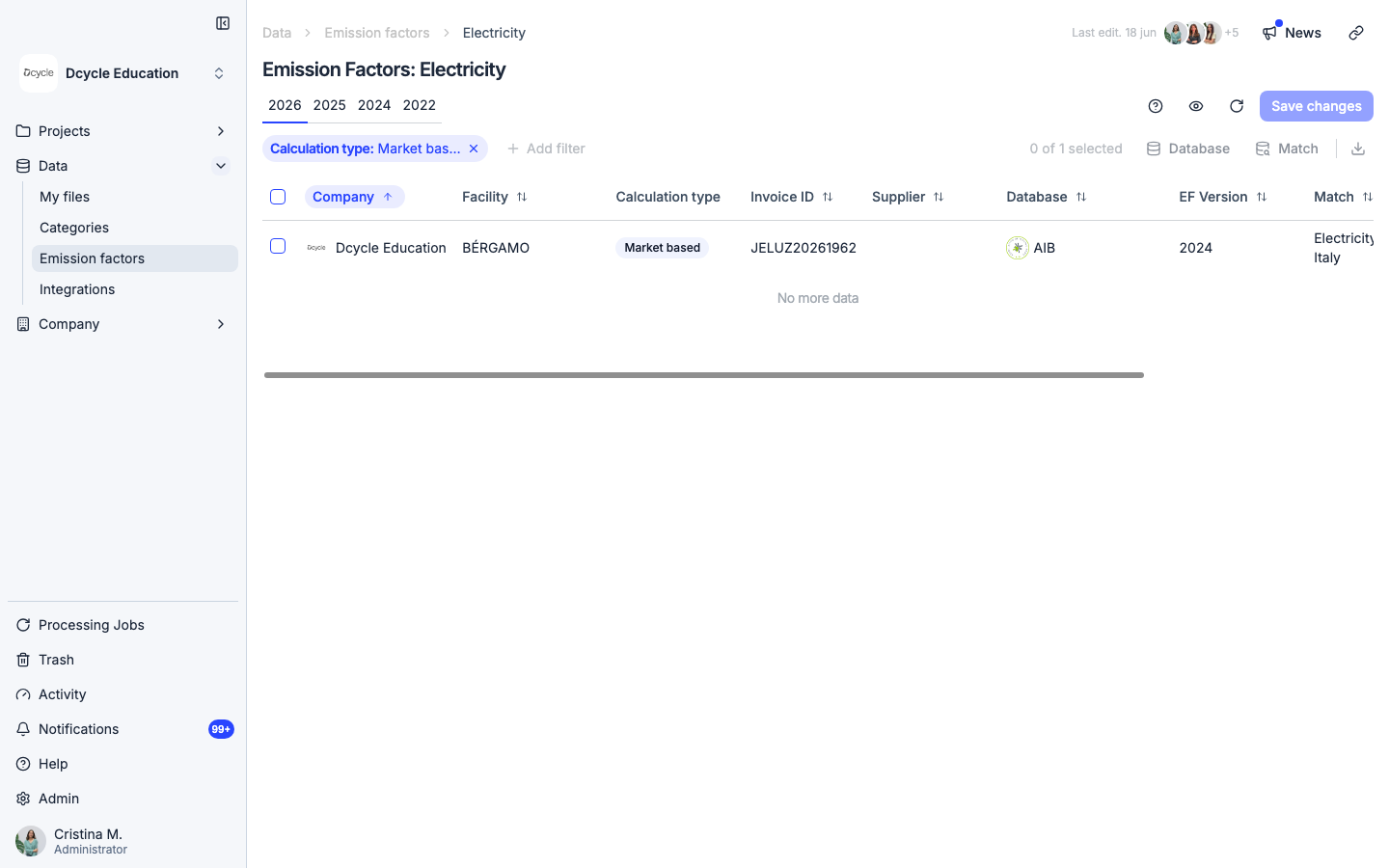
The category page shows all records for the selected period. Use the checkboxes on the left of each row to select the records you want to export, or use the header checkbox to select all of them at once.
Step 5
Once rows are selected, a download button appears in the toolbar. Click it to open the column selector — choose which fields to include in the Excel file: company, supplier, installation, invoice ID, emission factor origin, dates, CUPS, and more. Then click “Download” to generate the file.
Was this helpful?
What was missing or unclear? (optional)
Sent. Thank you for helping us improve.