Product Guides
Delete records uploaded by mistake
Deletions are permanent. When you delete a record, Dcycle also removes the associated total impacts and any derived records (for example, monthly breakdowns). The flow is the same for any category — invoices, vehicles, purchases, trips, etc.
Before you start
You need the Editor role in your Dcycle organization.
Steps
Step 1
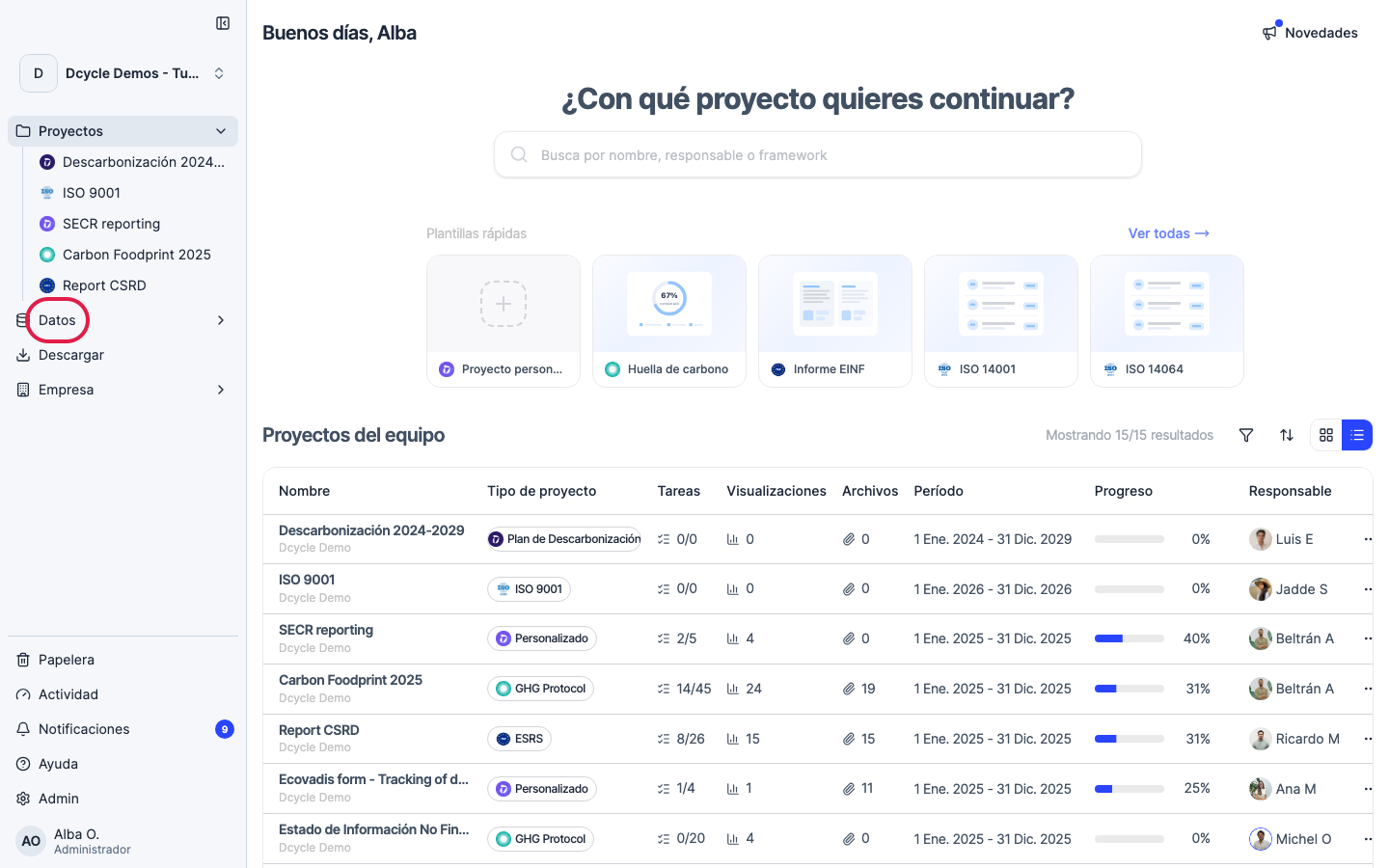
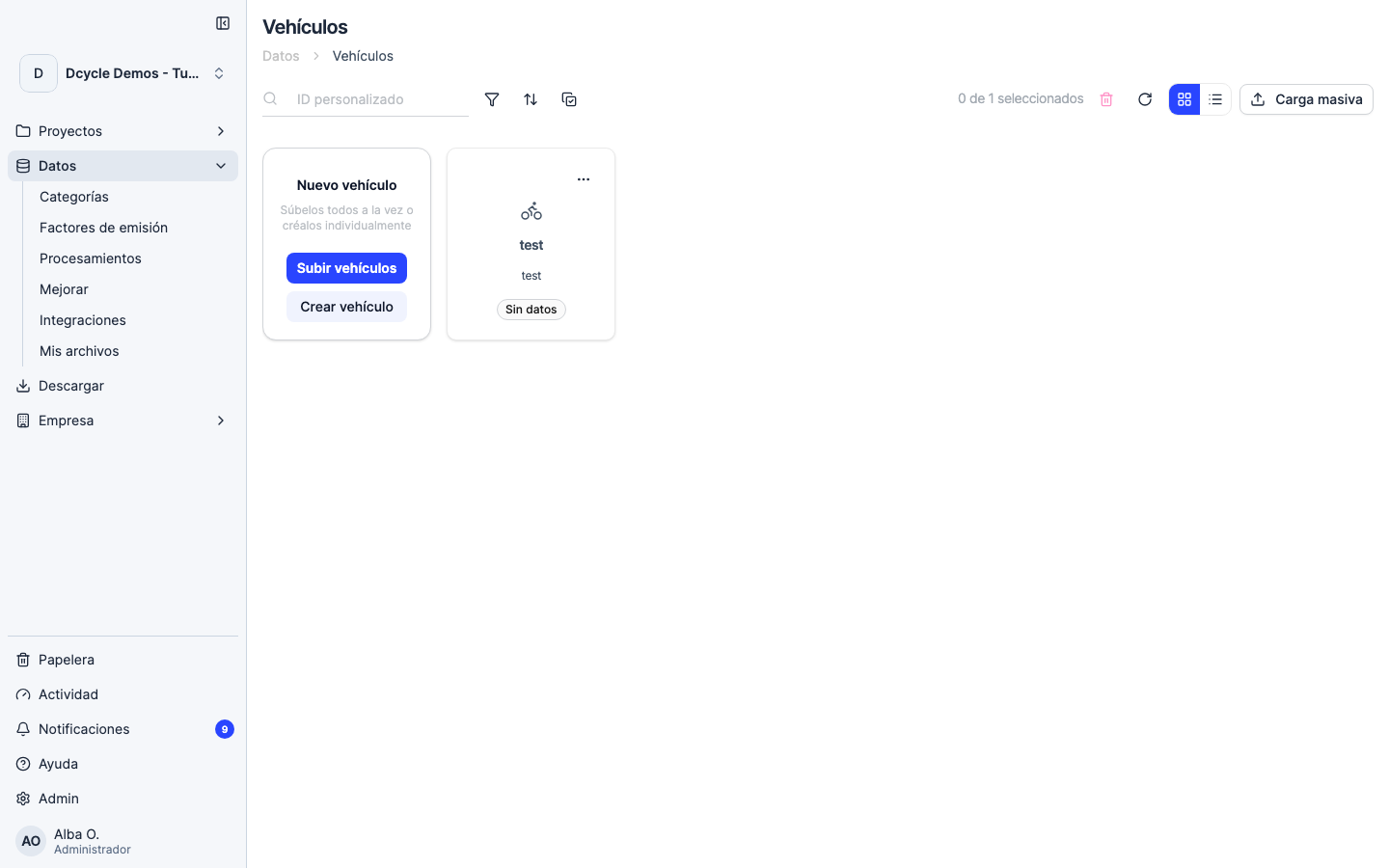
Click “Data” in the sidebar navigation.
Step 2
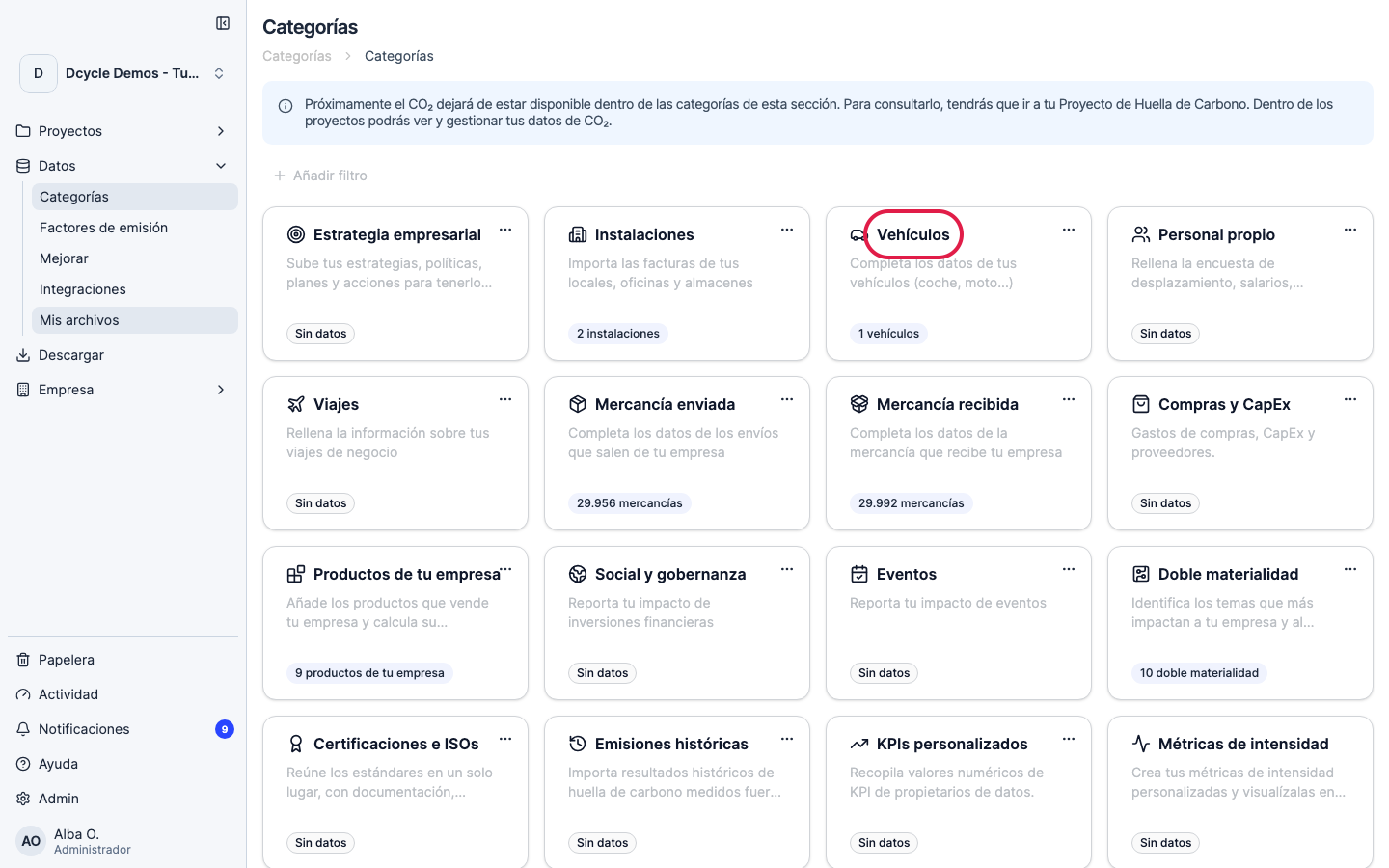
Open the category that contains the record you want to delete. We use “Vehicles” as an example, but any category works the same way.
Step 3
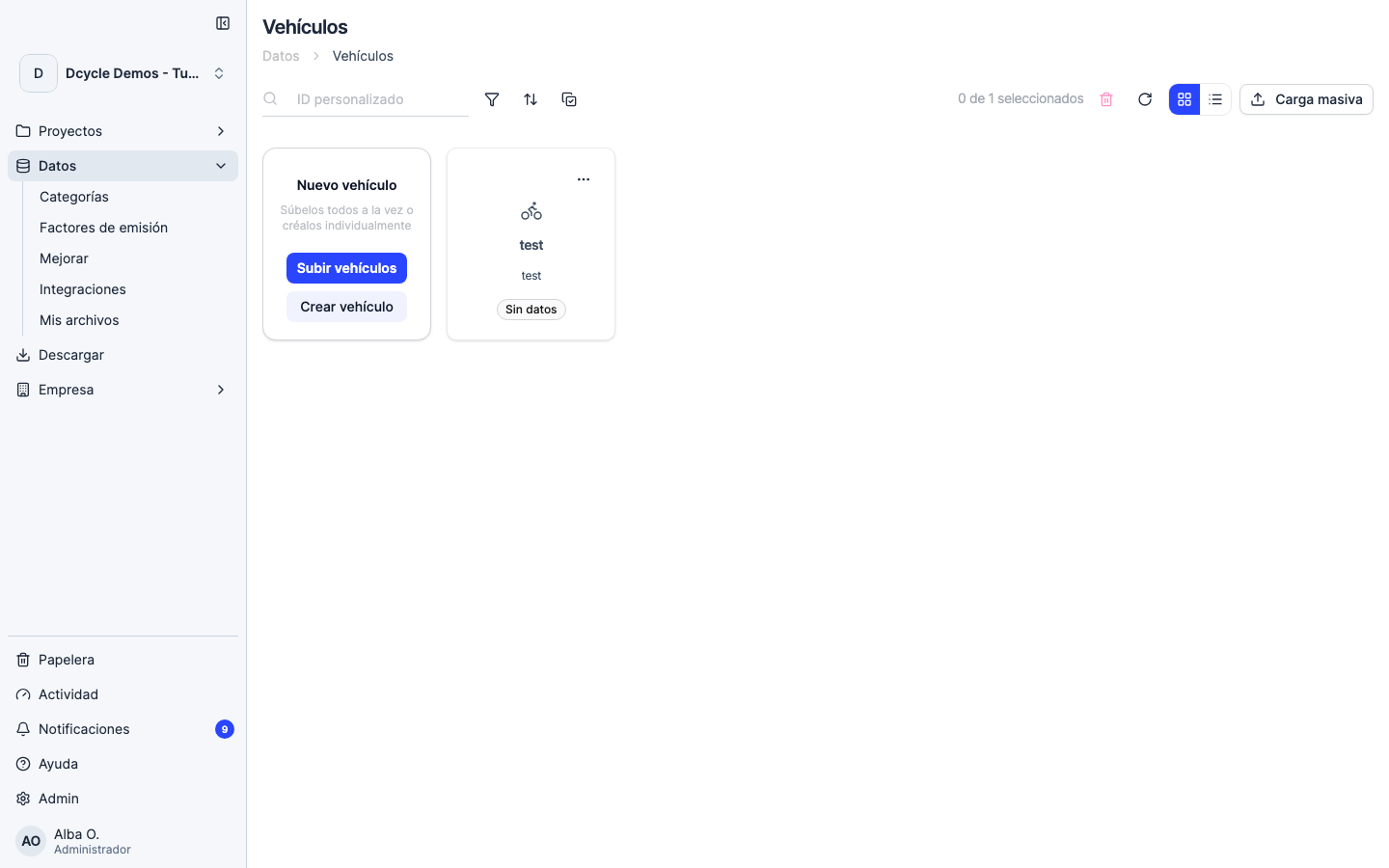
You’ll see the list of records in this category. Use the search or sorting to locate the one you want to delete.
Step 4
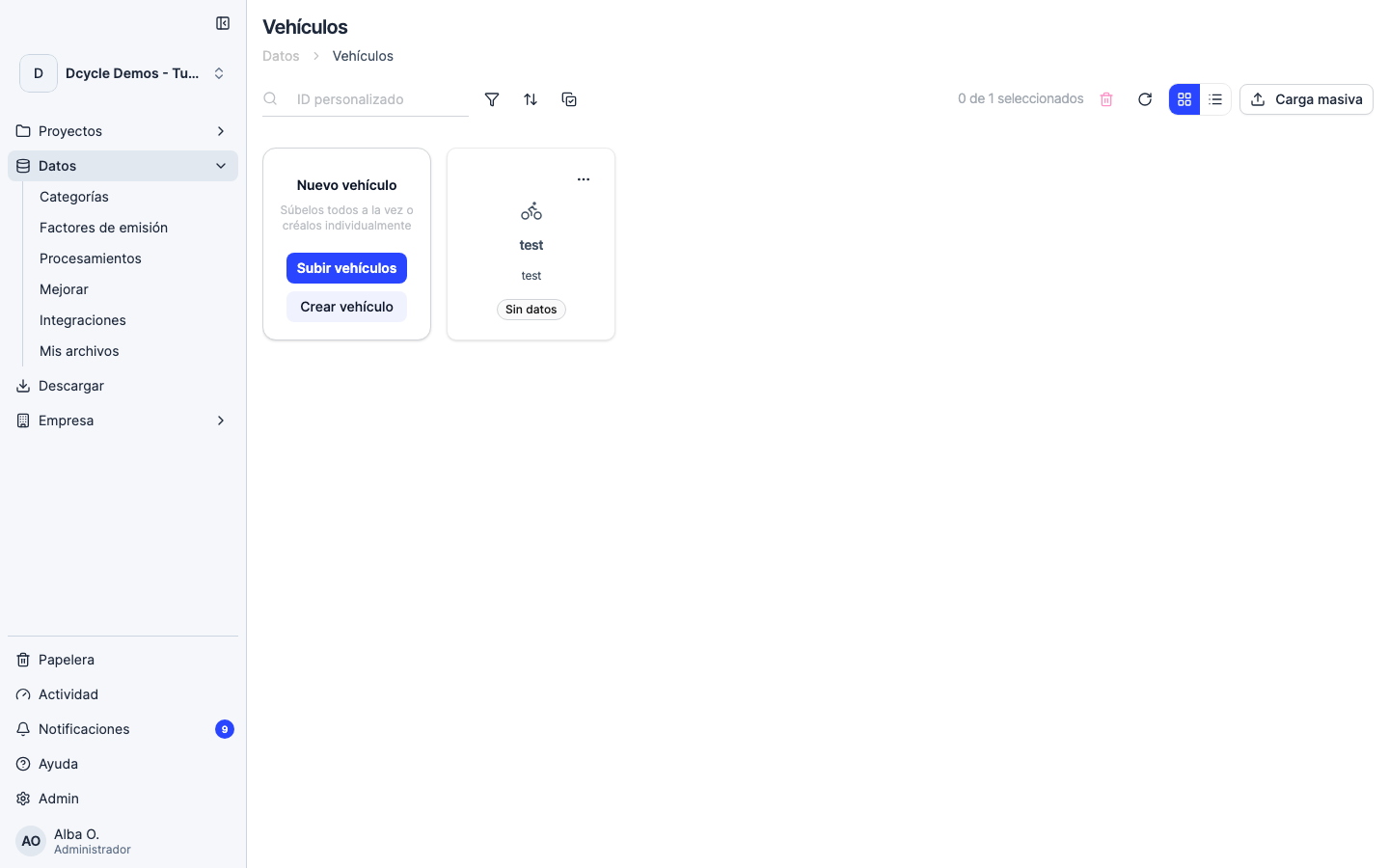
In the record’s row, click the three-dot menu (⋮) on the right and select “Delete”. A confirmation dialog will appear — confirm it to delete the record and its associated emissions.
Step 5
To delete several records at once, tick the checkbox on each row (or the one in the header to select all visible). The “Delete selected” action appears at the top — clicking it opens a preview where you must tick “I understand this action cannot be undone” before pressing “Delete permanently”.
Was this helpful?
What was missing or unclear? (optional)
Sent. Thank you for helping us improve.