Product Guides
Create and manage custom emission factor databases
Custom emission factor databases let you group your own factors — from supplier data or verified measurements — into organised folders and apply them to purchases, goods shipped and received, employees, business trips, and more, all from the Emission Factors Configuration screen.
Before you start
You need an Editor role in your Dcycle organization.
Steps
Step 1
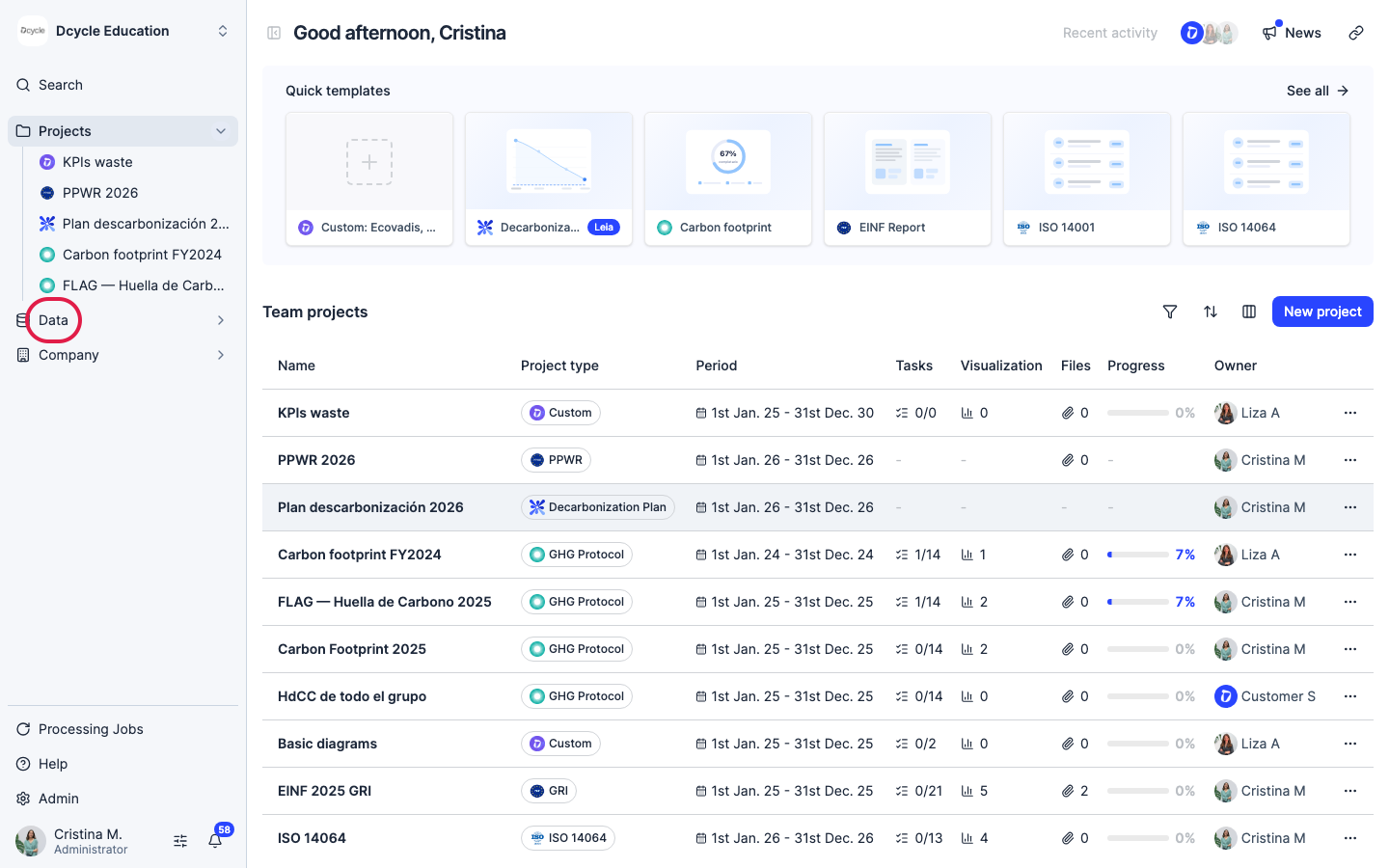
Click “Data” in the left navigation.
Step 2
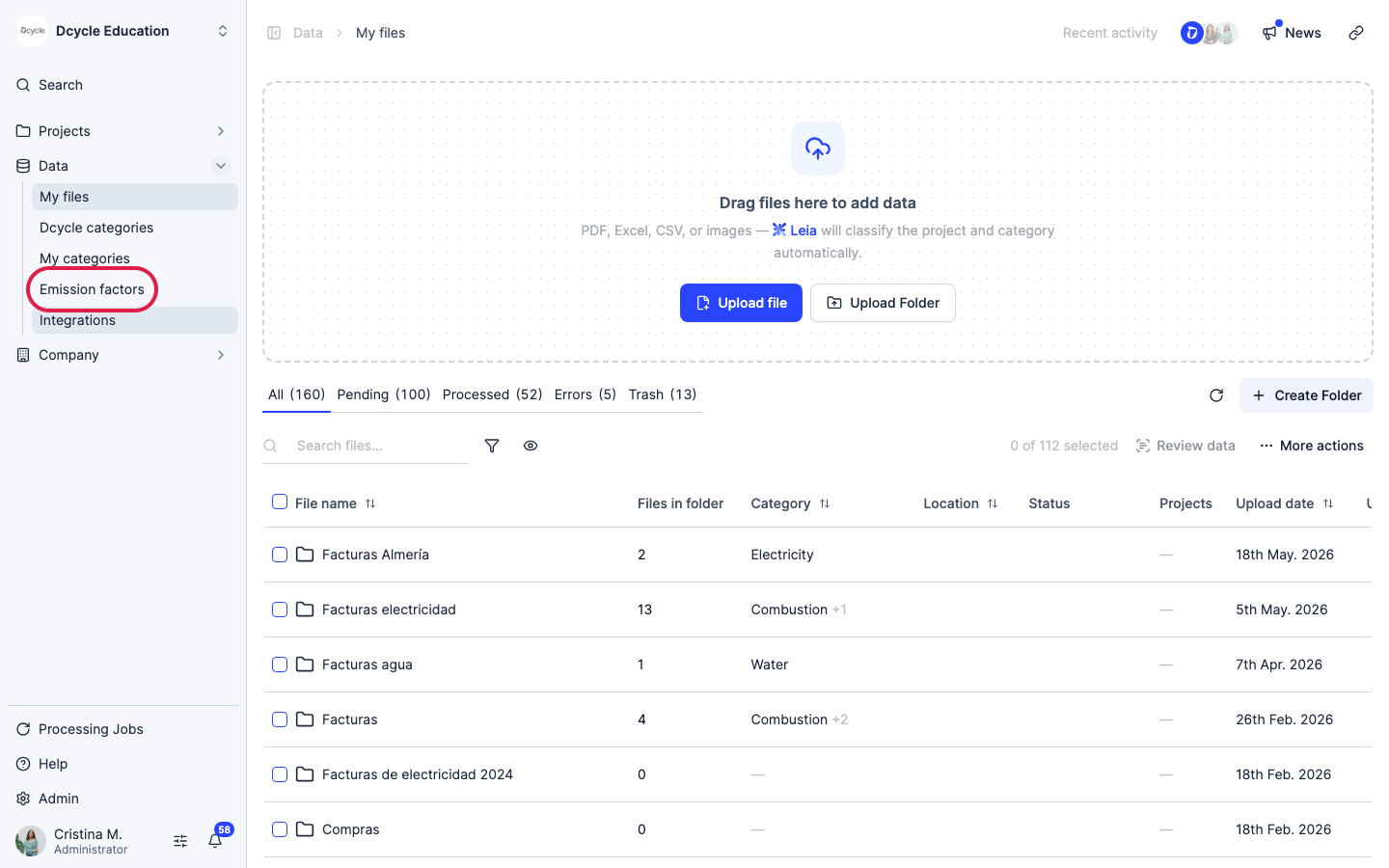
Click “Emission factors”.
Step 3
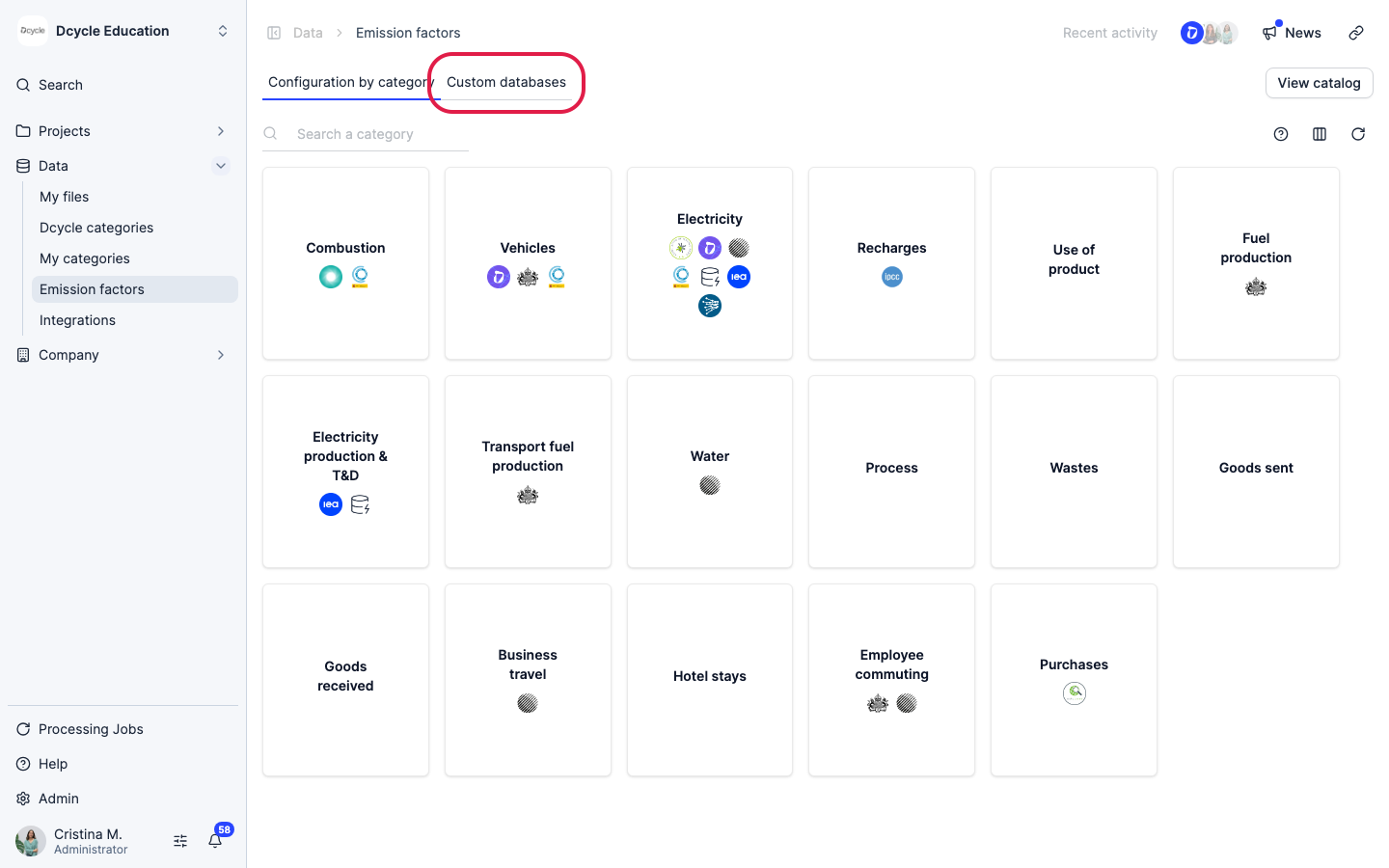
Click the “Custom databases” tab.
Step 4
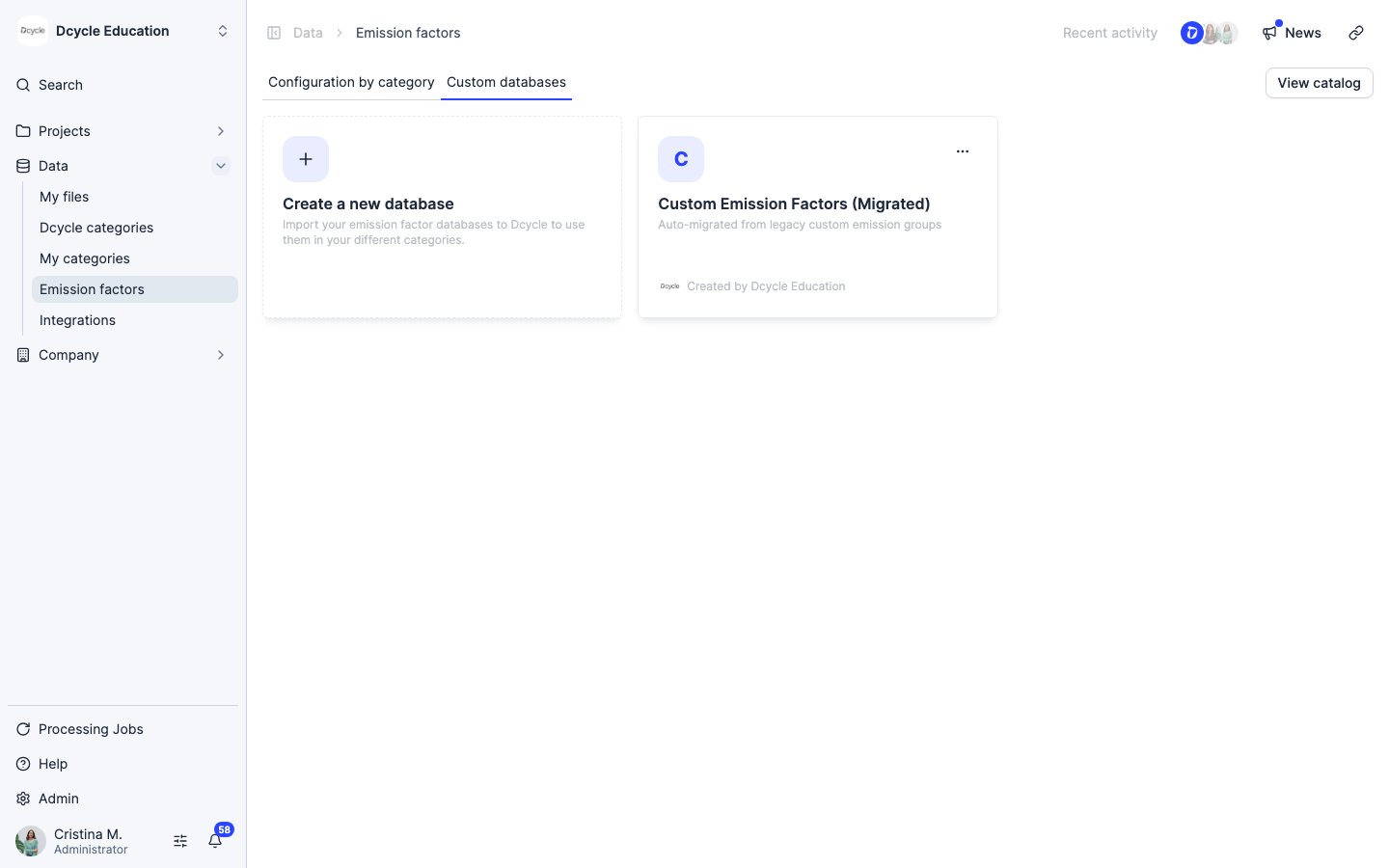
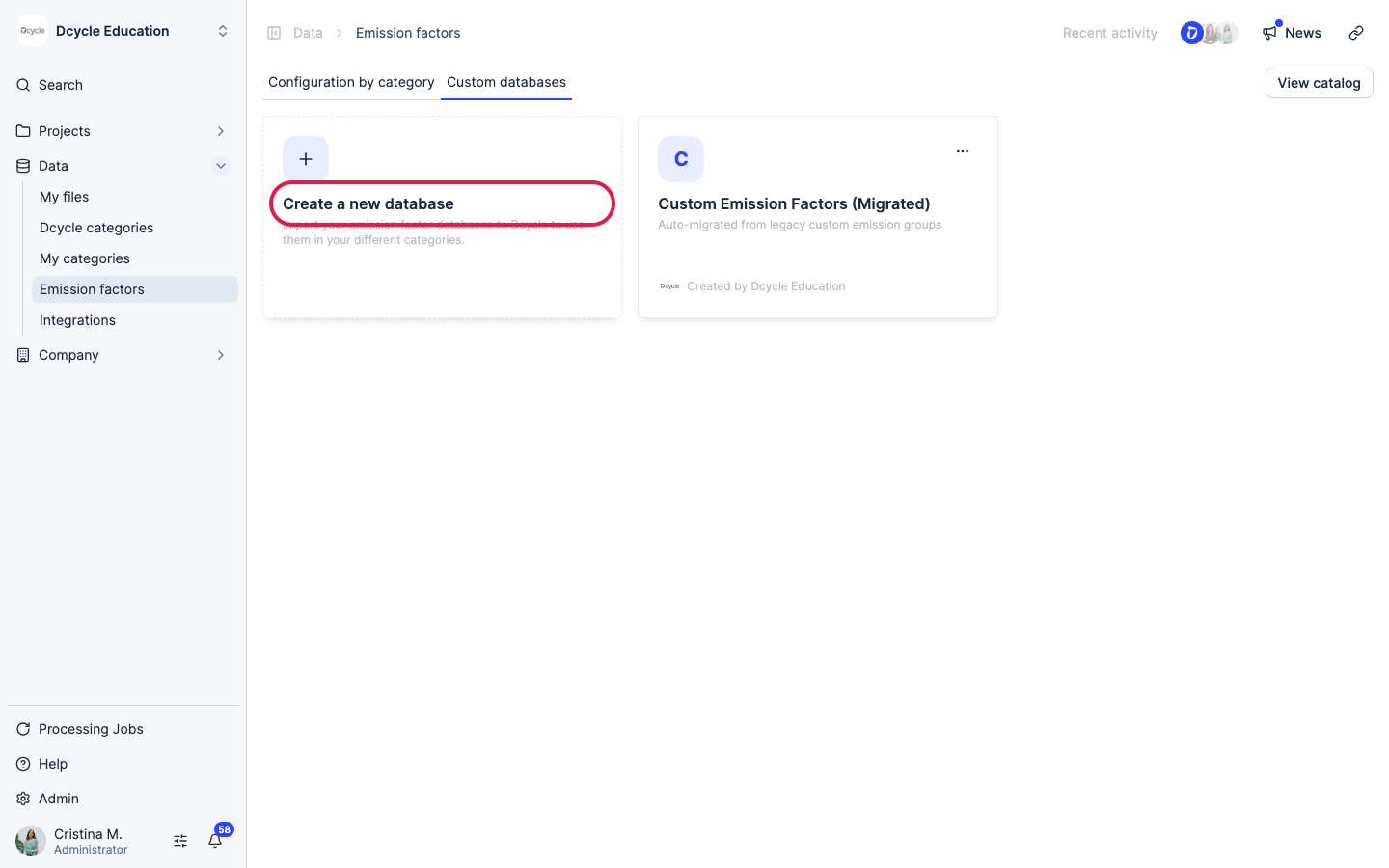
The “Custom databases” tab shows one card per database. Any factors migrated from the old workflow appear in the “Custom Emission Factors (Migrated)” card — they are still active. Click “Create a new database” to add your own.
Step 5
Click the “Create a new database” card to start a new database.
Step 6
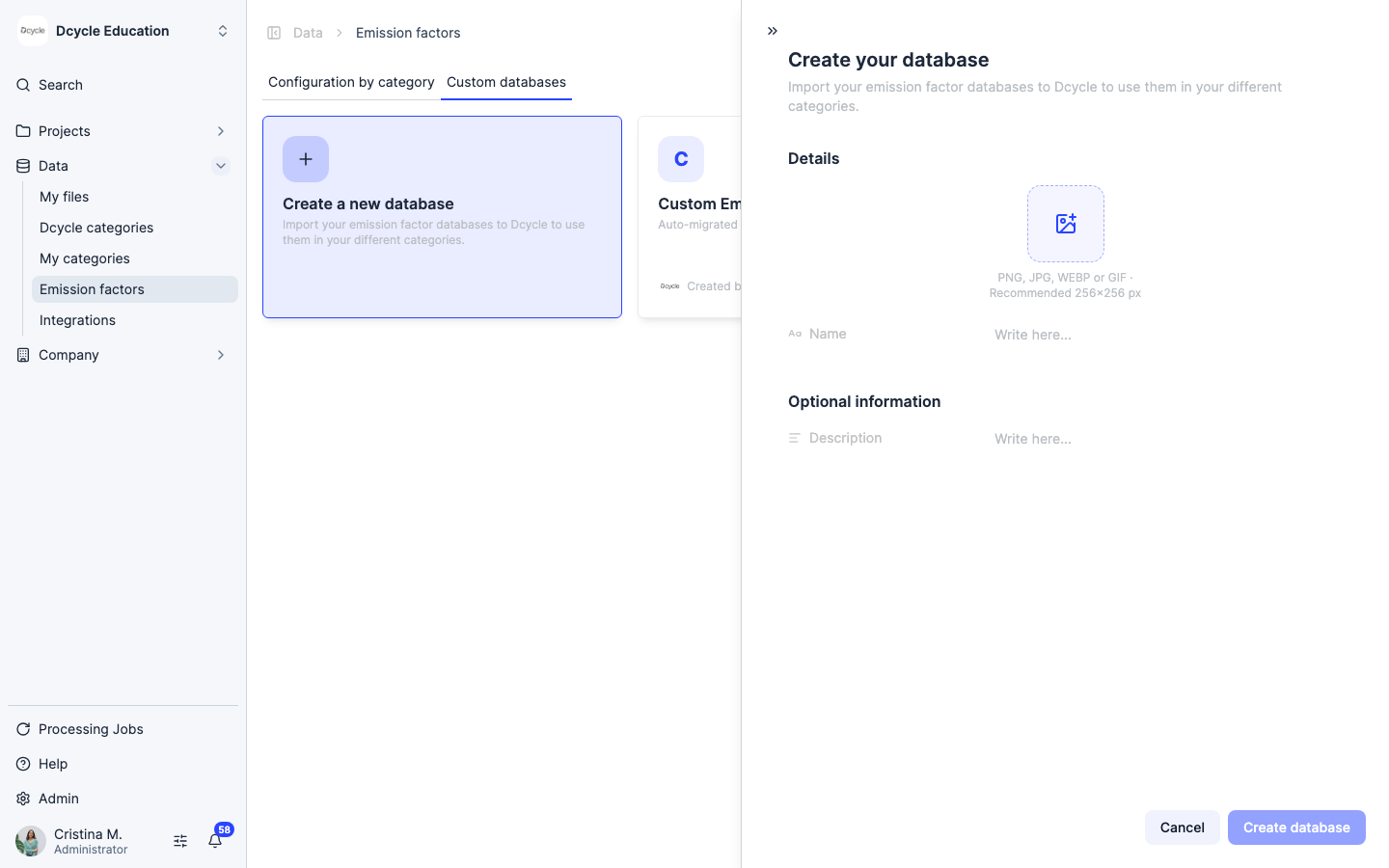
A panel slides in asking for a name and an optional description. Give the database a clear name — you will see it when selecting factors across categories, so something like “Supplier factors 2025” or “Grid electricity Spain” works better than a generic label. Click “Create database” when ready.
Step 7
Once the database is created, add factors individually through the form or load them in bulk from an Excel file. For bulk upload, prepare a spreadsheet with one factor per row: name, value in kg CO2e per unit, reference unit, and validity period. You can also create factors through the Dcycle MCP if your workflow is automated.
Step 8
After populating the database, activate it from the Emission Factors Configuration screen of the relevant category. Open the category, select your custom database in the emission factor settings, and save. Dcycle will apply your factors to any matching activity from that point on.
Step 9
Databases created at the parent organisation level are automatically available to all subsidiaries — you do not need to recreate them in each one. Subsidiaries can activate them independently from their own Emission Factors Configuration screen.
Was this helpful?
What was missing or unclear? (optional)
Sent. Thank you for helping us improve.