Product Guides
Connections: the ways to bring your data into Dcycle
Data › Connections brings together every way you can already use to bring your data into Dcycle (MCP, API, Webhooks, CLI, inbound email and Datadis), each with a short video on how it works. If your tool isn't there, you can tell us in one click and we'll suggest the best route.
Steps
Step 1
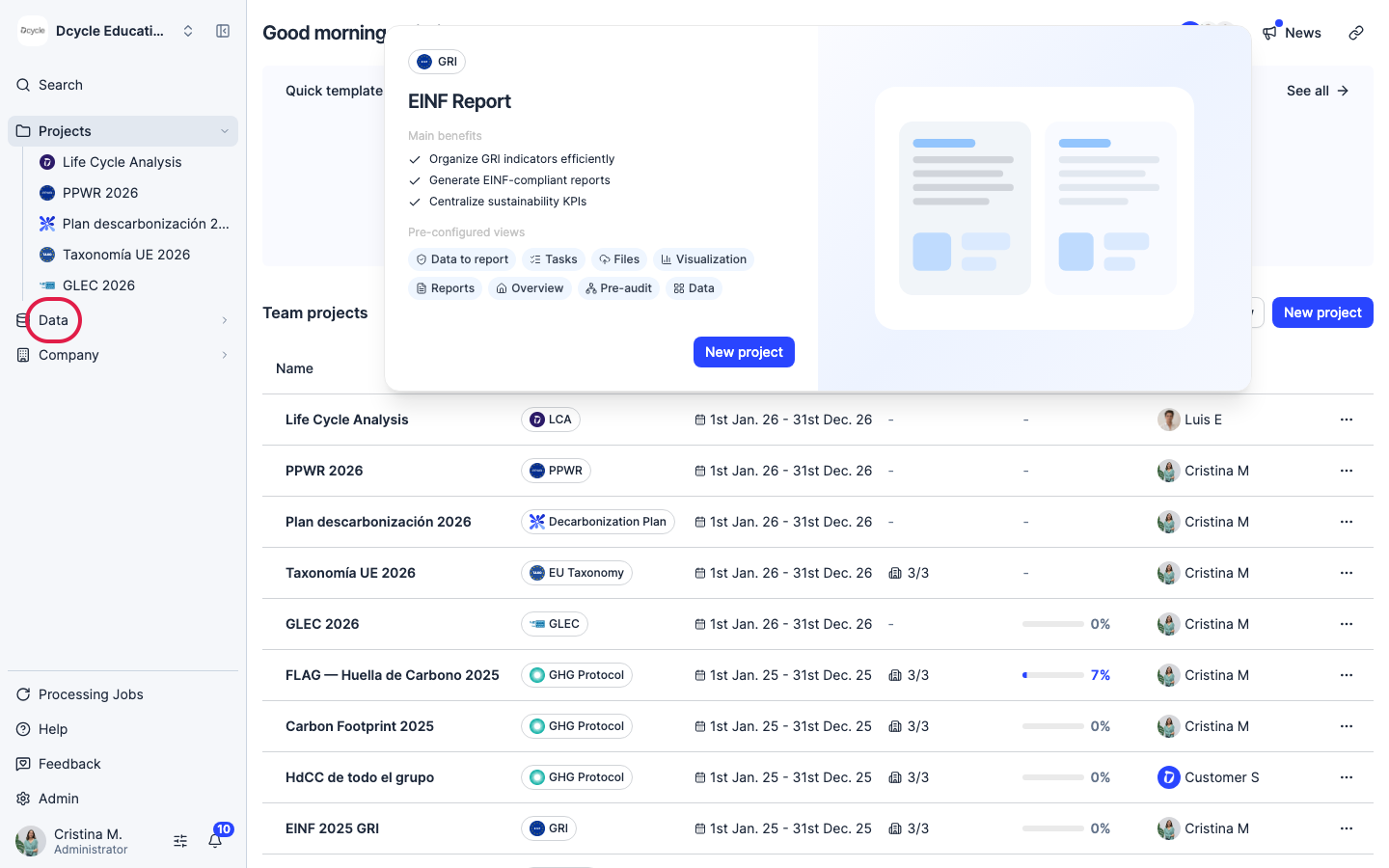
Click “Data” in the left navigation.
Step 2
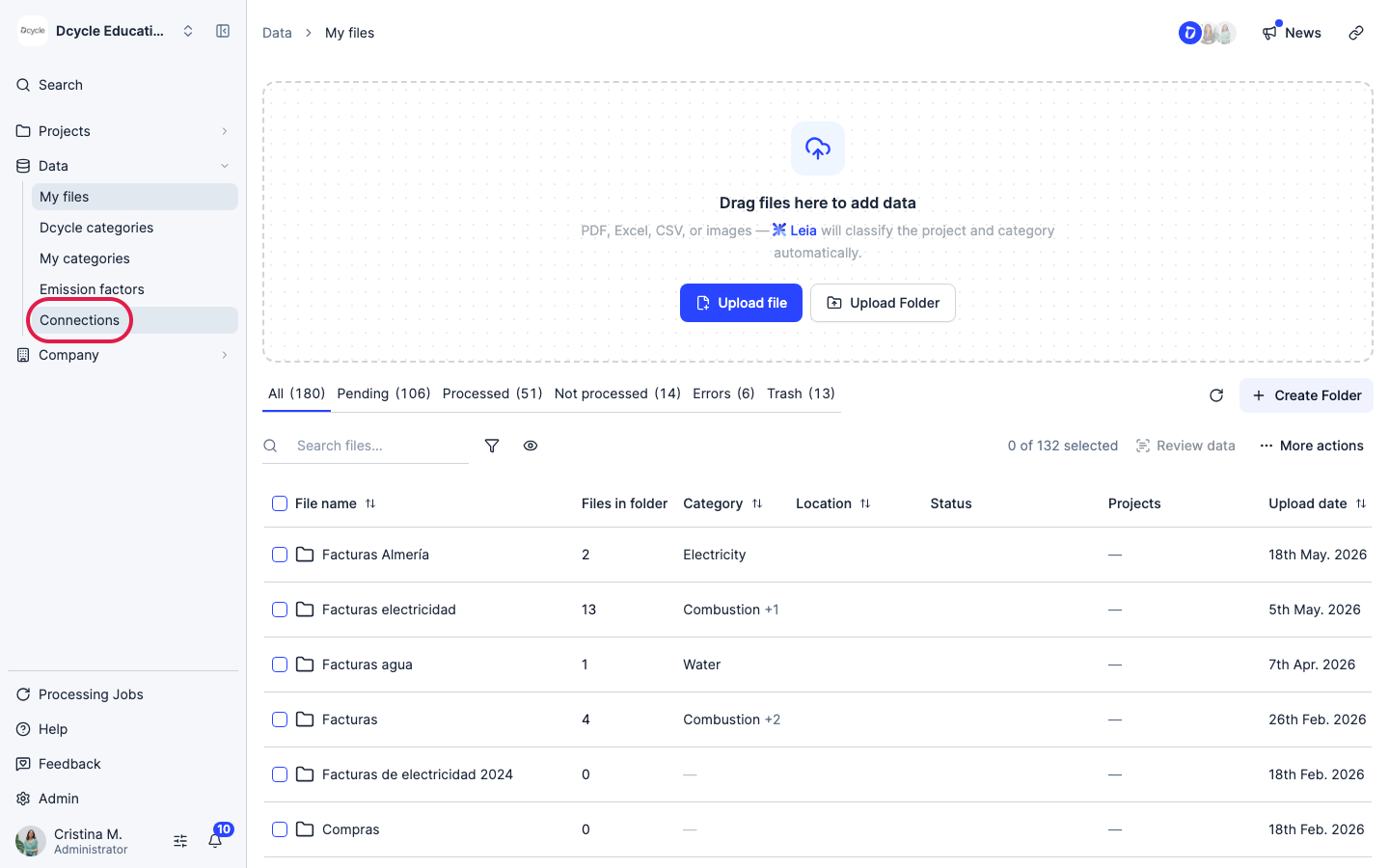
Click “Connections”. This tab used to be called “Integrations” and now only shows the connections you can use today.
Step 3
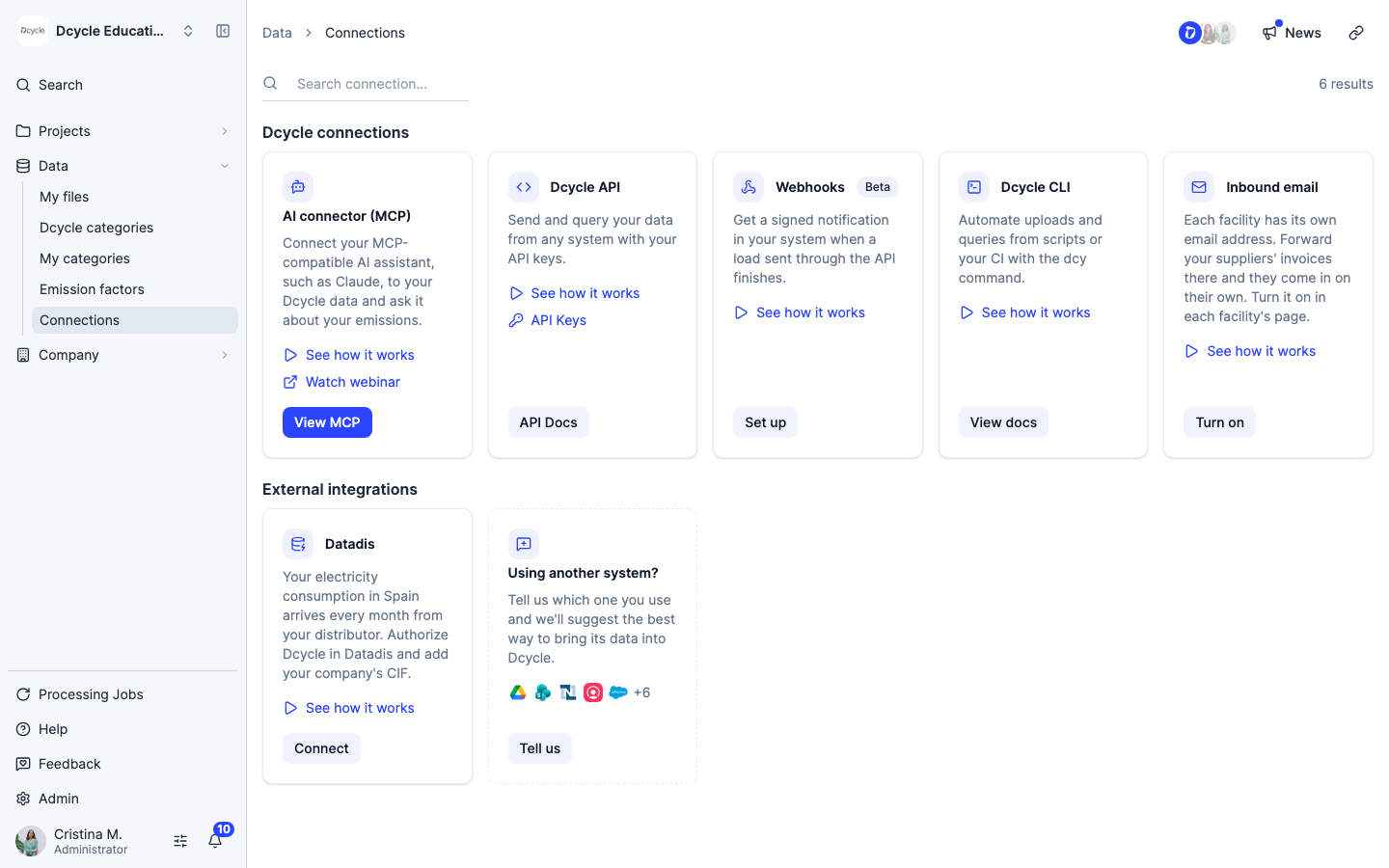
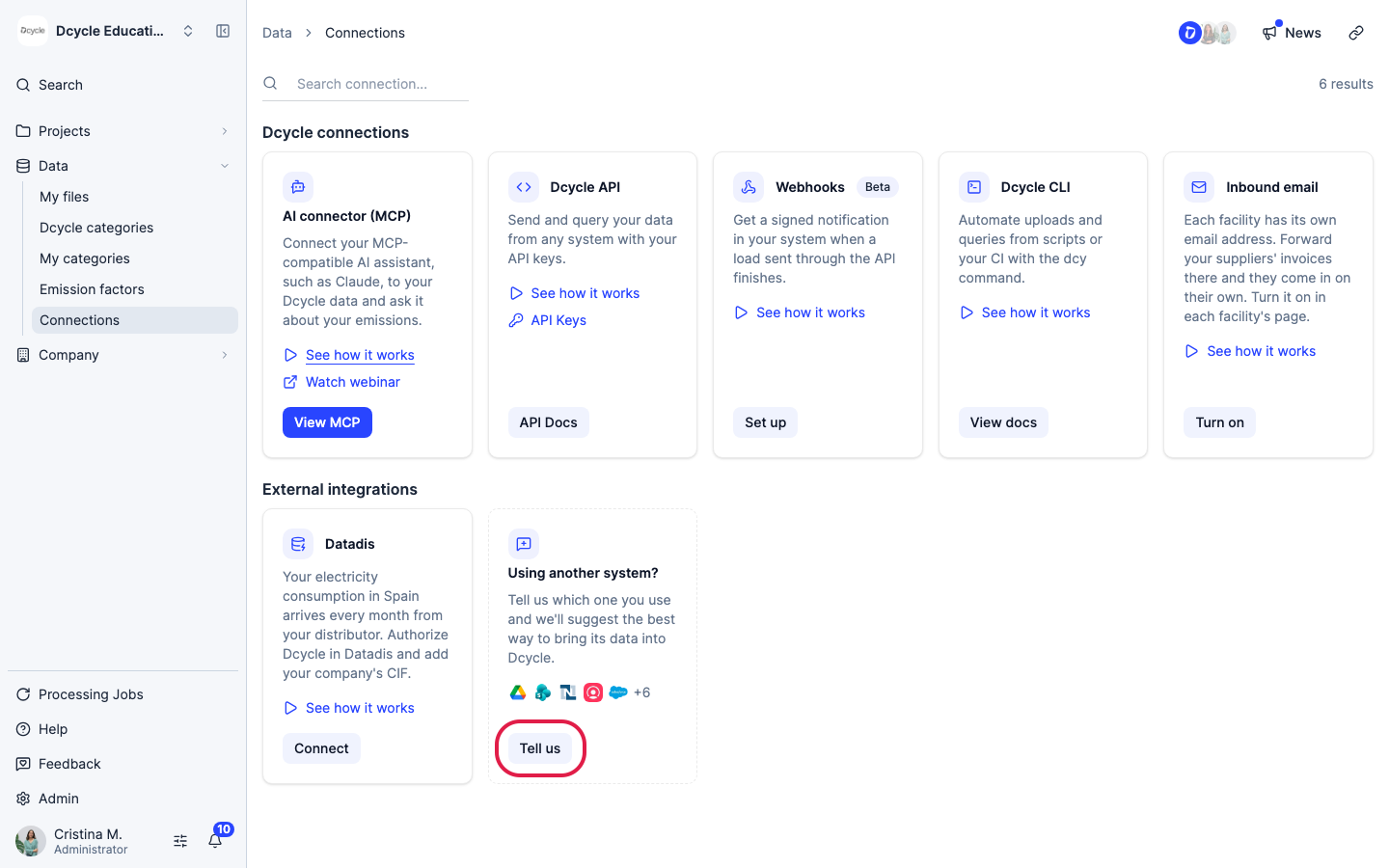
Under “Dcycle connections” you’ll find:
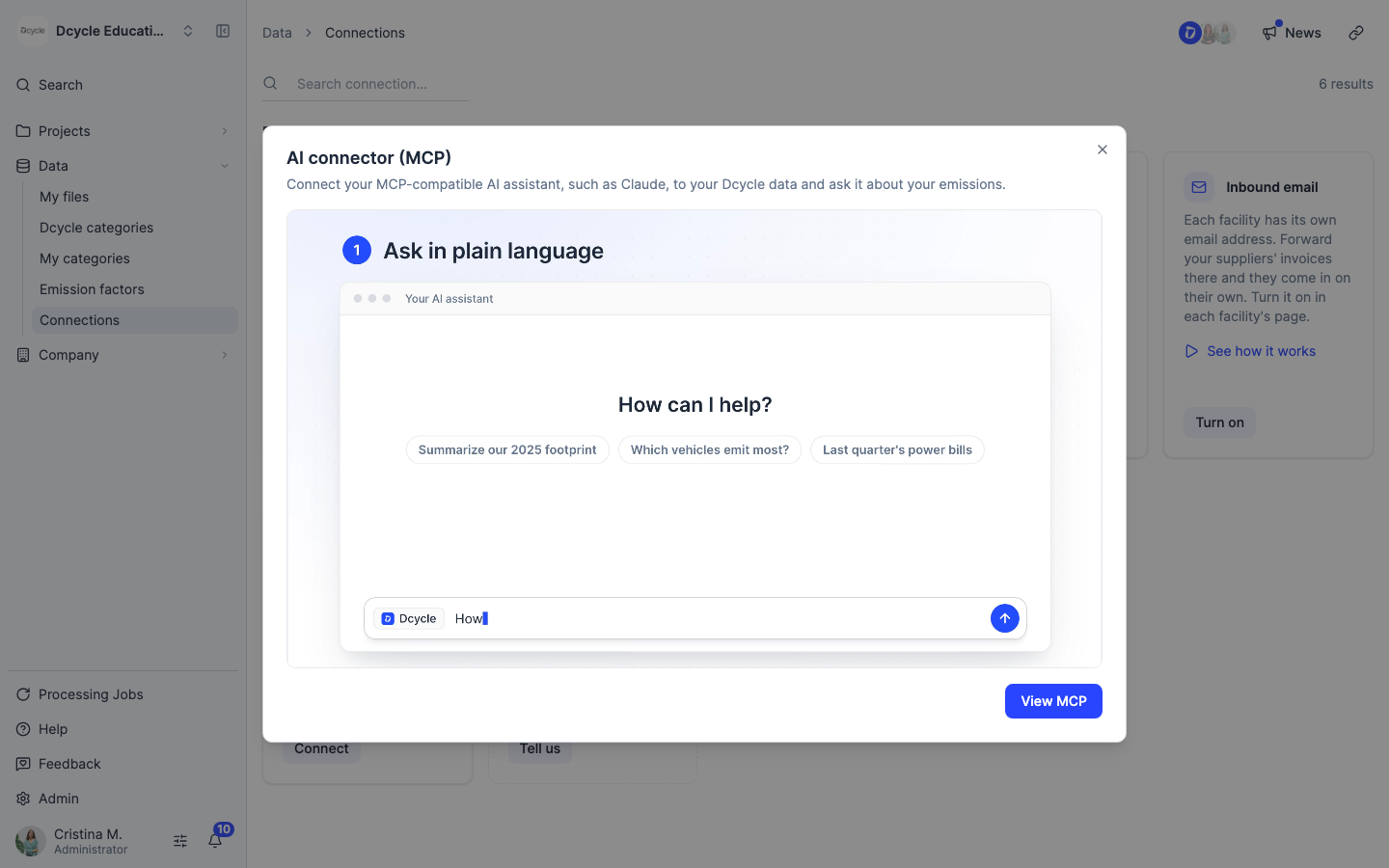
- AI connector (MCP): connect your MCP-compatible AI assistant, such as Claude, to your Dcycle data and ask it about your emissions. See the MCP docs.
- Dcycle API: send and query your data from any system with your API keys. See the API reference.
- Webhooks (Beta): get a signed notification in your system when a load sent through the API finishes. See the webhooks docs.
- Dcycle CLI: automate uploads and queries from scripts with the
dcycommand. See the CLI docs. - Inbound email: each facility has its own email address. Forward your suppliers’ invoices there and they come in on their own. See Email invoices to a facility automatically.
Under “External integrations” you’ll find Datadis: your electricity consumption in Spain arrives every month from your distributor. See Connect Datadis.
Step 4
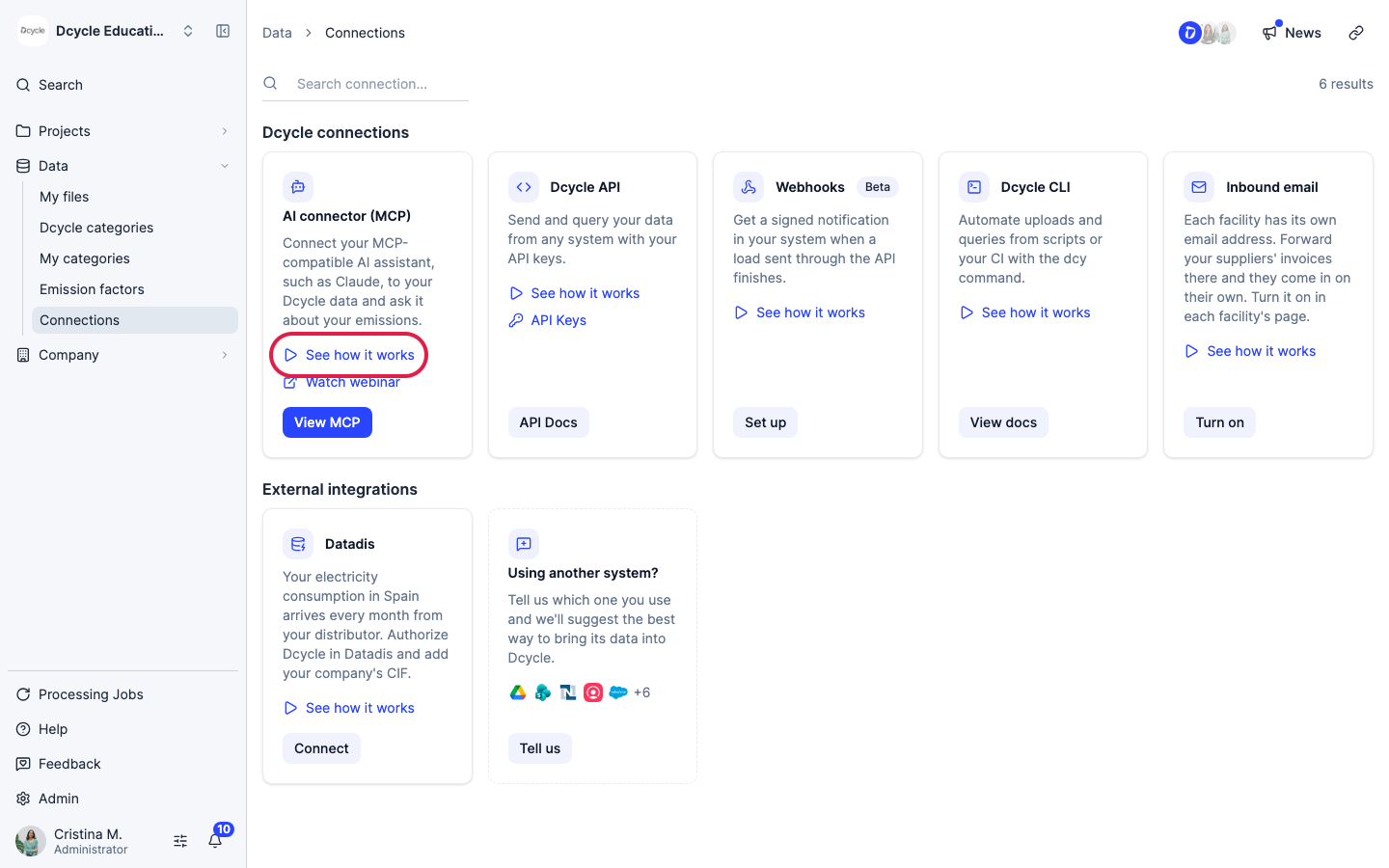
Each connection has a short video. Click “See how it works” on any card to watch it.
Step 5
The video opens in a window, with a button to go straight to that connection.
Step 6
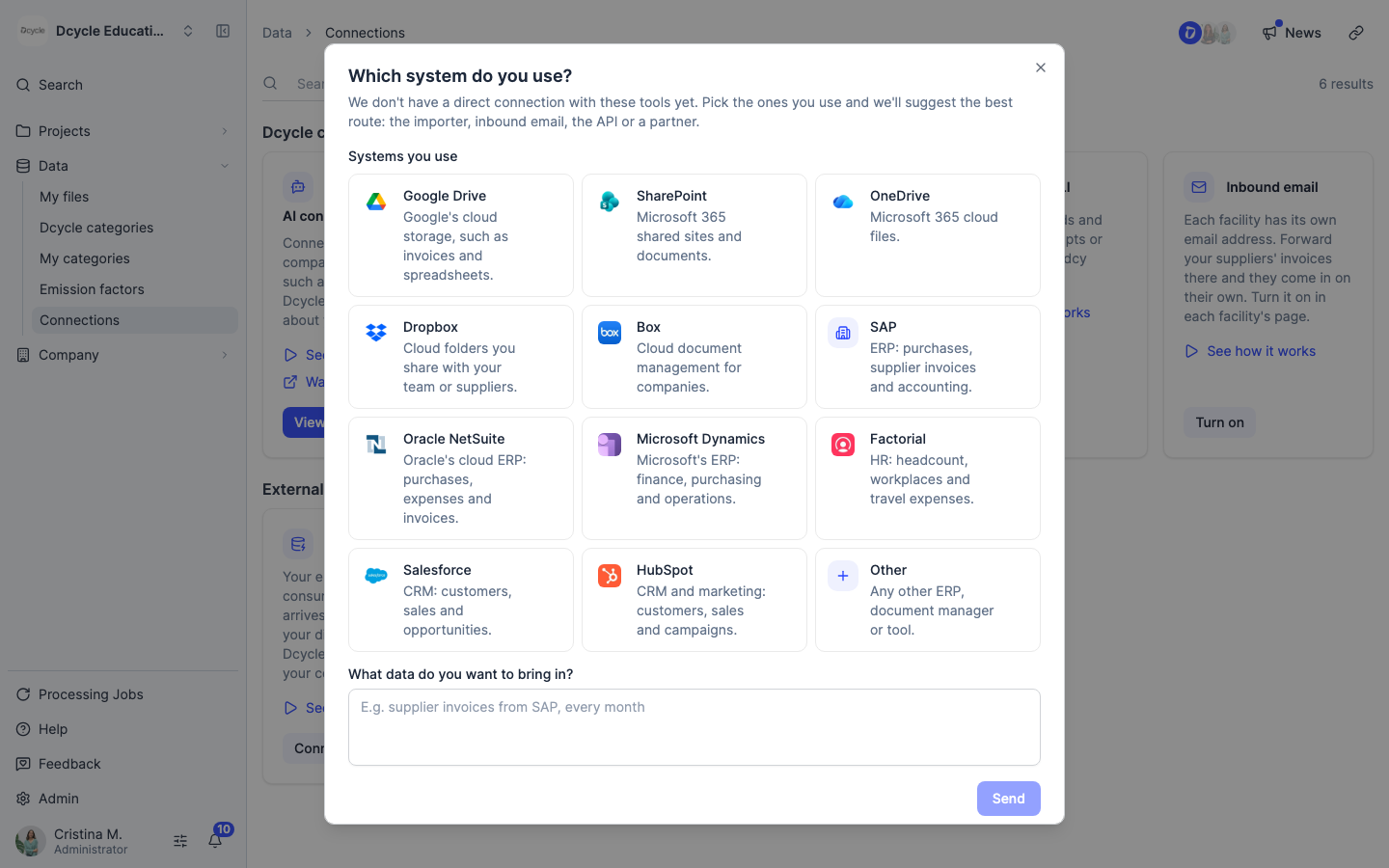
If you work with tools like Google Drive, SharePoint, SAP, NetSuite or Factorial, there’s no direct connection with them yet. Under “Using another system?”, click “Tell us”.
Step 7
Pick the systems you use, describe what data you want to bring in and click “Send”. We’ll suggest the best way to bring it into Dcycle: the importer, inbound email, the API or a partner.
Was this helpful?
What was missing or unclear? (optional)
Sent. Thank you for helping us improve.