Product Guides
Bulk upload supplier emission factors for purchases
When your suppliers give you the carbon footprint of the products you buy, you can load all of those factors at once from a single file instead of creating them one by one. Once loaded, they appear as valid values in the purchases template, ready to apply.
Before you start
You need an Editor role in your Dcycle organization.
Steps
Step 1
Before you start, gather every supplier factor in one spreadsheet with five columns, in this order: material, emission factor in kg CO2e, reference unit, supplier, and the company the factor belongs to. Each factor keeps the unit its supplier defined it in — you don’t need a common denominator across the file.
Step 2
If several companies in your group buy the same material from the same supplier, duplicate the row and change only the company column. Dcycle does not split the factor between them: it creates the same factor in each company you list, and each one then records its own quantities.
Step 3
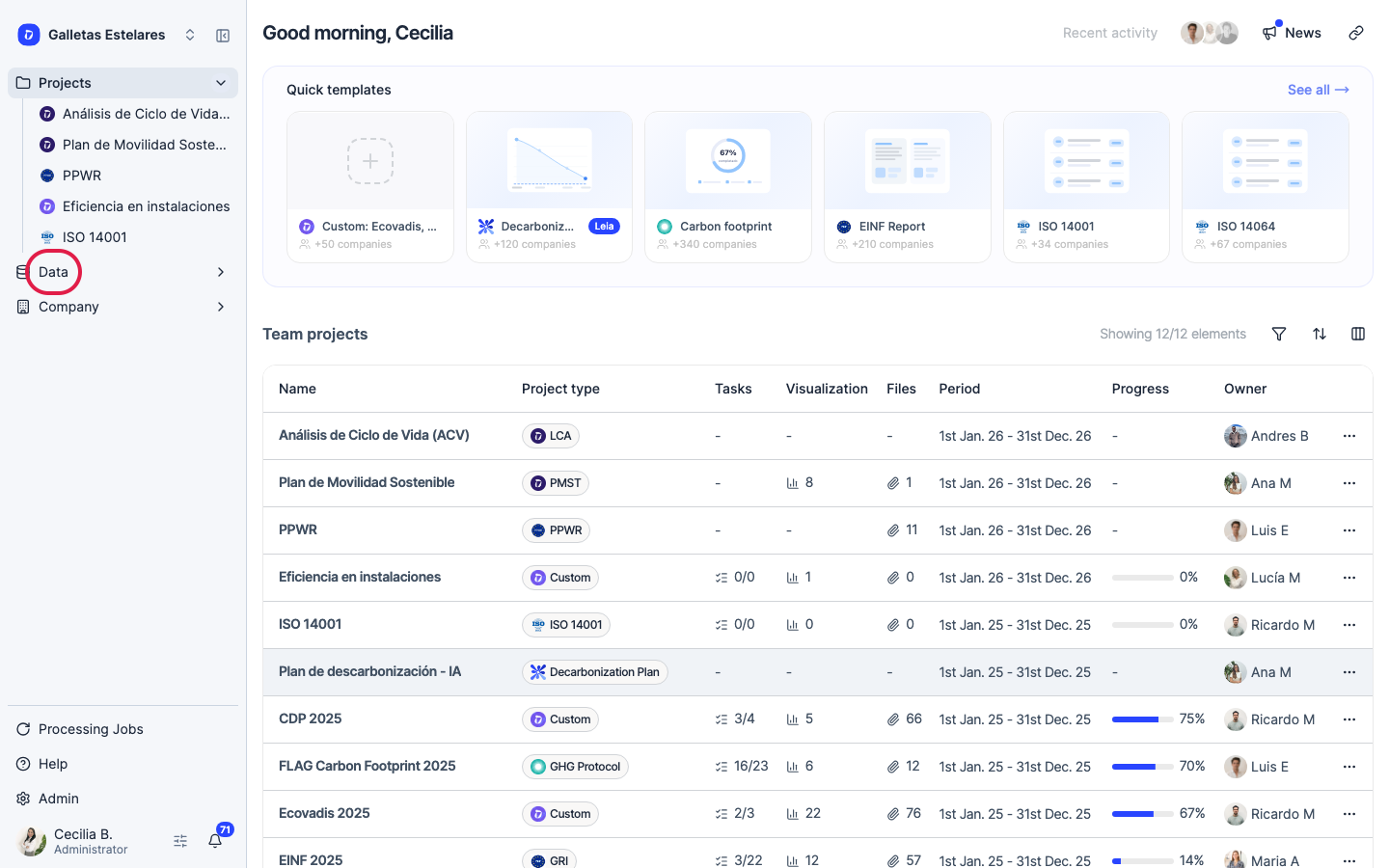
Click “Data” in the left navigation.
Step 4
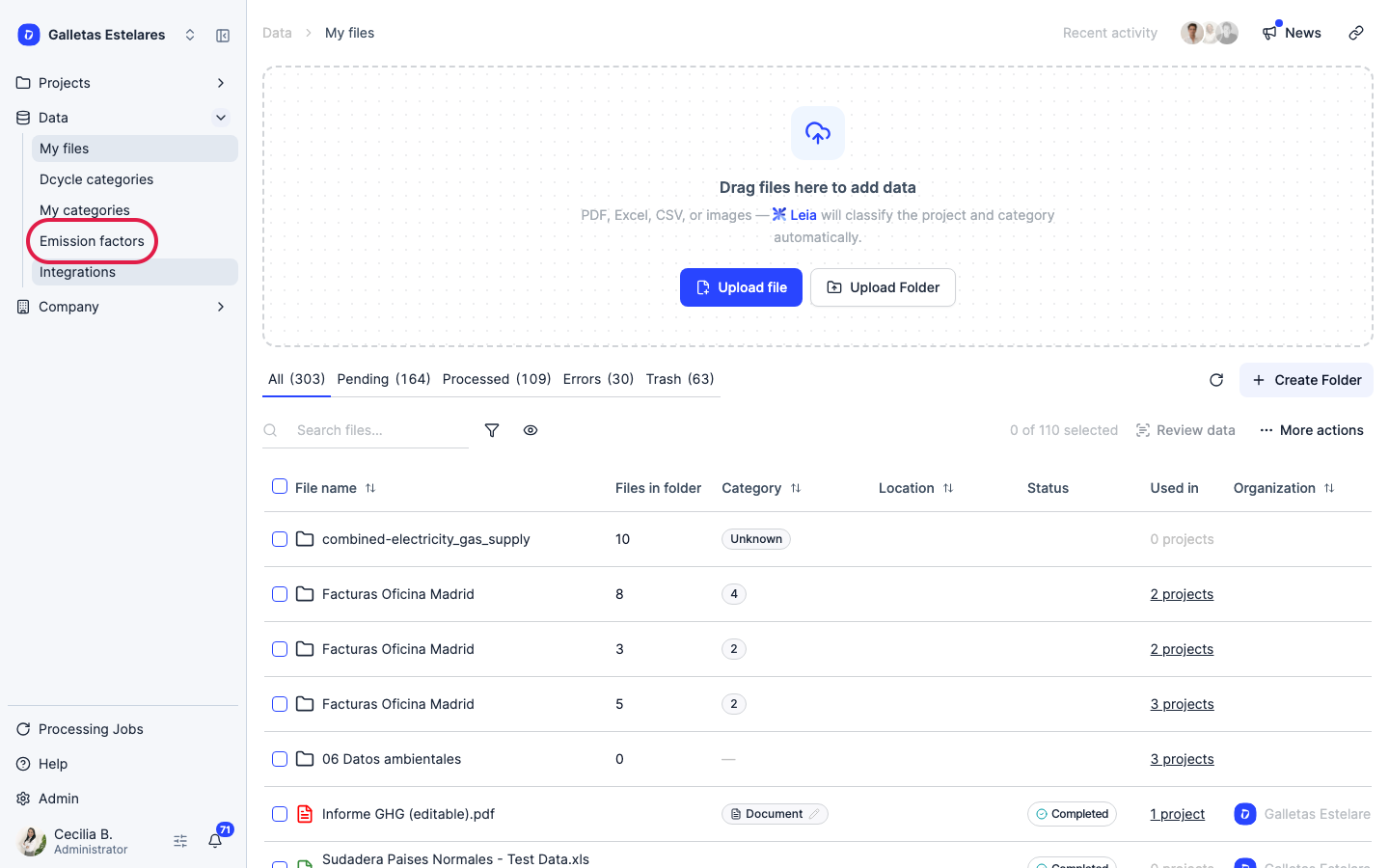
Click “Emission factors” in the Data sub-navigation.
Step 5
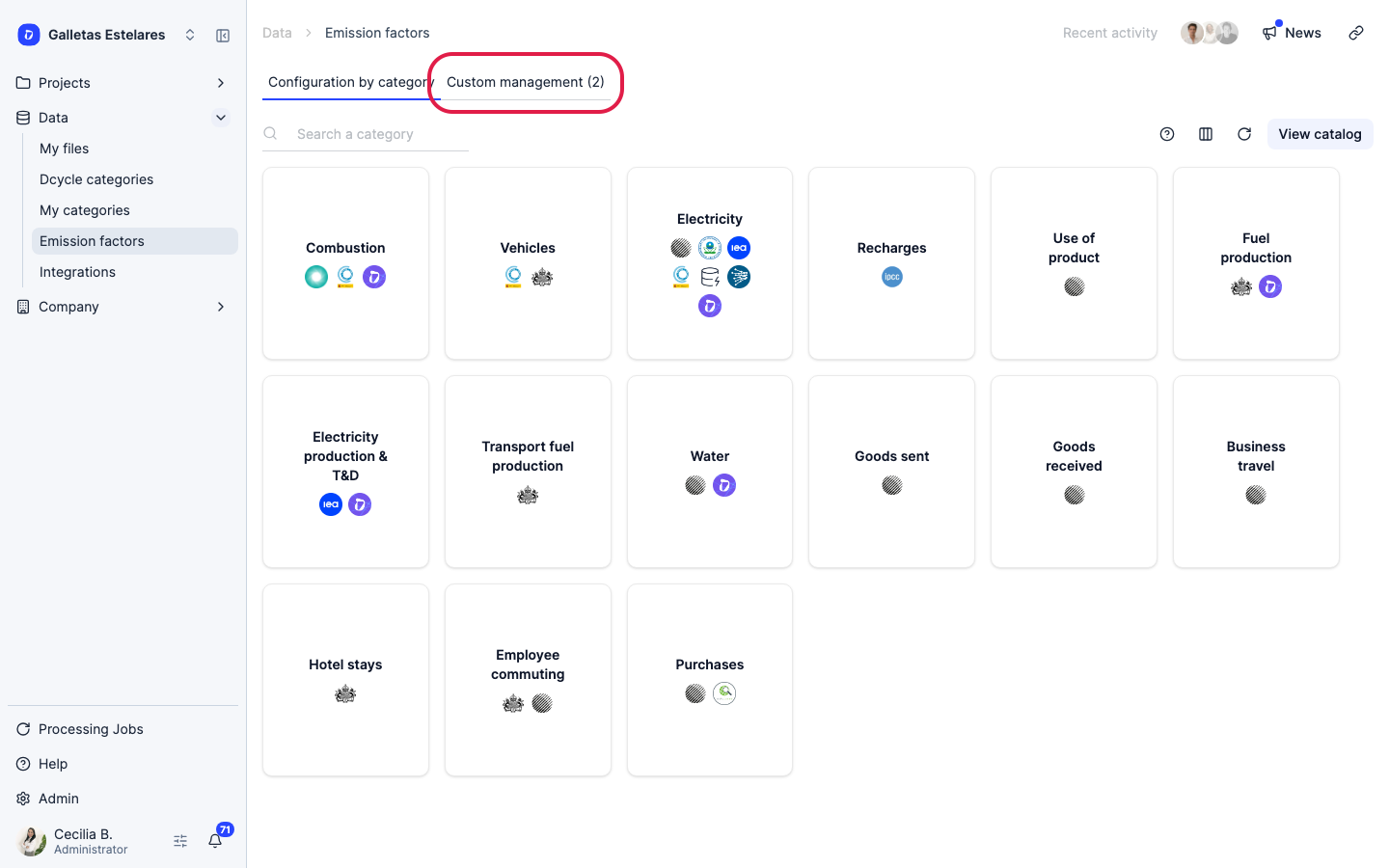
Click the “Custom management” tab.
Step 6
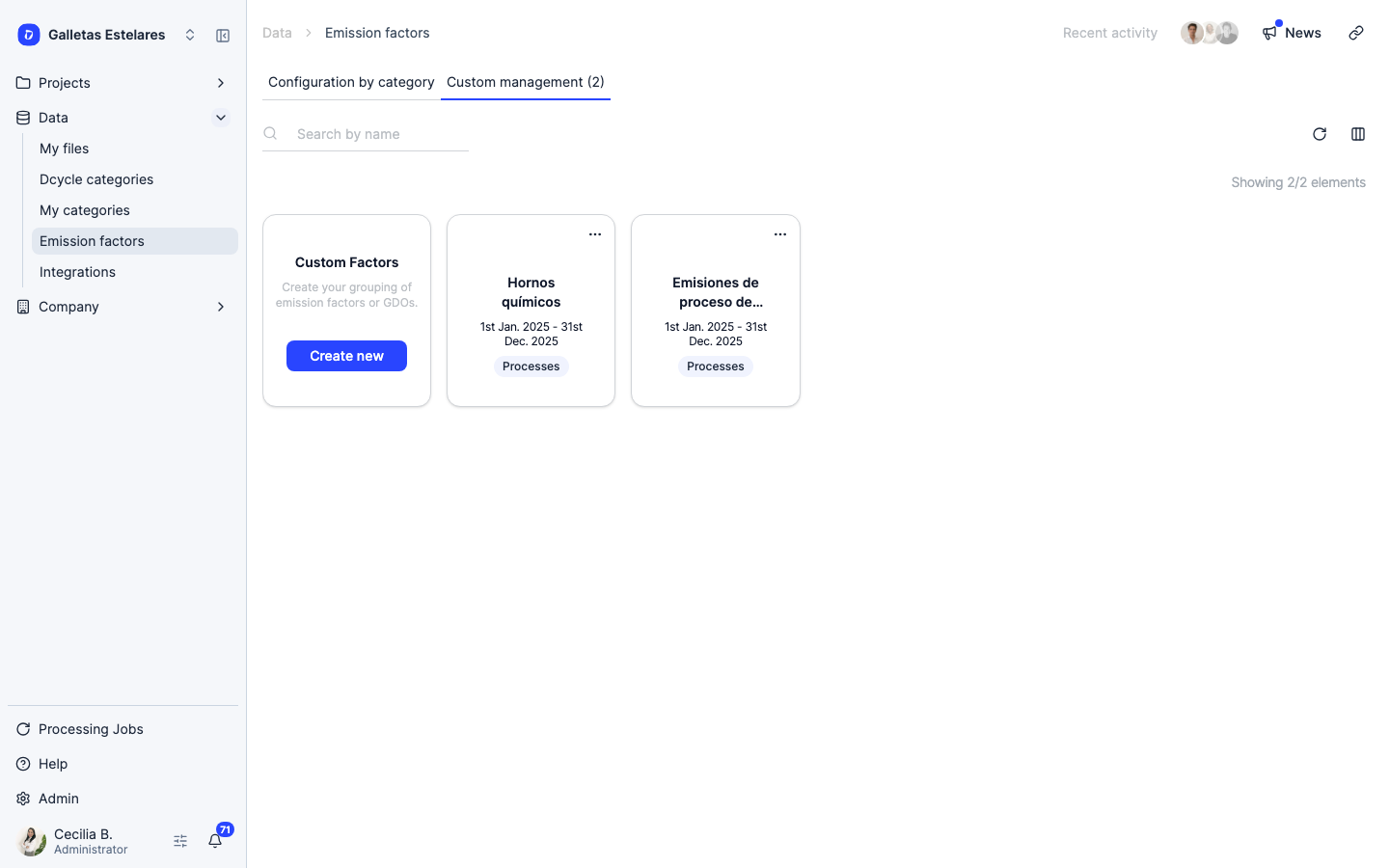
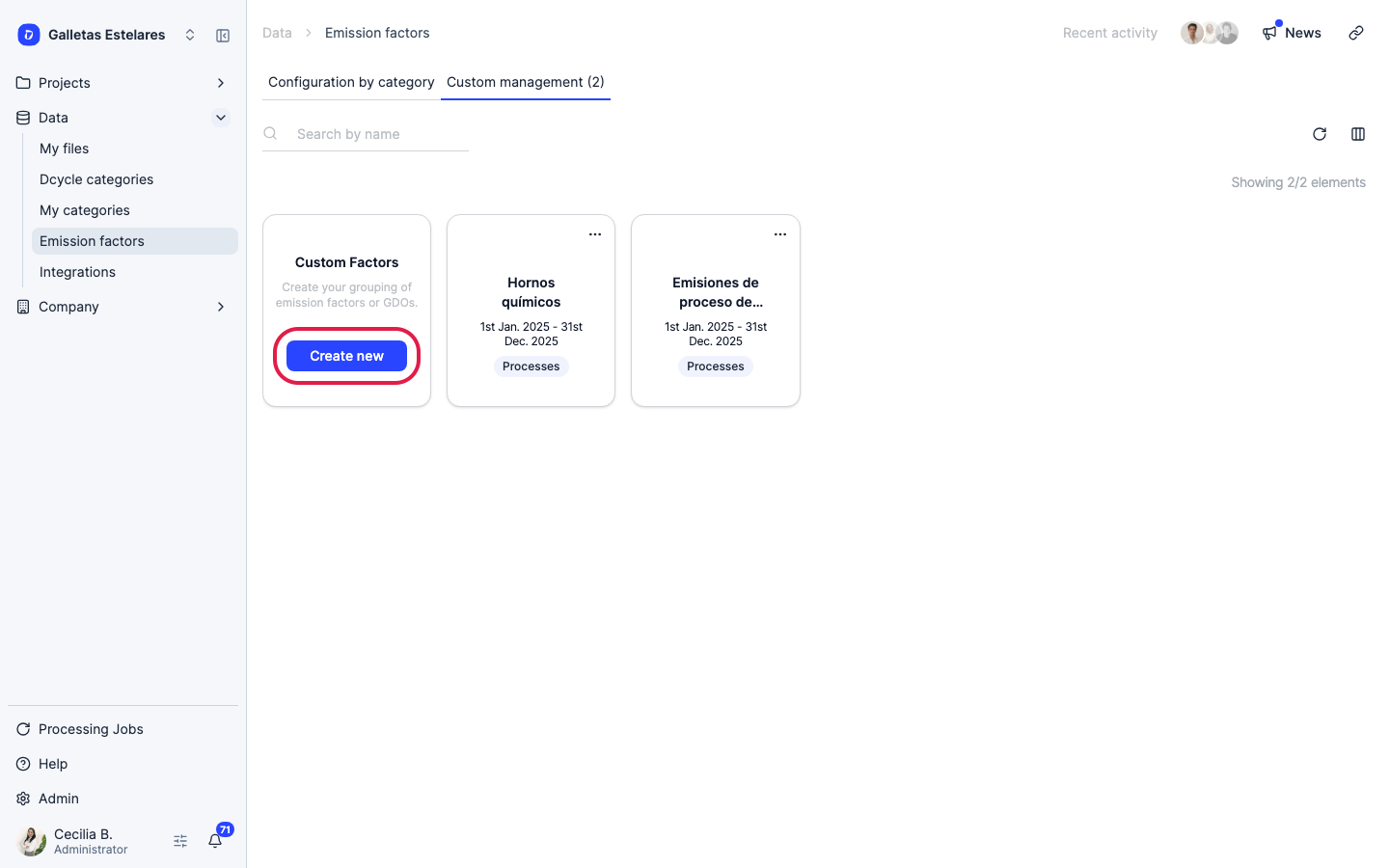
This tab lists the custom factor groups you already have, with the category and validity period of each one. To add another, use the “Custom factors” card on the left.
Step 7
Click “Create new” to start a new group of factors.
Step 8
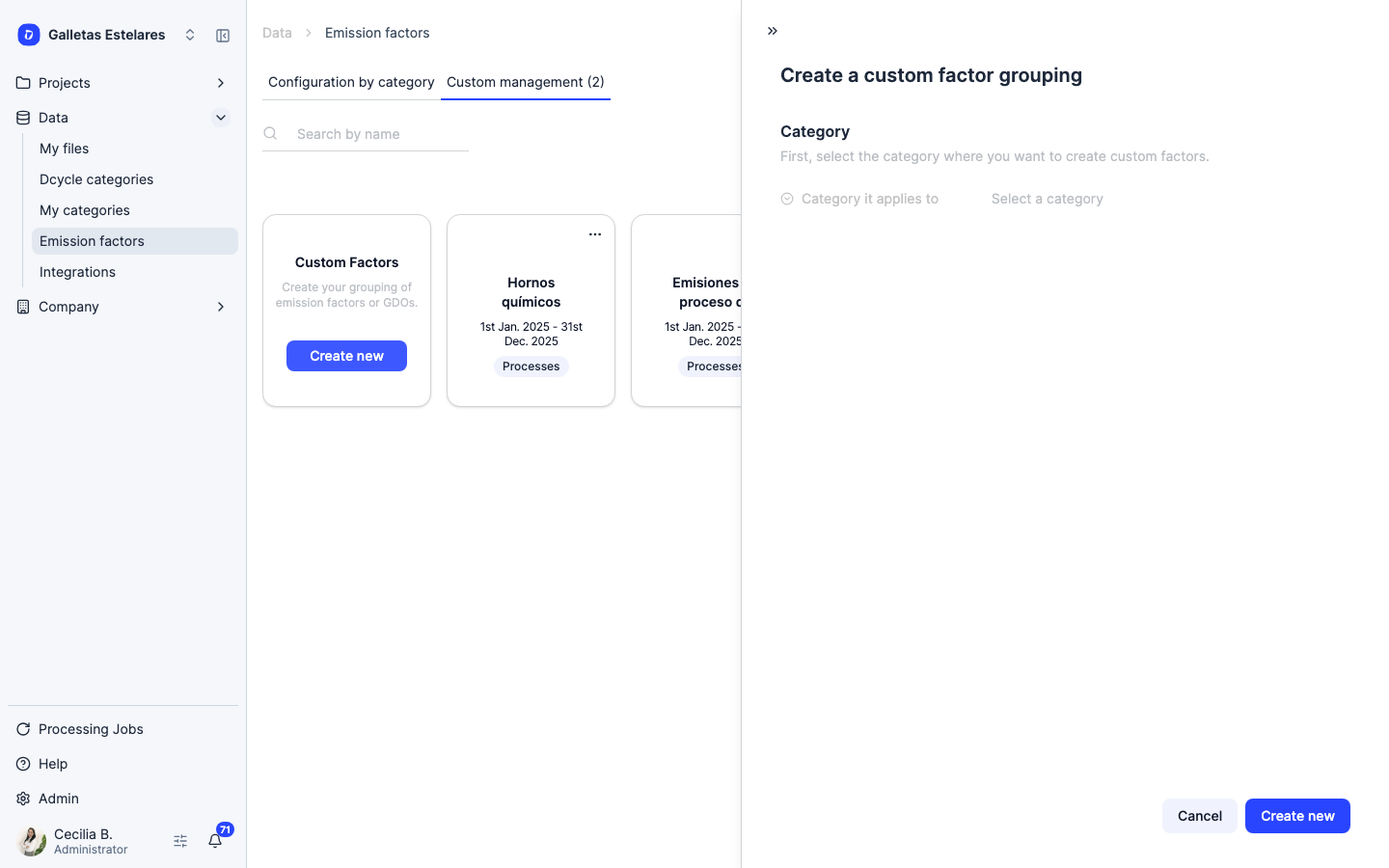
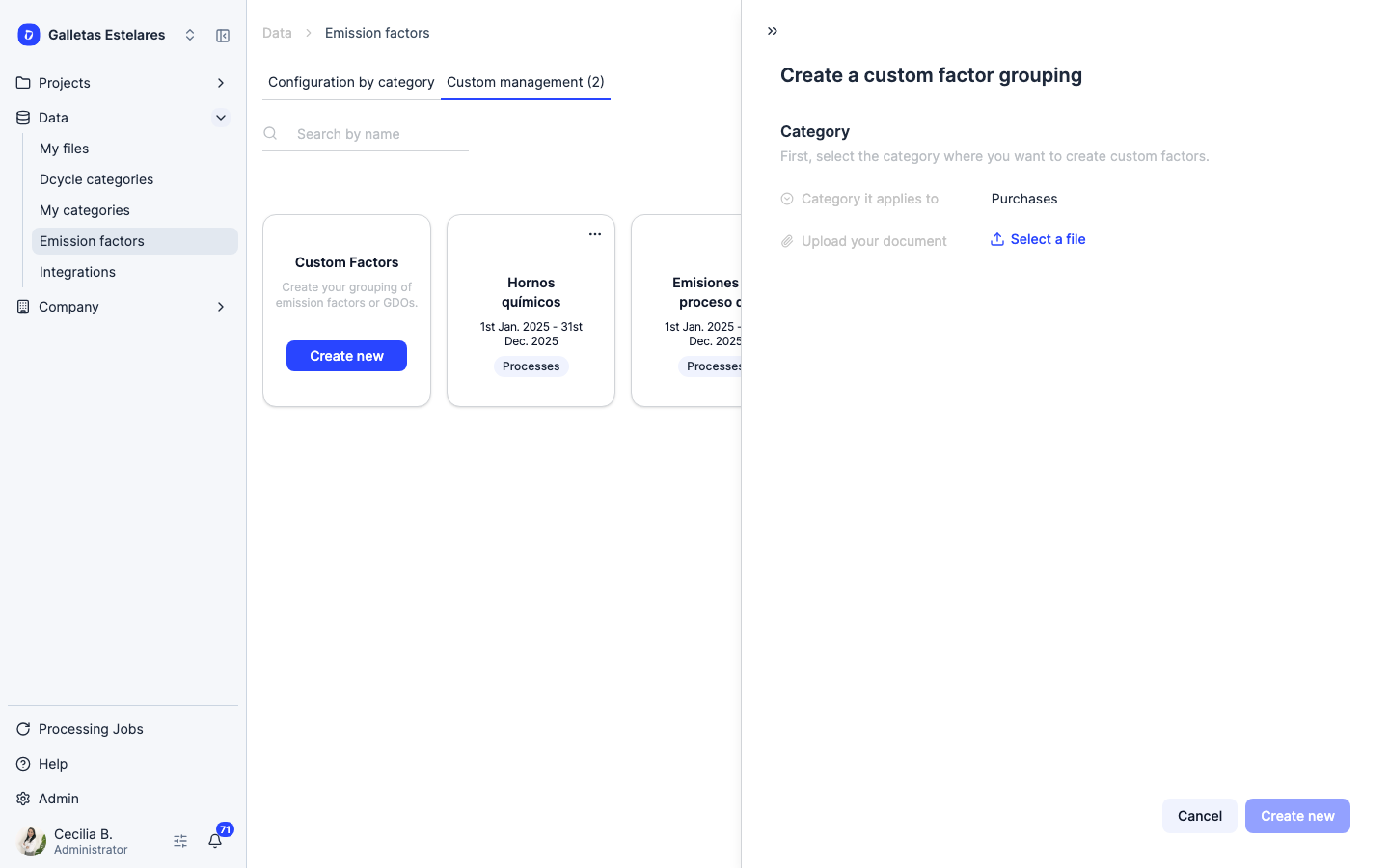
The “Create a custom factor grouping” panel opens on the Category step. Everything you load here belongs to one grouping, and the category you pick decides where those factors can be used.
Step 9
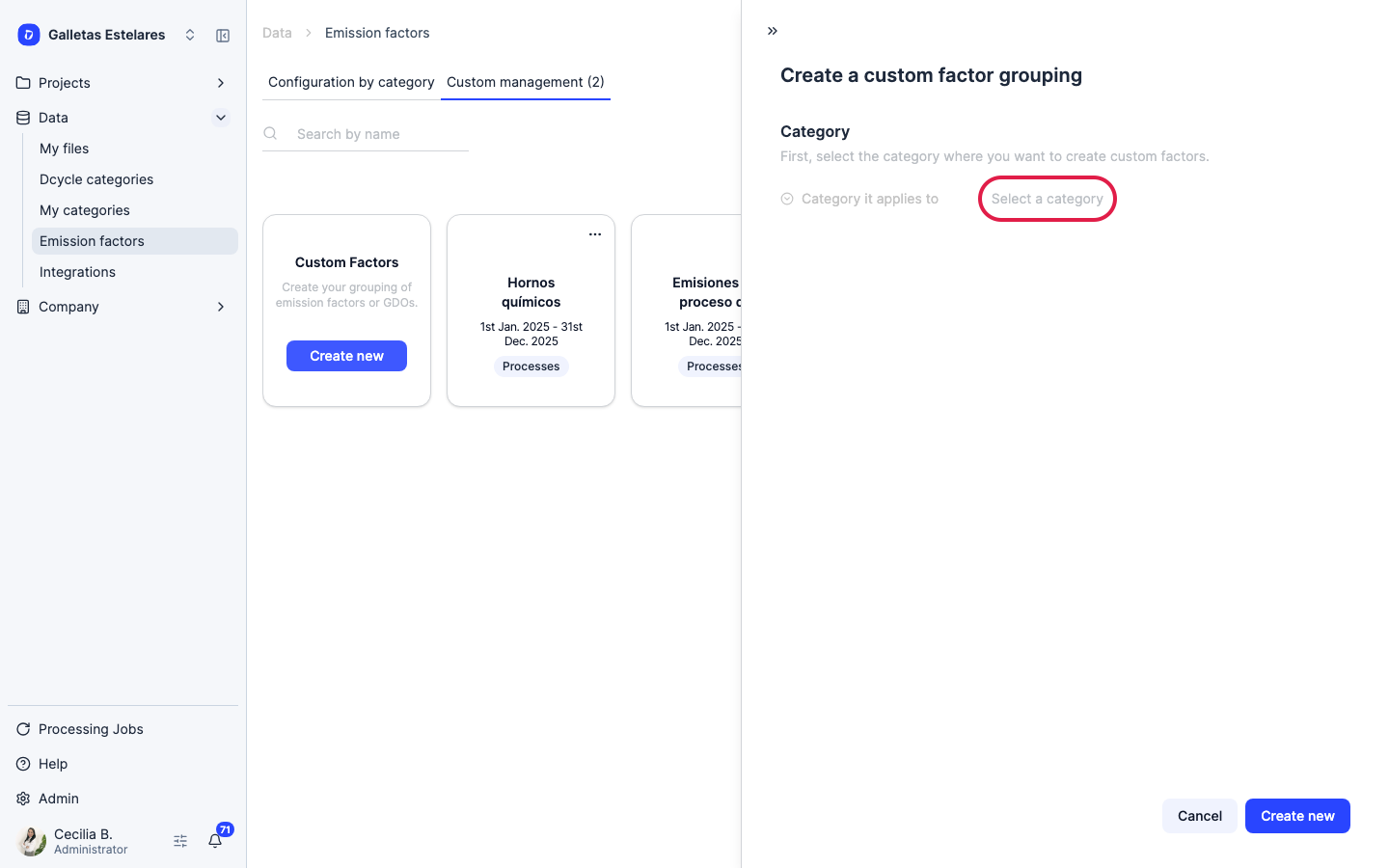
Open the “Category it applies to” dropdown.
Step 10
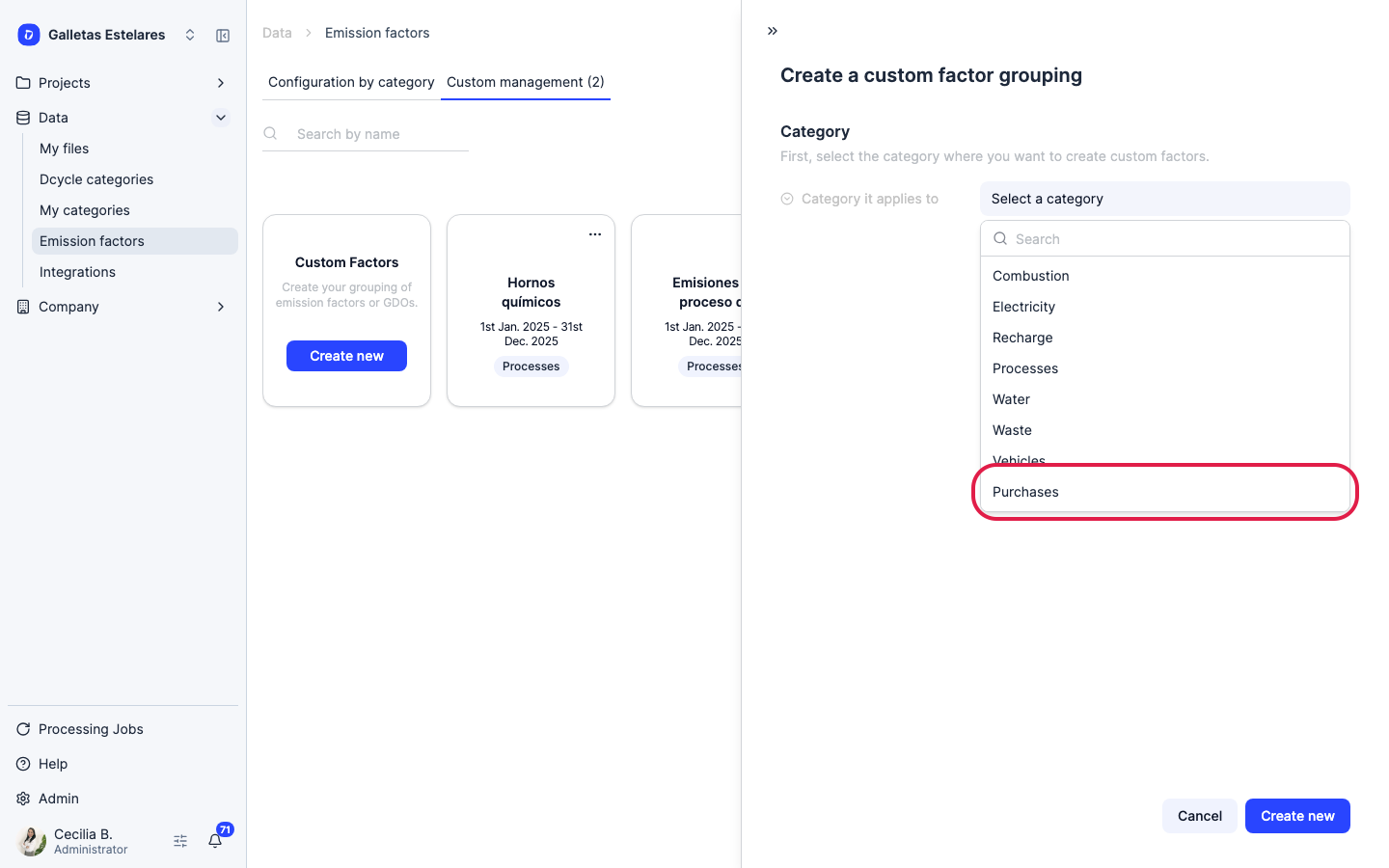
Choose “Purchases”. This step is what makes the factors show up when you upload purchases later — a grouping created under another category will not appear there.
Step 11
Once the category is set, an “Upload your document” field appears. Click “Select a file” and choose the spreadsheet you prepared, then pick the sheet that holds the factors.
Step 12
Match each column in your file to a Dcycle field: material, emission factor, reference unit, supplier and company. The importer recognises the usual column names on its own, so most of the time you only need to check that the mapping is right before continuing.
Step 13
Review the entries and confirm the import. The factors are created in the companies listed in your file and stay available for every future upload — you only repeat this when a supplier updates its figure or you start buying a new reference.
Step 14
Give each material a name you will recognise later. When you upload purchases, the factor is identified by a value that combines the material and the supplier, so a vague material name makes it hard to pick the right factor.
Step 15
To apply them, go to Data > Categories > Purchases and CapEx, click “Upload purchases” > “Bulk upload” and choose the “Custom” calculation method. Download the template: the “Valores válidos” sheet now lists the factors you just created, and you copy the one you need into the “Custom Emission Group” column of each purchase row.
Step 16
With the custom method you enter physical quantities, not euros, and the quantity of each row must be in the same unit as its factor. Dcycle then calculates quantity multiplied by factor. Purchases you have no supplier factor for can go in a separate file with the standard method.
Was this helpful?
What was missing or unclear? (optional)
Sent. Thank you for helping us improve.