Product Guides
Assign an emission factor to a category
Once you've created a custom emission factor (see "Create a custom emission factor"), you can apply it to an entire category so that any record in that category uses your factor instead of the default. This is how you override MITECO, DEFRA or ecoinvent with a factor provided by your supplier.
Once you’ve created a custom emission factor (see “Create a custom emission factor”), you can apply it to an entire category so that any record in that category uses your factor instead of the default. This is how you override MITECO, DEFRA or ecoinvent with a factor provided by your supplier.
Before you start
You need the Editor role in your Dcycle organization.
Steps
Step 1
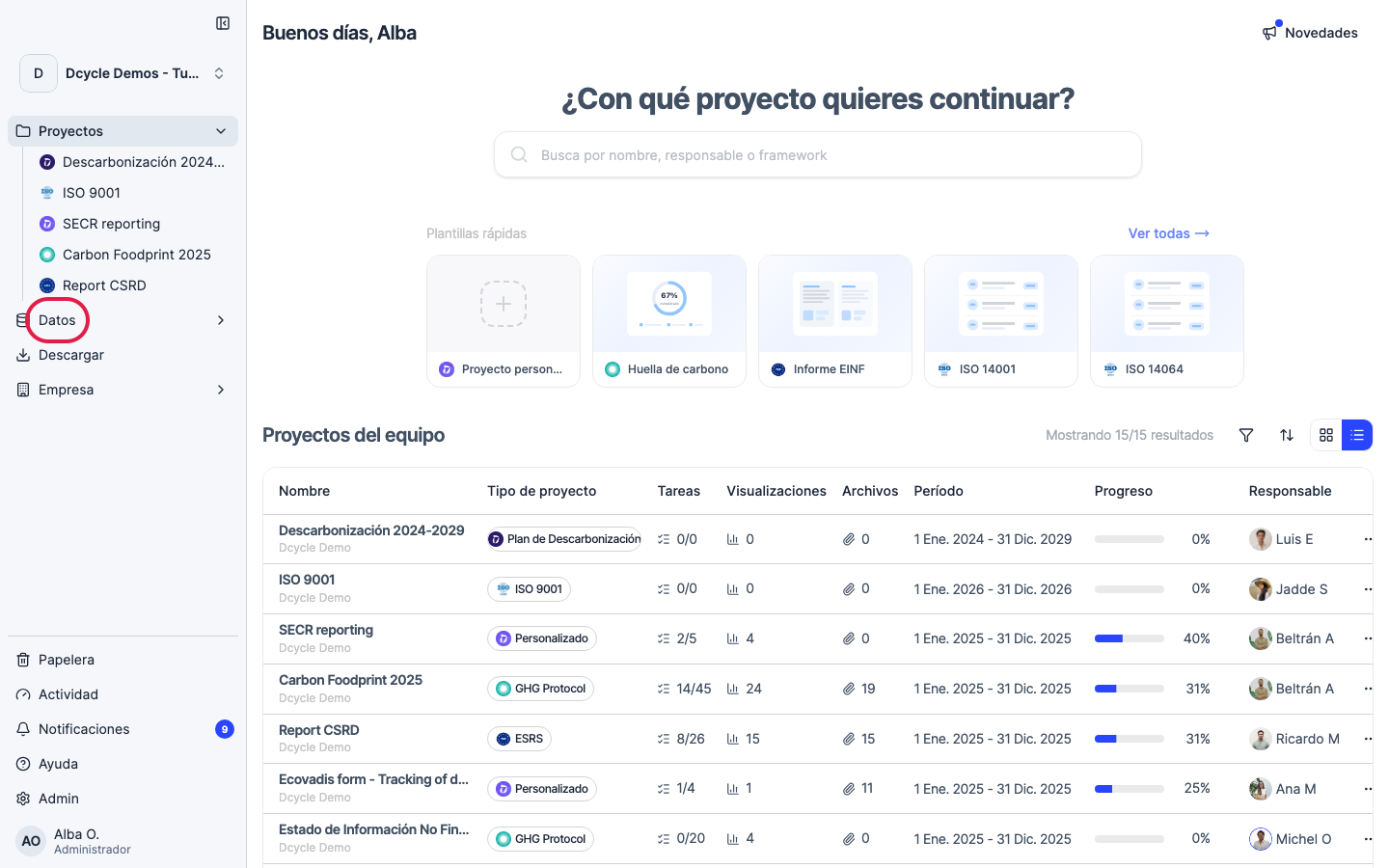
Click “Data” in the sidebar navigation.
Step 2
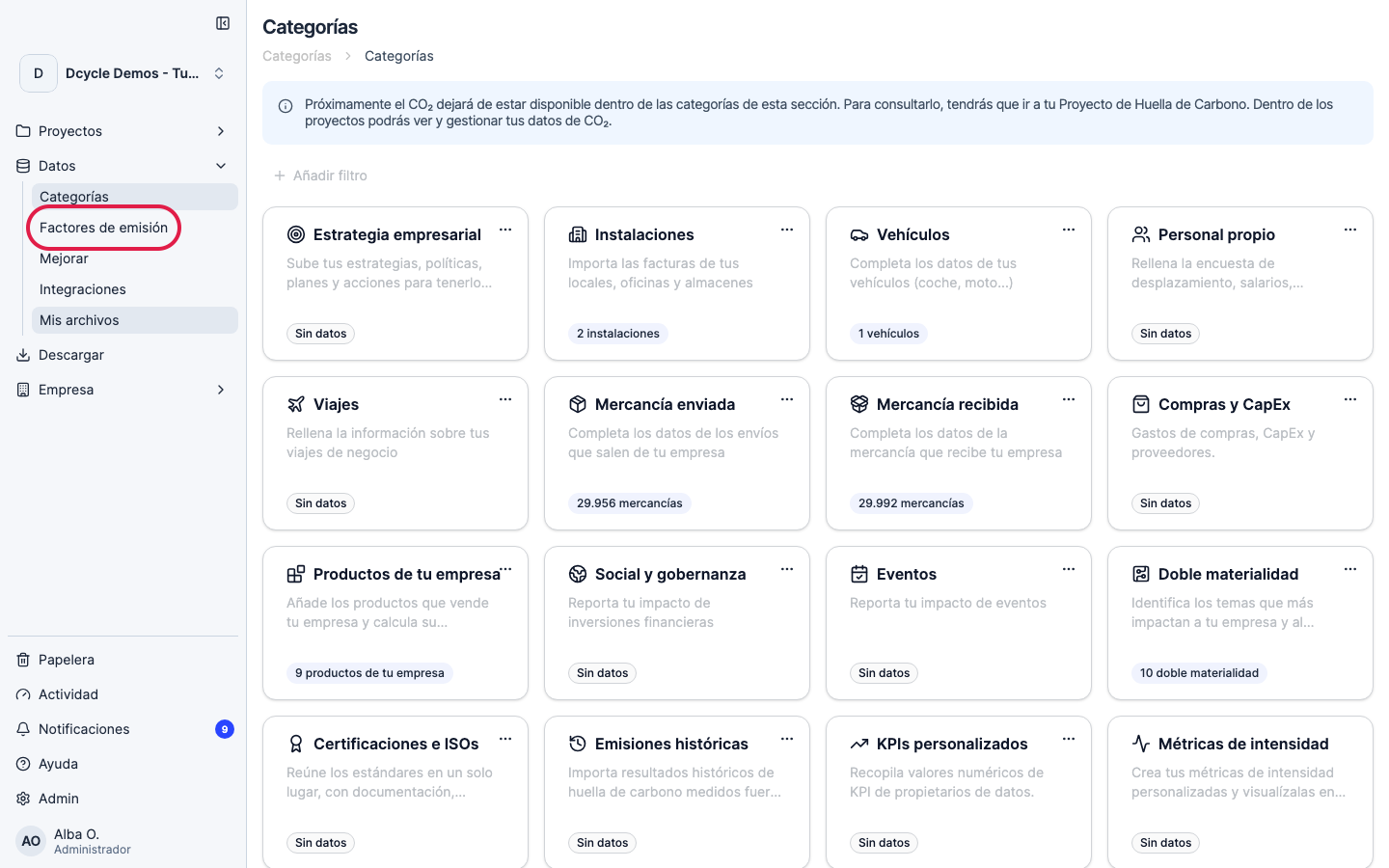
Click “Emission factors” in the Data sub-menu.
Step 3
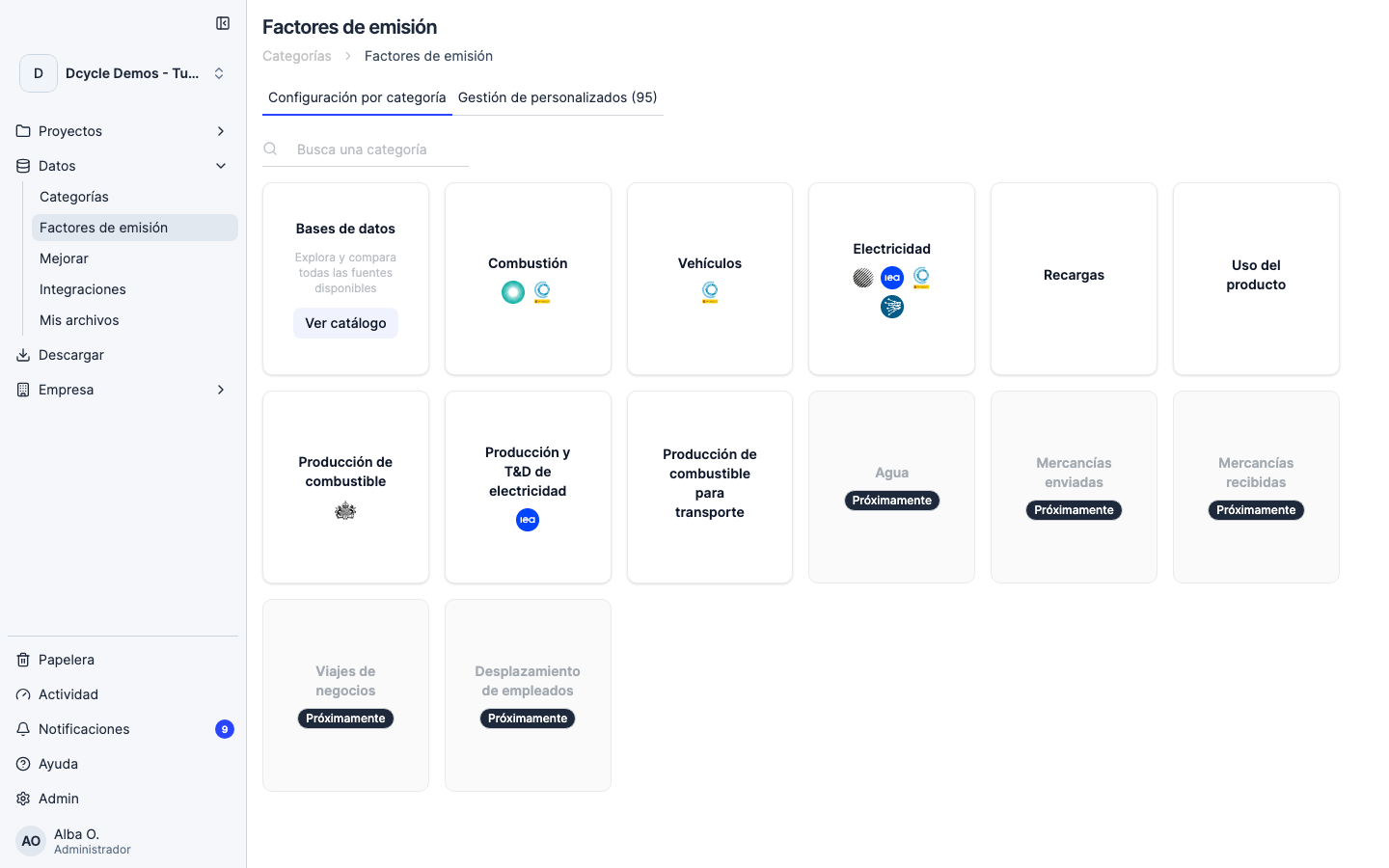
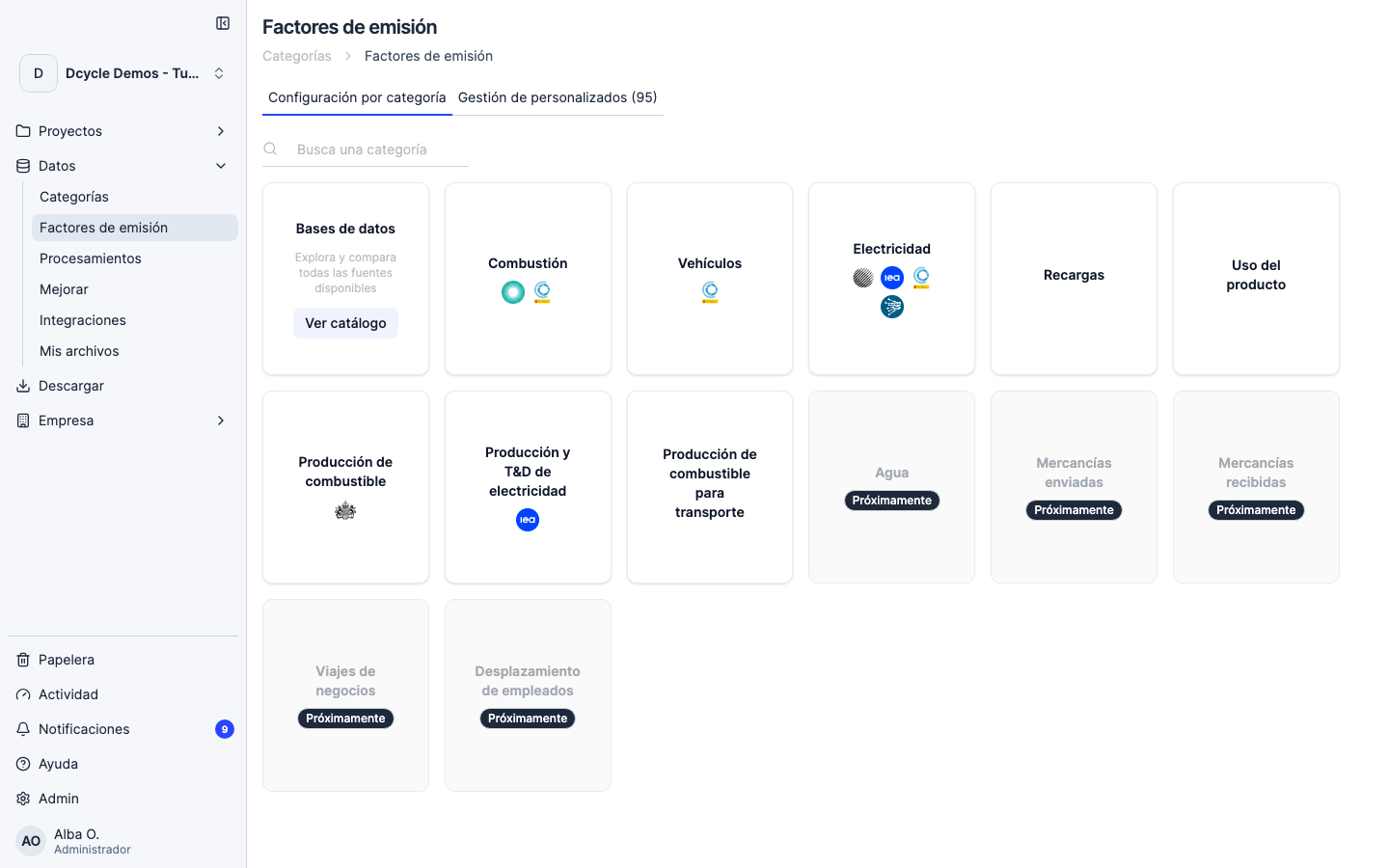
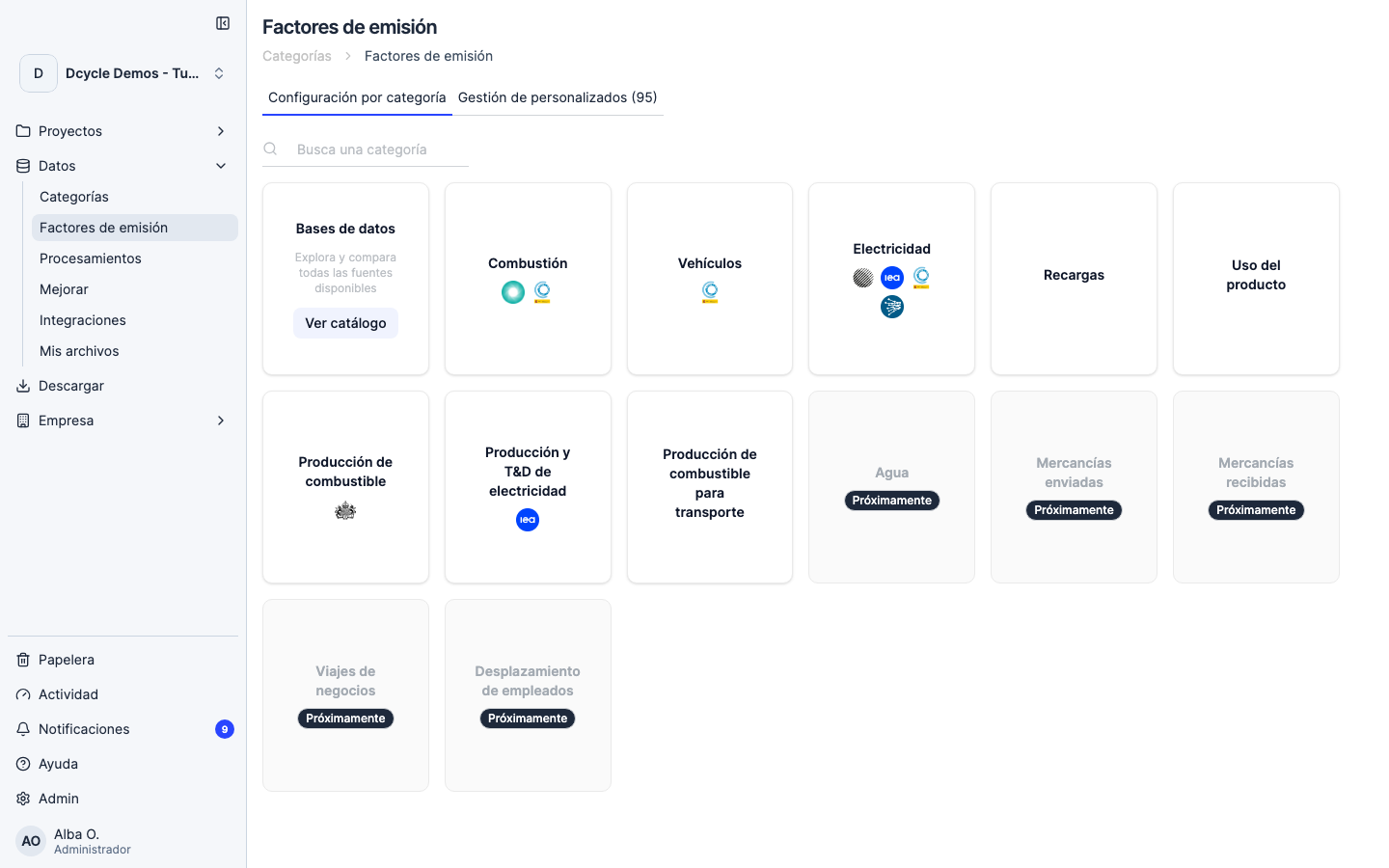
The page has two tabs. “Configuration by category” is where you decide which factor each category uses. “Custom management” is where your own factors live (covered in “Create a custom emission factor”).
Step 4
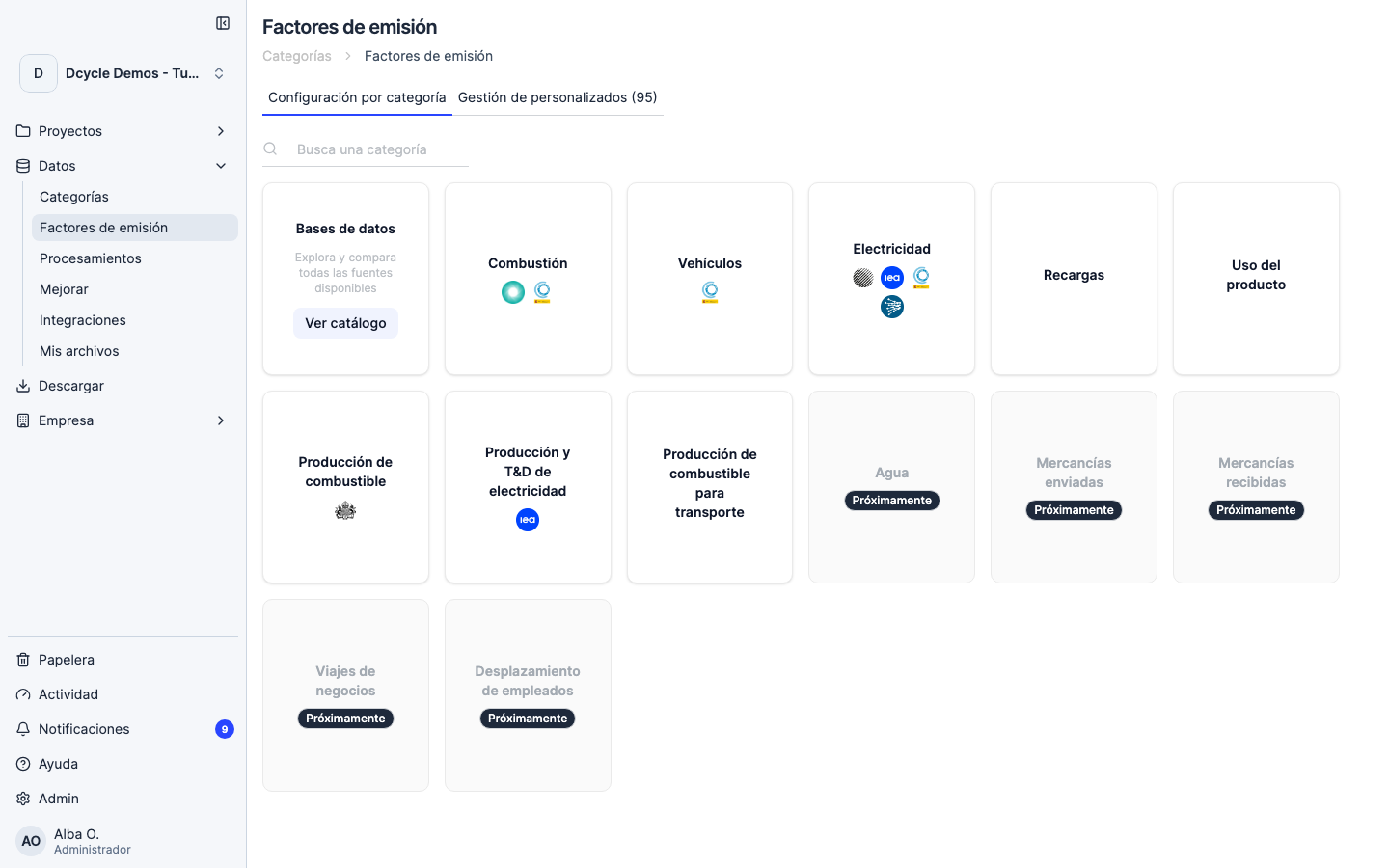
In the “Configuration by category” tab, click the category you want to change (for example, Electricity, Combustion, Vehicles). A panel opens with the emission factor databases available for that category — MITECO, IEA, DEFRA, ecoinvent — and your custom factors.
Step 5
Select your custom factor (or a different default database) and confirm. Dcycle recalculates the emissions of every record in that category. The recalculation runs in the background and the dashboard totals update when it finishes — usually less than a minute, longer for very large datasets.
Step 6
After applying a custom factor, every record in that category references it in its detail view. This is the traceability chain auditors will follow — they can see which factor was applied to each record and link it back to the source document you attached when creating the custom factor.
Was this helpful?
What was missing or unclear? (optional)
Sent. Thank you for helping us improve.