Product Guides
Add a participated company and link it to the holding
A participated company is an organisation in which your holding holds an equity stake. Adding one in Dcycle lets you consolidate its emissions in the group's carbon footprint. This guide shows how to create a participated company and link it to the holding.
Before you start
You need an Admin role in your Dcycle organization.
Steps
Step 1
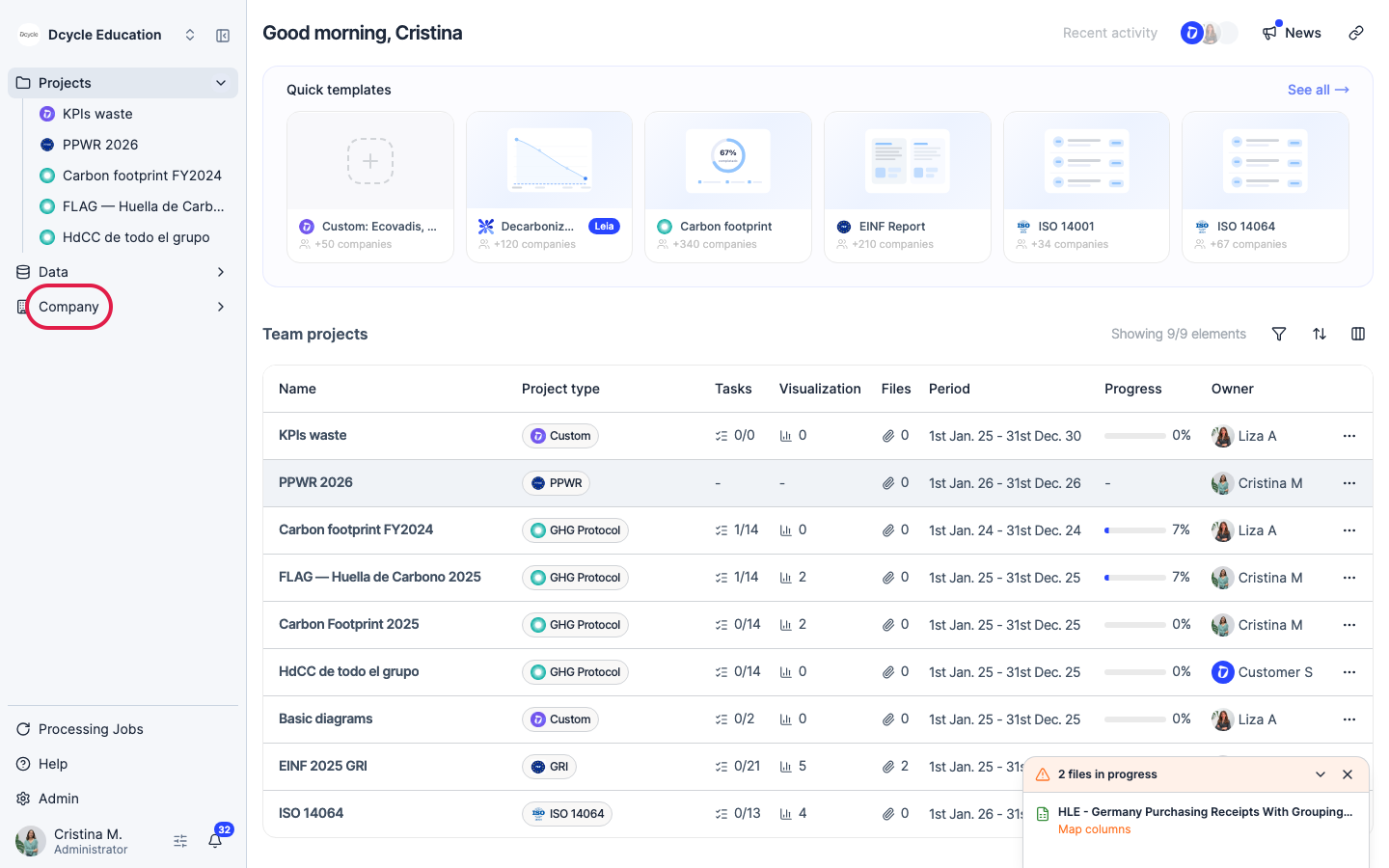
Click “Company” in the left navigation.
Step 2
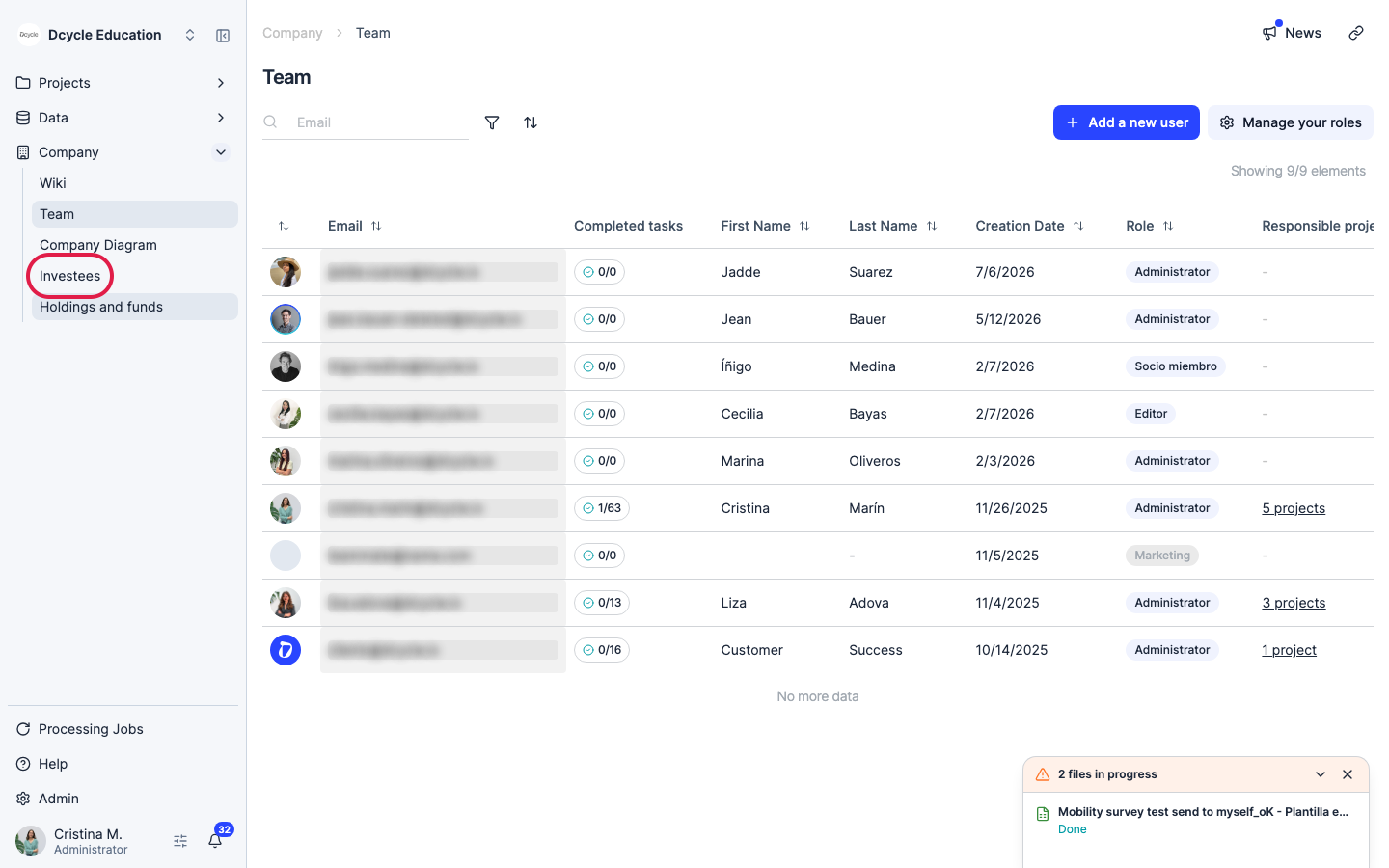
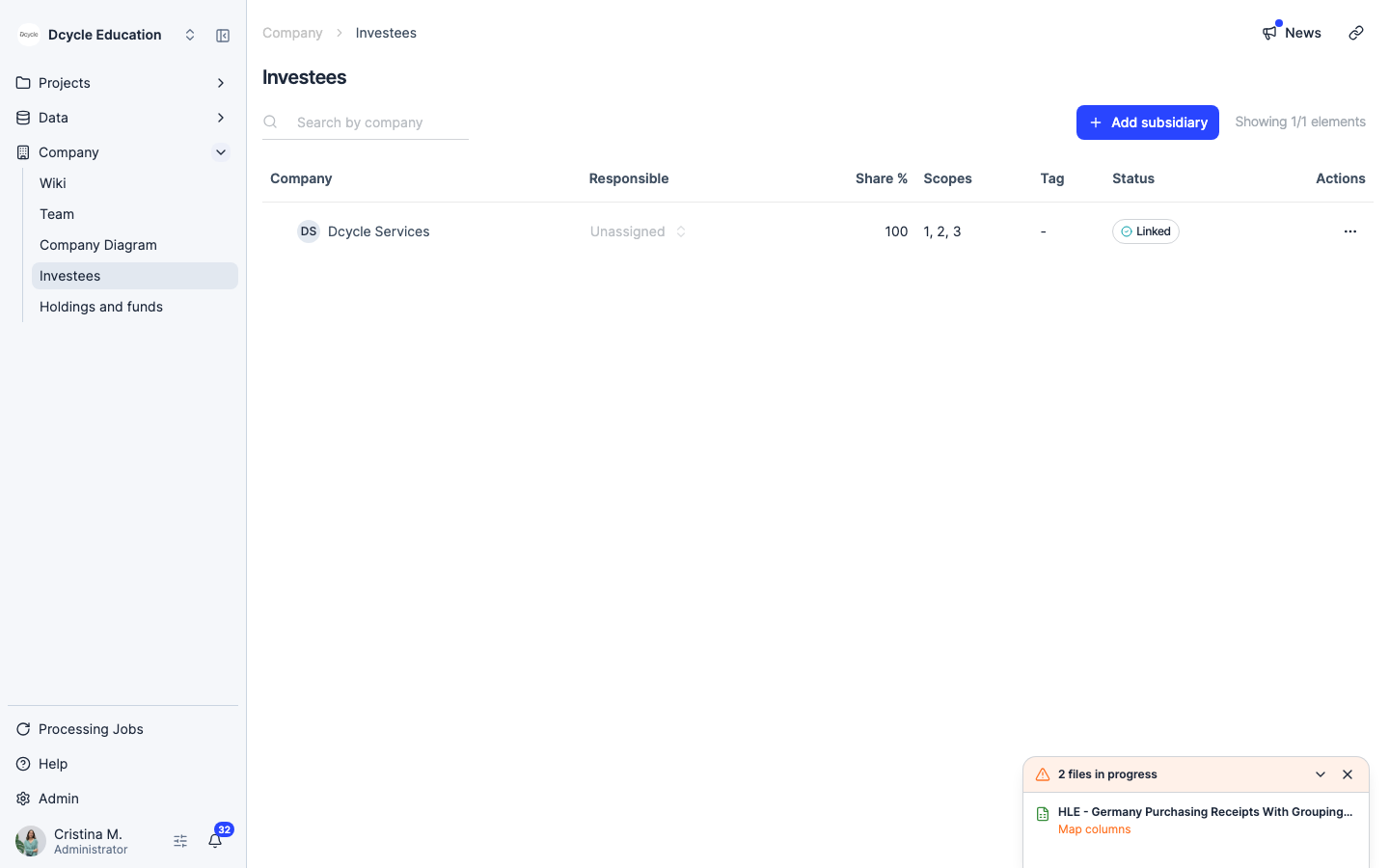
Open the “Investees” section.
Step 3
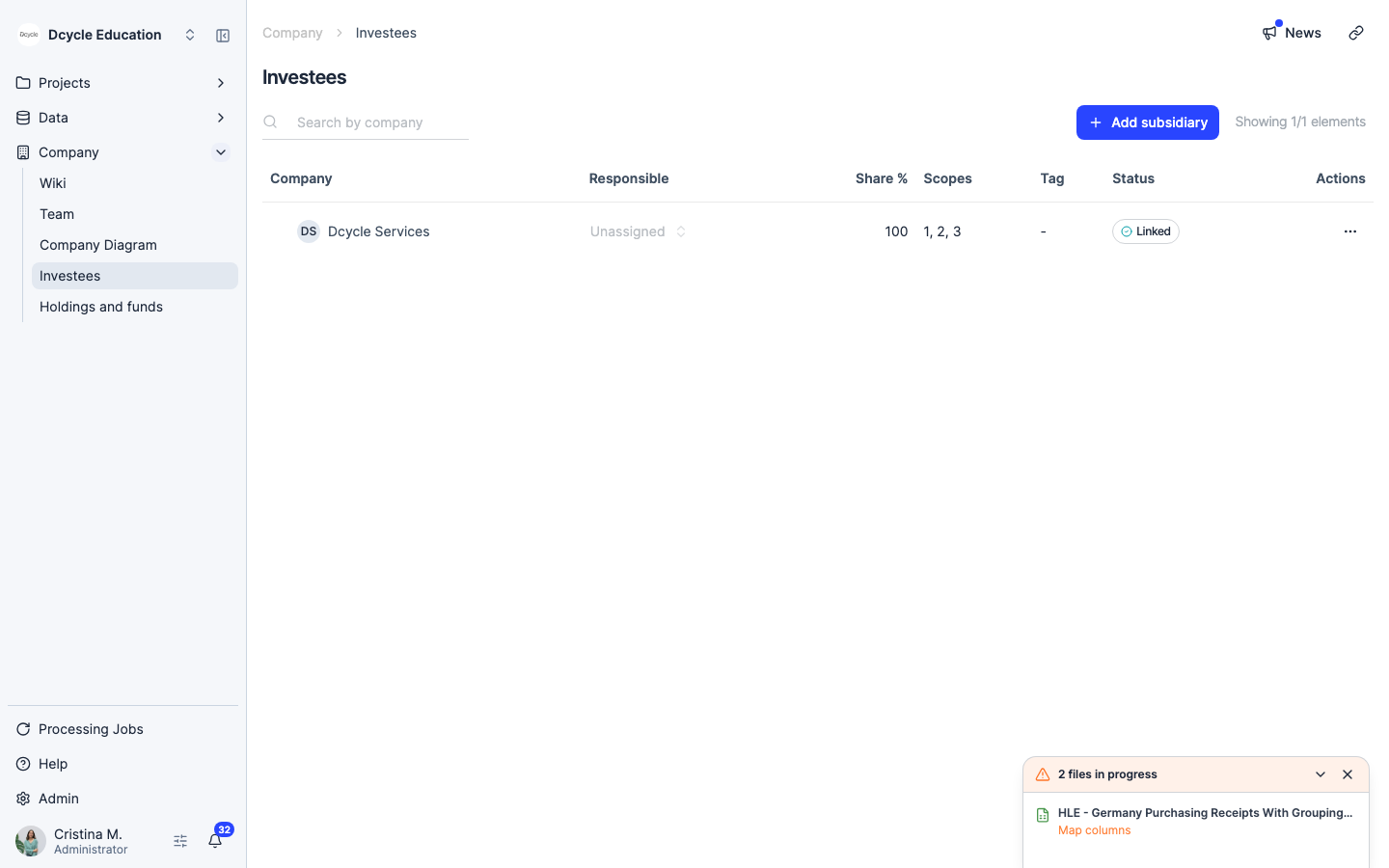
This page lists all investees already linked to the holding. If none exist yet, you’ll see an empty state. Click “Add investee” to create a new one.
Step 4
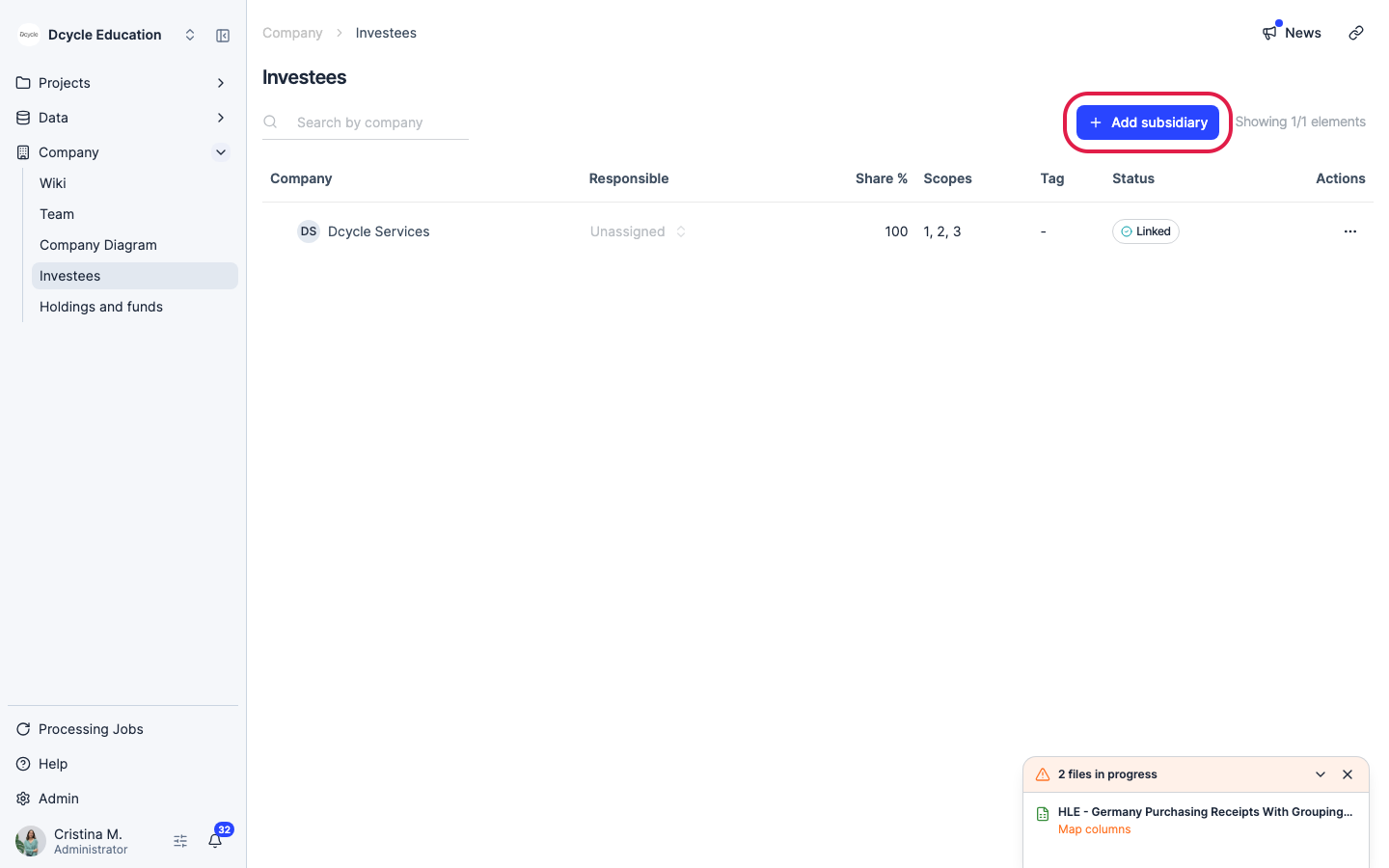
Click “Add subsidiary” to create a new investee.
Step 5
Fill in the participated company’s details: name, country, and your equity stake percentage. The equity percentage determines how its emissions are attributed to the holding in the consolidated footprint (e.g. 40% stake → 40% of its Scope 1+2 goes to your Scope 3 Category 15). Click “Save” to create the company.
Step 6
Once saved, the participated company appears in the list. To include its data in the holding’s carbon footprint project, open the project, go to its settings, and link the participated company from there. This routes its emissions into the group’s consolidated report under Scope 3 Category 15 (Investments).
Was this helpful?
What was missing or unclear? (optional)
Sent. Thank you for helping us improve.