Life Cycle Assessment
Multi-product LCAs and allocation
When a single process yields more than one product, your LCA is multi-product: a shared set of inputs has to be divided between the co-products. That division is called allocation, and it decides how much of the environmental impact each output carries. This guide works with the multi-product "Product A" LCA, calculating its impact with the allocation applied so each co-product shows its own footprint.
Before you start
You need an Editor role in your Dcycle organization.
Steps
Step 1
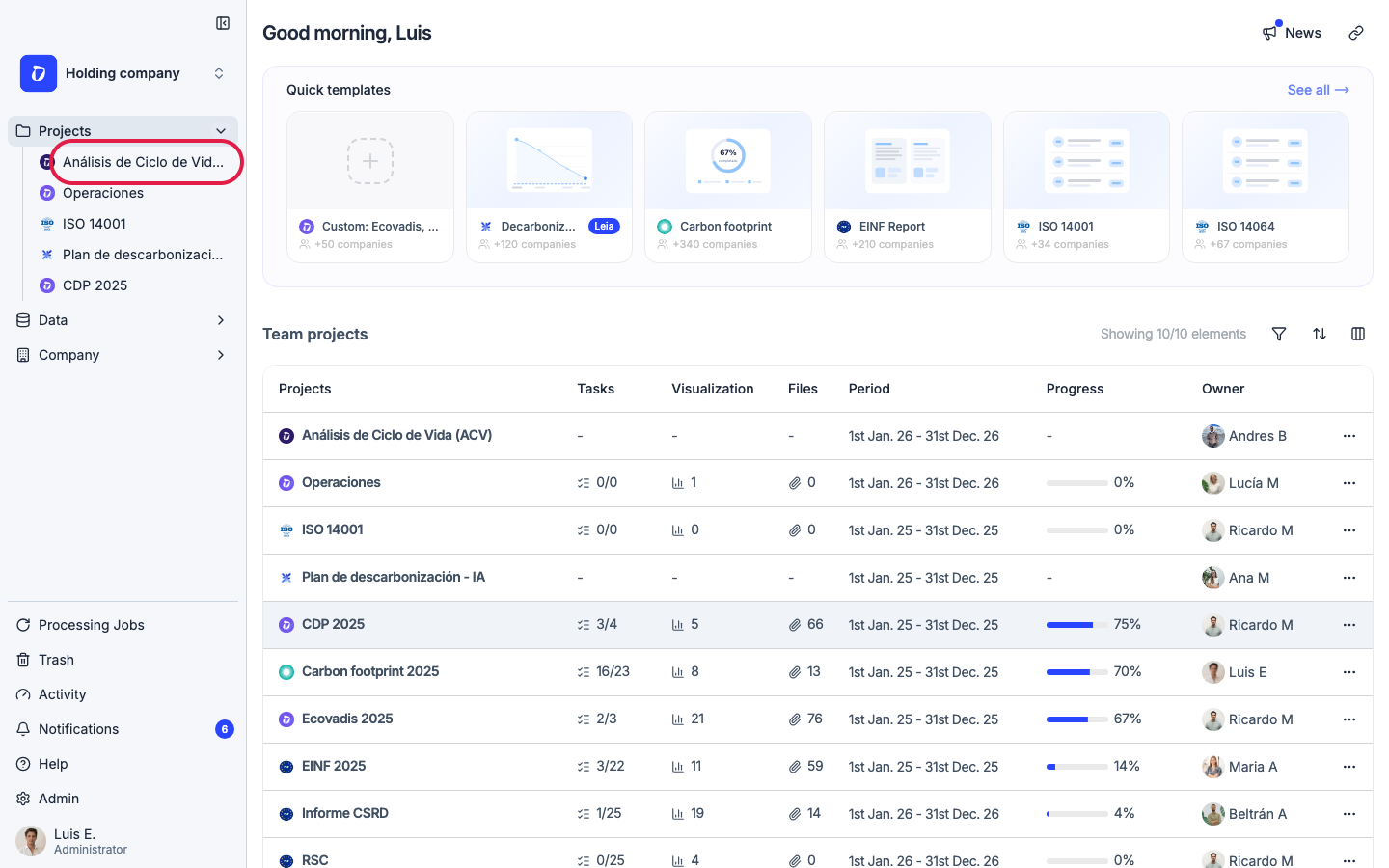
Open your LCA project, then go to its product portfolio.
Step 2
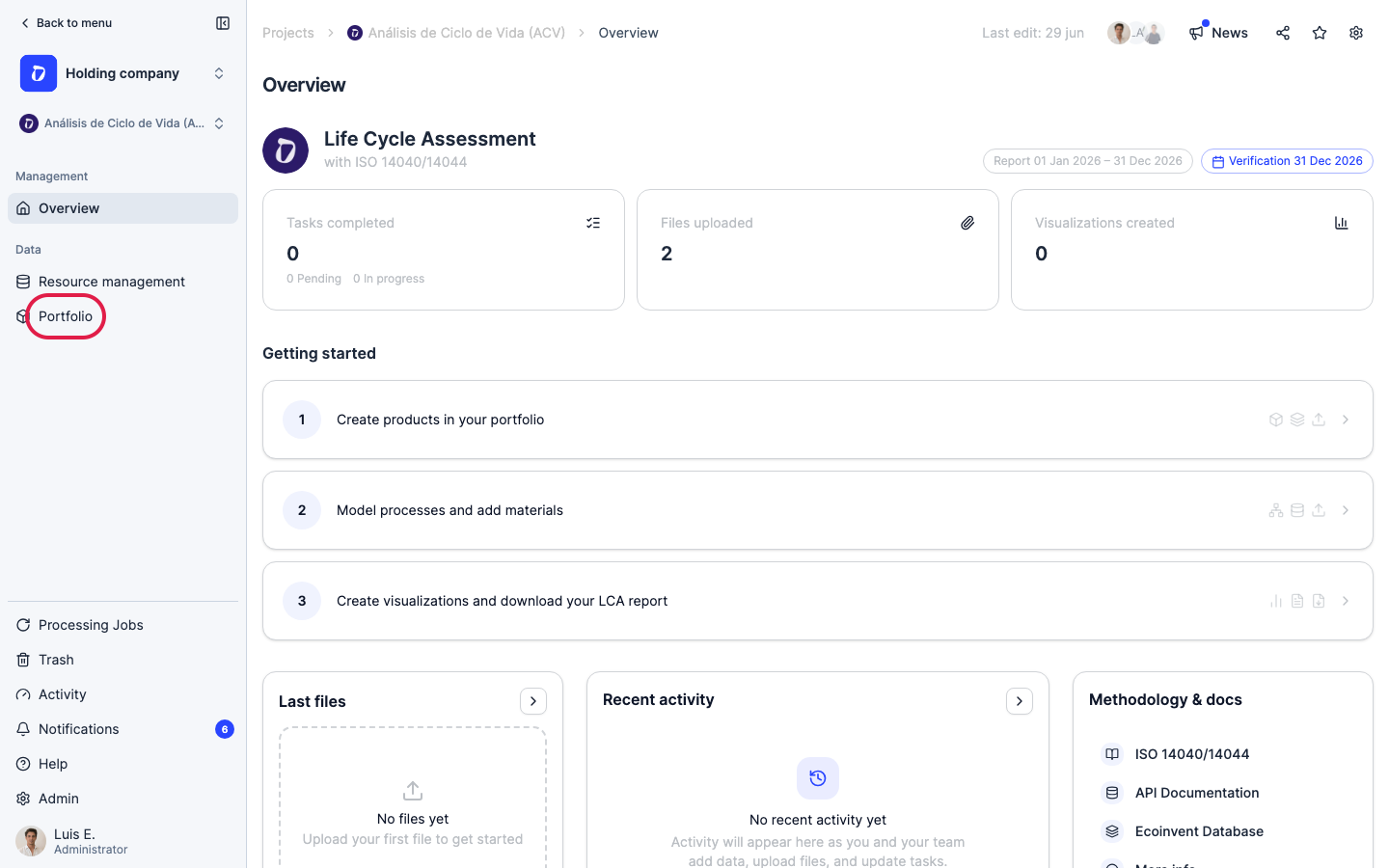
Click “Portfolio” and open the LCA you want to work with.
Step 3
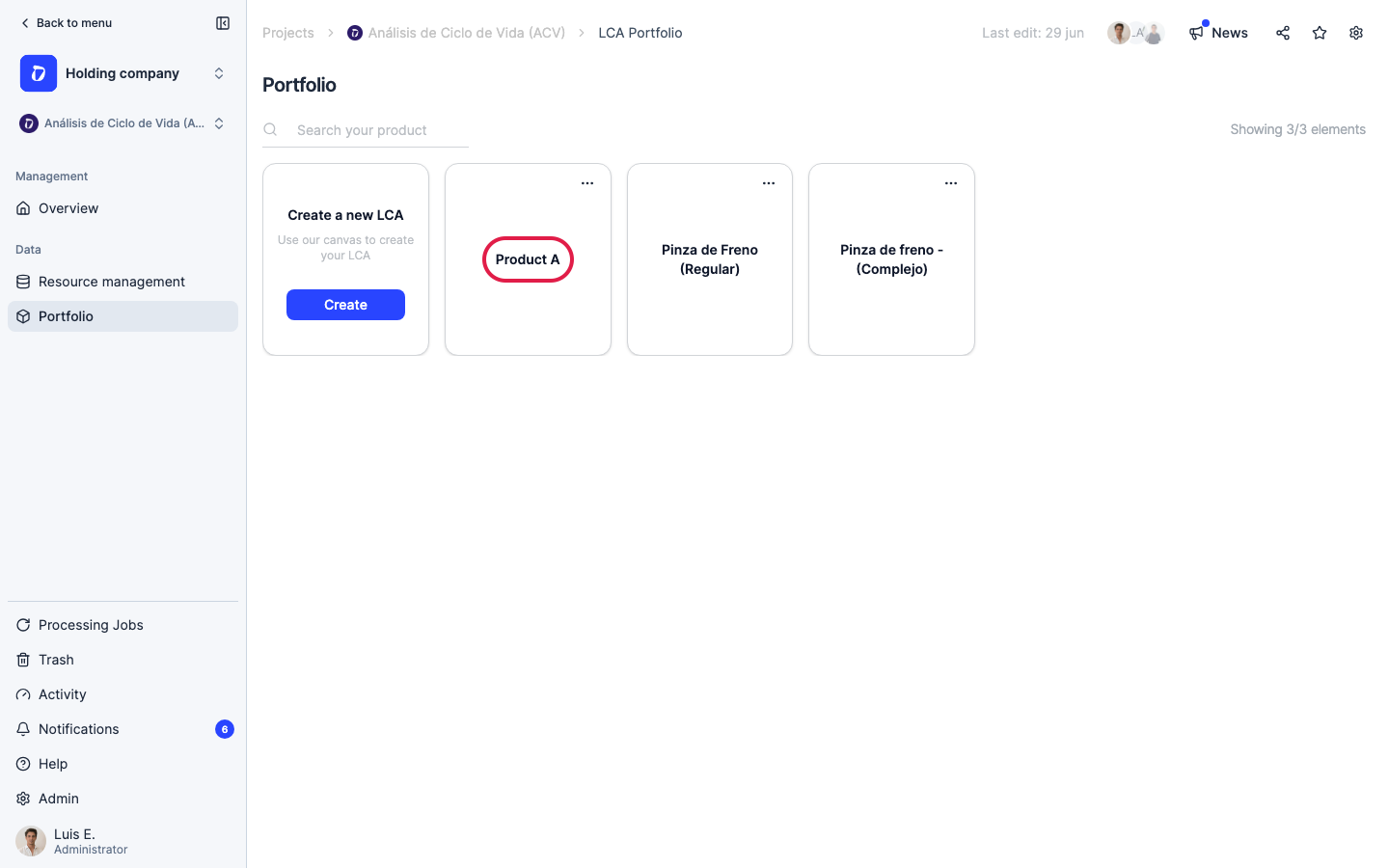
Open the “Product A” LCA.
Step 4
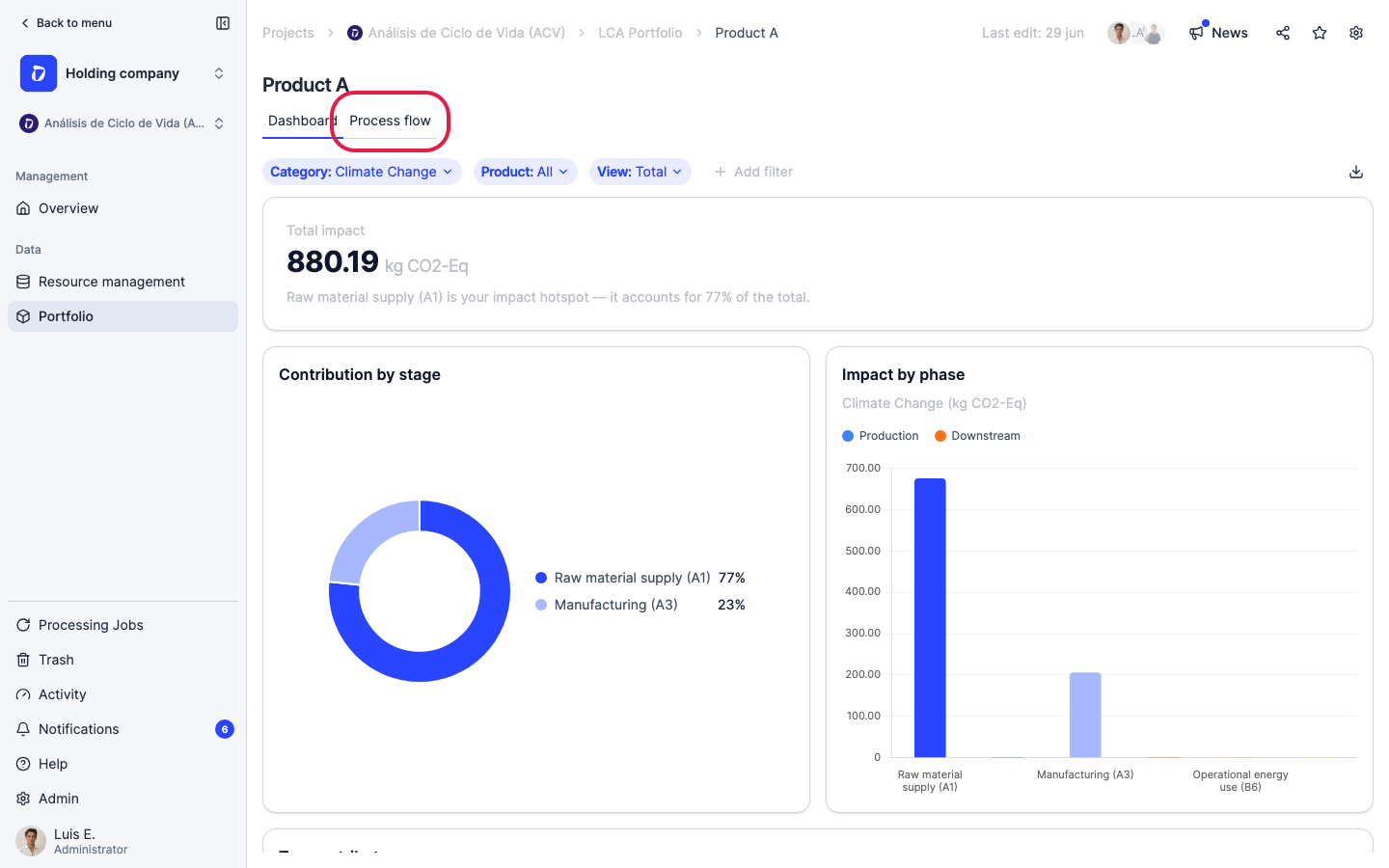
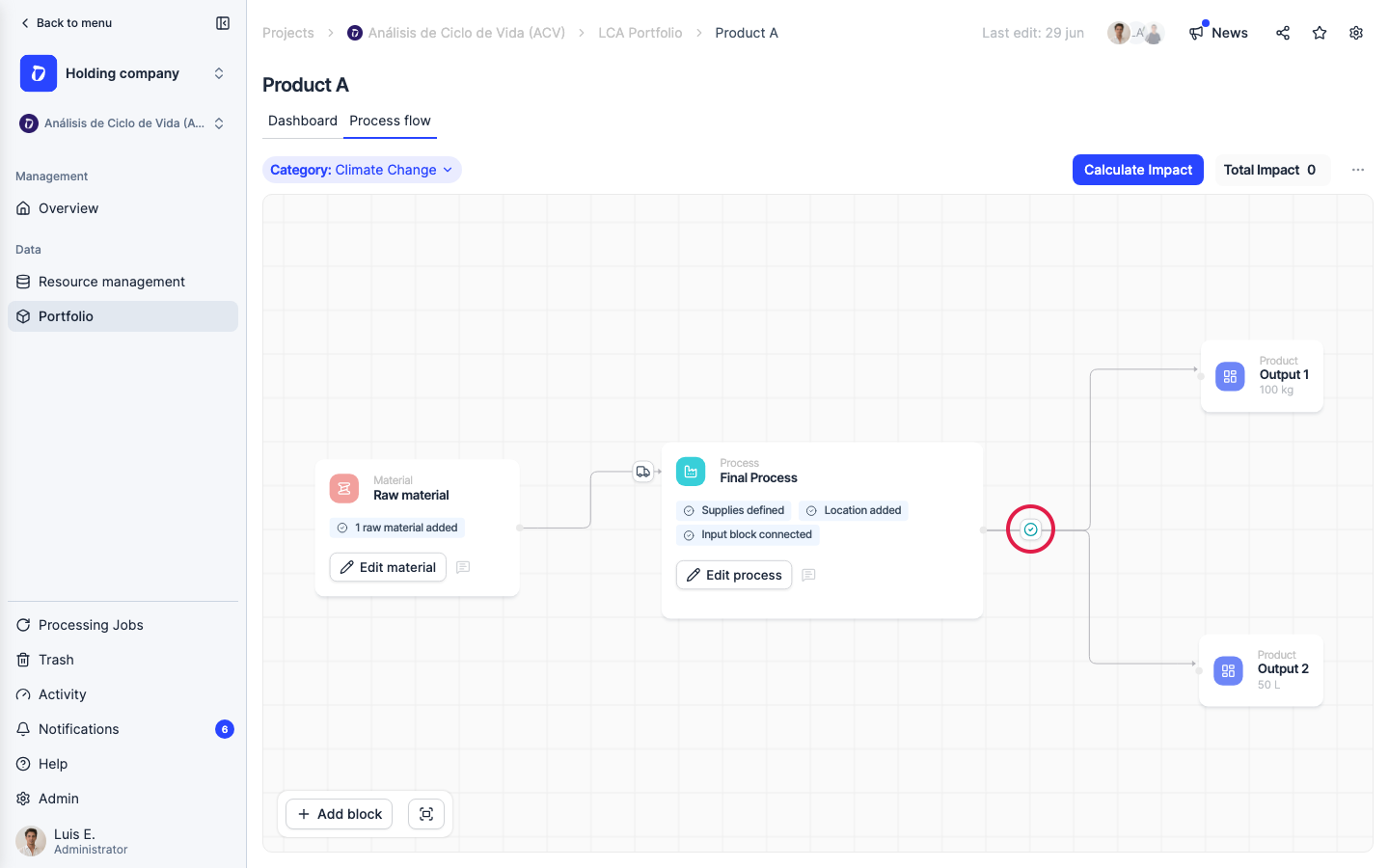
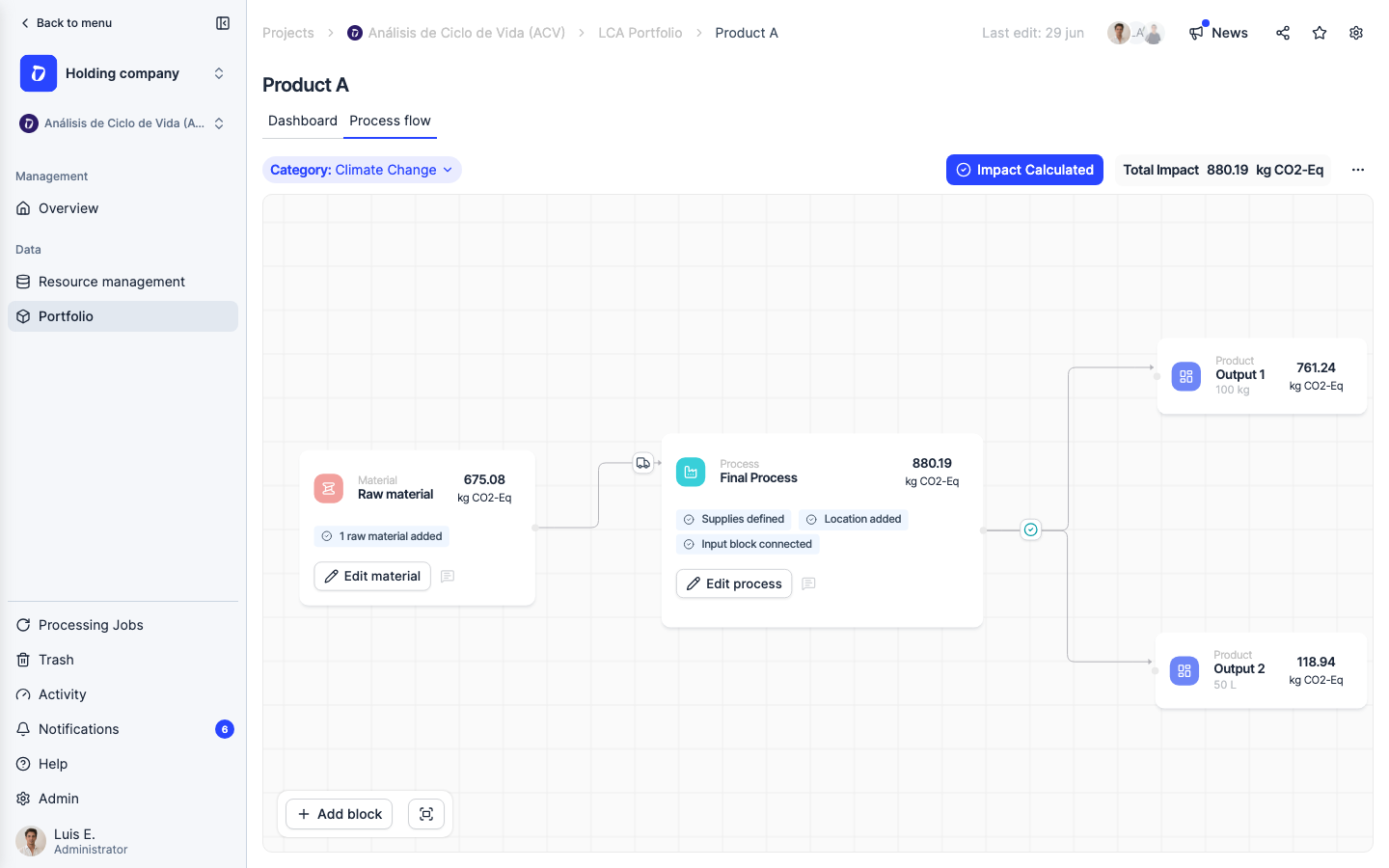
Open the “Process flow” tab. The shared process branches into both co-products, “Output 1” and “Output 2”.
Step 5
Click the allocation control on the branch between the shared process and the co-products to open “Impact allocation”.
Step 6
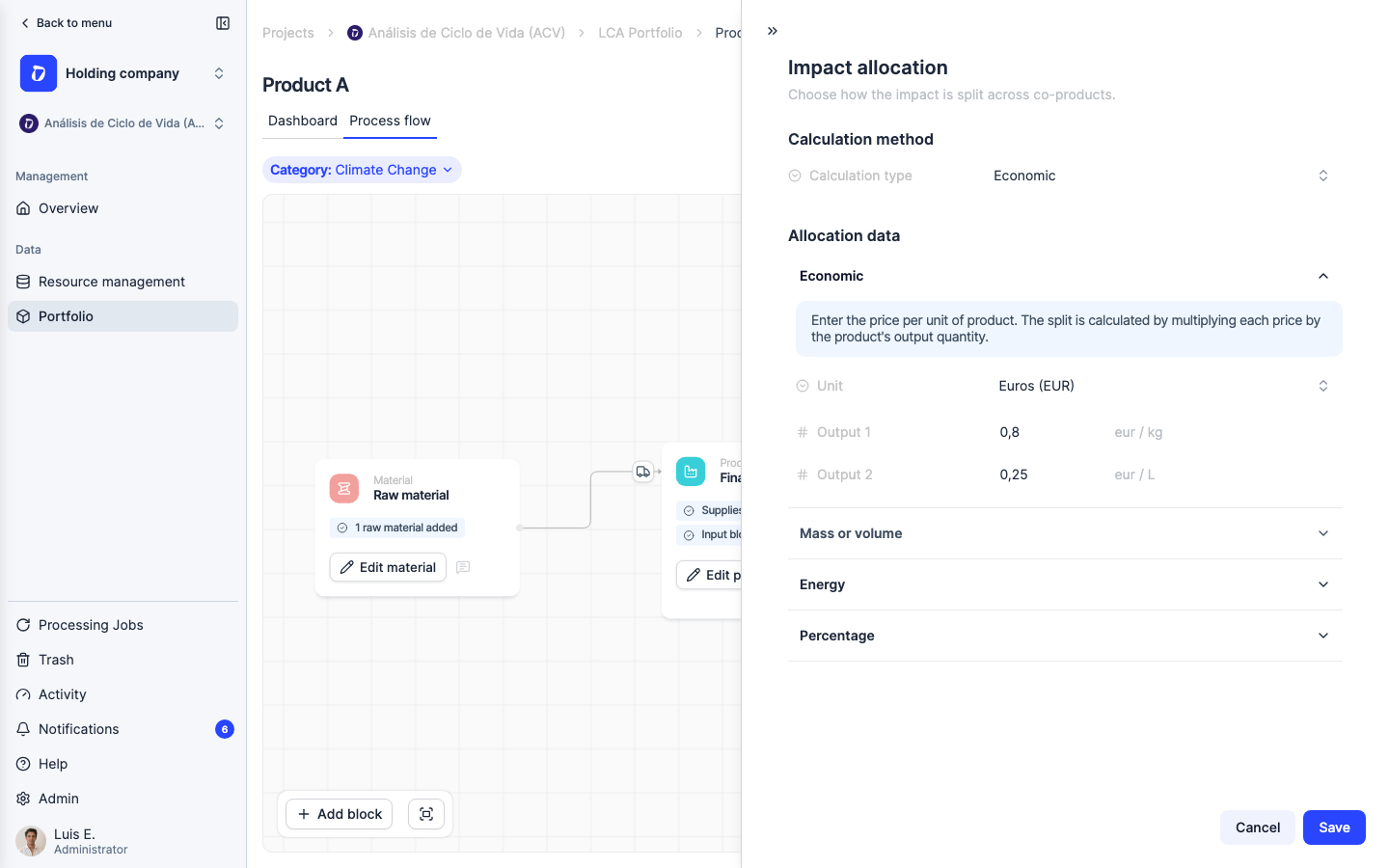
Allocation decides how the shared impact of the common process is divided between the co-products — without it, the tool can’t tell how much of the inputs belongs to each output. You pick a “Calculation type”: Uniform splits it equally (1/N); Mass or volume and Energy split it by each product’s total mass/volume or energy; Percentage lets you enter the split by hand; and Economic — used here — splits it by economic value. Under “Allocation data” you enter each product’s price per unit: Output 1 at 0.8 €/kg and Output 2 at 0.25 €/L. The split is price × output quantity, so Output 1 = 0.8 × 100 kg = 80 € and Output 2 = 0.25 × 50 L = 12.5 € — Output 1 takes about 87% of the shared impact and Output 2 about 13%. Economic allocation is the standard choice when co-products have very different market values.
Step 7
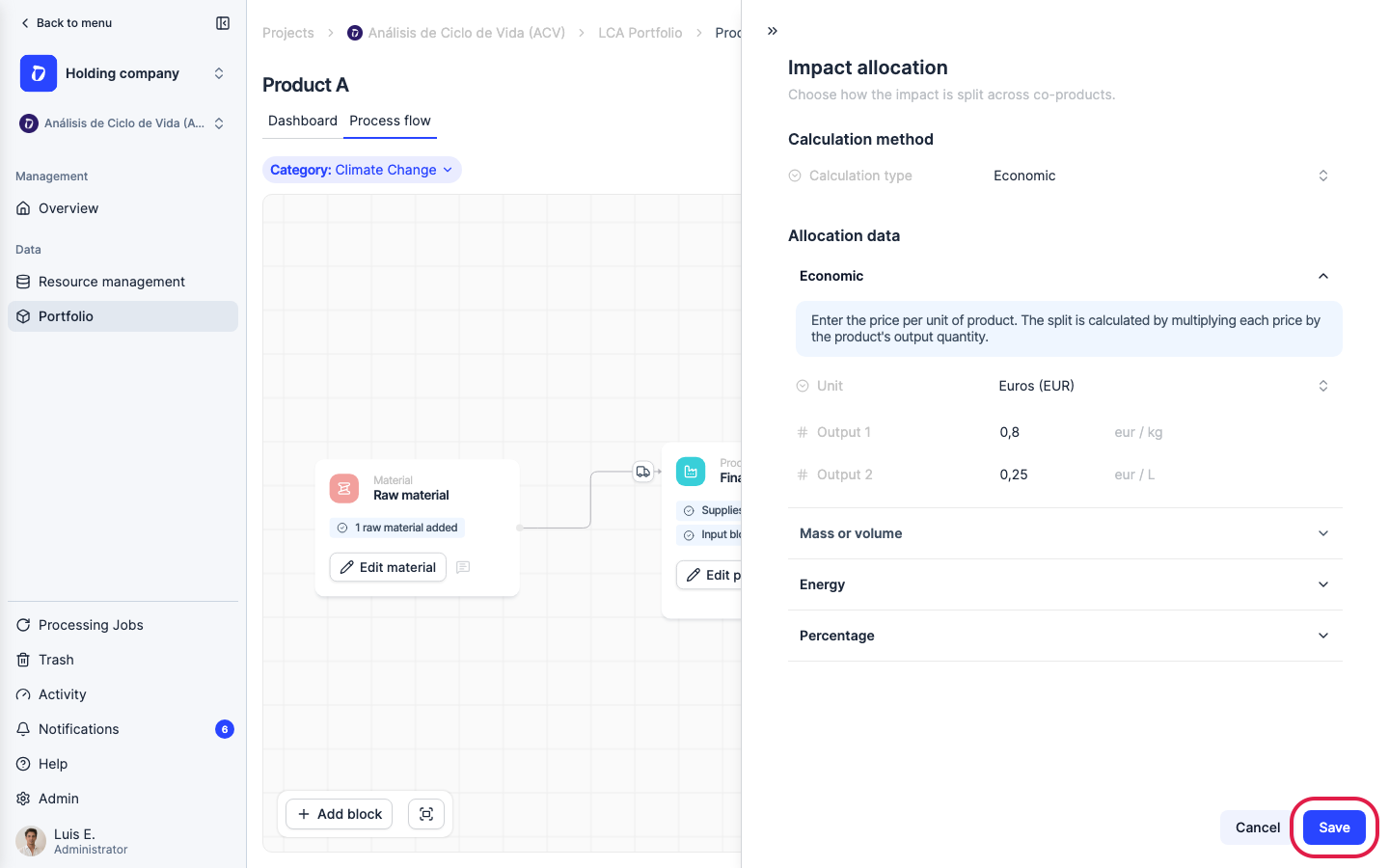
Click “Save” to apply the economic allocation. Dcycle stores the split and flags the impact for recalculation.
Step 8
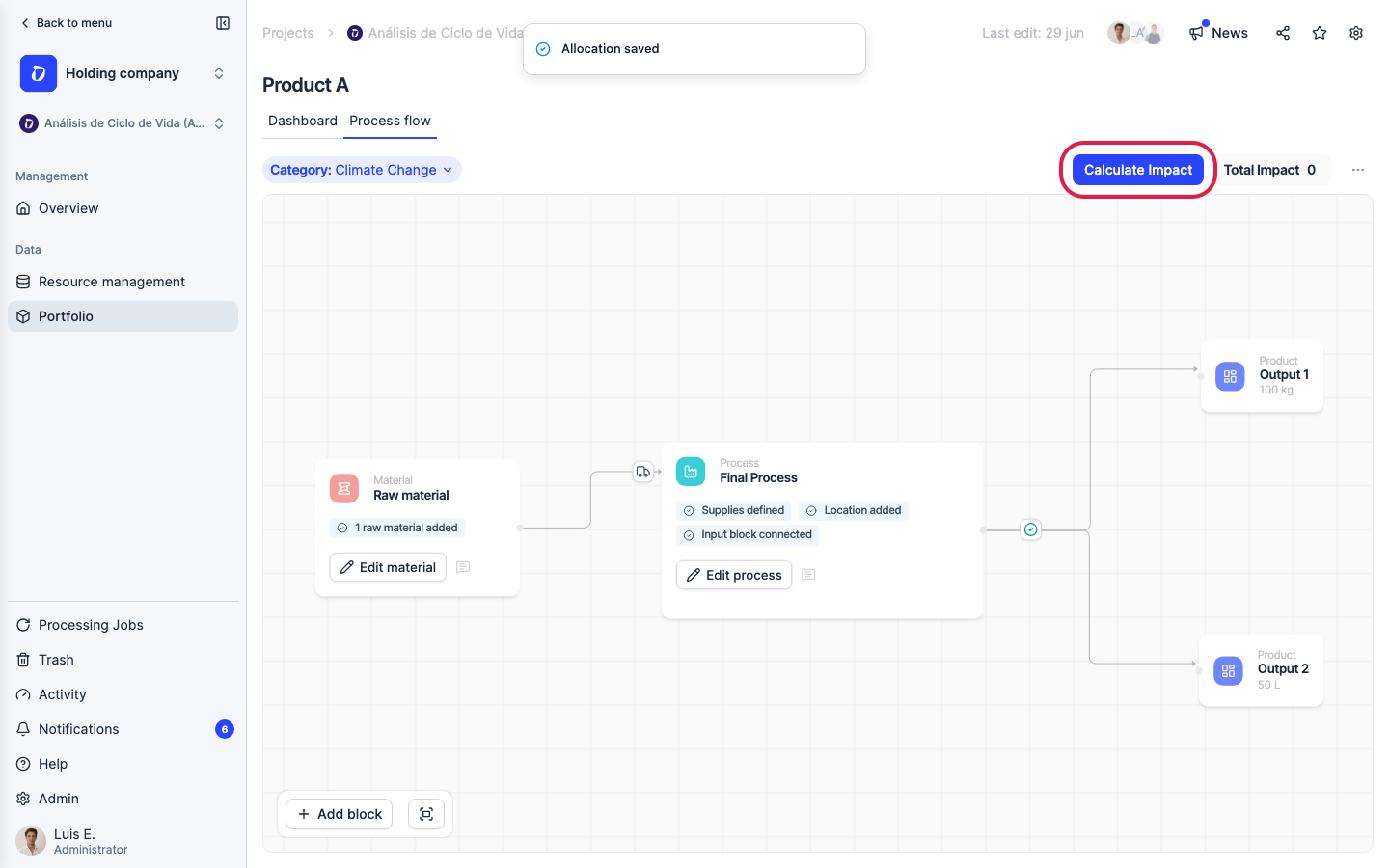
Click “Calculate Impact” to recompute the results with the economic split applied. (The button is disabled once results are current; saving the allocation re-enables it.)
Step 9
Dcycle calculates the impact and “Total Impact” updates. Each output product now shows its own calculated footprint — here “Output 1” and “Output 2” carry their respective shares.
Step 10
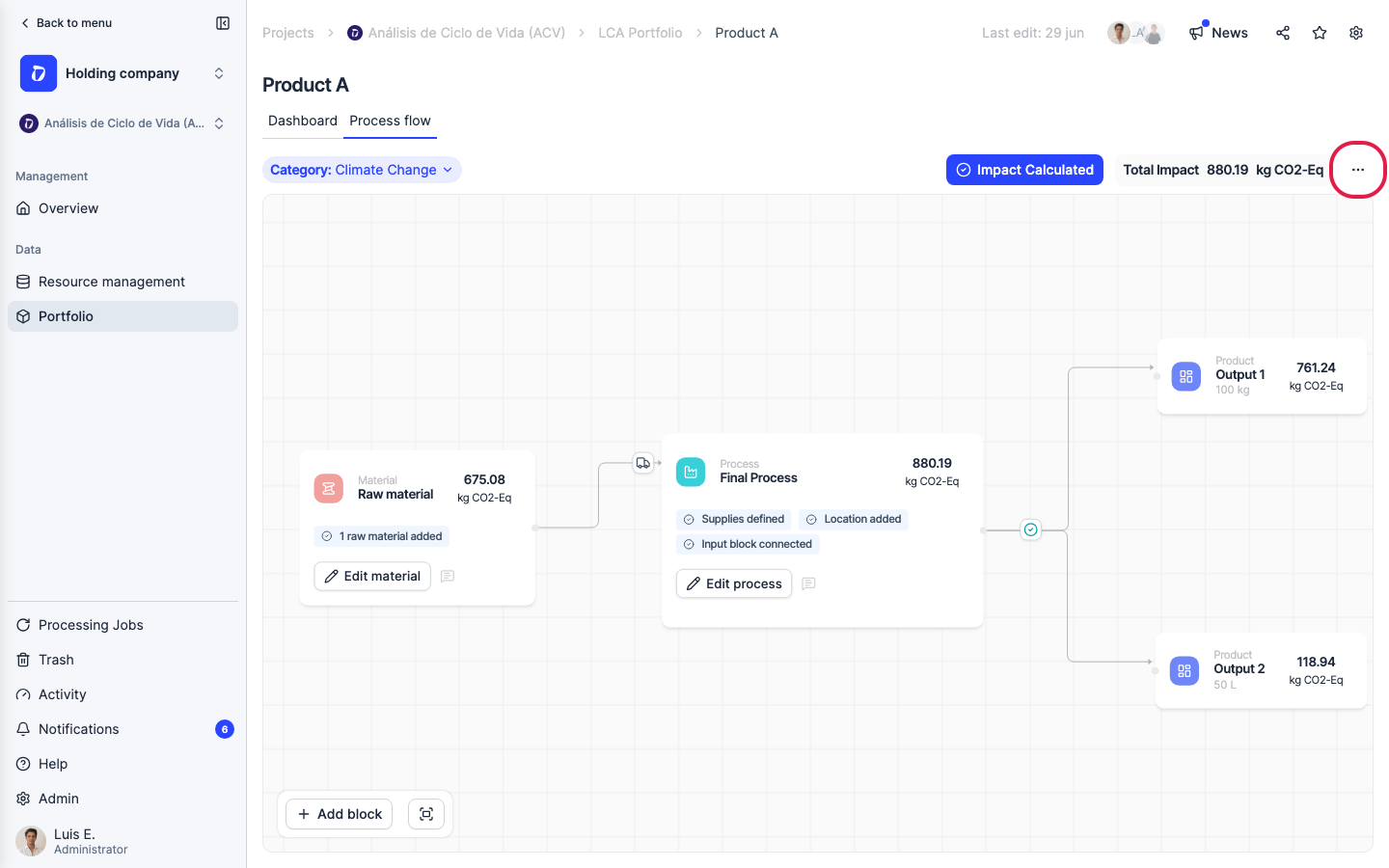
With the impact calculated, open the ”…” menu next to “Total Impact”.
Step 11
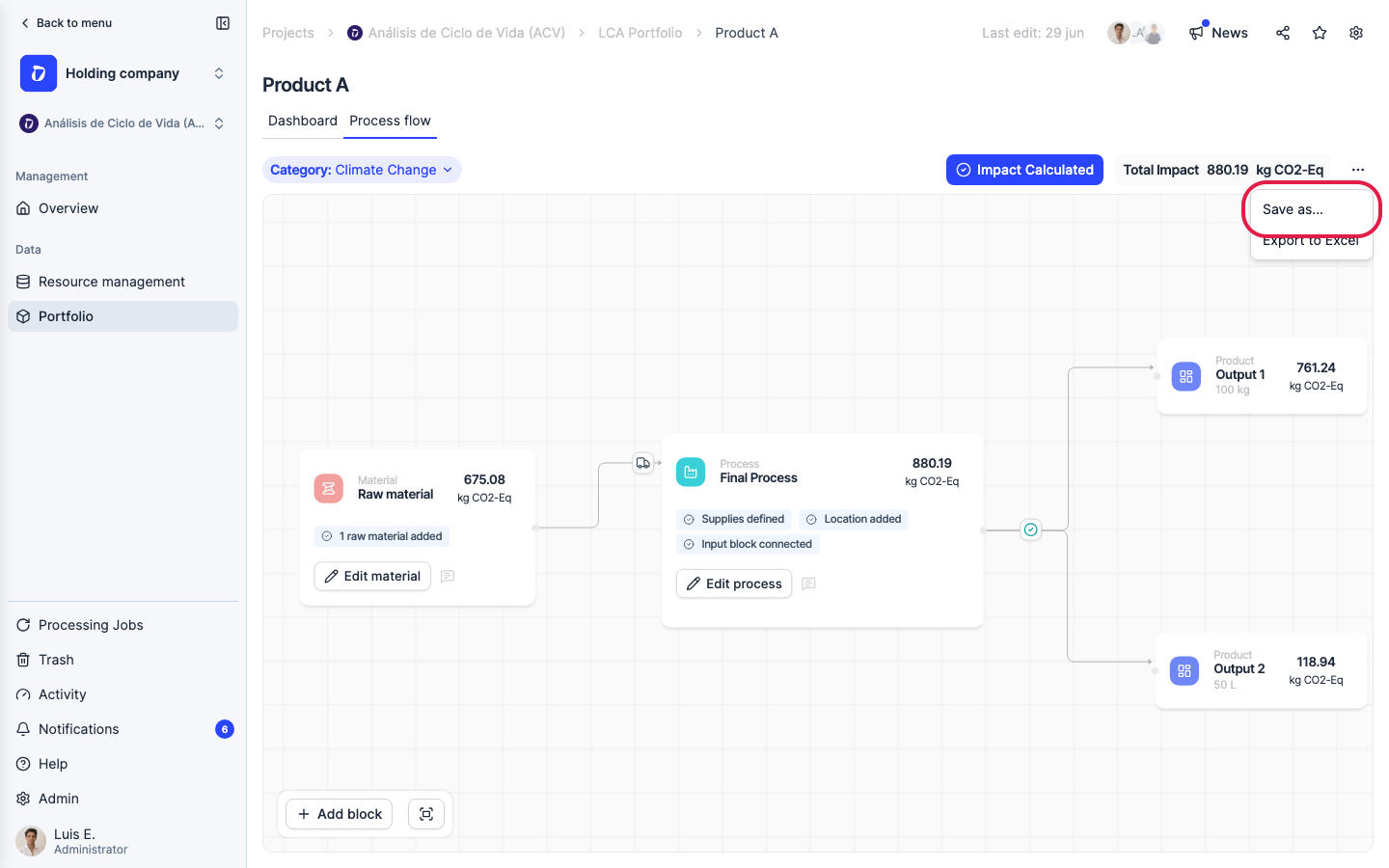
Click “Save as…”.
Step 12
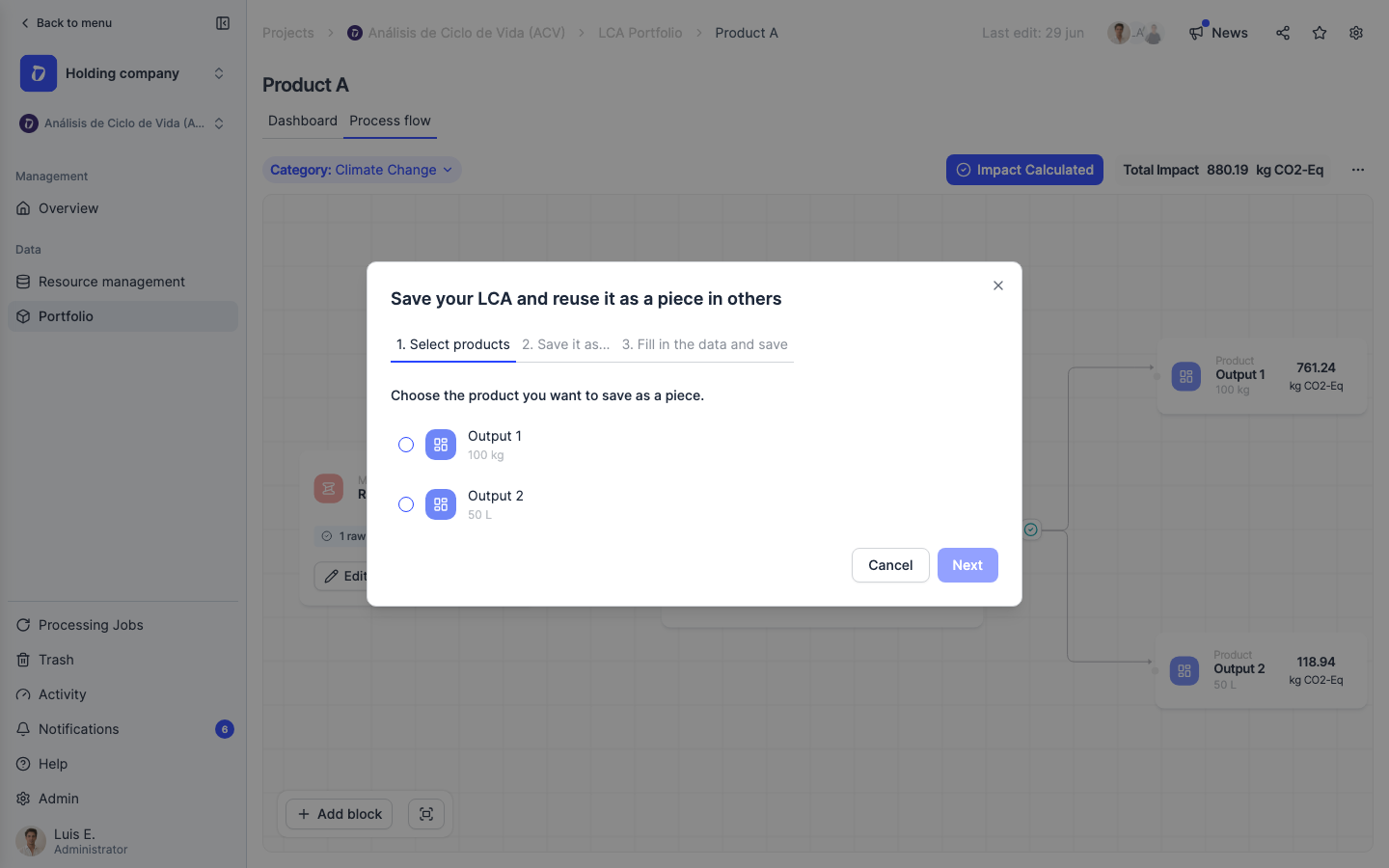
“Save as…” turns an output of this LCA into a reusable resource. Pick the product to save — for a multi-output LCA you choose which co-product — then choose what to save it as: Raw Material, Process, Waste, or Energy. Once saved, it becomes available to drop into other LCAs as an input, already carrying its allocated impact — so this product’s footprint flows straight into the next product’s.
Was this helpful?
What was missing or unclear? (optional)
Sent. Thank you for helping us improve.